


Choosin' Texas Emo AI: Country Heartbreak, Rooftop Drama
A black cowboy hat, a midnight parking garage, and far more emotion than the scene can hold. Turn your photo into a Choosin' Texas Emo AI performance with a dramatic finish.
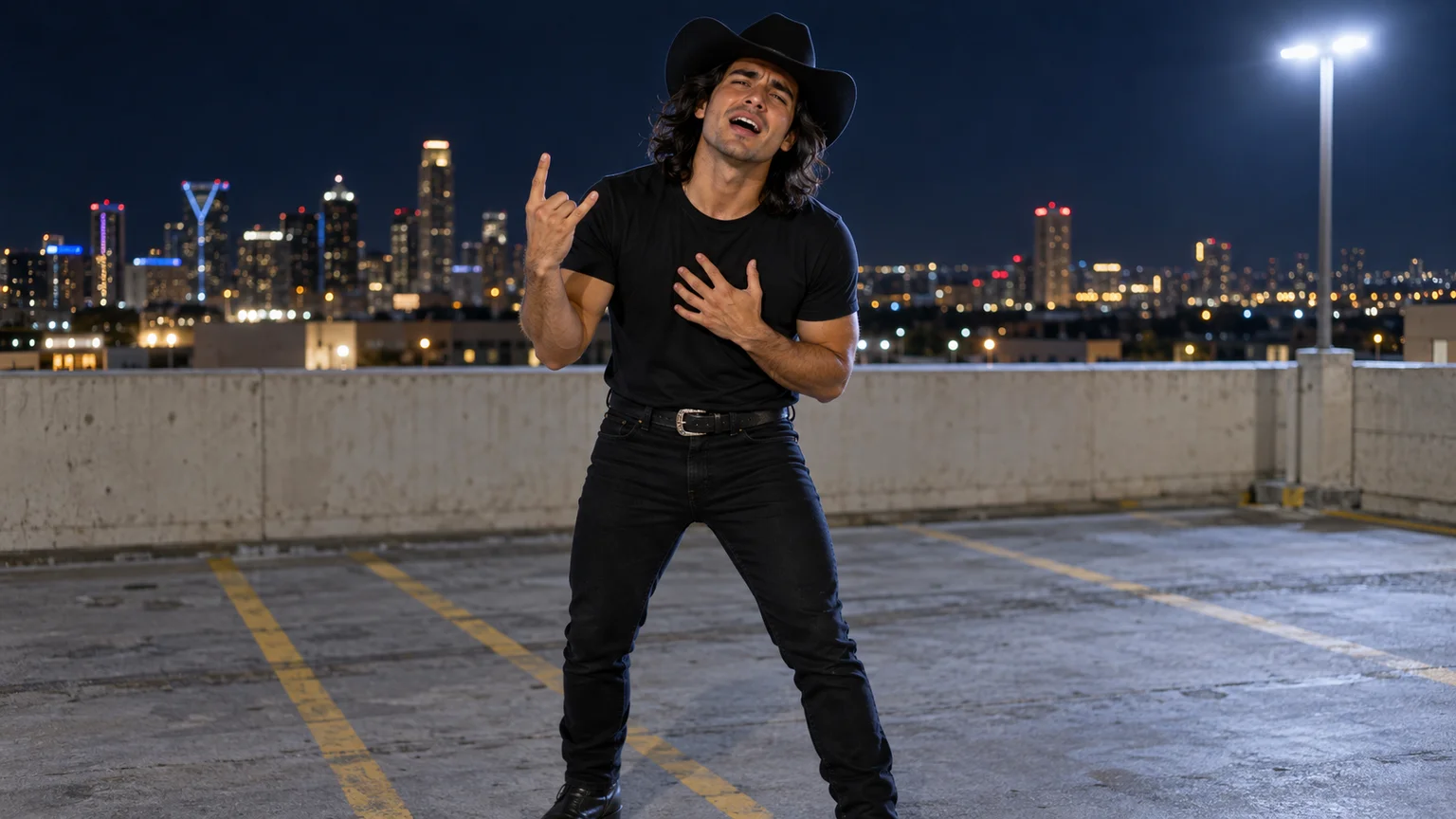
The cowboy hat says country. The hand pressed against your chest says the heartbreak has become everybody's problem. Under a parking-garage light, an ordinary photo becomes an exaggerated late-night performance. Choosin' Texas Emo AI works through that contrast: familiar Western styling delivered with the emotional intensity of an emo rock finale.
You do not need to record the moves yourself. This Choosin' Texas Emo AI guide uses ImgToImage AI to prepare a recognizable performer, build the nighttime scene, and direct a short sequence of gestures. Start with a convincing upper-body performance, then add a kneeling finish if the first attempt holds together.
What defines the Choosin' Texas Emo AI effect?
The effect draws on emo-style interpretations of Ella Langley's country song “Choosin' Texas.” The rooftop version pairs a black cowboy hat and dark clothes with energetic gestures, pleading expressions, and a drop to one knee. Choosin' Texas Emo AI brings your appearance into an original interpretation of that performance.
You may see related searches such as “Choosin Texas emo cover” or “Choosing Texas emo version.” They describe the country-meets-emo idea behind Choosin' Texas Emo AI, rather than a standard line dance. The visual appeal comes from a performer treating a plain concrete rooftop like the final chorus of a stadium show.
Keep your identity visible beneath the styling
Pick a sharp portrait with uncovered eyes and a natural expression. For Choosin' Texas Emo AI, use your own photo or an adult who agreed to participate. Begin without a hat in the reference if possible, so the image model can see the forehead, hairline, and shape of the face.
Decide which details should stay yours. Shoulder-length hair and an all-black outfit can strengthen the Choosin' Texas Emo AI look, but changing hair, facial hair, and clothing together may weaken recognition. Keep your usual hairstyle first and let the cowboy hat supply the strongest visual cue.
A full-body reference helps when you want the kneeling ending. With a headshot, specify trousers and footwear during scene preparation, then inspect the invented proportions. Your Choosin' Texas Emo AI character needs enough leg room to lower into a pose without the knees or boots disappearing outside the composition.
Light a readable Choosin' Texas Emo AI rooftop
Open the AI Image Generator and choose an available model with reference-image input. Put the performer on the open upper level of a parking garage, with a concrete barrier behind them. Keep your Choosin' Texas Emo AI scene simple: one person, open floor, a lamp, and distant city lights.
Black clothing needs separation from the night. Ask for soft light across the face and a subtle edge light around the shoulders and hat. For Choosin' Texas Emo AI, tilt the brim just high enough to reveal the eyes. A strong silhouette is useful only if viewers can still recognize the person inside it.
Adapt this image prompt:
Prepare a Choosin' Texas Emo AI starting scene from my adult reference photo. Preserve the person's recognizable face, hairstyle, and proportions. Show them full body on a parking-garage rooftop at night, wearing a black cowboy hat, plain black t-shirt, slim black jeans, and black boots. They stand balanced with feet apart, knees relaxed, and hands lowered. Place a pale concrete barrier several meters behind them, with yellow parking lines and distant city lights. Use soft frontal fill light so the eyes remain visible beneath the hat, plus a cool rim light outlining the dark clothes. Leave space above the hat and below the boots. No other people, instruments, lettering, or logos.
Use a vertical composition if the final clip is for a phone feed. Before animating Choosin' Texas Emo AI, check that the hat has one consistent brim and the boots meet the floor. Avoid starting with a complicated pose; the still image should establish the body, not attempt the whole performance at once.
Give Choosin' Texas Emo AI an emotional progression
Start with contained energy. A small bent-knee bounce and a steady look toward the lens establish the rhythm. Keep the chest mostly facing forward. In Choosin' Texas Emo AI, this restrained opening gives the later gesture somewhere to go; beginning at maximum intensity leaves little room for a change.
Make one gesture feel personal. Raise a hand in a rock-horns sign, lower it, then bring an open palm toward the chest. For Choosin' Texas Emo AI, separate these movements in time and space. Keeping both hands busy near the face can hide the expression and complicate the finger shapes.
Let the reaction linger. A lifted chin, tense eyebrows, and a brief forward lean can communicate the imagined big note. Your Choosin' Texas Emo AI performance does not need a continuous scream. A moment of stillness after the gesture lets the audience read the melodrama before the next movement begins.
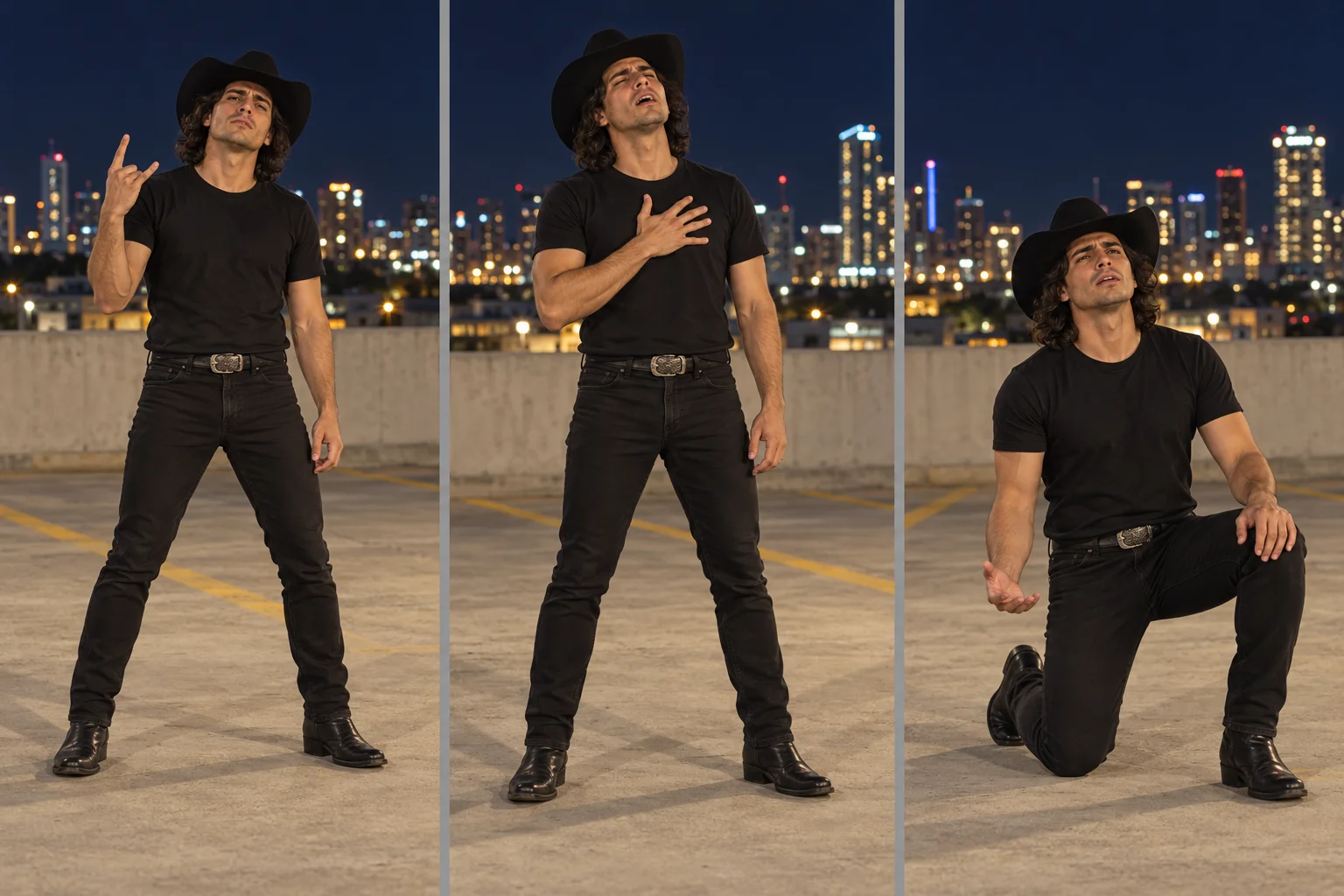
Generate Choosin' Texas Emo AI on ImgToImage AI
Open the AI Video Generator, sign in, and select Seedance 2.0 Mini. Place the approved image in Start frame and leave End frame and Reference images empty. This Choosin' Texas Emo AI method uses the scene and your written directions, rather than a dedicated preset or recorded choreography transfer.
Try ten seconds at 720p and match the source image's aspect ratio. Current controls support 4–15 seconds, 480p or 720p output, and JPEG, PNG, or WebP files up to 10 MB. Review the displayed credit estimate before your Choosin' Texas Emo AI attempt, including when extending the duration.
Use this motion prompt:
Animate this Choosin' Texas Emo AI scene as one continuous ten-second rooftop performance. Keep the person's face, hairstyle, black cowboy hat, and clothing consistent. Begin with two small grounded knee bounces and direct eye contact. Raise the right hand to shoulder height in a brief rock-horns gesture, clearly separated from the face. Lower it, place the left palm against the upper chest, and lean forward slightly with an earnest, dramatic expression. Lift the chin for a short emotional pause, then settle upright. Keep the camera fixed and the full body inside the frame. Maintain the hat brim above the eyes and natural hand anatomy. No spinning, jumping, extra fingers, fast zooms, or background changes. Use quiet nighttime ambience without music or speech.
Preview the completed Choosin' Texas Emo AI video in history and choose whether the gesture or the expression needs attention first. The timing instructions guide the result but do not set exact keyframes. Keep a take with readable emotion even if its movement is smaller than you initially imagined.
Treat the kneeling finish as a separate take
A controlled descent asks more of the body than a chest gesture. Prepare a second Choosin' Texas Emo AI starting image with a staggered stance: left boot forward, right foot behind, torso upright. Keep the same wardrobe, lighting, and camera height so the two shots can belong to one performance.
Generate four or five seconds in which the right knee lowers onto the concrete while the left boot stays planted. Let one hand rest on the raised thigh and finish with a lowered gaze. For Choosin' Texas Emo AI, a deliberate kneel creates a stronger ending than a sudden fall whose body position is difficult to follow.
Repair a Choosin' Texas Emo AI take precisely
The hat swallows the face. Raise the brim in the source image and brighten the face gently. Avoid solving it with a large upward head tilt, which changes the features you want to preserve. In a Choosin' Texas Emo AI revision, keep the hat stable before introducing any optional brim-touch gesture.
The rock sign has extra fingers. Move the hand farther from the lens and hold it briefly at shoulder height. If the shape still fails, replace it with an open palm or loose fist. Choosin' Texas Emo AI remains recognizable through the outfit, setting, and attitude; one difficult finger pose should not dominate the whole attempt.
The legs slide during the descent. Return to the staggered starting stance and reduce sideways travel. Request one knee lowering while the forward boot stays in place. Review Choosin' Texas Emo AI frame by frame around floor contact; a believable final pose cannot compensate for an impossible transition into it.
Give the emo soundtrack room to work
Choose the sound section before assembling the final edit. The familiar Choosin' Texas Emo AI mood comes from a rock or emo interpretation, which feels different from the original country recording. Add audio available for your account and intended use in an editing or posting app; the workflow does not supply either recording.
Place the chest gesture near a musical emphasis and let the kneel follow the larger change in energy. For Choosin' Texas Emo AI, edit around the movements that actually happened rather than forcing every mouth shape onto a lyric. The current workflow has no audio-reference input for precise lip synchronization.
Trim away excess setup, lower or mute generated ambience beneath the chosen audio, and keep the closing pose visible for a moment. Check your Choosin' Texas Emo AI clip at phone size, with captions clear of the hat and hands. A short caption such as “The country song found my emo phase” can establish the joke; label the performance as AI-generated.
Choosin' Texas Emo AI questions before another take
Do I need a microphone or guitar?
No. Empty hands leave room for the expressive gestures that carry the scene. Adding a guitar to Choosin' Texas Emo AI introduces strings, straps, and hand contact that may distract from the face. If you want an instrument-led variation later, plan it as a different performance with fewer body movements.
Can I adapt this for a pet or illustrated character?
Yes, with an intentionally stylized starting image. Preserve recognizable markings or character features, then use a small head tilt and gentle body bounce. A Choosin' Texas Emo AI pet version does not need human fingers, realistic singing, or a human kneeling pose to communicate the cowboy-and-emo contrast.
For another exaggerated musical scene, explore the Tiny Desk band guide. To make the rooftop version, prepare your black-hat portrait and open the video workspace. Build Choosin' Texas Emo AI around a face people recognize, a gesture they can read, and an ending that gives the emotion somewhere to land.
Keep exploring
 Video Guides
One face fills the frame, a crowd gathers behind, and a small gesture carries the verse. Create your own JME Check One Check Two AI performance with a clear visual plan.
 Video Guides
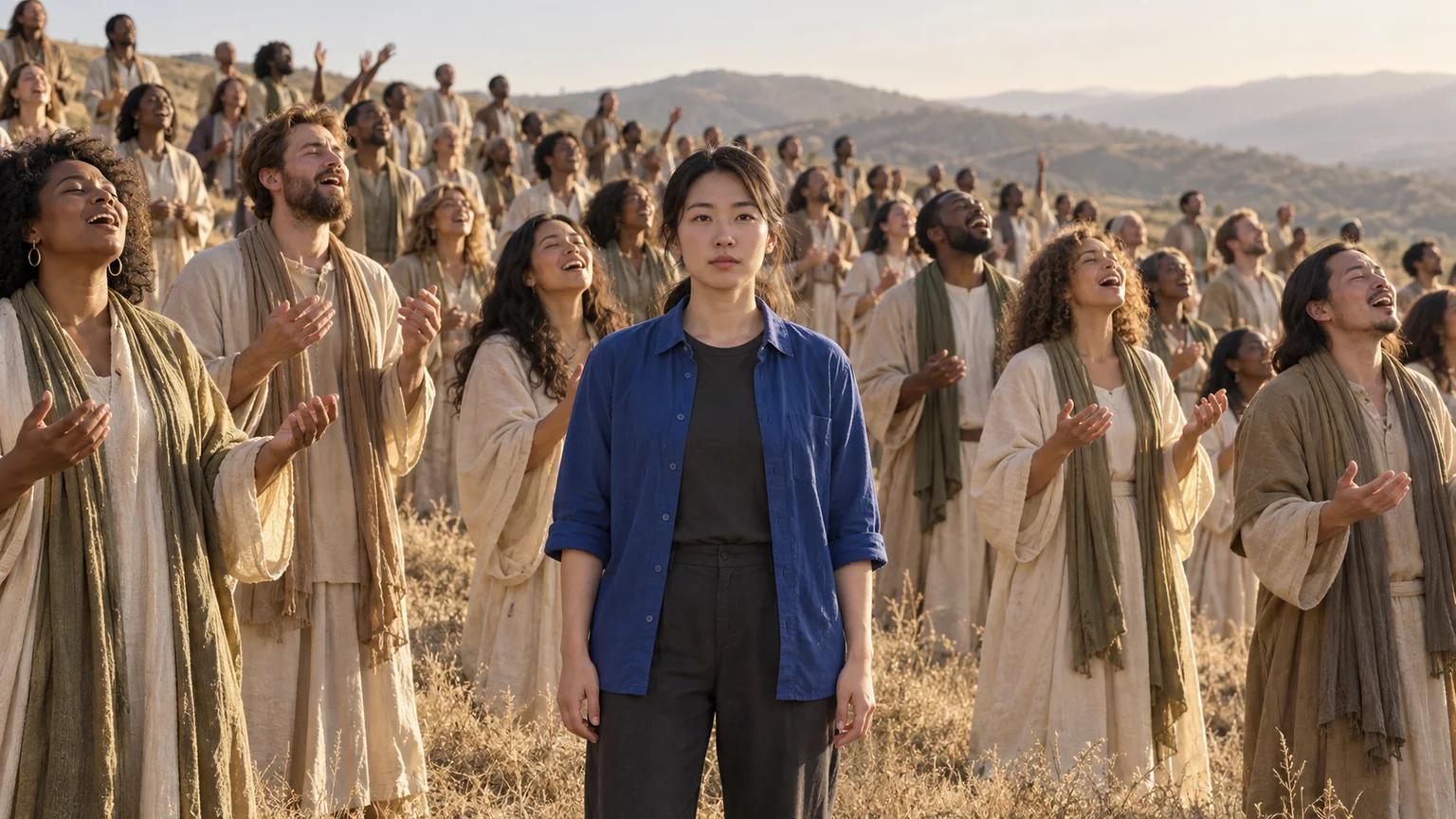
One quiet face, a hillside of singers, and a camera that reveals the scale. Build a Closed on Sunday AI scene starring yourself or your pet, with a crowd that moves around you.
 Video Guides
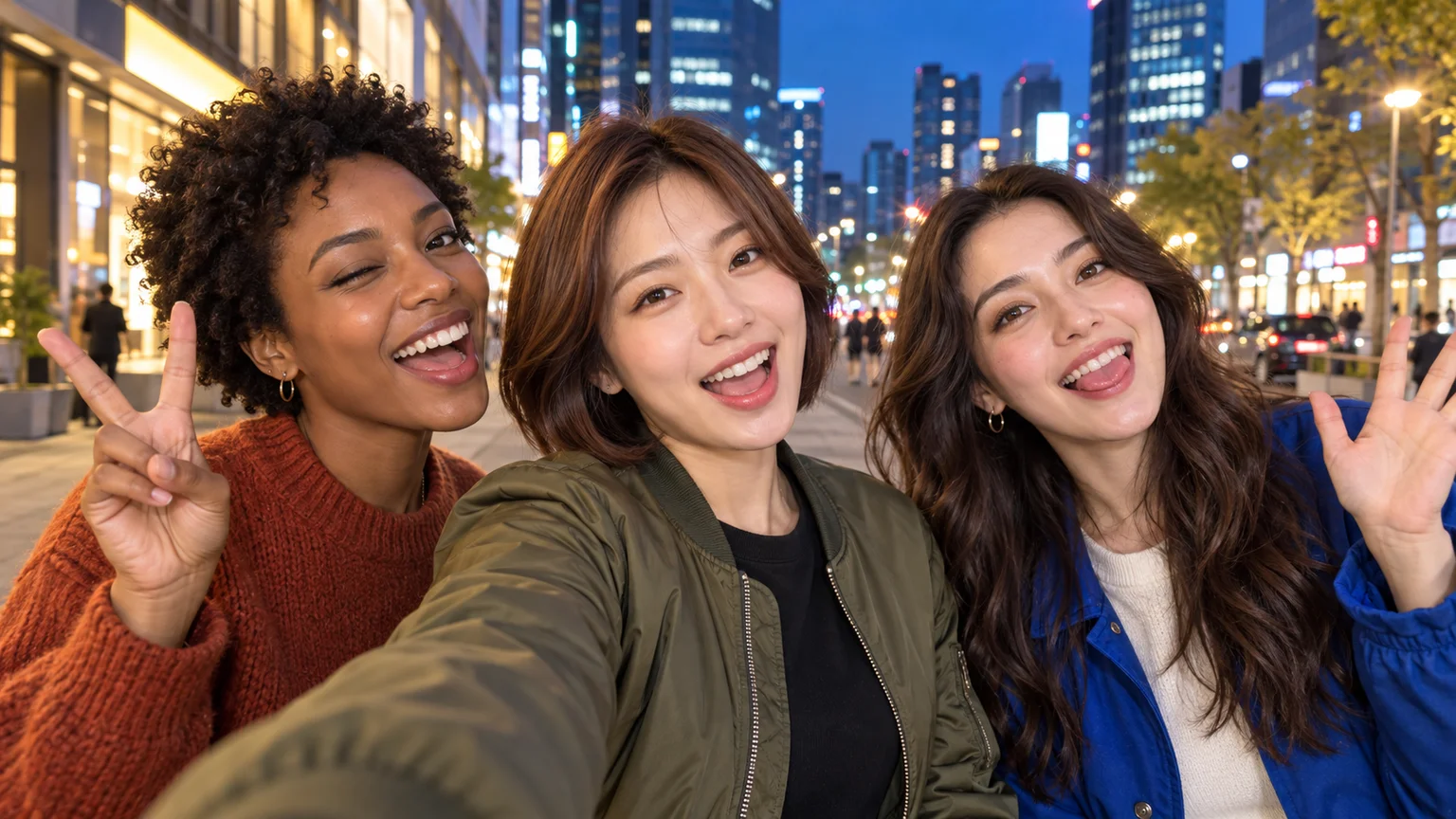
Start together, give each friend a moment at the lens, and return to the group. Build a Gangnam Style AI night-street selfie with clear identities and playful reactions.
 Video Guides
Your lead singer gets the laugh, your friend takes the sax solo, and the office becomes a concert. Build a Tiny Desk AI performance around a cast people recognize.