
Image to Image AI logoImage to Image AI
  • Home
  • AI Image Generator
  • AI Video Generator
  • Tools
  • Nano Banana 2.1
  • Flux 3 Klein
  • Seedream 5.0 Pro
  • Seedream 5.5
  • GPT Image 2.5
  • GPT Image 2.6
  • MiniMax H3 Image
  • Kling 4.0
  • Grok Imagine Video 1.5
  • MiniMax H3 Max
  • Seedance 2.5
More
  • Blog
  • Pricing

Guest

Save your creations

Credits—
  1. Home
  2. /
  3. Video

AI Video Generator from Text and Images

Create a short video from a written scene or a reference image. Our AI video generator lets you choose a model, describe the movement, and review the credit estimate before you start. Explore the examples below, then bring your own scene to life.

Your video workspace

Sign in to see your creations. You can explore models and write a prompt now.

|
49
Checking your sign-in status…

AI Video Models

Explore AI video models with dedicated guides. Open a model page to learn about its capabilities, creative uses, and prompting ideas.

  • Grok Imagine Video 1.5

    Create videos from a prompt or bring an image into motion.

  • MiniMax H3 Max

    Create videos from a prompt or bring an image into motion.

  • Seedance 2.5

    Create videos from a prompt or bring an image into motion.

  • Kling 4.0

    Create videos from a prompt or bring an image into motion.

AI Video Generators for Your Next Project

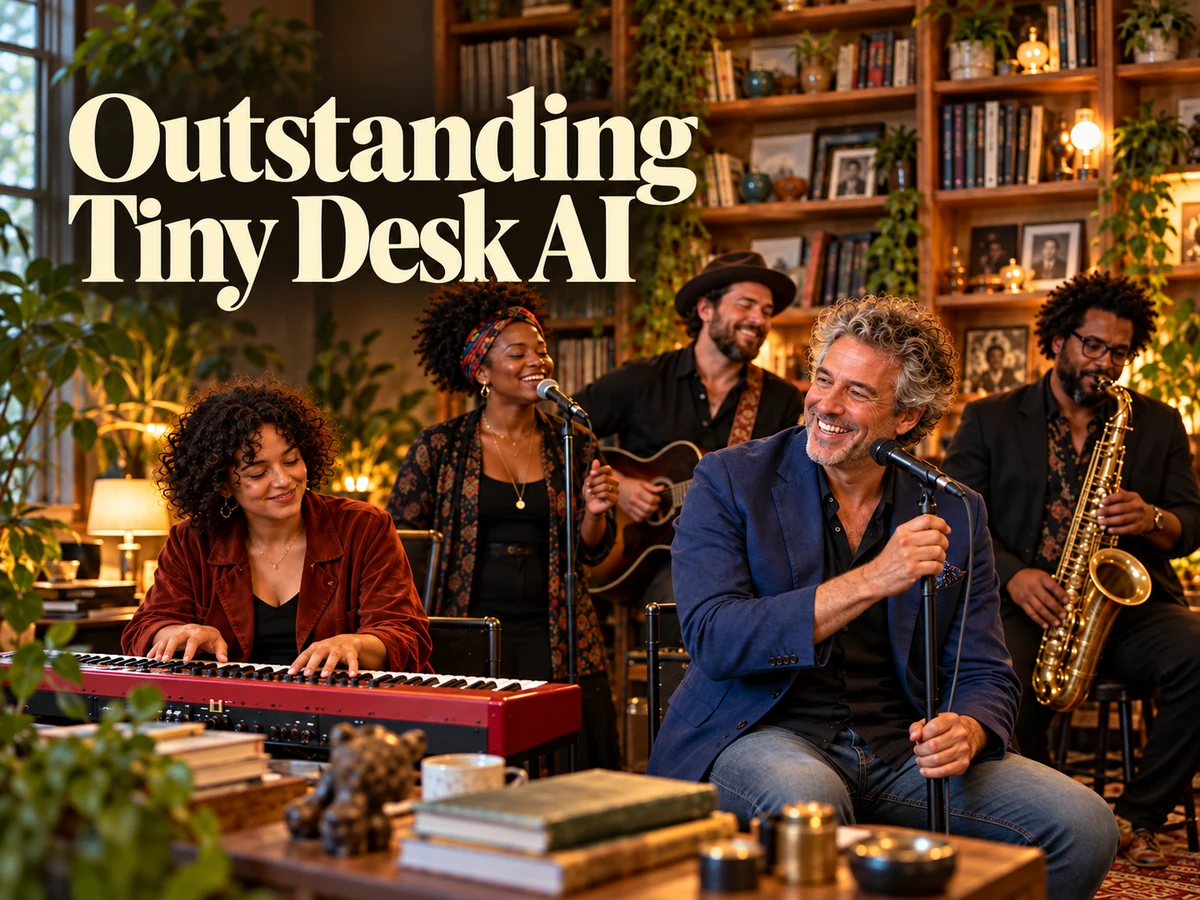
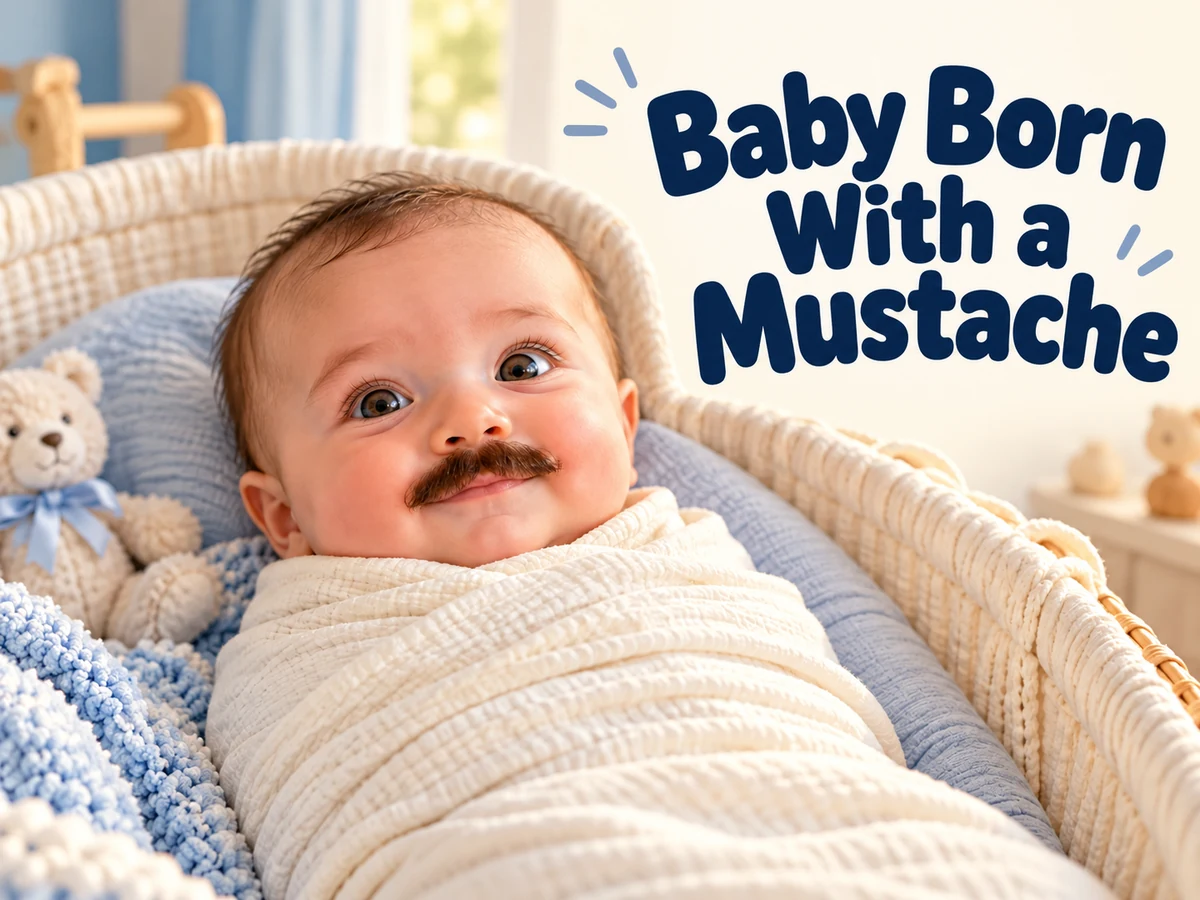
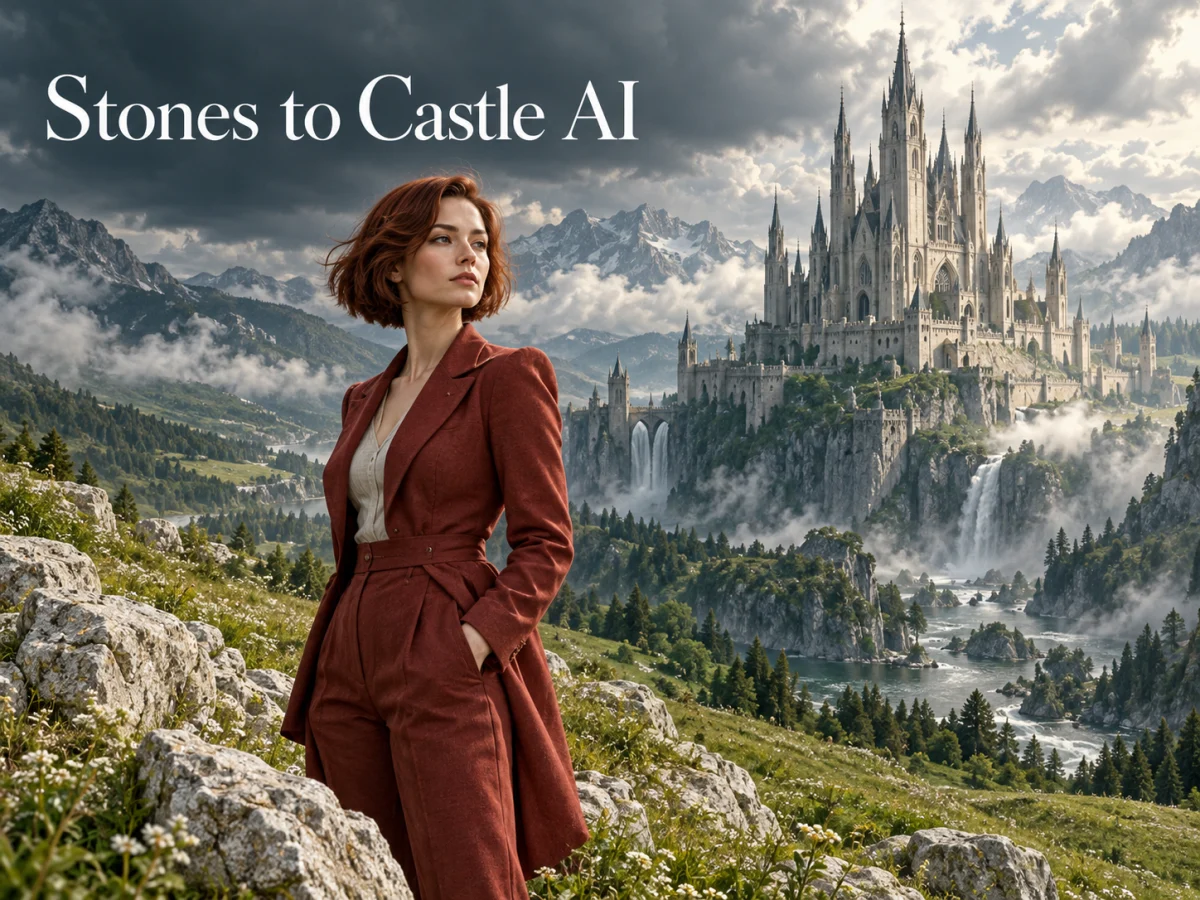
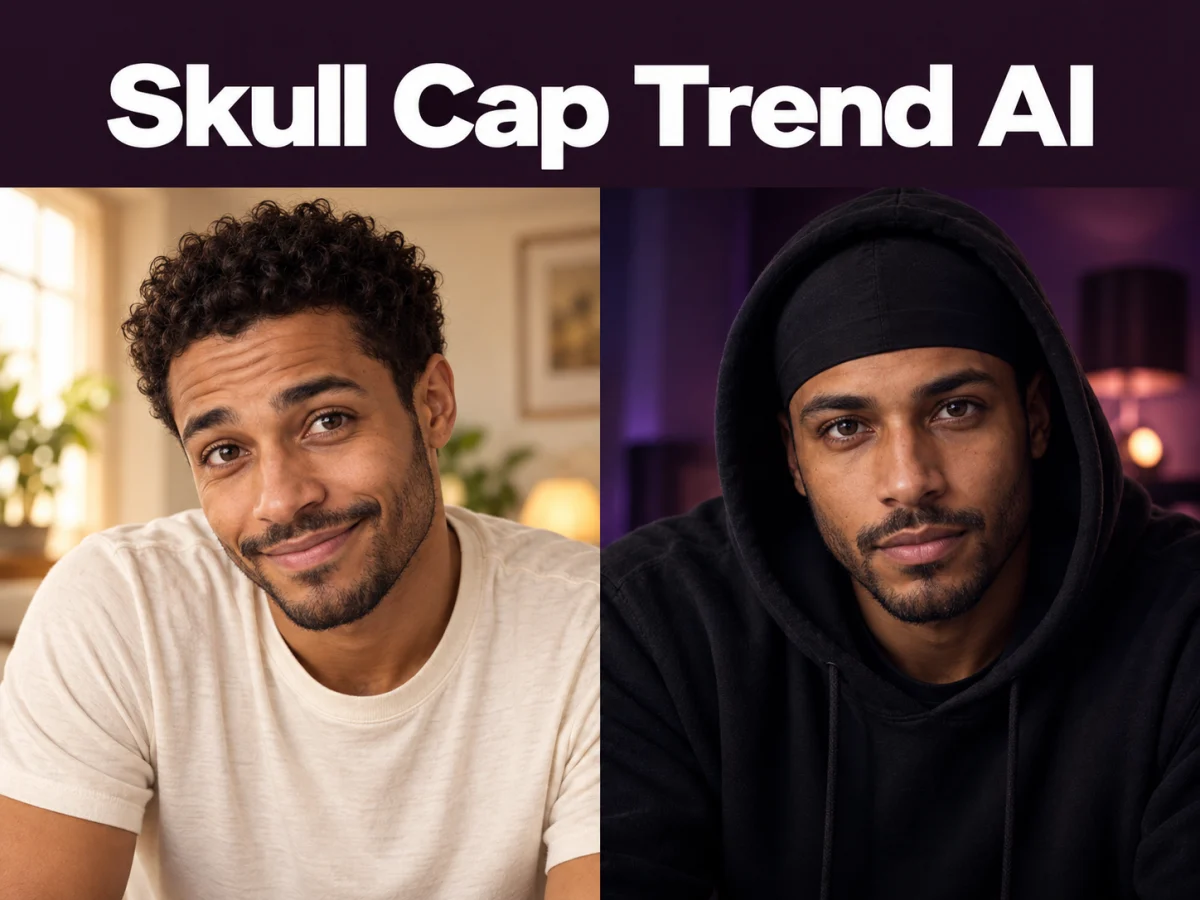
Turn a photo into a short video for a personal story, a social post, or a playful idea.

  • Outstanding Tiny Desk AI

  • Baby Born with a Mustache

  • Stones to Castle AI

  • Skull Cap Trend AI

AI video generator examples: three creative directions

Explore three directions before choosing an AI video generator: a character montage, a physical transformation, and a large-scale reveal. Watch how each scene develops.

Cinematic character montage

A character moves between a concert stage, a futuristic city, and open landscapes. The setting changes while the central character connects the shots. Notice how close-ups and wide views set the pace.

Open video: Character montage moving between a concert stage, a futuristic city, and mountain scenery
Example 01 · 27 seconds · Character and scene transitions

Sci-fi transformation and action

Metal spreads across a character before a robot emerges in a city street. Close-ups reveal changing textures, while wider shots introduce the action. Follow the silhouette as the transformation unfolds.

Open video: Science-fiction sequence showing a human-to-robot transformation and action in a city street
Example 02 · 30 seconds · Transformation and motion detail

A fantasy world revealed in the dunes

Shifting dunes reveal a golden city before a lone traveler. The foreground figure establishes scale, while drifting sand and warm light build the atmosphere. Watch how gradually the hidden scene appears.

Open video: A traveler watches shifting desert dunes reveal a glowing golden city
Example 03 · 30 seconds · Environment and atmosphere

These supplied examples are creative references. A finished sequence may combine several shots; its total length does not indicate the duration of a single generation.

How does an AI video generator work?

An AI video generator creates a sequence of frames from your instructions, interpreting both the appearance of a scene and how it changes over time.

The input establishes a starting point, not a fixed animation path. A prompt can describe a breeze lifting fabric, a person turning toward the camera, or light moving across a surface. An AI video generator interprets these directions together, so changing the action can also affect framing, texture, or background details.

The result is useful as a visual draft: a way to test an idea before planning a shoot or building a longer edit. Decide what a successful shot needs to communicate, then judge the clip against that purpose. A polished thumbnail alone cannot show whether the movement works from beginning to end.

Two ways to use the AI video generator

Choose text to video when you need a new scene, or image to video when you already have a visual starting point. The AI video generator supports either approach through the selected model's available controls.

Text to video: direct one clear moment

Tell the AI video generator who or what is in the scene, what happens, and how the camera observes it. Add the setting and light after the main action is clear.

Try asking the AI video generator: "A traveler watches sand lift from a dune, revealing a distant golden city. The camera moves forward slowly in warm evening light." This suggested prompt gives the scene a subject, action, and viewpoint; it is not the example clip's source prompt.

A stationary camera suits small changes within the frame; a tracking shot follows a moving subject. If the AI video generator rushes the action, simplify the scene. Change one instruction between attempts so you can identify which adjustment helped.

Image to video: build on a reference

Give the AI video generator a reference image when composition or appearance matters most. Let the picture establish the scene, then describe the movement you want to add.

Choose a sharp image with a clearly visible subject and space for the action. Ask the AI video generator for a small head turn or gentle camera approach, and specify what should remain steady, such as the background.

If the selected model supports start and end frames, use compatible views that suggest a plausible transition. Large differences in pose or composition can make the movement harder to control. Confirm the attached images after switching models, because reference requirements can differ.

Create a starting image

How to use the AI Video Generator

Create your first clip in four simple steps.

  1. 01

    Add your idea

    Describe your scene, or attach a reference image to guide the look and motion.

  2. 02

    Choose your settings

    Pick a model, adjust the available video settings, and check the credit estimate.

  3. 03

    Generate your video

    Click Generate, then follow the request's progress in your video history.

  4. 04

    Review and download

    Watch the result, download your clip, or refine the prompt and try again.

Choose the best AI video generator for your project

Start with the job your clip needs to do. These six considerations connect common creative goals with the controls, formats, and budget choices that matter most.

Brands and small businesses

Product teasers

Use an AI video generator to explore product reveals, texture close-ups, or campaign backgrounds. Leave room for a headline, then check packaging, logos, and materials against the real product before publishing.
Creators and social teams

Social clips

Build a recognizable opening moment for a short post. Keep the main subject clear at phone size, place essential details away from interface overlays, and choose a composition that leaves space for captions.
Illustrators and storytellers

Story and character studies

An AI video generator can help you explore a character introduction or establishing shot before developing a sequence. Use the clip to discuss mood, pacing, and visual style alongside your storyboard notes.
Image-led projects

Reference and frame control

Choose an AI video generator with the reference controls you need: a single image or separate start and end frames. Keep the subject visible throughout the intended camera movement.
Platform-ready footage

Duration and format

Match the available duration, resolution, and aspect ratio to your destination. Portrait framing suits vertical feeds; a wider composition gives landscapes more room. Plan the action around the selected clip length.
Planning and iteration

Model choice and credit cost

Compare controls and credit estimates before choosing a model. If you want a Grok AI video generator, look for Grok Imagine Video 1.5 Lite in the selector, then try a short clip.

Compare AI video generator results in motion

Four kitten clips appear side by side, making it easier to inspect the same kinds of details across different results. Play the video, then pause or use fullscreen for a closer look.

Three details worth checking

An AI video generator may produce an appealing opening frame but lose detail as the subject moves. Follow one feature through the entire shot instead of comparing only the posters.

  • Subject consistency: check whether the eyes, ears, fur pattern, and proportions remain recognizable.
  • Believable movement: look at head turns, steps, and contact with the hand for sudden jumps or distortion.
  • Stable surroundings: watch bedding, shadows, and background edges for changes unrelated to the action.
Open video: Four side-by-side kitten videos with model labels, comparing facial details, movement, and interaction with a hand
Comparison · 30 seconds · Original four-panel layout

The supplied footage includes its original model labels. Prompts and settings are unavailable, so it cannot establish a controlled ranking. Use the live selector to check which models are currently offered here.

AI Video Generator FAQ

ImgToImage AI Video Generator is a browser-based tool for creating short videos from text prompts or reference images. It brings model selection, generation settings, credit estimates, and your video history into one workspace, where you can preview and download completed clips.

Build a longer story as separate shots. The AI video generator creates a clip for each request, so changes in location, action, or viewpoint are easier to handle individually. Keep character references and style notes consistent, then assemble the selected clips in an editor. One prompt may not reproduce a complete example sequence.

Daily free credits, when available on your account, can contribute toward a request. Compare your balance with the estimate shown by the AI video generator. Some settings cost more than the daily allowance, and your balance must cover the request. Free credits do not mean unlimited clips; unused daily credits do not roll over.

You can browse the page and prepare a text prompt before signing in. Generating a clip, uploading references, and opening personal history require an account. The workspace runs in your browser without a desktop installation. An account keeps your reference library and saved results together in your own workspace.

Timing depends on the model, request settings, and provider availability. Follow the existing request in your history. A waiting status does not mean it failed. If the interface asks you to check an uncertain submission, complete that recovery step before trying again to avoid a duplicate request.

This workspace creates visual clips; it has no music generator, voiceover tool, or editing timeline. Download footage to trim shots, add captions, and assemble a sequence in a separate editor. Use audio you have permission to include, and check the chosen model rather than assuming every output has a soundtrack.

Upload JPEG, PNG, or WebP images up to 10 MiB each, subject to the selected model's input rules and content review. Use images you own or have permission to use. Completed results can be played in your history and downloaded as MP4 files for editing.

Ready to direct your first shot?

Bring one clear idea to the AI video generator and choose how it should move. If you need a visual starting point, create a reference image first, then return to animate it.

Create a video
Create a reference image
Image to Image AI logoImage to Image AI

A fresh take on your image. Explore new styles and scenes with AI.

Customer supportsupport@imgtoimageai.com

Tools

  • Remove Glare from Glasses
  • Remove Glare from Photo
  • Photo to Line Art
  • Image Upscaler
  • Realistic Selfie Generator
  • Christmas Photobooth
  • AI 3D Figure Generator
  • Selfie With Santa
  • Christmas Dance Trend
  • Motorcycle AI
  • AI Photo Booth
  • Photo to Sticker
  • QR Code Enhancer
  • AI Long Hair Filter
  • Bicep Heart Trend AI
  • Happy Birthday GIF with Name
  • Apartment Dance
  • AI GIF Generator
  • Executive Portrait Maker
  • AI Trouble Maker Video

Learn more

  • Tools
  • Blog
  • Pricing

Legal

  • Privacy Policy
  • Terms of Service
  • Refund Policy
  • Contact

© 2026 Image to Image AI