



Image to Image AI logoImage to Image AI
  • Home
  • AI Image Generator
  • AI Video Generator
  • Tools
  • Nano Banana 2.1
  • Flux 3 Klein
  • Seedream 5.0 Pro
  • Seedream 5.5
  • GPT Image 2.5
  • GPT Image 2.6
  • MiniMax H3 Image
  • Kling 4.0
  • Grok Imagine Video 1.5
  • MiniMax H3 Max
  • Seedance 2.5
More
  • Blog
  • Pricing

Guest

Save your creations

Credits—
  1. Home
  2. /
  3. Image

Remove Glare from Photo with AI

Reduce window, print and screen reflections with AI. Sign in for free daily credits to try it; buy more when needed.

Upload a photo

Reference image

Required · 1 image
10
Checking your sign-in status…
Strictly prohibits adult / NSFW content

AI Image Generators to Explore

Try a different look for your photos with generators for portraits, artistic styles, and creative edits.

  • Photo to Line Art

  • Remove Glare from Glasses

  • Realistic Selfie Generator

  • Image Upscaler

  • Selfie With Santa

  • AI 3D Figure Generator

  • Motorcycle AI

  • Photo to Sticker

  • AI Photo Booth

  • AI Long Hair Filter

  • Happy Birthday GIF with Name

  • AI GIF Generator

  • Executive Portrait Maker

  • No Beard Filter

  • AI Beard Generator

  • 80s AI Photo Trend

  • AI Pregnant Filter

  • Pet Portrait AI

  • Photo to Watercolor

  • Photo to Coloring Page

Page 1 of 3

Remove Glare from Photo: Before & After

These comparisons show AI-created source images and actual Flux 3 Klein results from this tool at Auto/1K, without additional retouching.

Window & Glass Glare

Reduce window reflections in photos taken through shopfront or display glass. In this example, the edit reduces the reflected street scene while keeping the window frame and flowers visible. Fine details behind the reflection may be reconstructed, so compare the result with the original.
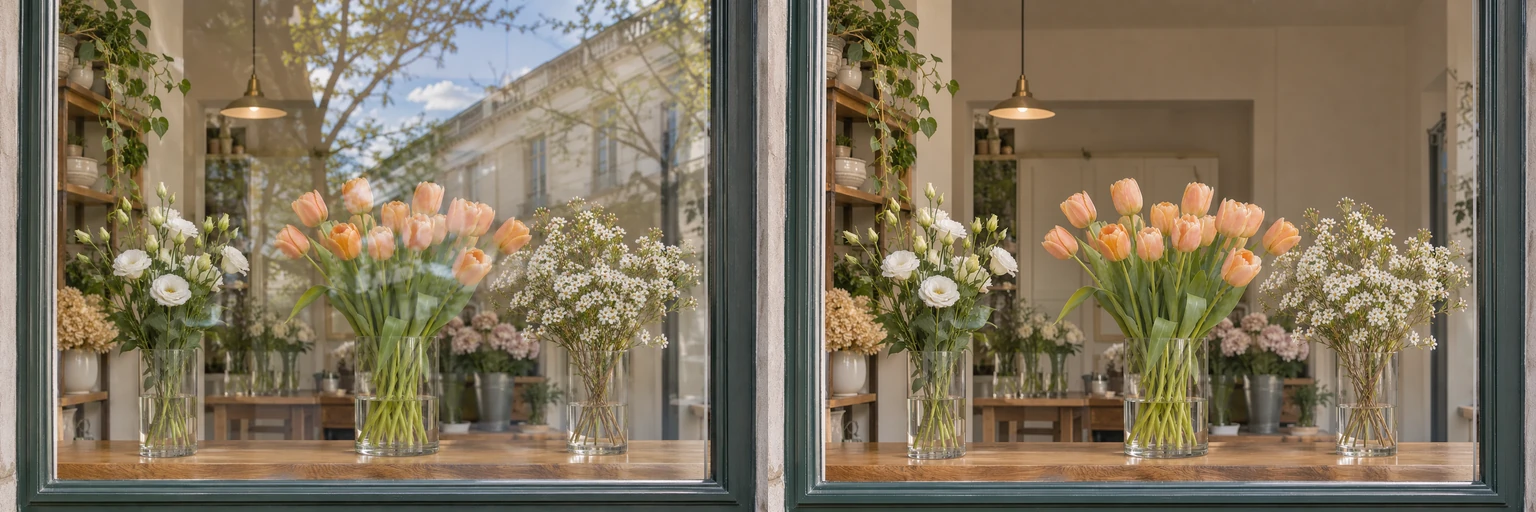
Window glass glare on a photo before and after AI removal: AI-created source on the left and actual Flux 3 Klein result on the rightOriginalAI result
Actual Flux 3 Klein result, Auto/1K. Source image created with AI; no additional retouching.

Glare on Framed Photos & Prints

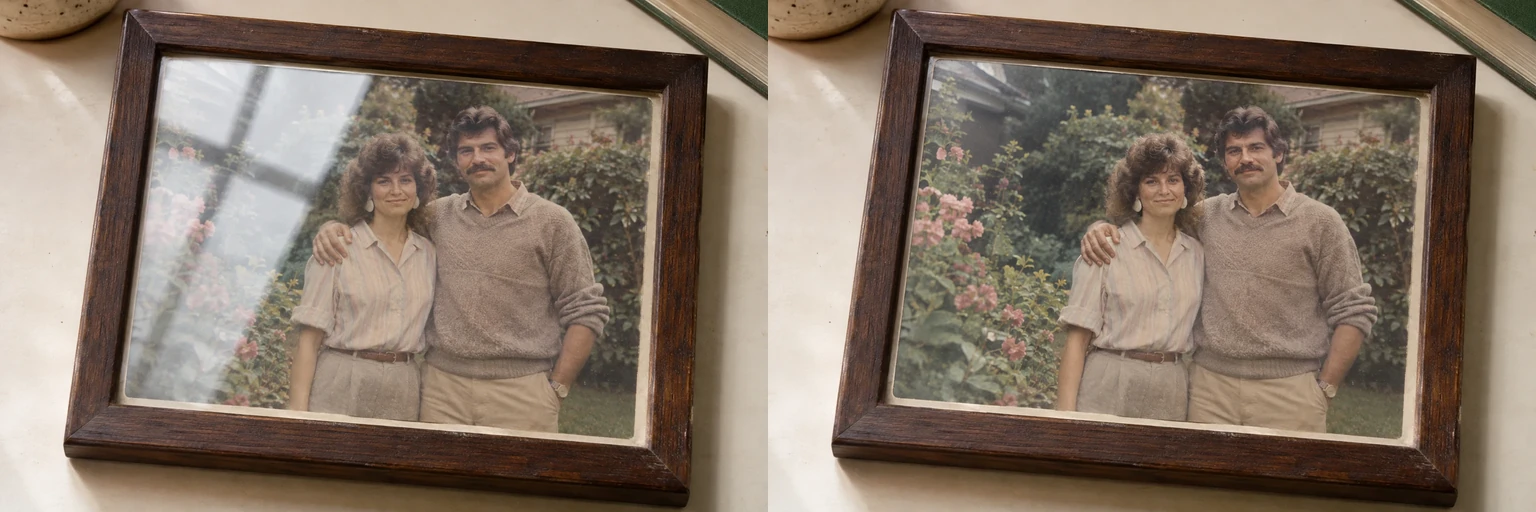
Window reflections across the glass obscure the left side of this framed photo. The actual edit reduces the bright window pattern, making the couple and garden easier to see. Compare faces, clothing and fine background details with the original, because areas beneath the glare may be reconstructed.

Glare on a photographed framed print before and after AI removal: AI-created source on the left and actual Flux 3 Klein result on the rightOriginalAI result
Actual Flux 3 Klein result, Auto/1K. Source image created with AI; no additional retouching.

Screen & Glossy Surface Reflections

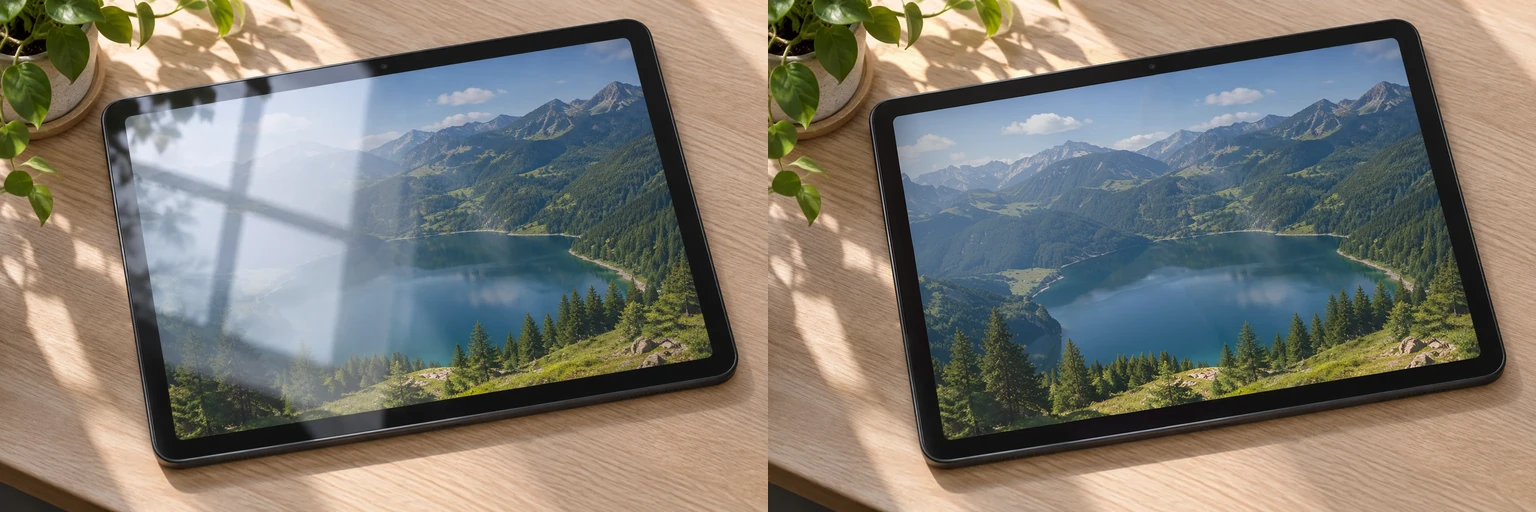
A bright window reflection washes out part of the landscape on this tablet screen. The actual edit reduces the reflected window pattern and makes the displayed image clearer. Check the mountain outlines, shoreline and screen edges against the original; details hidden by glare may be reconstructed.

Window reflection on a tablet screen before and after AI glare removal: AI-created source on the left and actual Flux 3 Klein result on the rightOriginalAI result
Actual Flux 3 Klein result, Auto/1K. Source image created with AI; no additional retouching.

What AI Can Recover - and What It Can't

AI can infer plausible detail around a reflection, but it cannot recover exact information that the original photo did not capture.

Partial reflections often leave edges, colors, and texture that can guide an edit. Large white patches and opaque glare contain much less evidence. The result may look natural while still changing a face behind glass, a line of text, or an object. Keep the original and compare both images at the same size.

The prepared prompt asks the model to preserve identity, composition, lighting, readable text, and material texture. These are instructions, not pixel locks. A higher output resolution gives you more pixels to inspect; it does not prove that reconstructed details are accurate.

Use the result as an edited image, not as evidence of concealed information. For important documents, irreplaceable artwork, or an identity-sensitive portrait, a new capture in better light is often the more faithful option.

How to Remove Glare from a Photo in 3 Steps

Upload a photo, run the automatic edit, then compare and download the result.

  1. 01

    Sign in and upload

    Upload one JPG, PNG, or WebP photo within the displayed size limit, with useful detail still visible beneath the reflection.

  2. 02

    Generate the edit

    Choose your output settings, check the displayed cost, and let AI reduce the reflections.

  3. 03

    Compare and download

    Compare the full result with your original, check reconstructed details, and download the PNG.

AI Image Generators for Your Next Project

Bring your next photo project to life with creative effects, painted portraits, and printable coloring pages.

  • Photo to Line Art

  • Remove Glare from Glasses

  • 80s AI Photo Trend

  • AI Pregnant Filter

  • Pet Portrait AI

  • AI Beard Generator

Glare Remover vs Photoshop vs Phone Apps

Choose automatic glare removal for a quick prepared edit, and choose a manual editor when you need closer control over individual areas.

This browser tool applies one preset to one photograph. Photoshop provides Reflection Removal and a broader editing workflow; Canva's Magic Eraser lets you select unwanted objects with a brush or object selection. These approaches offer different controls, and none makes missing original detail certain.

On a phone, a direct screenshot can avoid screen reflections altogether. For camera photos, the controls and AI features depend on the app and version. Compare your source and result before keeping an edit, especially around eyes, text, and reflective product edges.

OptionHow you workWhat to consider
This AI glare removerOne photo and a prepared automatic edit in your browserAutomatic edit without a selection brush; inspect reconstructed details
PhotoshopReflection Removal and an editor with layer-based controlsUseful when you want additional editing control; check your version and plan
CanvaMagic Eraser with brush or object selectionAn object-removal workflow; review changes to the underlying photo
Phone photo appsExposure adjustments or editing tools available in your chosen appFeatures vary; a retake or screenshot may preserve more original detail

Free Credits & Paid Plans

Sign in for free daily credits. Your free allowance is shared across tools and resets each day without rolling over. Choose a plan or credit pack if you need more.

Pay yearly. Get all your credits upfront.

Starter
Save 16%

$12.50/ month

$150.00 billed yearly

Save $28.80 a year vs. monthly

19,200

credits / year

Up to 1,920 images

or 278 short videos

  • Image & video generation
  • All available models
  • Unlock all AI effects & tools
  • No queues. Start instantly.
  • No added platform watermark
  • Commercial use license
  • Private generation
  • Automatic credit refunds on failure
  • All credits upfront
  • Valid for one billing year
  • Cancel renewal anytime
Recommended
Creator
Save 20%

$24.00/ month

$288.00 billed yearly

Save $70.80 a year vs. monthly

87,600

credits / year

Up to 8,760 images

or 1,269 short videos

  • Image & video generation
  • All available models
  • Unlock all AI effects & tools
  • No queues. Start instantly.
  • No added platform watermark
  • Commercial use license
  • Private generation
  • Automatic credit refunds on failure
  • All credits upfront
  • Valid for one billing year
  • Cancel renewal anytime
Pro
Save 40%

$30.00/ month

$360.00 billed yearly

Save $238.80 a year vs. monthly

158,400

credits / year

Up to 15,840 images

or 2,295 short videos

  • Image & video generation
  • All available models
  • Unlock all AI effects & tools
  • No queues. Start instantly.
  • No added platform watermark
  • Commercial use license
  • Private generation
  • Automatic credit refunds on failure
  • All credits upfront
  • Valid for one billing year
  • Cancel renewal anytime

Image example: Flux 3 Klein · 1K. Video example: Grok Imagine Video 1.5 Lite · 5s, 720p.

Each example uses the full balance. Actual counts vary by model and settings.

Prices in USD. Applicable taxes are calculated at checkout.

Compare cost per 1,000 credits
Starter: $7.81Creator: $3.29Pro: $2.27

FAQ

Sign in to receive free credits, then upload a photo and generate when your balance covers the displayed cost. The allowance renews each day; purchase a pack or plan if you need more. Downloads are included.

ChatGPT can edit uploaded photos, and you can ask it to reduce glare. Upload the photo and describe the reflection you want to remove, or use this tool's automatic glare-removal preset without painting over the image. AI reconstructs affected areas using visible detail and learned patterns. Results are best when some detail is still visible under the glare; areas completely blown out by light have to be reconstructed, so they may not match the original.

Open this tool in your browser, sign in, and upload a JPG, PNG, or WebP copy of your photo. Run the automatic edit and download the result. Convert HEIC files to a supported format first. Use the original camera image where possible, because a compressed copy leaves less detail for the edit.

Upload a photo and use the prepared AI edit to reduce reflections on window glass, framed prints, or screens. Choose an image with useful detail still visible beneath the reflection. Keep intended mirror images and highlights that explain the material, and compare faces, text, edges, and background details after processing.

AI can sometimes reduce sun glare when useful detail remains visible beneath the bright patch. Upload the photo and review the generated result, especially around faces and high-contrast edges. Completely white, clipped areas require reconstruction and cannot reveal their exact original content. Retake the photo in softer light when accuracy matters.

No. This browser tool applies a prepared glare-reduction edit to your uploaded photo. Photoshop and other editors are alternatives when you want more control over local edits, layers, or finishing adjustments. This tool has no selection brush or manual mask; review the full result before downloading.

It can: generative editing may change details outside the reflected area. The preset asks the model to preserve the subject, identity, composition, lighting, and visible text, but those instructions are not a pixel lock. Compare the entire image with the original and reject results with changed faces, text, straight edges, or important objects.

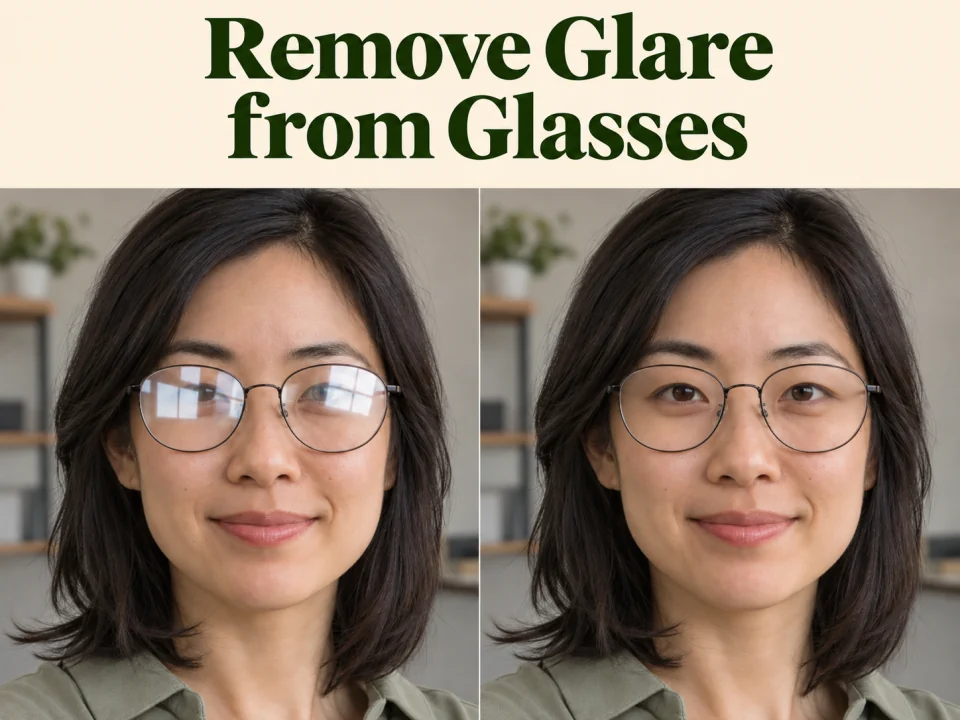
You can try the general preset on eyeglass reflections. For portraits, use the separate Remove Glare from Glasses tool, which has a lens-focused preset and its own examples. It aims to retain the frames and visible eye details, while areas hidden by glare may be reconstructed.

Remove Glare from Glasses

No. Glare removal targets reflected light or a superimposed reflection, while sharpening emphasizes edges and deblurring addresses blur. Sharpening alone does not reveal detail hidden behind a reflection. This page provides a glare-focused edit and is not a dedicated deblur or image-upscaling tool.

Upload one JPG, PNG, or WebP image up to the 10 MB limit shown in the uploader. HEIC and other unsupported formats need conversion first. The tool generates a PNG using your selected output settings.

More Image Editing Tools

Remove Glare from Glasses — Lens Reflections in Portraits

AI Image Generator

Browse Image and Video Tools

Try AI Glare Removal on Your Photo

Reduce distracting reflections in a window shot, photographed print, or screen image. Upload your photo and compare the result.

Start with your photo
Image to Image AI logoImage to Image AI

A fresh take on your image. Explore new styles and scenes with AI.

Customer supportsupport@imgtoimageai.com

Tools

  • Remove Glare from Glasses
  • Remove Glare from Photo
  • Photo to Line Art
  • Image Upscaler
  • Realistic Selfie Generator
  • Christmas Photobooth
  • AI 3D Figure Generator
  • Selfie With Santa
  • Christmas Dance Trend
  • Motorcycle AI
  • AI Photo Booth
  • Photo to Sticker
  • QR Code Enhancer
  • AI Long Hair Filter
  • Bicep Heart Trend AI
  • Happy Birthday GIF with Name
  • Apartment Dance
  • AI GIF Generator
  • Executive Portrait Maker
  • AI Trouble Maker Video

Learn more

  • Tools
  • Blog
  • Pricing

Legal

  • Privacy Policy
  • Terms of Service
  • Refund Policy
  • Contact

© 2026 Image to Image AI