
Image to Image AI logoImage to Image AI
  • Home
  • AI Image Generator
  • AI Video Generator
  • Tools
  • Nano Banana 2.1
  • Flux 3 Klein
  • Seedream 5.0 Pro
  • Seedream 5.5
  • GPT Image 2.5
  • GPT Image 2.6
  • MiniMax H3 Image
  • Kling 4.0
  • Grok Imagine Video 1.5
  • MiniMax H3 Max
  • Seedance 2.5
More
  • Blog
  • Pricing

Guest

Save your creations

Credits—
  1. Home

Your video workspace

Sign in to see your creations. You can explore models and write a prompt now.

|
49
Checking your sign-in status…

Grok Imagine Video 1.5 for Stories in Motion

Grok Imagine Video 1.5 brings a written scene or a still image into motion with generated sound. Build a product reveal, a character moment, or a cinematic journey with a clear subject and a purposeful camera move. Let the image establish the world, then use your words to decide what happens next.

Create a video

AI Video Generators to Explore

Find new ways to animate your photos, from dance clips and outfit changes to imaginative scenes.

  • Christmas Dance Trend

  • Christmas Photobooth

  • Bicep Heart Trend AI

  • Apartment Dance

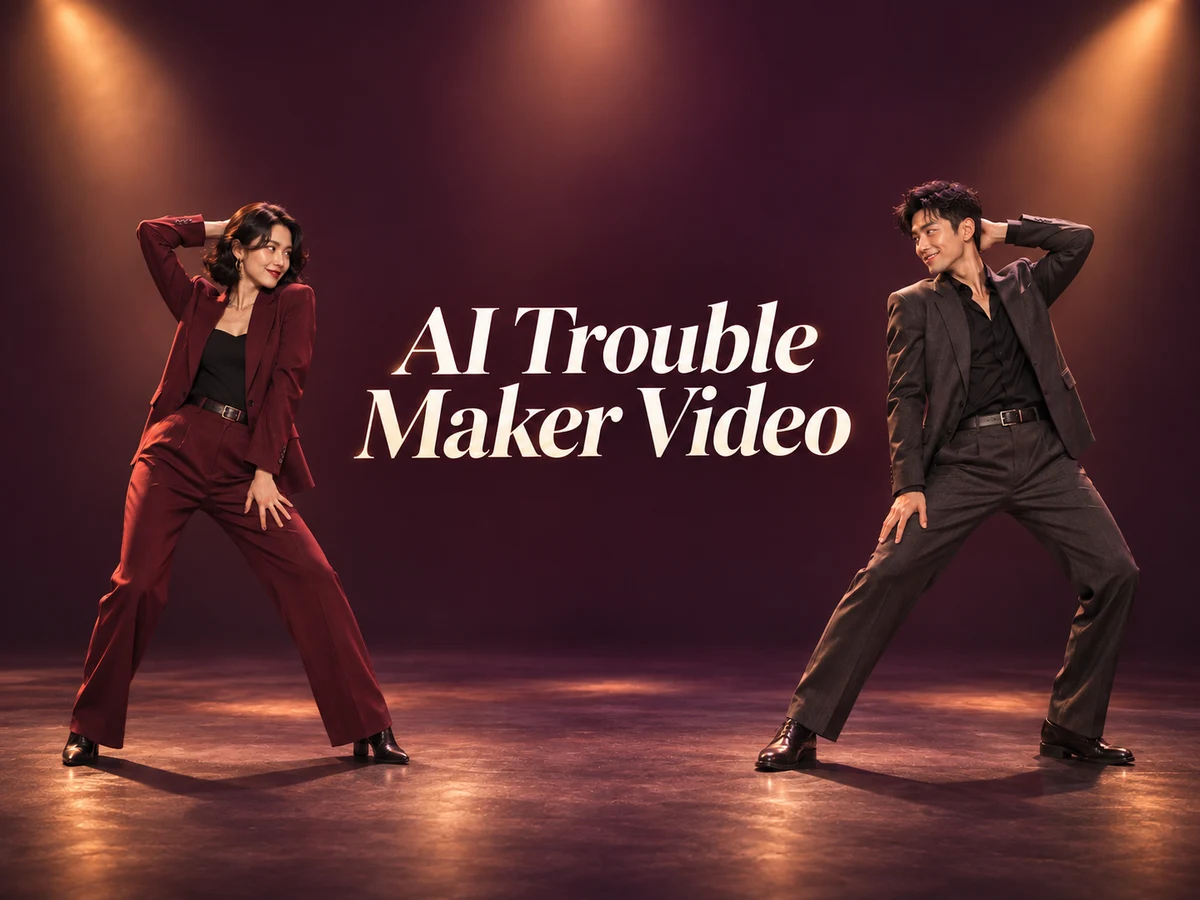
  • AI Trouble Maker Video

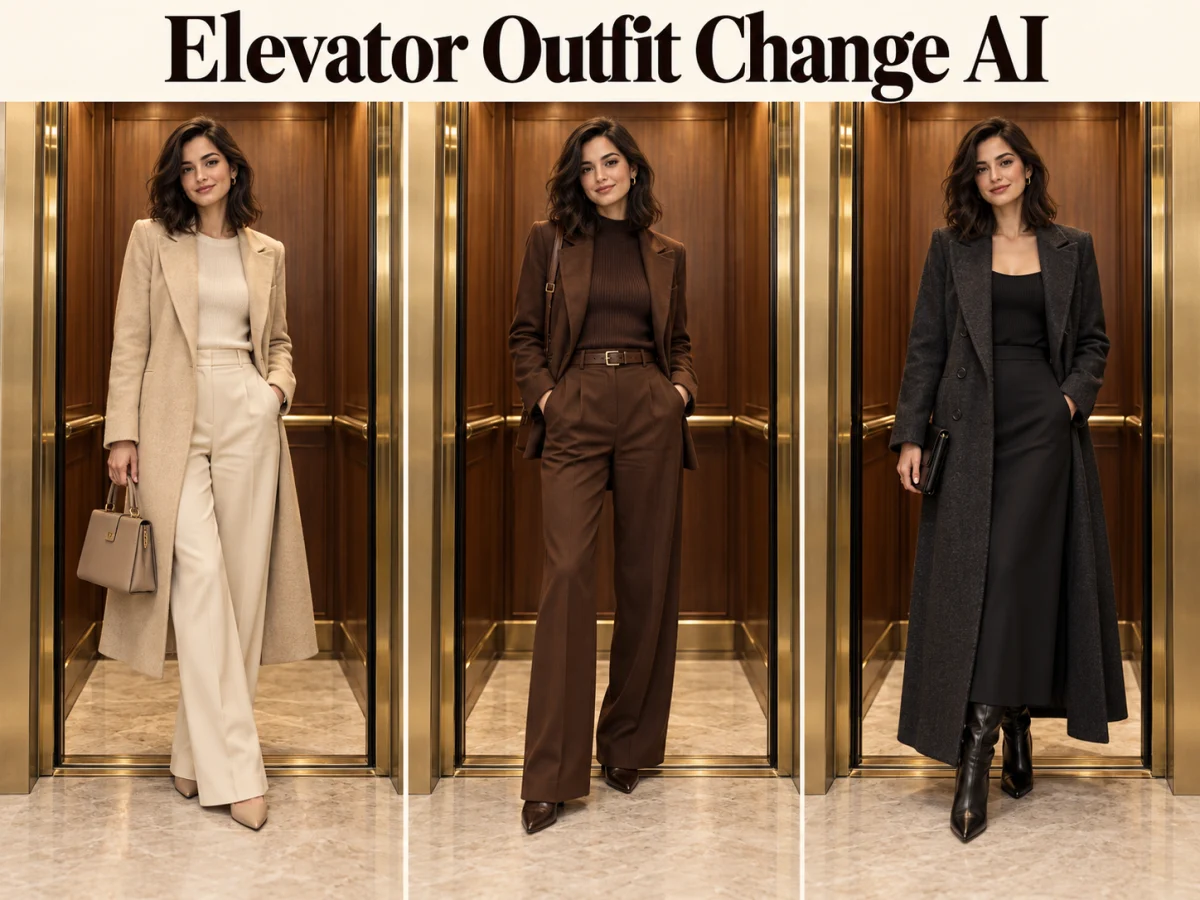
  • Elevator Outfit Change AI

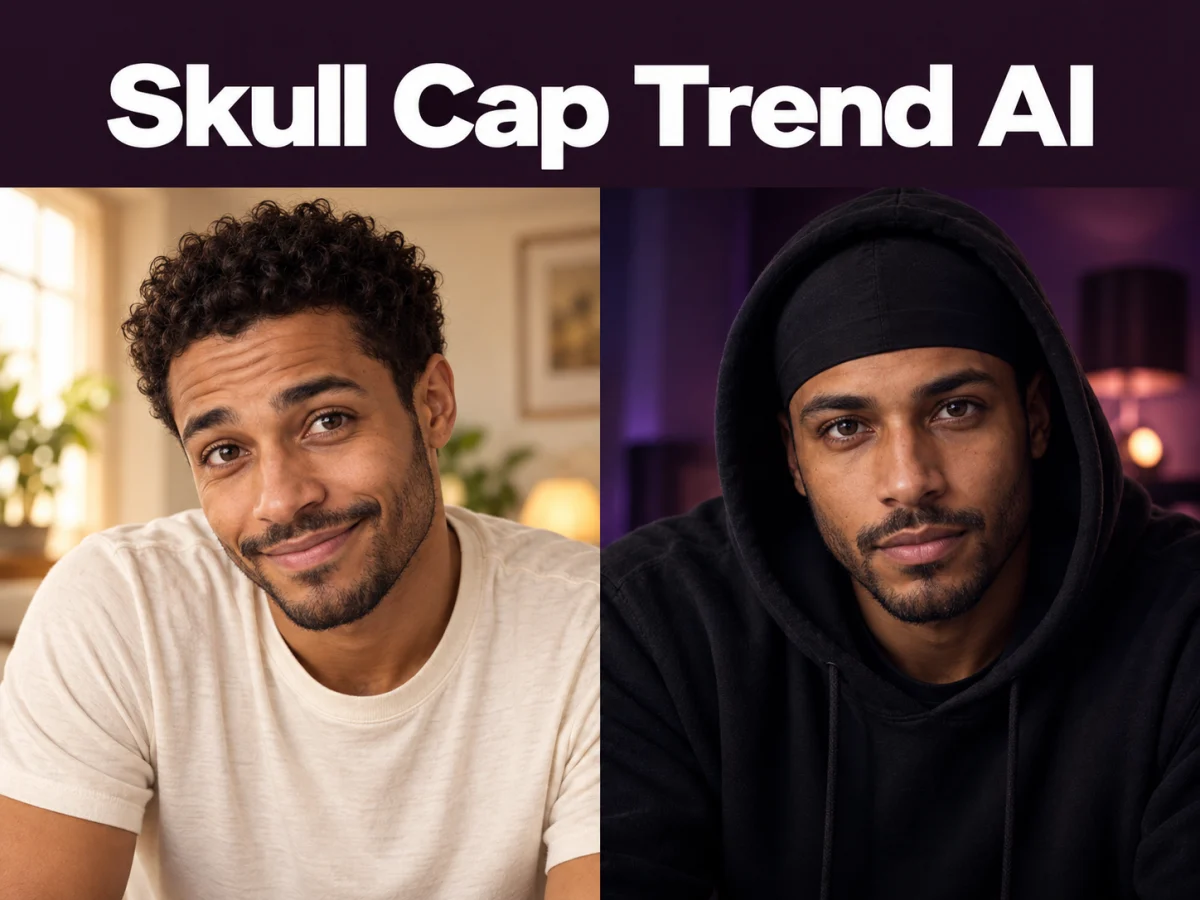
  • Skull Cap Trend AI

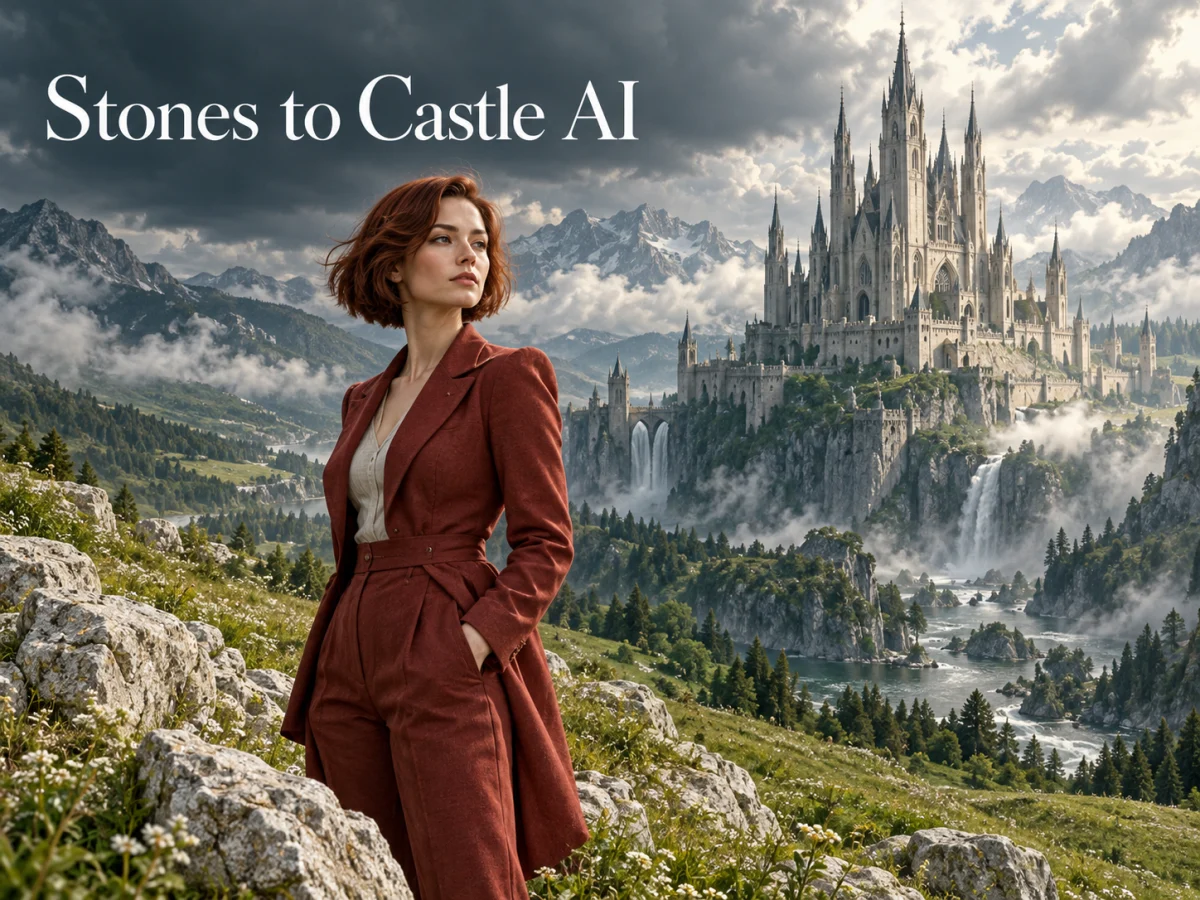
  • Stones to Castle AI

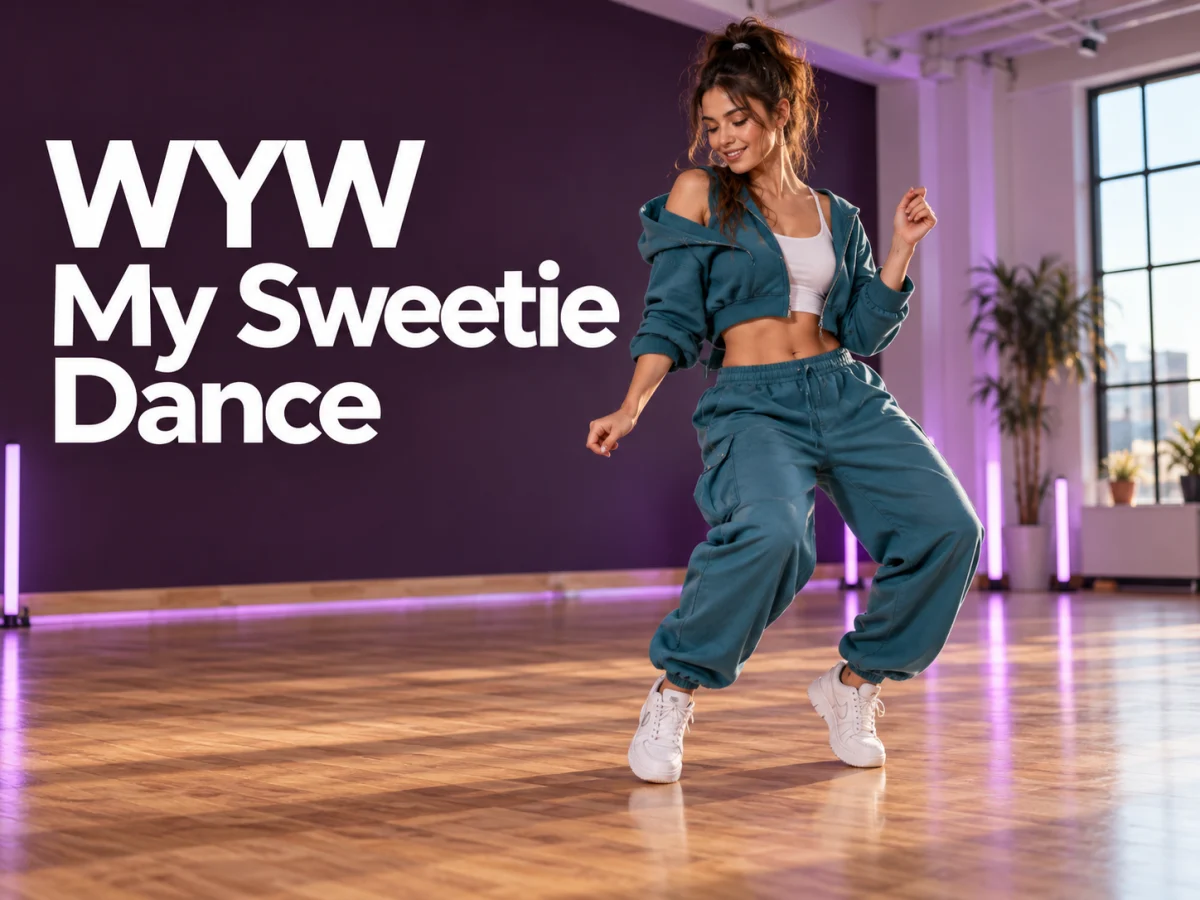
  • WYW My Sweetie Dance

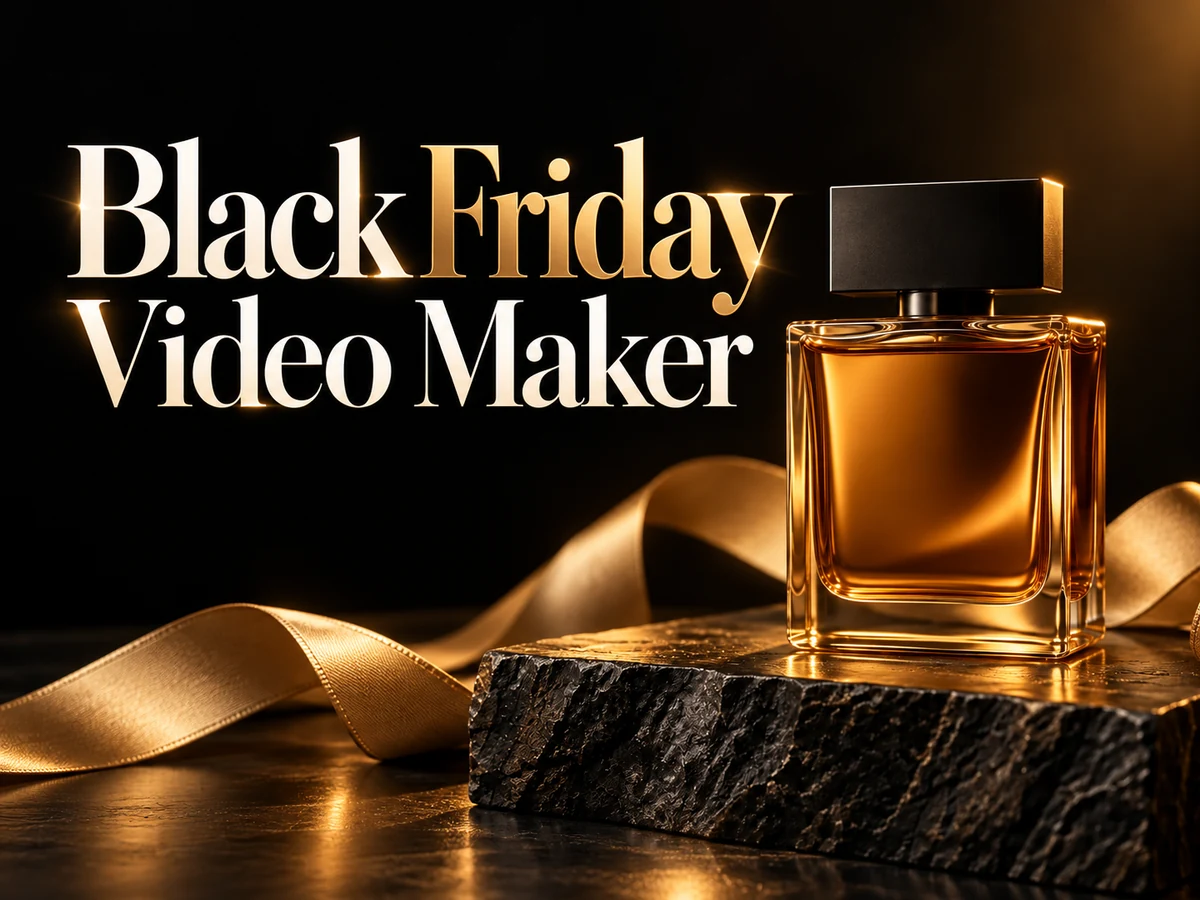
  • Black Friday Video Maker

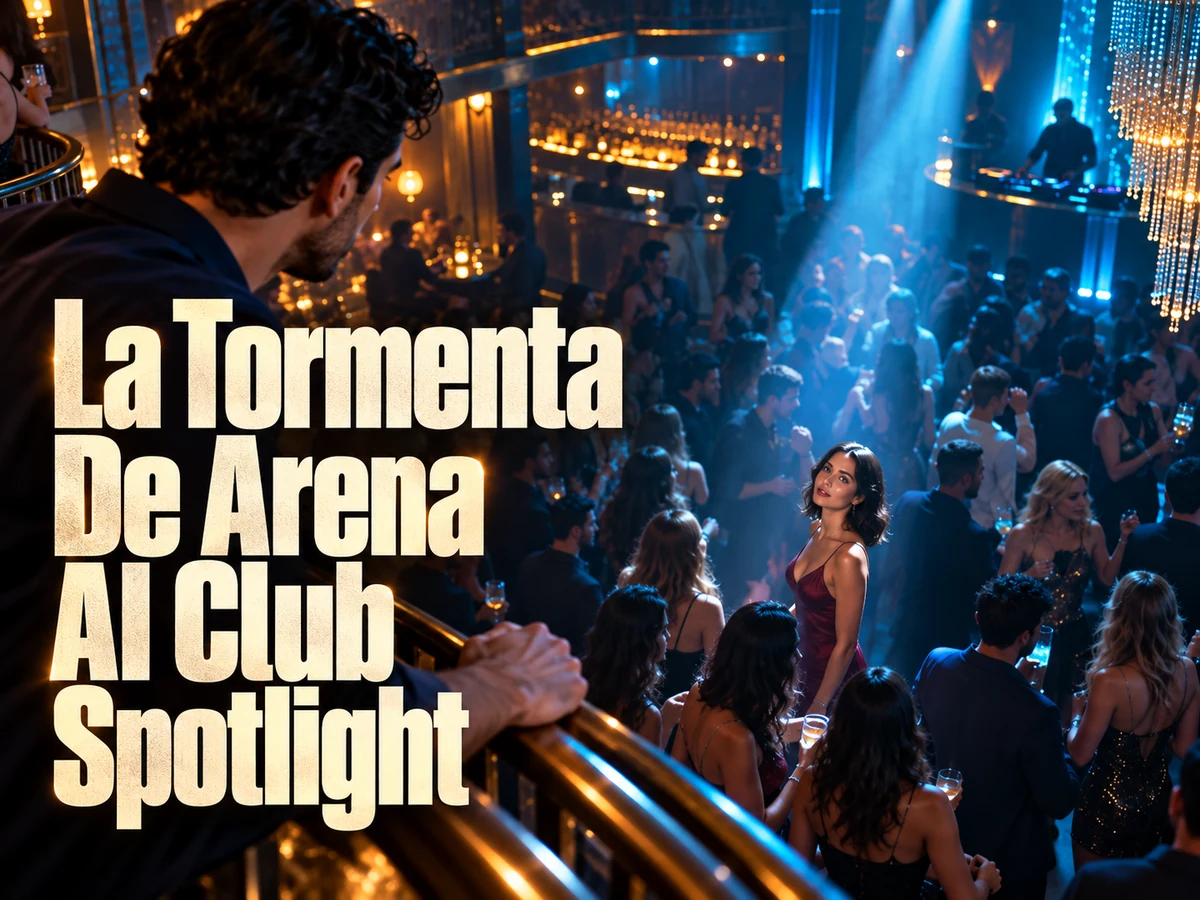
  • La Tormenta De Arena AI Club Spotlight

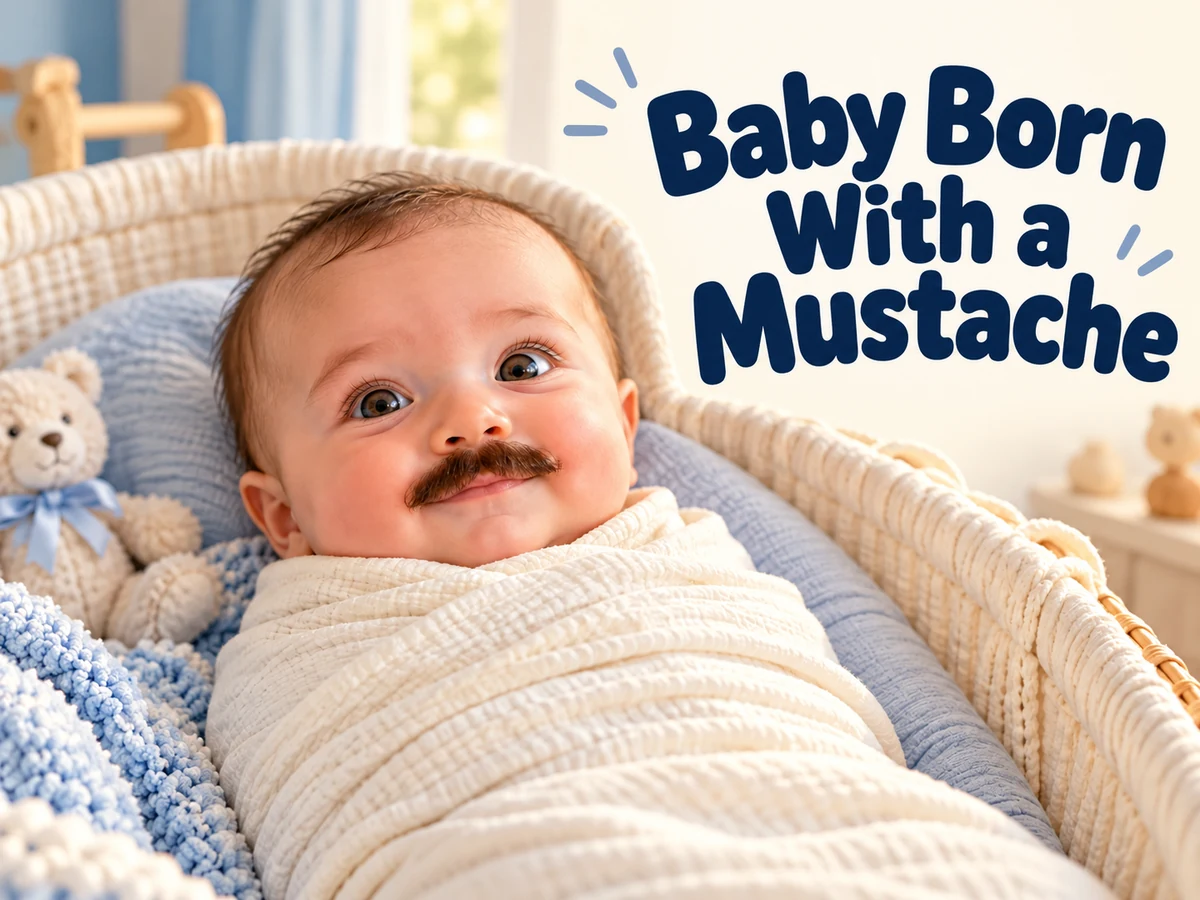
  • Baby Born with a Mustache

  • Burger Thru Window

  • Outstanding Tiny Desk AI

Page 1 of 2

Meet the Grok Imagine Video 1.5 Generator

An interesting video begins with a change: someone notices a familiar face, a reflection crosses a product, or a quiet street fills with movement. Grok Imagine Video 1.5 gives those ideas a visual form, combining scene generation with speech, effects, and atmosphere.

The xAI model supports text-driven creation and image-guided animation. Its full capabilities also include visual references and frame guidance, giving creators several ways to communicate appearance and progression. The choice depends on what is already decided: words are useful for exploring a world, while an image provides a more specific visual starting point.

Think of a short clip as a complete visual sentence. Establish a subject, give it an action, and finish on a meaningful expression or composition. That approach works for a social post, a campaign concept, or one shot within a larger edit. The illustrations below are creative concepts, not measured outputs from this video model.

Meet the Grok Imagine Video 1.5 Generator
Explore xAI video capabilities

Creative Possibilities with Grok Imagine Video 1.5

Bring movement, sound, and visual direction into the same brief. These three examples show how a scene can be planned around one distinctive idea.

Motion with Weight and a Clear Direction

Grok Imagine Video 1.5 improves motion and physical coherence over the earlier generation. For creative work, that means paying attention to how an action travels through a scene: the lean of a cyclist, the resistance of a coat in the wind, or the way a camera follows a moving subject.

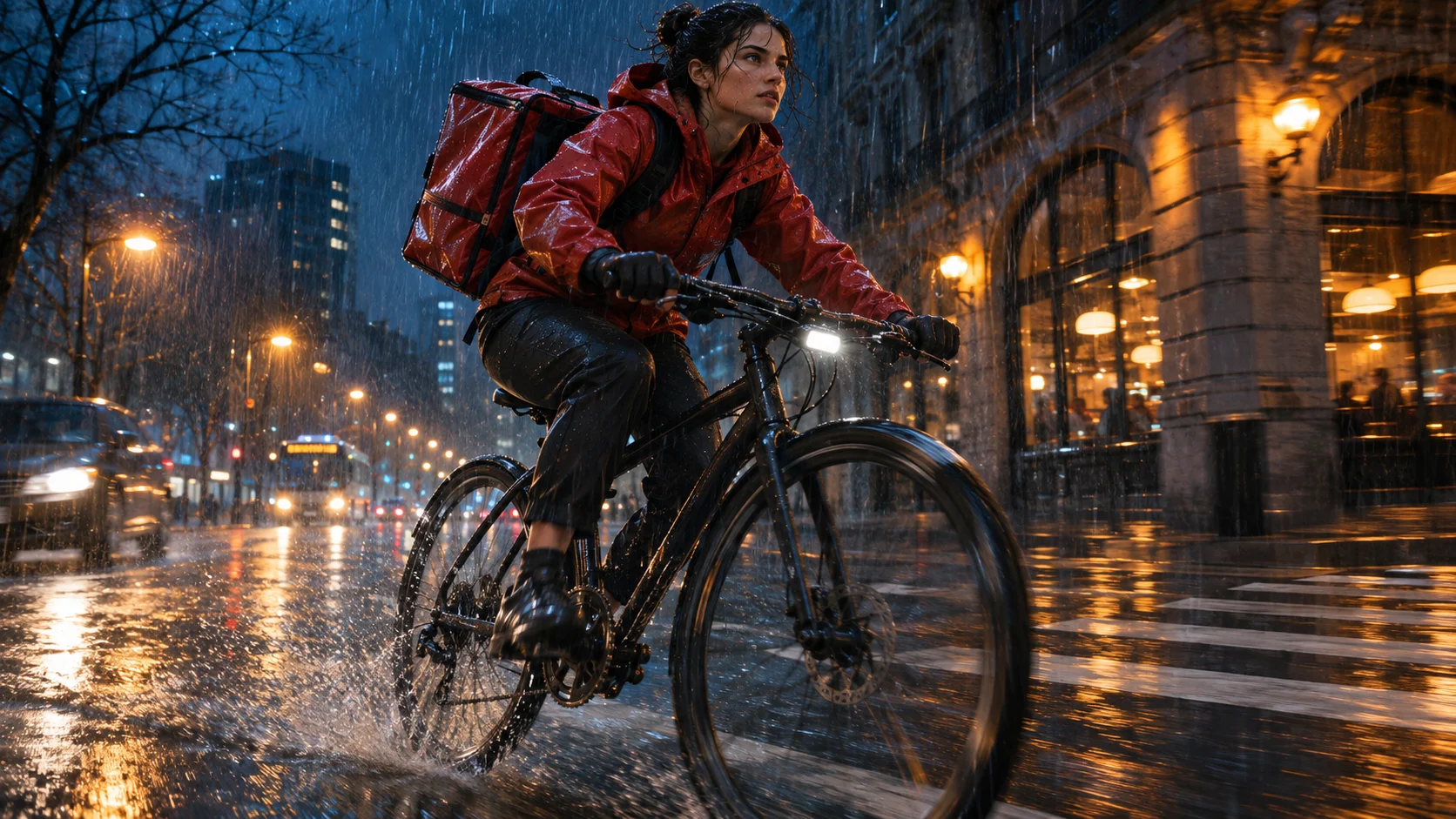
A rainy intersection is a useful motion study. The rider has a route, the wheels have a speed, and reflections connect the subject to the ground. Describe the travel direction and camera position before adding atmosphere. Keep the main movement readable, especially when the background contains traffic, rain, or bright lights.

Example prompt

Track a cyclist in a red rain jacket through a wet city intersection. Stay beside the bicycle at a steady speed. Amber streetlights reflect on the road; tires hiss through shallow water.
Plan this shot
Motion with Weight and a Clear Direction

Dialogue and Atmosphere Created with the Picture

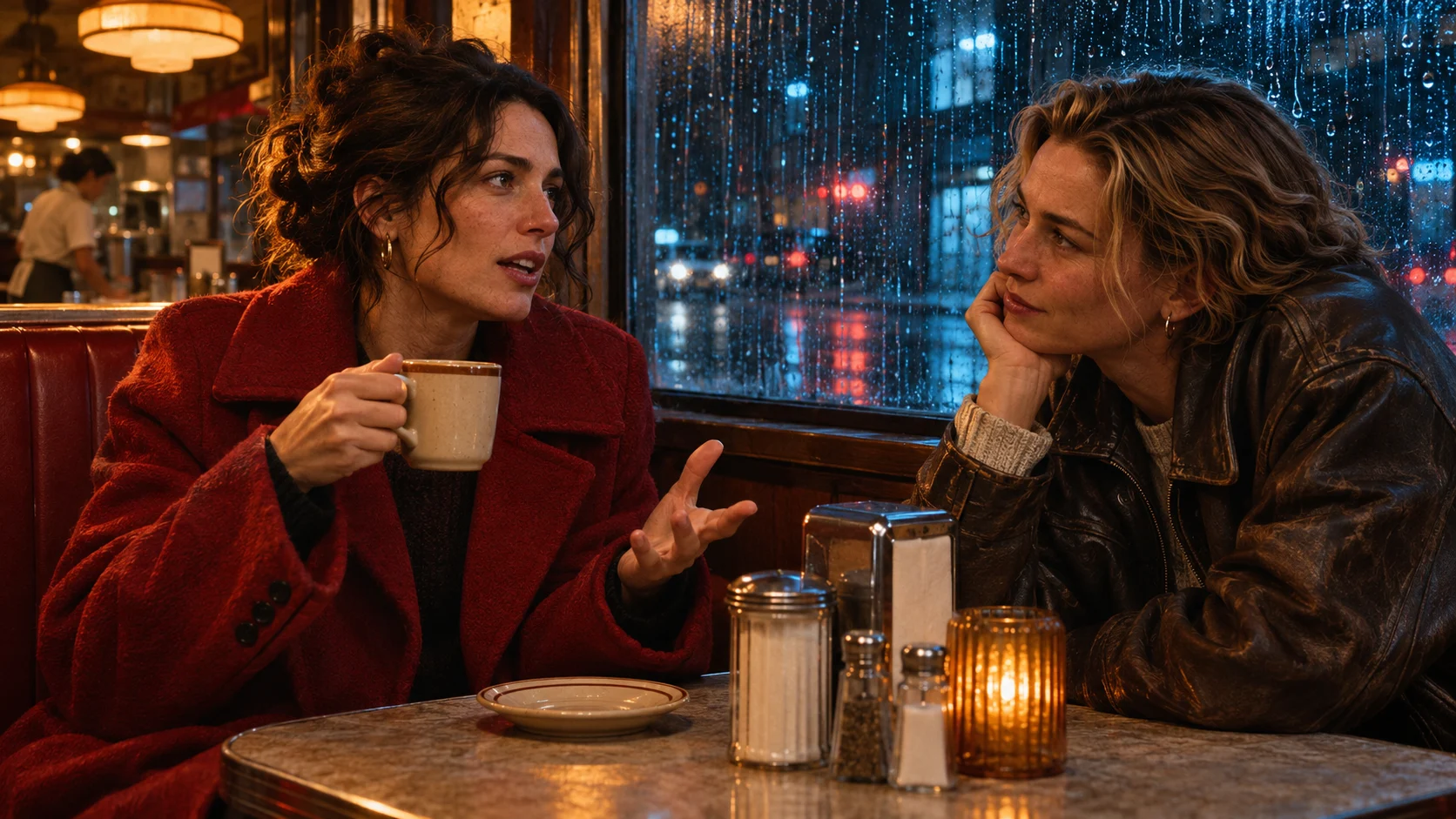
Grok Imagine Video 1.5 generates audio alongside the visuals, including speech that follows the visible performance. Sound can establish a location as effectively as scenery: the low murmur of a diner, a cup touching a saucer, or rain against a window gives an ordinary exchange a particular mood.

For a conversation, name the speaker and write a short line that fits the moment. Describe delivery in plain language, such as quietly, with surprise, or after a brief pause. Keep the environment softer than the voice. A restrained soundtrack often leaves more room for facial expression than several competing sound instructions.

Example prompt

Inside a quiet diner, the woman in the red coat looks at her friend and says, "I kept the photograph," softly in English. Slow camera push. Rain outside, subdued room ambience, no music.

Plan this shot
Dialogue and Atmosphere Created with the Picture

Image to Video with a Recognizable Starting Point

Grok Imagine Video 1.5 image to video begins with a composition you already like. A product photograph, character portrait, or painted landscape gives the sequence its initial appearance. The motion prompt can then focus on the change: where the camera goes, what the subject does, and how the surroundings respond.

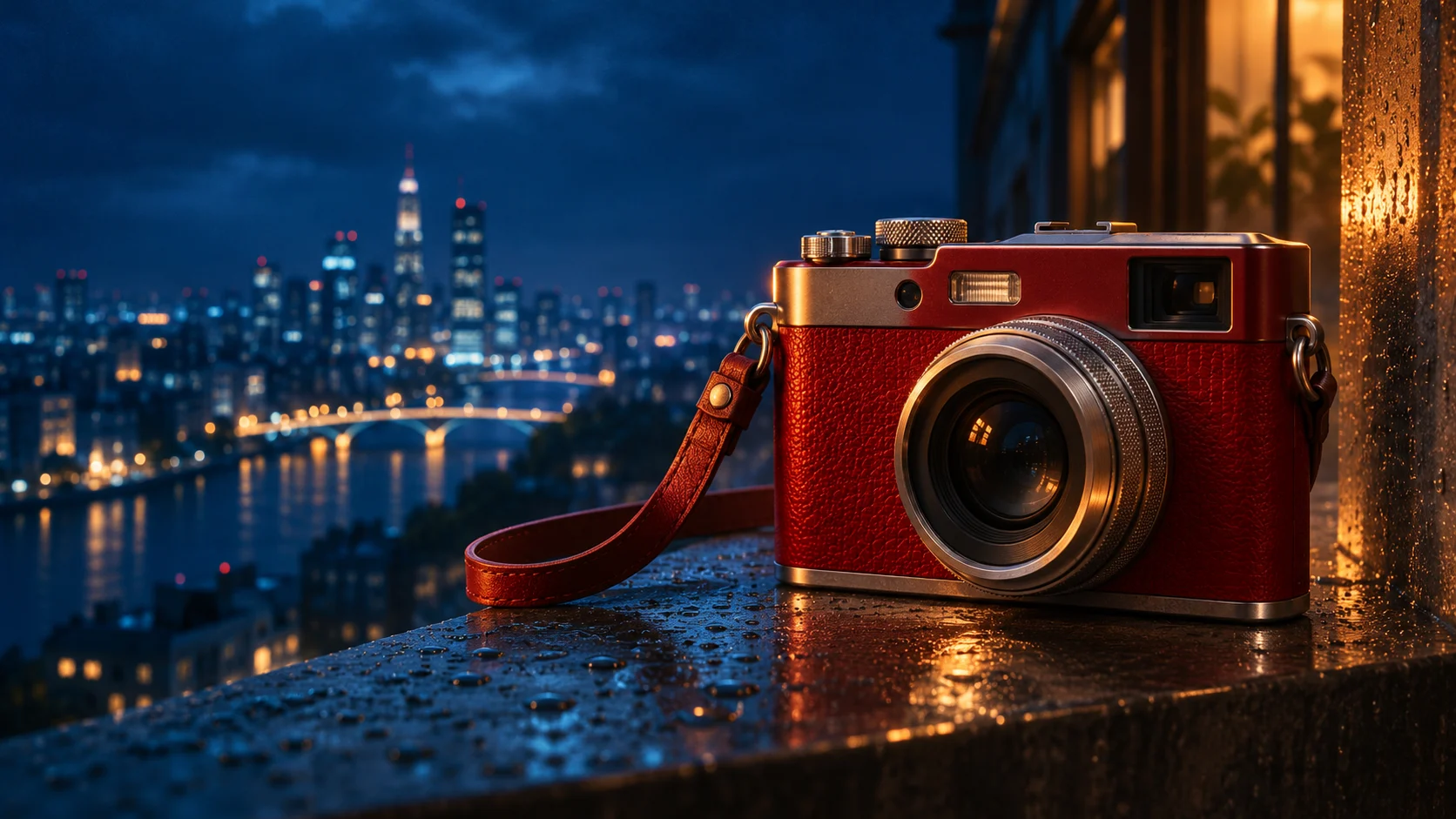
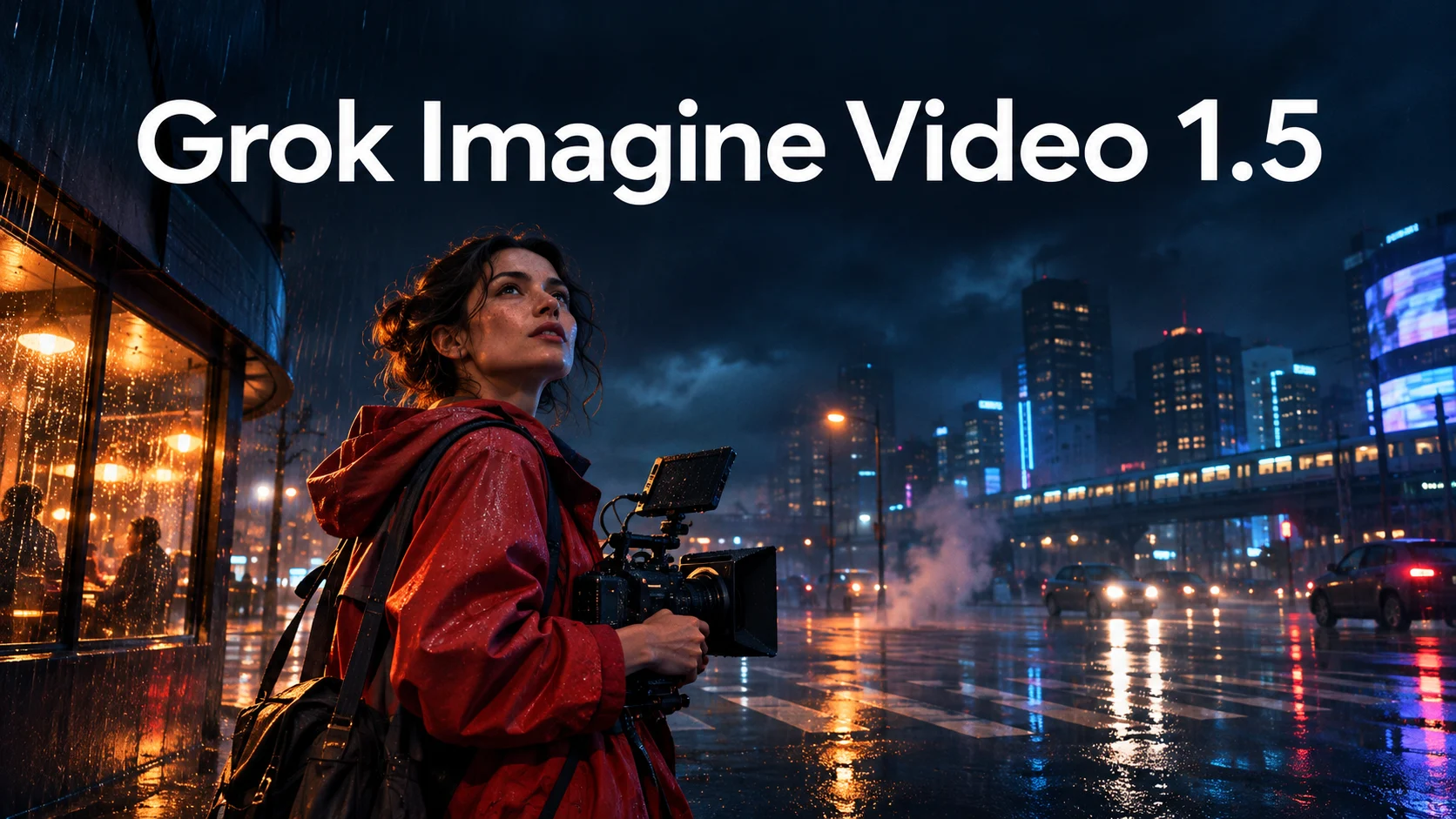
For a camera on a rain-speckled ledge, a subtle arc reveals depth without requiring a new setting. Identify the details that matter, such as the red body and silver lens, and ask for restrained movement. Visual guidance helps communicate intent, but small lettering, reflections, and fine geometry still deserve a careful review.

Example prompt

Begin with the uploaded camera photograph. Arc slowly around the red camera while keeping its body and silver lens recognizable. Let warm reflections move across the metal. Keep the skyline softly out of focus.

Plan this shot
Image to Video with a Recognizable Starting Point

Plan a Grok Imagine Video 1.5 Shot

A useful brief connects appearance, movement, and sound. Keep each decision specific enough to evaluate when the result is ready.

  1. 01

    Choose the Visual Foundation

    Start with Grok Imagine Video 1.5 text to video when the setting exists only in your imagination. Use an image when the composition or subject appearance is already important. For an uploaded photograph, check the crop and leave enough space around the subject for the intended movement.

  2. 02

    Describe the Action and Camera

    Write what changes first, followed by how the camera observes it. A subject walking toward a doorway and a camera tracking backward are separate instructions that work together. Add lighting and sound after the action is clear. Remove competing directions that would require the camera to occupy two places at once.

  3. 03

    Review One Decision at a Time

    Watch the entire Grok Imagine Video 1.5 clip with sound, then examine the most important moments again. Check subject identity, direction of travel, dialogue, and the ending. Revise the instruction responsible for the largest mismatch before changing the rest of the scene. Keep a successful take as a useful comparison.

AI Video Generators for Your Next Project

Turn a photo into a short video for a personal story, a social post, or a playful idea.

  • Outstanding Tiny Desk AI

  • Baby Born with a Mustache

  • Stones to Castle AI

  • Skull Cap Trend AI

Where Grok Imagine Video 1.5 Fits Your Work

A single well-directed shot can support several kinds of creative work. Match the action to the message viewers should remember.

Brand and ecommerce teams

Product Reveals with a Distinct Mood

Use a photograph to explore how an object feels in motion: reflective metal can catch a moving light, fabric can settle after a turn, and glass can reveal its silhouette against a darker background. Keep the product visible long enough for its form to register. Add final labels or offer text in your editing workflow when precision matters.
Filmmakers and visual storytellers

Character Moments for Short Stories

A character does not need a complicated stunt to communicate emotion. A delayed answer, a glance toward an empty chair, or a hand reaching for a familiar object can carry a scene. Grok Imagine Video 1.5 helps explore these moments before you decide how they connect within a longer sequence.
Creators and social teams

Social Videos Built Around One Visual Idea

Choose an opening that reads immediately on a small screen. A strong color, a recognizable silhouette, or a clear change of expression can make the clip understandable before any caption appears. Plan the final frame too: it can hold a reveal, invite the next shot, or give an editor a clean place to cut.

Give Grok Imagine Video 1.5 a Focused Brief

Useful prompts describe observable events. Replace a broad request such as "make it impressive" with an action a viewer can identify: the rider rounds a corner, the friend lowers the cup, or the reflection travels across the lens.

Camera language works best when it supports the action. A push toward a face emphasizes a reaction. A side tracking shot explains movement through space. A still camera lets motion within the frame become the subject. Choose one dominant approach, then describe a transition only when the scene needs it.

For Grok Imagine Video 1.5 generator experiments, change one variable between takes. Compare a quiet room with a busy room, a close view with a wider view, or a slow movement with a brisk one. This makes the result easier to judge and helps you develop a repeatable visual style without writing a longer prompt every time.

Leave breathing room around dialogue. A short pause before a line can establish anticipation; a pause afterward lets the expression carry the meaning. If an action and a sentence compete for attention, simplify one of them. The strongest brief usually tells the viewer where to look and what to listen for.

Understand the Grok Imagine Video 1.5 Model

The full model supports clips up to 15 seconds and native 1080p in its text and image generation modes. Reference-based creation has different specifications, so a capability in one mode should not be assumed to apply to every workflow.

Visual references describe appearance; a starting frame establishes the opening composition. Frame guidance can also define later moments. These are different kinds of creative control: a reference says what something looks like, while a frame specifies what should be visible at a particular point in the sequence.

Grok Imagine Video 1.5 is still a generative system. Review hand movements, repeated patterns, reflected objects, and the match between speech and expression. When a complex scene drifts, reduce the number of simultaneous actions or divide the idea into shots with clear editorial boundaries.

Grok Imagine Video 1.5 Questions

Find a starting point for your next shot and understand how to judge the result.

It is an xAI video generation model that creates moving scenes with generated sound. You can develop an idea from words or animate a still image. The full model also supports reference and frame guidance for projects that need more specific visual direction.

Yes. Grok Imagine Video 1.5 text to video creates a scene from a written description. Establish the subject and location first, then describe the action, camera, and sound. An image becomes useful when an exact starting composition matters more than open-ended exploration.

Choose a clear subject with enough visible detail to understand its shape. Avoid a crop that removes the part expected to move. For Grok Imagine Video 1.5 image to video, a simple background and a modest motion request provide an easier starting point for judging the animation.

Identify who speaks, write the line, and specify the delivery. Add the most relevant environmental sound, such as rain or footsteps. Listen for pronunciation, timing, and balance in the result. Keep dialogue short enough to leave room for the visible action and reaction.

No. Image guidance communicates appearance but does not guarantee an unchanged object in every frame. Inspect logos, fingers, jewelry, and repeating textures carefully. If continuity matters, use a simpler action and compare the opening, middle, and ending before selecting a take.

Start Your Next Grok Imagine Video 1.5 Scene

Choose one subject, one change, and one reason for the camera to move. Bring a photograph or describe a world from scratch, then shape the scene with sound and a clear ending.

Create with Grok Imagine Video 1.5
Explore video generation
Image to Image AI logoImage to Image AI

A fresh take on your image. Explore new styles and scenes with AI.

Customer supportsupport@imgtoimageai.com

Tools

  • Remove Glare from Glasses
  • Remove Glare from Photo
  • Photo to Line Art
  • Image Upscaler
  • Realistic Selfie Generator
  • Christmas Photobooth
  • AI 3D Figure Generator
  • Selfie With Santa
  • Christmas Dance Trend
  • Motorcycle AI
  • AI Photo Booth
  • Photo to Sticker
  • QR Code Enhancer
  • AI Long Hair Filter
  • Bicep Heart Trend AI
  • Happy Birthday GIF with Name
  • Apartment Dance
  • AI GIF Generator
  • Executive Portrait Maker
  • AI Trouble Maker Video

Learn more

  • Tools
  • Blog
  • Pricing

Legal

  • Privacy Policy
  • Terms of Service
  • Refund Policy
  • Contact

© 2026 Image to Image AI