



Image to Image AI logoImage to Image AI
  • Home
  • AI Image Generator
  • AI Video Generator
  • Tools
  • Nano Banana 2.1
  • Flux 3 Klein
  • Seedream 5.0 Pro
  • Seedream 5.5
  • GPT Image 2.5
  • GPT Image 2.6
  • MiniMax H3 Image
  • Kling 4.0
  • Grok Imagine Video 1.5
  • MiniMax H3 Max
  • Seedance 2.5
More
  • Blog
  • Pricing

Guest

Save your creations

Credits—
  1. Home

Black Friday Video Maker

Put your featured product in motion with the Black Friday Video Maker. Upload one product photo, choose your video settings, and create a short promotional scene for your seasonal campaign. Explore a premium reveal, a warm gift display, or a simple studio close-up. Download the clip, check the product details, and finish it with your confirmed offer in your preferred editor.

Create my product video
Watch a Black Friday Video Maker preview featuring a watch and a festive gift reveal.

Reference image

Required · 1 image
210
Checking your sign-in status…
Strictly prohibits adult / NSFW content

AI Video Generators to Explore

Find new ways to animate your photos, from dance clips and outfit changes to imaginative scenes.

  • Christmas Dance Trend

  • Christmas Photobooth

  • Bicep Heart Trend AI

  • Apartment Dance

  • AI Trouble Maker Video

  • Elevator Outfit Change AI

  • Skull Cap Trend AI

  • Stones to Castle AI

  • WYW My Sweetie Dance

  • La Tormenta De Arena AI Club Spotlight

  • Baby Born with a Mustache

  • Burger Thru Window

  • Outstanding Tiny Desk AI

Page 1 of 2

What can the Black Friday Video Maker create?

The Black Friday Video Maker turns a product reference into a newly generated moving scene. It is useful when you have a strong store photograph and want to explore a short campaign shot without arranging another physical shoot. Your image guides the merchandise while the built-in preset supplies the setting, lighting, and camera movement.

A practical first brief has one item, one movement, and one purpose. You might introduce a bestselling bottle, highlight a handmade cup, or create a calm opening for a gift collection. The Black Friday Video Maker prepares the visual material for that message. Keep final prices, discount percentages, coupon codes, and sale dates in your editing stage so you can review and revise them precisely.

This workflow generates a clip rather than an editable advertising template. It does not automatically connect to a store catalog, calculate an offer, publish an advertisement, or assemble a complete campaign. You choose the reference and output format, then review what comes back. That gives small teams a focused way to explore motion while keeping the final campaign decisions in their own hands.

The Black Friday Video Maker is especially useful for objects with a clear silhouette and a simple presentation. Bottles, accessories, homeware, and neatly arranged gift sets offer a readable starting point. Fine print, elaborate mechanisms, and complicated demonstrations require closer review. The original concept images on this page illustrate possible art direction; they are not verified frames from a generated product video.

Choose a Black Friday Video Maker direction

Match the scene to the item before adding seasonal decoration. A controlled camera move can make an ordinary catalog photograph feel more deliberate, while a simple backdrop leaves room for the offer you will add later.

A premium studio reveal

Use the Black Friday Video Maker for a restrained approach toward a perfume bottle, watch, or small accessory. Choose a well-lit reference that makes the material and silhouette easy to see. Keep enough light on the outline to preserve recognition from the first frame. Avoid a full rotation when your reference only shows the front, since the unseen sides would have to be invented.
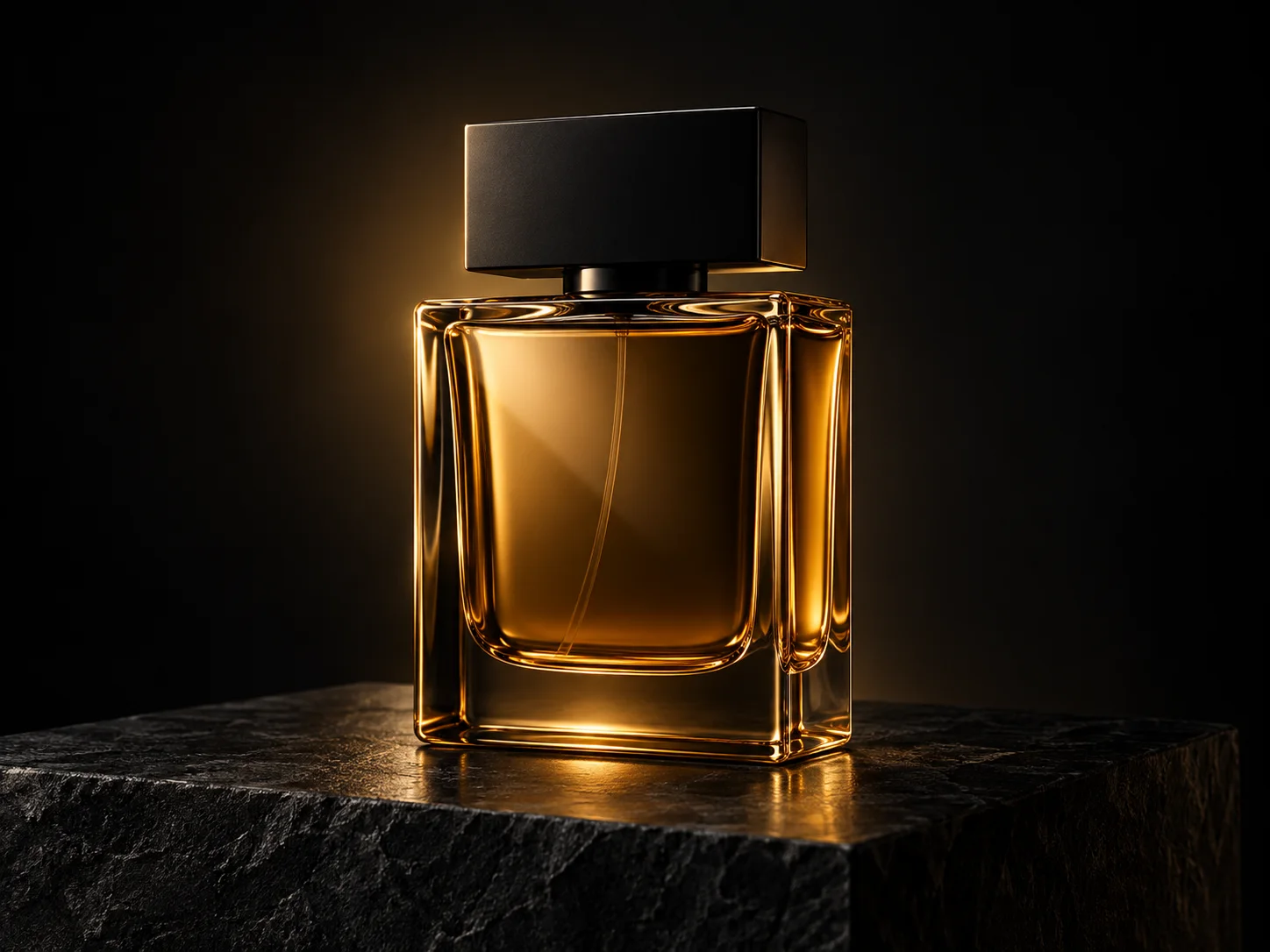
An amber glass perfume bottle outlined by warm studio lighting on a charcoal stone plinth
Explore a premium product reveal with the Black Friday Video Maker, pairing warm reflections with a dark studio backdrop.

A warm gift presentation

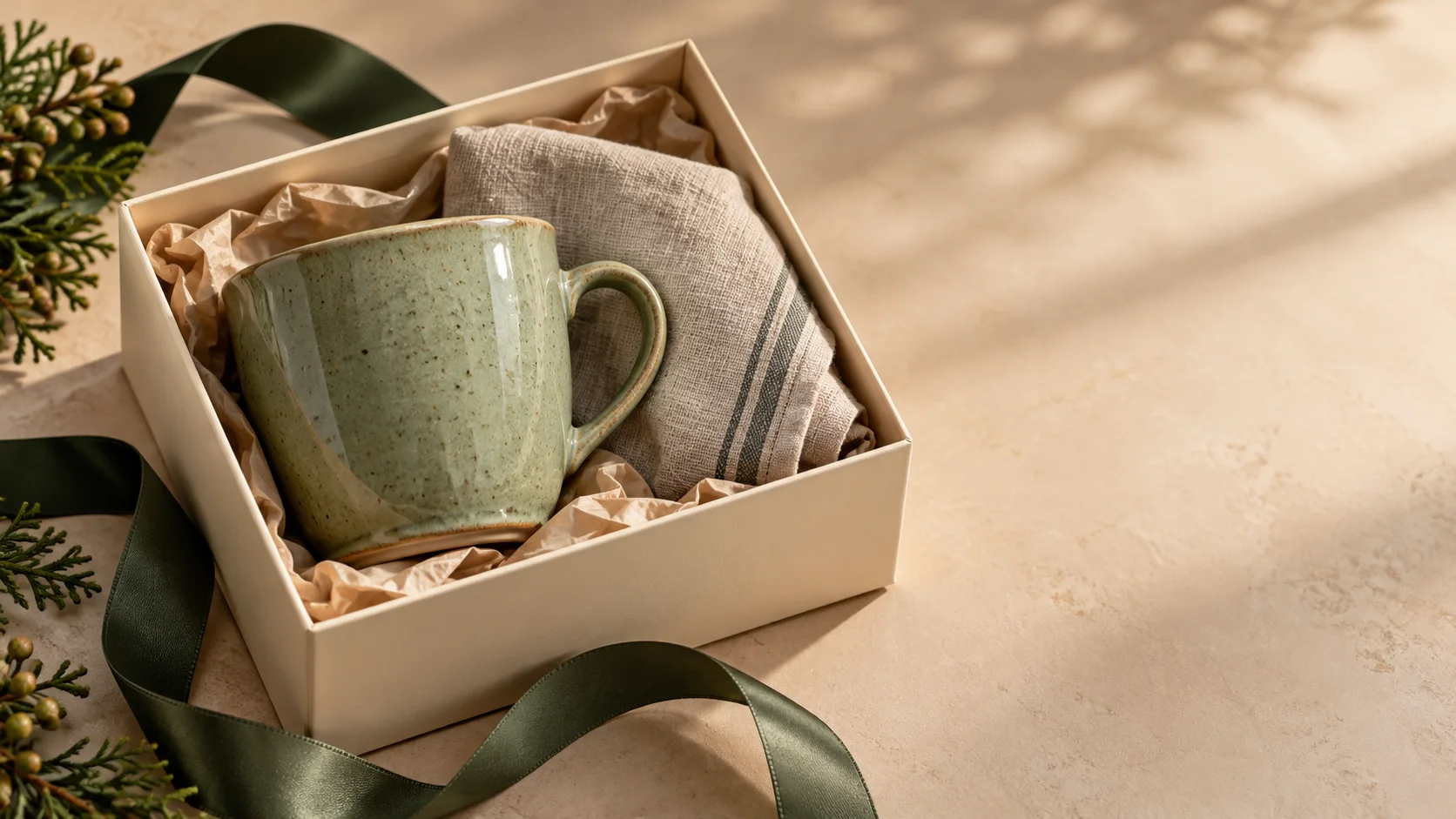
An open gift box can suggest an occasion without a complicated story. The Black Friday Video Maker applies soft side lighting and a restrained camera approach to the reference arrangement. Keep the products separated so their edges remain easy to inspect. A ribbon or folded cloth can support the mood, but decorative movement should not cover the merchandise or imply that accessories are included when they are not.

A sage ceramic cup and folded linen cloth inside a cream gift box beside a green ribbon
A ceramic cup and folded linen make a welcoming gift display for a seasonal product promotion.

A clear product detail

Choose one detail that shoppers can understand visually: the glaze on a cup, the texture of a bag, or the finish of a clasp. A slow approach can emphasize that feature without adding a new action. The Black Friday Video Maker should support what the actual product looks like. Compare material, color, seams, and proportions against your approved photograph before accepting the result.

Close-up of a sage ceramic cup showing its speckled glaze, curved rim, and handle
A close-up of the ceramic glaze and curved handle draws attention to the texture and finish of the product.

How to use the Black Friday Video Maker

  1. 01

    Upload the product you will advertise

    Select one JPEG, PNG, or WebP image within the 10 MB upload limit. Use the correct color, packaging, and product version. Keep the whole item visible with some breathing room around its edges. A clean photograph is usually easier to direct than a promotional collage containing several prices, badges, and competing products.

  2. 02

    Check the prepared showcase

    The Black Friday Video Maker includes a fixed product-showcase direction, so there is no prompt field to fill in. The preset supplies a clean studio scene, soft side lighting, and a slow camera approach. Check that your uploaded image clearly shows the intended item and arrangement. Use a different source if you need another product angle or a different bundle.

  3. 03

    Set the format and review credits

    Defaults are 480p, landscape 16:9, and 10 seconds. Choose a whole-second duration from 10 to 15, or switch to 768p or 1080p. Vertical and square formats are also available. Select the shape that suits your planned placement, sign in, and check the current estimate before submitting. Changing duration or resolution can change the credit requirement.

  4. 04

    Preview, download, and finish

    Watch the entire Black Friday Video Maker result before selecting it. Inspect the outline, label, reflection, and final frame rather than judging only the opening. Download the strongest take and add accurate offer copy in an editor. Preview your finished advertisement at phone size, then confirm the product and offer agree with the page people will visit.

AI Video Generators for Your Next Project

Turn a photo into a short video for a personal story, a social post, or a playful idea.

  • Outstanding Tiny Desk AI

  • Baby Born with a Mustache

  • Stones to Castle AI

  • Skull Cap Trend AI

Prepare a useful Black Friday Video Maker reference

A useful reference shows the merchandise clearly and gives the preset a stable starting point. Choose the product angle and arrangement in the photograph before uploading. The goal is a coherent product shot that leaves room for a clear sales message.

For a premium item, prepare a Black Friday Video Maker reference with the bottle upright, its cap visible, and enough light to distinguish glass from the background. Leave some space around the product instead of cropping directly against its edges. The built-in direction supplies the studio lighting and slow approach; the photograph supplies the shape, visible material, and arrangement that the model should preserve.

For handmade goods, choose a clear photograph showing the ceramic surface or woven material at a useful scale. Soft daylight and an uncluttered tabletop can make those source details easier to read. Avoid a heavily edited reference with artificial sparkle that changes the apparent material. A promotional image should help a shopper recognize the product they can actually order, even when the final environment is imagined.

If your Black Friday Video Maker result feels too busy, try a simpler reference with fewer props and one clear subject. Compare the same item from another approved angle while keeping the selected format consistent. The tool uses its prepared direction for every request; it has no custom prompt, camera-motion selector, or editable scene controls. Save complex editing and precise text animation for a tool where you can control individual elements.

Plan a campaign around the Black Friday Video Maker

Decide where the clip belongs in your customer journey. A first announcement, a product reminder, and a final sale message can share the same merchandise while emphasizing different information. Plan that message before choosing decorative effects.

Introduce one featured item

Start with the product that anchors your campaign. The Black Friday Video Maker can provide a moving introduction for an announcement or a product highlight. Keep the visual connected to your store photography, then add one concise offer line in the final edit. A shopper should recognize the advertised item immediately when they reach its product page.

Prepare a gift-focused variation

Use a warmer arrangement for a collection aimed at gifting. Show the actual contents clearly and avoid hiding small items behind tissue or ribbon. The Black Friday Video Maker can help explore this different mood from an approved photo. Keep the scope of the bundle explicit in your final caption, especially if decorative props are only part of the scene.

Compare two simple openings

Create one calm close-up and one slightly wider reveal, then compare how quickly each explains the product. Keep the offer and destination the same when evaluating the creative difference. The Black Friday Video Maker produces candidates for review, not a promise of higher sales. Choose based on clarity, faithful appearance, and the response you observe in your own campaign.

Finish your Black Friday Video Maker clip for publication

Treat the downloaded scene as the visual foundation of your advertisement. The finishing stage supplies readable information, consistent branding, and a deliberate call to action. A polished result should answer what is on offer without forcing the viewer to pause.

Add prices, discount details, dates, and the action you want people to take as editable text. Give lettering enough contrast and keep it away from important product edges. View the composition in the actual placement preview so captions and interface controls do not obscure the message. If your offer changes, update the overlay and destination together rather than leaving an old number inside a new promotion.

Compare the Black Friday Video Maker output with the source image at several points. Check brand marks, bottle caps, straps, handles, stitching, and package corners. Generated movement can change small details even when the overall shot looks convincing. If exact labeling matters, choose a safer angle or use filmed product footage for that part of the advertisement. Do not conceal a mismatch with fast cuts.

The prepared direction requests quiet ambient sound without speech or a recognizable song. Listen to the result and choose the final music separately if your campaign needs it. Watch once with sound and once muted to see whether the message still works. Keep the headline, product identity, and destination consistent, and remove decorative elements that compete with the thing you want people to notice.

Black Friday Video Maker questions

No. It generates new footage from one product photo and a built-in showcase preset. Add editable headlines, logos, prices, and transitions afterward in your preferred video editor.

Exact lettering and fine product details are not guaranteed. Review several frames against your source photo. Use controlled overlays for important text and reject clips that misrepresent the merchandise.

Select 10–15 whole seconds and 480p, 768p, or 1080p. Landscape 16:9 is the default; other supported ratios let you plan a square or vertical composition before generating.

Video generation uses credits. Sign in to check your balance and the current estimate. Any available free credits may cover a request, but the tool does not include unlimited free renders.

Yes. The same product-scene workflow can support another seasonal promotion. Update the offer, timing, and call to action in your final edit so the message matches the campaign.

No. You download and prepare the creative for your chosen destination. Publication, campaign settings, and performance evaluation remain part of your own marketing workflow.

Start with the Black Friday Video Maker

Choose one product photo and one clear creative idea. Generate a focused scene, review the details, and finish it with the offer your shoppers need to see. Give your next seasonal campaign a moving product story that stays connected to what you sell.

Upload a product photo
Image to Image AI logoImage to Image AI

A fresh take on your image. Explore new styles and scenes with AI.

Customer supportsupport@imgtoimageai.com

Tools

  • Remove Glare from Glasses
  • Remove Glare from Photo
  • Photo to Line Art
  • Image Upscaler
  • Realistic Selfie Generator
  • Christmas Photobooth
  • AI 3D Figure Generator
  • Selfie With Santa
  • Christmas Dance Trend
  • Motorcycle AI
  • AI Photo Booth
  • Photo to Sticker
  • QR Code Enhancer
  • AI Long Hair Filter
  • Bicep Heart Trend AI
  • Happy Birthday GIF with Name
  • Apartment Dance
  • AI GIF Generator
  • Executive Portrait Maker
  • AI Trouble Maker Video

Learn more

  • Tools
  • Blog
  • Pricing

Legal

  • Privacy Policy
  • Terms of Service
  • Refund Policy
  • Contact

© 2026 Image to Image AI