

Image to Image AI logoImage to Image AI
  • Home
  • AI Image Generator
  • AI Video Generator
  • Tools
  • Nano Banana 2.1
  • Flux 3 Klein
  • Seedream 5.0 Pro
  • Seedream 5.5
  • GPT Image 2.5
  • GPT Image 2.6
  • MiniMax H3 Image
  • Kling 4.0
  • Grok Imagine Video 1.5
  • MiniMax H3 Max
  • Seedance 2.5
More
  • Blog
  • Pricing

Guest

Save your creations

Credits—
  1. Home
  2. /
  3. Image

QR Code Enhancer to make blurry codes clearer

Make a soft QR image easier to inspect with QR Code Enhancer online. Upload a screenshot, label photo, or menu image to create a cleaner version with more defined edges and clearer contrast. No editing experience or written prompt is needed. Compare the result with your original, download it, and test the code before putting it back into use.

Enhance my QR image
QR Code Enhancer to make blurry codes clearer
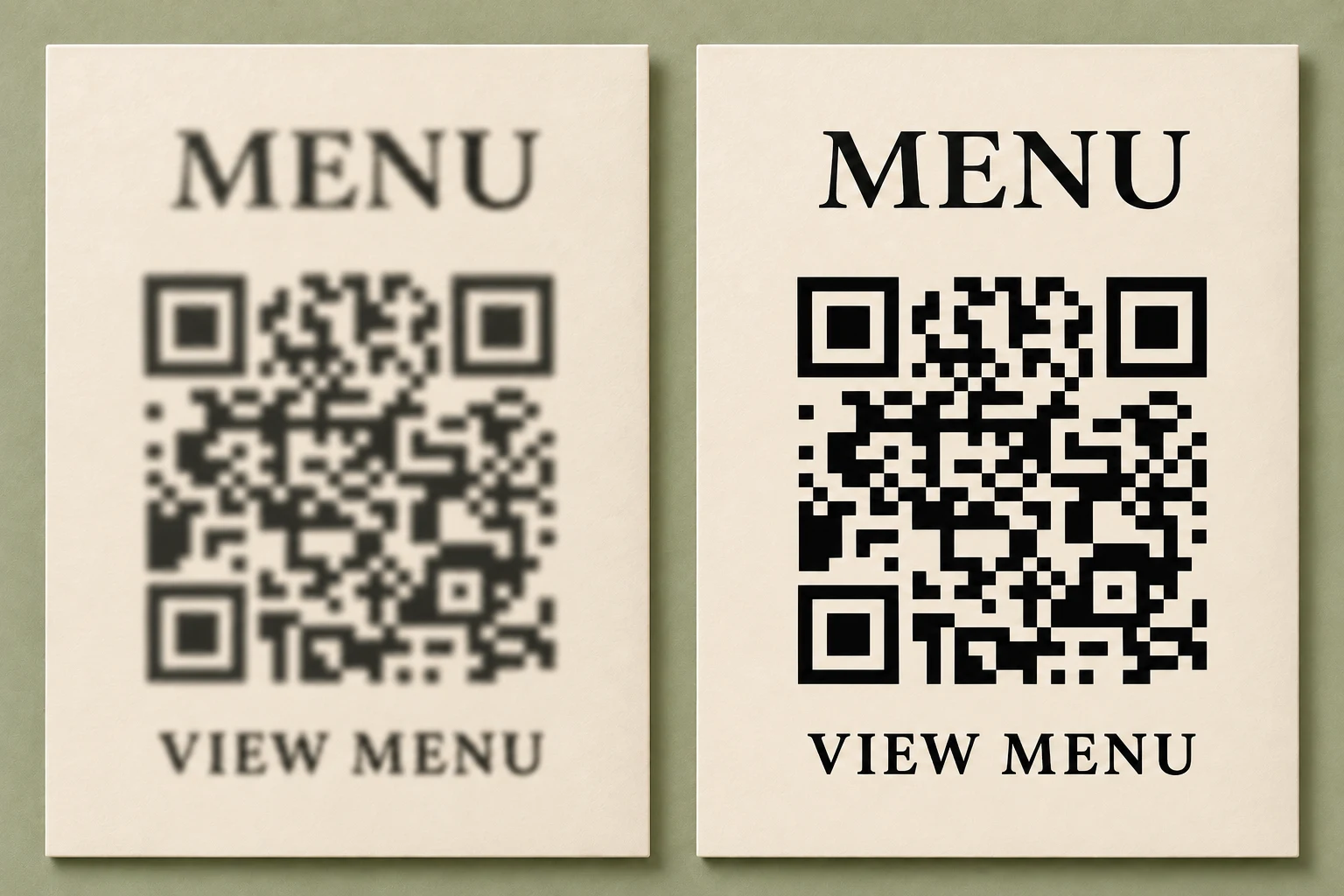
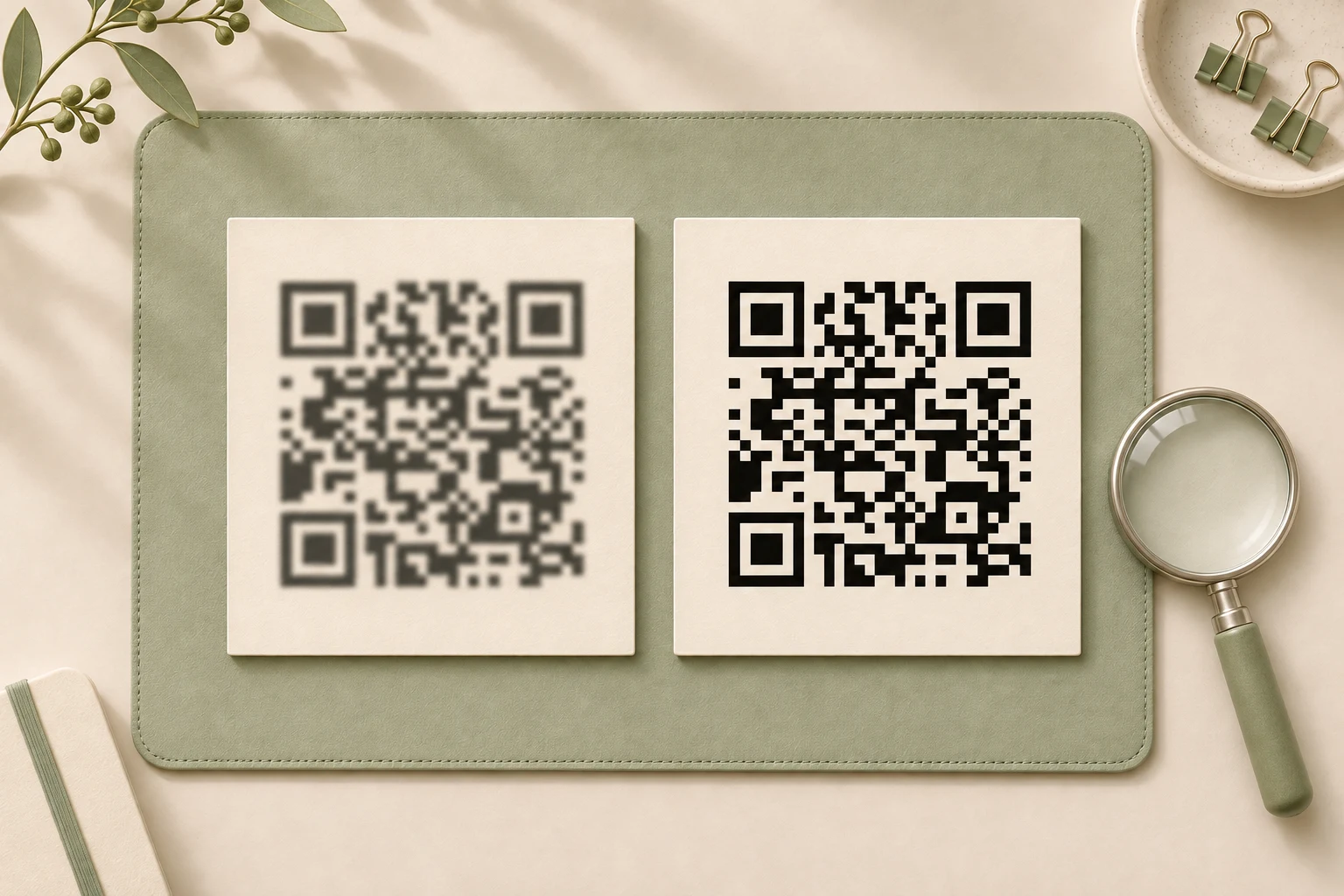
Illustrative clarity comparison using a QR code for https://imgtoimageai.com; not a live enhancement result.

Reference image

Required · 1 image
10
Checking your sign-in status…
Strictly prohibits adult / NSFW content

AI Image Generators to Explore

Try a different look for your photos with generators for portraits, artistic styles, and creative edits.

  • Photo to Line Art

  • Remove Glare from Photo

  • Remove Glare from Glasses

  • Realistic Selfie Generator

  • Image Upscaler

  • Selfie With Santa

  • AI 3D Figure Generator

  • Motorcycle AI

  • Photo to Sticker

  • AI Photo Booth

  • AI Long Hair Filter

  • Happy Birthday GIF with Name

  • AI GIF Generator

  • Executive Portrait Maker

  • No Beard Filter

  • AI Beard Generator

  • 80s AI Photo Trend

  • AI Pregnant Filter

  • Pet Portrait AI

  • Photo to Watercolor

  • Photo to Coloring Page

Page 1 of 3

What can QR Code Enhancer do for your image?

A QR image can lose definition after repeated sharing, a hurried photograph, or a small export stretched across a design. QR Code Enhancer uses your uploaded picture as the starting point for an AI image edit. The aim is to make surviving details easier to see, from dark square edges to the lighter spaces between them.

Use it when you have an existing image that looks soft, faded, or unevenly lit. A clearer preview can help you review a menu card, check a label, or decide whether a saved screenshot is worth reusing. You receive an edited image to inspect alongside the source, without having to adjust individual squares by hand.

Visual improvement does not prove that the encoded information survived. This QR code enhancer does not decode the destination, regenerate a code from recovered data, or automatically verify a scan. AI may change small details. If the original link is available, rebuilding the code from that known destination is usually a better starting point for a new print run.

How to use QR Code Enhancer

Work from the best original you can find, keep the complete code in view, and leave time to check the result. These three steps take you from upload to a more useful review.

  1. 01

    Upload one complete QR image

    Choose a JPG, PNG, or WebP image containing one main code. Include all its corners and the blank border around it. A direct export is preferable to a screenshot of another screenshot. If you are photographing paper, hold the camera steady and keep reflections away from the printed pattern.

  2. 02

    Generate a clearer version

    Sign in, choose an available output resolution, and check the displayed credit cost. QR Code Enhancer applies the prepared edit without asking you to write instructions. Start the generation and wait for the resulting image. Output resolution controls image dimensions; choosing more pixels cannot replace information absent from the upload.

  3. 03

    Compare, download, and test

    Inspect the result at a useful viewing size, then save it with the download action. Test the downloaded image with your normal scanner and compare the decoded destination with the expected one. For printing, also test a sample at its final physical size before ordering multiple copies.

AI Image Generators for Your Next Project

Bring your next photo project to life with creative effects, painted portraits, and printable coloring pages.

  • Photo to Line Art

  • Remove Glare from Photo

  • Remove Glare from Glasses

  • 80s AI Photo Trend

  • AI Pregnant Filter

  • Pet Portrait AI

  • AI Beard Generator

Three ways to use QR Code Enhancer

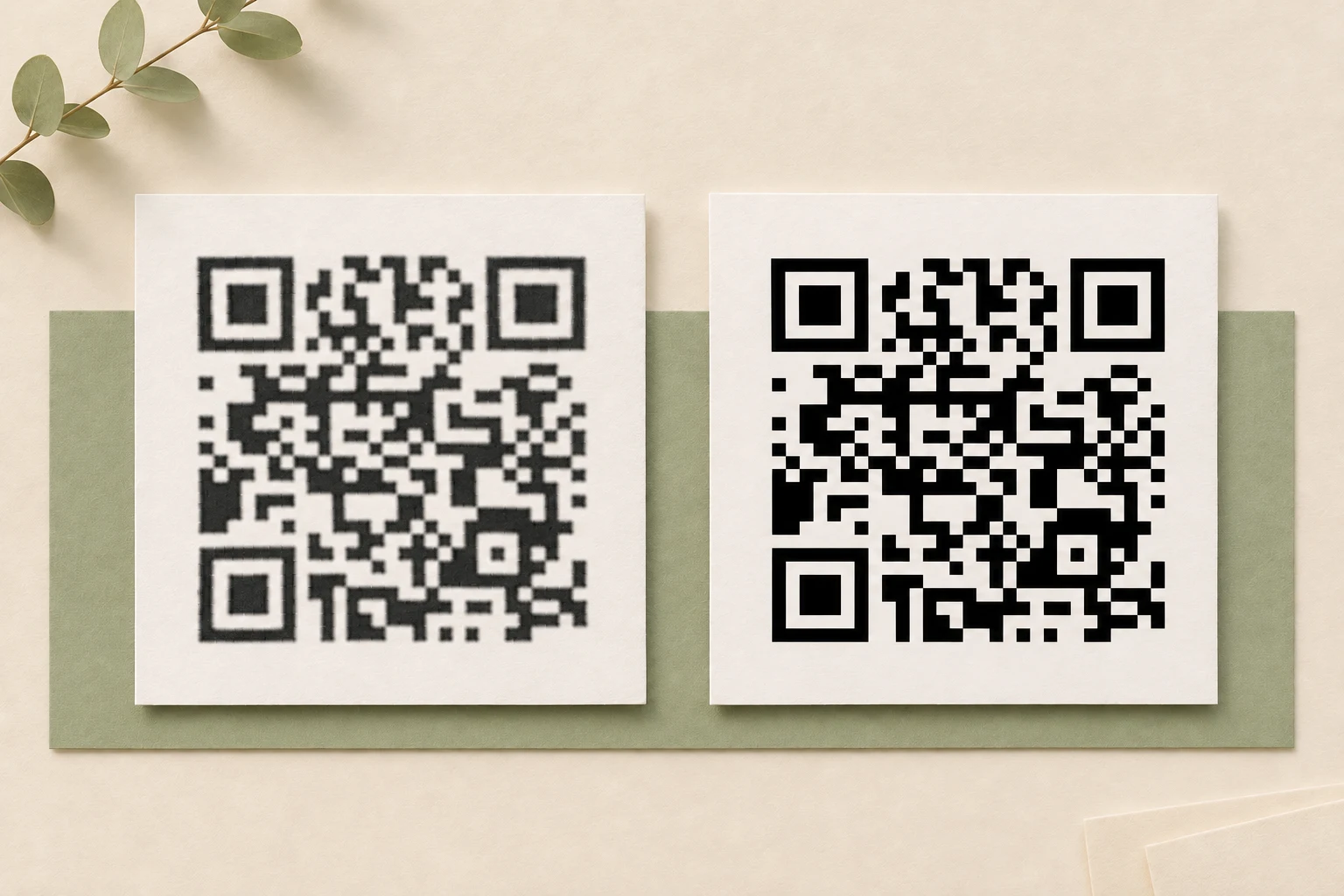
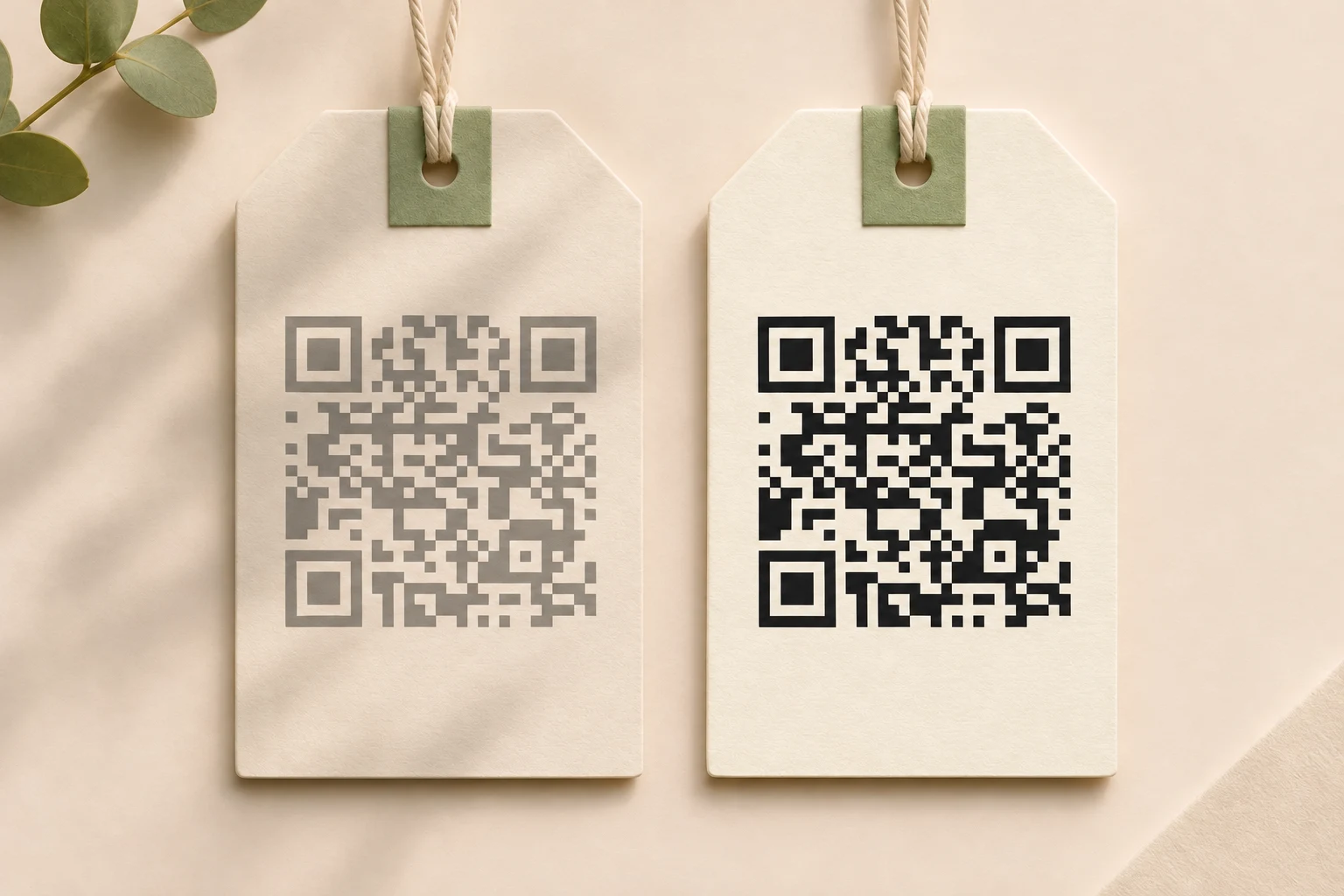
Different image problems need different checks. These AI-generated illustrations show clarity goals for screenshots, printed labels, and nearby text. They demonstrate visual directions rather than measured recovery results.

Clear blurry codes in saved screenshots

A code shared through several messaging apps may arrive with fuzzy edges and a gray haze between squares. QR Code Enhancer offers a way to revisit that saved image and inspect a cleaner version. This is most useful when the overall pattern is still visible and the problem is softness rather than missing chunks of the code.

If you want to fix blurry QR codes, begin by finding the earliest available file. Each extra screenshot or compressed save can discard detail. Compare the small spaces in the result with those in the source, especially where neighboring dark blocks nearly touch. Cleaner outlines are helpful for visual review, but a successful scan is still the practical test before sharing.
Clear blurry codes in saved screenshots

Improve contrast on faded labels

A pale label can be difficult to inspect even when its complete outline remains visible. Try QR Code Enhancer for images where gray ink, a dull background, or uneven lighting makes the square pattern hard to distinguish. The intended edit emphasizes visible structure while retaining the surrounding composition, so you can review the code in its original context.

Check whether a fresh photograph solves the problem first. Move away from glare, flatten the label if possible, and avoid a strong shadow crossing its center. If printed marks have actually worn away, darkening the remaining ink will not recreate the original information. Keep a source file or known destination available when preparing a replacement label for everyday use.

Improve contrast on faded labels

Clarify a code and its surrounding text

Menus, information cards, and flyers often place a QR image beside a heading or short instruction. QR Code Enhancer can attempt a clarity edit across that uploaded image, helping you inspect the pattern and its surrounding layout together. If you also need to enhance text in image content, compare each important word with the source rather than judging only the overall appearance.

A clean heading does not confirm that the code itself is usable. Review names, prices, dates, and website addresses separately, because generated lettering can change. For an editable design, replacing text with the original typed copy is more dependable than relying on an image edit. Use the preview to identify what needs attention before returning to your design file.

Clarify a code and its surrounding text

Put a clearer QR image into context

QR Code Enhancer fits small review tasks where you want to understand whether an existing picture can still serve its purpose. Match the checks to how the image will actually be used.

For cafes and small shops

Review a menu or counter card

Compare a photograph of a table card with a clearer preview before updating the layout. Confirm the menu destination separately and test any replacement at the size customers will see. A visually tidy card is useful only when its code still takes visitors to the intended menu.
For designers and event teams

Check a flyer or presentation asset

Use QR Code Enhancer to inspect an image pulled from an older slide or draft flyer. Keep the source and result together while checking surrounding text, margins, and contrast. If the design will be distributed widely, request the original code asset before committing to the final export.
For personal and office reference

Assess an archived label photo

An old photograph may be the only convenient view of a label or information card. A clearer image can help you decide what remains readable and what needs replacing. For records that depend on exact characters or identifiers, verify against the original record rather than copying generated details unchecked.

Get a more useful QR Code Enhancer result

Start with the largest original file available, but do not enlarge a tiny image repeatedly before uploading it. Check that the camera focused on the code rather than the background. When possible, photograph the surface straight on in even light; reflections and motion blur can hide details that a later edit cannot reliably restore.

Leave the blank border intact. A standard QR symbol needs a clear margin four modules wide on every side, where a module is one small square in the grid. Avoid cropping right against the dark pattern or placing a decorative frame over that space. In a layout, preserve the border when resizing or positioning the image.

Use QR Code Enhancer as one step in your review. After downloading, inspect at normal size and scan the actual file you intend to share. If you plan to print, test the printed sample under ordinary lighting. Confirm the destination, not just the fact that a scanner responds. A code that scans to an unexpected page has not passed the check.

When large areas are obscured, the corners are cut off, or the squares have merged into an unreadable patch, ask for a fresh source. If you know the intended URL or text, use a dedicated generator to create a replacement from that information. Repeated AI edits can introduce further changes, so keep the untouched original for comparison.

QR Code Enhancer questions

Understand what the image edit offers, how to prepare an upload, and when a replacement source is the better choice.

This AI QR code enhancer is an image-editing tool designed to improve the visual clarity of existing QR code images. Upload a screenshot, label photo, or menu image to create a version with more defined edges and clearer contrast. You can compare the result with your original, download it, and test it with a scanner.

No. It creates an edited image and does not decode or validate the embedded information. A result may look sharper while containing changed squares. Scan the downloaded file yourself and confirm its destination before using it in a customer-facing design or printed material.

A search for “Repair damaged QR code” can describe anything from faint printing to a missing corner. QR Code Enhancer may help you inspect surviving detail, but it cannot promise reconstruction of lost data. Built-in QR error correction has limits; replace a severely damaged code from the original information whenever possible.

If you mean making a blurry QR image clearer, that is the visual task this page addresses. The usual spelling is unblur. Upload the best complete image you have, then check the edited result. If you need guaranteed decoding or destination recovery, this image-editing workflow does not provide that service.

No. QR Code Enhancer includes a prepared editing direction, so you can begin with one uploaded image and the available resolution setting. You do not need to describe the desired sharpening. Keep the code and its border fully visible, and compare the result with your source.

Yes. Sign in to receive free credits that you can use with QR Code Enhancer. Each generation consumes credits, and you can generate without paying when your free credit balance covers the cost. Check the amount displayed in the generator before starting; it depends on the selected model settings.

Not necessarily. More output pixels can make an image larger, but they do not establish that its original data has been preserved. If the source lacks distinct squares, a larger result may still fail to scan. Use a fresh export or regenerate from a known destination when available.

Give your QR image a clearer second look

Start with a complete screenshot or photograph and let QR Code Enhancer create an edited version to review. Compare the details, download the result, and verify the destination before sharing. A careful check turns a clearer preview into a more informed decision about what to reuse or replace.

Try QR Code Enhancer
Image to Image AI logoImage to Image AI

A fresh take on your image. Explore new styles and scenes with AI.

Customer supportsupport@imgtoimageai.com

Tools

  • Remove Glare from Glasses
  • Remove Glare from Photo
  • Photo to Line Art
  • Image Upscaler
  • Realistic Selfie Generator
  • Christmas Photobooth
  • AI 3D Figure Generator
  • Selfie With Santa
  • Christmas Dance Trend
  • Motorcycle AI
  • AI Photo Booth
  • Photo to Sticker
  • QR Code Enhancer
  • AI Long Hair Filter
  • Bicep Heart Trend AI
  • Happy Birthday GIF with Name
  • Apartment Dance
  • AI GIF Generator
  • Executive Portrait Maker
  • AI Trouble Maker Video

Learn more

  • Tools
  • Blog
  • Pricing

Legal

  • Privacy Policy
  • Terms of Service
  • Refund Policy
  • Contact

© 2026 Image to Image AI