Image to Image AI logoImage to Image AI
  • Home
  • AI Image Generator
  • AI Video Generator
  • Tools
  • Nano Banana 2.1
  • Flux 3 Klein
  • Seedream 5.0 Pro
  • Seedream 5.5
  • GPT Image 2.5
  • GPT Image 2.6
  • MiniMax H3 Image
  • Kling 4.0
  • Grok Imagine Video 1.5
  • MiniMax H3 Max
  • Seedance 2.5
More
  • Blog
  • Pricing

Guest

Save your creations

Credits—
  1. Home
  2. /
  3. Image

GPT Image 2.6

Bring a visual idea into focus with GPT Image 2.6. Create original artwork, refine an existing photograph, or build a campaign around a recognizable subject. Start with Sunburst here, and explore Flare when your project calls for another creative direction. Try free GPT Image 2.6 generation with available account credits, and check the displayed cost before you start.

Create with GPT Image 2.6
|
10
Checking your sign-in status…
Strictly prohibits adult / NSFW content

AI Image Generators to Explore

Try a different look for your photos with generators for portraits, artistic styles, and creative edits.

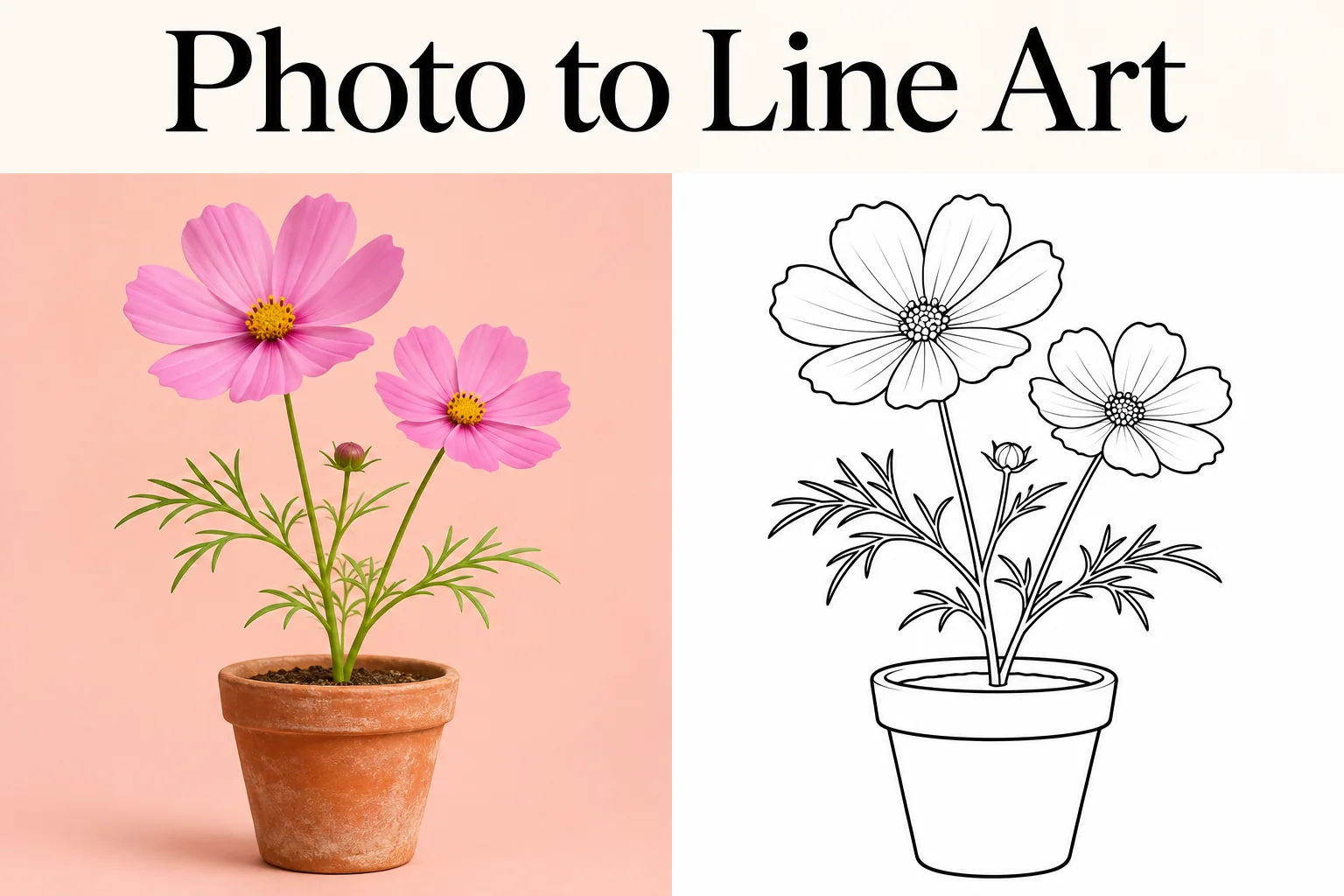
  • Photo to Line Art

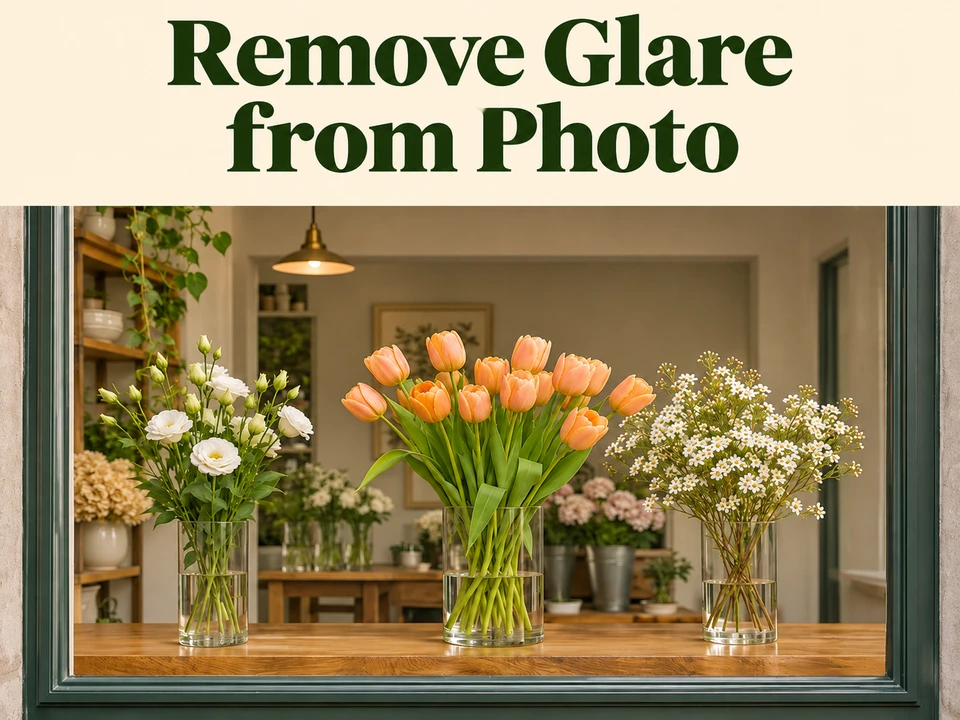
  • Remove Glare from Photo

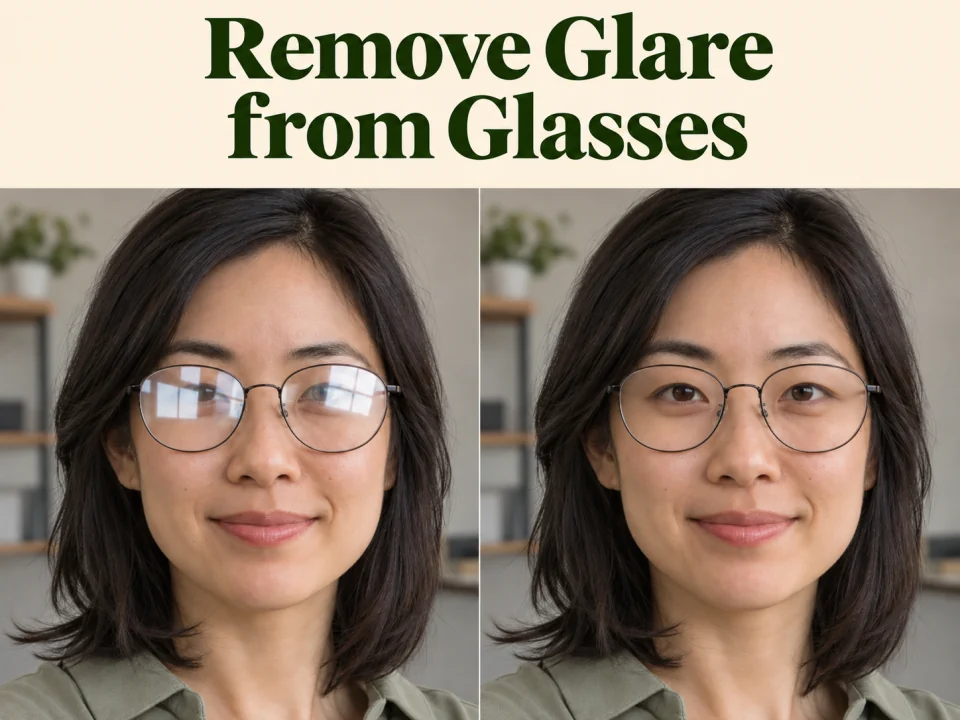
  • Remove Glare from Glasses

  • Realistic Selfie Generator

  • Image Upscaler

  • Selfie With Santa

  • AI 3D Figure Generator

  • Motorcycle AI

  • Photo to Sticker

  • AI Photo Booth

  • AI Long Hair Filter

  • Happy Birthday GIF with Name

  • AI GIF Generator

  • Executive Portrait Maker

  • No Beard Filter

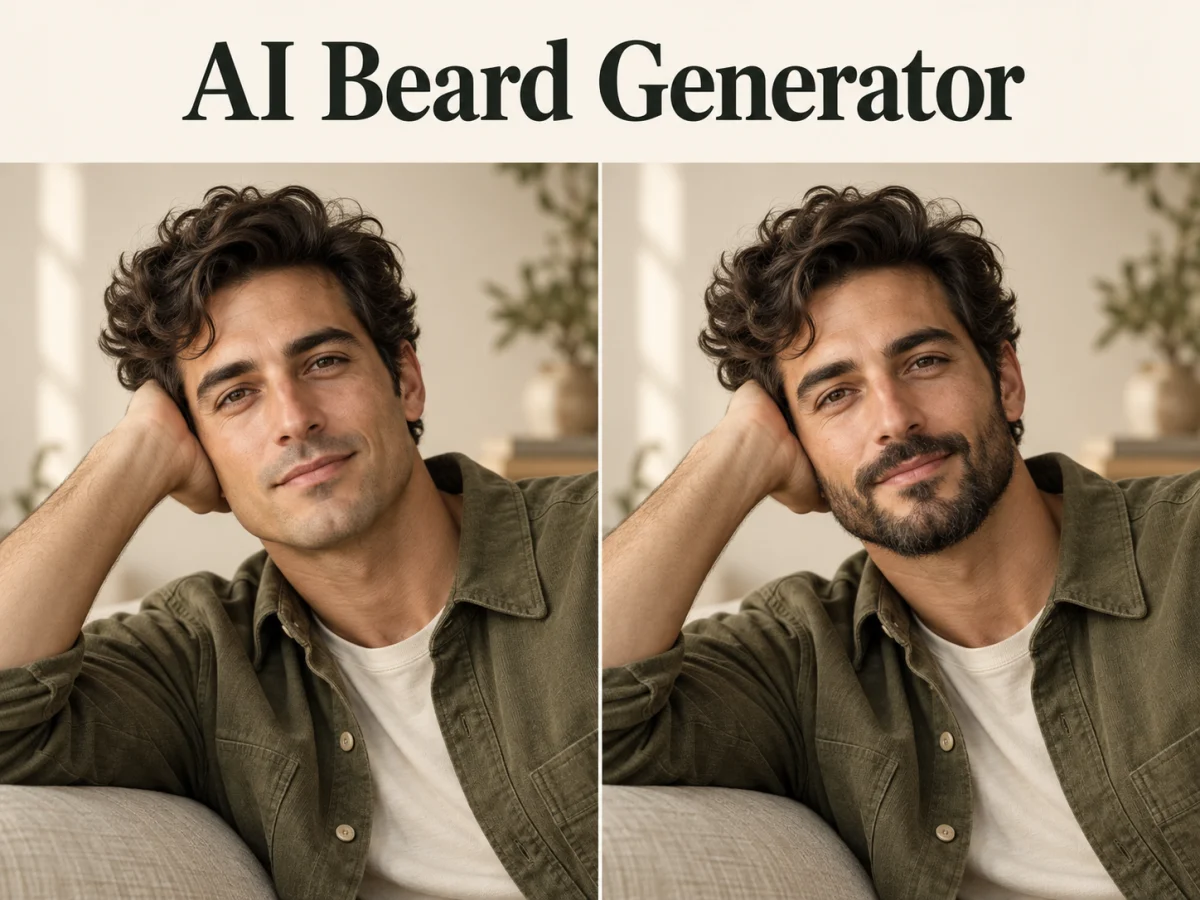
  • AI Beard Generator

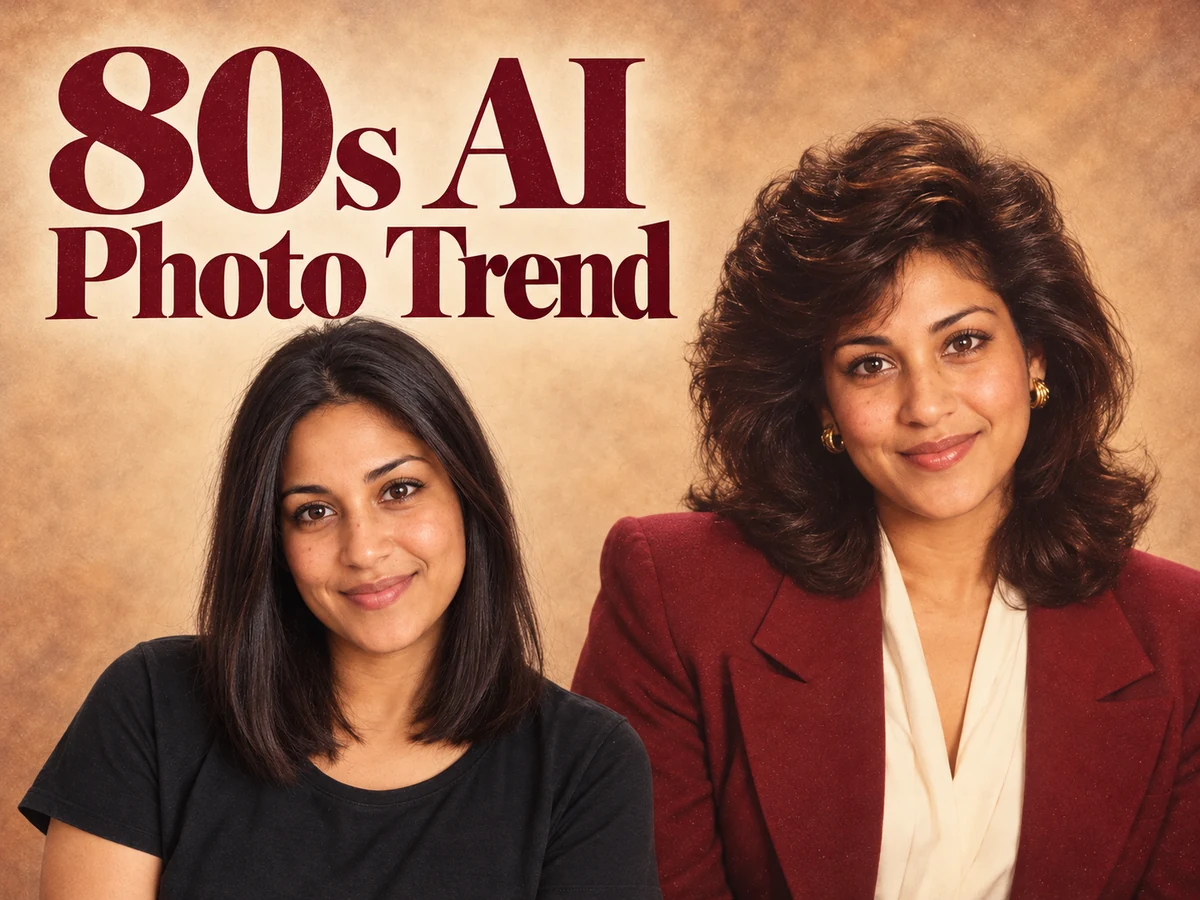
  • 80s AI Photo Trend

  • AI Pregnant Filter

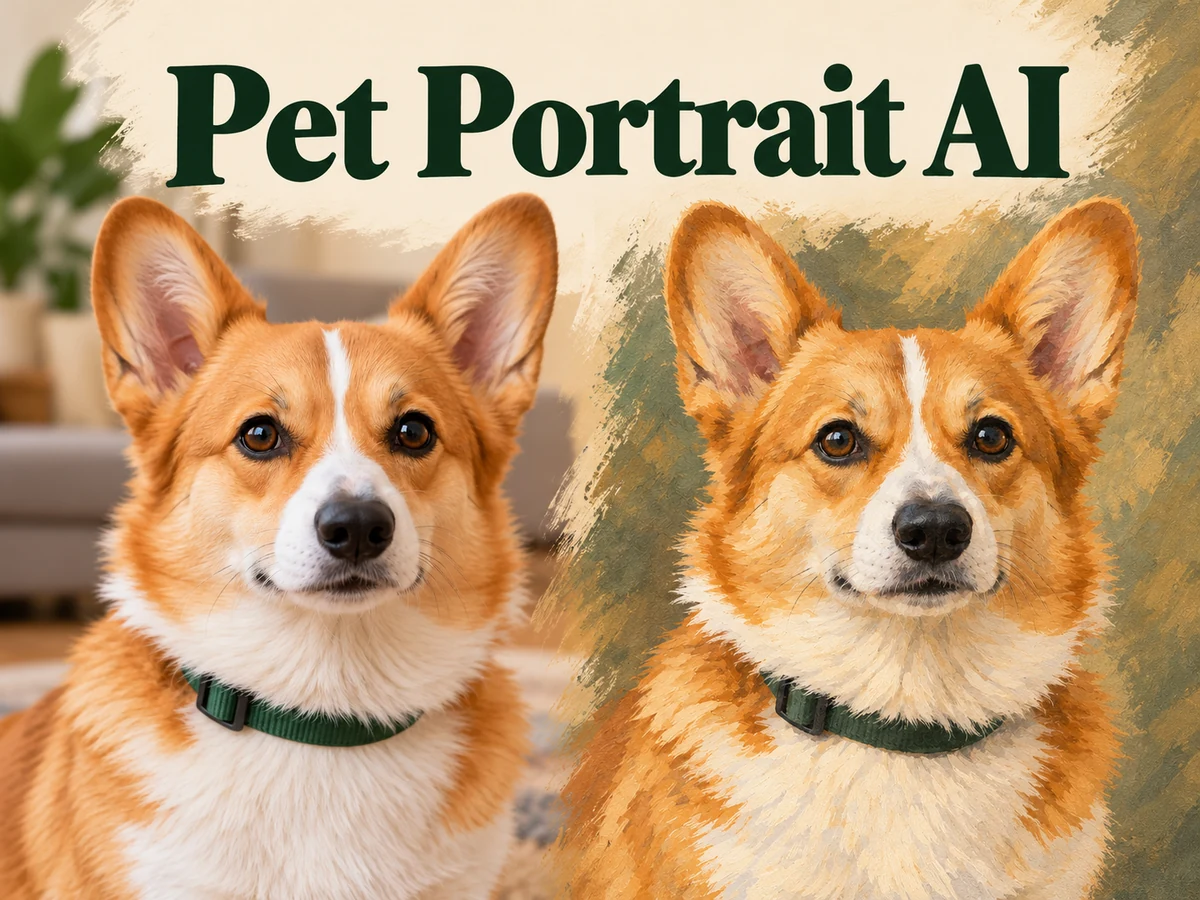
  • Pet Portrait AI

  • Photo to Watercolor

  • Photo to Coloring Page

Page 1 of 3

Create and Refine with GPT Image 2.6

A useful image begins with a clear intention: the object you want people to notice, the feeling a scene should convey, or the detail an edit needs to preserve. GPT Image 2.6 brings text and image inputs together so that intention can become a visual starting point.

What changes from GPT Image 2.5? GPT Image 2.6 builds on the earlier models that already supported reference images, precise edits, and detailed compositions. The November 4, 2026 release advances speed, editing consistency, and professional layouts, while adding more output options.

Faster iteration: OpenAI reports 50% faster image generation for GPT Image 2.6, with Flare capable of producing an image in as little as six seconds at Low quality. These are provider figures; your waiting time here depends on the prompt, settings, and service load.

Better refinement: GPT Image 2.6 Sunburst improves image quality and consistency across edits at Medium or High quality, helping keep characters, products, and brand details recognizable. Flare improves layout quality for posters and product imagery. Compare results against your references when specific details must remain unchanged.

More output choices: compared with the JPEG, PNG, and WebP formats offered by our GPT Image 2.5 models, GPT Image 2.6 also supports animated GIFs and SVG artwork. Try GIF for a short visual loop or SVG for scalable graphics; SVG generation here requires a prompt without reference images.

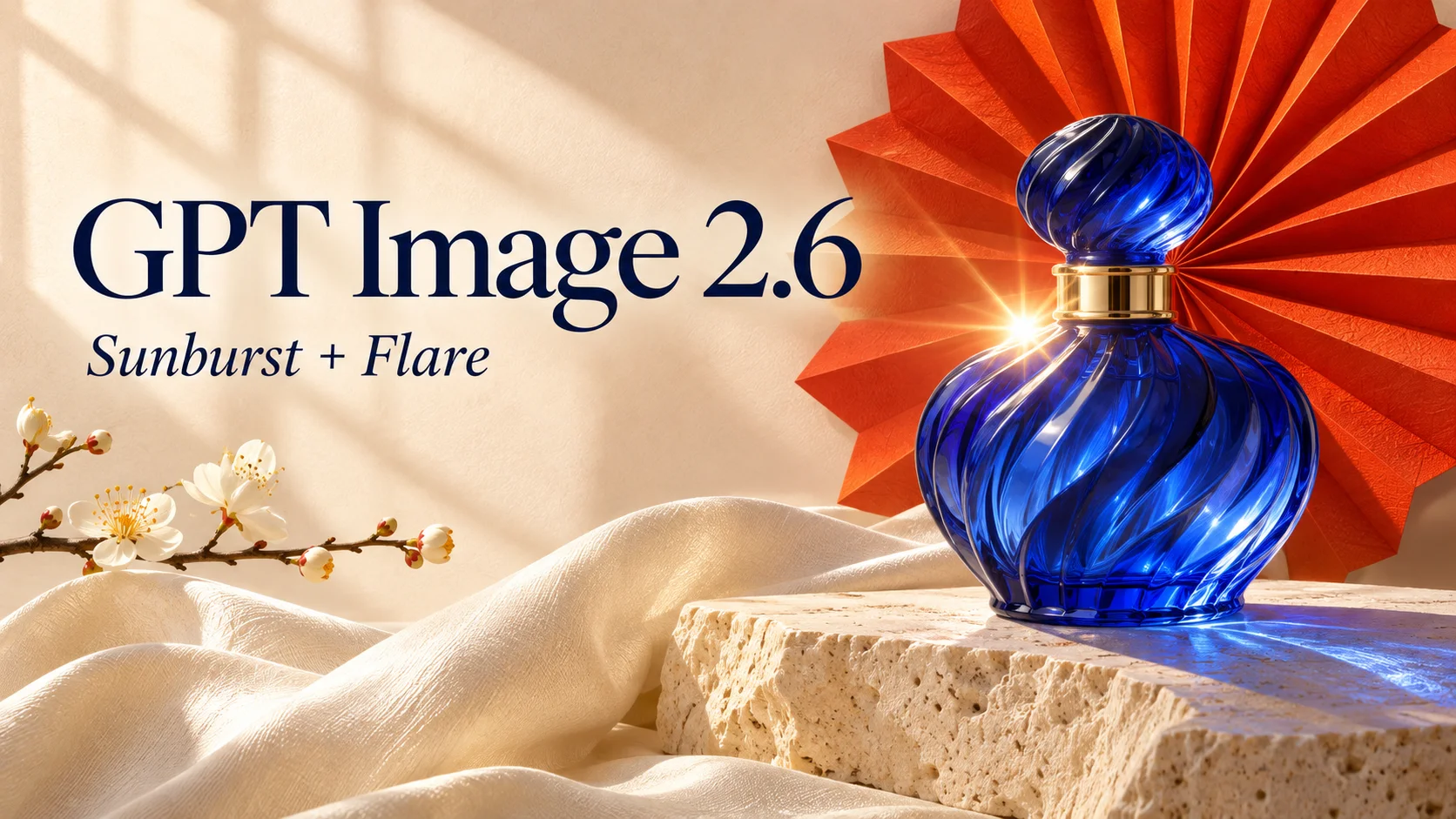
GPT Image 2.6 Sunburst and Flare title beside a cobalt bottle and vermilion paper sun
Cobalt glass, warm stone, and a folded paper sun establish a coordinated palette for product and campaign imagery.
OpenAI Images 2.6 announcement

Meet GPT Image 2.6 Sunburst and Flare

Both models accept a written brief and optional reference images. Choose around the demands of the work, then compare the result against your own composition, subject, and editing priorities.

Sunburst for Detailed Creative Work

GPT Image 2.6 Sunburst is the default model on this page. OpenAI positions it for demanding detail and greater consistency through edits at Medium or High quality. It is a sensible starting point when a product silhouette, a carefully arranged scene, or a specific material deserves close attention.

Flare for Exploring Visual Directions

GPT Image 2.6 Flare focuses on faster iteration, with the release also highlighting improvements to professional layouts. Consider it when you want to explore poster treatments, compare visual moods, or develop several directions before choosing one to refine. Actual waiting time depends on the request and service load.

Shape a Campaign with GPT Image 2.6

A coordinated campaign can move between photographic detail and graphic composition while keeping a recognizable palette. These creative examples show three useful directions for your next brief.

Give Products a Distinctive Setting

A product scene needs more than a beautiful background. The object should remain the first thing the viewer understands. With GPT Image 2.6, describe its shape, the surface beneath it, the direction of the light, and the amount of surrounding space. A restrained set of props can help explain the mood without competing for attention.

For a reference edit, identify the bottle, package, or accessory that must remain recognizable. Ask for a new setting while preserving the camera angle and important proportions. Compare the outline, cap, label area, and reflections before using the image in a campaign. For an original concept, explain the material directly: translucent blue glass, brushed metal, textured paper, or matte ceramic.

Build a product scene
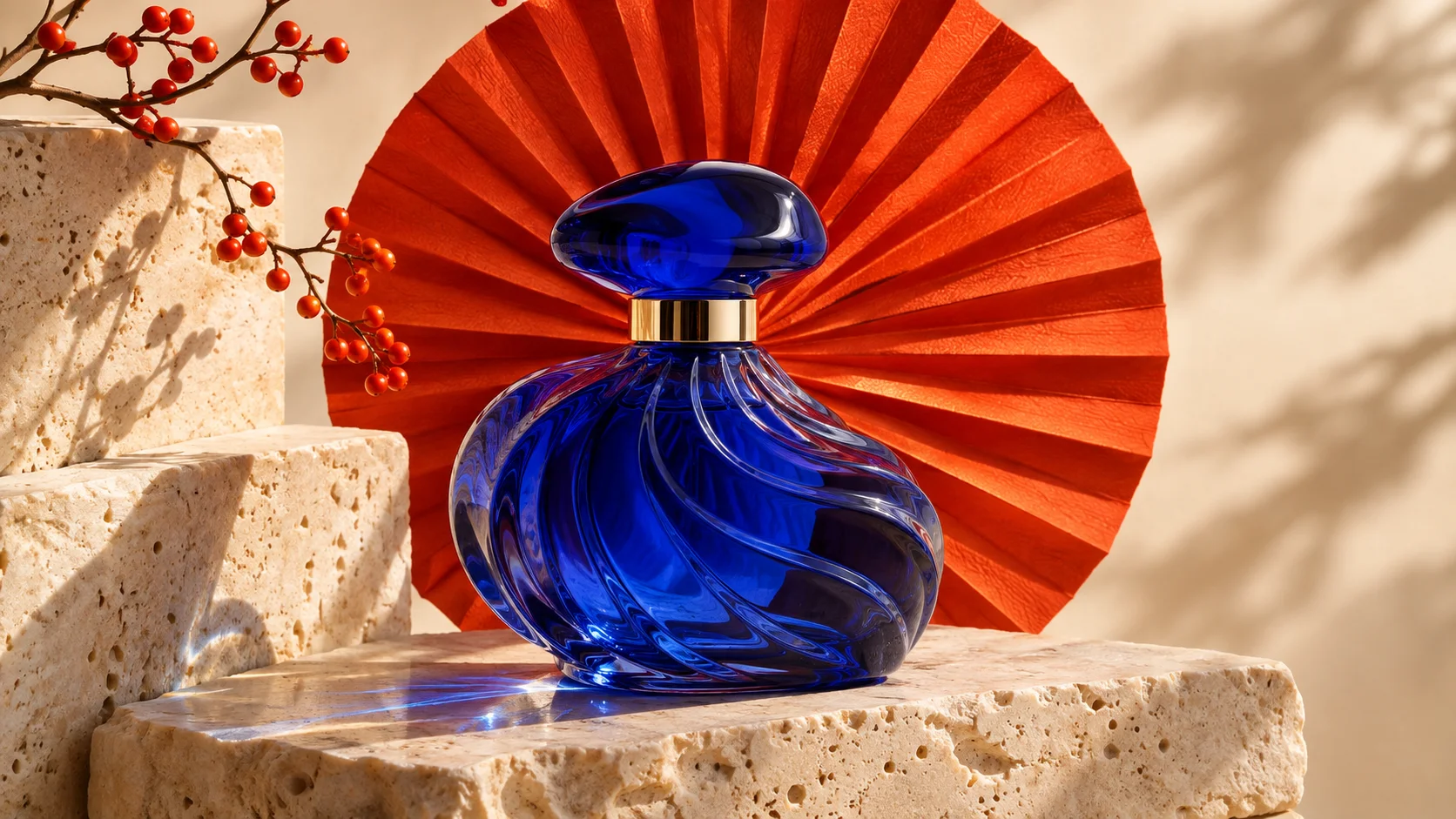
Cobalt perfume bottle on travertine with a folded vermilion paper backdrop
Warm daylight reveals the blue glass and pale stone while a folded red backdrop frames the bottle.

Bring Words and Composition Together

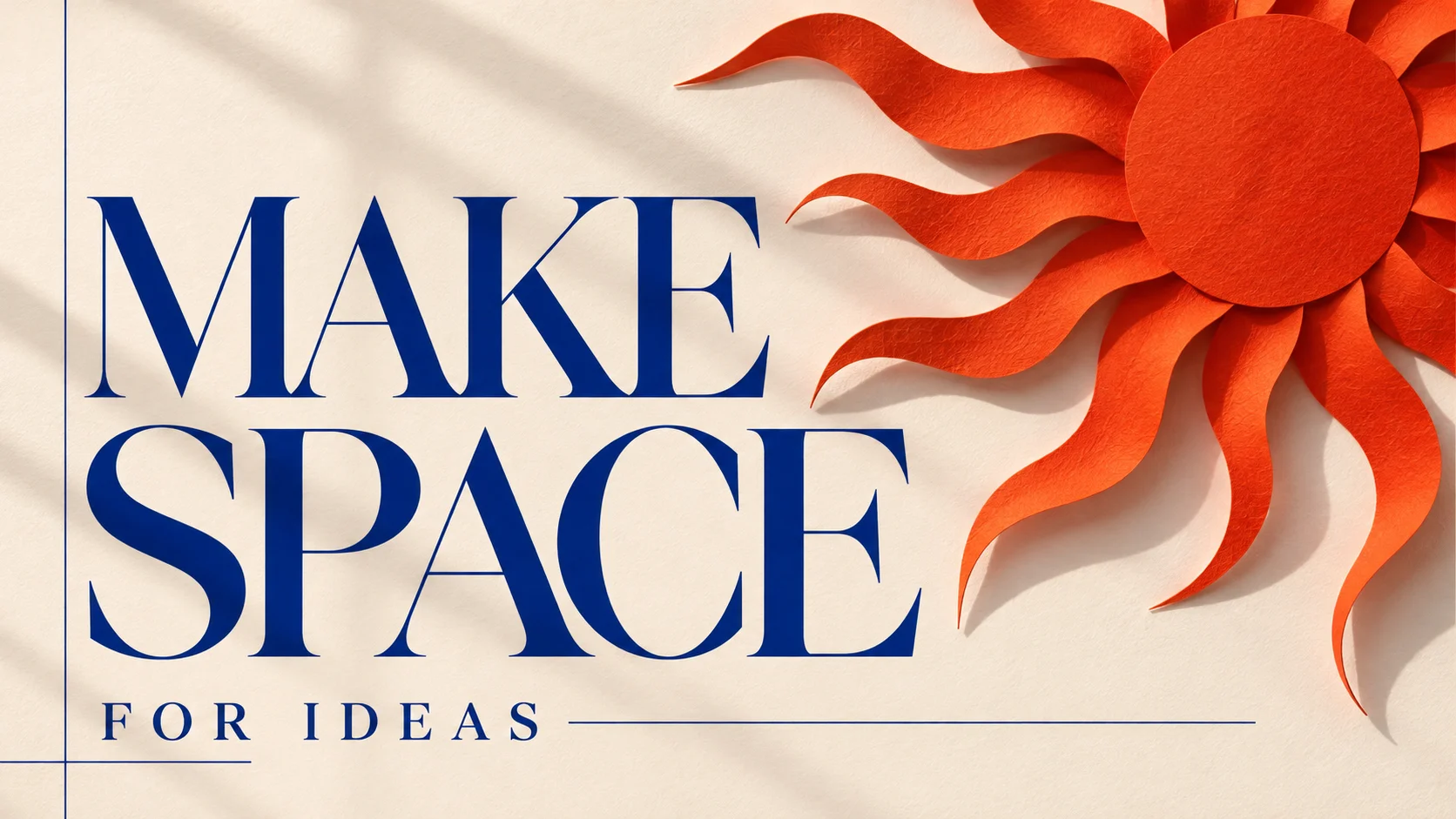
A poster has to communicate before someone reads every detail. Give GPT Image 2.6 the exact headline, the order of supporting information, and a clear relationship between the lettering and the illustration. A short phrase, a strong color contrast, and intentional empty space give you a useful starting structure.

Write requested text in quotation marks and specify where it belongs. For a campaign cover, you might ask for a large title on the left and a single sculptural object on the right. Check spelling, spacing, and readability in the downloaded file, especially for small text. If the message changes, revise the words and keep the visual direction steady rather than rebuilding every part of the scene.

Create a poster concept
Ivory poster reading Make Space for Ideas beside a vermilion paper sun
Oversized cobalt lettering and a red paper sun create a clear hierarchy on an ivory poster.

Build a Cohesive Brand Set

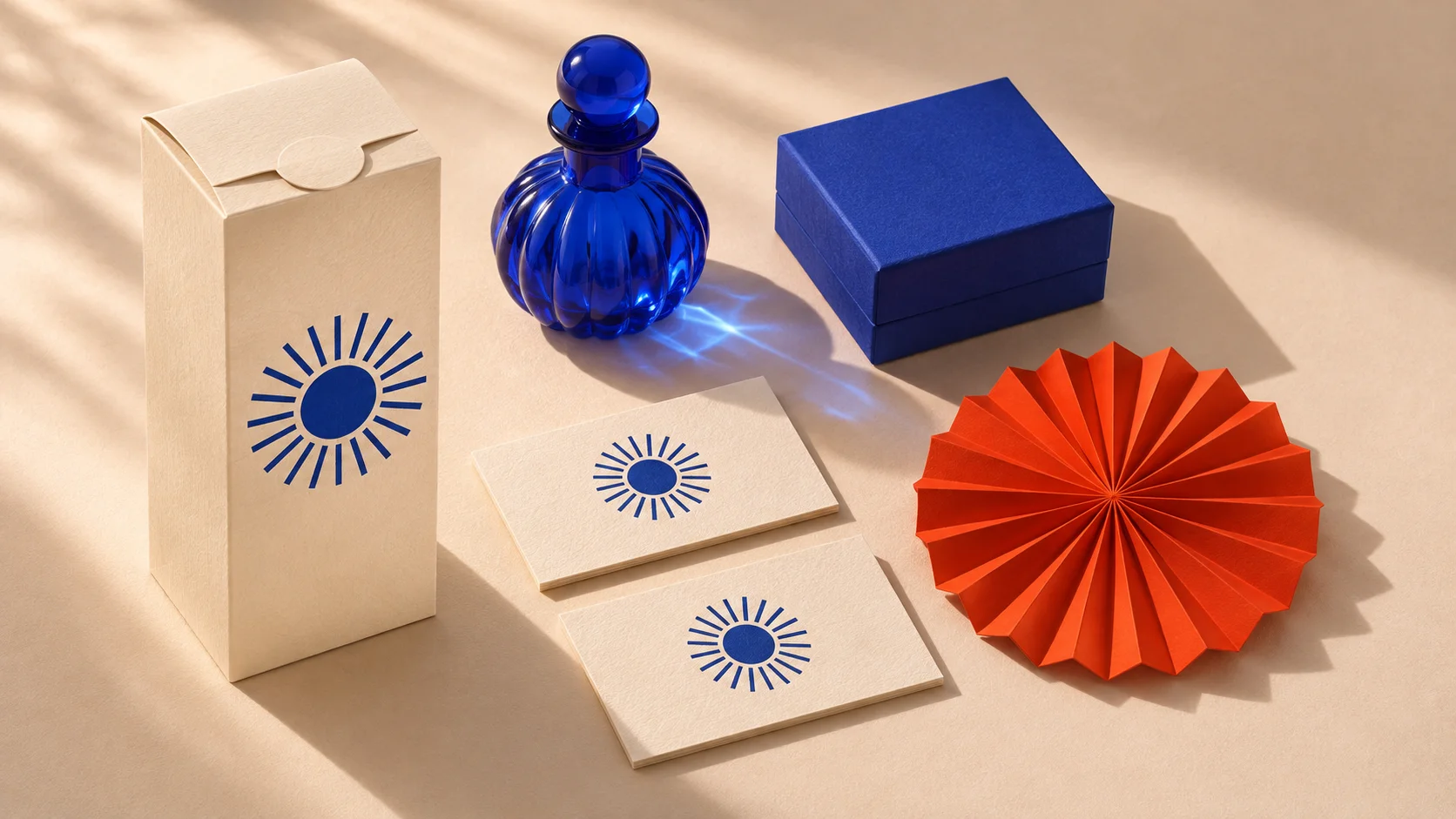
Carry one visual identity across packaging, stationery, and campaign artwork. Give GPT Image 2.6 a shared palette, a simple emblem, and a consistent material direction. An ivory carton, cobalt box, and matching cards can help you explore how a brand feels across several touchpoints before developing individual designs.

Use a reference to guide the emblem or product, and specify which colors and proportions should stay consistent. Ask for a coordinated presentation with clear spacing between objects. Review repeated symbols, surface details, and perspective before choosing a direction; refine each asset separately when it needs closer attention.

Explore a brand direction
Ivory packaging and cards with cobalt sun emblems beside a blue glass bottle and vermilion paper sun
Matching sun emblems and an ivory, cobalt, and vermilion palette connect packaging and stationery into a coordinated brand presentation.

A Practical GPT Image 2.6 Workflow

Keep the first request focused and make each revision answer a specific question. This approach helps you judge the result and decide which detail needs attention next.

1. Describe the Finished Image

Tell GPT Image 2.6 what you are making before listing aesthetic details. Name the subject, setting, framing, and intended use. A landscape product banner with space for copy is clearer than a collection of unrelated style words. Follow with the light, palette, and texture that support the message. The prompt field accepts up to 10,000 characters, but a concise brief is often easier to revise.

2. Add References with a Purpose

Upload a photograph or sketch when it supplies information that words would struggle to describe. Explain which reference defines the subject and which guides the atmosphere. GPT Image 2.6 accepts up to 16 reference images here, each up to 10 MB in PNG, JPEG, or WebP format. Use the smallest useful set and avoid contradictory views when one clear image would explain the task.

3. Choose the Quality

Start with the default Low quality for a first direction, then choose Medium or High when you want to explore more detail. GPT Image 2.6 costs 10 credits at Low, 15 at Medium, and 30 at High. Output format and reference count do not change that price. Review the composition and describe any framing requirements in your prompt before generating.

4. Review and Make a Focused Revision

Look at the whole composition first, then inspect edges, faces, materials, and lettering. For another edit, use a supported image as the reference and name both the change and the details to retain. Ask GPT Image 2.6 to change one important element at a time, such as a backdrop or color, so you can see whether the revision improved the result.

Write a More Useful GPT Image 2.6 Prompt

Separate the subject from its treatment. The subject explains what the image contains; the treatment explains how it should look. If you are editing, add a third part that lists the details to preserve.

Try this starting brief: Create a landscape editorial photograph of a cobalt glass perfume bottle on pale travertine. Place a vermilion folded paper sun behind the bottle. Use warm light from the upper left, subtle reflections, and a quiet ivory background. Leave clear space on the right for a headline. Keep the bottle as the strongest focal point.

For an edit, make the request narrower: Keep the bottle shape, camera position, and pale stone surface. Replace the background with an ivory studio wall and soften the shadow. Do not add lettering or extra products. GPT Image 2.6 can use this kind of instruction to explore a change while keeping your visual priorities explicit.

GPT Image 2.6 vs GPT Image 2.5 vs Flux 3

Compare GPT Image 2.6 with GPT Image 2.5 and Flux 3 Klein around the work you need to do. All three support text prompts and reference images. Choose based on editing priorities, output options, and the settings available here.

ComparisonGPT Image 2.6GPT Image 2.5Flux 3 (Klein)
Creative focusSunburst: finer detail and edit consistency; Flare: faster iteration and improved layoutsSunburst: precise creative work; Flare: everyday generation and editingImage editing, restyling, and combining references
Reference images hereUp to 16; none for SVGUp to 14Up to 10
Output sizes here1024 × 1024; GIF frames 512 × 5121K, 2K, 4K with selectable ratios1K, 2K, 4K with selectable ratios
Output formats hereJPEG, PNG, WebP, GIF, SVGPNG, JPEG, WebP raster outputsPNG
Prompt length hereUp to 10,000 charactersUp to 20,000 charactersUp to 5,000 characters
Projects to tryCampaign revisions, short GIF loops, and SVG graphicsDetailed still images and larger compositionsReference-based scene changes and visual restyling
Try GPT Image 2.6Explore GPT Image 2.5Explore Flux 3 Klein

Limits describe this generator, not every provider offering. Flux 3 refers to Klein. Compare the same brief and references before choosing; results depend on the task.

GPT Image 2.6 Questions

GPT Image 2.6 Sunburst is selected by default. The page introduces both variants, while Flare is available through the shared image generator at /image. Choose Flare there when you want to explore its approach to the same brief.

GPT Image 2.6 starts with Low quality, Auto background, and PNG output. Images use 1024 × 1024 pixels; GIF frames use 512 × 512. Size is not selectable. Medium and High quality are also available. Each request produces one output file.

Yes. Alongside JPEG, PNG, and WebP, GPT Image 2.6 offers GIF and SVG output here. GIF uses four frames at 200 milliseconds per frame. SVG is available for text-only generation without reference images. GIF and SVG outputs cannot be added directly as reference images in this generator.

Choose Transparent when your image needs to sit on another background, such as a product cutout or decorative element. Use PNG as a practical starting format and inspect the edge against both light and dark surfaces. JPEG does not support transparency; select Auto or Opaque for that format.

You can use available free account credits for GPT Image 2.6 generation. Sign in and check your balance before starting: the default Low quality costs 10 credits per request. Free access depends on having enough credits for the selected quality, so it does not mean unlimited generation.

GPT Image 2.6 uses a fixed price based only on quality: Low costs 10 credits, Medium costs 15 credits, and High costs 30 credits. Supported output formats and reference image counts have the same price at a given quality. Review the displayed amount before submitting each request.

No image model can guarantee perfect preservation in every result. Use clear references, identify the details that matter, and review each output. For a sequence of GPT Image 2.6 edits, keep a successful version as your next reference and avoid changing several unrelated properties at once.

Create Your Next GPT Image 2.6 Visual

Bring one idea, a useful reference if you have one, and a clear description of the result. Start with Sunburst, review the first image, and give the next revision a specific purpose.

Create with Sunburst
Browse all image models
Image to Image AI logoImage to Image AI

A fresh take on your image. Explore new styles and scenes with AI.

Customer supportsupport@imgtoimageai.com

Tools

  • Remove Glare from Glasses
  • Remove Glare from Photo
  • Photo to Line Art
  • Image Upscaler
  • Realistic Selfie Generator
  • Christmas Photobooth
  • AI 3D Figure Generator
  • Selfie With Santa
  • Christmas Dance Trend
  • Motorcycle AI
  • AI Photo Booth
  • Photo to Sticker
  • QR Code Enhancer
  • AI Long Hair Filter
  • Bicep Heart Trend AI
  • Happy Birthday GIF with Name
  • Apartment Dance
  • AI GIF Generator
  • Executive Portrait Maker
  • AI Trouble Maker Video

Learn more

  • Tools
  • Blog
  • Pricing

Legal

  • Privacy Policy
  • Terms of Service
  • Refund Policy
  • Contact

© 2026 Image to Image AI