










Image to Image AI logoImage to Image AI
  • Home
  • AI Image Generator
  • AI Video Generator
  • Tools
  • Nano Banana 2.1
  • Flux 3 Klein
  • Seedream 5.0 Pro
  • Seedream 5.5
  • GPT Image 2.5
  • GPT Image 2.6
  • MiniMax H3 Image
  • Kling 4.0
  • Grok Imagine Video 1.5
  • MiniMax H3 Max
  • Seedance 2.5
More
  • Blog
  • Pricing

Guest

Save your creations

Credits—
  1. Home
  2. /
  3. Image

Seedream 5.0 Pro AI Image Generator and Editor

Turn a written brief into a visual direction. Create illustrations, plan campaign artwork or revise a photograph with Seedream 5.0 Pro. Start with text, bring in useful reference images and shape the composition around the message you want people to remember.

|
39
Checking your sign-in status…
Strictly prohibits adult / NSFW content

AI Image Generators to Explore

Try a different look for your photos with generators for portraits, artistic styles, and creative edits.

  • Photo to Line Art

  • Remove Glare from Photo

  • Remove Glare from Glasses

  • Realistic Selfie Generator

  • Image Upscaler

  • Selfie With Santa

  • AI 3D Figure Generator

  • Motorcycle AI

  • Photo to Sticker

  • AI Photo Booth

  • AI Long Hair Filter

  • Happy Birthday GIF with Name

  • AI GIF Generator

  • Executive Portrait Maker

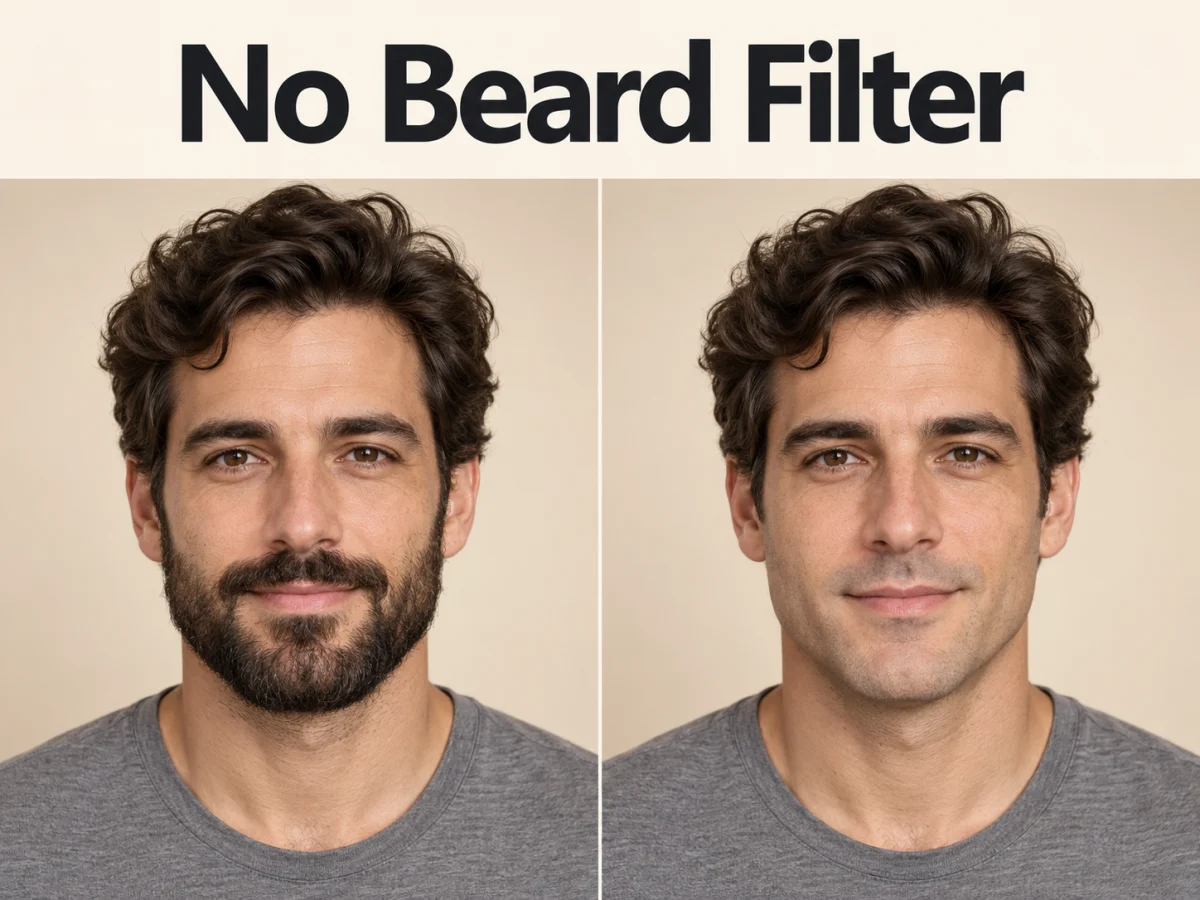
  • No Beard Filter

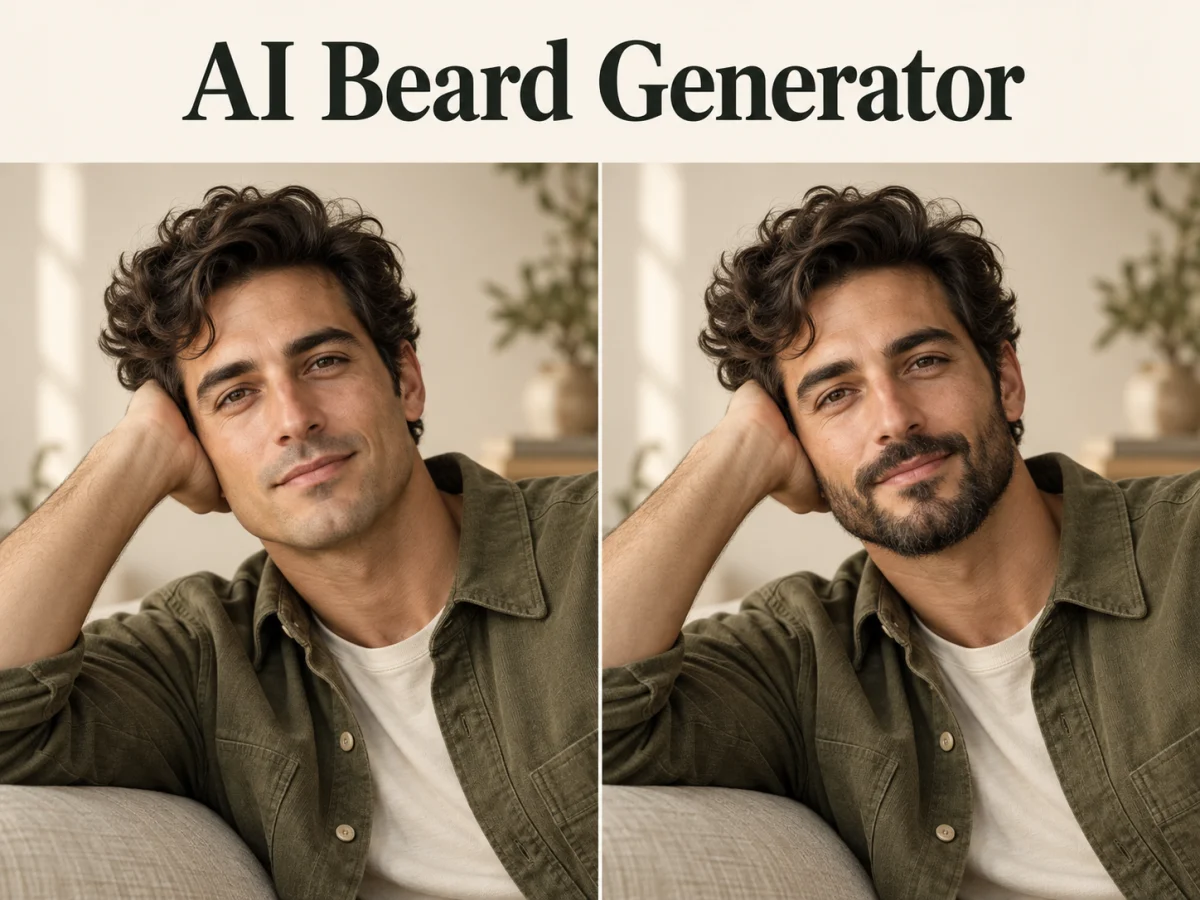
  • AI Beard Generator

  • 80s AI Photo Trend

  • AI Pregnant Filter

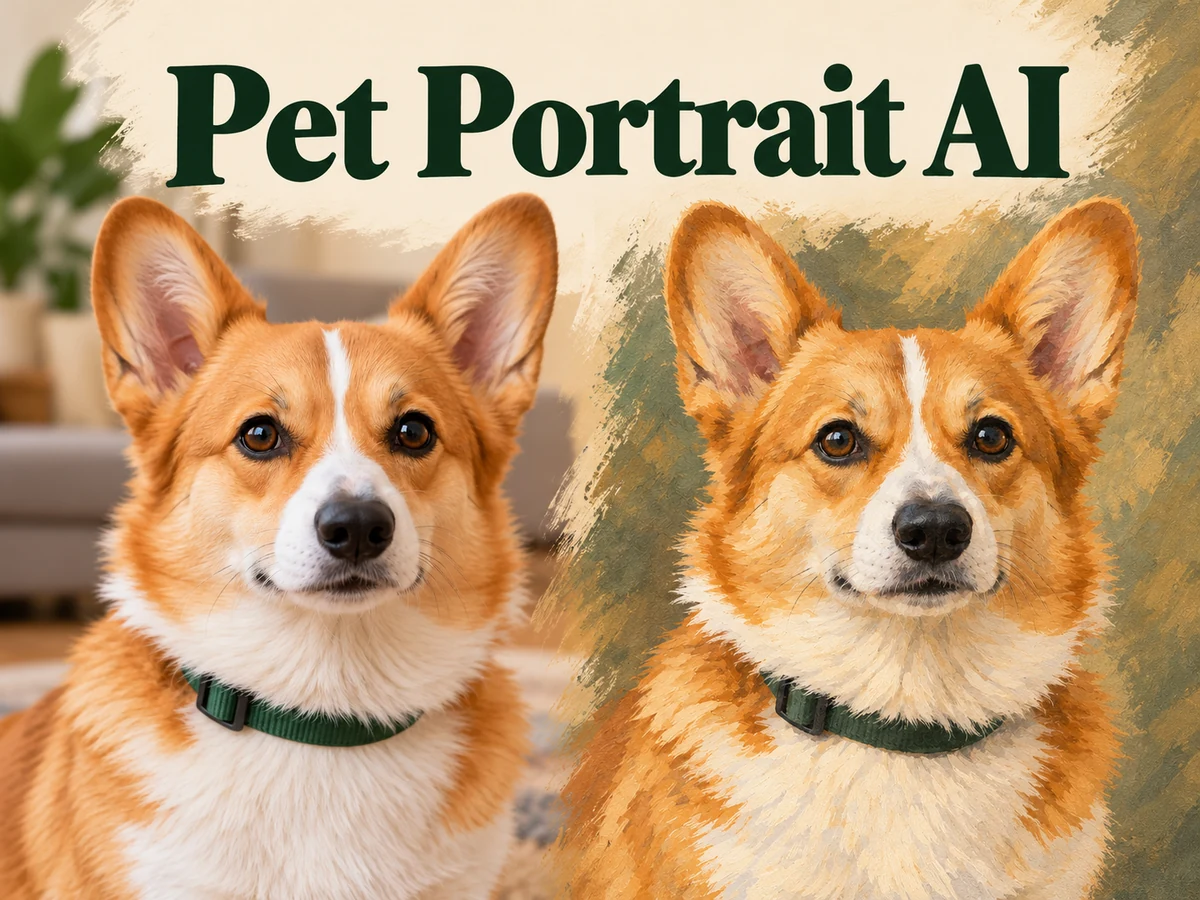
  • Pet Portrait AI

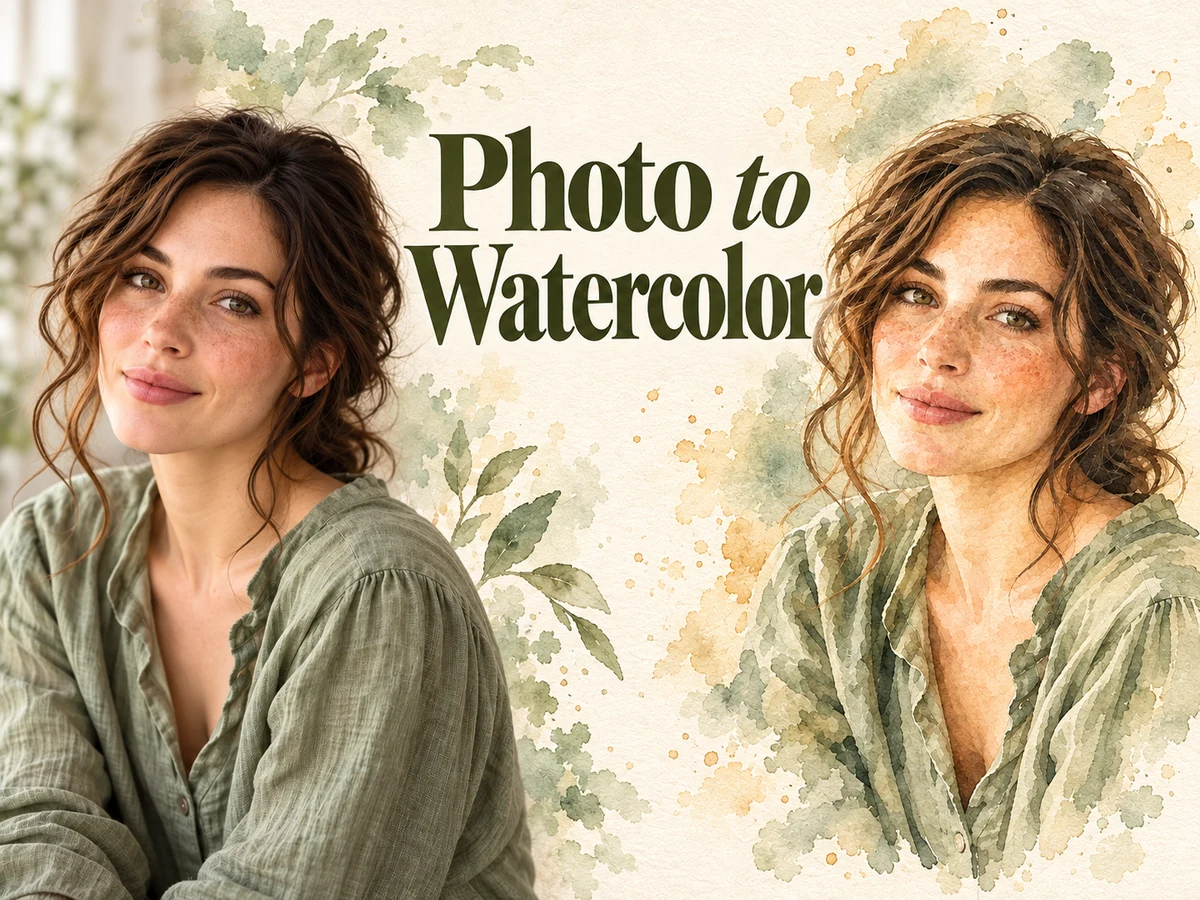
  • Photo to Watercolor

  • Photo to Coloring Page

Page 1 of 3

What Is Seedream 5.0 Pro?

Seedream 5.0 Pro is ByteDance's image generation and editing model, with an emphasis on interpreting design instructions and arranging complex visual information. It combines text and image inputs, making it useful for exploring a new scene or giving existing artwork a specific revision.

A useful Seedream 5.0 Pro brief explains the relationship between elements: which object leads, which details support it and where the viewer should look next. On ImgToImage AI, the model opens in the shared image workspace. You can work from a blank canvas or upload references, then compare the output with your original intent.

Create with Seedream 5.0 Pro in Three Steps

  1. 01

    Define the purpose and frame

    Tell Seedream 5.0 Pro what the image will communicate. Name the audience, main subject and intended format. A wide presentation cover needs a different arrangement from a square product tile. Describe the viewing angle and establish a focal point before requesting decorative detail.

  2. 02

    Add references and select settings

    Upload relevant images when appearance or structure matters. Assign each reference a role in your Seedream 5.0 Pro prompt, such as object shape, room geometry or palette. Select an aspect ratio and resolution, then review the displayed credit estimate before submitting.

  3. 03

    Inspect, refine and download

    Review the Seedream 5.0 Pro result at the size your audience will see. Check the main message first, then lettering, edges and small objects. Refine the most distracting issue with a focused instruction. Download the chosen image when its composition supports your purpose.

AI Image Generators for Your Next Project

Bring your next photo project to life with creative effects, painted portraits, and printable coloring pages.

  • Photo to Line Art

  • Remove Glare from Photo

  • Remove Glare from Glasses

  • 80s AI Photo Trend

  • AI Pregnant Filter

  • Pet Portrait AI

  • AI Beard Generator

Creative Uses for Seedream 5.0 Pro

These images from ByteDance's Seedream 5.0 Pro showcase illustrate five creative directions. The written prompts further down are original starting points; they are not the source prompts for these examples.

English Infographics and Visual Explanations

Plan an educational graphic with Seedream 5.0 Pro by defining a reading order, a small set of labels and a consistent icon style. This English linguistics example shows how headings and diagrams can organize a dense topic. Supply the facts yourself and check every relationship in the result. For a lesson slide, limit the content to one question so the graphic remains understandable when viewed from a distance.
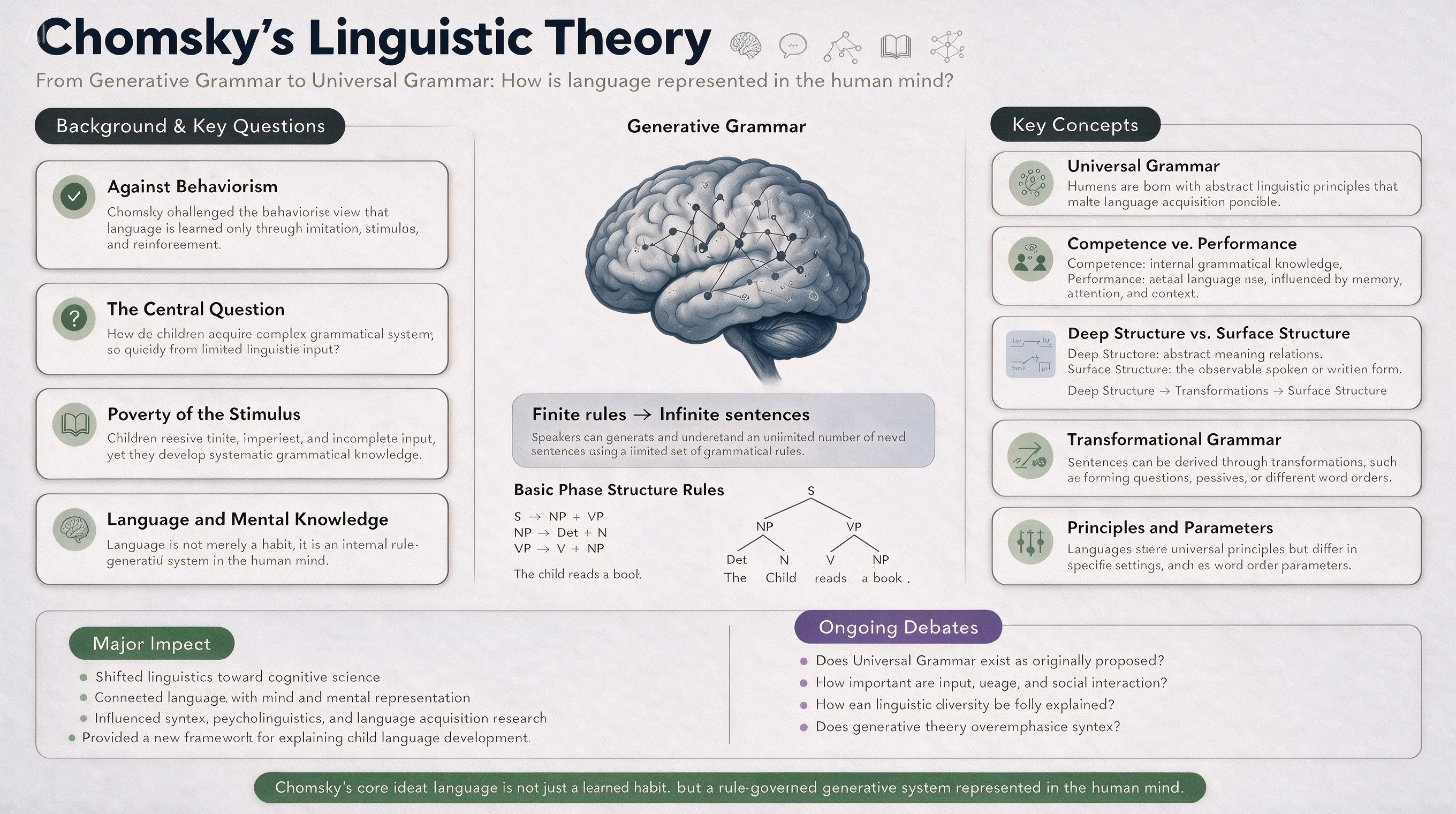
English infographic titled Chomsky Linguistic Theory with a central brain illustration and labeled concept panels

Interior Styling and Photo Edits

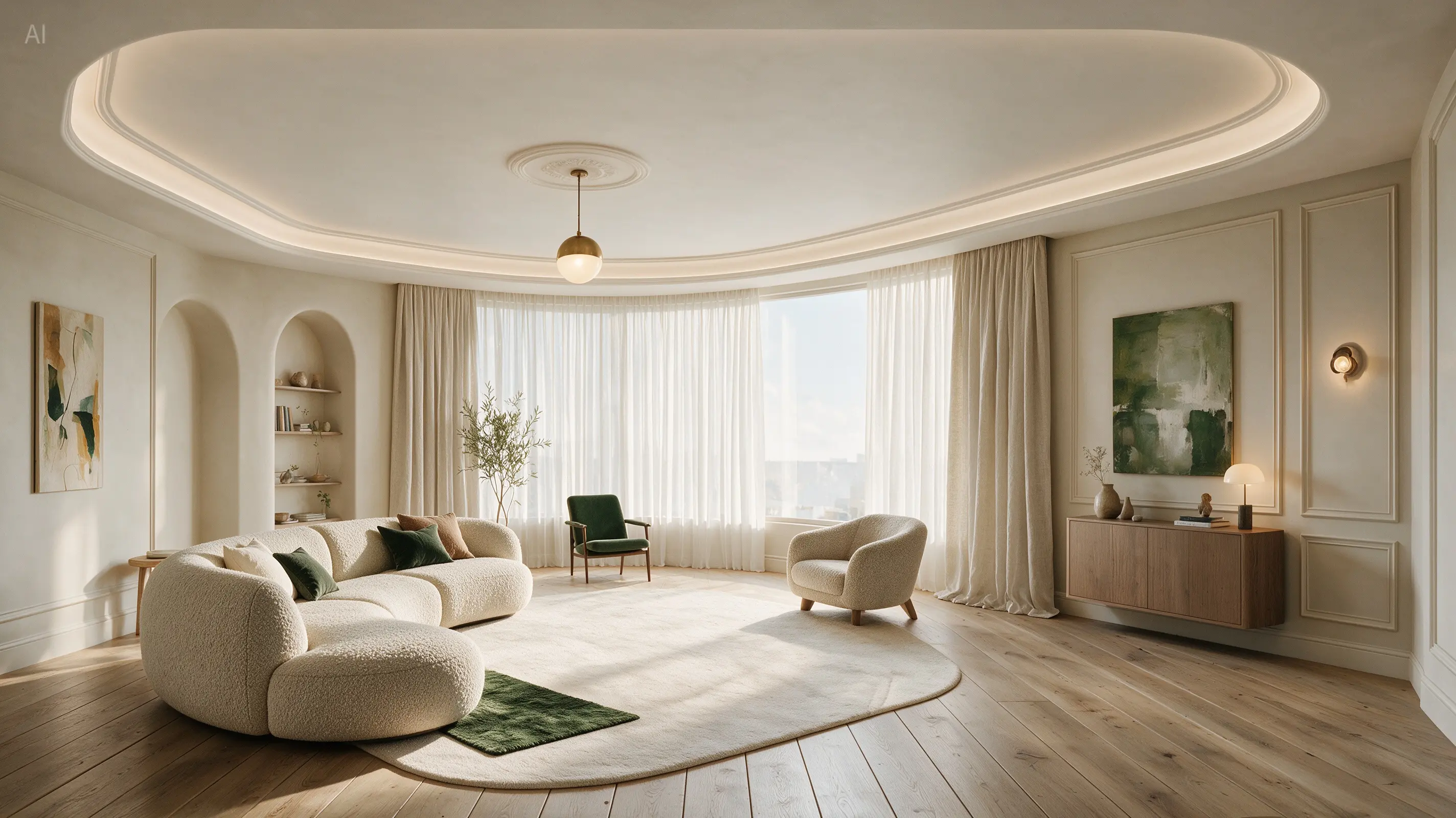
Explore a furnishing direction before changing a physical space. Seedream 5.0 Pro can take a reference photograph and an editing brief describing the materials or colors you want to explore. In a room study, separate fixed architecture from movable decor. Preserve doorways, windows and perspective while testing textiles or lighting. Compare the result with the original photograph to spot altered proportions before using it in a client discussion.

Bright cream living room with green accents, curved furniture and soft natural daylight

Landscape Stories and Campaign Backdrops

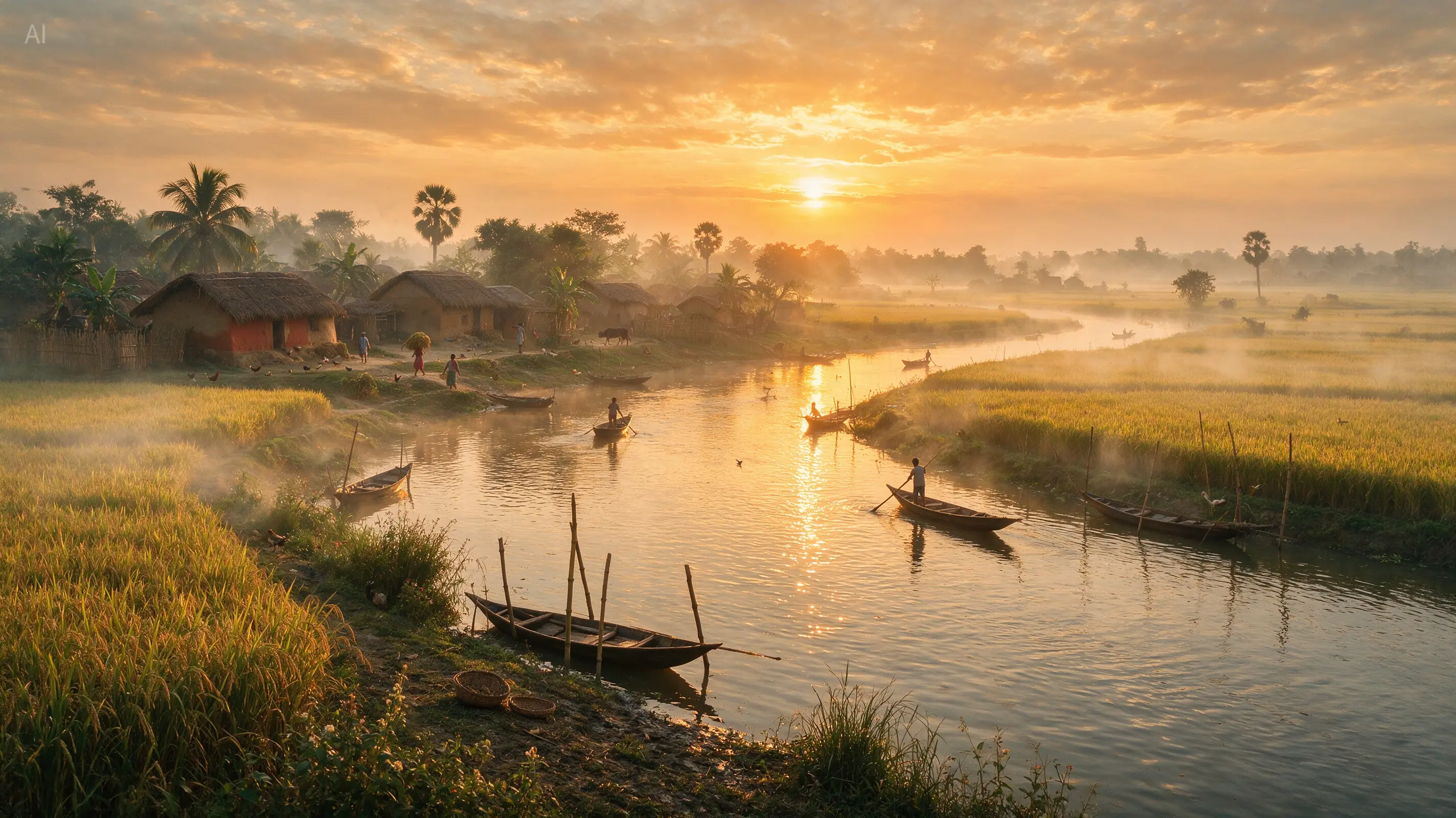
A landscape needs more than an attractive sky. Give Seedream 5.0 Pro a foreground subject, a middle-distance activity and a horizon that establishes scale. The river scene here connects boats, fields and warm light into a readable setting. For travel-inspired artwork, describe the atmosphere without presenting an invented scene as a photograph of a real destination. Leave a quiet area if the image will later carry campaign copy.

Golden sunset over a riverside village with wooden boats, rice fields and distant palms

English Website Hero Concepts

Turn a rough page idea into a visual proposal with Seedream 5.0 Pro. Specify an English headline, navigation labels and a primary action, then describe the illustration beside them. This software homepage concept balances a bold message with translucent interface graphics. Use the image to discuss hierarchy and color before building an accessible, responsive website.

Blue website hero concept with the English headline Orchestrate AI Workflows at Scale and translucent analytics graphics

Lifestyle Portraits and Everyday Moments

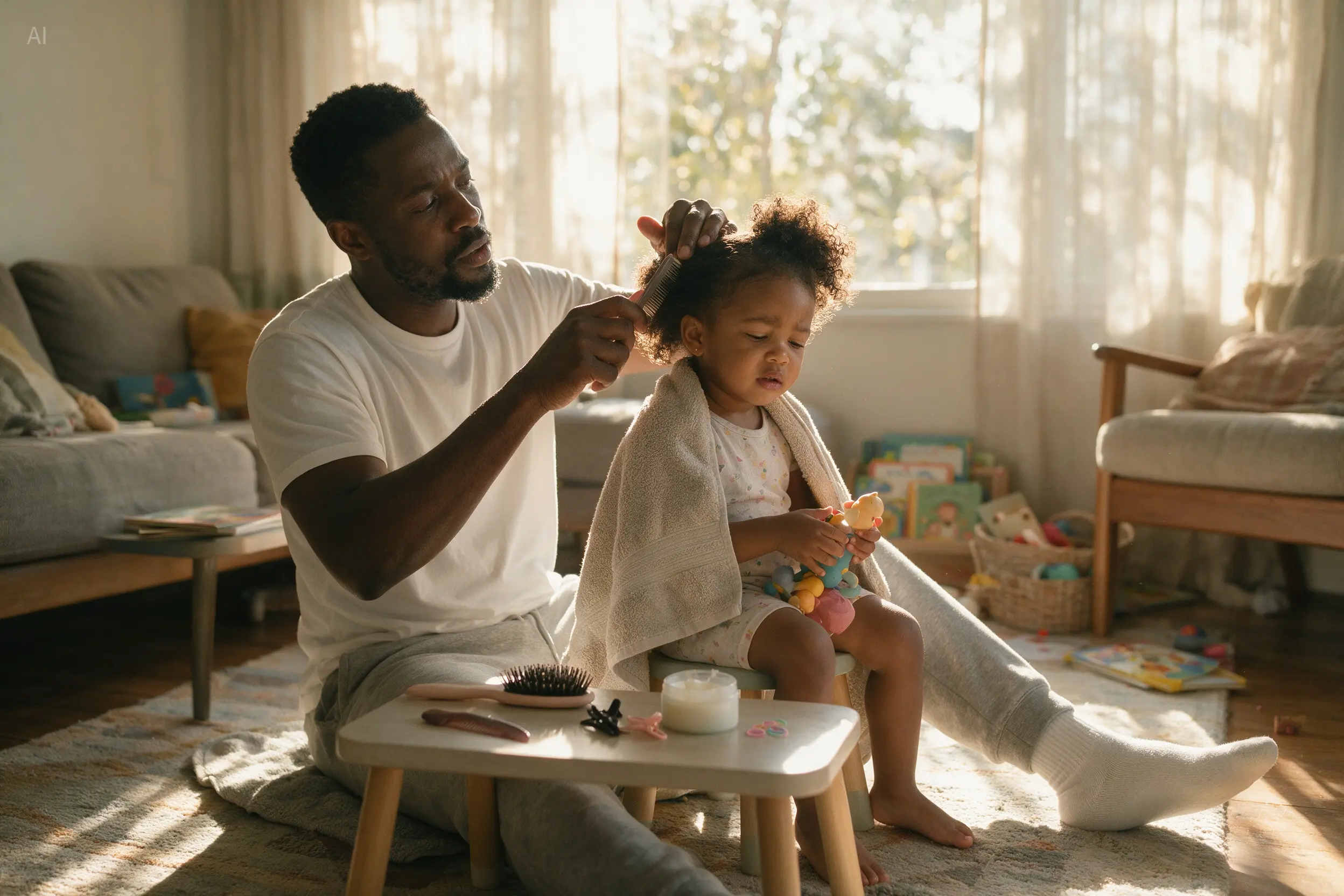
Build a people-focused story around an ordinary gesture. Seedream 5.0 Pro can explore family scenes through expressions, posture and available light. Here, a father styling his daughter's hair gives the composition a clear emotional center. Describe the interaction rather than asking everyone to pose, and review hands, eye direction and skin texture when choosing a result.

Father gently combing his young daughter's hair in a sunlit living room

Build a Brief That Holds Together

Write a Seedream 5.0 Pro prompt in layers: purpose, subject, arrangement, materials and light. Put essential constraints near the beginning. Instead of requesting a premium advertisement, describe a single glass bottle centered on pale stone, side lighting that reveals the liquid and open space above for a headline.

For text inside a Seedream 5.0 Pro image, provide the exact English wording in quotation marks and identify its location. Separate the headline from supporting labels. Avoid giving every element equal visual weight; choose what should dominate and what should stay quiet. During revisions, keep the successful parts of the brief and change one decision at a time. This makes comparisons easier than rewriting the entire scene after each result.

Seedream 5.0 Pro Text-to-Image Prompts

Copy a starting brief into Seedream 5.0 Pro, then replace the subject and wording with your own. Each example makes a different compositional decision.

Coffee Launch Poster

Use Seedream 5.0 Pro to explore a restrained product campaign with one short English headline.

Example prompt

Create a vertical poster for a fictional coffee launch. Place an unbranded matte ivory coffee bag on a low burgundy plinth. Use warm side lighting, subtle paper texture and a deep brown background. Put the exact English headline "A BETTER MORNING" in the upper third. Keep the lower edge uncluttered and the package proportions realistic.

Simple Science Explainer

Test an English diagram in Seedream 5.0 Pro with a deliberately limited information hierarchy.

Example prompt

Design a horizontal classroom graphic explaining the water cycle. Arrange four illustrated stages around a central landscape: evaporation, condensation, precipitation and collection. Use those exact English labels, clear directional arrows and a restrained blue and ochre palette on an off-white background. Give each stage equal space. Avoid extra captions, decorative lettering or unrelated weather symbols.

Outdoor Editorial Scene

Explore depth and atmosphere with Seedream 5.0 Pro before adding any campaign typography.

Example prompt

Photographic editorial scene of a lone hiker resting beside a mountain lake. Frame the person small in the lower right, with layered ridgelines fading into morning haze. Show a red windbreaker, damp rocks and still water reflecting a pale sky. Use a wide composition with gentle contrast. Keep the upper left visually quiet and include no text or logos.

Reference Image Editing with Seedream 5.0 Pro

These Seedream 5.0 Pro editing prompts need an uploaded photograph. State what may change and what should remain recognizable before describing the new treatment.

Change a Product Material

Give Seedream 5.0 Pro a narrow material change while keeping the original product geometry.

Example prompt

Edit the uploaded table lamp photograph. Replace the glossy black base with brushed brass, preserving its shape, height, switch position and connection to the shade. Keep the shade fabric, camera angle and background unchanged. Adjust reflections to match the existing window light. Maintain a believable contact shadow beneath the base and do not add branding.

Restyle a Reading Corner

Use Seedream 5.0 Pro to compare a warmer furnishing palette within a familiar room.

Example prompt

Using the uploaded room photograph, replace the dark armchair upholstery with warm oatmeal fabric and change the rug to a muted terracotta weave. Preserve the chair silhouette, bookshelf contents, wall color and window position. Keep the original daylight direction. Show realistic fabric texture without changing the camera perspective or introducing extra furniture.

Seedream 5.0 Pro Settings and Credits

The Seedream 5.0 Pro generator on this page offers 1K and 2K output, with 2K selected by default. Choose a smaller output for early composition studies or a larger one when inspecting fine details. The table reflects the current model pricing.

Seedream 5.0 Pro accepts up to ten reference images here, in PNG, JPEG or WebP format. Choose Auto or an explicit aspect ratio to suit the placement. Each request produces one PNG image. Plan credits for revisions as well as the first draft, and check the estimate again after changing the resolution.

ResolutionSuggested useCredits per image
1KInitial layouts and visual exploration19 credits
2KDetailed review and selected artwork39 credits

Seedream 5.0 Pro Questions and Answers

Seedream 5.0 is a broader family name used in searches and product descriptions. This page selects Seedream 5.0 Pro specifically. Check the model label when moving between services, because a similar page name does not guarantee the same version, input limits or output options.

You can request English headlines, labels and captions as part of an image. Use short, exact phrases with a clear placement. Inspect spelling, repeated letters and reading order before publishing. For a long document or essential legal wording, typeset the final copy separately in a layout editor.

No. Ten is the upload limit, not a target. Start with the fewest references that explain the task. A clear product photograph may be sufficient for a background revision. Add another image only when it supplies missing information, and describe which source should control each visible feature.

This workspace currently provides 1K and 2K images as a single PNG output. It does not expose 4K generation or separate design layers for this model. Choose the available settings according to your delivery needs, then use your editing software for final compositing or production layout.

Enter a prompt in the generator above, sign in and make sure your account has enough credits for the selected settings. The page itself and its example prompts are available to browse before signing in. Generation uses the credit estimate shown beside the controls.

Start Your Next Seedream 5.0 Pro Image

Choose a clear purpose and one useful starting prompt. Bring a reference when the details matter, then use Seedream 5.0 Pro to explore the first visual direction for your project.

Create an image
Explore the prompts
Image to Image AI logoImage to Image AI

A fresh take on your image. Explore new styles and scenes with AI.

Customer supportsupport@imgtoimageai.com

Tools

  • Remove Glare from Glasses
  • Remove Glare from Photo
  • Photo to Line Art
  • Image Upscaler
  • Realistic Selfie Generator
  • Christmas Photobooth
  • AI 3D Figure Generator
  • Selfie With Santa
  • Christmas Dance Trend
  • Motorcycle AI
  • AI Photo Booth
  • Photo to Sticker
  • QR Code Enhancer
  • AI Long Hair Filter
  • Bicep Heart Trend AI
  • Happy Birthday GIF with Name
  • Apartment Dance
  • AI GIF Generator
  • Executive Portrait Maker
  • AI Trouble Maker Video

Learn more

  • Tools
  • Blog
  • Pricing

Legal

  • Privacy Policy
  • Terms of Service
  • Refund Policy
  • Contact

© 2026 Image to Image AI