Image to Image AI logoImage to Image AI
  • Home
  • AI Image Generator
  • AI Video Generator
  • Tools
  • Nano Banana 2.1
  • Flux 3 Klein
  • Seedream 5.0 Pro
  • Seedream 5.5
  • GPT Image 2.5
  • GPT Image 2.6
  • MiniMax H3 Image
  • Kling 4.0
  • Grok Imagine Video 1.5
  • MiniMax H3 Max
  • Seedance 2.5
More
  • Blog
  • Pricing

Guest

Save your creations

Credits—
  1. Home
  2. /
  3. Tools

AI Tools

Remove Glare from Glasses

Remove Glare from Photo

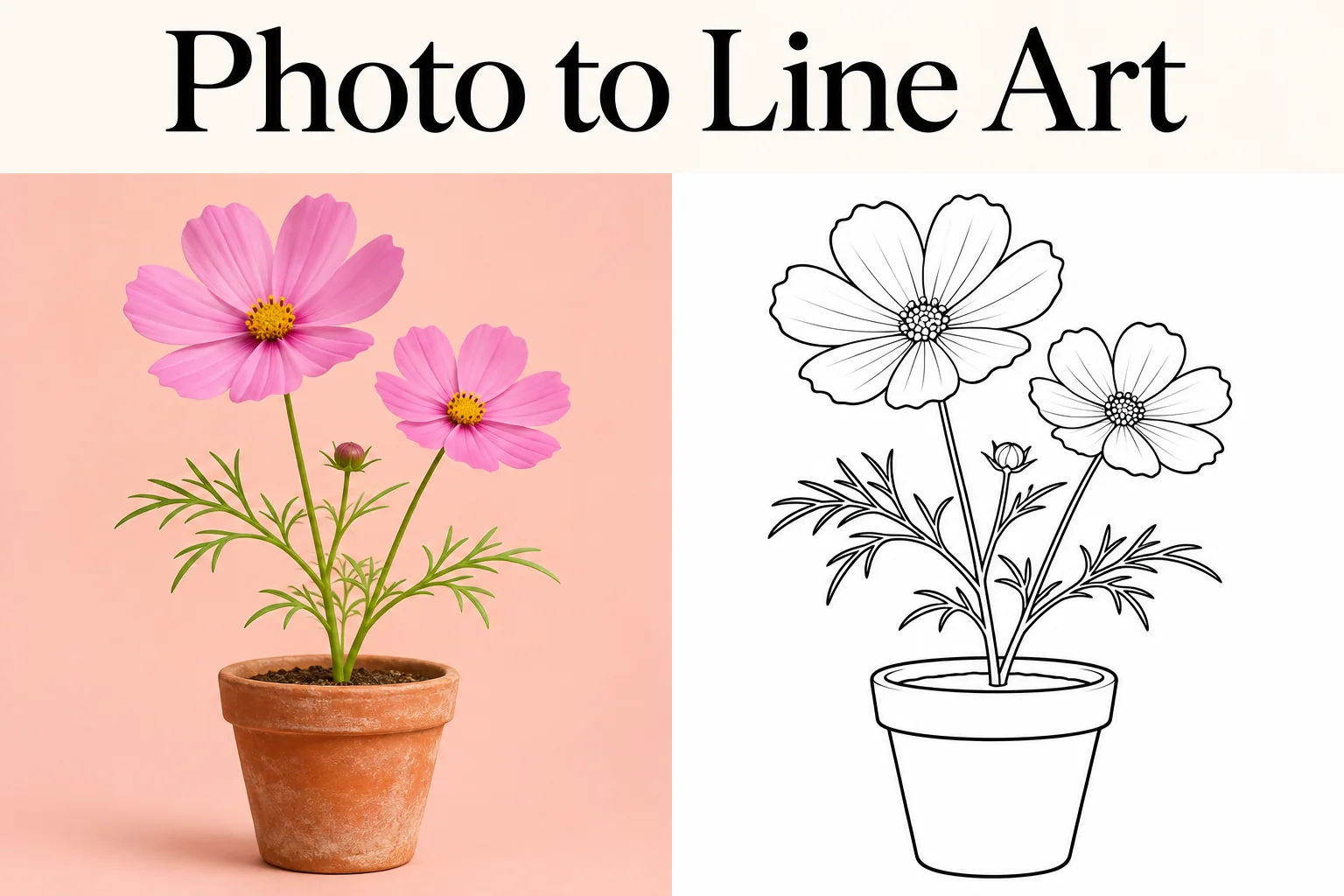
Photo to Line Art

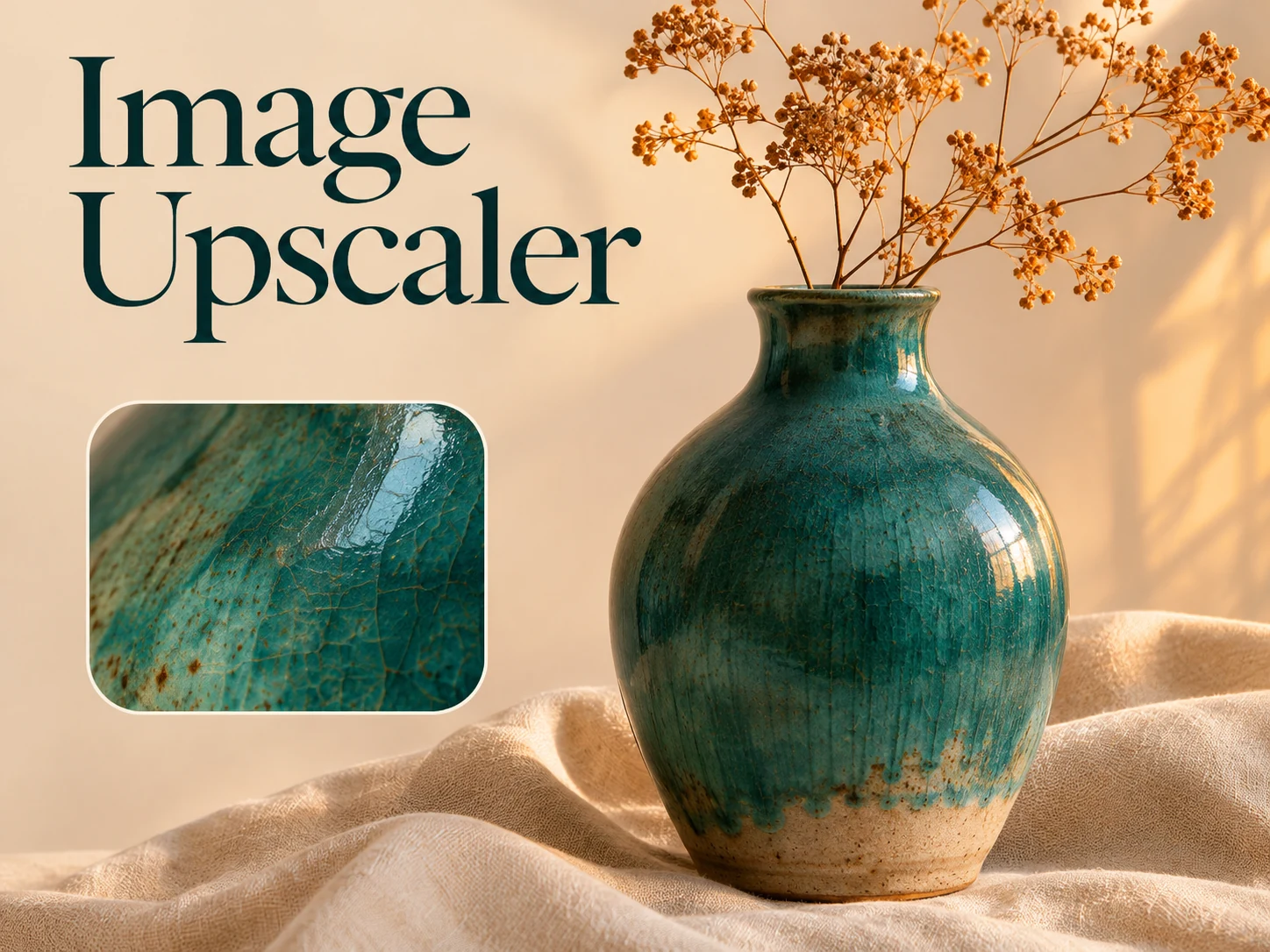
Image Upscaler

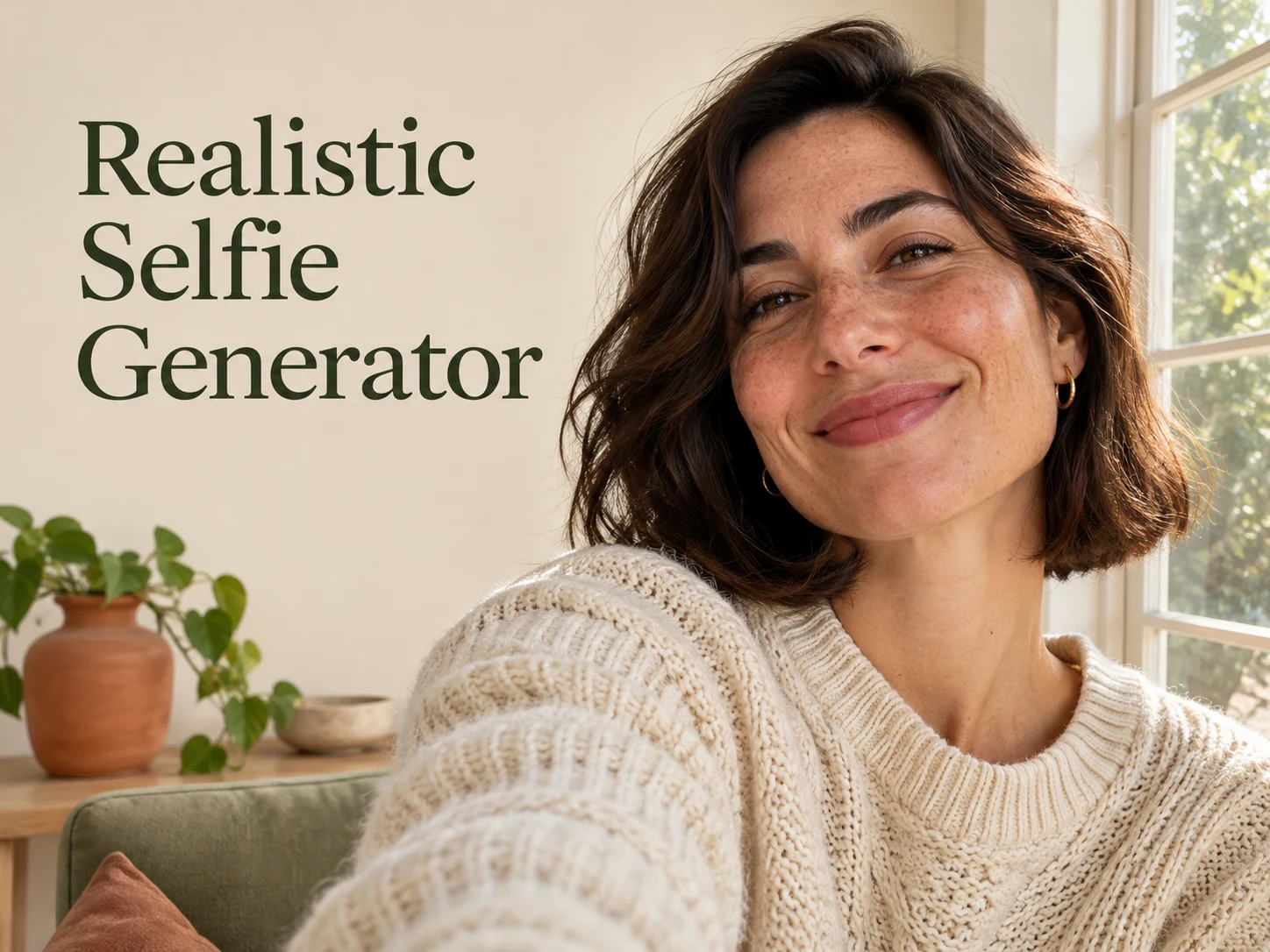
Realistic Selfie Generator

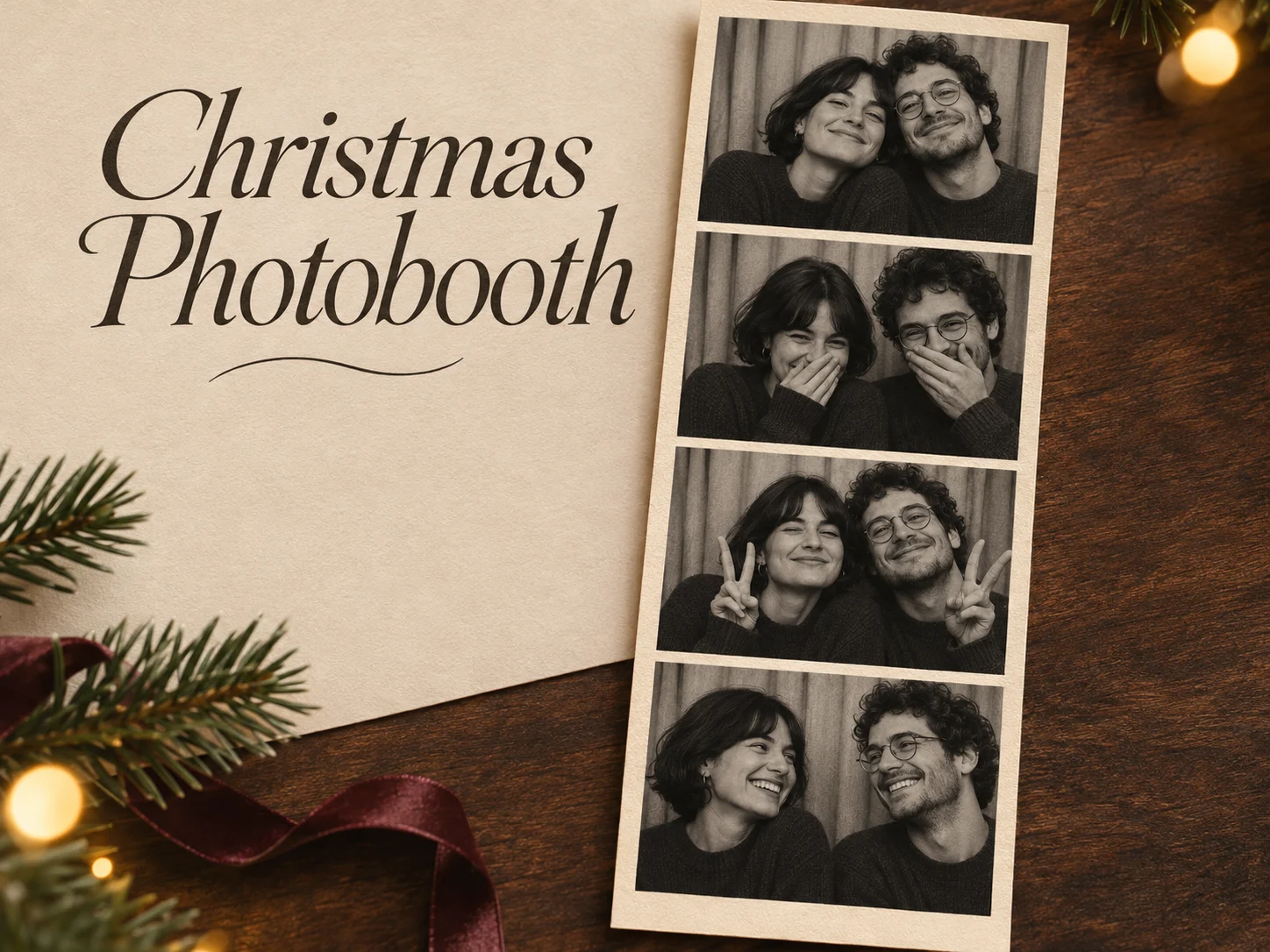
Christmas Photobooth

AI 3D Figure Generator

Selfie With Santa

Christmas Dance Trend

Motorcycle AI

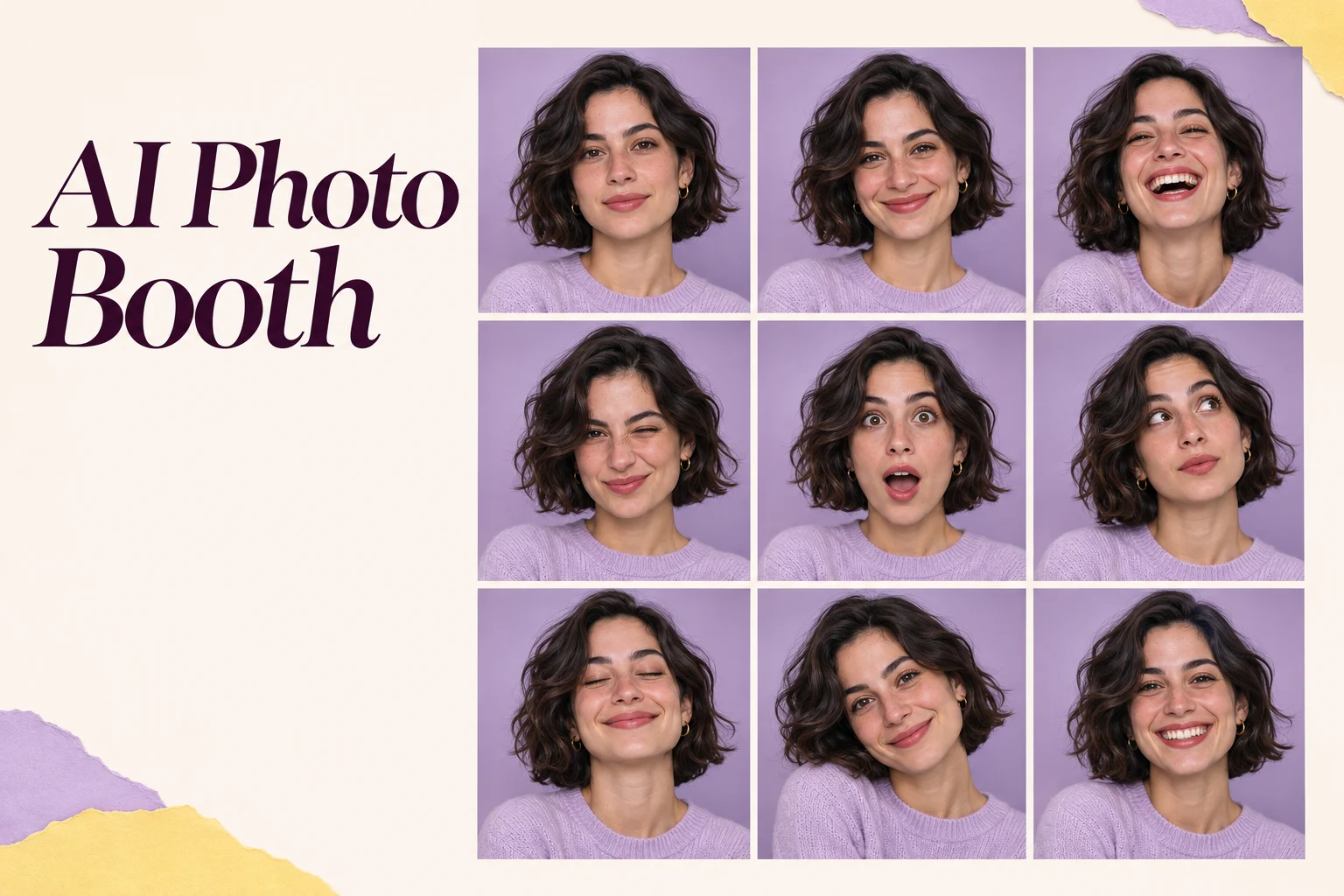
AI Photo Booth

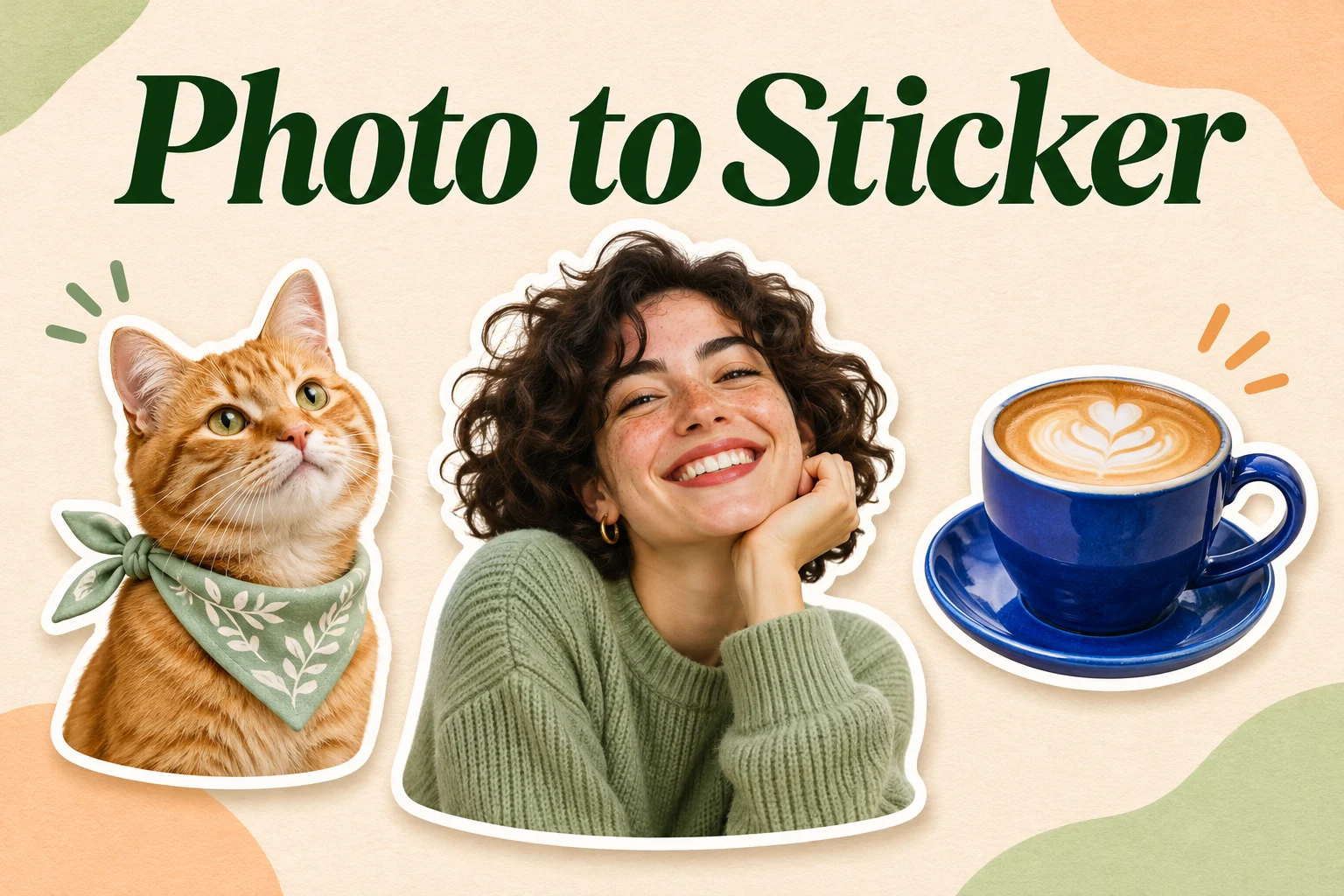
Photo to Sticker

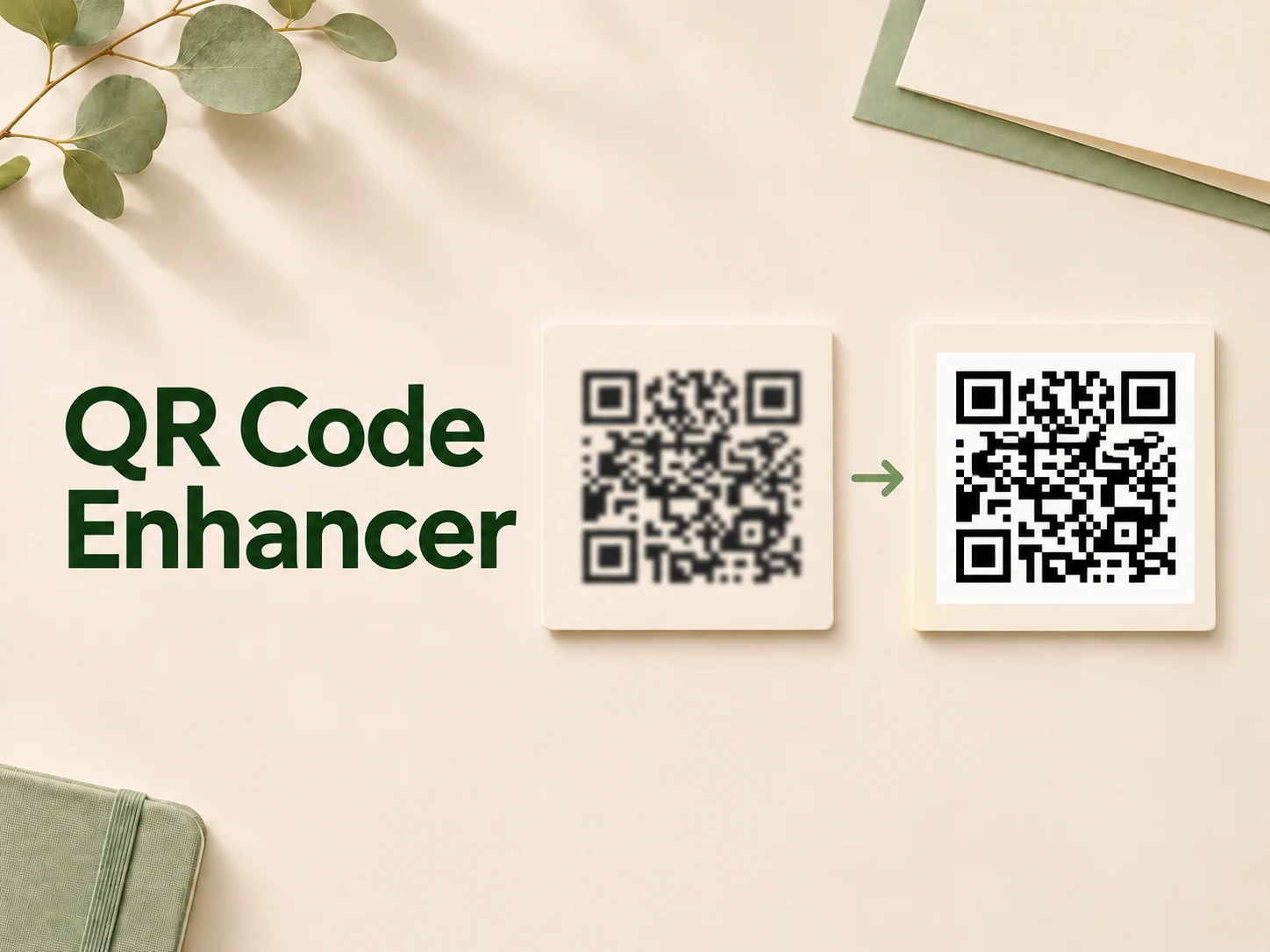
QR Code Enhancer

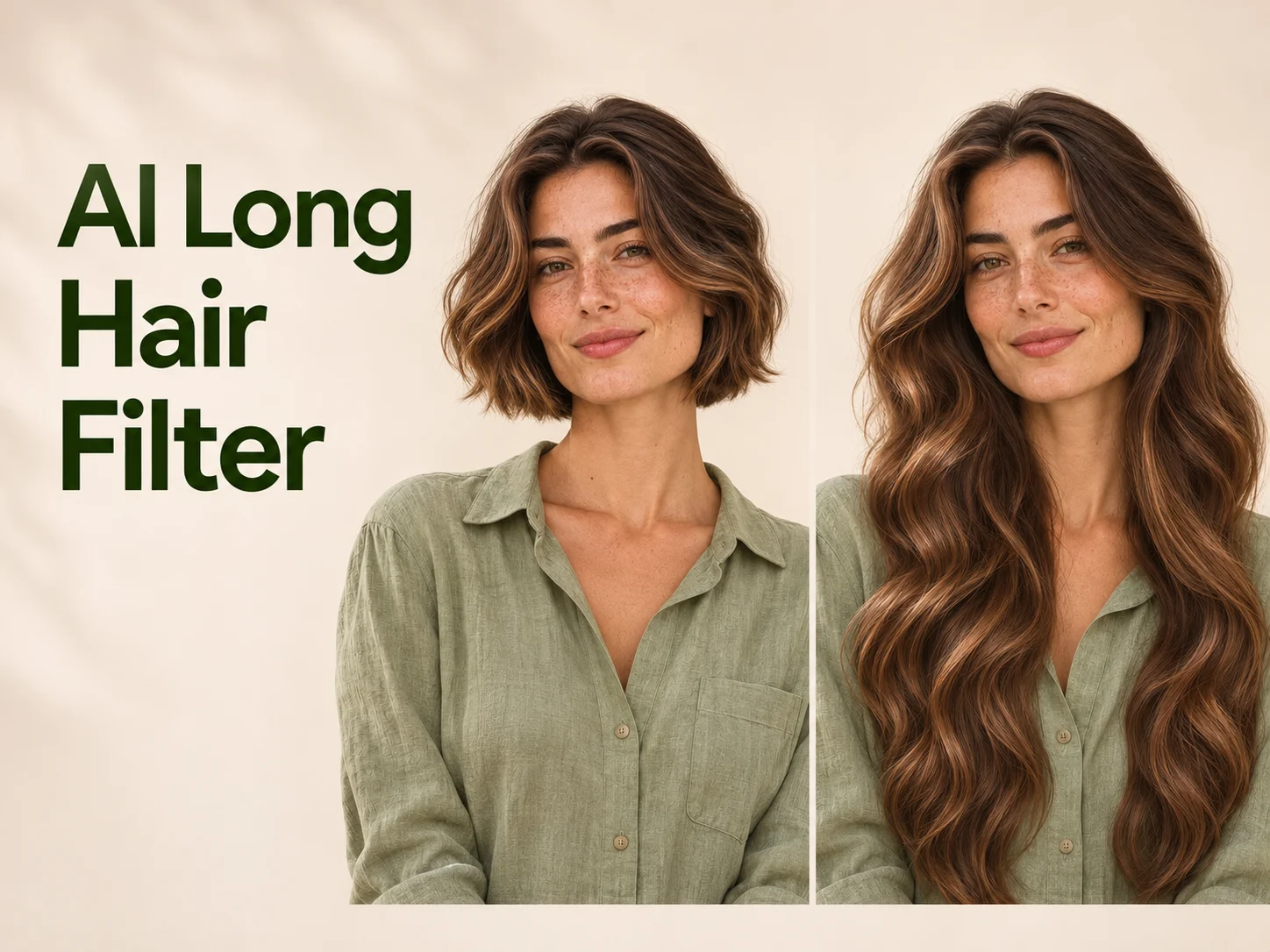
AI Long Hair Filter

Bicep Heart Trend AI

Happy Birthday GIF with Name

Apartment Dance

AI GIF Generator

Executive Portrait Maker

AI Trouble Maker Video

Elevator Outfit Change AI

Skull Cap Trend AI

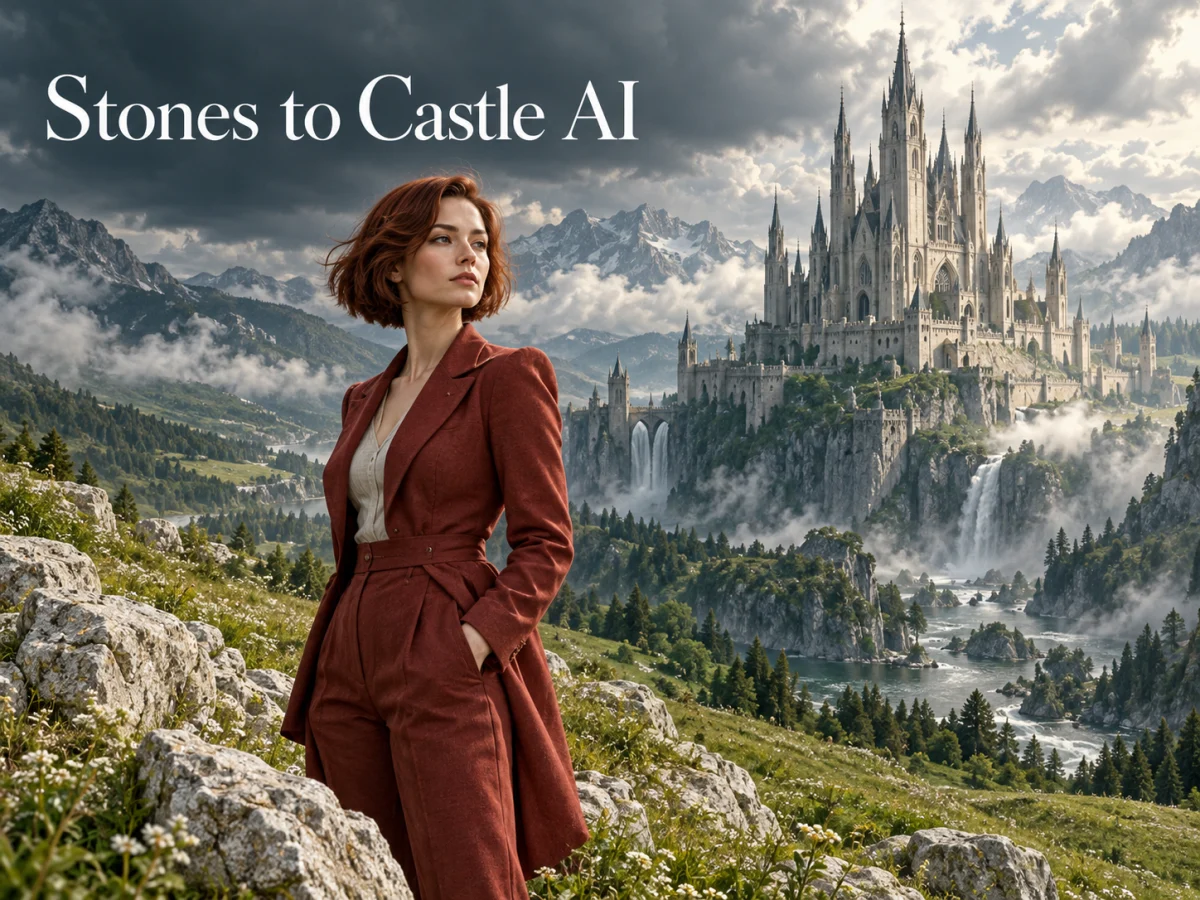
Stones to Castle AI

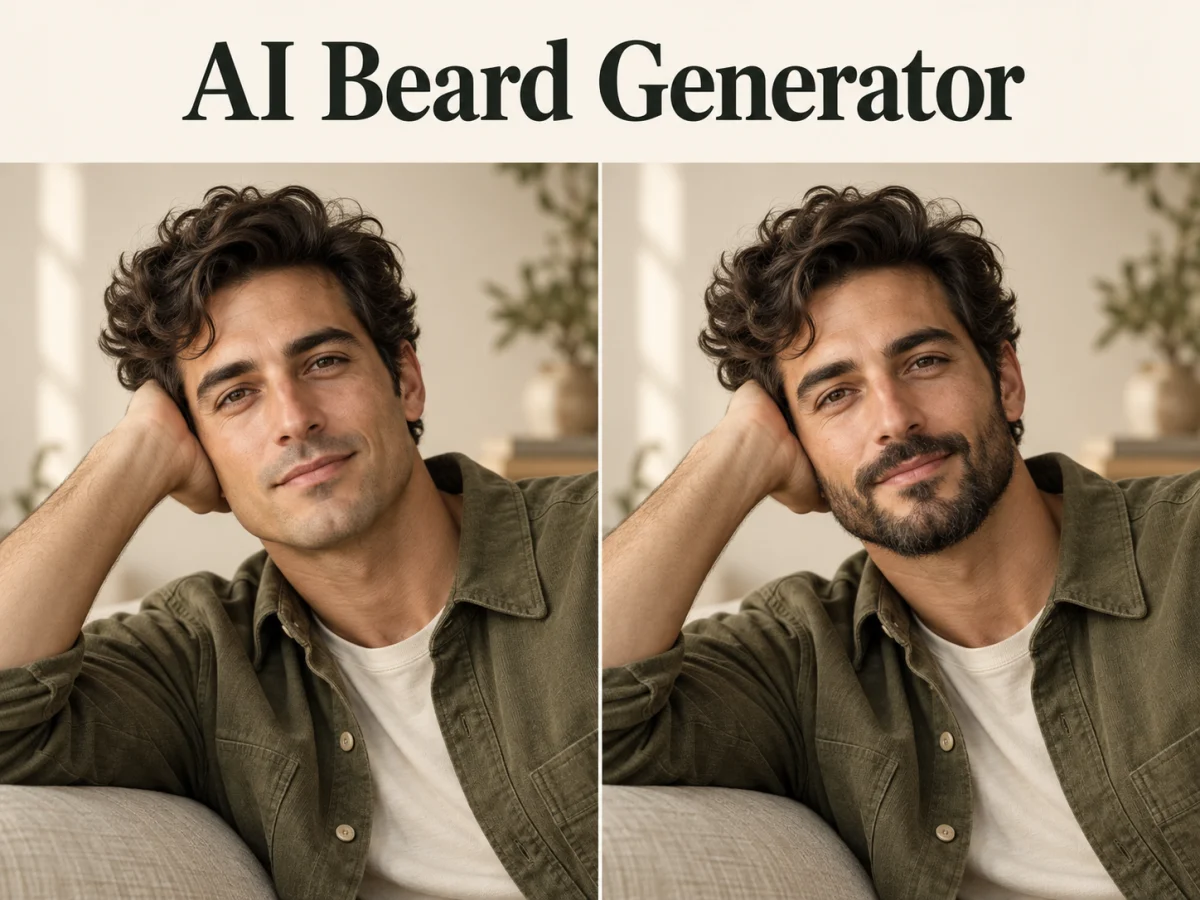
AI Beard Generator

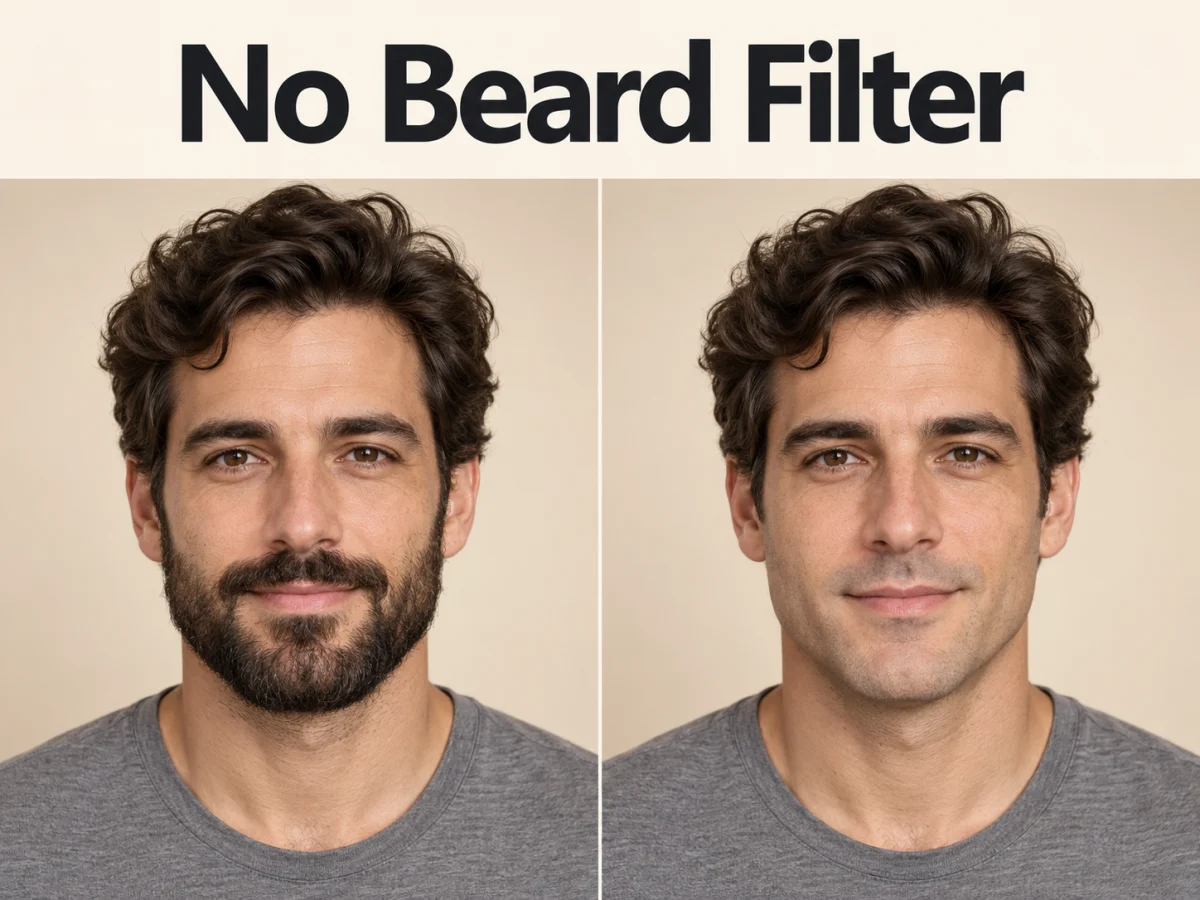
No Beard Filter

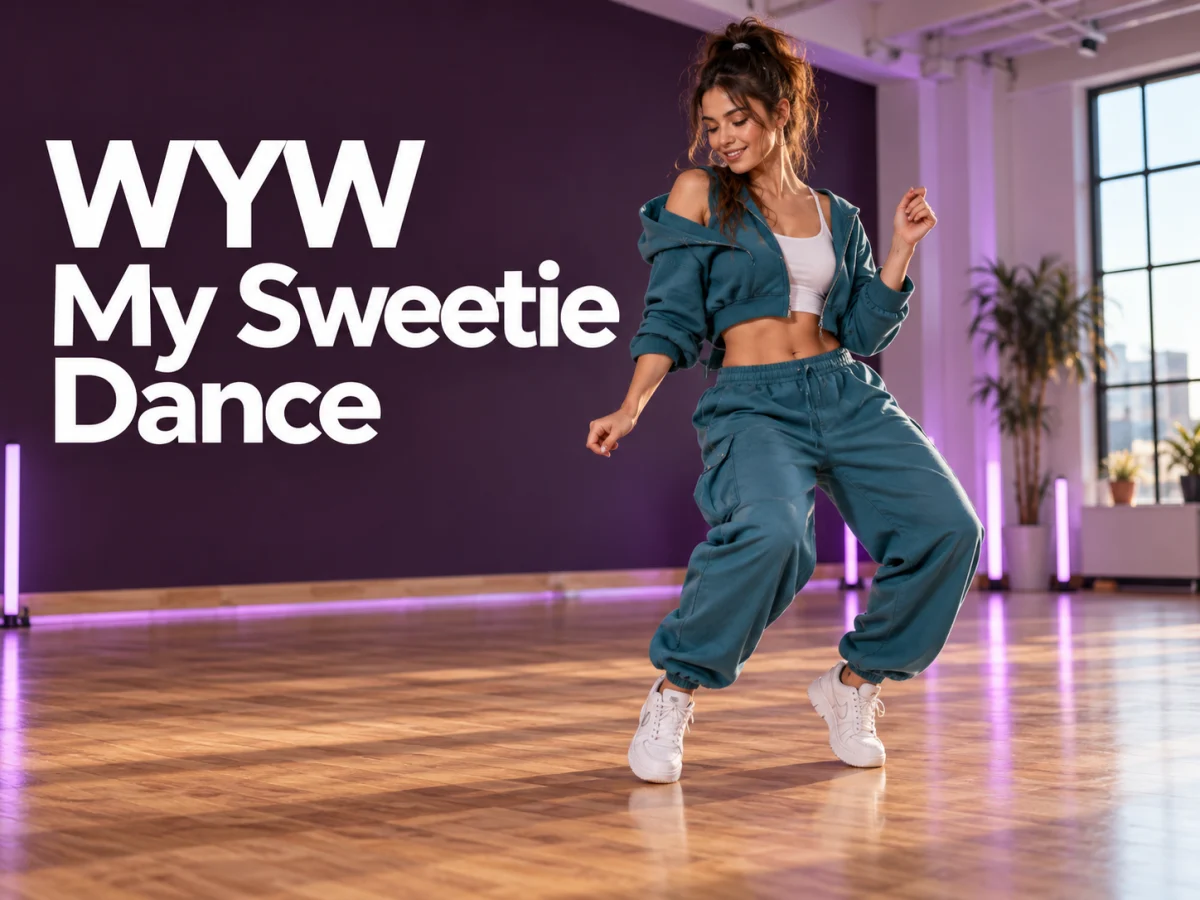
WYW My Sweetie Dance

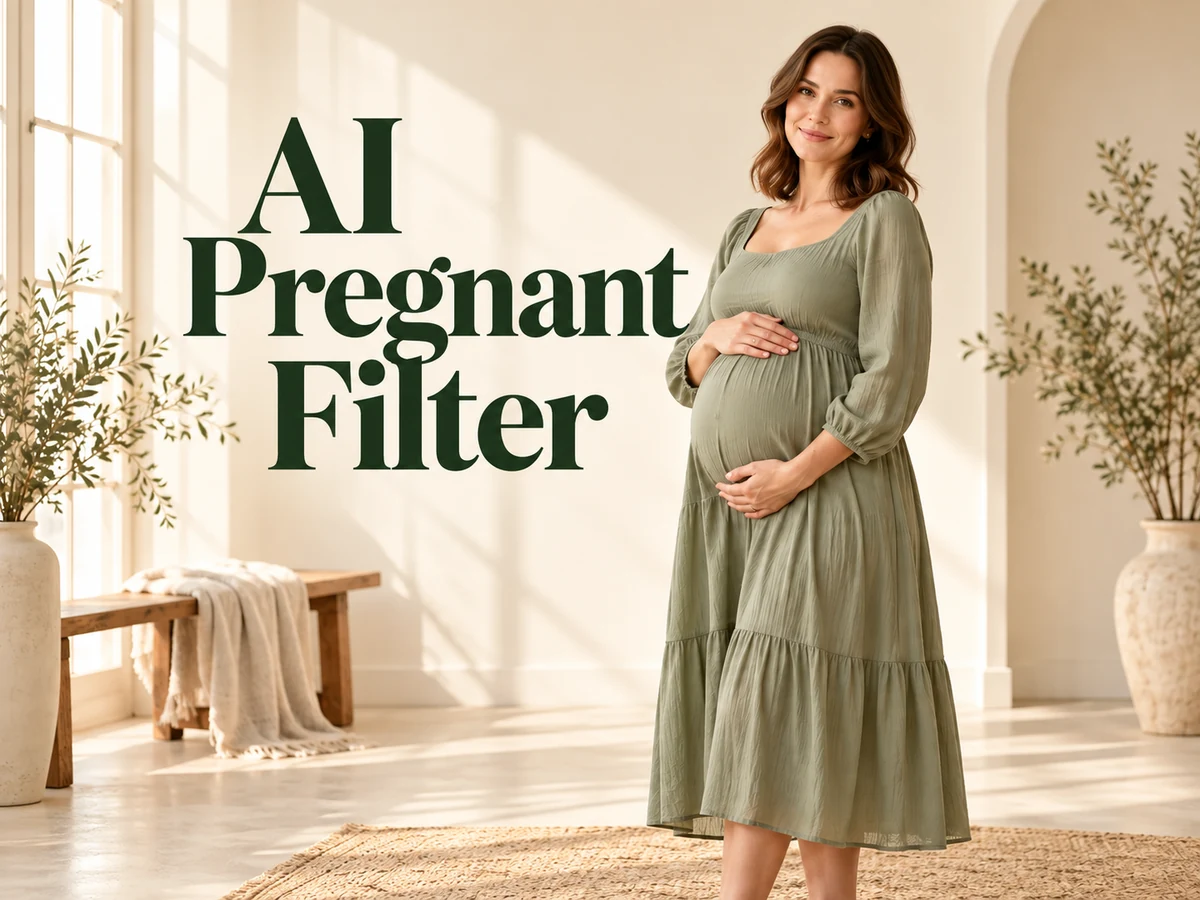
AI Pregnant Filter

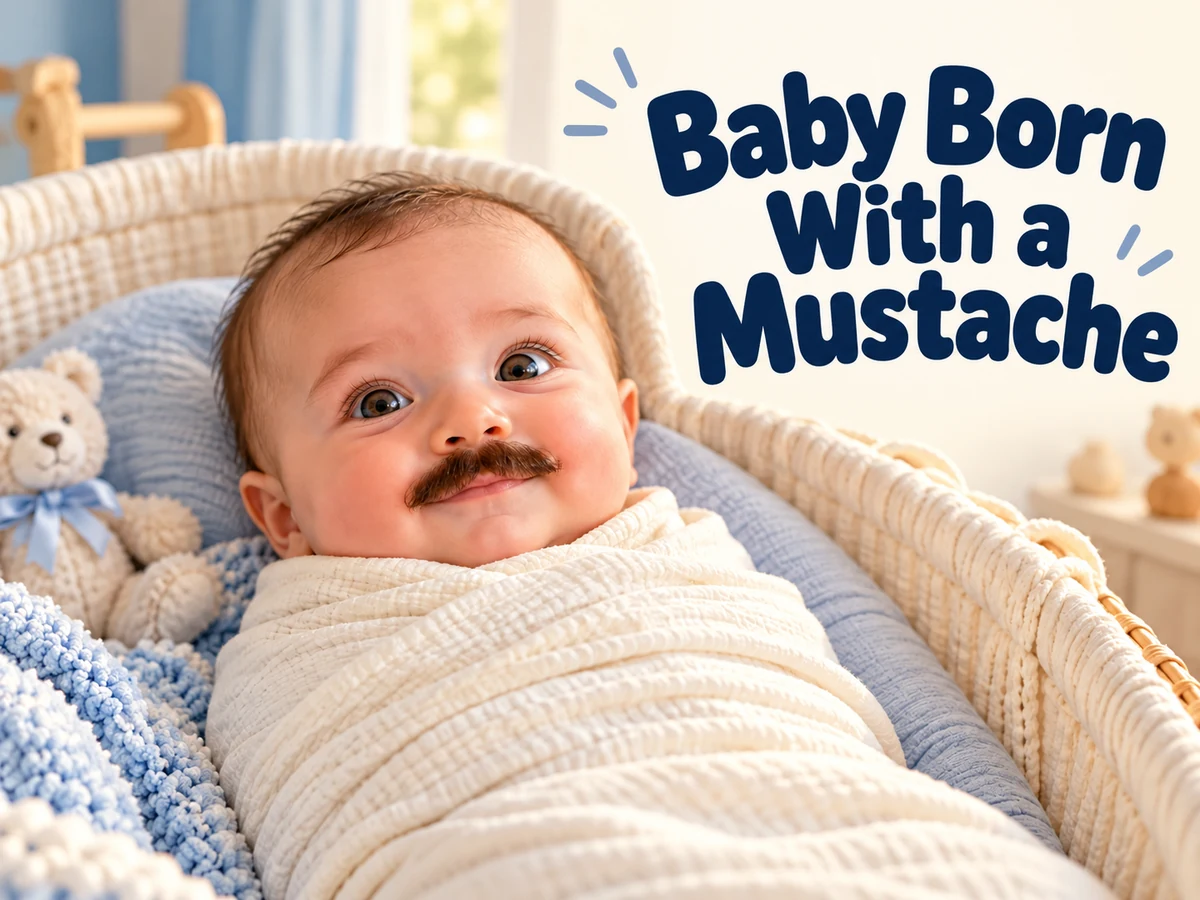
Baby Born With a Mustache

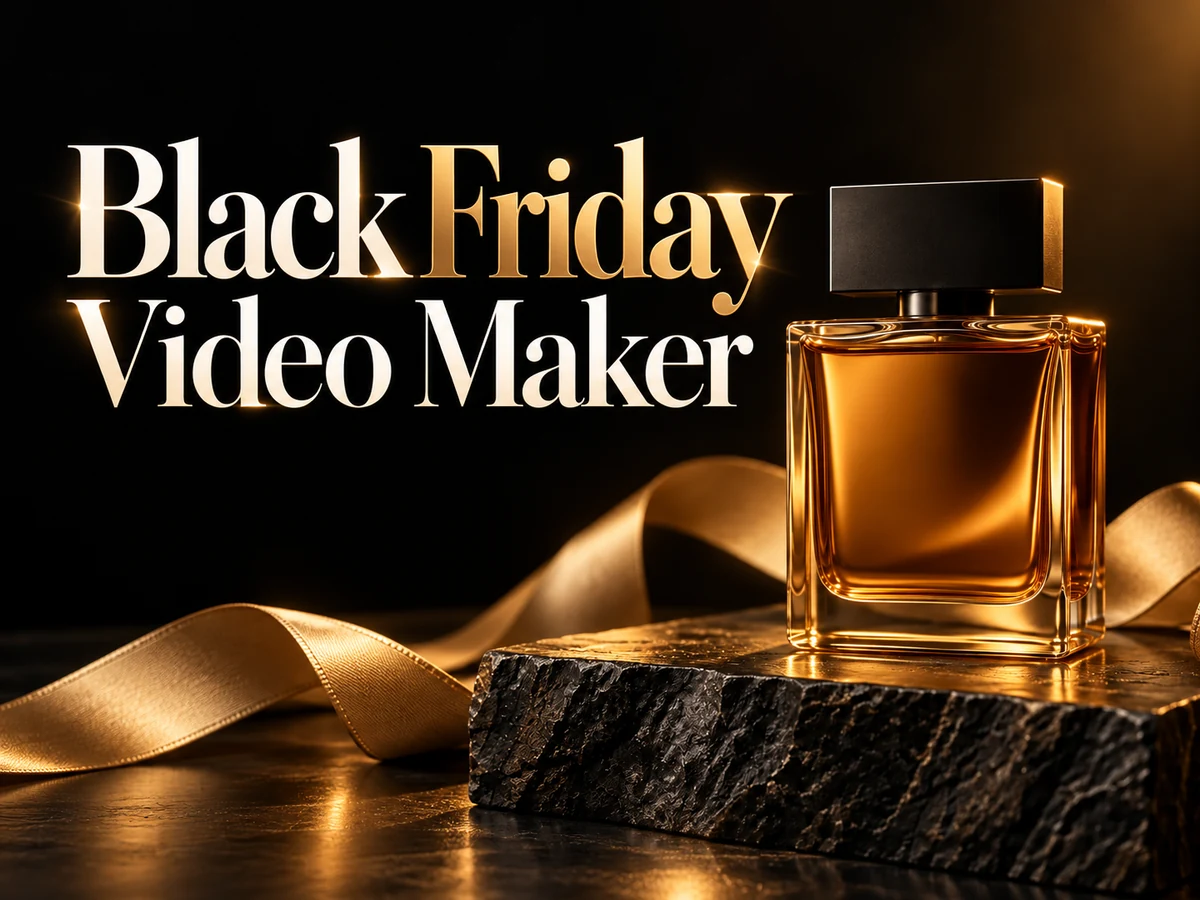
Black Friday Video Maker

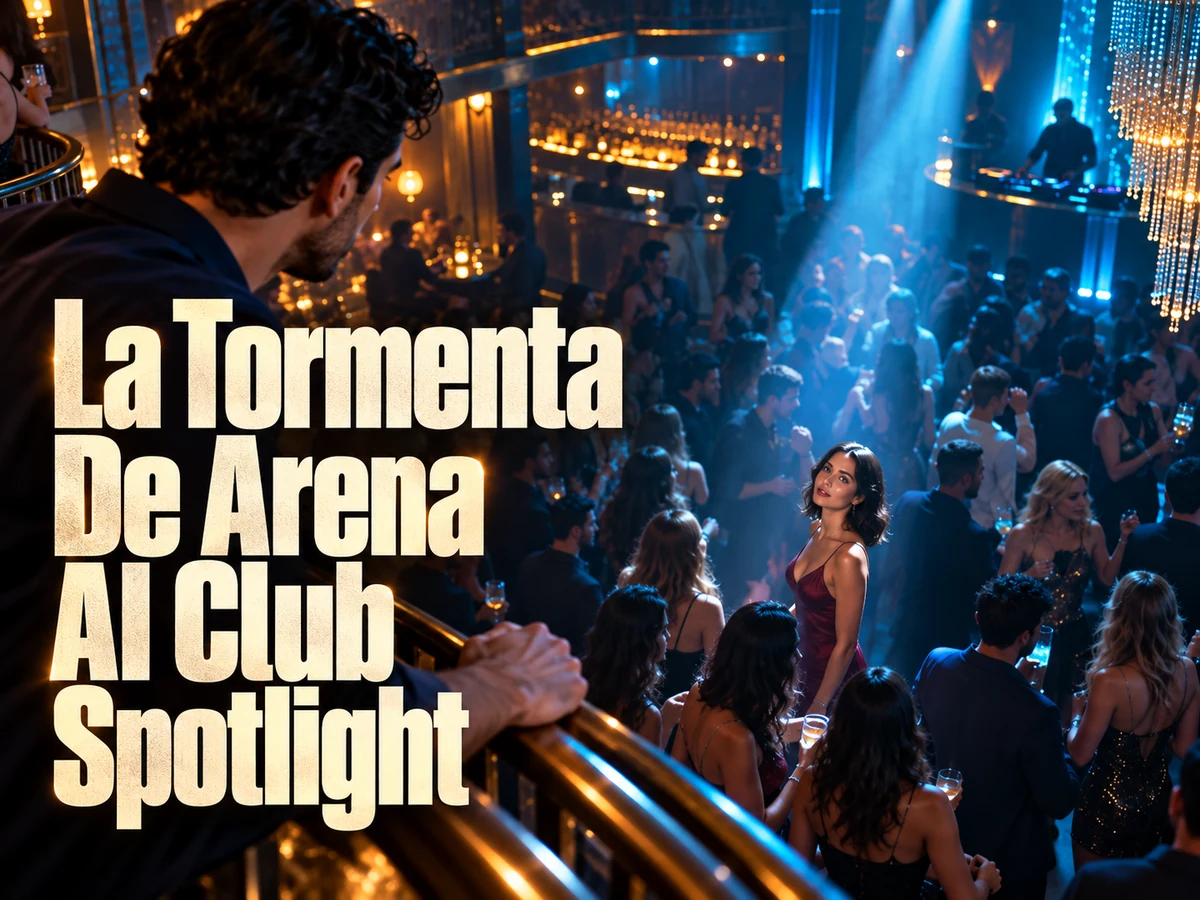
La Tormenta De Arena AI Club Spotlight

Photo to Watercolor

Pet Portrait AI

80s AI Photo Trend

Photo to Coloring Page

Burger Thru Window

Outstanding Tiny Desk AI

Photo art · Portraits · Creative video

AI Tools for photo art, portraits, and creative videos

Give a favorite photo a different look, turn a pet into a painted portrait, or put yourself inside a playful video scene. Our AI tools bring specific creative ideas together in one place. Browse the cards above, choose Image or Video, and open the tool that matches what you want to make. Each page shows the references and settings it needs, so you can start with a clear idea of the result.

A new use for the photos you already love

Start with a person, pet, or place you know. Explore printable outlines, painted textures, and portraits with a different mood. These illustrations show the visual direction of each tool; your result will depend on your source photo.

Make a familiar face into a coloring page

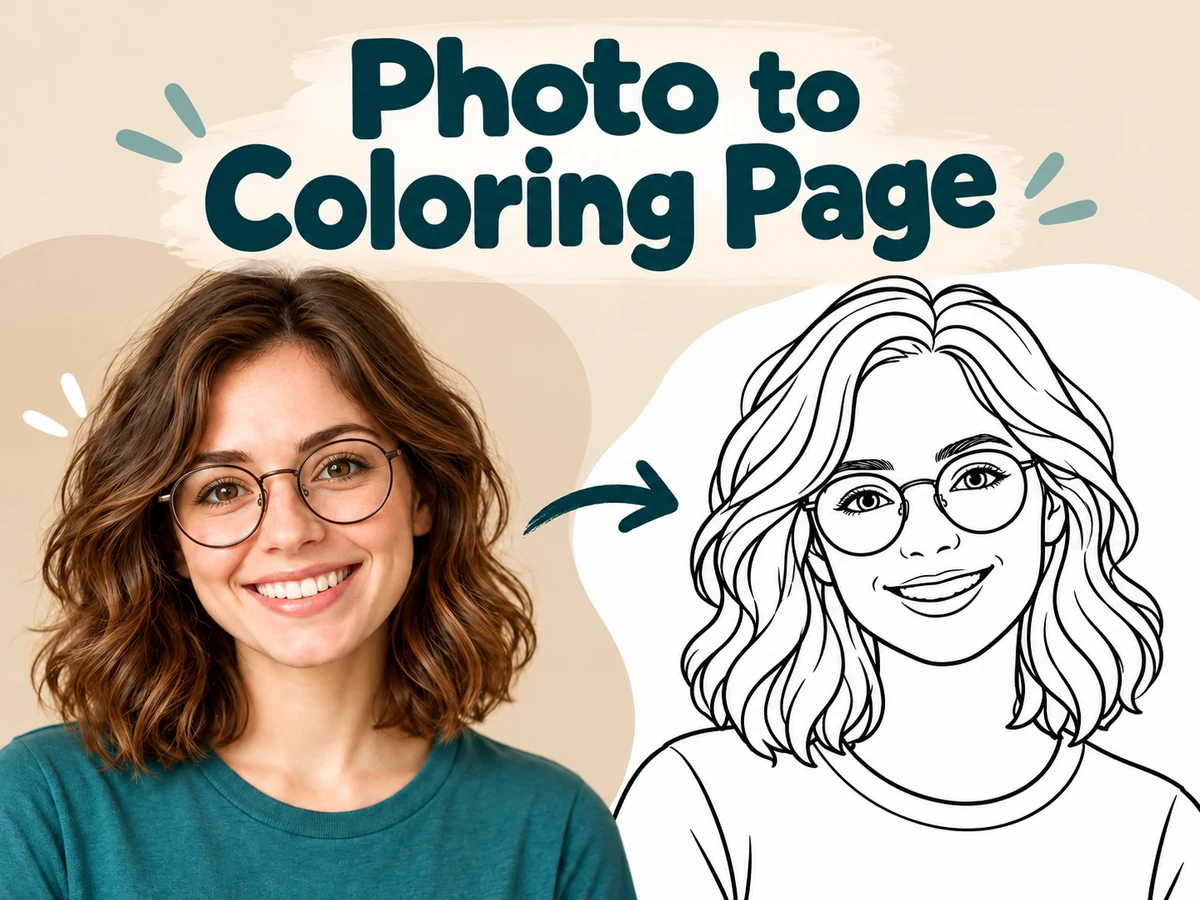
Photo to Coloring Page turns a photo into a black-and-white outline illustration. Try a family portrait, a pet, or a simple subject for a coloring activity that feels personal. A clear face and a quiet background make a useful starting point.

Review the small spaces around hair, glasses, and clothing before printing. Choose a version with comfortable areas to color, then add any page title or instructions in your usual editor. You can keep the image digital or work it into a printable activity sheet.
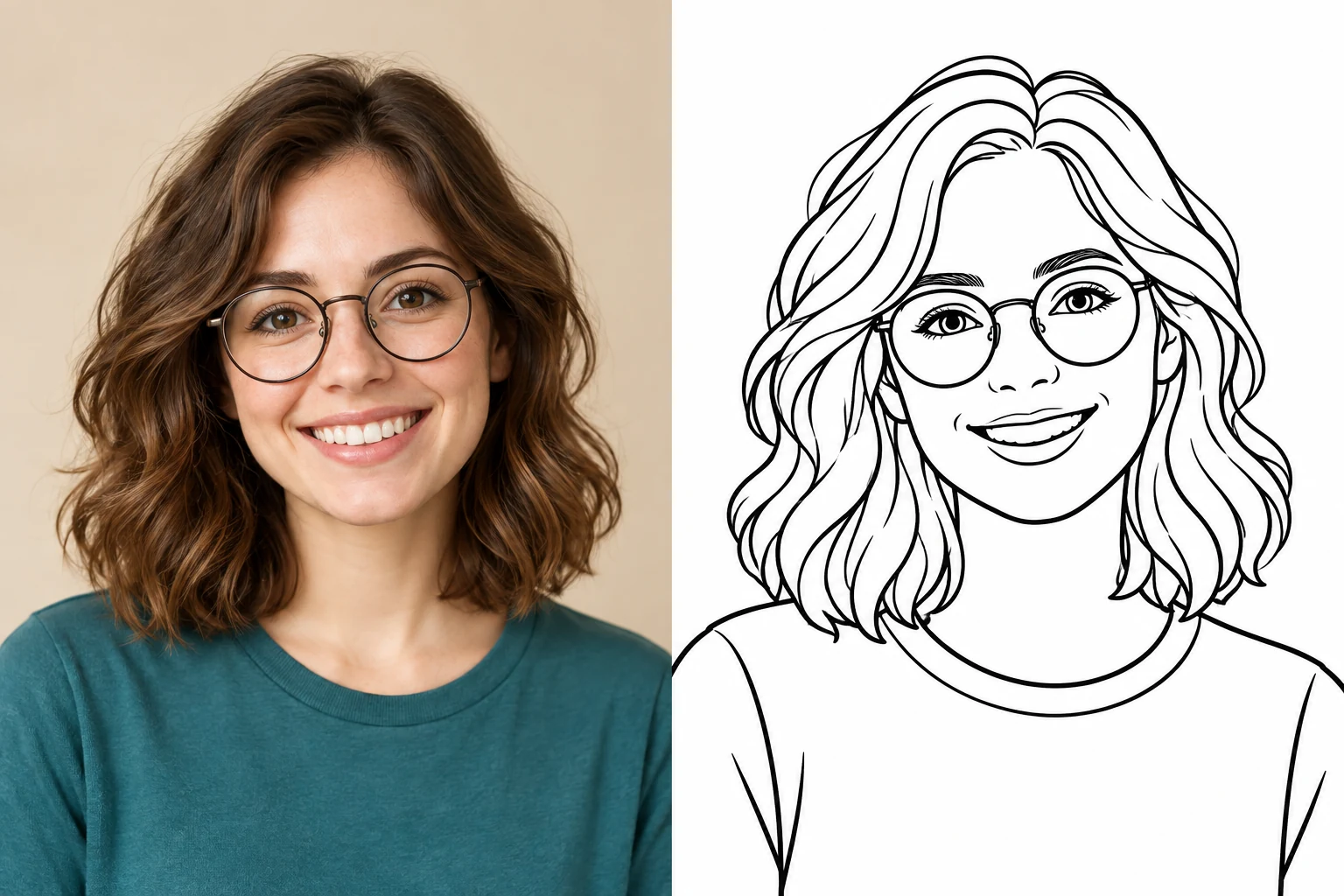
The same portrait in full color and clean coloring-page outlinesPhotoColoring page

Give portraits and places a watercolor finish

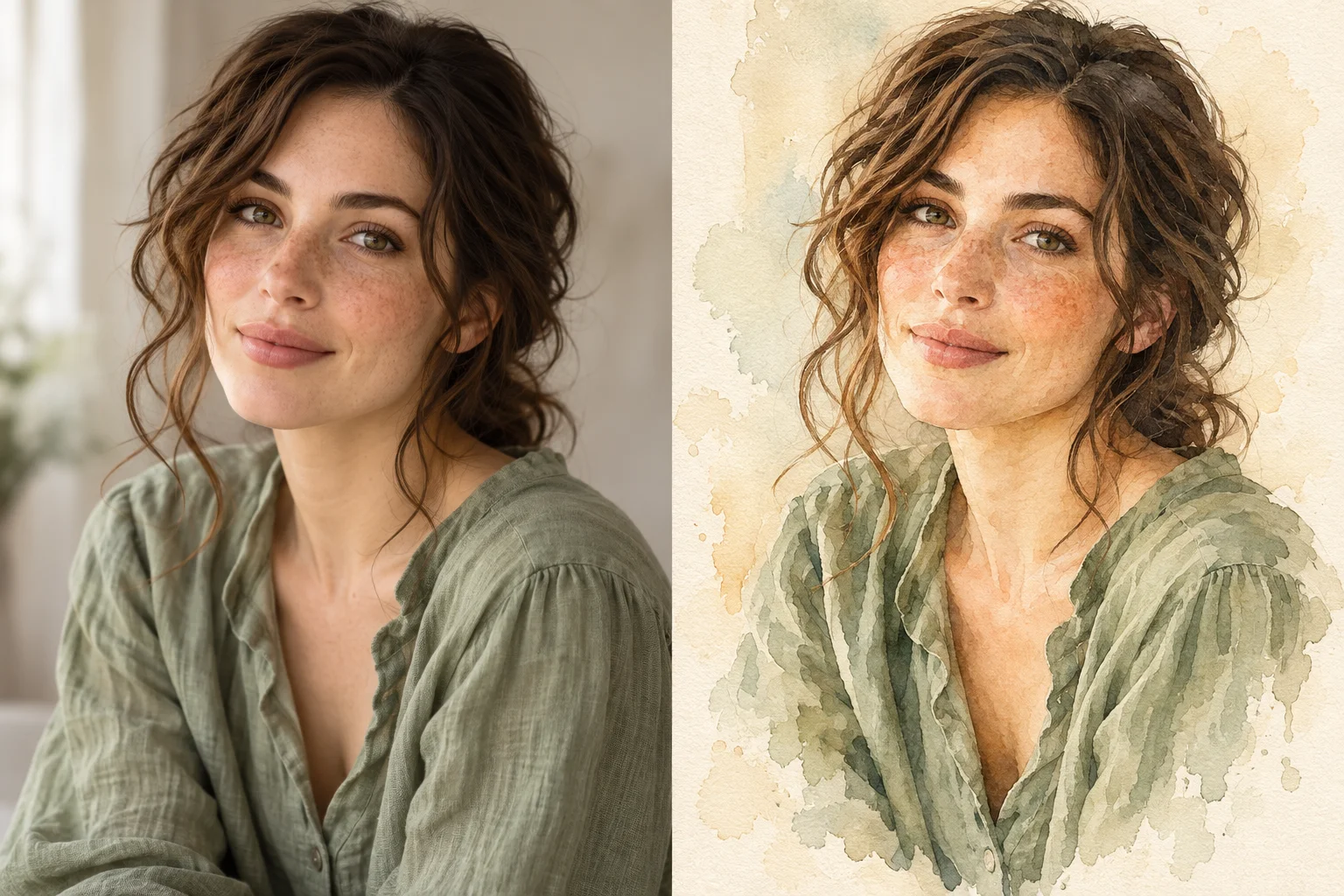
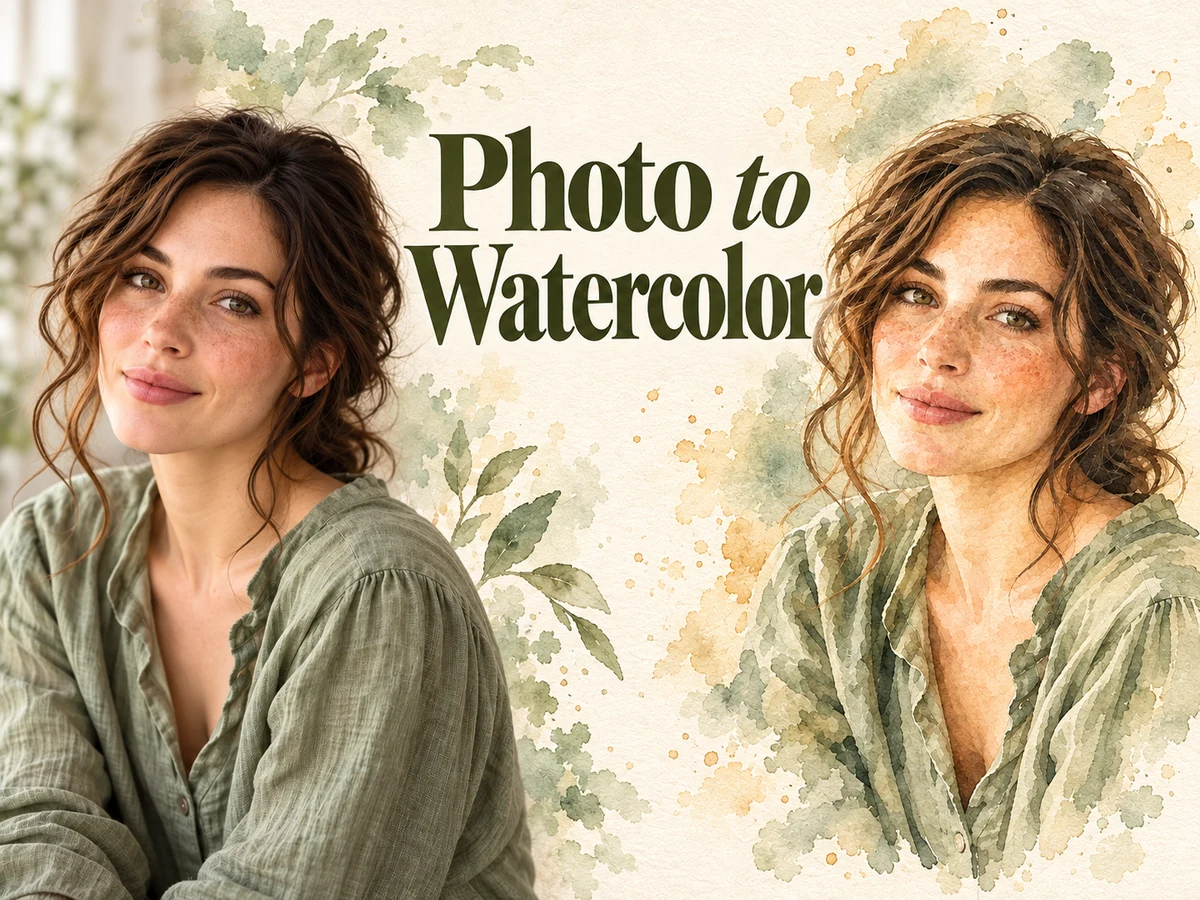
Photo to Watercolor brings soft pigment, loose edges, and paper texture to a picture. Use a portrait for a personal art print, a house photo for a keepsake, or a landscape for a gentle illustrated scene. The appeal is in the painted interpretation of a recognizable subject.

Choose an image with a clear focal point and enough light to see the details you care about. After generating, compare the face, architecture, or main shapes with your source. Download a version whose balance of likeness and brushwork suits your project.

A photographic portrait paired with soft watercolor washes on ivory paperPhotoWatercolor

Turn a pet photo into a painted keepsake

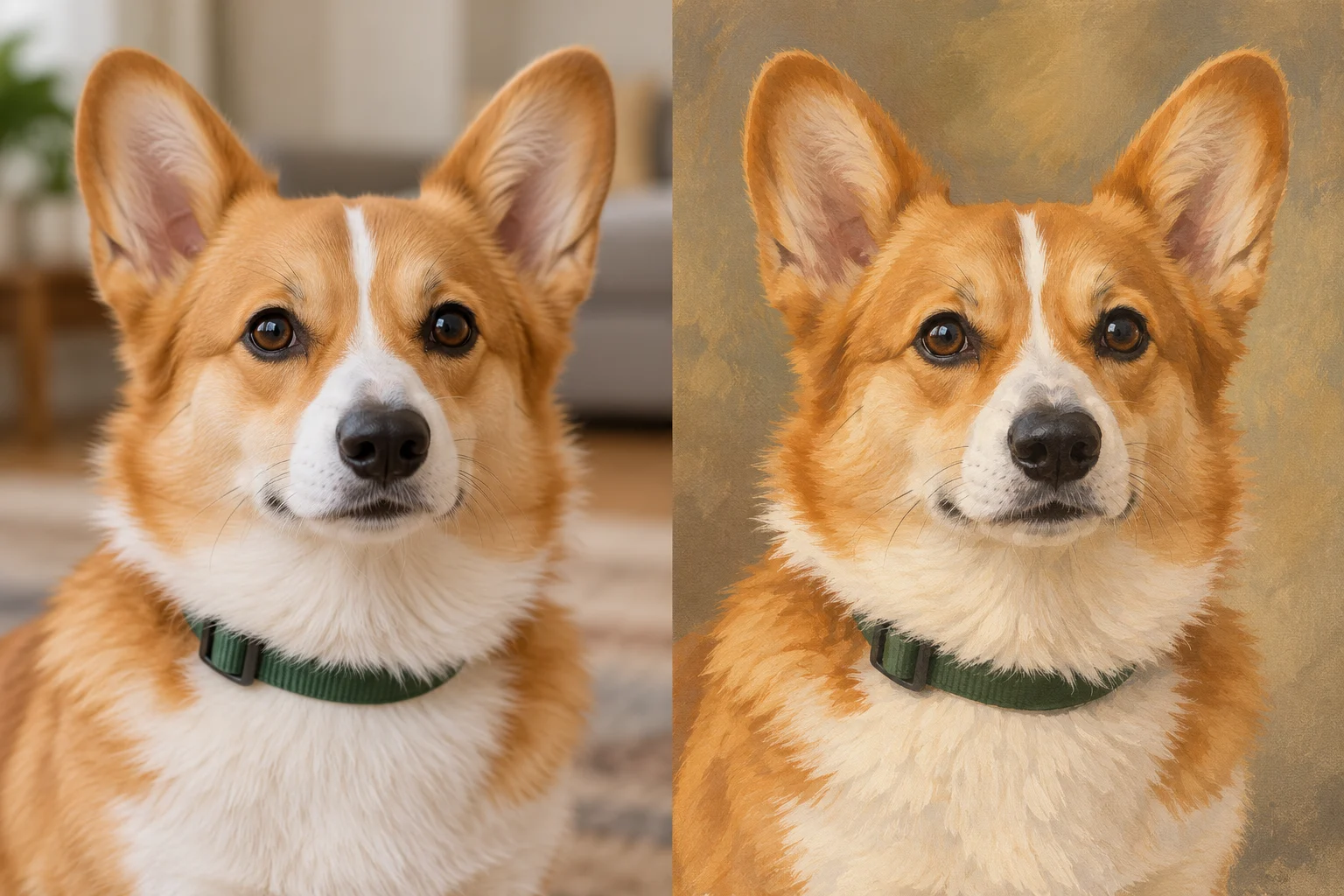
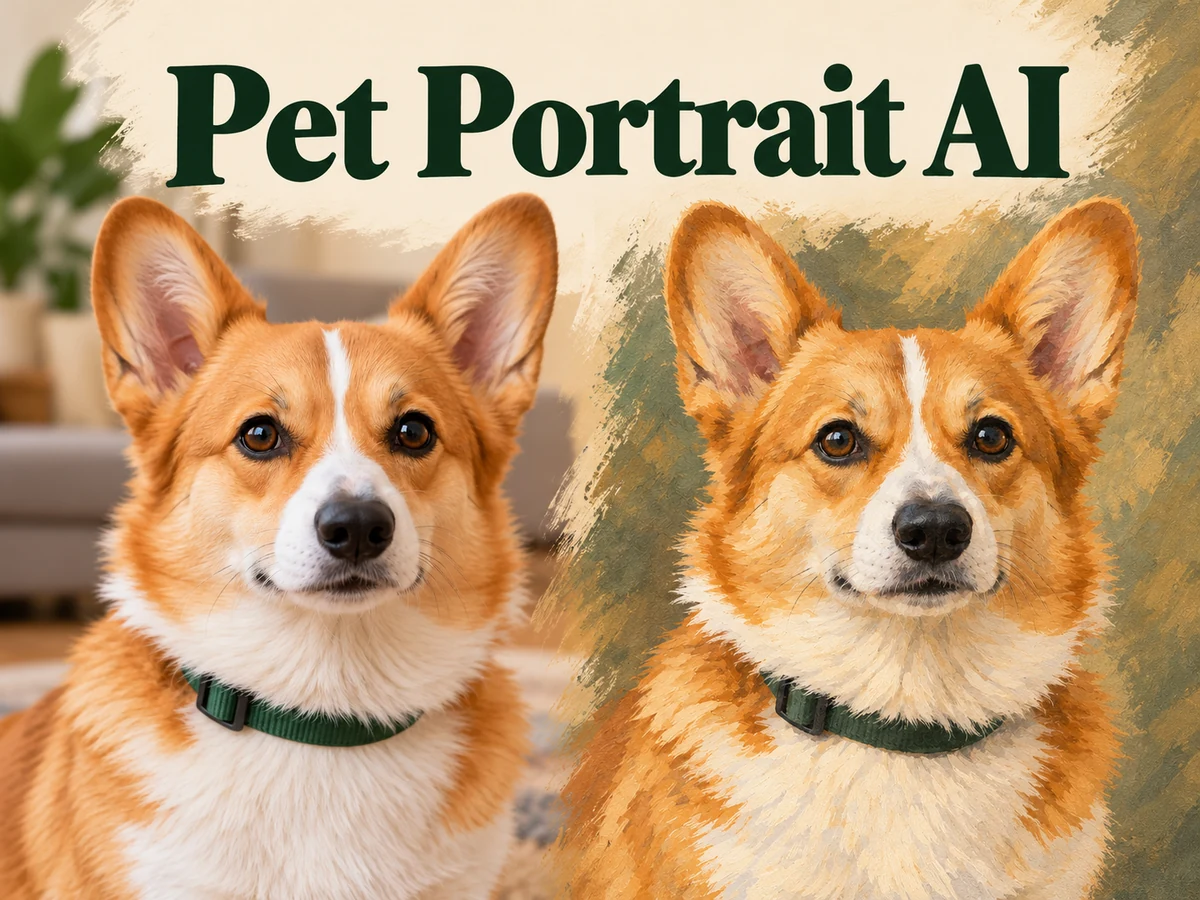
Pet Portrait AI gives a favorite animal a classic painted look. Start with a photo that shows the eyes, ears, and markings clearly. A dog, cat, or rabbit can become the subject of a personal portrait for a gift, a gallery wall, or a picture you simply want to keep.

Look for the details that make the animal yours: the shape of the ears, a white muzzle, an unusual patch of fur, or a familiar expression. Check those features in the result before choosing the portrait you want to download.

A corgi photograph beside a warm gouache-style interpretationPhotoPet portrait

Try a different chapter of your portrait

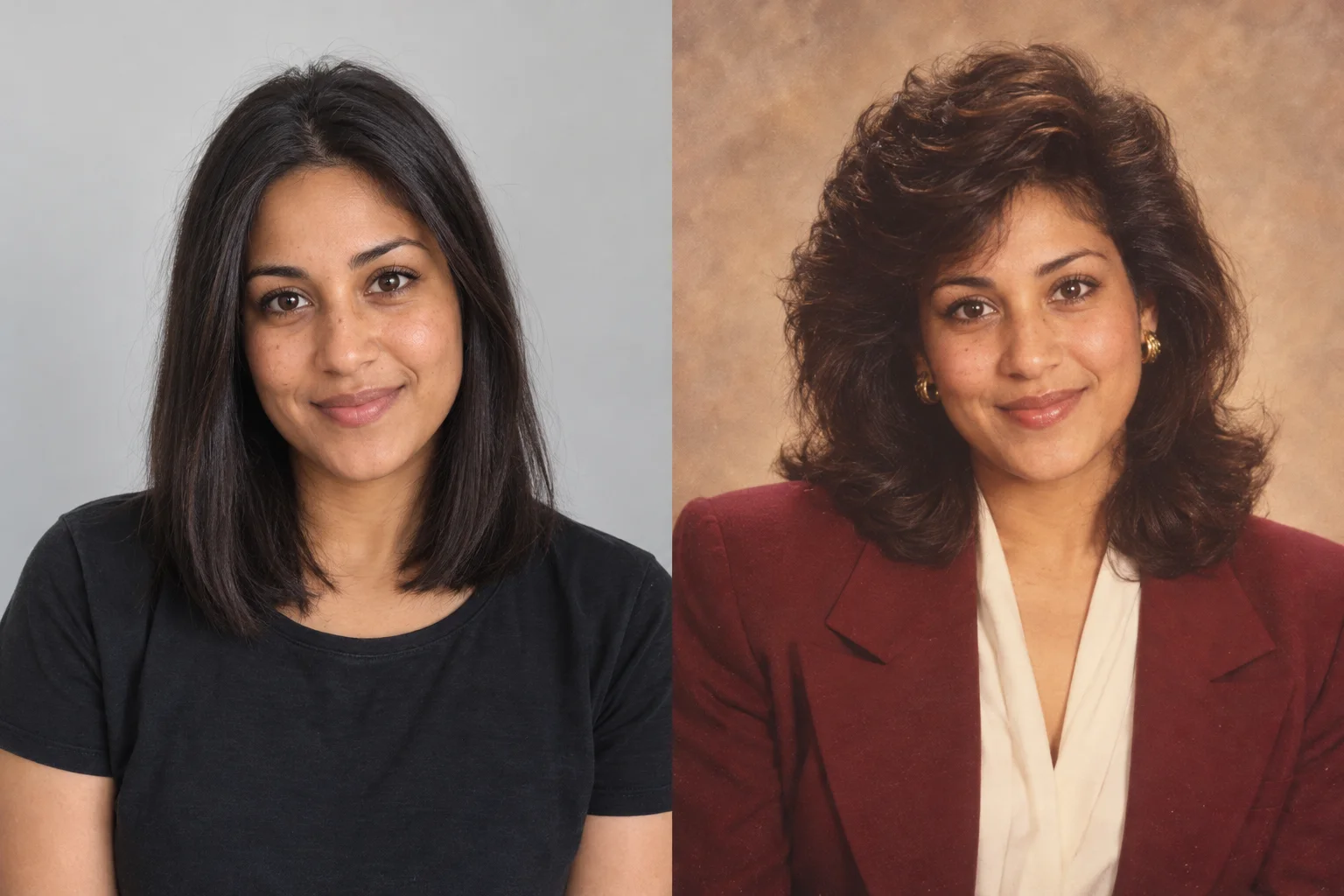
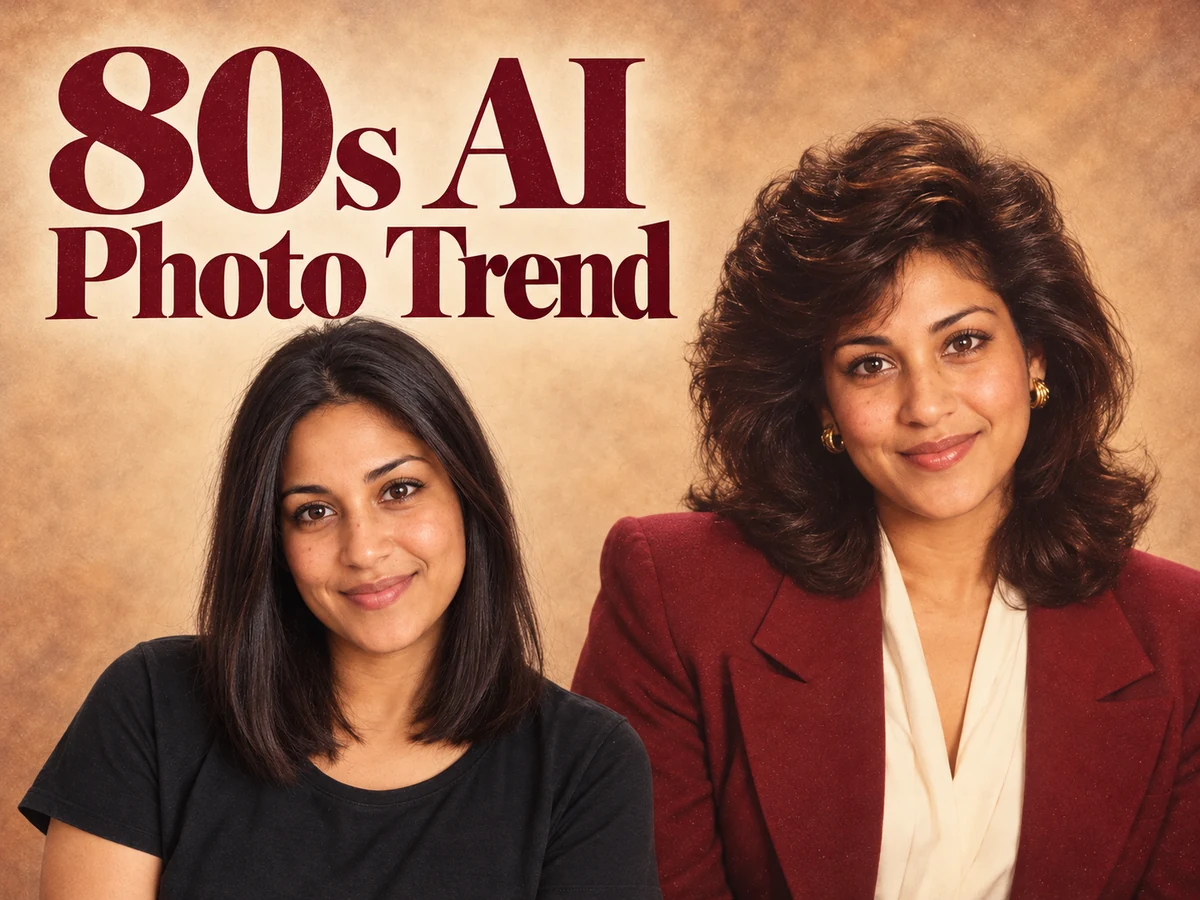
80s AI Photo Trend explores feathered hair, vintage clothing, and the warm look of a studio portrait from another decade. For a softer direction, AI Pregnant Filter creates an imagined maternity portrait. Choose the setting that fits the picture you have in mind.

Use a well-lit source with an unobstructed face. For portraits where the outfit or pose matters, include enough of the body to communicate it. Review facial likeness as well as the styling, and keep the version that feels most like the person in your reference.

The same woman with modern straight hair and a nostalgic eighties studio lookOriginal style80s style

Put your photos inside a short video story

Choose a scene with a clear idea: an intimate performance, a funny reveal, or a product in the spotlight. Each video tool has its own reference requirements and available controls. The images below illustrate the scene styles.

Join the band in a Tiny Desk scene

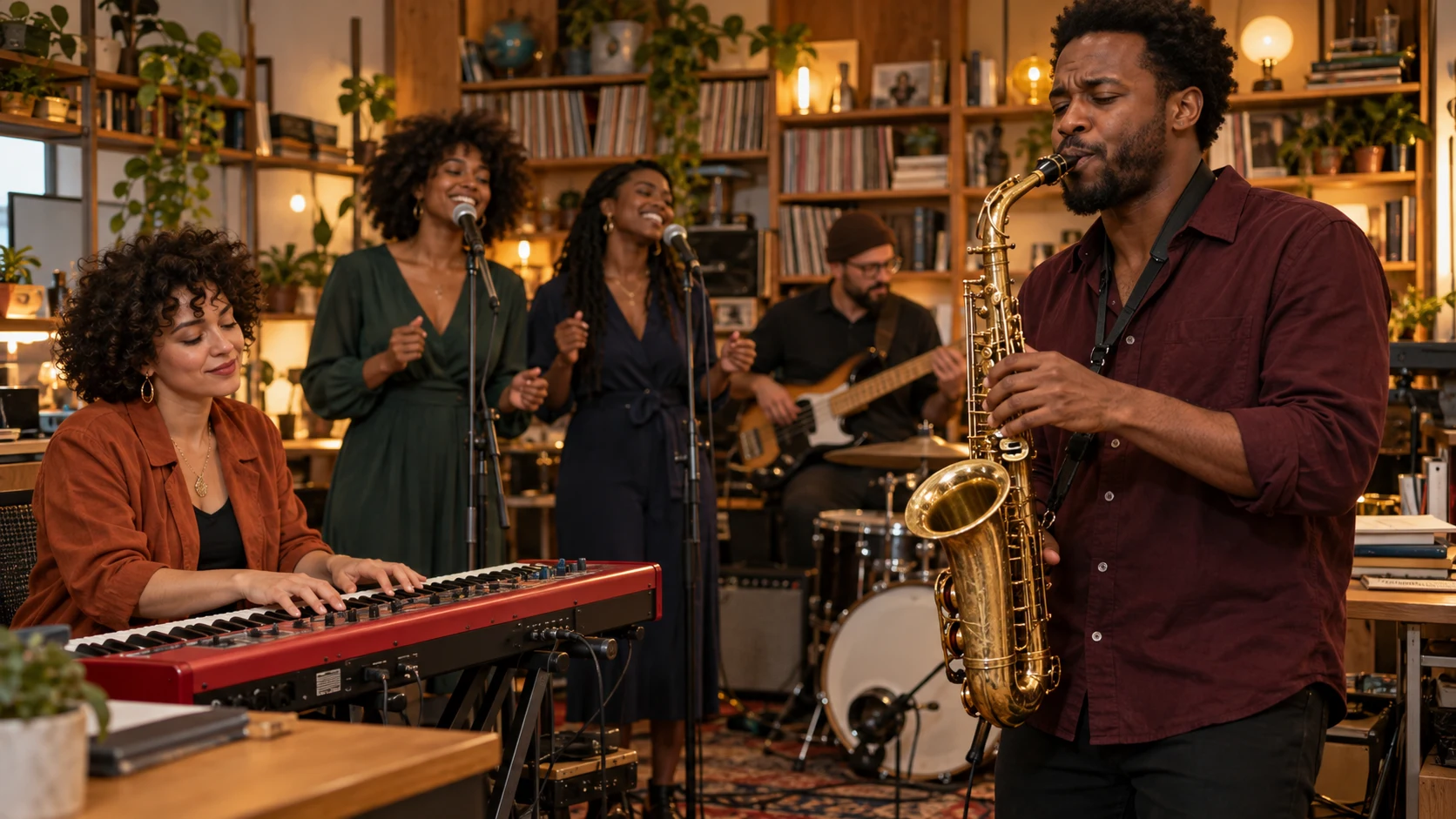
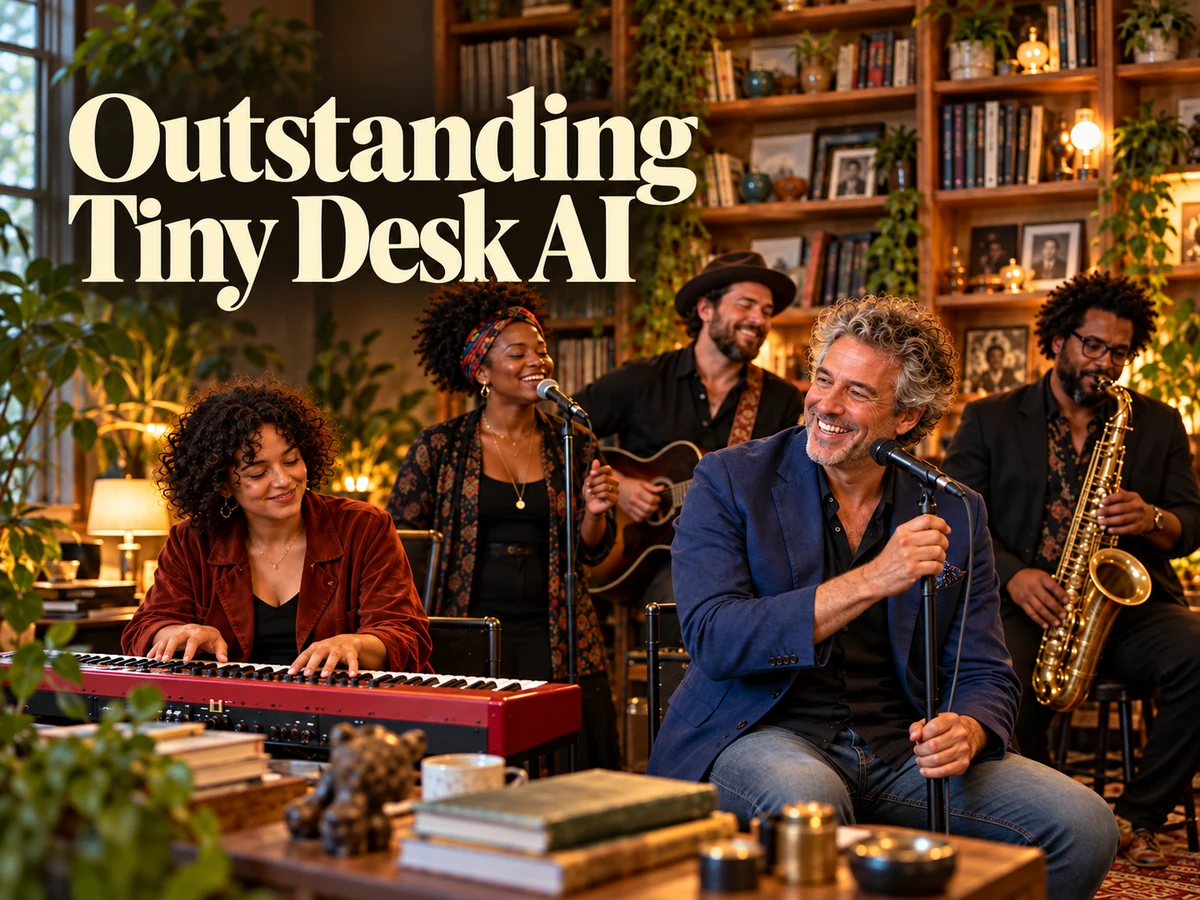
Outstanding Tiny Desk AI reimagines your cast in a cozy live-performance setting, surrounded by instruments, bookshelves, and warm light. Use the page's reference inputs to introduce the people you want in the scene, then choose from the settings available in the workspace.

Give each person a clear, recognizable reference. Once the clip is ready, watch the full performance and check faces, hands, and instruments as they move. A strong still frame is only part of the result; the scene should also feel coherent from beginning to end.

A saxophonist, keyboard player, and singers performing in a warmly lit room with bookshelves

Build a clip around one memorable moment

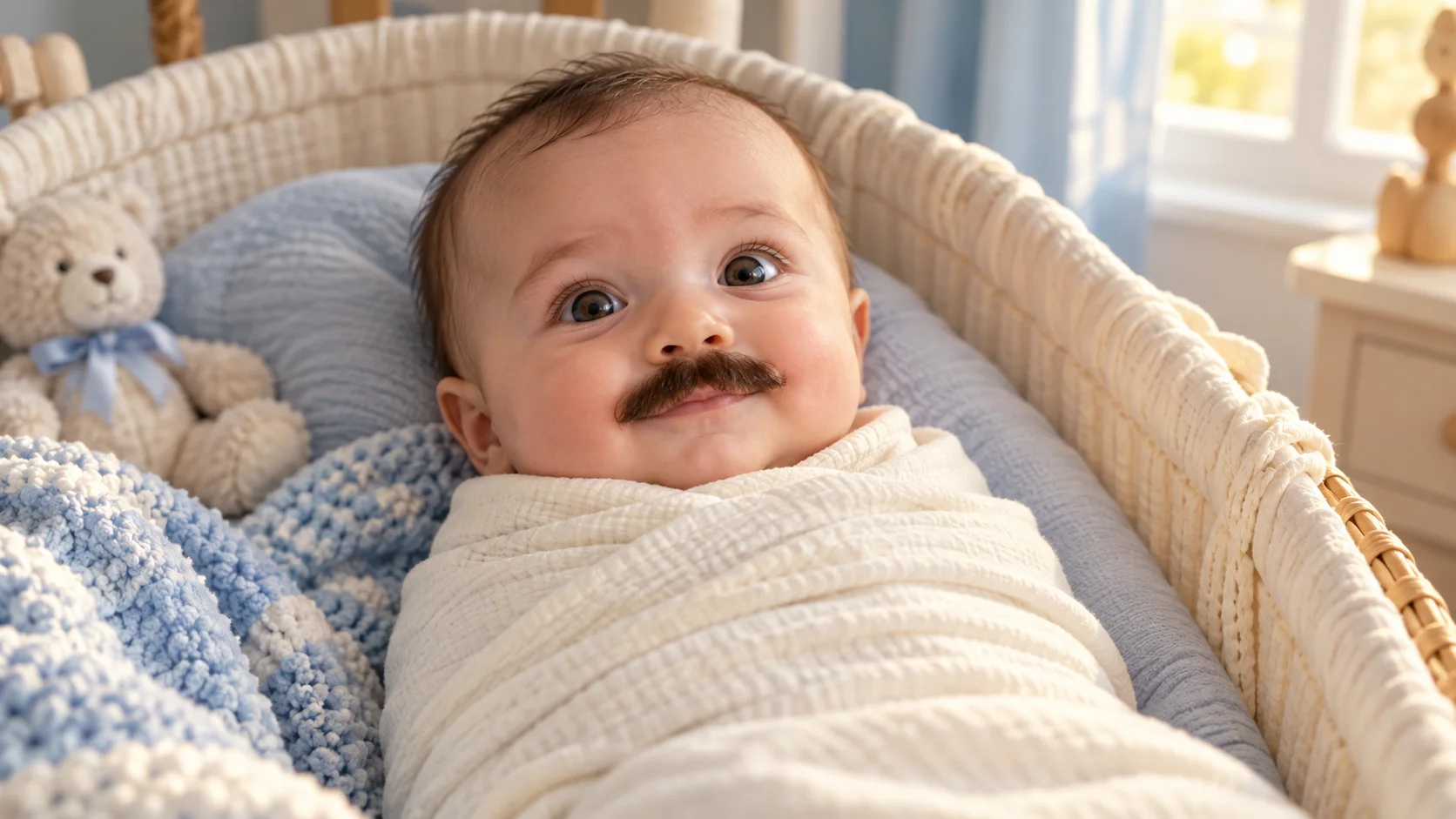
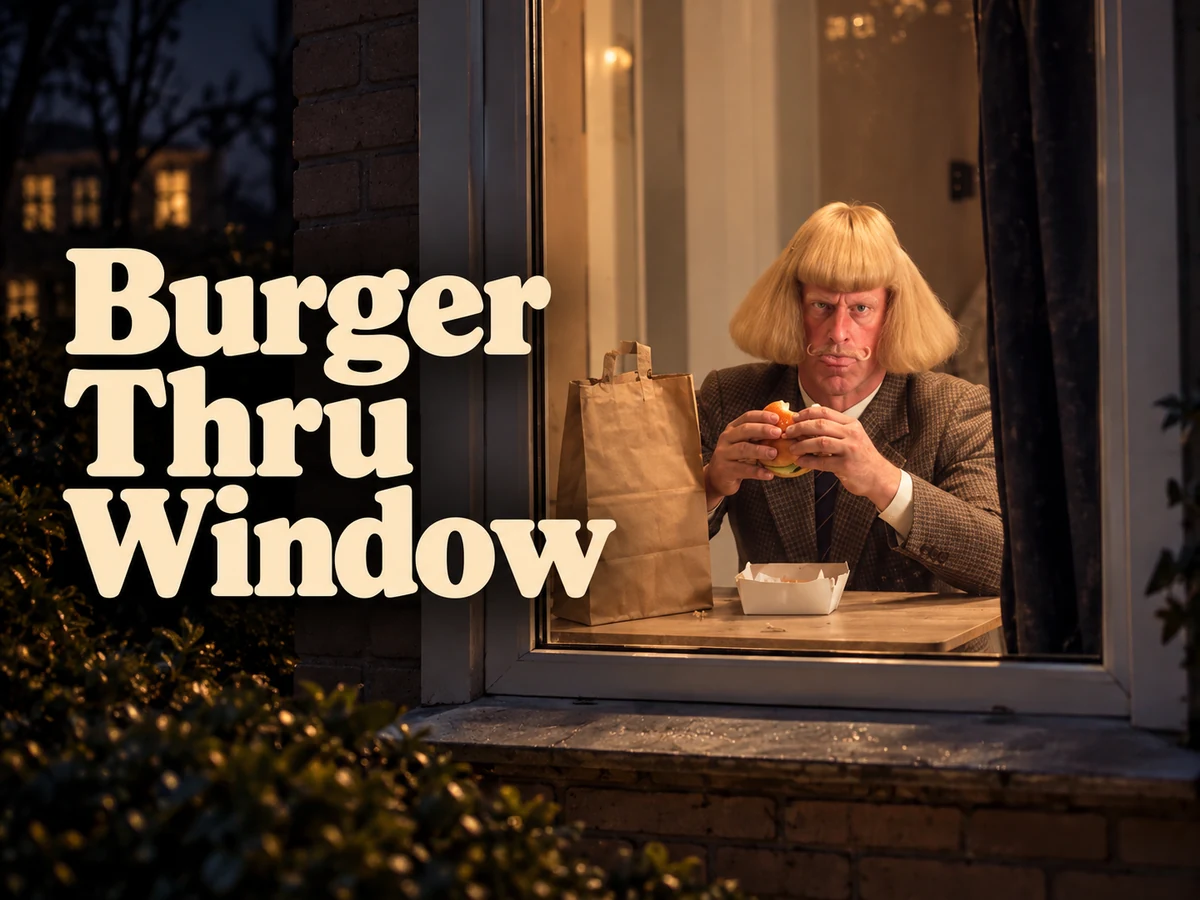
Burger Thru Window puts a character inside an awkward window-side encounter. Baby Born With a Mustache adds a playful visual surprise. La Tormenta De Arena AI Club Spotlight uses a dramatic nightclub setting and a moment of recognition. Pick the scene whose mood matches your idea.

Keep the reference simple enough for the main character to stand out. Watch the completed clip for the expression, gesture, or reveal that makes the scene work, then choose where to trim or place it in your edit. You can add your own caption after downloading.

A swaddled baby with a small brown mustache in a softly lit cream-and-blue nursery

Make the product the center of the scene

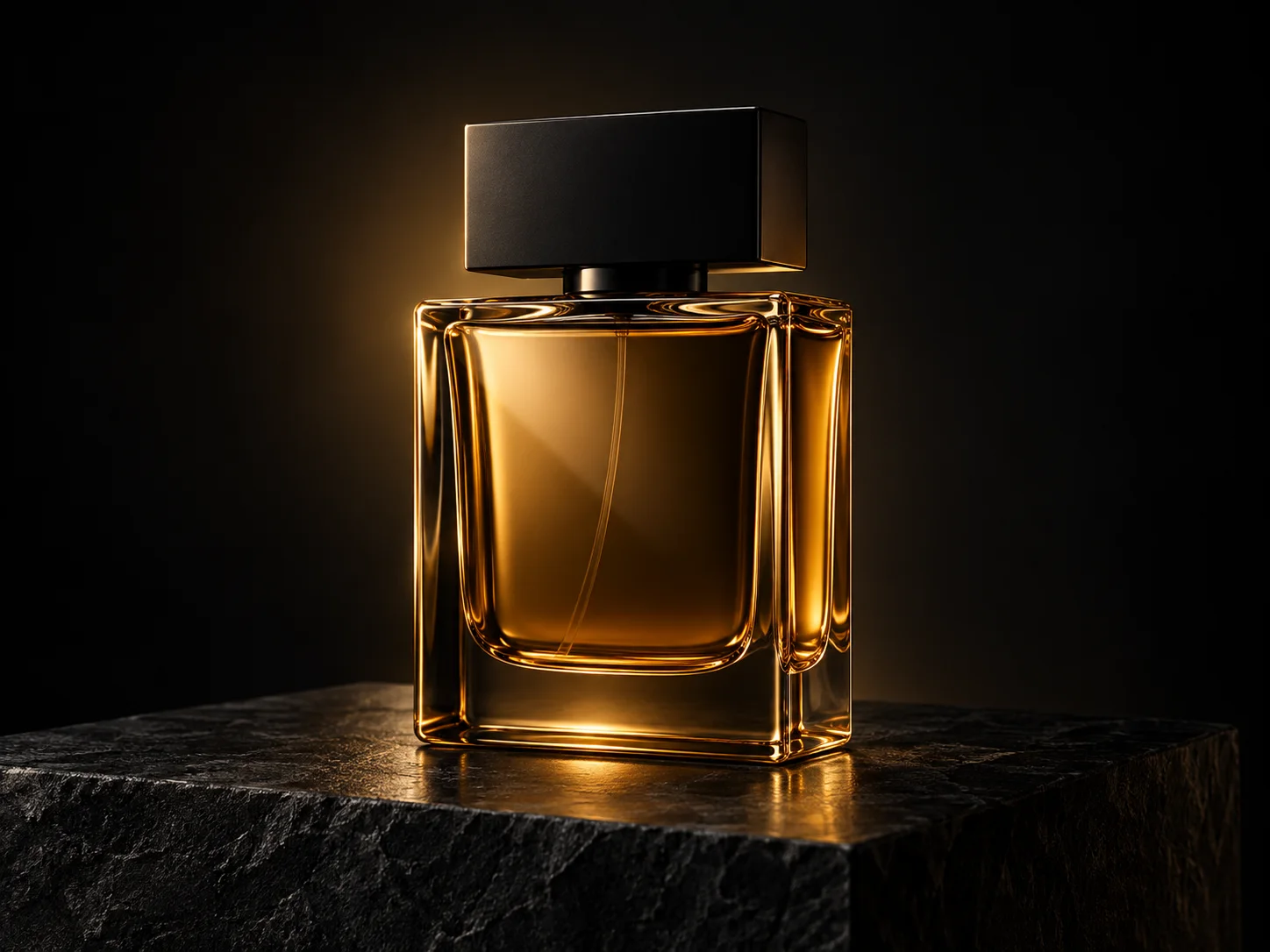
Black Friday Video Maker turns a product photo into a seasonal video concept. Begin with a clear view of the item and let the scene emphasize its shape, texture, and presentation. A simple reference makes it easier to judge how well the product carries through the clip.

Inspect labels, packaging, and important details before using a result in a campaign. Add exact prices, dates, and promotional wording in your editing software, where you can control the final text. The clip can become the visual starting point for a product post or short ad.

An amber perfume bottle lit with golden light on a dark stone display plinth

From your source photo to a result worth keeping

Browse first, prepare the references your chosen tool needs, and review the result before sharing it.

  1. 01

    Choose the outcome

    Use All, Image, or Video to explore the directory. Open a card to see its examples and input requirements. For a fully custom idea, the general image and video generators are also available in the sidebar.

  2. 02

    Add your references

    Choose clear photos with the subject in focus. Follow the selected tool's upload fields, file guidance, and available settings. Reference counts and controls vary by tool, so check the page before preparing your files.

  3. 03

    Generate and review

    Sign in, check the credit estimate, and submit your request. Inspect the finished image or play the entire video. Download the version you want, or adjust your source and settings for another attempt.

Questions about AI Tools

A few practical details before you choose your next image or video project.

Choose an image tool when you want a still portrait, painted picture, or coloring page. Choose a video tool when the idea depends on motion, a performance, or a reveal. Use the Image and Video tabs to filter the directory. Each tool page explains its scene and required references.

You can browse without generating anything. After signing in, check your account's available credits and the estimate for the selected tool. Available free credits can cover a request when the balance is sufficient; they do not mean unlimited free generation. The amount depends on the tool and settings.

It depends on the tool. Many photo effects use a prepared style and ask you for a reference rather than a written prompt. Some video scenes accept multiple references. Follow the fields shown on the tool page, and use only the controls available for that workflow.

Use a sharp, well-lit image with a clear main subject. Keep faces, distinctive pet markings, or product details visible. Avoid heavy filters or a crop that removes something important to the scene. If you want a full portrait, include the pose and clothing as well as the face.

The artwork here illustrates the intended styles and scenes. It is not a promise of an identical result. Your references and selected settings influence the output, and separate attempts can differ. Review likeness, small details, and motion before deciding which version to keep.

Sign in to the account you used and return to the same tool. Its history contains that tool's requests and available results. Open a finished item to inspect or download it. Keep a local copy of any image or video you want to use in another project.

Choose a photo. Find its next story.

Explore the image and video tools above, open a scene that catches your eye, and bring a clear reference to make it your own.

Browse all tools
Image to Image AI logoImage to Image AI

A fresh take on your image. Explore new styles and scenes with AI.

Customer supportsupport@imgtoimageai.com

Tools

  • Remove Glare from Glasses
  • Remove Glare from Photo
  • Photo to Line Art
  • Image Upscaler
  • Realistic Selfie Generator
  • Christmas Photobooth
  • AI 3D Figure Generator
  • Selfie With Santa
  • Christmas Dance Trend
  • Motorcycle AI
  • AI Photo Booth
  • Photo to Sticker
  • QR Code Enhancer
  • AI Long Hair Filter
  • Bicep Heart Trend AI
  • Happy Birthday GIF with Name
  • Apartment Dance
  • AI GIF Generator
  • Executive Portrait Maker
  • AI Trouble Maker Video

Learn more

  • Tools
  • Blog
  • Pricing

Legal

  • Privacy Policy
  • Terms of Service
  • Refund Policy
  • Contact

© 2026 Image to Image AI