Image to Image AI logoImage to Image AI
  • Home
  • AI Image Generator
  • AI Video Generator
  • Tools
  • Nano Banana 2.1
  • Flux 3 Klein
  • Seedream 5.0 Pro
  • Seedream 5.5
  • GPT Image 2.5
  • GPT Image 2.6
  • MiniMax H3 Image
  • Kling 4.0
  • Grok Imagine Video 1.5
  • MiniMax H3 Max
  • Seedance 2.5
More
  • Blog
  • Pricing

Guest

Save your creations

Credits—
  1. Home

Christmas Photobooth for a shared holiday keepsake

Put two familiar faces into a nostalgic moving photo strip. Christmas Photobooth AI video generator starts with two separate portraits and a prepared sequence of four shared poses. Soft monochrome photographs, warm paper, and a gentle camera journey give the scene its seasonal character. Choose the people who belong in your greeting, upload their portraits, and create a short vertical video you can review and save.

Create my holiday video
Christmas Photobooth for a shared holiday keepsake
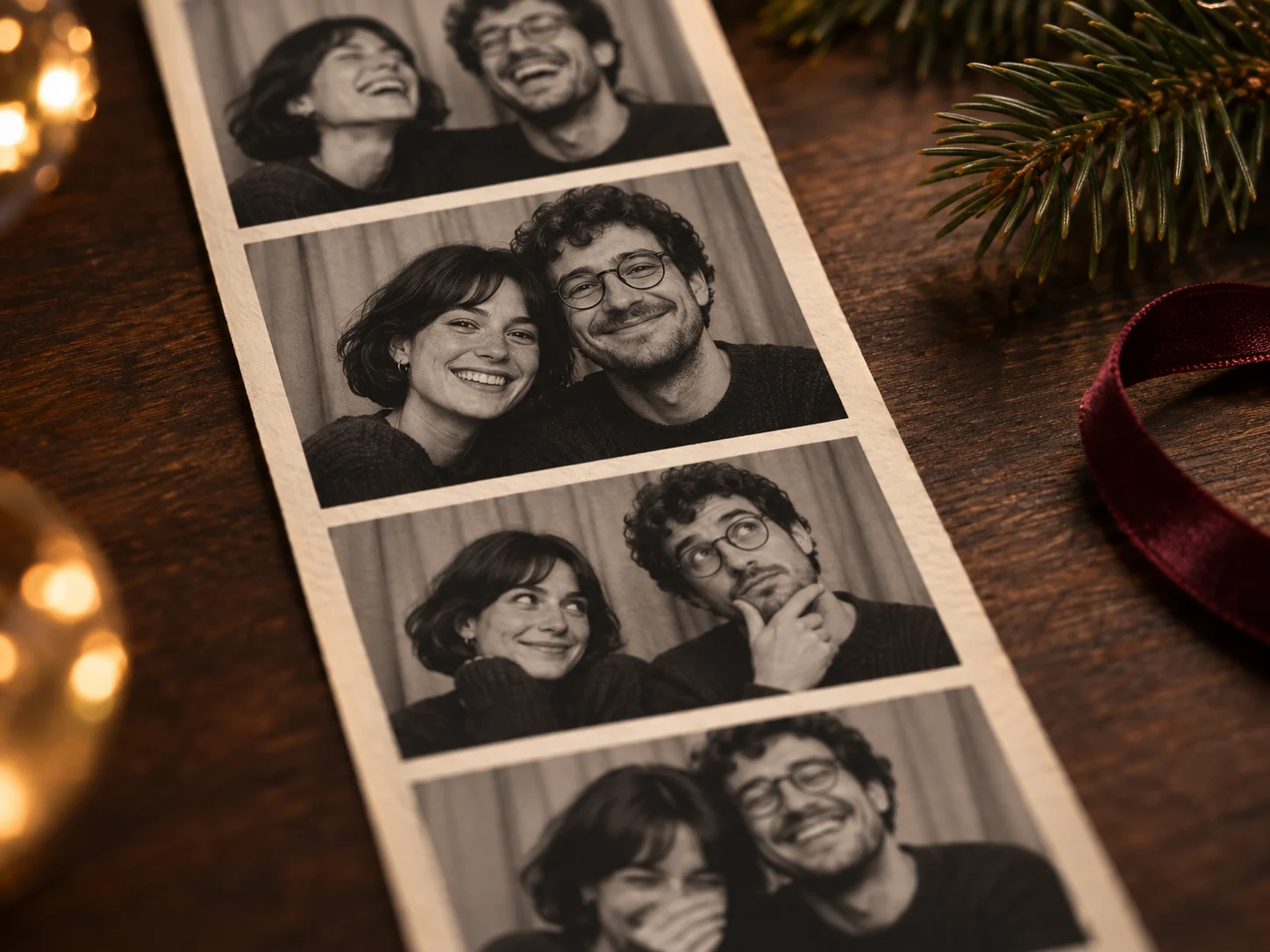
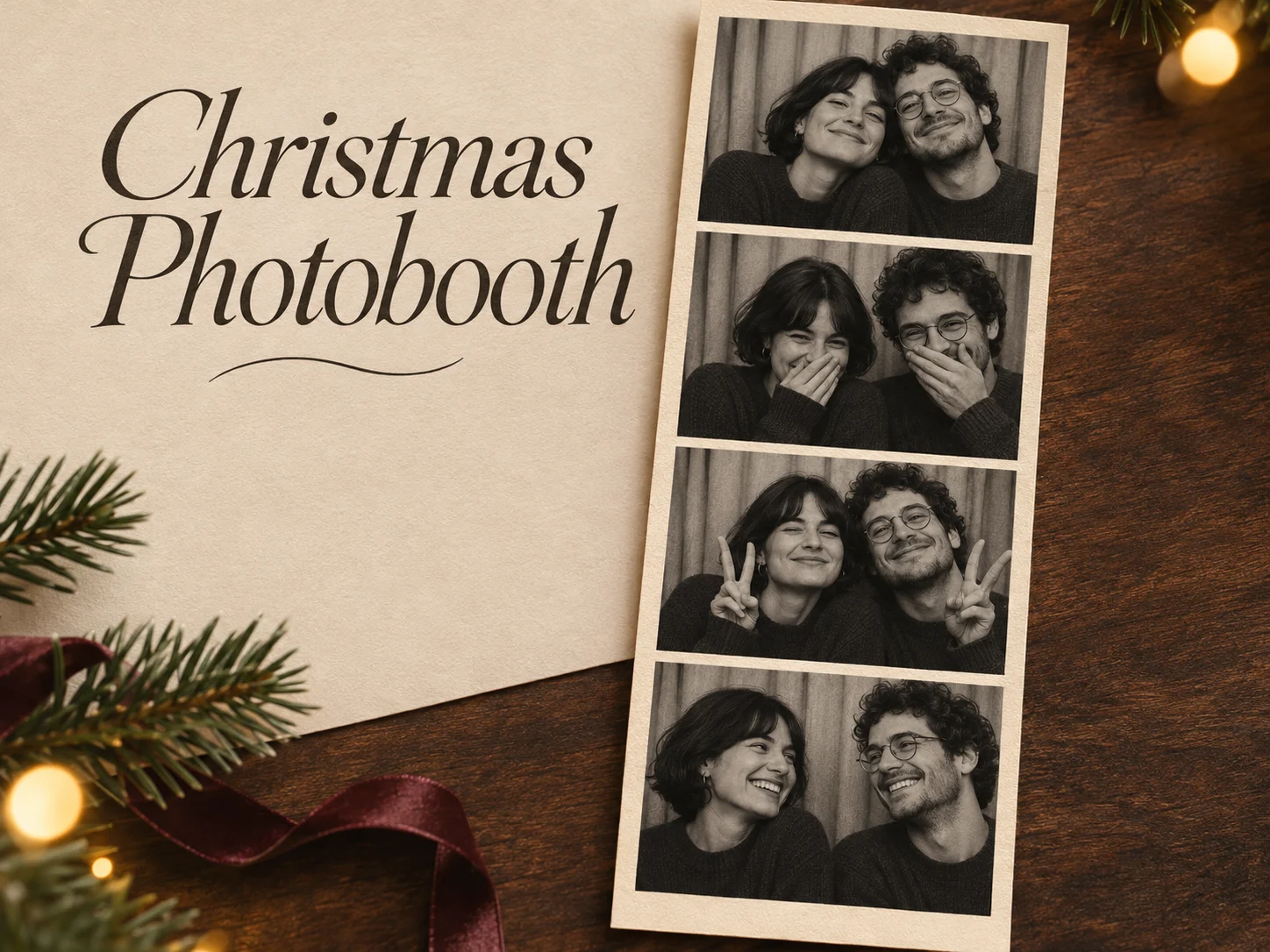
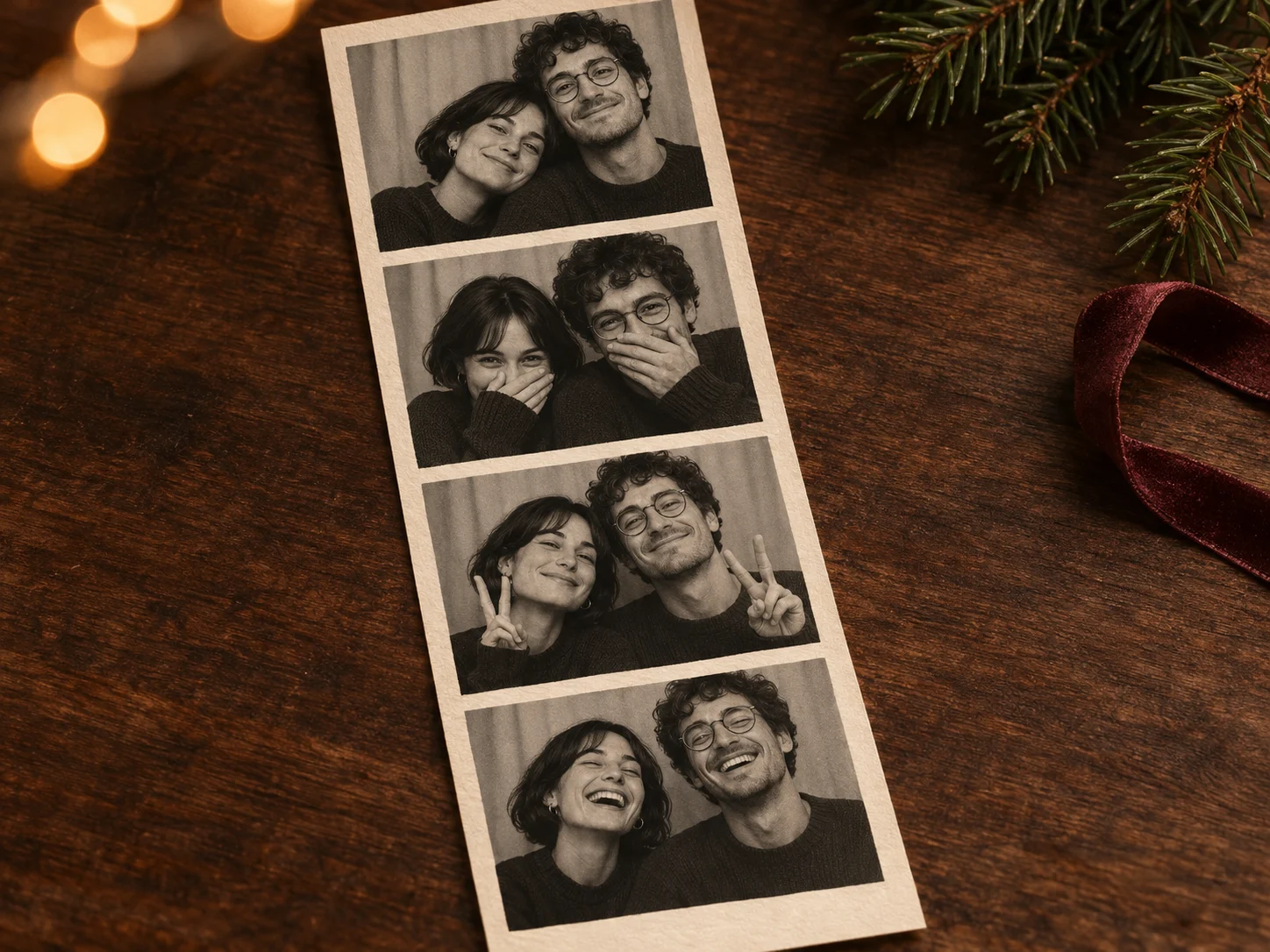
Concept artwork illustrating the prepared photo-strip direction; still images shown here are not frames from a verified tool output.

Reference image

Required · 2 images
315
Checking your sign-in status…
Strictly prohibits adult / NSFW content

AI Video Generators to Explore

Find new ways to animate your photos, from dance clips and outfit changes to imaginative scenes.

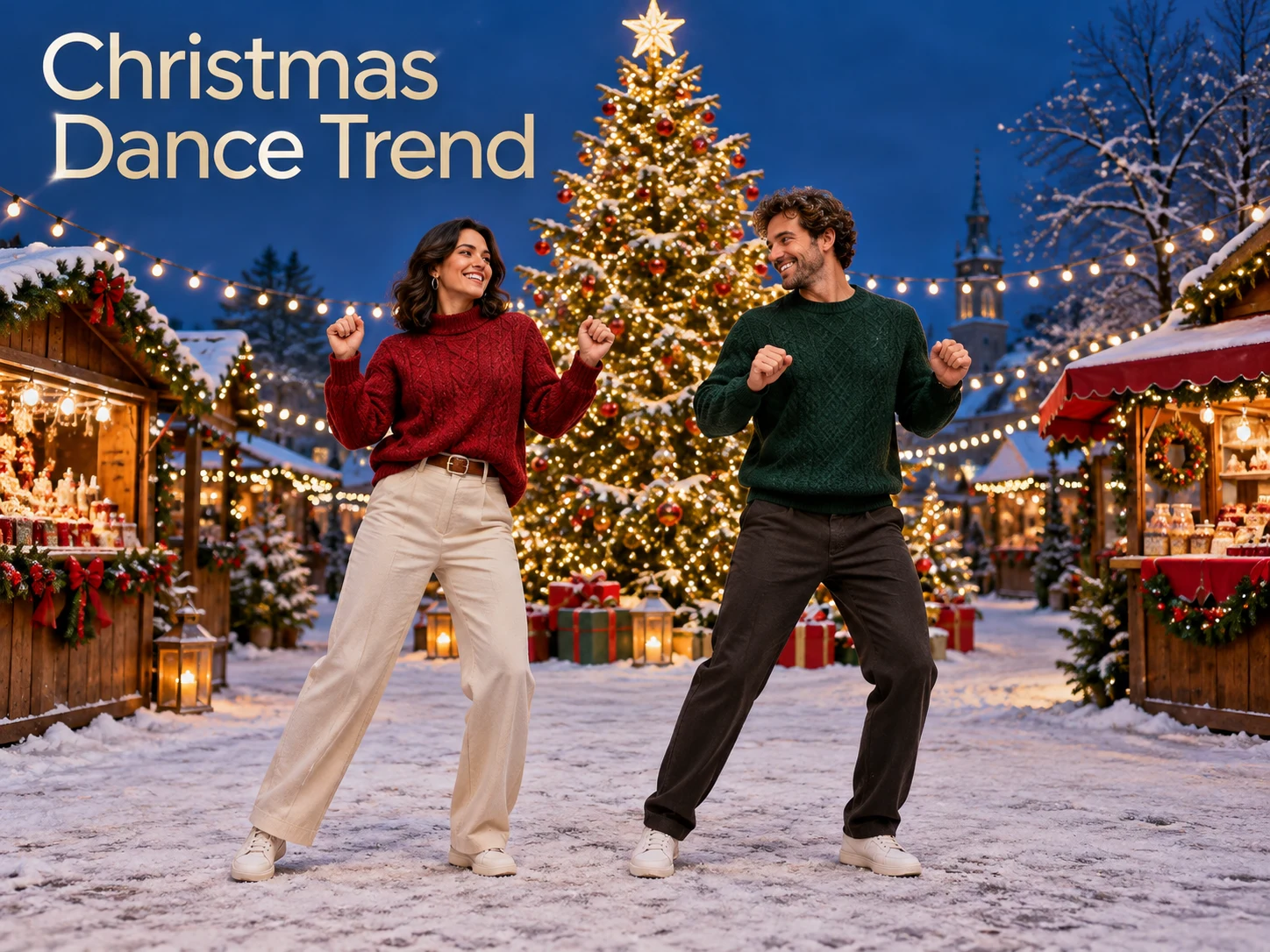
  • Christmas Dance Trend

  • Bicep Heart Trend AI

  • Apartment Dance

  • AI Trouble Maker Video

  • Elevator Outfit Change AI

  • Skull Cap Trend AI

  • Stones to Castle AI

  • WYW My Sweetie Dance

  • Black Friday Video Maker

  • La Tormenta De Arena AI Club Spotlight

  • Baby Born with a Mustache

  • Burger Thru Window

  • Outstanding Tiny Desk AI

Page 1 of 2

What is Christmas Photobooth?

Christmas Photobooth is a prepared video effect built around two people appearing together in a vintage photo strip. The camera travels across the printed portraits, revealing a small collection of expressions and poses. The tabletop, paper texture, and understated festive details create the setting while the pair remains the center of attention.

Christmas Photobooth AI video generator uses MiniMax H3 Max with a fixed creative instruction. It requests a fifteen-second clip in a vertical 9:16 format, using the first upload for one person and the second upload for the other. The four-pose structure is a generation direction, so you should inspect the actual sequence and both identities when the result finishes.

You do not need to take a new photograph together or write a prompt. Separate portraits can supply the two identities even when the original rooms and backgrounds differ. Christmas Photobooth creates a new imagined scene from those references. Treat it as a creative holiday greeting rather than a record of a booth session that really happened.

Four ingredients of Christmas Photobooth

The prepared effect connects clear source portraits with a recognizable keepsake format. Choose the pair, then let the scene direction organize the visual idea.

Two Separate Portraits

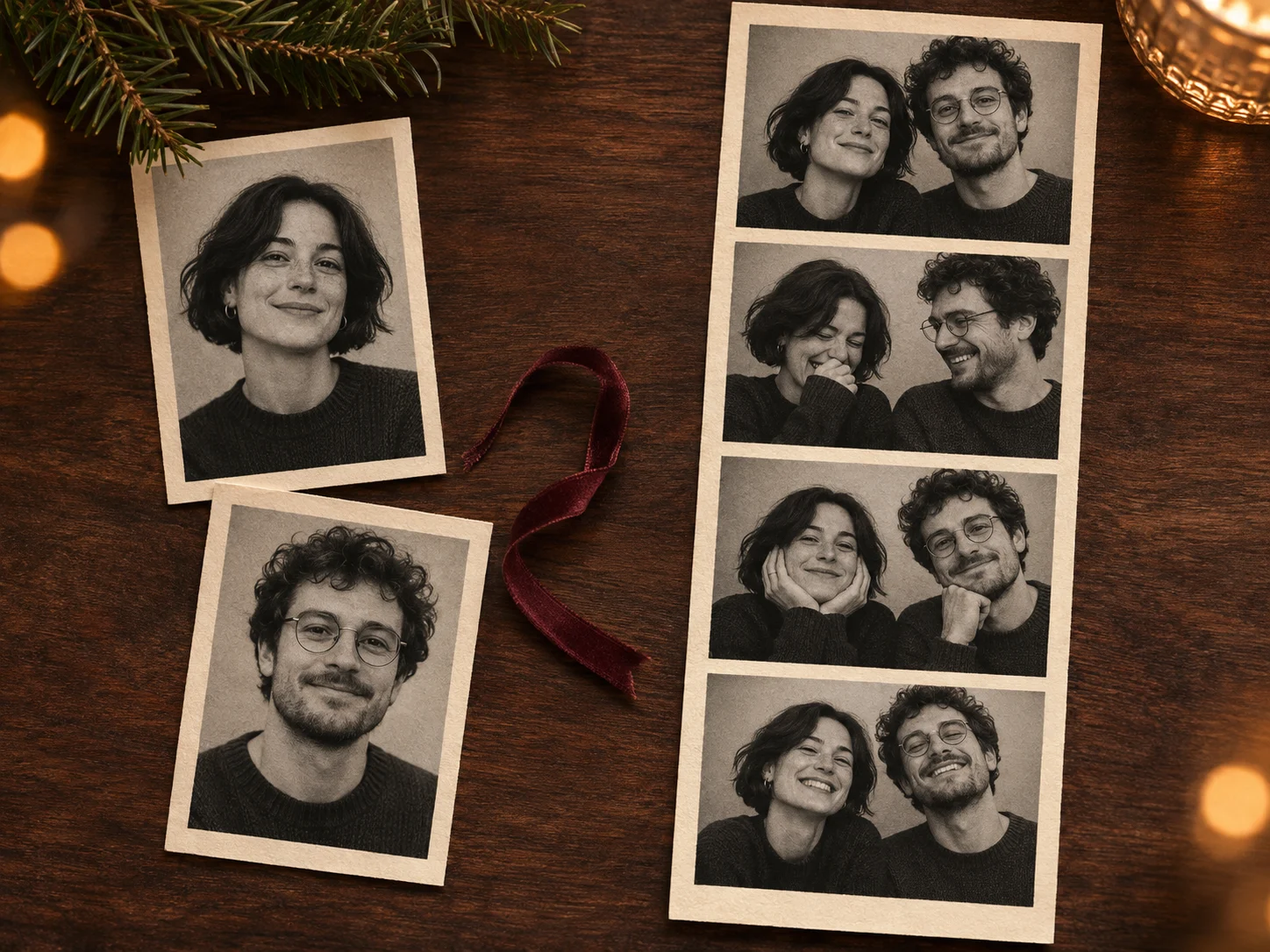
Upload one clear adult portrait for each person. Christmas Photobooth AI video generator treats the pictures as distinct identity references, with the first person requested on the left and the second on the right. A recognizable face matters more than a festive background in the source, because the booth setting is created during generation.

Choose photographs with similar clarity and enough room around the face and hair. Avoid collages containing several people or images where a hand covers the eyes. Check the order before submitting, and compare both faces across the finished clip. Two references help describe the pairing, but identity consistency still needs a human review.
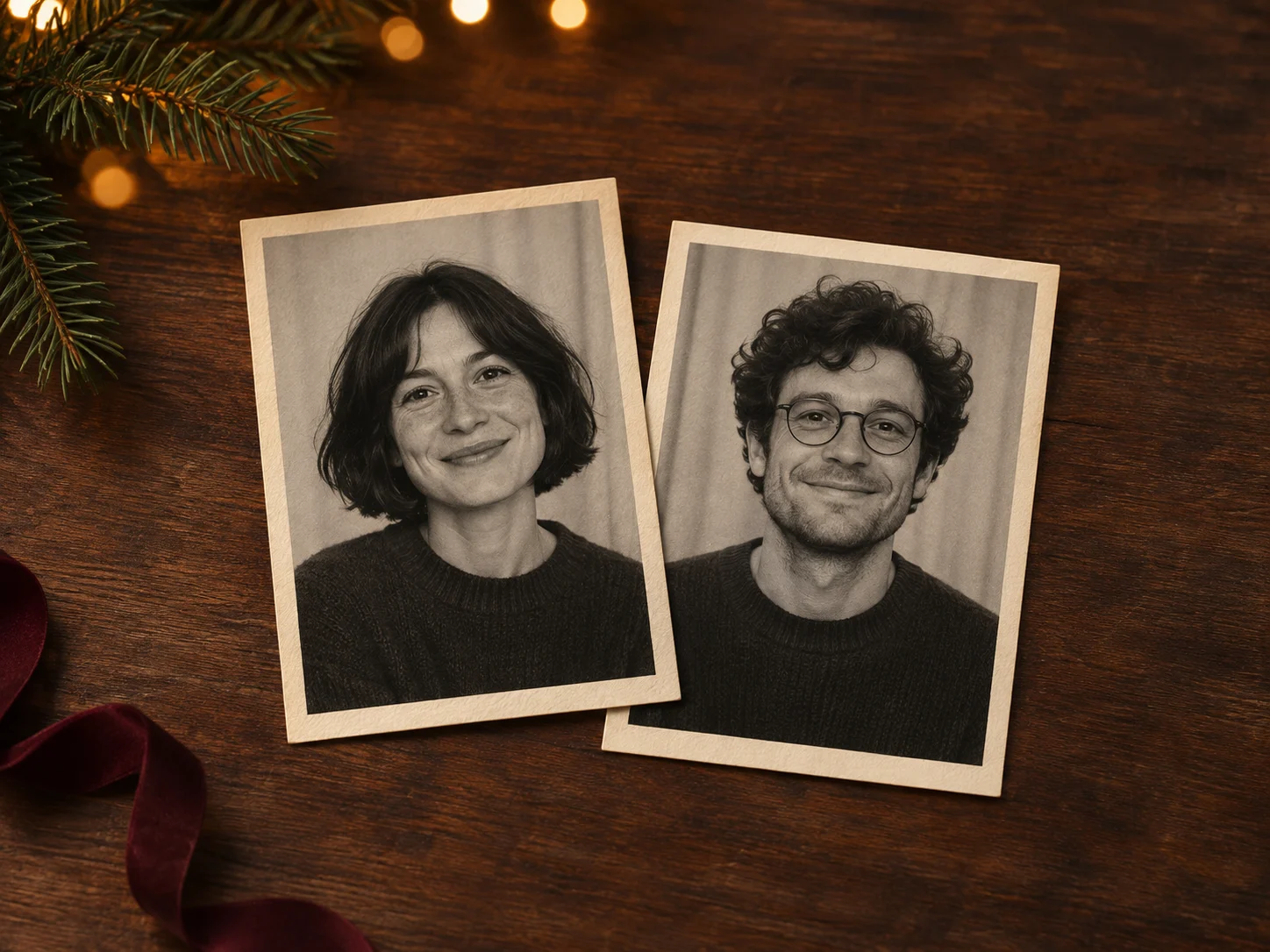
Two Separate Portraits

Four Photo Poses

The prepared Christmas Photobooth sequence asks for four photographs of the same pair: a gentle cheek-to-cheek lean, a shy shared smile behind partially raised hands, playful peace signs, and a relaxed laughing finish. The poses bring small changes of expression to the strip while the booth curtains and clothing stay visually connected.

The Christmas Photobooth AI video generator creates the full scene rather than arranging four preexisting photographs. Count the panels and check that both people appear in each one. Look closely at fingers, glasses, and facial outlines where the poses overlap. The intended four-frame layout can vary, so keep the result whose structure and expressions work best together.

Four Photo Poses

15-Second Vertical Video

Christmas Photobooth is configured to request fifteen seconds in 9:16, giving the moving view room to travel along the strip and settle on the final portrait. The prepared direction favors a slow reveal over rapid cuts. This makes the paper texture, shared expressions, and familiar booth arrangement part of the experience.

Use the Christmas Photobooth AI video generator when a vertical greeting fits your project. The provider may return a clip slightly longer than the requested duration, so check the downloaded file if timing matters. Preview the full video on a phone and leave faces clear of any captions or interface overlays you add when posting.

15-Second Vertical Video

No Prompt Writing

The Christmas Photobooth AI video generator supplies the scene, camera direction, and pose sequence. You provide the portraits and choose an available resolution; the aspect ratio and requested duration stay fixed. This keeps the workflow focused on the people in the scene without requiring you to describe every curtain, paper border, or camera movement.

Choose source images that reflect how each person wants to appear. A different portrait can change the visible hairstyle, glasses, or expression cues the model receives. Christmas Photobooth does not include a pose editor, a soundtrack upload, or a custom prompt field. If you need a different scene, use the general video generator for that separate creative brief.

No Prompt Writing

How to create a Christmas Photobooth video

  1. 01

    Add the first person

    Choose a clear portrait of the first adult and upload it as the first reference. Keep the face sharp, eyes visible, and hairstyle easy to read. Christmas Photobooth requests this person in the left role. Use a photograph the person is comfortable including in the planned greeting, with enough space around the head to avoid a cramped source.

  2. 02

    Add the second person

    Upload a separate portrait of the other adult. Check that each image contains just its intended subject, then confirm the order. The source backgrounds do not have to match. What matters most is that both photographs provide clear facial information and that the pair is suitable for the friendly, close poses in the prepared strip.

  3. 03

    Generate the prepared clip

    Select the resolution and review the displayed credit estimate before starting. The Christmas Photobooth AI video generator supplies the prompt, vertical format, and requested fifteen-second duration. Keep the upload order stable while reviewing your request. Wait for generation to finish, then open the completed video to judge the result as a full moving sequence.

  4. 04

    Watch, review, and download

    Watch Christmas Photobooth from beginning to end. Check the two identities, four-panel arrangement, hand positions, and camera framing. Listen to the audio too; do not assume it matches another creator’s soundtrack. Save the version you want to keep, then add a personal greeting or appropriately licensed music in your usual video or posting editor.

AI Video Generators for Your Next Project

Turn a photo into a short video for a personal story, a social post, or a playful idea.

  • Outstanding Tiny Desk AI

  • Baby Born with a Mustache

  • Stones to Castle AI

  • Skull Cap Trend AI

Ways to share Christmas Photobooth

Friends celebrating from different places

A greeting for a close friend

Bring two people into one small holiday scene even when a new joint photo is inconvenient. Choose portraits that feel familiar and a caption that explains the greeting in your own words. The Christmas Photobooth AI video generator offers a visual starting point for that message. Share the finished version with your friend first so both of you can decide whether the expressions and likeness feel right.
Adult partners

A seasonal keepsake for a couple

Pick a separate portrait for each partner and turn the pairing into a playful photo-strip scene. Christmas Photobooth gives the greeting a consistent visual setting without requiring matching original backgrounds. Review the close poses together and keep the version you both like. A short personal note added afterward can make the clip more meaningful than relying on decorations or a generic holiday caption alone.
Families keeping in touch

A warm message for an adult family member

Use Christmas Photobooth to make a friendly greeting with a sibling, parent, or other adult relative. The prepared gestures are lighthearted and the strip format keeps the focus on shared expressions. Choose current photographs with clear faces and avoid references that are too small to inspect. A preview sent privately gives both people a chance to check their appearance before the clip reaches a wider audience.
Collaborators and small creator teams

An introduction for a creative duo

A two-person seasonal announcement can use the Christmas Photobooth AI video generator as its opening visual. Keep the final caption direct about the collaboration or event. The generated strip supplies the nostalgic picture; your posting layout supplies the practical information. Check that names, dates, and calls to action remain legible without covering the portraits, and watch the video inside the final crop before publishing.

Prepare portraits for Christmas Photobooth

Choose sharp photographs with soft, reasonably even lighting. Strong shadows, heavily filtered skin, and large sunglasses can make important facial details harder to interpret. A front-facing or gently angled head-and-shoulders portrait is a useful starting point. Keep both sources similar in quality so one person is not represented by a much smaller or blurrier face than the other.

Before generating, decide what a successful result should preserve: distinct identities, recognizable hairstyles, sensible expressions, and a coherent strip. The Christmas Photobooth AI video generator can reinterpret small details, especially when hands approach faces or the camera moves over narrow panels. Inspect those moments at normal playback speed and pause on a few frames when something looks unfamiliar.

Christmas Photobooth questions

The download is a video. A printed four-pose strip appears inside the generated scene while the camera moves across it. This page does not export four separate portrait files or a print-ready collage. If you need a still for a separate design, choose an appropriate frame in your own video editor.

This workflow requires two separate reference uploads, one portrait per person. If your source is a joint photograph, prepare a clear individual crop for each person before uploading. Keep enough detail around both faces. Christmas Photobooth uses the upload order to describe the two roles in the prepared instruction.

No. The instruction requests four specific poses and a consistent pair, but generation can change expressions, panel boundaries, or smaller details. Review the entire clip and choose the result that fits your greeting. This is a prepared generative effect, so it does not reproduce an existing source video frame for frame.

The Christmas Photobooth AI video generator fixes the requested duration to fifteen seconds and the aspect ratio to 9:16. You can choose an available resolution. The prompt remains hidden because this page is designed for the prepared strip effect. Use the general video generator when a different creative direction is essential.

No particular song or original social-media soundtrack is promised. Review any audio in the returned clip before sharing. If you want a specific musical mood, add music you are allowed to use in a separate editor or through your posting platform. Check that the final soundtrack and timing suit the finished video.

Create with Christmas Photobooth

Choose two portraits, check their order, and give your holiday message a shared visual setting. Review every pose, save the strongest clip, and add the personal words that make the greeting yours.

Try Christmas Photobooth
Image to Image AI logoImage to Image AI

A fresh take on your image. Explore new styles and scenes with AI.

Customer supportsupport@imgtoimageai.com

Tools

  • Remove Glare from Glasses
  • Remove Glare from Photo
  • Photo to Line Art
  • Image Upscaler
  • Realistic Selfie Generator
  • Christmas Photobooth
  • AI 3D Figure Generator
  • Selfie With Santa
  • Christmas Dance Trend
  • Motorcycle AI
  • AI Photo Booth
  • Photo to Sticker
  • QR Code Enhancer
  • AI Long Hair Filter
  • Bicep Heart Trend AI
  • Happy Birthday GIF with Name
  • Apartment Dance
  • AI GIF Generator
  • Executive Portrait Maker
  • AI Trouble Maker Video

Learn more

  • Tools
  • Blog
  • Pricing

Legal

  • Privacy Policy
  • Terms of Service
  • Refund Policy
  • Contact

© 2026 Image to Image AI