





Image to Image AI logoImage to Image AI
  • Home
  • AI Image Generator
  • AI Video Generator
  • Tools
  • Nano Banana 2.1
  • Flux 3 Klein
  • Seedream 5.0 Pro
  • Seedream 5.5
  • GPT Image 2.5
  • GPT Image 2.6
  • MiniMax H3 Image
  • Kling 4.0
  • Grok Imagine Video 1.5
  • MiniMax H3 Max
  • Seedance 2.5
More
  • Blog
  • Pricing

Guest

Save your creations

Credits—
  1. Home

Stones to Castle AI

Give your comeback a visual shape with Stones to Castle AI. Start with one portrait and place a recognizable lead in a green valley, where scattered stones become the foundation of a rising castle. The prepared story moves from pressure to patient action and a quiet final reveal. Upload your photo, choose your settings, and create a short original film without writing a scene prompt or assembling a timeline.

Upload my photo
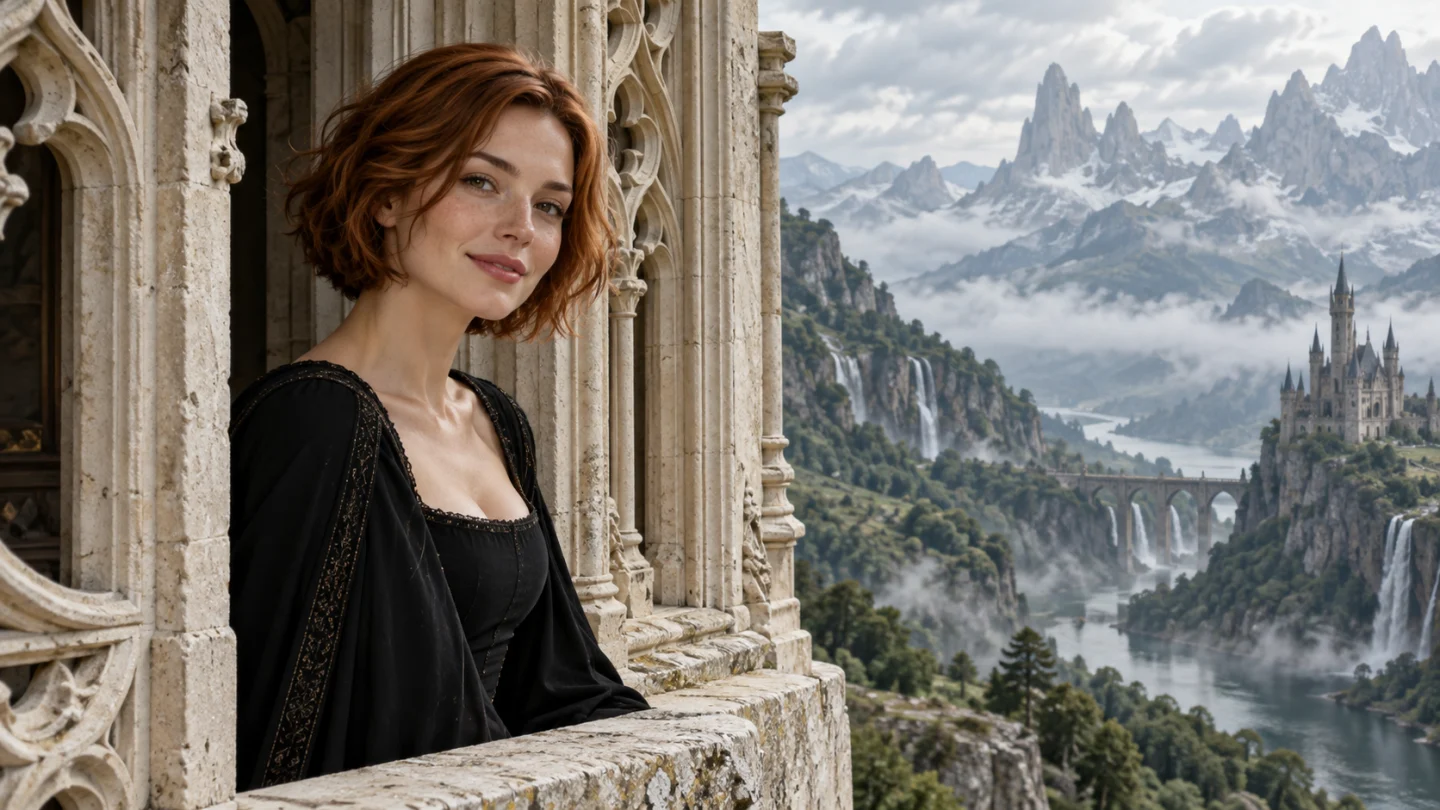
The Stones to Castle AI lead begins a pale stone wall in a green mountain valley.

Reference image

Required · 1 image
315
Checking your sign-in status…
Strictly prohibits adult / NSFW content

AI Video Generators to Explore

Find new ways to animate your photos, from dance clips and outfit changes to imaginative scenes.

  • Christmas Dance Trend

  • Christmas Photobooth

  • Bicep Heart Trend AI

  • Apartment Dance

  • AI Trouble Maker Video

  • Elevator Outfit Change AI

  • Skull Cap Trend AI

  • WYW My Sweetie Dance

  • Black Friday Video Maker

  • La Tormenta De Arena AI Club Spotlight

  • Baby Born with a Mustache

  • Burger Thru Window

  • Outstanding Tiny Desk AI

Page 1 of 2

What is Stones to Castle AI?

Stones to Castle AI is a visual interpretation of turning criticism into something constructive. The familiar story begins with loose stones around a person, follows a deliberate decision to build, and ends with a castle that changes the scale of the scene. The metaphor works because the material stays the same while its purpose changes. The lead responds through construction instead of returning the hostility.

In this Stones to Castle AI tool, your photo guides the central character and the prepared direction supplies the valley, stonework, and progression. A distant fictional crowd provides context without becoming the main subject. Stones land safely on the ground; the sequence does not need impacts or injuries to communicate difficulty. A red outfit separates the lead from the green landscape and pale architecture, helping the person remain readable as the castle grows.

The Stones to Castle AI result is newly generated from your photograph. It does not insert your face into an existing reel, reuse a competitor’s film, or reproduce the exact timing of a reference video. The built-in direction asks for a clear progression, but generated scenes can shorten or combine moments. Review the actual story in your finished take rather than treating the written sequence as a guaranteed shot list.

A useful Stones to Castle AI video keeps the character important even after the architecture appears. A close final view from a carved window brings attention back to the person and gives the achievement a human scale. The spectacle supports the meaning when viewers can still connect the final face to the lead they saw in the opening. That is why likeness and clear geography matter alongside dramatic towers.

What makes Stones to Castle AI work

Look for a clear subject, a coherent setting, and a result that reads at normal viewing size. These scenes show the visual details to consider when choosing your reference and reviewing your result.

Make the first stone a turning point

The opening of Stones to Castle AI works best when the decision to build feels deliberate. Loose stones in the foreground, an open valley, and a composed lead establish the situation without needing explanatory text. One small action can carry the change: the person lowers a hand, picks up a stone, and begins a low wall. Look for a believable grip and a visible connection between the stone and the first course of masonry. The scene becomes confusing if the lead appears to retaliate, the stone passes through a hand, or the wall rises in a completely different place.
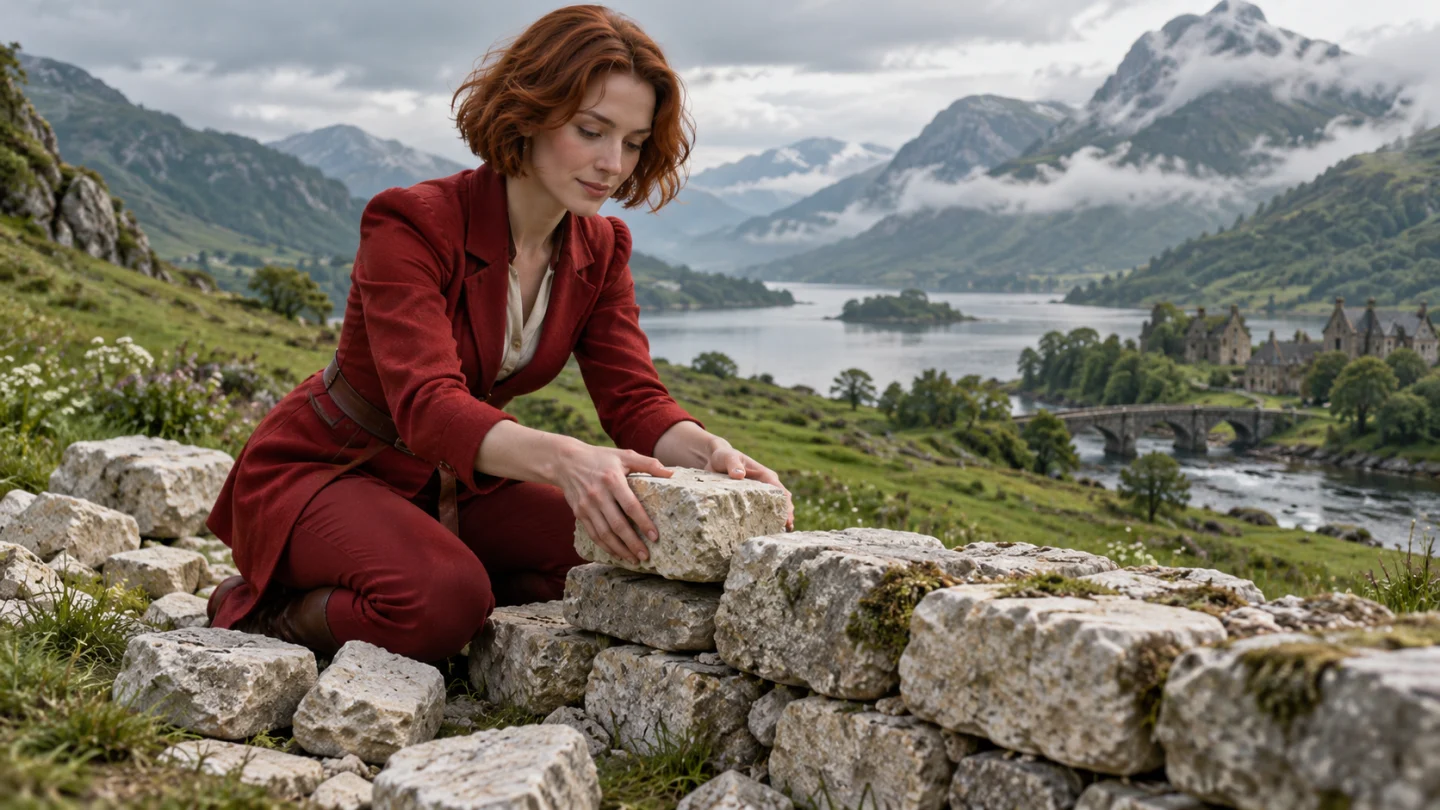
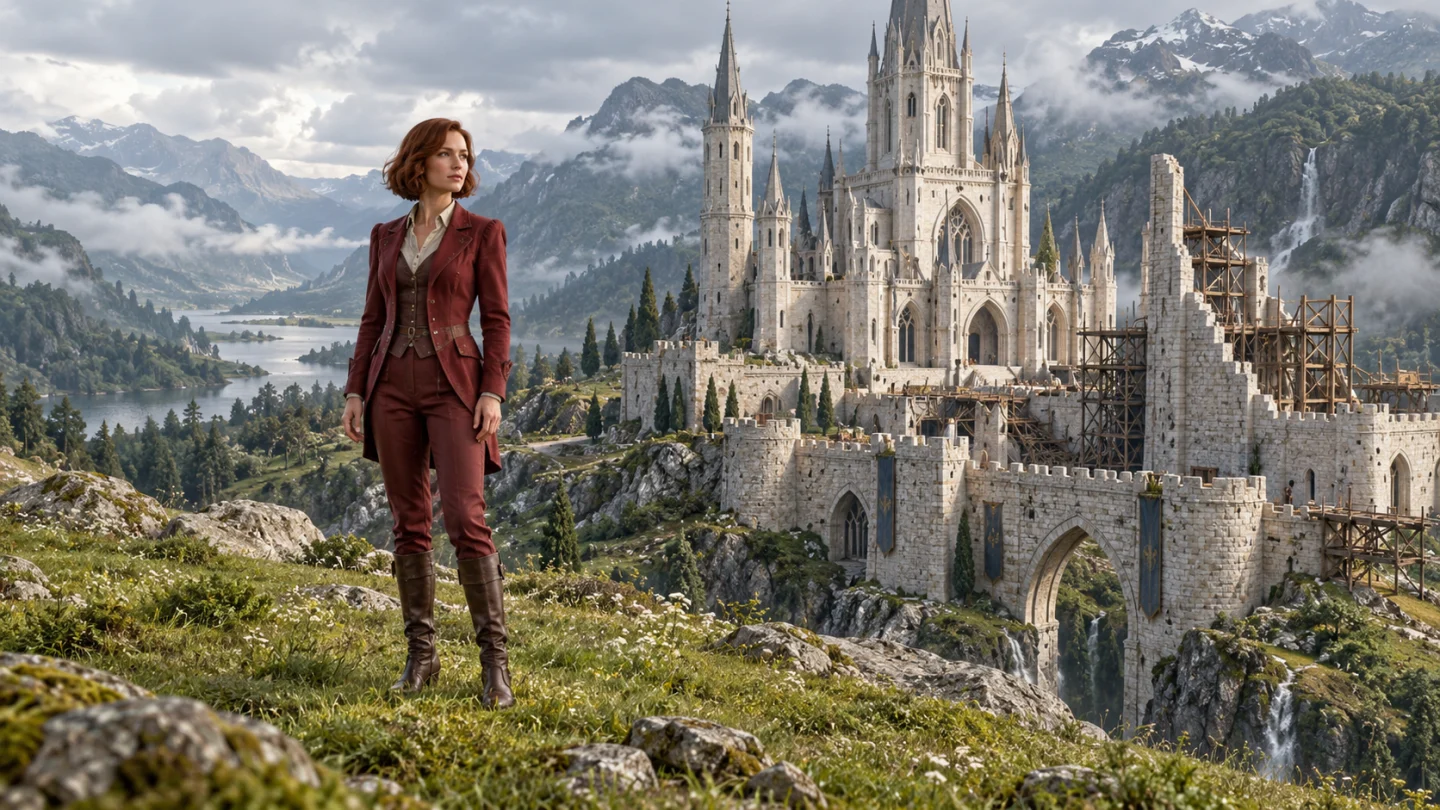
The Stones to Castle AI lead begins a pale stone wall in a green mountain valley.

Let the growing castle keep its scale

The construction stage connects the small decision at the beginning of Stones to Castle AI with the large reveal at the end. Pale walls and emerging spires should occupy the same valley ground as the first stones, with the lead still visible beside them. This gives the audience a way to understand the changing scale. Review the wall bases, the figure’s height, and the camera perspective as the architecture develops. The scene can be fantastical without losing its geography; a clear relationship between the person and the rising structure keeps the comeback grounded in one place.

Pale walls and rising spires connect the valley construction to the Stones to Castle AI castle reveal.

End with the person inside the achievement

A Stones to Castle AI reveal should let viewers read both scale and identity. The prepared direction grows pale stonework into a Gothic-inspired castle, then returns to the lead at a window. A calm expression makes a useful contrast with the tension of the opening. Inspect the face, the window proportions, and the surrounding carved detail before choosing a take. The architecture can be fantastical while still following a coherent perspective. If the person becomes tiny or unrecognizable, the castle may look impressive but the personal comeback story loses its connection.

A carved window and a calm smile bring the Stones to Castle AI story back to its central character.

How to use Stones to Castle AI

  1. 01

    Upload one clear photo

    Start your Stones to Castle AI project with one JPEG, PNG, or WebP image. The upload limit is 10 MB per image in the interface. Use a sharp reference with one clearly visible adult and balanced lighting. Choose the photograph that already has the framing and expression you want to carry into the result. A clean source gives the prepared effect more useful detail than a dark screenshot or a heavily filtered selfie.

  2. 02

    Choose your output settings

    Select the aspect ratio before generating with Stones to Castle AI. A portrait frame usually gives one person comfortable space on a phone, while a wider frame includes more of the surroundings. Review the displayed credit estimate after changing settings. The default is 480p and 15 seconds; available durations run from 10 to 15 whole seconds, with 768p and 1080p also offered.

  3. 03

    Generate with the prepared effect

    The creative direction for Stones to Castle AI is already built in. There is no prompt field, template text to paste, or separate performance video to upload. Sign in, check the reference image and selected settings, then submit the request. Watch the generation status and review the completed result before deciding whether another attempt would help. Each submission uses the current estimate shown by the generator.

  4. 04

    Review and download your result

    Compare the completed Stones to Castle AI result with your original photo. Watch the entire clip and pause at transitions to inspect the face, hands, clothing, and background. Listen to any generated audio before keeping it. Add your chosen music or captions in a separate editor, then check that the final frame remains clear after cropping.

AI Video Generators for Your Next Project

Turn a photo into a short video for a personal story, a social post, or a playful idea.

  • Outstanding Tiny Desk AI

  • Baby Born with a Mustache

  • Skull Cap Trend AI

Get more from Stones to Castle AI

Choose a Stones to Castle AI portrait with a sharp, evenly lit face and a clear view of the head and shoulders. A simple source gives the model more usable identity detail than a dramatic image with deep shadows or hair covering the eyes. The prepared story changes clothing and setting, so focus on a recognizable face rather than finding an existing photo of yourself in a costume or mountain landscape.

Stones to Castle AI starts at 15 seconds, 480p, and vertical 9:16. The longer default gives the opening, construction, and window reveal more room within the supported range. Ten seconds can produce a brisker interpretation, though some beats may combine. A wider ratio can show more of the valley, while the vertical frame emphasizes the relationship between a small figure and tall towers. Check the estimate when changing duration or resolution.

When reviewing Stones to Castle AI, follow the geography as well as the character. The same patch of ground should connect the stones, first wall, and finished building. Towers need a readable base, windows need consistent proportions, and the camera should not jump to a location that contradicts the previous view. Fantasy construction does not require real engineering, but a stable relationship between objects helps the transformation feel intentional.

Finish your Stones to Castle AI post with context that belongs to your own experience. A sentence about a completed project or a new chapter can explain what the castle represents. Add text and your chosen soundtrack after generation so names, dates, and important wording stay under your control. The tool does not place an exact motivational quote in the video or guarantee a familiar social audio track.

Ideas for your Stones to Castle AI result

Choose an occasion that gives the finished image or video a purpose. Your source photo and the context you add afterward make the same prepared effect feel personal.

Mark a personal fresh start

Use Stones to Castle AI to introduce a new chapter without turning a short post into a detailed account of everything that went wrong. The valley and castle provide a symbolic setting for progress. Add a brief caption about the action you took or the milestone you reached. Keeping the message specific to your own work gives the transformation meaning beyond a generic dramatic reveal.

Introduce something you built

A Stones to Castle AI clip can open a portfolio update, a creative launch, or a project announcement. The rising structure makes a simple visual connection to making something over time. Use the finished video as an introduction, then show the real project in the following footage. That pairing keeps the fantasy metaphor connected to something concrete and gives viewers a reason to care about the character’s achievement.

Create a measured comeback

Stones to Castle AI can express resilience without making another real person the villain. Let the crowd stay fictional and keep the message centered on your response. A quiet window ending often communicates confidence more clearly than an aggressive gesture or a boastful caption. For a group celebration, make individual versions and assemble them in your editor; this page directs one lead rather than a cast of identifiable people.

Stones to Castle AI questions

No. Stones to Castle AI accepts one portrait. The valley, stones, crowd, castle, and story direction are prepared. There is no motion-reference slot or separate architecture upload on this tool page.

Stones to Castle AI asks for an opening, a construction progression, and a window finish. Generation can combine or change beats, especially at shorter durations. Watch the whole result and choose a take whose visual story remains clear.

Stones to Castle AI can change facial details during scene changes or close-ups. Compare the eyes, nose, and mouth between the opening and ending. Try a sharper reference if the person becomes difficult to recognize.

No. Stones to Castle AI uses a fixed creative direction, so you only upload your photo and choose the available output settings. Custom prompt input is disabled. If you want a different creative concept, use the general video generator rather than trying to add instructions through the upload.

The Stones to Castle AI generator displays the current credit estimate before submission. The amount can change with the available output settings, so use that estimate when making your choice. This page does not promise a free render, a fixed processing time, or a particular creative result.

Try Stones to Castle AI with your own photo

Choose a clear reference and let Stones to Castle AI turn it into a focused visual idea. Start with the available defaults, review the face and important details, and download the version you want to keep. A thoughtful source photo and a careful final review give your project a stronger starting point.

Choose a photo and start
Image to Image AI logoImage to Image AI

A fresh take on your image. Explore new styles and scenes with AI.

Customer supportsupport@imgtoimageai.com

Tools

  • Remove Glare from Glasses
  • Remove Glare from Photo
  • Photo to Line Art
  • Image Upscaler
  • Realistic Selfie Generator
  • Christmas Photobooth
  • AI 3D Figure Generator
  • Selfie With Santa
  • Christmas Dance Trend
  • Motorcycle AI
  • AI Photo Booth
  • Photo to Sticker
  • QR Code Enhancer
  • AI Long Hair Filter
  • Bicep Heart Trend AI
  • Happy Birthday GIF with Name
  • Apartment Dance
  • AI GIF Generator
  • Executive Portrait Maker
  • AI Trouble Maker Video

Learn more

  • Tools
  • Blog
  • Pricing

Legal

  • Privacy Policy
  • Terms of Service
  • Refund Policy
  • Contact

© 2026 Image to Image AI