
Image to Image AI logoImage to Image AI
  • Home
  • AI Image Generator
  • AI Video Generator
  • Tools
  • Nano Banana 2.1
  • Flux 3 Klein
  • Seedream 5.0 Pro
  • Seedream 5.5
  • GPT Image 2.5
  • GPT Image 2.6
  • MiniMax H3 Image
  • Kling 4.0
  • Grok Imagine Video 1.5
  • MiniMax H3 Max
  • Seedance 2.5
More
  • Blog
  • Pricing

Guest

Save your creations

Credits—
  1. Home
  2. /
  3. Image

Photo to Sticker for pictures worth sharing

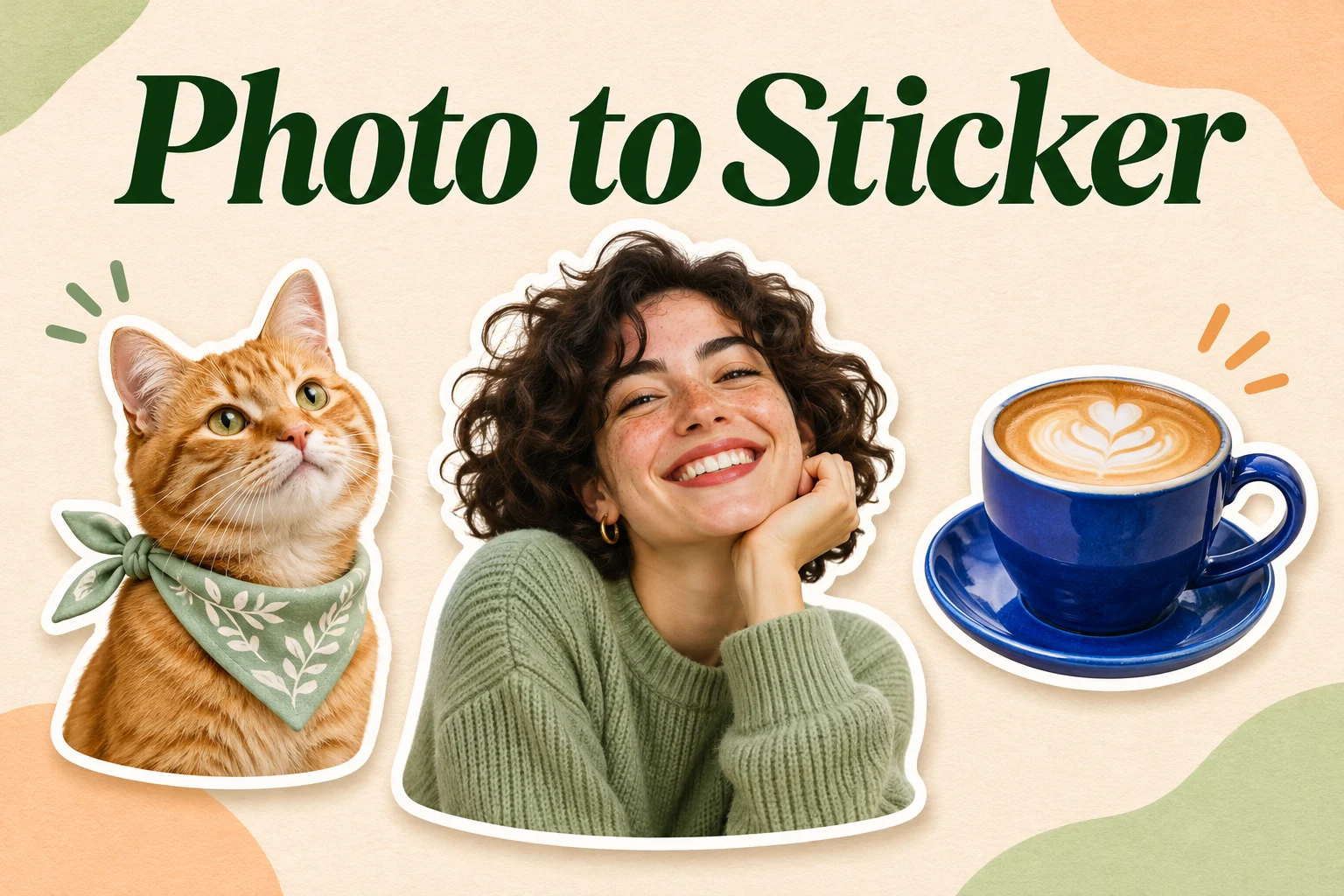
Give a favorite photo a playful second life. Photo to Sticker turns one clear image into a standalone sticker with a clean white edge and a transparent background for flexible placement. Start with a selfie, a pet, or an everyday object. Keep a photographic look or describe a different style, then download your result for messages, digital journals, and creative layouts.

Make my photo a sticker
Photo to Sticker for pictures worth sharing
AI-generated sticker illustrations show possible styles; they are not live results from this tool.
10
Checking your sign-in status…
Strictly prohibits adult / NSFW content

AI Image Generators to Explore

Try a different look for your photos with generators for portraits, artistic styles, and creative edits.

  • Photo to Line Art

  • Remove Glare from Photo

  • Remove Glare from Glasses

  • Realistic Selfie Generator

  • Image Upscaler

  • Selfie With Santa

  • AI 3D Figure Generator

  • Motorcycle AI

  • AI Photo Booth

  • AI Long Hair Filter

  • Happy Birthday GIF with Name

  • AI GIF Generator

  • Executive Portrait Maker

  • No Beard Filter

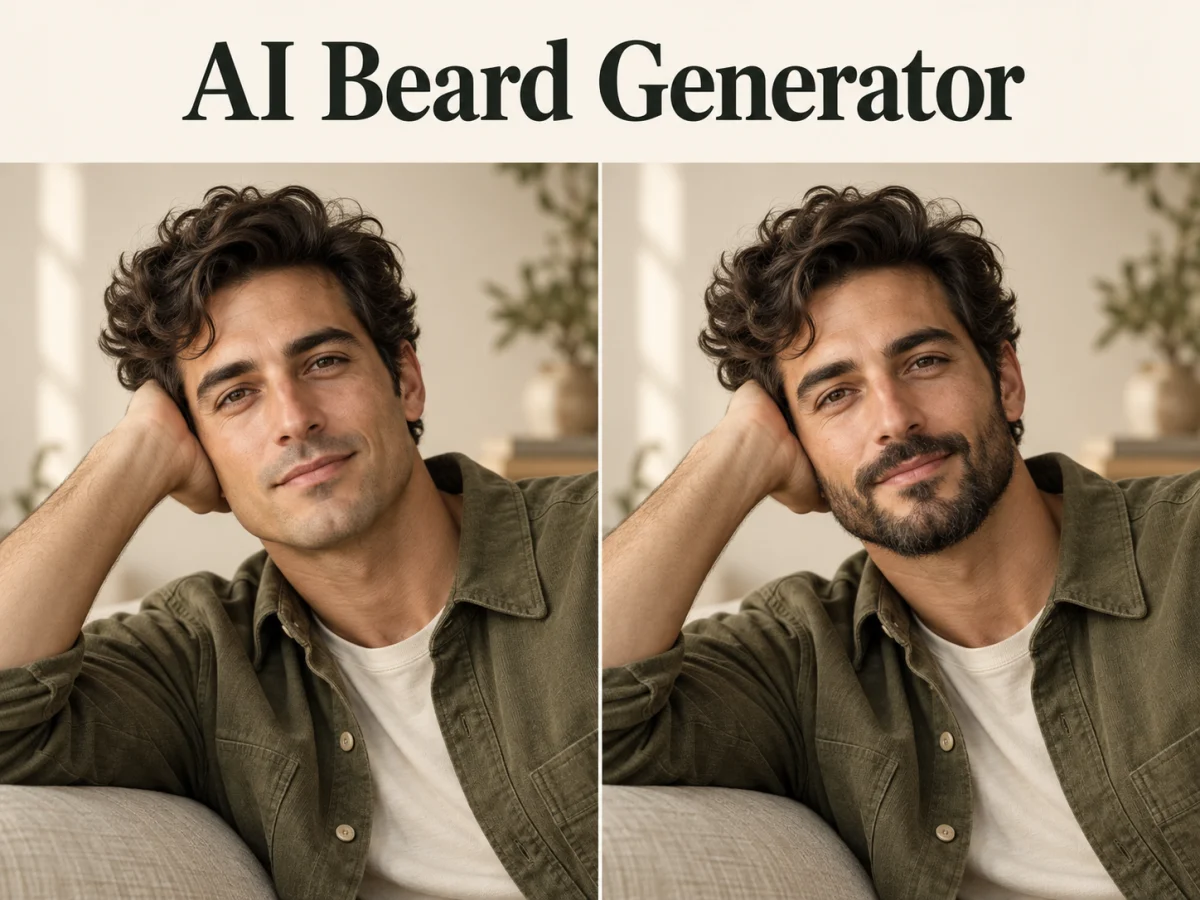
  • AI Beard Generator

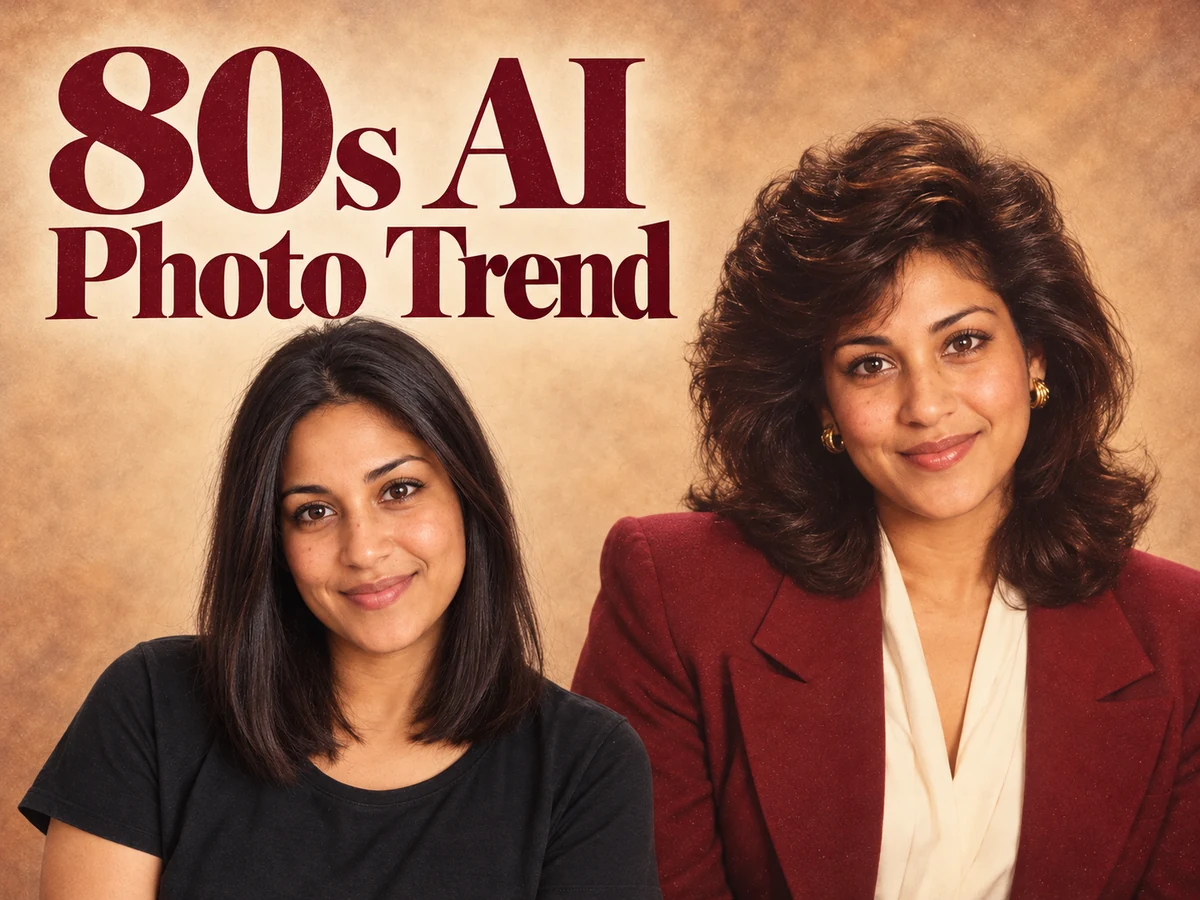
  • 80s AI Photo Trend

  • AI Pregnant Filter

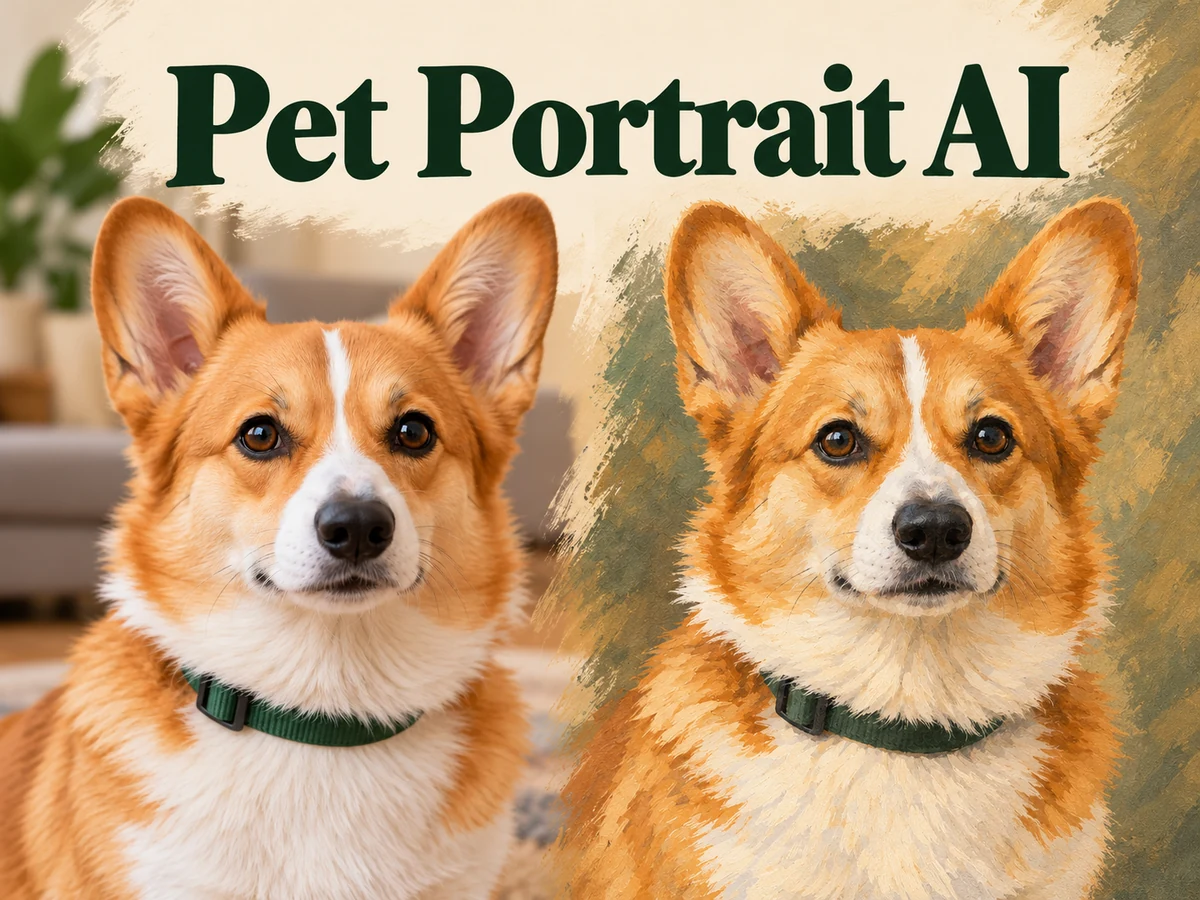
  • Pet Portrait AI

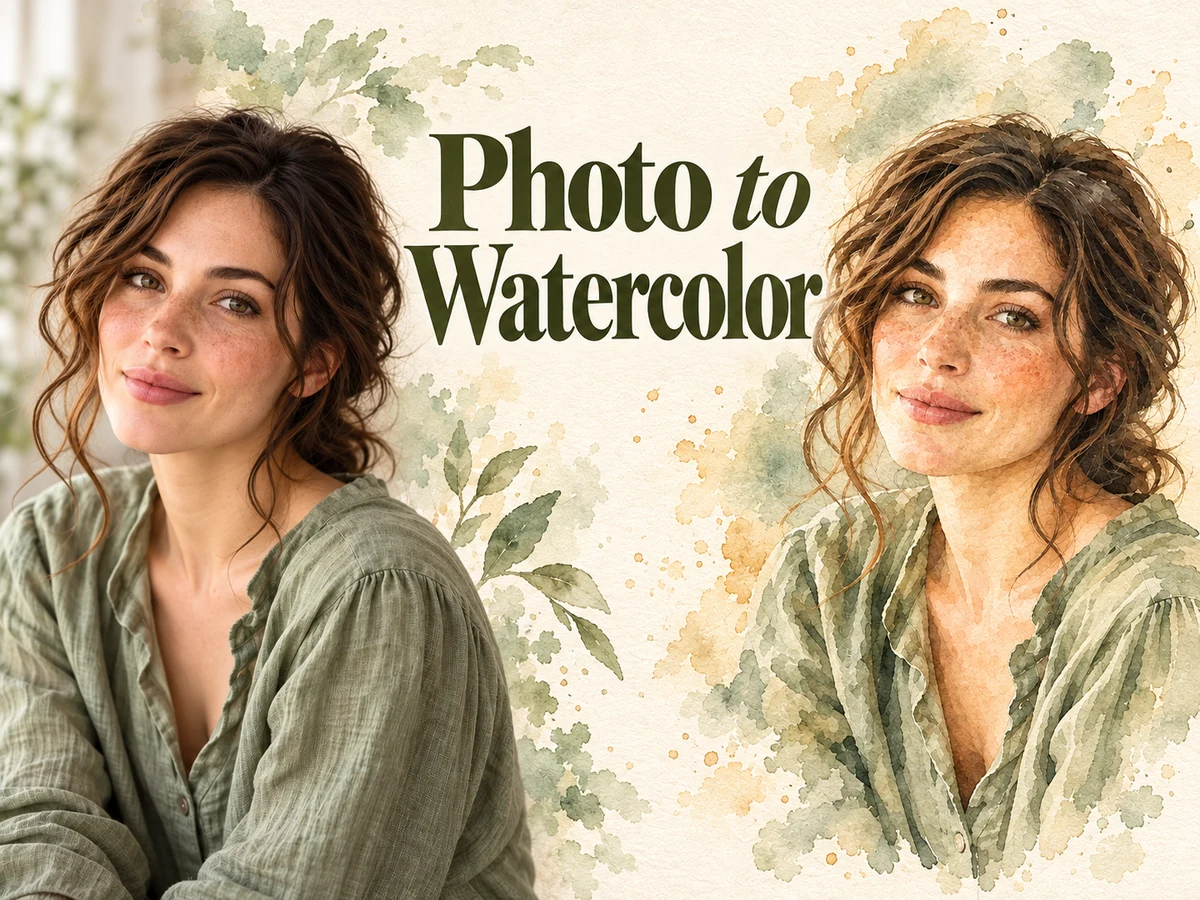
  • Photo to Watercolor

  • Photo to Coloring Page

Page 1 of 3

What makes Photo to Sticker useful?

A photograph includes the subject and everything around it. A sticker brings attention back to the face, animal, or object you want to reuse. Photo to Sticker creates a new image around that focal point, adding a familiar die-cut appearance that can work across different backgrounds and designs.

The default direction combines a recognizable photographic subject with a smooth white outline. You can leave the optional style field empty for that treatment, or describe an illustrated, cartoon, or soft three-dimensional look. Photo to Sticker uses one uploaded image for each generation, so start with the subject that matters most.

Because this is a generative edit, details may be redrawn rather than copied pixel for pixel. Check the face, fur markings, accessories, and small text before reusing a result. The aim is a personal creative asset that remains connected to the original, with enough visual simplicity to read clearly at a small size.

How to turn a Photo to Sticker

Choose a clear source, decide how closely you want to keep its appearance, and inspect the saved file. A little preparation gives Photo to Sticker a much stronger starting point.

  1. 01

    Upload one clear photograph

    Choose a JPG, PNG, or WebP image with one obvious subject. Keep the entire outline visible, including ears, hair, hands, or a product handle. A sharp picture with good separation from its background is easier to interpret than a dark crop or a busy collage of several unrelated objects.

  2. 02

    Keep the default or describe a style

    Leave the optional prompt empty for a photographic cutout with a white border, or request a simple illustrated treatment. Sign in, choose the available quality setting, and check the credit cost. Photo to Sticker already requests PNG output with transparency, so there is no format or background setting to configure.

  3. 03

    Inspect and save your sticker

    Review the subject and its outline, then use the download action. Place the saved PNG over a colored background in your preferred editor to check transparency and edge quality. Keep the original file for future variations, and resize a copy if your intended messaging app has specific import requirements.

AI Image Generators for Your Next Project

Bring your next photo project to life with creative effects, painted portraits, and printable coloring pages.

  • Photo to Line Art

  • Remove Glare from Photo

  • Remove Glare from Glasses

  • 80s AI Photo Trend

  • AI Pregnant Filter

  • Pet Portrait AI

  • AI Beard Generator

Build a reusable Photo to Sticker result

The most useful stickers combine a recognizable subject, a deliberate visual style, and a file that fits your next project. These examples illustrate each part of the workflow.

AI Subject Cutout keeps attention on the subject

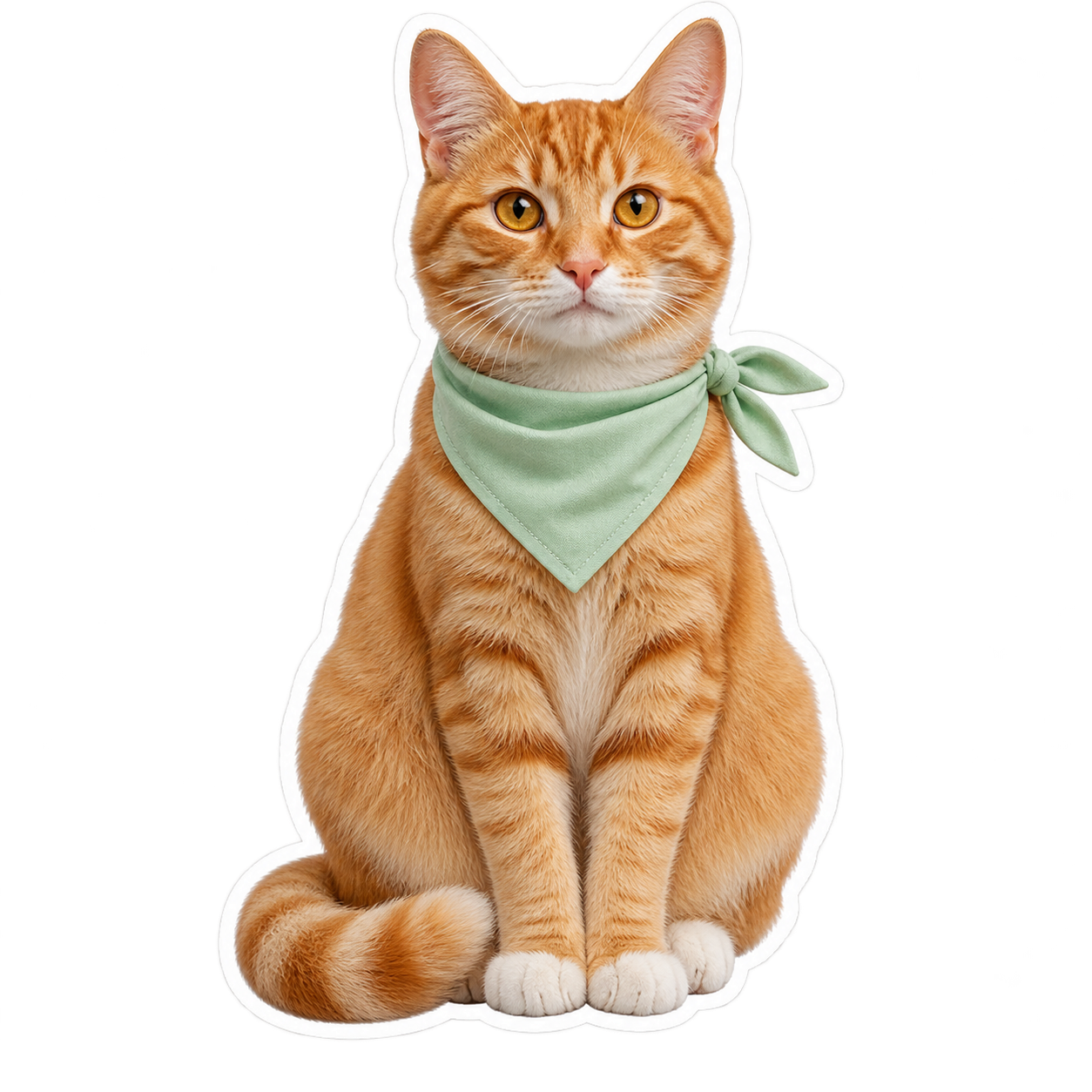
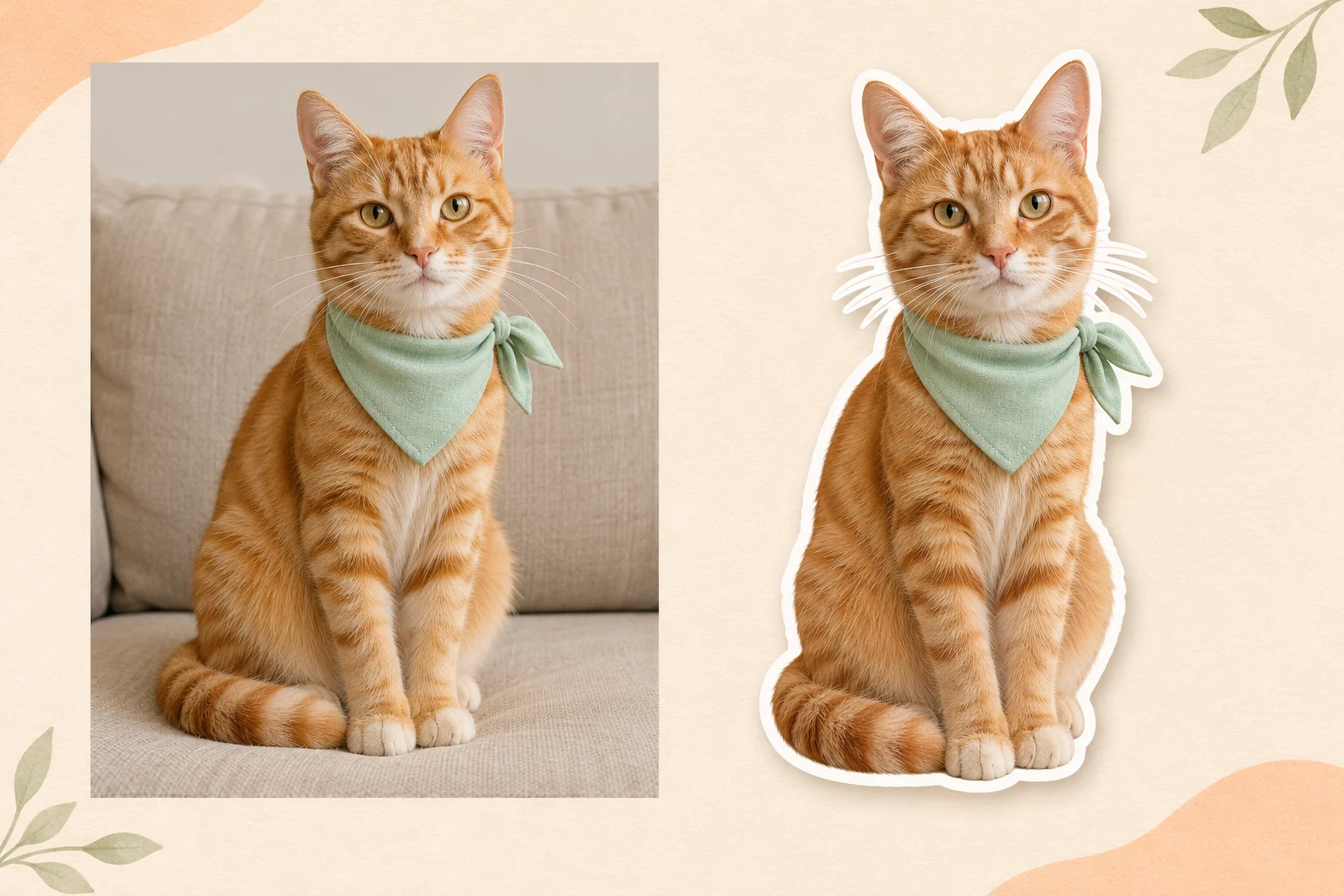
Photo to Sticker focuses on the main person, pet, or object instead of carrying the whole room into every design. AI Subject Cutout is the visual starting point: separate the subject from surrounding scenery and retain the details that make it recognizable. This is especially useful for a lively pet expression or a portrait you already enjoy.

Check the silhouette after generation. Hair, whiskers, glasses, and gaps around handles can be difficult to reproduce cleanly. A source with a simple backdrop gives the edit clearer boundaries to follow. If the result loses an important detail, try a sharper original or explicitly describe that feature in your next request. Keep the sticker focused rather than adding multiple competing subjects.
AI Subject Cutout keeps attention on the subject

Custom Sticker Styles with Clean White Outlines

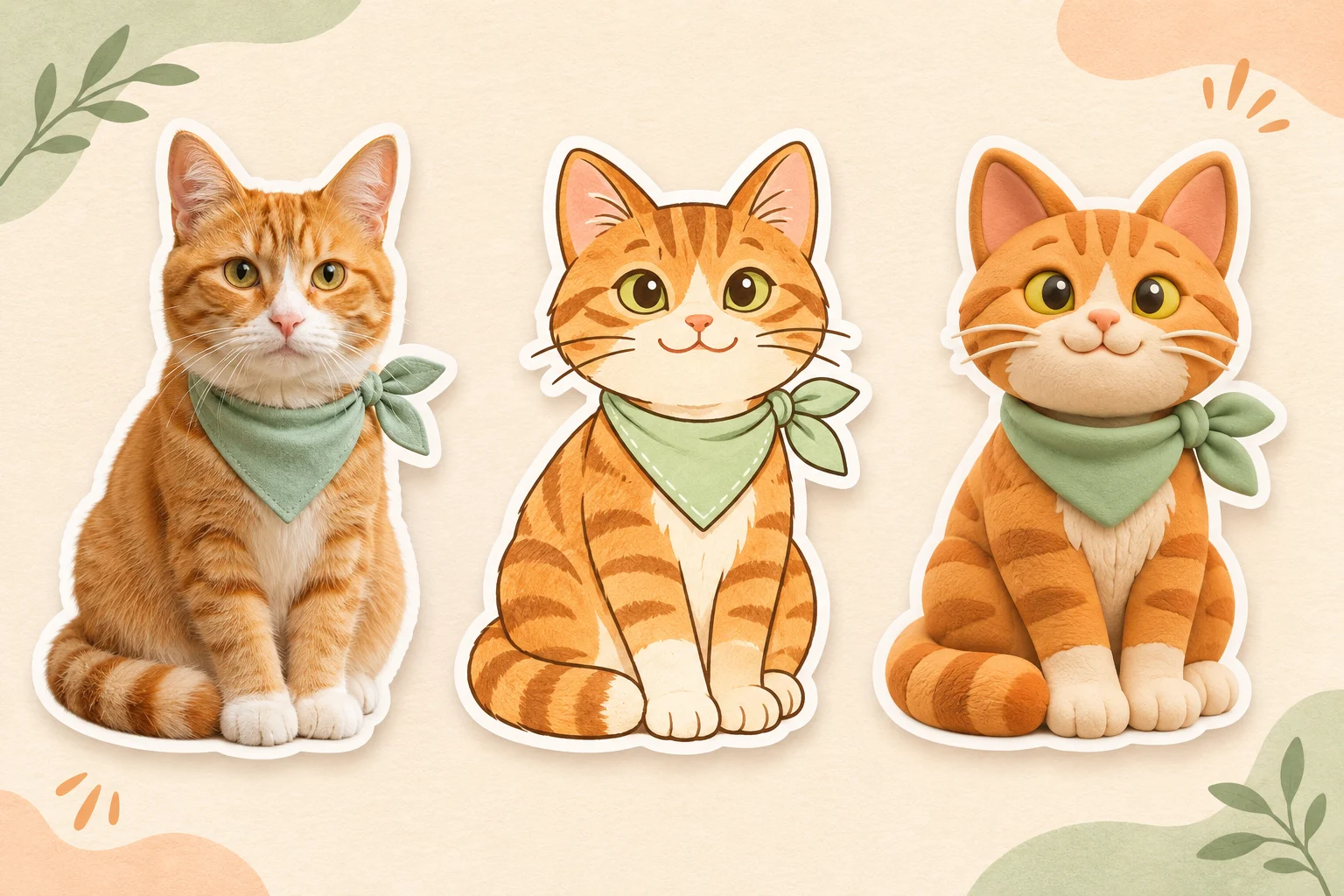
Use Photo to Sticker to explore Custom Sticker Styles while keeping the same familiar subject. A photographic look suits an authentic reaction, a flat illustration simplifies shapes, and a soft clay treatment gives the design a playful feel. Describe your chosen direction in the optional prompt rather than looking for a separate style selector.

Clean White Outlines help the subject stand out when placed over a photograph, a colored card, or a busy social layout. The prepared edit asks for an even border and space around the complete silhouette. For a coherent collection, use similar source crops and repeat the same style description across separate generations. Review the border at its final display size, where uneven edges are easier to judge.

Example prompt

Create a friendly illustrated sticker from this photo. Keep the original expression, distinctive colors, and accessories. Use simple shapes, a clean white outline, and a transparent background.

Custom Sticker Styles with Clean White Outlines

Transparent PNG Export for flexible placement

Photo to Sticker requests a transparent PNG so you can place the finished subject over other content without a rectangular photo background. Transparent PNG Export keeps the white outline visible while the area outside it can reveal the design beneath. Download the actual result rather than taking a screenshot of its preview.

A viewer may display transparency on white, black, or a checkerboard. That display alone does not tell you whether the file contains a painted background, so test it over another color. If an unwanted rectangle remains, the result needs another generation or cleanup in an editor. The download is raster artwork, with no cutting path, layered source document, or automatic installation into messaging apps.

Transparent PNG Export for flexible placement
An illustrative PNG asset with transparent pixels outside the white sticker outline.

Make Photo to Sticker part of everyday creativity

Small, personal images can do more than decorate a chat. Photo to Sticker helps turn a familiar subject into an element you can place in several different projects.

For chats and social posts

Create a personal reaction image

Start with a clear expression that already communicates something: delight, surprise, curiosity, or a quiet smile. Photo to Sticker gives that moment a more focused shape. Save it for a story, a digital journal, or a message, then follow the receiving app's own process for adding custom stickers.
For animal lovers

Build a collection around your pet

Use separate photos of the same pet to create a small set of recognizable moments. Keep the same style direction and compare distinctive markings between results. A sitting pose, a curious head tilt, and a sleepy face offer variety without needing to invent costumes or complicated scenery around the animal.
For makers and small shops

Prepare small product and hobby graphics

Turn a handmade mug, a favorite camera, or a packaged item into a decorative asset for a layout. Photo to Sticker can help a product stand apart from its original setting. Check labels and distinctive details carefully, and keep unedited photography available when accurate product representation is essential.

Choose a stronger source for Photo to Sticker

A good source makes the subject easy to recognize before any editing begins. Look for even lighting, a visible outline, and a pose that makes sense on its own. Avoid cutting off the top of a head, the tip of an ear, or the edge of an important object.

Give Photo to Sticker a simple visual hierarchy. If several people or objects overlap, the result may include the wrong details or merge boundaries. Choose another photograph when possible. For a personal portrait, a face with visible eyes and a clear expression usually communicates more at sticker size than a distant full-body scene.

Match the styling to the destination. For small chat graphics, fewer details and a strong silhouette can remain readable after resizing. For a larger digital scrapbook element, you may prefer the photographic texture of fabric or fur. Test the same saved image at both sizes before deciding how much detail it needs.

Keep the transparent file intact while moving between applications. Saving as JPEG removes transparency, and a screenshot can include the preview background. Use the original PNG when layering the sticker. For physical printing, check the printer's requested resolution, bleed, and cutting setup separately; Photo to Sticker supplies an image, not a production-ready cutting template.

Photo to Sticker questions

Learn what to upload, how styling works, and what to check before placing your sticker in another app or design.

Upload one photograph and the tool requests a generated sticker based on its main subject. The prepared direction asks for a recognizable appearance, a clean white border, and a transparent background. Add an optional style description if you want an illustrated treatment, then review and download the resulting PNG.

Yes. A clear selfie, a pet portrait, or an isolated object is a useful starting point. Choose an image with an obvious focal subject and room around its outline. Photo to Sticker may redraw small details, so compare identity, markings, and accessories with your original before sharing.

Use the optional text field to describe the look you want, such as a flat illustration, soft clay figure, or faithful photographic cutout. The page does not provide a separate preset gallery. Keep the request brief and name any distinctive details that Photo to Sticker should retain.

The workflow fixes the requested output to PNG with a transparent background. Check the downloaded result over a colored layer, because a generative model can still produce unwanted background content. Use the download action to preserve the file, and avoid screenshots when you need transparency for another design.

You can save the PNG and use your messaging app's supported import or sticker-creation workflow. Some apps require resizing or converting the file first. Photo to Sticker does not publish a sticker pack, send messages, or add content directly to an account on another service.

Sign-in and credits are required for generation. If your available free credits cover the displayed amount, you can generate without a payment. Review the selected quality and cost before starting. Trying a new style creates another generation, so plan the first request around a clear, useful source image.

You can prepare the saved PNG for a printing workflow, but check its final size and the printer's requirements first. The image does not include a vector cutting line, bleed setup, or a sheet layout. Print a sample before producing multiple copies, especially when small details need to remain readable.

Create something personal with Photo to Sticker

Choose the face, pet, or object you want to keep close. Start with the default photographic treatment or describe a playful new style, then create a sticker you can reuse in your next design. A clear source and a quick edge check help turn a saved photo into something worth sharing.

Create my sticker
Image to Image AI logoImage to Image AI

A fresh take on your image. Explore new styles and scenes with AI.

Customer supportsupport@imgtoimageai.com

Tools

  • Remove Glare from Glasses
  • Remove Glare from Photo
  • Photo to Line Art
  • Image Upscaler
  • Realistic Selfie Generator
  • Christmas Photobooth
  • AI 3D Figure Generator
  • Selfie With Santa
  • Christmas Dance Trend
  • Motorcycle AI
  • AI Photo Booth
  • Photo to Sticker
  • QR Code Enhancer
  • AI Long Hair Filter
  • Bicep Heart Trend AI
  • Happy Birthday GIF with Name
  • Apartment Dance
  • AI GIF Generator
  • Executive Portrait Maker
  • AI Trouble Maker Video

Learn more

  • Tools
  • Blog
  • Pricing

Legal

  • Privacy Policy
  • Terms of Service
  • Refund Policy
  • Contact

© 2026 Image to Image AI