





Image to Image AI logoImage to Image AI
  • Home
  • AI Image Generator
  • AI Video Generator
  • Tools
  • Nano Banana 2.1
  • Flux 3 Klein
  • Seedream 5.0 Pro
  • Seedream 5.5
  • GPT Image 2.5
  • GPT Image 2.6
  • MiniMax H3 Image
  • Kling 4.0
  • Grok Imagine Video 1.5
  • MiniMax H3 Max
  • Seedance 2.5
More
  • Blog
  • Pricing

Guest

Save your creations

Credits—
  1. Home
  2. /
  3. Image

Photo to Watercolor Painting

Turn a familiar photo into soft washes, delicate brushwork, and paper texture. Upload one image to create a watercolor-style picture of a person, a favorite place, or a beloved pet.

Reference image

Required · 1 image
10
Checking your sign-in status…
Strictly prohibits adult / NSFW content

AI Image Generators to Explore

Try a different look for your photos with generators for portraits, artistic styles, and creative edits.

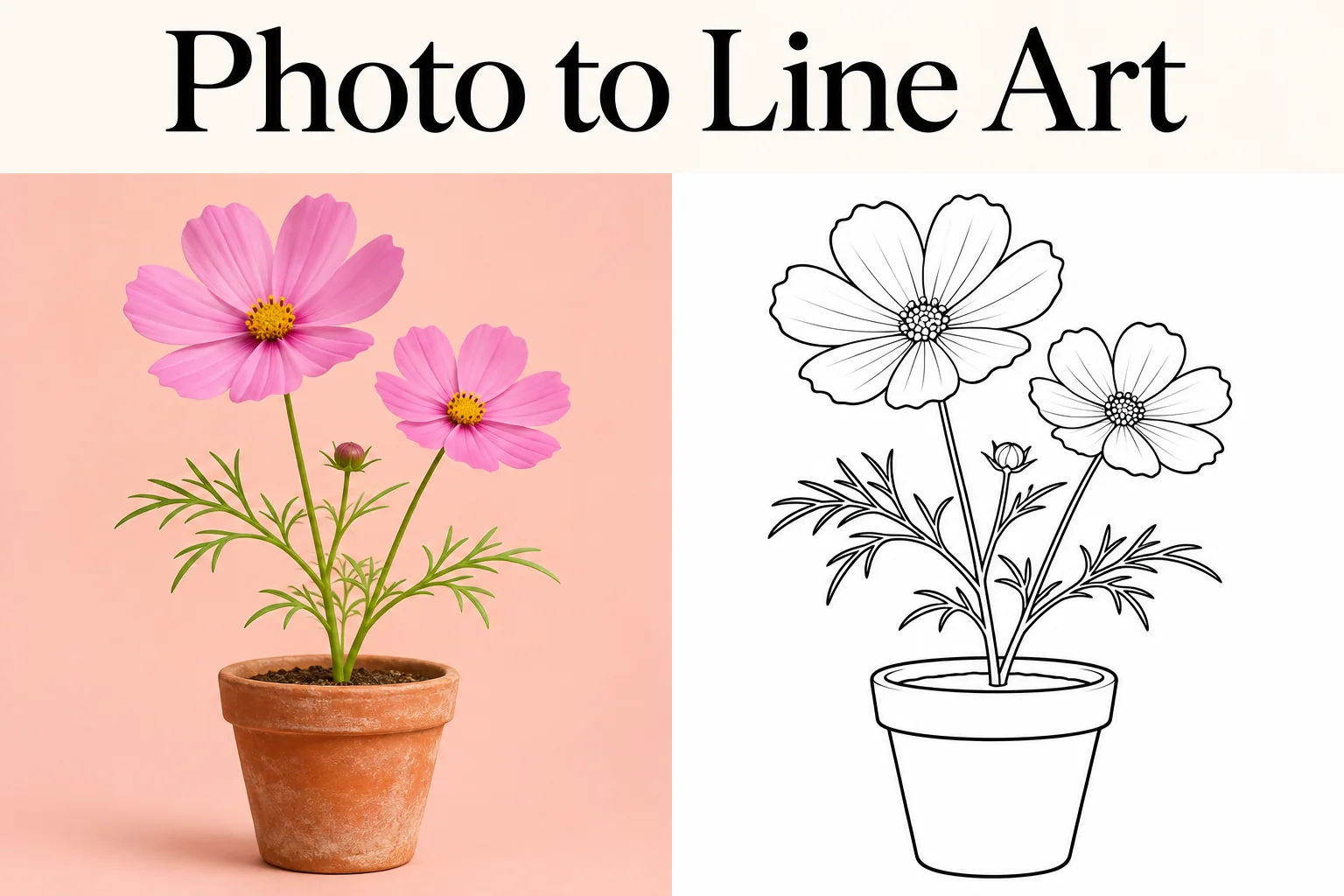
  • Photo to Line Art

  • Remove Glare from Photo

  • Remove Glare from Glasses

  • Realistic Selfie Generator

  • Image Upscaler

  • Selfie With Santa

  • AI 3D Figure Generator

  • Motorcycle AI

  • Photo to Sticker

  • AI Photo Booth

  • AI Long Hair Filter

  • Happy Birthday GIF with Name

  • AI GIF Generator

  • Executive Portrait Maker

  • No Beard Filter

  • AI Beard Generator

  • 80s AI Photo Trend

  • AI Pregnant Filter

  • Pet Portrait AI

  • Photo to Coloring Page

Page 1 of 3

See your memories in watercolor

A photo to watercolor transformation changes how a scene is painted while keeping its subject as the starting point. These examples explore four directions: an expressive portrait, a welcoming home, a pet with personality, and a quiet landscape. Look for a balance between recognizable details and areas where the paint can breathe.

Portraits with a lighter touch

For portraits, photo to watercolor painting works best when the face remains the focus. Transparent color can suggest warm skin and soft fabric without copying every photographic texture. The eyes, expression, and shape of the hair give the picture its identity; quieter areas around the shoulders create a relaxed finish.

Choose a naturally lit portrait with enough space around the head. A simple background gives the painted edges room to soften, while distinctive clothing can add a meaningful accent of color.
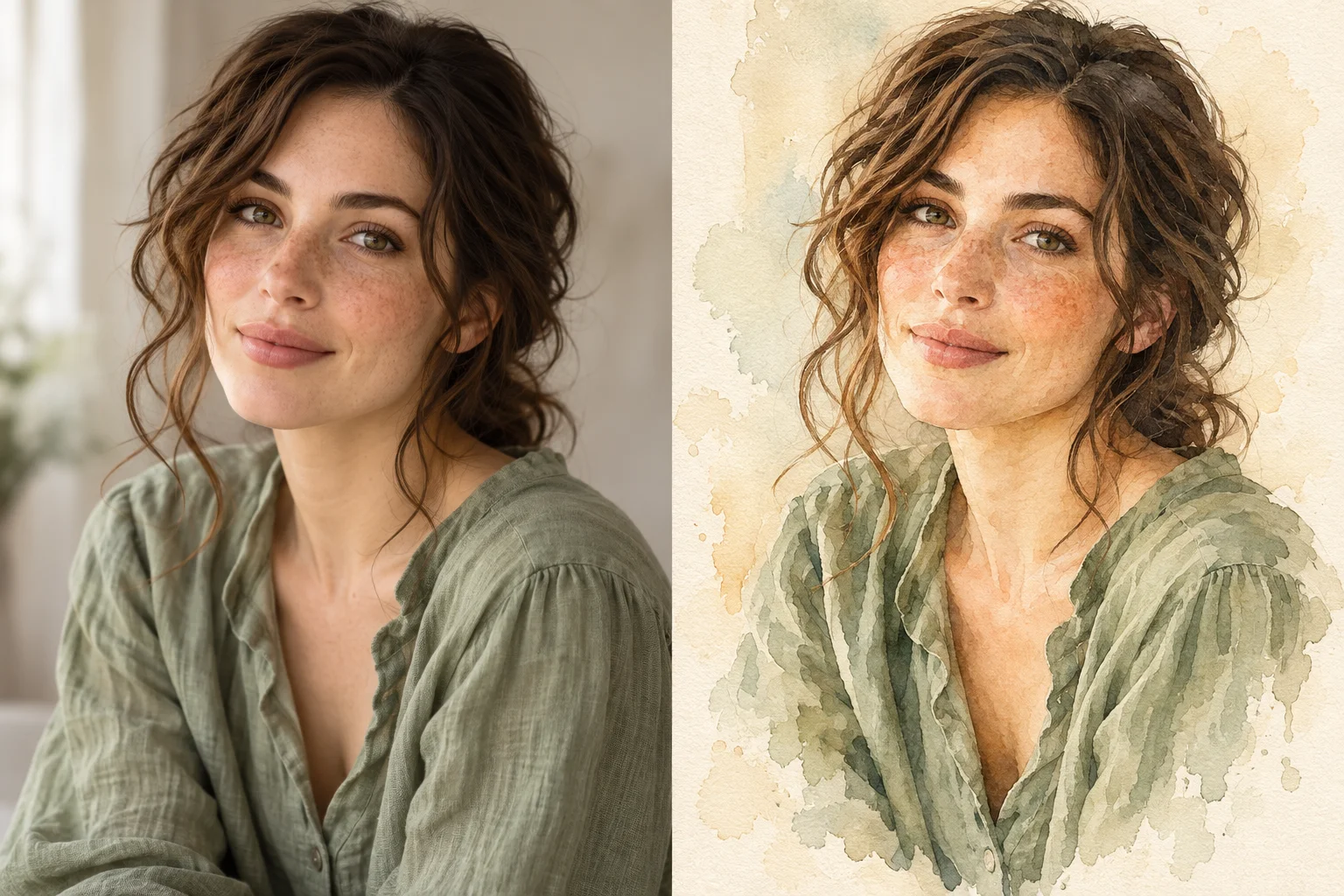
A fictional woman with wavy brown hair and a sage blouse, shown as a photograph and a soft watercolor illustrationPhotoWatercolor

A home worth remembering

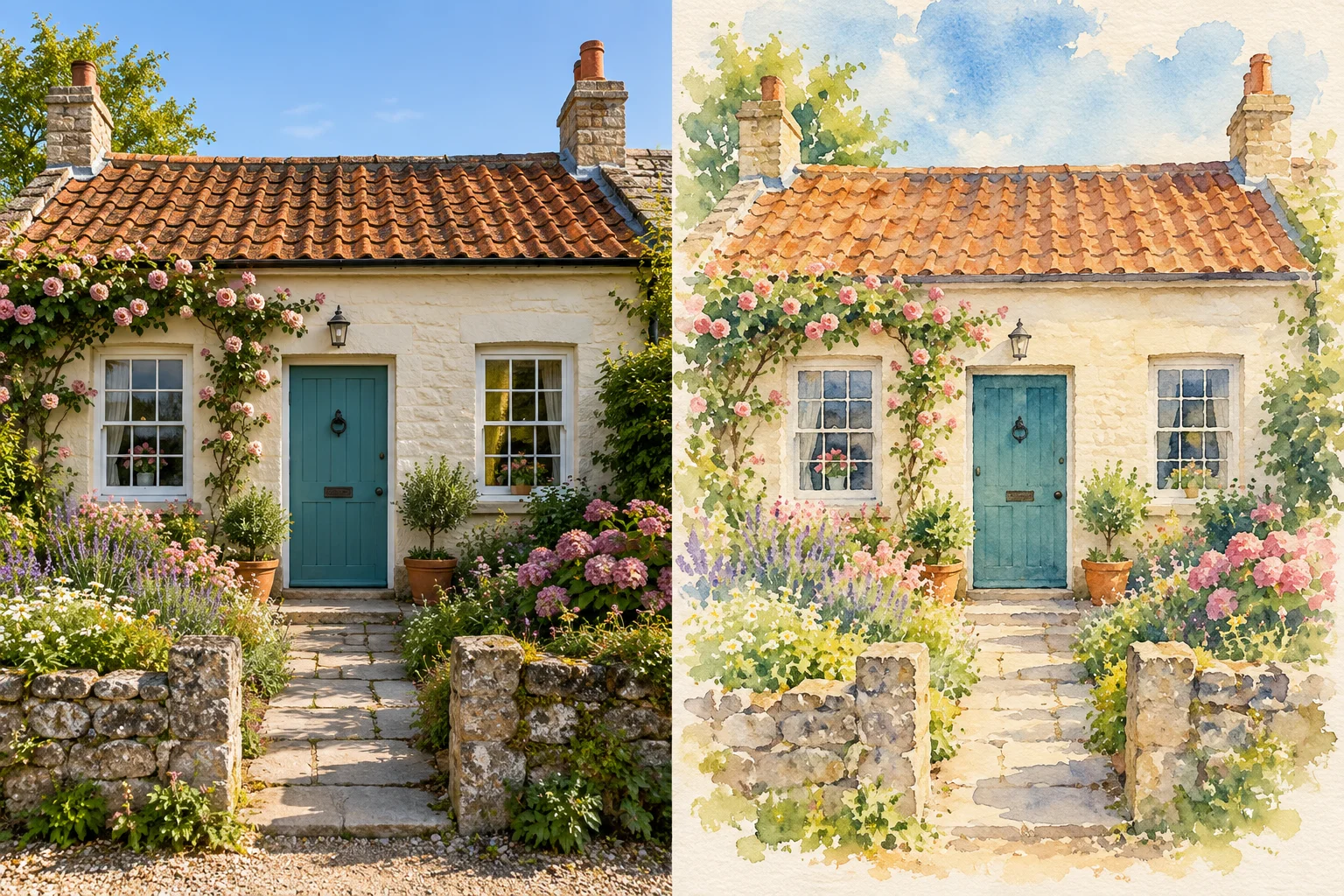
Use photo to watercolor to reimagine a first home, a family cottage, or a favorite street. Rooflines, window shapes, and the front door make a building recognizable. Loose foliage and a pale sky can frame those architectural details without overwhelming them.

Start with a straight, unobstructed view rather than an extreme wide angle. This is a digital interpretation, so inspect doorways and windows carefully before using the picture as a housewarming keepsake.

A cream cottage with a terracotta roof, teal door, garden, and matching watercolor treatmentPhotoWatercolor

Keep the character of your pet

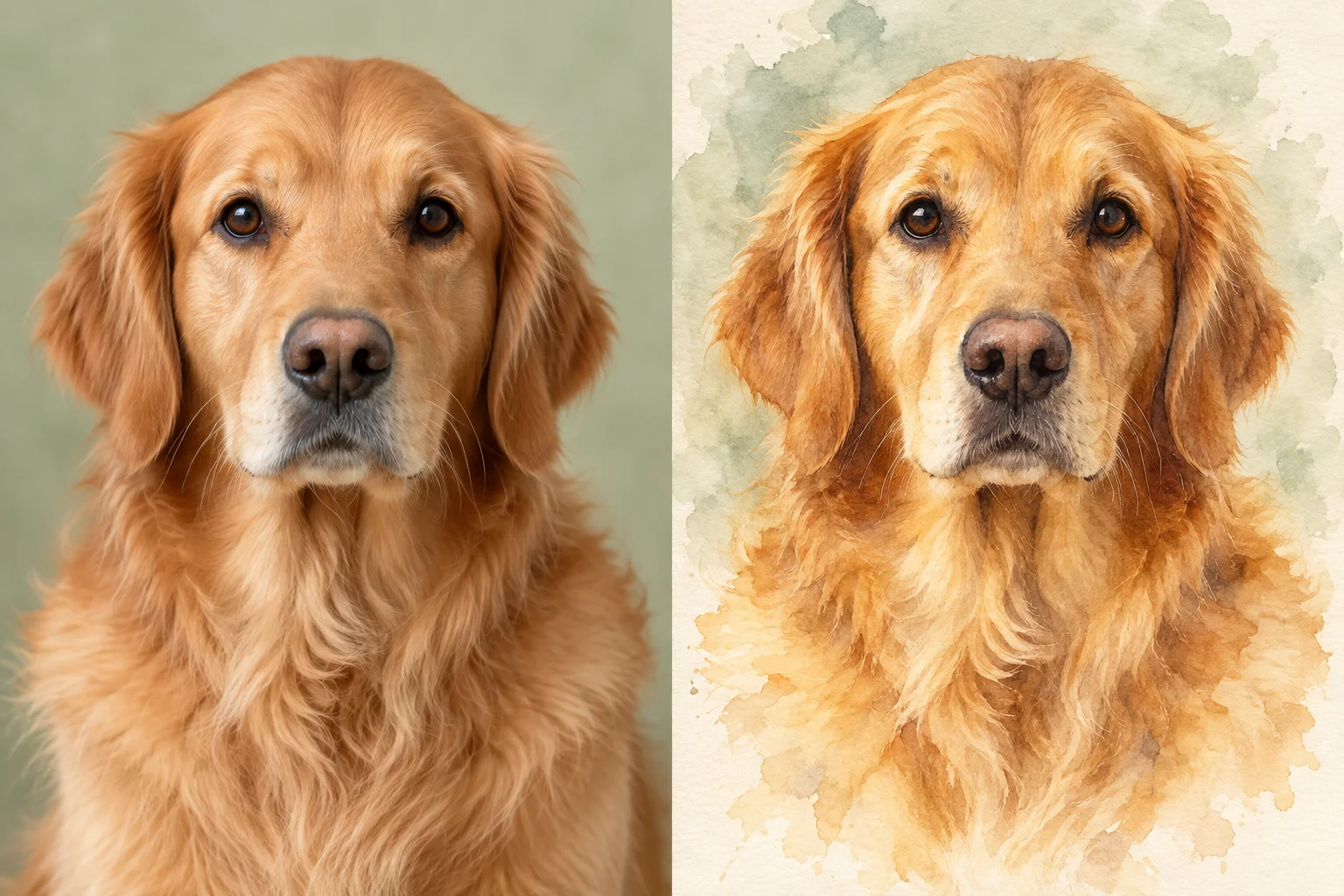
A pet photo to watercolor conversion should center on the features you recognize: the angle of the ears, the eyes, and the pattern of the coat. Watercolor can simplify individual hairs into flowing shapes while leaving the face more defined.

A photo taken near eye level usually gives a stronger portrait than a distant snapshot. Leave the ears and chest inside the frame, and choose a moment when the animal is still enough for the eyes to appear sharp.

A golden retriever with brown eyes rendered in a photograph and warm honey-colored watercolor washesPhotoWatercolor

Make space for atmosphere

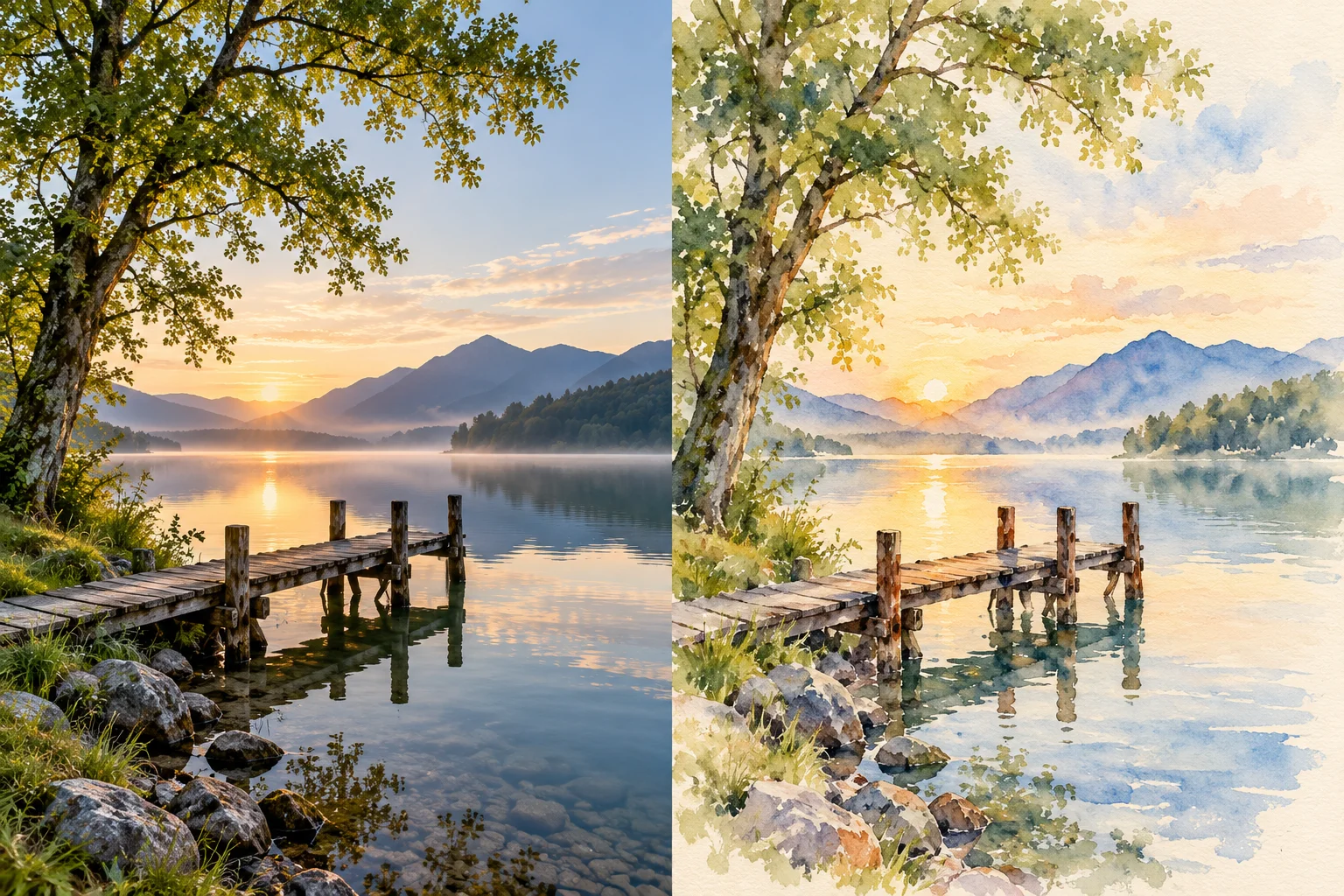
With landscapes, photo to watercolor can emphasize the relationship between sky, water, trees, and distant hills. Broad washes suit open areas, while a jetty or tree can provide a small, clear focal point. Not every leaf needs an outline.

Choose a scene with a readable foreground and background. A quiet composition often translates more naturally than a crowded panorama with tiny buildings, signs, and people competing for attention.

A calm lake, wooden jetty, tree, and distant mountains in photographic and watercolor stylesPhotoWatercolor

How to turn photo into watercolor

The photo to watercolor converter uses prepared painting instructions, so you can start with a picture rather than writing a prompt.

  1. 01

    Choose one image

    Sign in and upload your source photo. Use the original file when possible, with the main subject clearly visible. One reference image supplies the composition for each request.

  2. 02

    Choose the shape

    Pick an aspect ratio that suits your subject and review the credit estimate. Start your photo to watercolor conversion, then follow its progress in this tool's history.

  3. 03

    Review and download

    Open the finished picture to inspect the face, outlines, and background. Download the PNG you want to keep. A photo to watercolor result is a new interpretation, so compare it with your original before sharing.

AI Image Generators for Your Next Project

Bring your next photo project to life with creative effects, painted portraits, and printable coloring pages.

  • Photo to Line Art

  • Remove Glare from Photo

  • Remove Glare from Glasses

  • 80s AI Photo Trend

  • AI Pregnant Filter

  • Pet Portrait AI

  • AI Beard Generator

What makes the painted look work

The aim of photo to watercolor is a convincing relationship between pigment, paper, and subject. Three qualities help distinguish this look from a heavy oil painting or a flat color filter.

Transparent layers of color

In photo to watercolor, lighter washes allow the paper tone to show through. Overlapping colors can create depth without making every shadow dense or opaque. The result should feel luminous rather than coated in thick paint.

Selective detail and soft edges

A strong photo to watercolor portrait gives more definition to the eyes than to the background. Elsewhere, softened boundaries let neighboring colors meet. This variation draws attention to the subject instead of outlining everything equally.

Texture with restraint

Paper grain and small pigment variations give photo to watercolor its tactile character. They work best as part of the image, without overwhelming skin, skies, or fine architectural lines. Check these textures at the size you plan to use.

Choose a source that gives the paint room

You do not need a studio photograph to convert photo to watercolor painting. A clear subject and balanced light are more useful than elaborate styling.

For photo to watercolor, avoid starting with a tiny screenshot or a heavily compressed social media copy. Blur can hide the features that should survive the transformation. Very dark shadows and washed-out highlights also leave less information for the model to interpret.

Crop away distracting edges before uploading, while leaving breathing space around the subject. A photo to watercolor composition can feel cramped if the top of a head, a roof, or a pet's ears already touch the border. Choose framing that makes the intended focus obvious.

Treat photo to watercolor as an artistic interpretation, not an exact tracing. If a result changes a meaningful feature, try a clearer source or a simpler crop. Review small faces, paws, glasses, and structural details individually rather than judging only the overall color.

From a painted image to a finished project

Your photo to watercolor download is a digital PNG. Keep that original file as your starting point for a card, a memory album, a social post, or a print layout.

Build the layout around the image instead of squeezing it into a narrow space. For a photo to watercolor greeting card, generous margins can echo the open paper in the artwork. Add names or a short message separately so the lettering stays clear and easy to revise.

Check the pixel dimensions before choosing a print size. A photo to watercolor image that looks crisp on a phone may not hold the same detail on a large poster. Keep its proportions when resizing, inspect a print preview, and make a small test print first.

This photo to watercolor tool supplies the artwork; arranging it in Canva or another design application is a separate step. Choose your own paper size, crop, and margins there. The download does not include a physical painting, a frame, or an automatically prepared print document.

Photo to watercolor questions

The photo to watercolor uploader accepts JPEG, PNG, and WebP files within its displayed 10 MB limit. Convert an unsupported file before uploading it; changing only the filename extension does not change the format.

You can use available free credits after signing in. Each generation needs enough credits for the displayed estimate. Free credits do not mean unlimited use, and a new attempt is a separate generation.

This photo to watercolor page has one prepared watercolor treatment. It offers aspect-ratio selection, without a brush picker, intensity slider, or custom prompt field. The controls shown above describe the available options.

One photo can contain multiple people, but small or overlapping faces may lose detail. Photo to watercolor does not merge separate uploads into a group. Use a source where each person is visible and recognizable.

A PNG file is not necessarily transparent. Photo to watercolor aims for a painted scene with a paper-like finish; it does not provide a background-removal control or guarantee a cutout suitable for layering.

We do not add a platform watermark to downloaded images. That does not remove a mark already present in the source or one generated within the picture. Inspect the saved file before using it.

Photo to painting covers several visual treatments, including oil, acrylic, and watercolor. This page focuses on transparent washes and softened edges. It does not offer a menu of every painting medium.

Photo to watercolor uses generative AI, so brush shapes, color placement, and small details can vary between attempts. Save a version you like before experimenting again; repeating the request does not guarantee an identical image.

Give a favorite photo a softer finish

Try photo to watercolor with a picture you know well. Start with a clear subject, review the painted details, and keep the version that feels right for your project.

Create my watercolor
Image to Image AI logoImage to Image AI

A fresh take on your image. Explore new styles and scenes with AI.

Customer supportsupport@imgtoimageai.com

Tools

  • Remove Glare from Glasses
  • Remove Glare from Photo
  • Photo to Line Art
  • Image Upscaler
  • Realistic Selfie Generator
  • Christmas Photobooth
  • AI 3D Figure Generator
  • Selfie With Santa
  • Christmas Dance Trend
  • Motorcycle AI
  • AI Photo Booth
  • Photo to Sticker
  • QR Code Enhancer
  • AI Long Hair Filter
  • Bicep Heart Trend AI
  • Happy Birthday GIF with Name
  • Apartment Dance
  • AI GIF Generator
  • Executive Portrait Maker
  • AI Trouble Maker Video

Learn more

  • Tools
  • Blog
  • Pricing

Legal

  • Privacy Policy
  • Terms of Service
  • Refund Policy
  • Contact

© 2026 Image to Image AI