



Image to Image AI logoImage to Image AI
  • Home
  • AI Image Generator
  • AI Video Generator
  • Tools
  • Nano Banana 2.1
  • Flux 3 Klein
  • Seedream 5.0 Pro
  • Seedream 5.5
  • GPT Image 2.5
  • GPT Image 2.6
  • MiniMax H3 Image
  • Kling 4.0
  • Grok Imagine Video 1.5
  • MiniMax H3 Max
  • Seedance 2.5
More
  • Blog
  • Pricing

Guest

Save your creations

Credits—
  1. Home
  2. /
  3. Image

No Beard Filter

See a clean-shaven version of a photo you already like with the No Beard Filter. Upload one portrait and let the prepared edit remove the beard and moustache while aiming to preserve the face, hairstyle, expression, clothing, and setting. Compare the result with your original before deciding what to keep. You do not need a live camera lens, an app installation, or a written editing prompt.

Upload my photo
A No Beard Filter comparison keeps the face, gray shirt, and lighting aligned while removing facial hair.

Reference image

Required · 1 image
10
Checking your sign-in status…
Strictly prohibits adult / NSFW content

AI Image Generators to Explore

Try a different look for your photos with generators for portraits, artistic styles, and creative edits.

  • Photo to Line Art

  • Remove Glare from Photo

  • Remove Glare from Glasses

  • Realistic Selfie Generator

  • Image Upscaler

  • Selfie With Santa

  • AI 3D Figure Generator

  • Motorcycle AI

  • Photo to Sticker

  • AI Photo Booth

  • AI Long Hair Filter

  • Happy Birthday GIF with Name

  • AI GIF Generator

  • Executive Portrait Maker

  • AI Beard Generator

  • 80s AI Photo Trend

  • AI Pregnant Filter

  • Pet Portrait AI

  • Photo to Watercolor

  • Photo to Coloring Page

Page 1 of 3

What is No Beard Filter?

The No Beard Filter is a photo editing tool for exploring how a familiar face might look without facial hair. It reconstructs the area around the upper lip, cheeks, chin, and jaw rather than laying a blur over the beard. The goal is a coherent portrait with natural skin texture and light that matches the rest of the photograph. It is a visual preview you can save and compare.

People often discover the No Beard Filter through camera effects and social reaction videos. A photo-based workflow serves a different moment: you already have a selfie, a portrait, or an image of someone who has agreed to the edit, and you want to inspect it without facial hair. The result is a still image. This page does not run a live camera effect, record a reaction, or create a video of someone shaving.

A beard can cover a large part of the lower face, so the No Beard Filter has to infer what that hidden area could look like. The generated jaw and skin are not a recovered photograph of the person beneath the hair. Use the preview as one possible appearance, especially with a dense or very long beard. If you have an older clean-shaven photo, it offers a useful real reference when comparing the generated result.

The prepared No Beard Filter edit removes both beard and moustache. Eyebrows, scalp hair, and sideburns above the normal beard area are meant to remain recognizable. There is no separate moustache-only switch or custom retouching prompt on this page. Choose the original photograph carefully, because its pose, crop, and light provide most of your control over the final portrait.

What makes No Beard Filter work

Look for a clear subject, a coherent setting, and a result that reads at normal viewing size. These scenes show the visual details to consider when choosing your reference and reviewing your result.

Compare the face at the same scale

A useful No Beard Filter comparison keeps both portraits aligned. Look at the eyes, nose, ears, and hairline first, then judge the newly visible lower face. If the edit changes the smile or narrows the head, the comparison becomes less helpful even when the skin looks smooth. Keep the original nearby and view both at the same size. A simple front-facing source makes this easier than a dramatic side angle. The illustrated comparison shows why consistent framing matters: your attention can stay on facial hair rather than differences in pose, exposure, or camera distance.
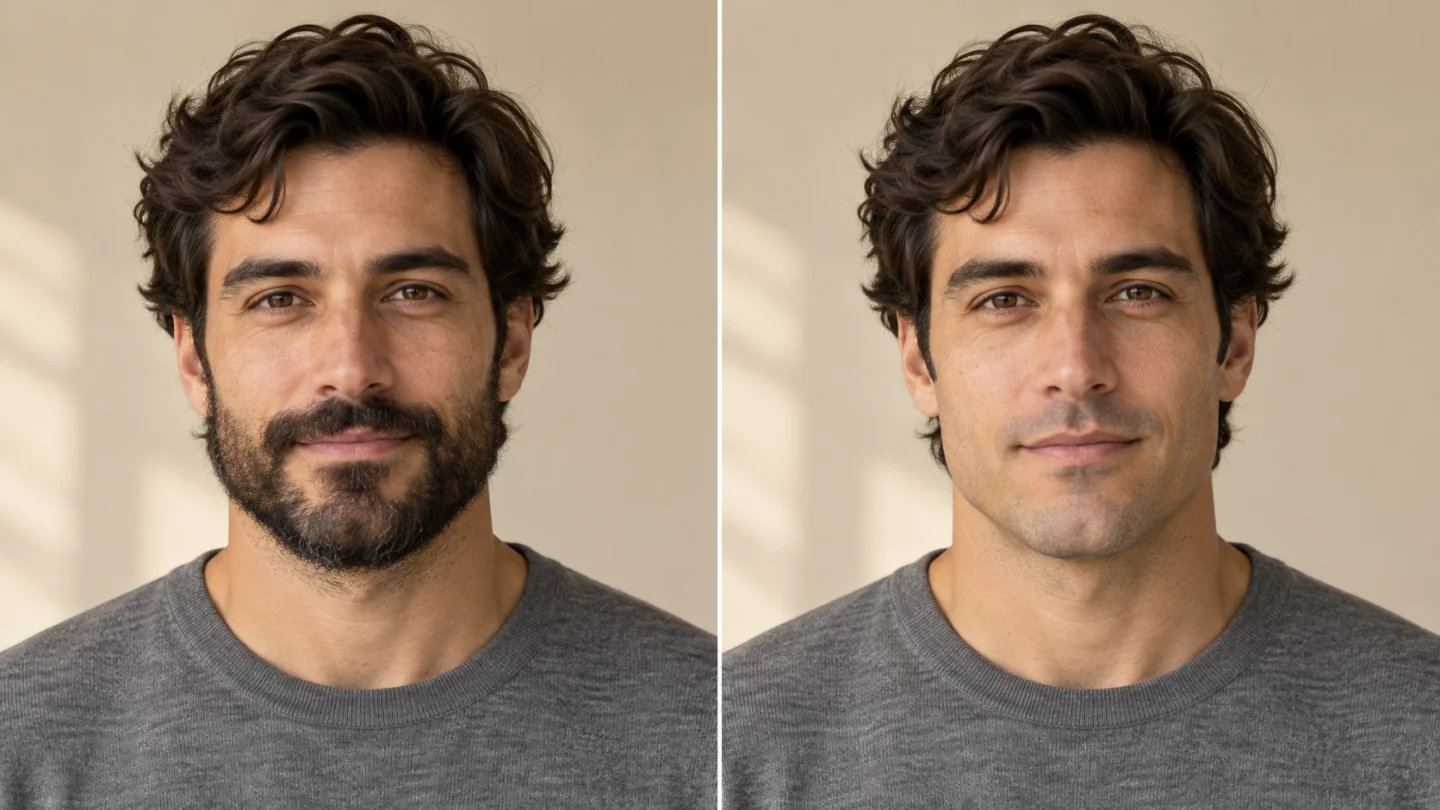
A No Beard Filter comparison keeps the face, gray shirt, and lighting aligned while removing facial hair.

Keep texture around the mouth and chin

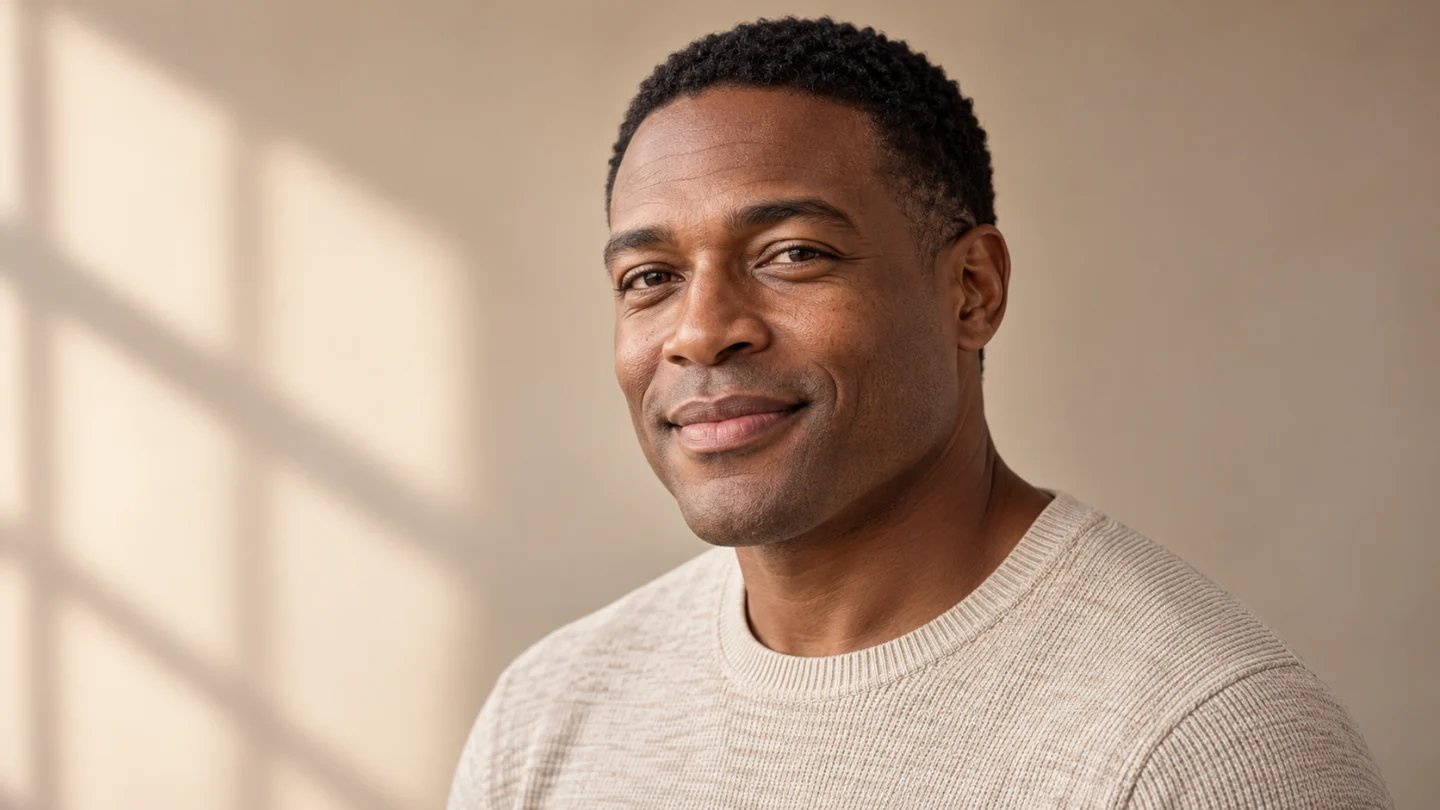
The No Beard Filter should leave the lower face looking like it belongs to the same photograph. Pay attention to the edge of the lips, the shadow beneath the chin, and the transition into the cheeks. Skin does not need to become perfectly uniform after removing a beard. Natural pores, gentle shading, and small variations make a portrait more convincing. A slight three-quarter view can help you inspect the relationship between the chin and jaw, provided the original face is clearly visible. Reject a take with waxy patches, a softened mouth, or an abrupt color change across the edited area.

Natural cheek texture and soft chin shadows make a No Beard Filter portrait easier to assess.

Keep familiar details beyond the beard

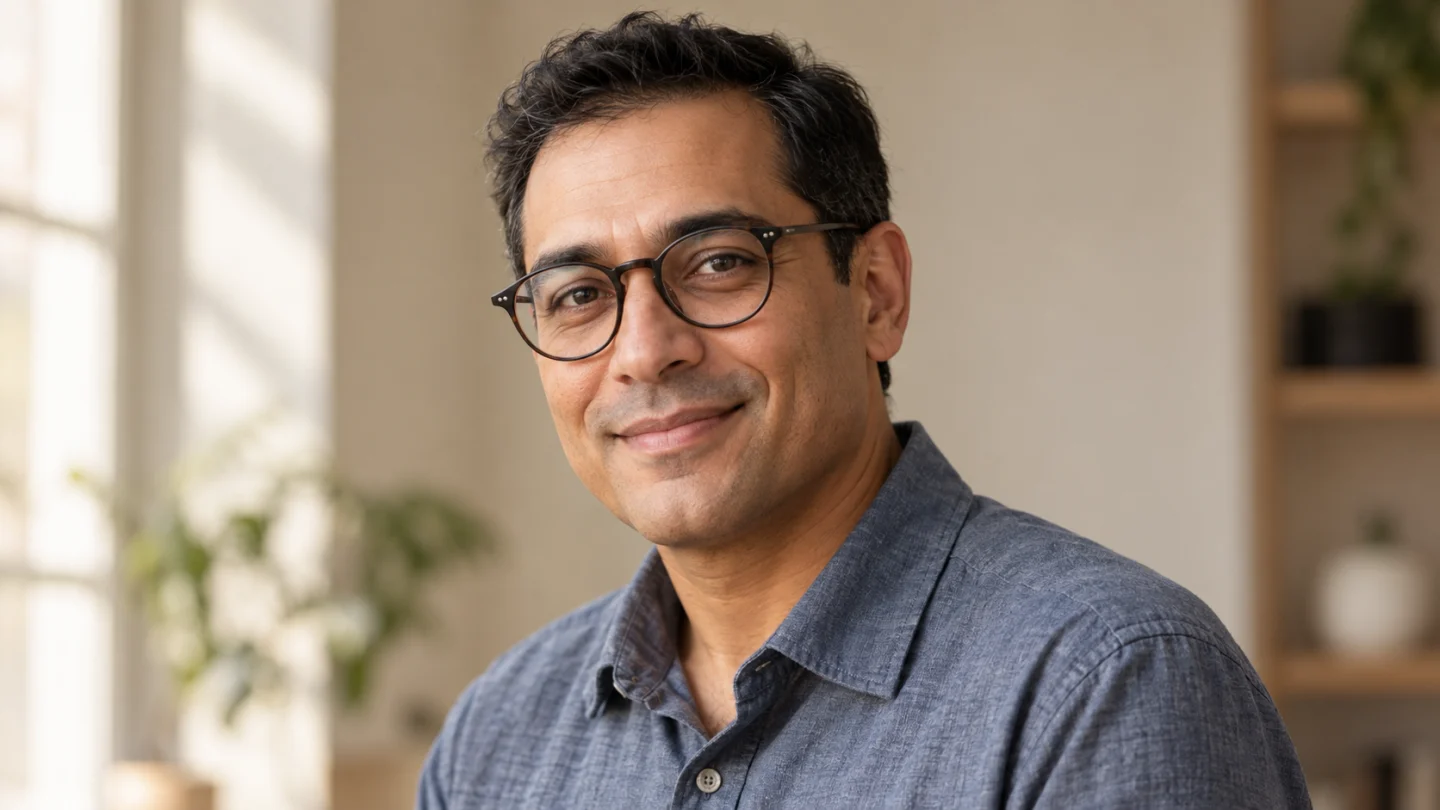
A No Beard Filter portrait is more useful when the details you recognize stay in place. Glasses should keep their original shape, eyebrows should remain distinct, and the mouth should retain its natural expression after facial hair disappears. Check the clean-shaven result around the corners of the smile and beneath the glasses as well as along the jaw. Those small connections help the reconstructed skin belong to the same face. If the edit removes an eyebrow, warps a frame, or changes the smile, choose another result instead of judging only whether the beard has gone.

Glasses, eyebrows, and a familiar smile remain clear in this clean-shaven No Beard Filter portrait.

How to use No Beard Filter

  1. 01

    Upload one clear photo

    Start your No Beard Filter project with one JPEG, PNG, or WebP image. The upload limit is 10 MB per image in the interface. Use a sharp reference with one clearly visible adult and balanced lighting. Choose the photograph that already has the framing and expression you want to carry into the result. A clean source gives the prepared effect more useful detail than a dark screenshot or a heavily filtered selfie.

  2. 02

    Choose your output settings

    Select the aspect ratio before generating with No Beard Filter. A portrait frame usually gives one person comfortable space on a phone, while a wider frame includes more of the surroundings. Review the displayed credit estimate after changing settings. The default is a 1K portrait in 3:4. Other available ratios and resolution settings are shown in the generator; choose them to suit the final composition.

  3. 03

    Generate with the prepared effect

    The creative direction for No Beard Filter is already built in. There is no prompt field, template text to paste, or separate performance video to upload. Sign in, check the reference image and selected settings, then submit the request. Watch the generation status and review the completed result before deciding whether another attempt would help. Each submission uses the current estimate shown by the generator.

  4. 04

    Review and download your result

    Compare the completed No Beard Filter result with your original photo. Zoom in around the mouth, cheeks, chin, and hairline, then return to normal viewing size to judge the overall portrait. Download the version you prefer. Keep the original file beside the edited image so you can compare both under the same lighting and at the same scale.

AI Image Generators for Your Next Project

Bring your next photo project to life with creative effects, painted portraits, and printable coloring pages.

  • Photo to Line Art

  • Remove Glare from Photo

  • Remove Glare from Glasses

  • 80s AI Photo Trend

  • AI Pregnant Filter

  • Pet Portrait AI

  • AI Beard Generator

Get more from No Beard Filter

Choose a No Beard Filter source with soft light reaching both sides of the face. A window-lit portrait or a balanced indoor photo is a practical starting point. Avoid a hand over the chin, a scarf against the mouth, or an object crossing the jaw. Those obstructions ask the generator to invent more than facial hair, and the reconstructed result may become harder to compare with the person you know.

A sharp photo matters more than an oversized file for the No Beard Filter. Start from the original camera image when possible, and crop away unrelated surroundings without cutting off the ears or chin. Repeated screenshots and social downloads can lose the small details that help preserve identity. Heavy face smoothing also reduces the natural texture available to match the edited lower face.

The No Beard Filter defaults to a 3:4 portrait at 1K. Choose another available ratio if your photo has a wider composition, but leave enough space around the jaw to judge the change. A higher output resolution cannot reveal the real shape hidden under a beard. It can give you more pixels to inspect, while the underlying reconstruction remains an interpretation guided by the visible photograph.

After using the No Beard Filter, inspect the whole face before zooming into small patches. A result can look convincing at high magnification yet feel unlike the person at normal size. Compare the width of the smile, the line of the nose, and the shape of the eyes. If those drift, try a clearer, more frontal image. Keep the strongest overall portrait rather than selecting only for the smoothest chin.

Ideas for your No Beard Filter result

Choose an occasion that gives the finished image or video a purpose. Your source photo and the context you add afterward make the same prepared effect feel personal.

Think through a grooming change

Use the No Beard Filter when you are curious about a clean-shaven look before making a real grooming decision. The preview can help you notice how facial hair changes the balance of your portrait. It cannot tell you exactly how your skin or jaw will look after shaving. Compare it with any real clean-shaven photos you have and treat the result as a visual conversation starter, not a precise prediction.

Make a friendly before-and-after

A No Beard Filter comparison can be a playful image to share with friends who are used to seeing your beard. Keep both versions framed consistently and add a simple caption in your editor if you want to explain the experiment. Use photos of people who agree to the edit, and describe the result as a generated preview. The recognizable expression usually carries the reaction better than a heavily altered or exaggerated face.

Explore a different portrait mood

The No Beard Filter can help you imagine a cleaner visual style for a casual portrait, a creative profile concept, or a character study. Start with an image whose clothes and lighting already suit the mood. Removing facial hair should not require replacing the whole scene. For documents or a profile that must represent your current appearance accurately, take a real updated photograph after making your actual grooming choice.

No Beard Filter questions

Yes. The No Beard Filter uses a prepared direction to remove beard, moustache, and visible stubble together. This page does not offer separate facial-hair style controls, selective masks, or a keep-the-moustache option.

No. The No Beard Filter generates a plausible lower face from visible details. Hidden skin and jaw shape cannot be recovered exactly from a single bearded photo. A real clean-shaven reference is more reliable for that comparison.

No. The No Beard Filter on this page edits an uploaded still photo. You can download the finished image and place it in a reaction edit afterward, but live camera recording and social posting are separate steps.

No. No Beard Filter uses a fixed creative direction, so you only upload your photo and choose the available output settings. Custom prompt input is disabled. If you want a different creative concept, use the general image generator rather than trying to add instructions through the upload.

The No Beard Filter generator displays the current credit estimate before submission. The amount can change with the available output settings, so use that estimate when making your choice. This page does not promise a free render, a fixed processing time, or a particular creative result.

Try No Beard Filter with your own photo

Choose a clear reference and let No Beard Filter turn it into a focused visual idea. Start with the available defaults, review the face and important details, and download the version you want to keep. A thoughtful source photo and a careful final review give your project a stronger starting point.

Choose a photo and start
Image to Image AI logoImage to Image AI

A fresh take on your image. Explore new styles and scenes with AI.

Customer supportsupport@imgtoimageai.com

Tools

  • Remove Glare from Glasses
  • Remove Glare from Photo
  • Photo to Line Art
  • Image Upscaler
  • Realistic Selfie Generator
  • Christmas Photobooth
  • AI 3D Figure Generator
  • Selfie With Santa
  • Christmas Dance Trend
  • Motorcycle AI
  • AI Photo Booth
  • Photo to Sticker
  • QR Code Enhancer
  • AI Long Hair Filter
  • Bicep Heart Trend AI
  • Happy Birthday GIF with Name
  • Apartment Dance
  • AI GIF Generator
  • Executive Portrait Maker
  • AI Trouble Maker Video

Learn more

  • Tools
  • Blog
  • Pricing

Legal

  • Privacy Policy
  • Terms of Service
  • Refund Policy
  • Contact

© 2026 Image to Image AI