



Image to Image AI logoImage to Image AI
  • Home
  • AI Image Generator
  • AI Video Generator
  • Tools
  • Nano Banana 2.1
  • Flux 3 Klein
  • Seedream 5.0 Pro
  • Seedream 5.5
  • GPT Image 2.5
  • GPT Image 2.6
  • MiniMax H3 Image
  • Kling 4.0
  • Grok Imagine Video 1.5
  • MiniMax H3 Max
  • Seedance 2.5
More
  • Blog
  • Pricing

Guest

Save your creations

Credits—
  1. Home
  2. /
  3. Image

Photo to Coloring Page

Turn portraits, pets, and favorite photos into black-and-white coloring pages. Upload one image—no prompt needed.

Reference image

Required · 1 image
10
Checking your sign-in status…
Strictly prohibits adult / NSFW content

AI Image Generators to Explore

Try a different look for your photos with generators for portraits, artistic styles, and creative edits.

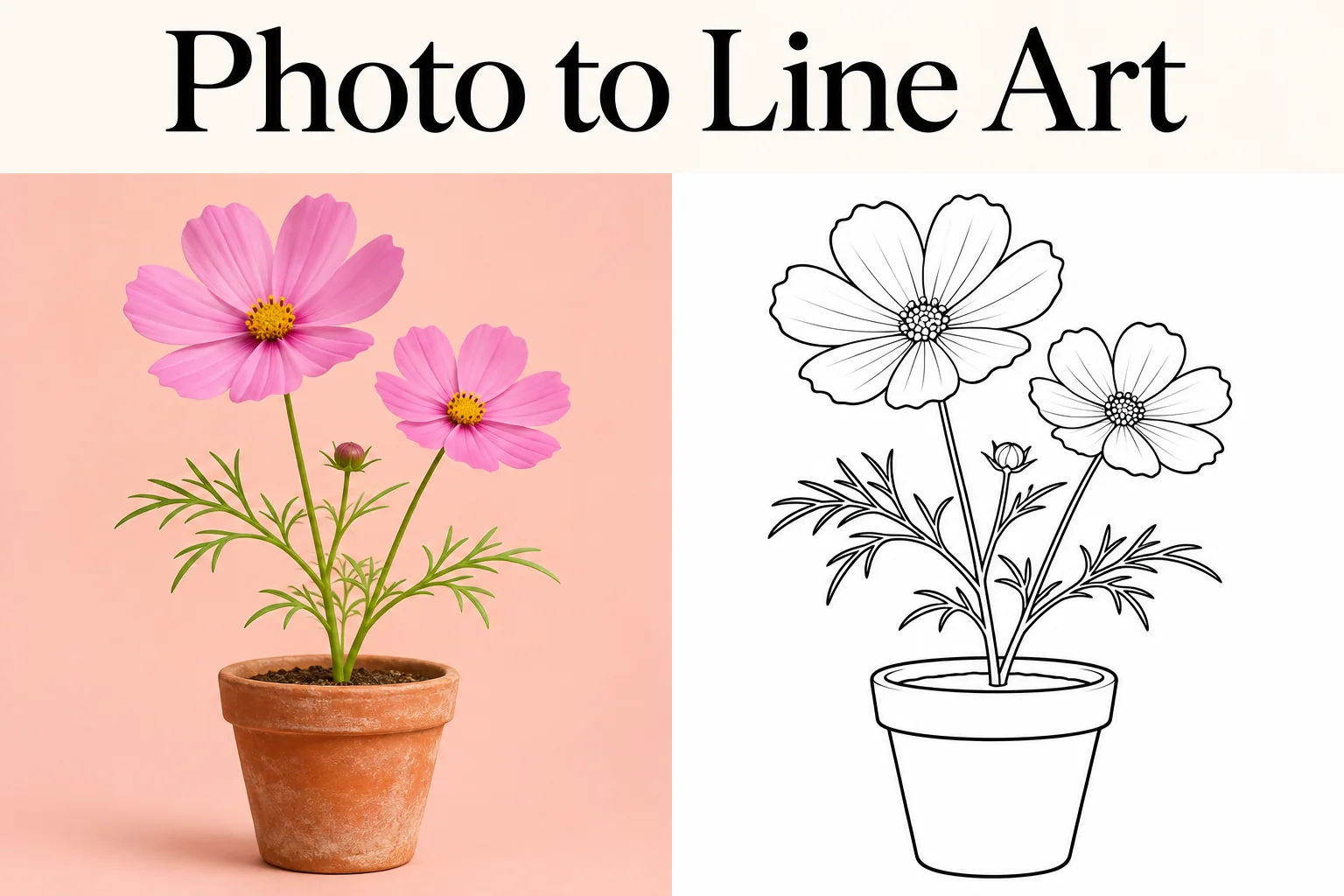
  • Photo to Line Art

  • Remove Glare from Photo

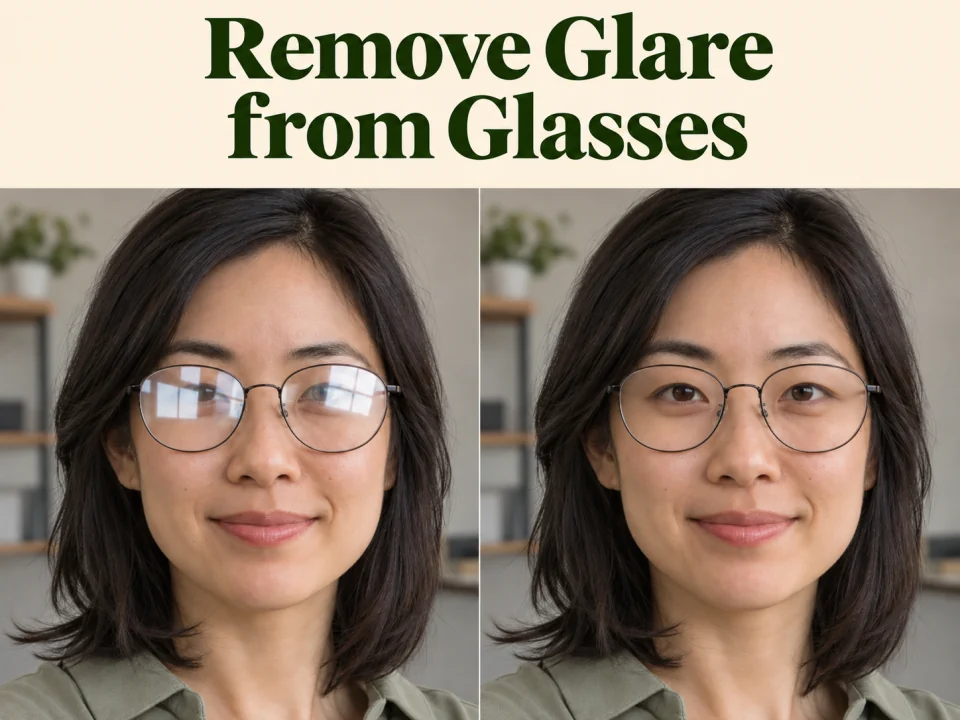
  • Remove Glare from Glasses

  • Realistic Selfie Generator

  • Image Upscaler

  • Selfie With Santa

  • AI 3D Figure Generator

  • Motorcycle AI

  • Photo to Sticker

  • AI Photo Booth

  • AI Long Hair Filter

  • Happy Birthday GIF with Name

  • AI GIF Generator

  • Executive Portrait Maker

  • No Beard Filter

  • AI Beard Generator

  • 80s AI Photo Trend

  • AI Pregnant Filter

  • Pet Portrait AI

  • Photo to Watercolor

Page 1 of 3

See your photo as a coloring page

Start with a familiar face, a favorite pet, or an everyday object. This photo to coloring page converter uses AI to create a new outline illustration with space for your own colors. The examples show the kind of transformation to look for; each photo can produce different details.

Turn a portrait into a personal coloring activity

Make a coloring page from a photo of someone you know. Choose a portrait with a clear face, even lighting, and a simple background. A smile, hairstyle, or pair of glasses can help the subject feel familiar. Review faces and hands in the result before using it for a birthday activity or a family art session.
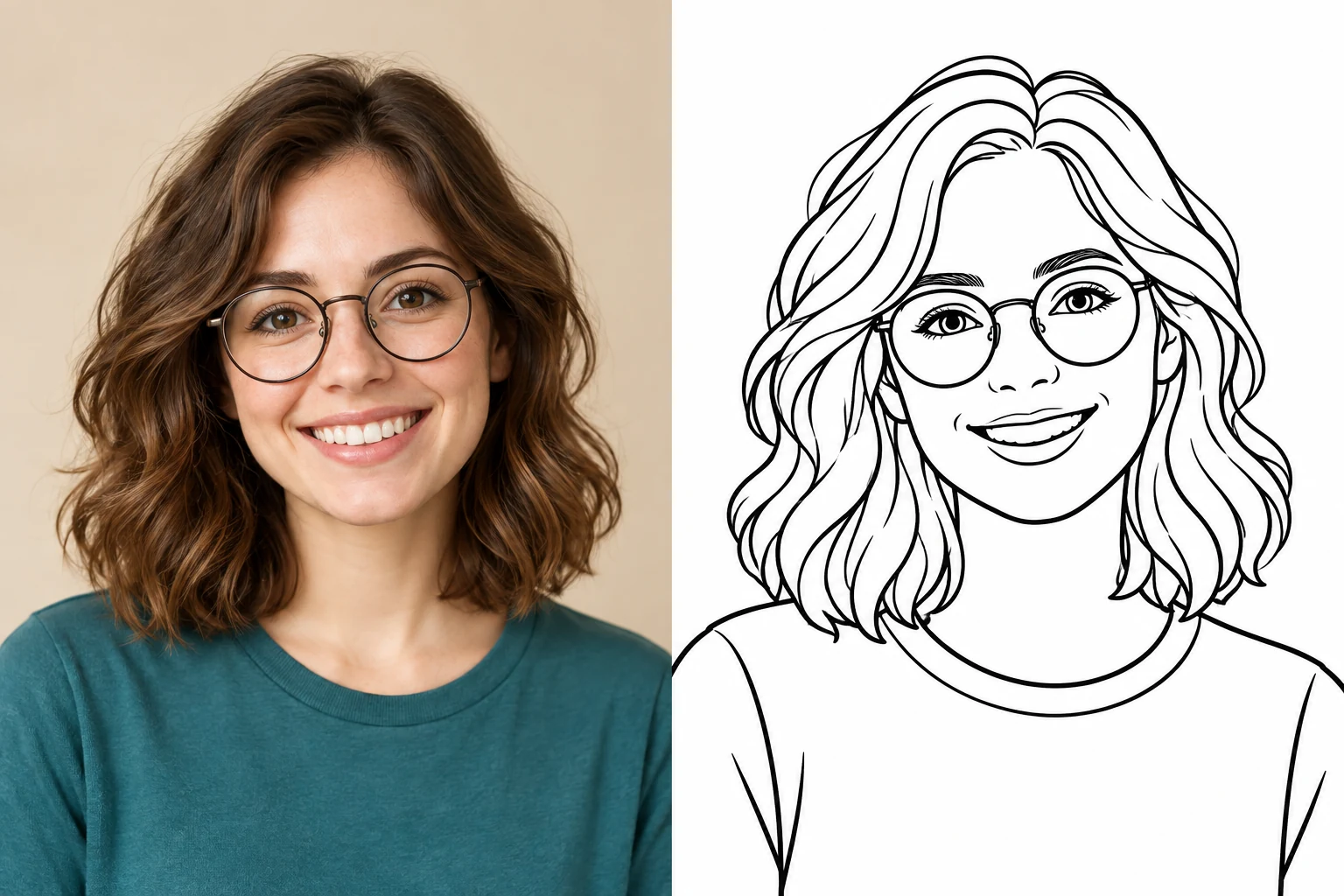
Illustrative portrait photo beside matching black-outline coloring artworkPhotoColoring page
AI-created illustrative example. Actual results vary.

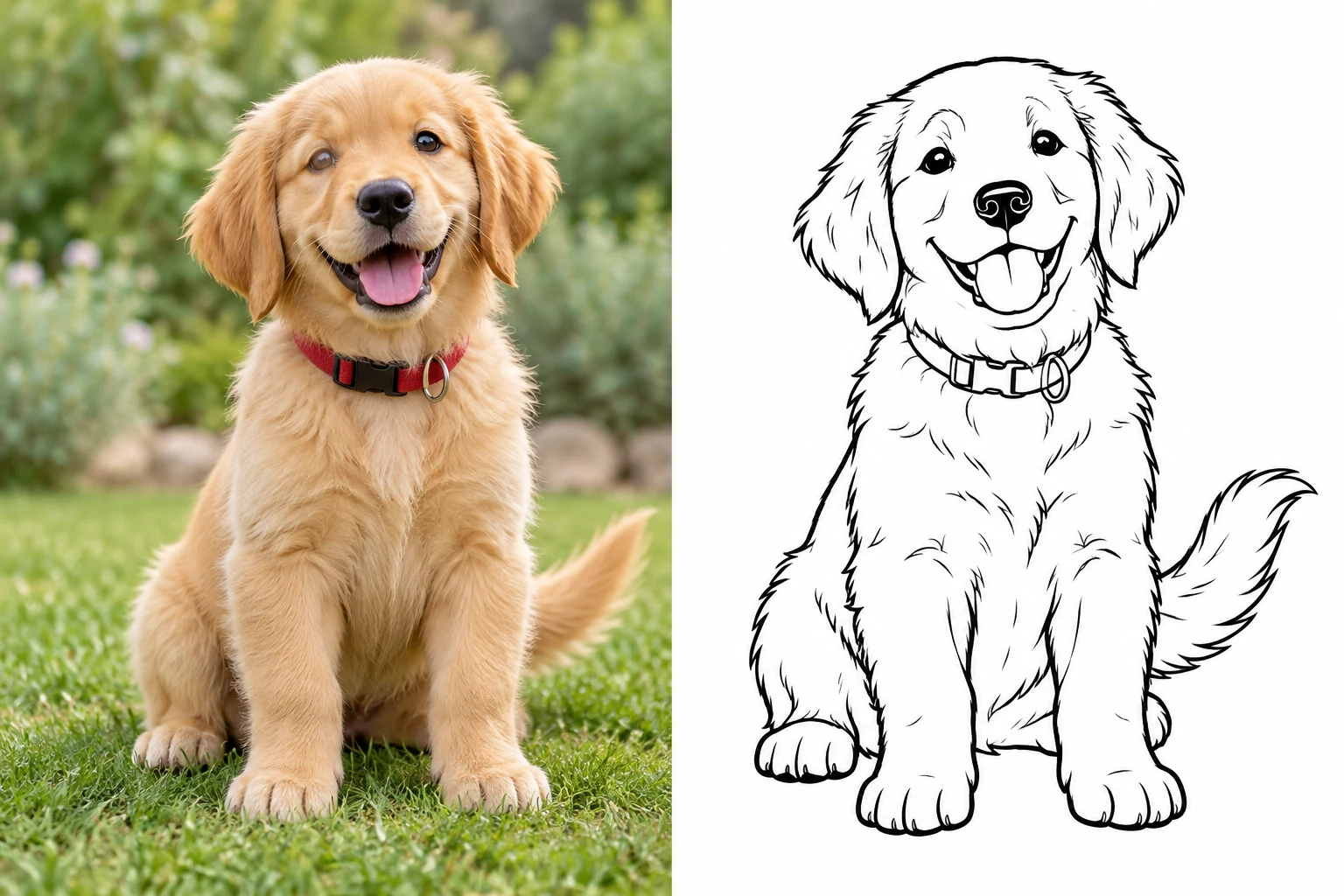
Make a coloring page of your pet

A favorite dog, cat, or other pet makes a personal subject to color. Pick a photo with the whole head visible and enough contrast to separate the animal from its surroundings. The AI may simplify fur and markings, so check the features that make your pet recognizable. An uncluttered pose leaves more room for coloring.

Illustrative golden retriever puppy photo beside matching coloring-page line artPhotoColoring page
AI-created illustrative example. Actual results vary.

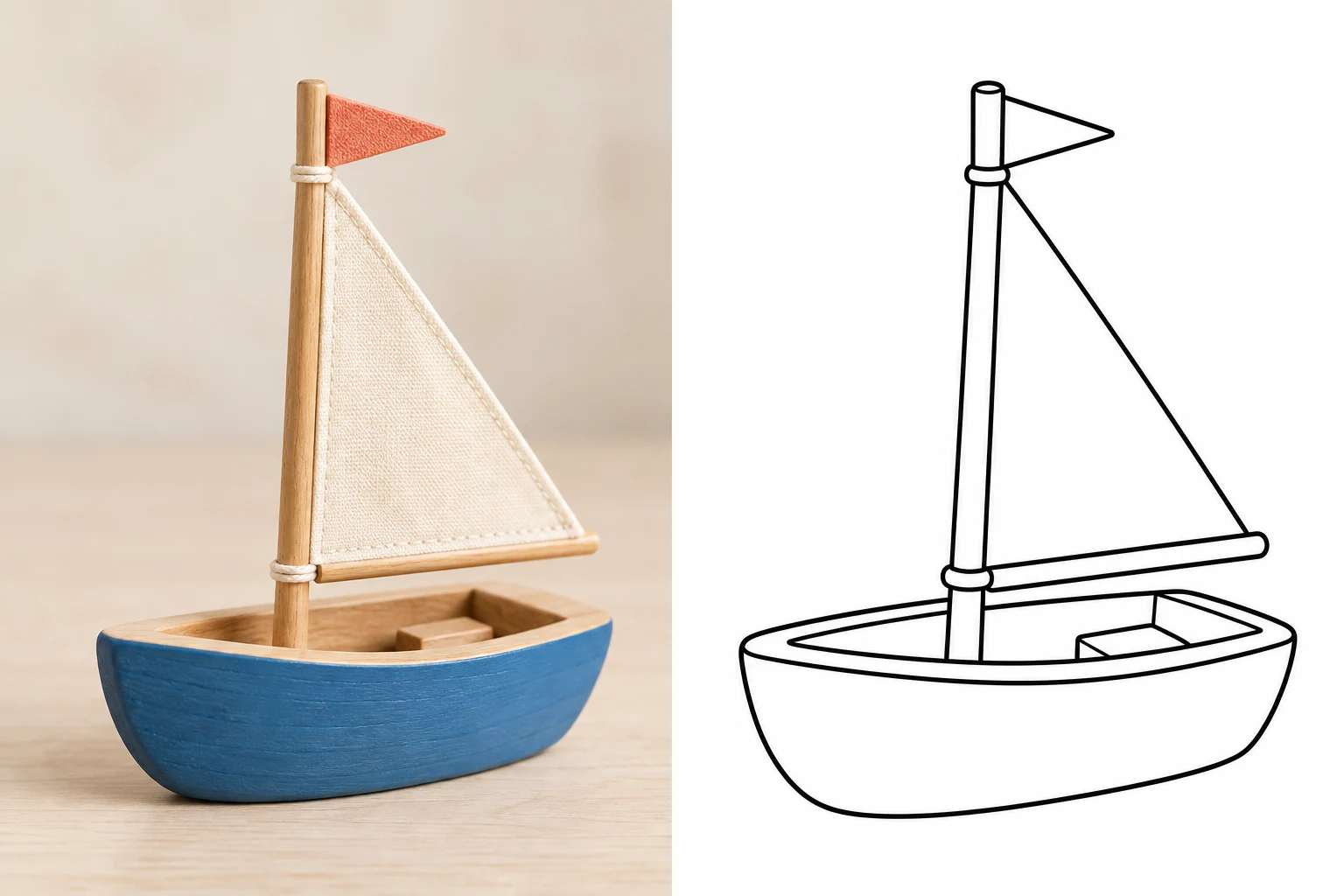
Build an activity around a favorite object

Try a toy, a flower, or an object with an interesting silhouette. Clear, separate shapes are easier to review than a scene packed with tiny details. Convert one picture to a coloring page at a time, then arrange the downloaded images in your own document if you want to make a themed activity sheet.

Illustrative wooden toy sailboat photo beside matching outline coloring artworkPhotoColoring page
AI-created illustrative example. Actual results vary.

How to turn a photo into a coloring page

  1. 01

    Choose and upload a photo

    Sign in and choose one PNG, JPEG, or WebP image from your device or available library. Use a clear subject and keep the file within the displayed 10 MB limit. You do not need to write a prompt.

  2. 02

    Choose the image shape

    Start with the default square format or select another available aspect ratio. Choose a shape that leaves room around the subject. This setting controls the image canvas, not the size of a printed sheet.

  3. 03

    Generate your coloring page

    Review the selected image and current credit estimate, then select Generate. The prepared instructions guide the AI toward black outlines, white coloring spaces, and a simpler background. Follow the generation in this tool’s history.

  4. 04

    Review and download

    Open the result to inspect the outlines and small details, then download the image. To try another version from the same photo, select Use again, review the restored input, and submit a new generation when ready.

AI Image Generators for Your Next Project

Bring your next photo project to life with creative effects, painted portraits, and printable coloring pages.

  • Photo to Line Art

  • Remove Glare from Photo

  • Remove Glare from Glasses

  • 80s AI Photo Trend

  • AI Pregnant Filter

  • Pet Portrait AI

  • AI Beard Generator

Choose a photo that is easy to color

A clear subject gives the AI a better starting point. Look for even lighting, visible edges, and enough space around the person, animal, or object you want to keep.

Simple backgrounds help the main subject stand out. If a photo includes crowded shelves, patterned fabrics, or lots of overlapping objects, crop away distractions before uploading. A close portrait or one pet can be a more manageable starting point than a large group photo.

Think about the person who will color the image. Large, open areas can be more comfortable for younger children, while detailed subjects may suit someone who enjoys a longer activity. Choose the source photo with the activity in mind, then inspect the coloring spaces in the generated result.

AI can reinterpret details rather than trace every edge exactly. Check faces, hands, paws, and thin objects after generation. If the result is too busy, try a tighter crop or a simpler source image. Review the full-size download before printing several copies.

How to print your coloring page

Download your coloring page as a PNG and open it in your preferred image viewer or document editor. Choose the paper size, orientation, and margins in that application before printing.

Use the print preview to check that the subject fits inside the page. Keep the image proportions when resizing so the outlines do not stretch. A square image may leave extra white space on a portrait sheet; you can keep that space or arrange the image in a document with a title or activity instructions.

Print one copy first to check the line visibility and coloring space. Choosing A4 or Letter paper in your printing application is separate from choosing an image aspect ratio here. This tool currently downloads an image; it does not create a PDF or automatically add a paper layout.

Photo to coloring page FAQs

It uses your uploaded photo as a reference for a new black-and-white illustration. Prepared instructions ask for recognizable subjects, bold outlines, open coloring areas, and less background clutter. The result is an AI interpretation rather than an exact tracing of the original photo.

No. The coloring-page instructions are already prepared. Upload one image, choose an available aspect ratio, and review the credit estimate before generating.

Yes. Clear portraits, pets, toys, flowers, and other distinct subjects are useful starting points. Photos with many small faces, overlapping objects, or busy backgrounds can be harder to simplify into comfortable coloring spaces.

Not necessarily. AI may simplify, change, or omit some details. Review facial features, hands, pet markings, and the background before using the result. Try a clearer or more closely cropped source if important details are difficult to recognize.

You need to sign in to upload and generate. Generation uses credits, and the current estimate appears in the tool before submission. Your available balance and current credit options are shown in your account.

The current tool accepts one PNG, JPEG, or WebP image within the displayed 10 MB limit and produces one PNG image per generation. Review the upload controls for the limits that apply to the available model.

You can download the PNG and arrange or print it in an image viewer or document editor that supports your paper size. Direct PDF export and automatic A4 or Letter layouts are not currently included in this tool.

Select Use again on the generation record to restore its source image and settings when they are still available. Review them and select Generate to create another version. Use again itself does not submit a new request. A new generation uses the credit estimate shown at submission.

Sign in to the same account and return to this tool. Its generation history is shown in the workspace, where you can open and download available results. Use Load earlier images when older records are available.

Make your favorite photo ready to color

Choose a familiar face, a favorite pet, or a simple object. Upload your photo and create a coloring page you can review, download, and make your own.

Create a coloring page
Image to Image AI logoImage to Image AI

A fresh take on your image. Explore new styles and scenes with AI.

Customer supportsupport@imgtoimageai.com

Tools

  • Remove Glare from Glasses
  • Remove Glare from Photo
  • Photo to Line Art
  • Image Upscaler
  • Realistic Selfie Generator
  • Christmas Photobooth
  • AI 3D Figure Generator
  • Selfie With Santa
  • Christmas Dance Trend
  • Motorcycle AI
  • AI Photo Booth
  • Photo to Sticker
  • QR Code Enhancer
  • AI Long Hair Filter
  • Bicep Heart Trend AI
  • Happy Birthday GIF with Name
  • Apartment Dance
  • AI GIF Generator
  • Executive Portrait Maker
  • AI Trouble Maker Video

Learn more

  • Tools
  • Blog
  • Pricing

Legal

  • Privacy Policy
  • Terms of Service
  • Refund Policy
  • Contact

© 2026 Image to Image AI