
Image to Image AI logoImage to Image AI
  • Home
  • AI Image Generator
  • AI Video Generator
  • Tools
  • Nano Banana 2.1
  • Flux 3 Klein
  • Seedream 5.0 Pro
  • Seedream 5.5
  • GPT Image 2.5
  • GPT Image 2.6
  • MiniMax H3 Image
  • Kling 4.0
  • Grok Imagine Video 1.5
  • MiniMax H3 Max
  • Seedance 2.5
More
  • Blog
  • Pricing

Guest

Save your creations

Credits—
  1. Home
  2. /
  3. Image

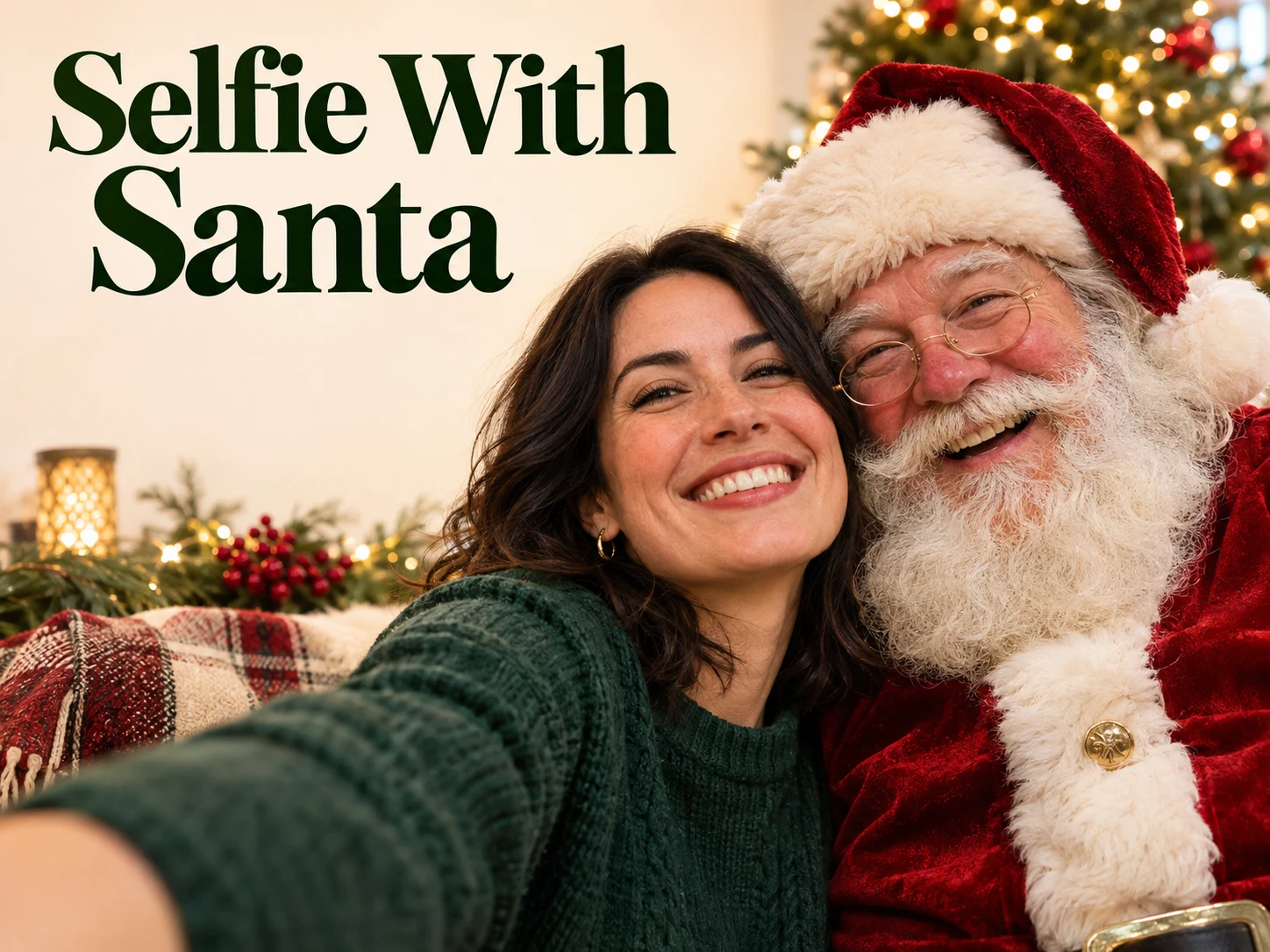
Selfie With Santa for a warmer holiday hello

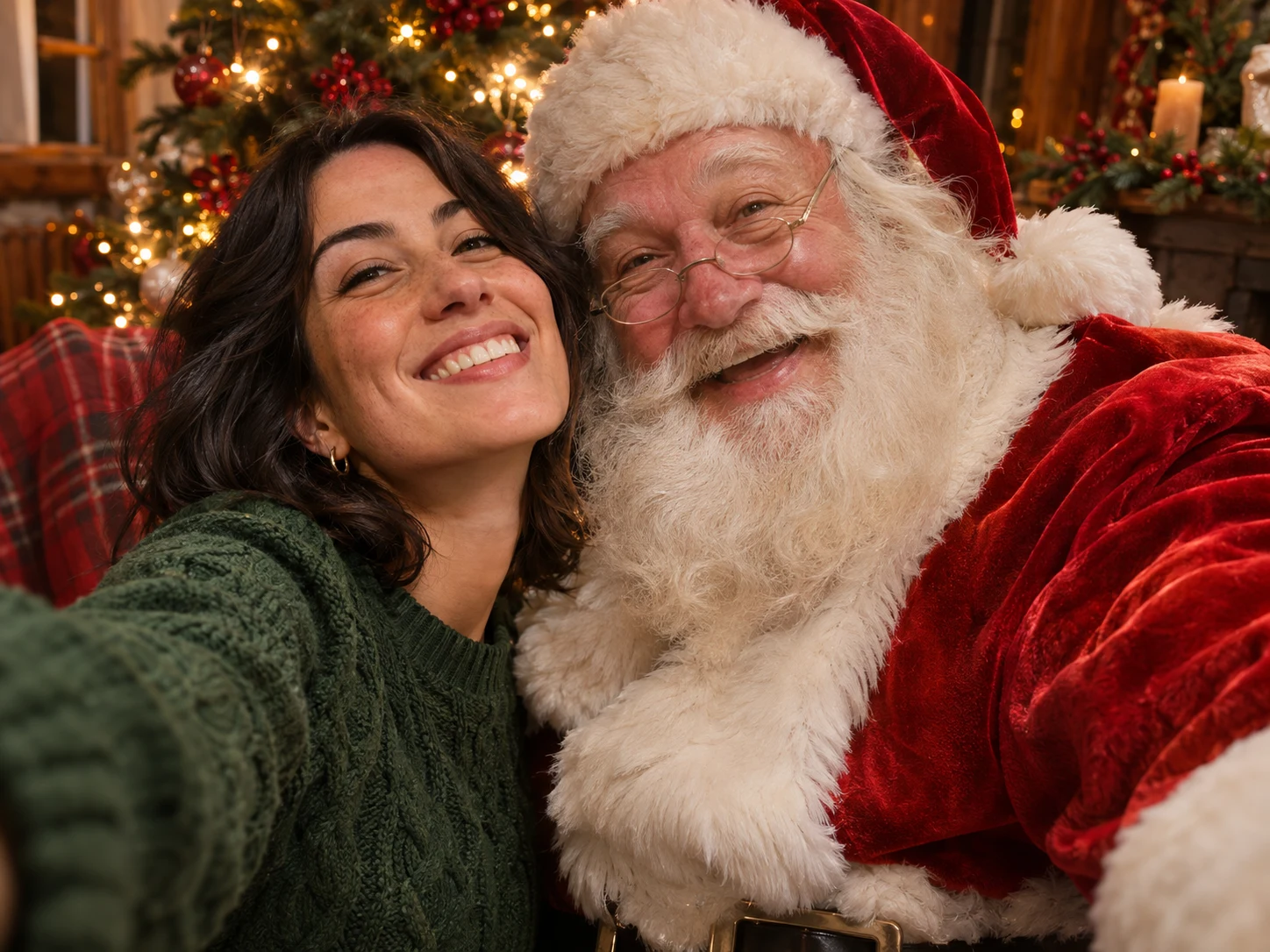
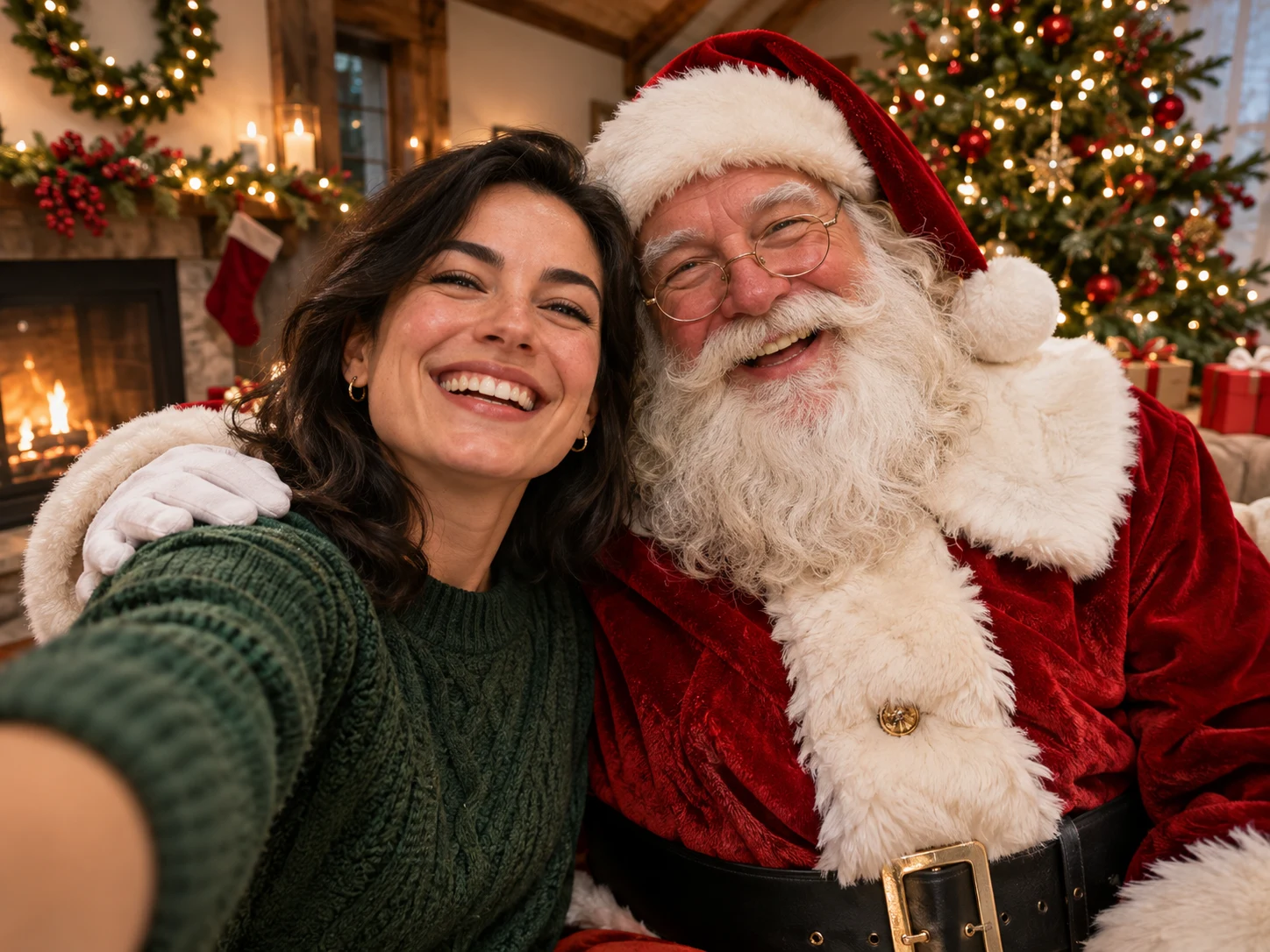
Bring a familiar smile into a cheerful Christmas scene. Selfie With Santa turns one portrait into a newly composed picture of you beside a classic Santa Claus, with close selfie framing and a cozy festive background. Choose a photo you like, use the prepared effect, and review the image before saving it. A simple shared camera moment can give a personal greeting, profile update, or holiday card an immediately recognizable seasonal character.

Create my Santa selfie
Selfie With Santa for a warmer holiday hello
AI-generated illustrative selfies created for this page; actual tool results depend on the uploaded portrait and generation.

Reference image

Required · 1 image
15
Checking your sign-in status…
Strictly prohibits adult / NSFW content

AI Image Generators to Explore

Try a different look for your photos with generators for portraits, artistic styles, and creative edits.

  • Photo to Line Art

  • Remove Glare from Photo

  • Remove Glare from Glasses

  • Realistic Selfie Generator

  • Image Upscaler

  • AI 3D Figure Generator

  • Motorcycle AI

  • Photo to Sticker

  • AI Photo Booth

  • AI Long Hair Filter

  • Happy Birthday GIF with Name

  • AI GIF Generator

  • Executive Portrait Maker

  • No Beard Filter

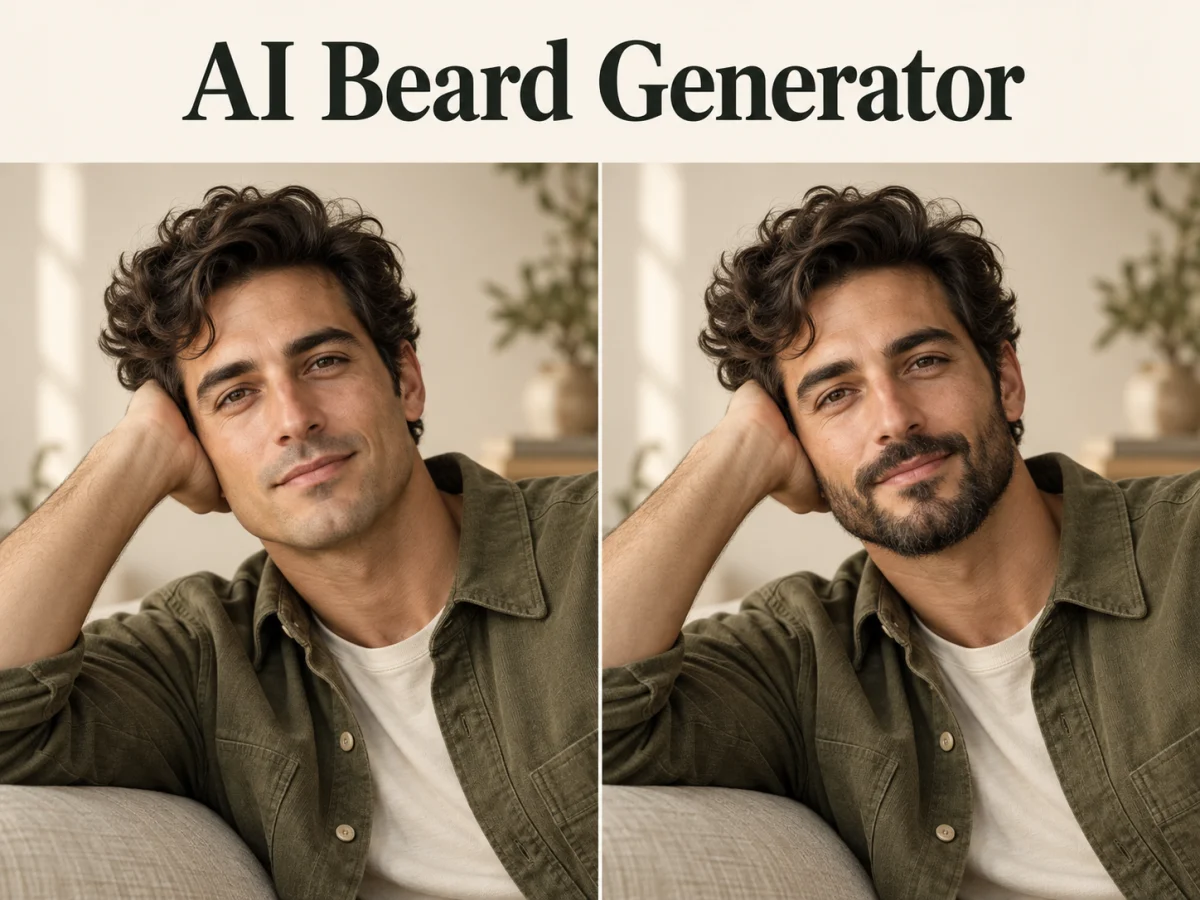
  • AI Beard Generator

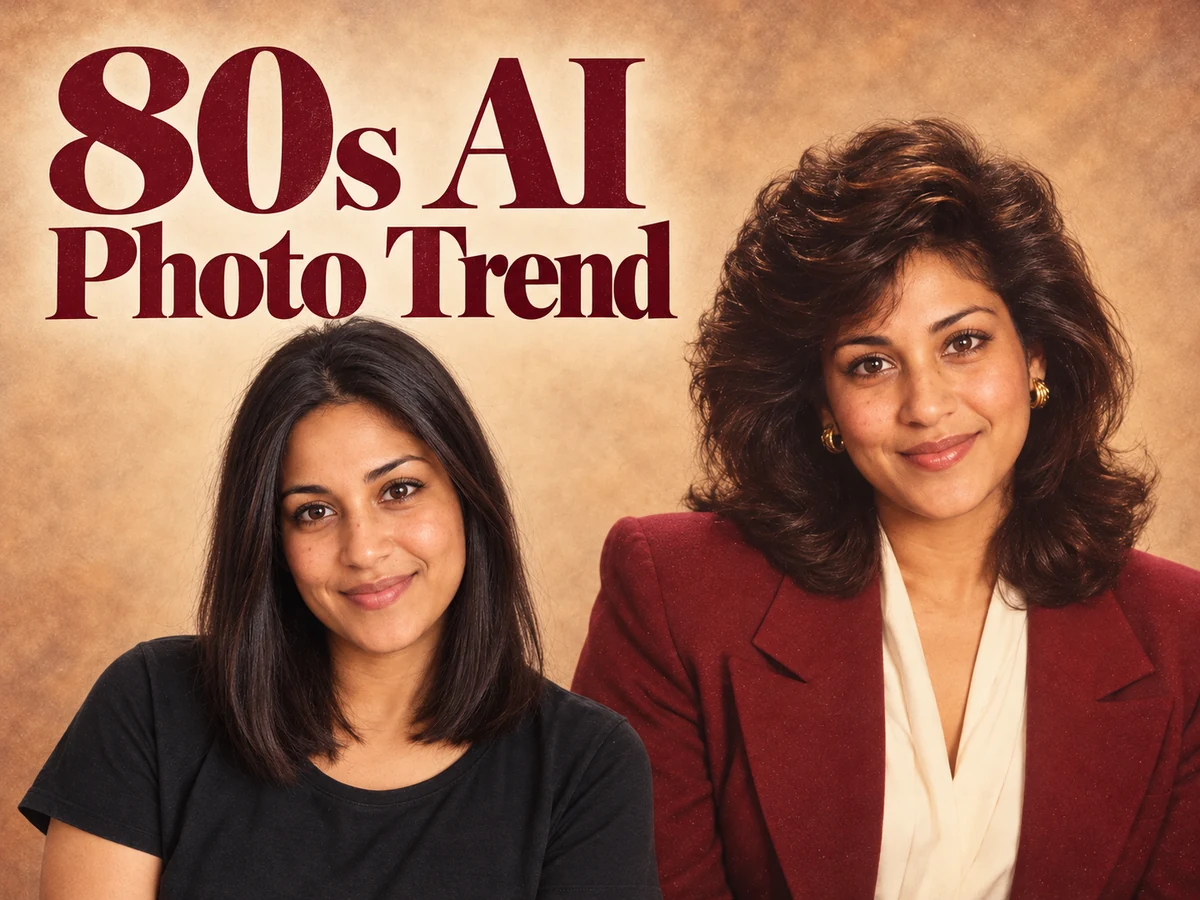
  • 80s AI Photo Trend

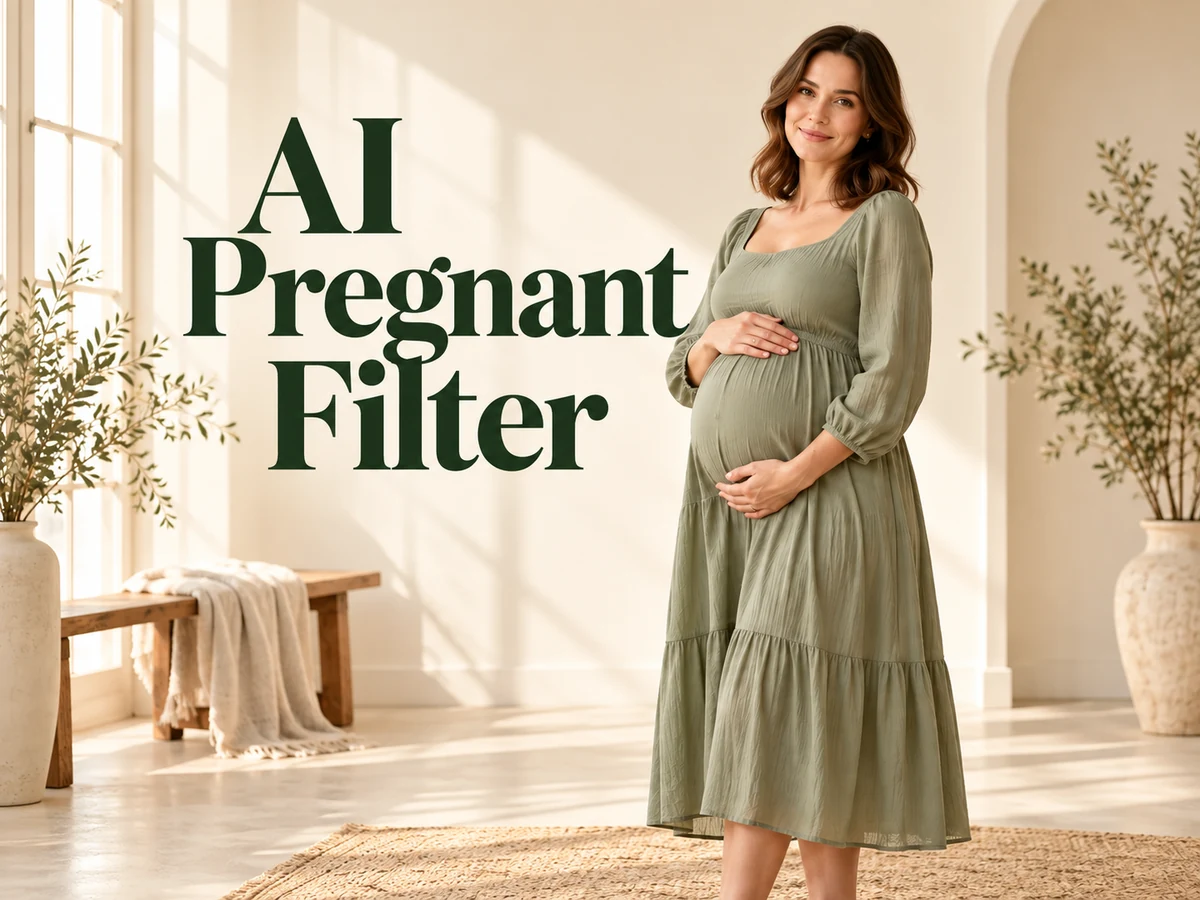
  • AI Pregnant Filter

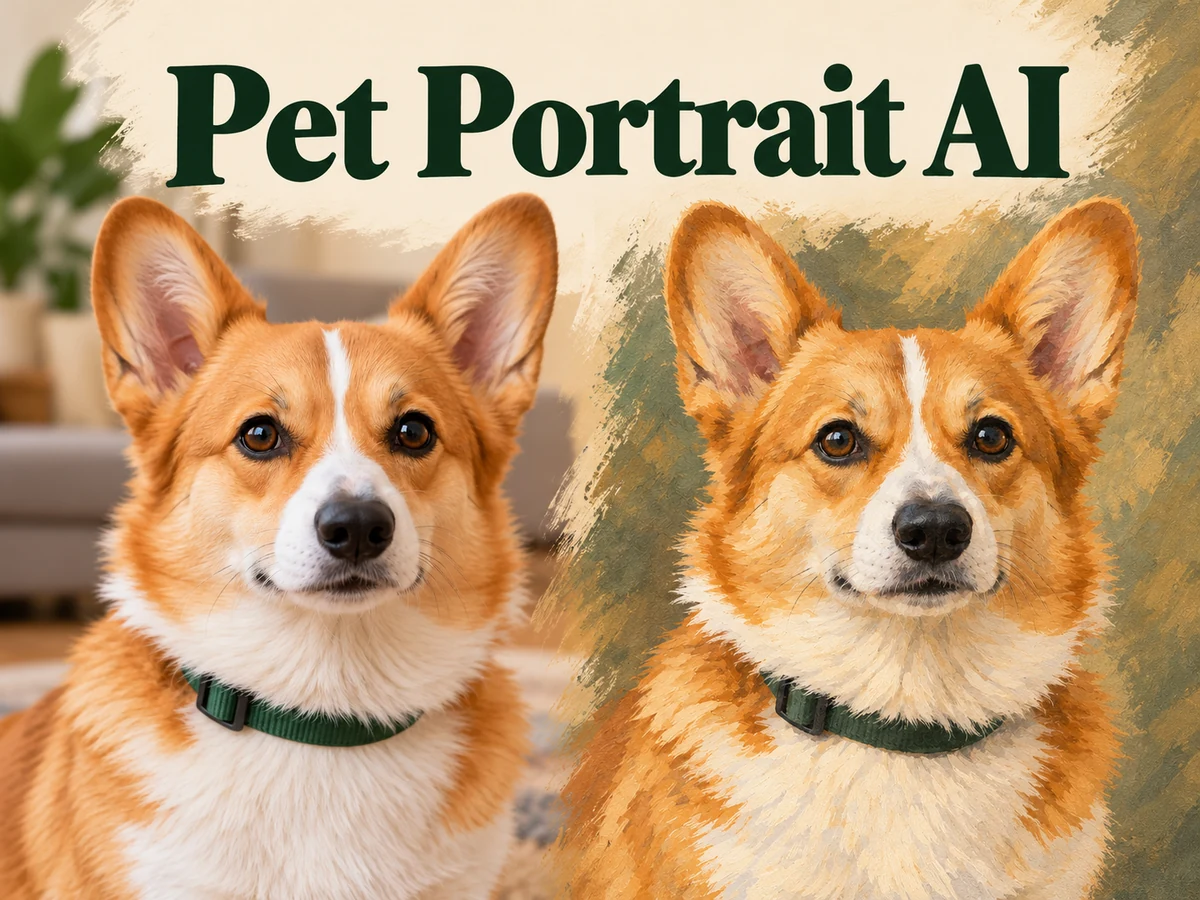
  • Pet Portrait AI

  • Photo to Watercolor

  • Photo to Coloring Page

Page 1 of 3

What does Selfie With Santa create?

Selfie With Santa is a prepared image effect that uses your portrait as an identity reference. It asks for a friendly shared selfie with Santa in a warm Christmas setting, keeping your recognizable facial features and hairstyle while creating a new composition. The familiar red outfit, white beard, and soft tree lights communicate the occasion without requiring a caption inside the picture.

The page uses Nano Banana 2.1 with a fixed creative direction. Upload one clear portrait and choose an available resolution and aspect ratio. Selfie With Santa supplies the close camera perspective, Santa companion, and balanced image layout. You do not need to find a second source photo of Santa or describe the setting in a prompt.

The finished result is a still image that you can inspect and download. It is a creative interpretation of a holiday meeting, not a photograph of an event that actually took place. The source remains your main personal contribution: choose an expression, hairstyle, and visible outfit that you would enjoy seeing in the festive scene.

Four ingredients of Selfie With Santa

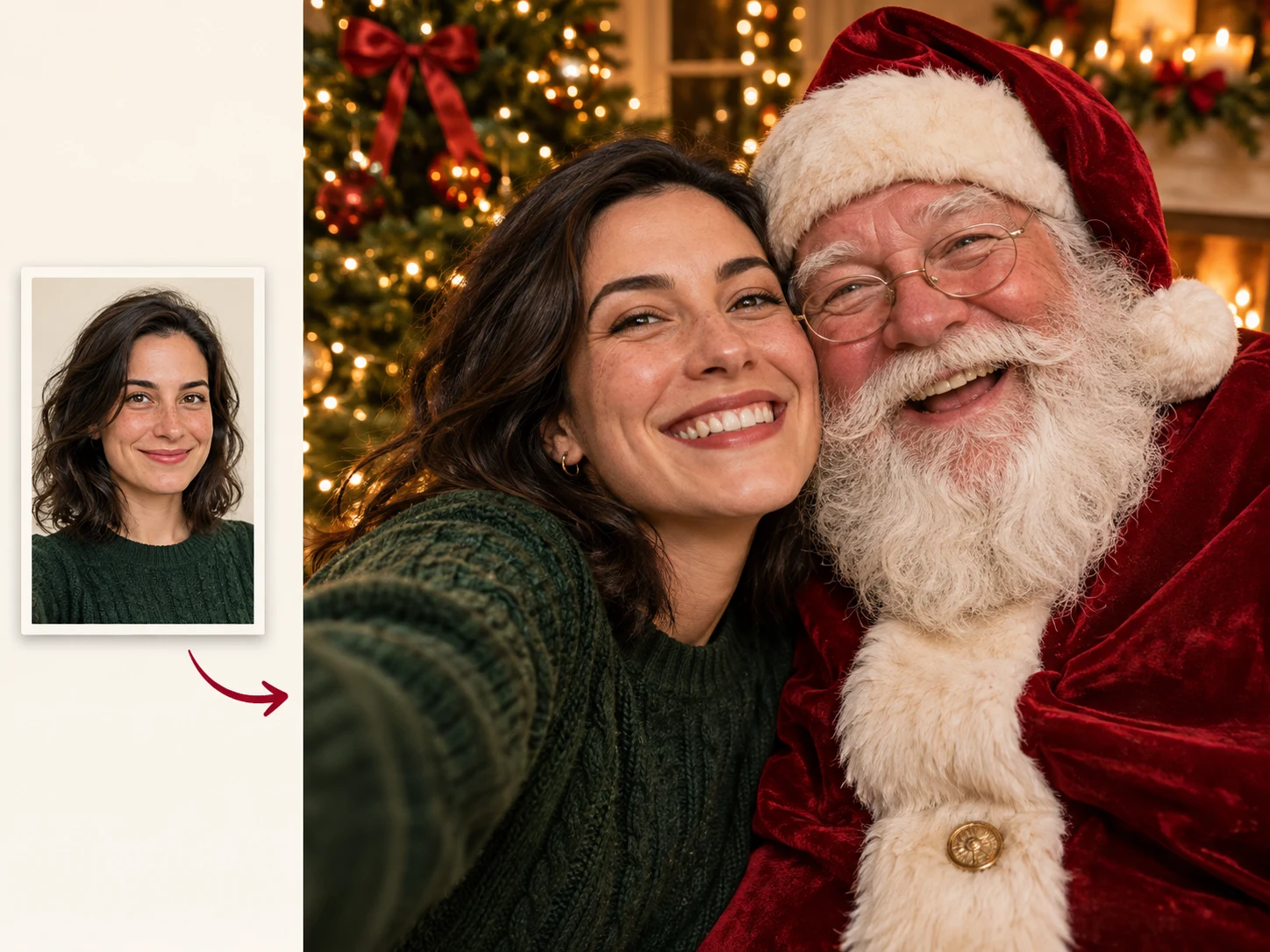
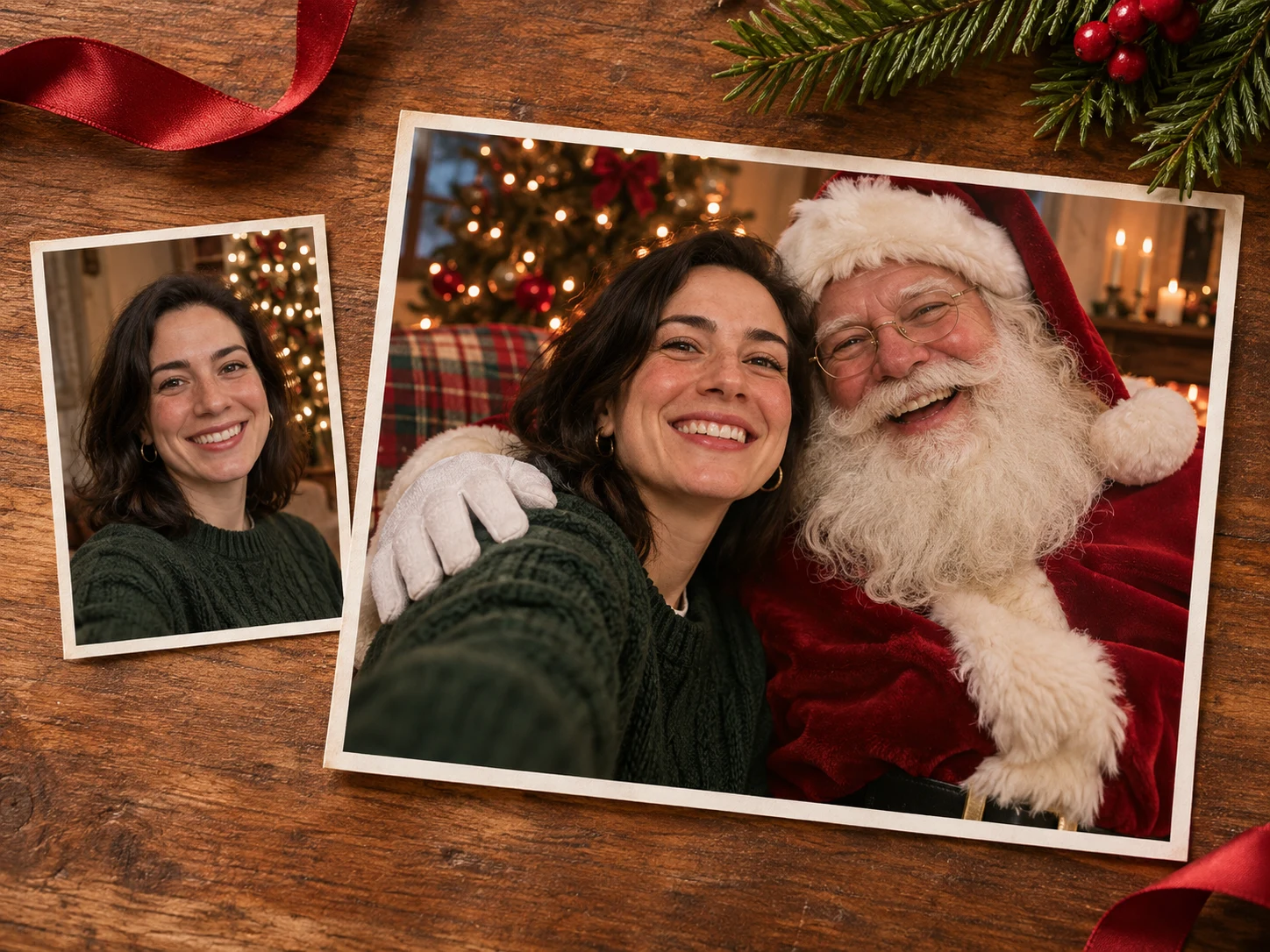
A good shared selfie keeps the people clear and lets the seasonal setting support them. These examples illustrate the intended treatment from source portrait to finished composition.

One Portrait Upload

Begin with one photograph of one person. Selfie With Santa uses that image to guide recognizable details such as facial structure, skin tone, hair, and glasses. A clear head-and-shoulders portrait provides useful information for the close composition. The original background does not need to contain decorations, a Christmas tree, or winter scenery.

Choose a source where the face is easy to inspect and both eyes are visible. Avoid tiny figures in a distant scene or group pictures that make the intended subject unclear. If your favorite photo contains several people, crop a copy around the person you want to use. Keep enough space around the hair and shoulders for comfortable framing.
One Portrait Upload

No Prompt Writing

Selfie With Santa already includes the instructions for the holiday treatment. Once your portrait and resolution are selected, use Generate to begin. The prepared direction asks for a friendly expression, a classic Santa beside the subject, and a warm seasonal environment. There is no text box to fill with lighting terms or a detailed scene description.

Your portrait choice still matters. A relaxed smile, an everyday hairstyle, or a favorite sweater can make the finished picture feel more personal. To explore a different starting expression, choose another clear photo. Selfie With Santa keeps the scene direction consistent while allowing the reference to supply the individual character of the image.

No Prompt Writing

Classic Santa Companion

The effect places a recognizable Santa Claus beside the uploaded subject: a full white beard, red festive clothing with white trim, and a cheerful expression. Selfie With Santa uses those familiar details to make the seasonal idea readable at a glance. Santa should share the frame naturally without covering the face that makes the image yours.

Review how the two people fit together. Check the scale of their heads, where their shoulders meet, and whether the lighting feels consistent across both faces. A decorative background is secondary to that relationship. Choose the version where Santa feels like a friendly companion and your own appearance remains clear and recognizable.

Classic Santa Companion

Selfie With Santa Framing

The prepared composition aims for the intimacy of a camera held at arm’s length: close faces, a comfortable eye-level view, and a small suggestion of the surrounding room. Selfie With Santa asks for both heads to remain inside the picture with enough breathing room around them. The phone itself does not need to appear in the scene.

Check the result in the shape you plan to use. A square image may later become a circular avatar, a card photograph, or a crop inside a message layout. Keep both faces visible and avoid cutting through Santa’s hat or your hair in a distracting way. Save the full original before making separate versions for different destinations.

Selfie With Santa Framing

How to create Selfie With Santa

  1. 01

    Choose a portrait with a smile you like

    Pick a sharp JPG, PNG, or WebP image with one clear subject. Soft light and a relaxed expression are useful starting points for Selfie With Santa. Keep the face unobstructed, especially around the eyes and mouth. Choose a photograph you are comfortable using in the intended greeting or personal project.

  2. 02

    Generate the prepared Christmas scene

    Upload the portrait, sign in, and choose the available resolution and aspect ratio. Check the credit estimate before starting. Selfie With Santa supplies the prompt and adapts the composition to your selected aspect ratio. You do not need to upload a Santa image, choose a pose, or construct a separate holiday background.

  3. 03

    Review, download, and add your message

    Compare the generated face with your source and inspect Santa’s placement, hands, glasses, and the crop. Download the result you want to keep. Add a greeting or signature in a separate editor or message caption. Selfie With Santa creates the picture; your own words complete the personal holiday message.

AI Image Generators for Your Next Project

Bring your next photo project to life with creative effects, painted portraits, and printable coloring pages.

  • Photo to Line Art

  • Remove Glare from Photo

  • Remove Glare from Glasses

  • 80s AI Photo Trend

  • AI Pregnant Filter

  • Pet Portrait AI

  • AI Beard Generator

Ways to use Selfie With Santa

Card makers and thoughtful message senders

A personal Christmas card

Build a card around one clear, cheerful photograph. Selfie With Santa supplies the seasonal focal point while the card layout carries your greeting and signature. Keep the picture large enough for both faces to read comfortably. Before arranging a print, compare the downloaded dimensions with the intended card size and preview the design at its actual scale. Leave space for text without placing it across either face.
Creators and community members

A profile picture for the season

Give a familiar profile a temporary festive update. Selfie With Santa works best in a small avatar when the composition is simple and both faces remain visible. Try the image inside the circular or square crop used by your account. If Santa disappears at thumbnail size, choose a wider crop or a different result. Keep your everyday profile image saved separately so switching back is easy.
Friends and families

A friendly message with a personal image

Send a Selfie With Santa alongside a short greeting written in your own voice. The familiar face makes the message personal, while Santa makes the occasion clear without a long explanation. Check how the picture appears on a phone before sharing it. A clean composition with readable expressions often communicates more effectively than a scene packed with tiny ornaments or added lettering.
Personal photo collectors

A creative addition to a holiday album

Save a Selfie With Santa as an imaginative addition to your seasonal collection. Choose a source expression that feels like you, and keep the original download alongside any cropped card or profile versions. The generated picture represents a creative scene rather than a recorded visit. A simple label in your album can distinguish the playful artwork from photographs of actual celebrations.
Hobby designers and content creators

A starting image for a festive layout

Use Selfie With Santa as the photographic component of a larger personal design. Place it alongside a greeting, a date, or a small decorative border in your usual editor. Match the surrounding colors to the picture and keep the hierarchy simple. Preview both the full layout and its smallest display size, checking that the added design elements support the faces rather than competing with them.

Choose a useful Selfie With Santa portrait

Look for a source that shows the person naturally. Even light, a visible hairline, and a straightforward angle give the model information it can use in the new composition. Heavy filters may hide the very details that make a face recognizable. A close portrait is usually more informative for this effect than a full-body photograph with a small face.

If you wear glasses, choose a photo with minimal reflections over the eyes. If your hair is long, keep it from covering important facial features. Selfie With Santa can interpret accessories and clothing, but overlapping shapes may become confused during generation. Check those areas when choosing a result, and consider a simpler reference if a distinctive detail repeatedly changes.

Decide where the picture will go before approving the crop. A greeting card may need space around the pair, while a profile image needs strong faces at a tiny size. Selfie With Santa provides a complete scene in your chosen aspect ratio, so make destination-specific crops from a copy. Increasing resolution does not repair an unfamiliar face; source clarity and careful review remain important.

Selfie With Santa questions

No. The tool supplies a fixed Christmas direction and uses your uploaded portrait as the personal reference. Choose a clear image, select an available resolution and aspect ratio, and generate. If you want a different expression or hairstyle in the starting material, upload another portrait rather than writing instructions in a custom prompt field.

This page is designed for one person in one portrait. A group photo can make the intended subject ambiguous. Crop a copy around the person who should appear beside Santa, keeping the face and shoulders clear. Selfie With Santa does not provide separate roles for a whole family or several friends in one generation.

The effect creates a new shared selfie with a festive setting. Your original photo supplies identity information, while the prepared instruction supplies the composition and surroundings. Choose this workflow when a new Christmas portrait is the goal. It is not a local background-preserving edit that simply pastes Santa into the existing scene.

The prepared instruction asks for recognizable features, but generation can alter small details. Compare the eyes, smile, hairstyle, glasses, and face shape with your source. Selfie With Santa results should be reviewed individually. If the person looks unfamiliar, use a clearer reference or select another take rather than approving the picture for its decorations alone.

You can use the download in your own print layout. Check the file dimensions, crop, and intended print size in your editor before ordering or printing. Selfie With Santa does not create an addressed card or handle printing. Keep a full-size original so you can prepare different layouts without repeatedly reducing the saved image.

No. This page creates a still picture for review and download. It does not animate Santa, add a hug sequence, or generate a soundtrack. Use the image as a greeting, profile update, or design element, then make any additional layout changes in your preferred image editor.

Create with Selfie With Santa

Pick a portrait with an expression you enjoy and give it a friendly Christmas companion. Check both faces, save your favorite image, and add a message that makes the seasonal greeting feel like it came from you.

Try Selfie With Santa
Image to Image AI logoImage to Image AI

A fresh take on your image. Explore new styles and scenes with AI.

Customer supportsupport@imgtoimageai.com

Tools

  • Remove Glare from Glasses
  • Remove Glare from Photo
  • Photo to Line Art
  • Image Upscaler
  • Realistic Selfie Generator
  • Christmas Photobooth
  • AI 3D Figure Generator
  • Selfie With Santa
  • Christmas Dance Trend
  • Motorcycle AI
  • AI Photo Booth
  • Photo to Sticker
  • QR Code Enhancer
  • AI Long Hair Filter
  • Bicep Heart Trend AI
  • Happy Birthday GIF with Name
  • Apartment Dance
  • AI GIF Generator
  • Executive Portrait Maker
  • AI Trouble Maker Video

Learn more

  • Tools
  • Blog
  • Pricing

Legal

  • Privacy Policy
  • Terms of Service
  • Refund Policy
  • Contact

© 2026 Image to Image AI