

Image to Image AI logoImage to Image AI
  • Home
  • AI Image Generator
  • AI Video Generator
  • Tools
  • Nano Banana 2.1
  • Flux 3 Klein
  • Seedream 5.0 Pro
  • Seedream 5.5
  • GPT Image 2.5
  • GPT Image 2.6
  • MiniMax H3 Image
  • Kling 4.0
  • Grok Imagine Video 1.5
  • MiniMax H3 Max
  • Seedance 2.5
More
  • Blog
  • Pricing

Guest

Save your creations

Credits—
  1. Home
  2. /
  3. Image

MiniMax H3 Image for ideas with clear direction

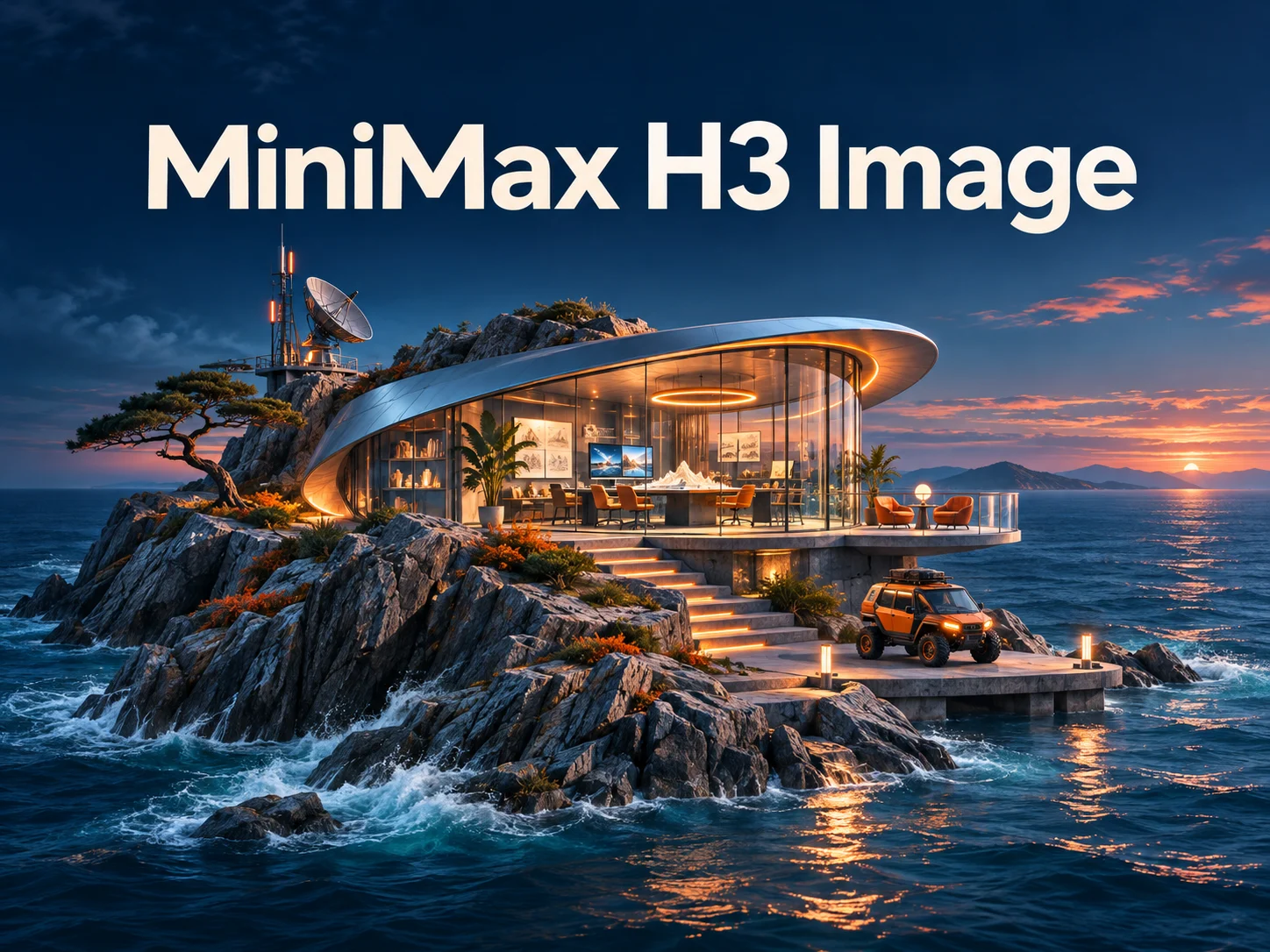
Build a visual from a written brief, bring reference images into a new composition, or revise an image you already like. MiniMax H3 Image connects those creative starting points in one image model. Describe the subject, explain what matters, and explore a result you can review and refine. From an imagined coastal observatory to a carefully arranged product scene, give the picture a purpose before you press Generate.

Create with MiniMax H3 Image
MiniMax H3 Image for ideas with clear direction
Illustrative AI artwork created for this page; these images are not MiniMax H3 Image benchmark results.
|
5
Checking your sign-in status…
Strictly prohibits adult / NSFW content

AI Image Generators to Explore

Try a different look for your photos with generators for portraits, artistic styles, and creative edits.

  • Photo to Line Art

  • Remove Glare from Photo

  • Remove Glare from Glasses

  • Realistic Selfie Generator

  • Image Upscaler

  • Selfie With Santa

  • AI 3D Figure Generator

  • Motorcycle AI

  • Photo to Sticker

  • AI Photo Booth

  • AI Long Hair Filter

  • Happy Birthday GIF with Name

  • AI GIF Generator

  • Executive Portrait Maker

  • No Beard Filter

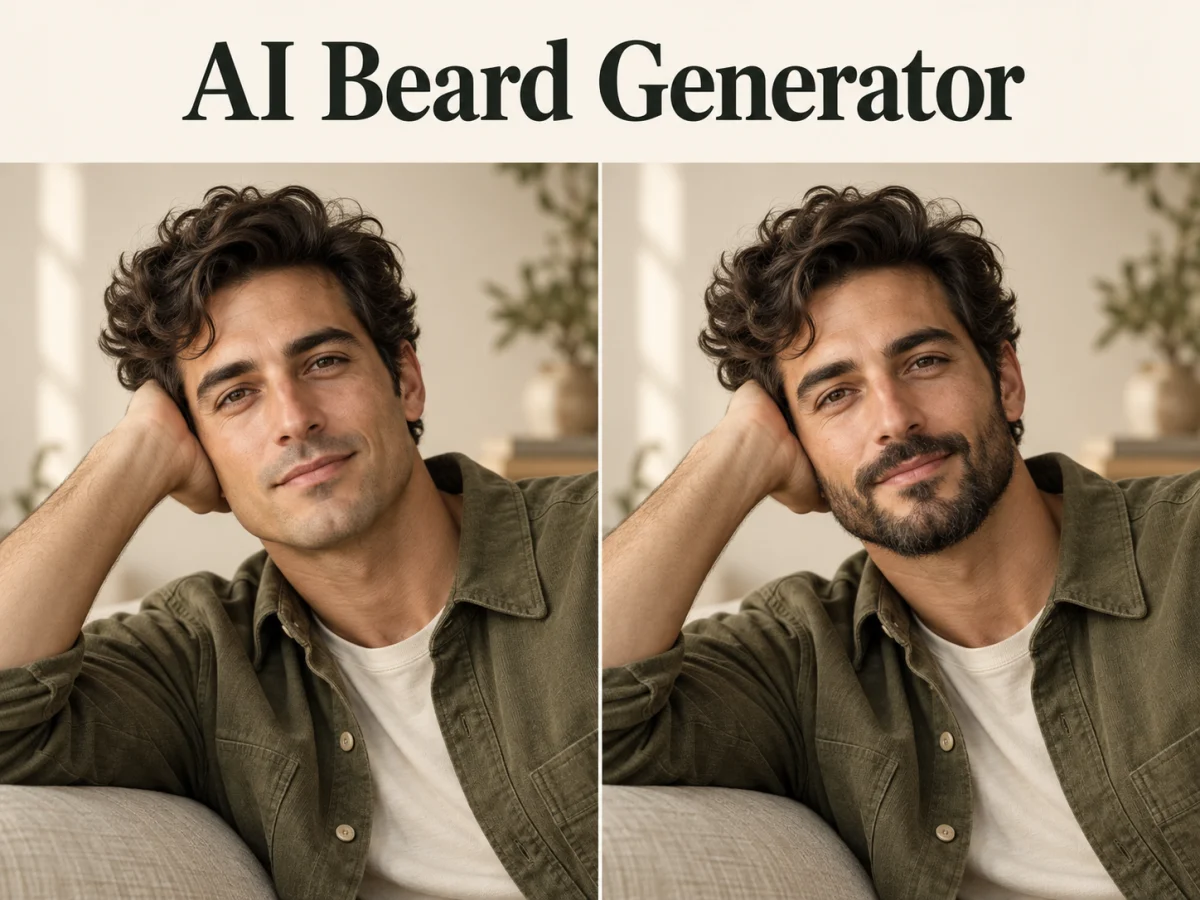
  • AI Beard Generator

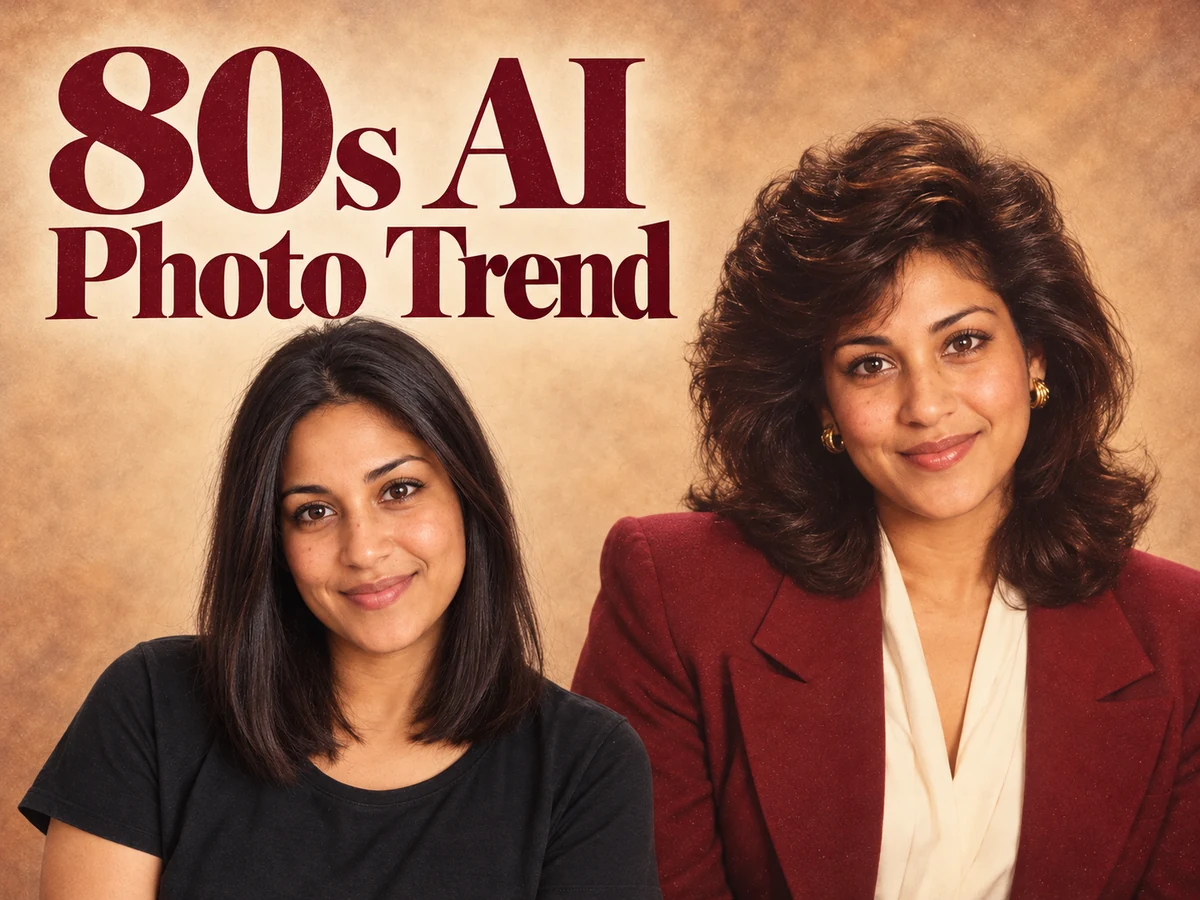
  • 80s AI Photo Trend

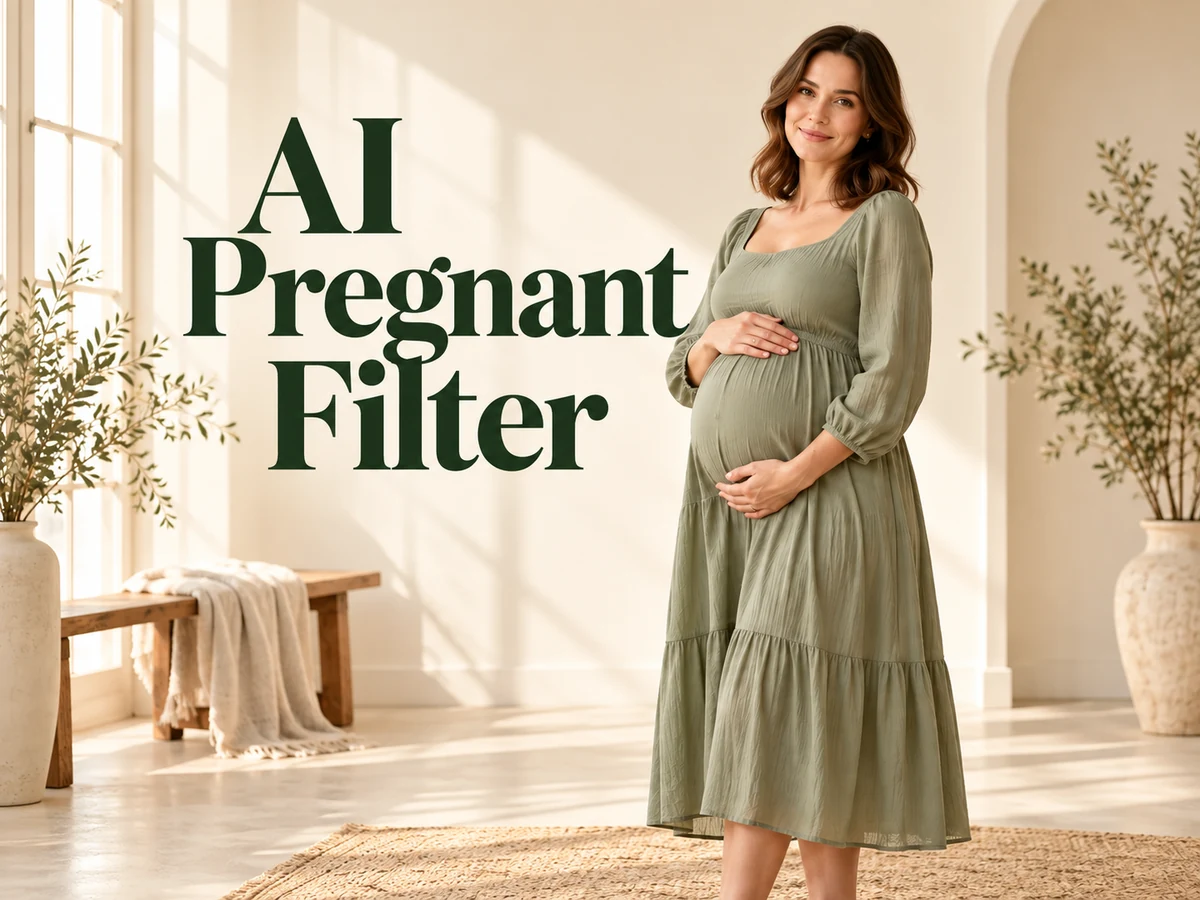
  • AI Pregnant Filter

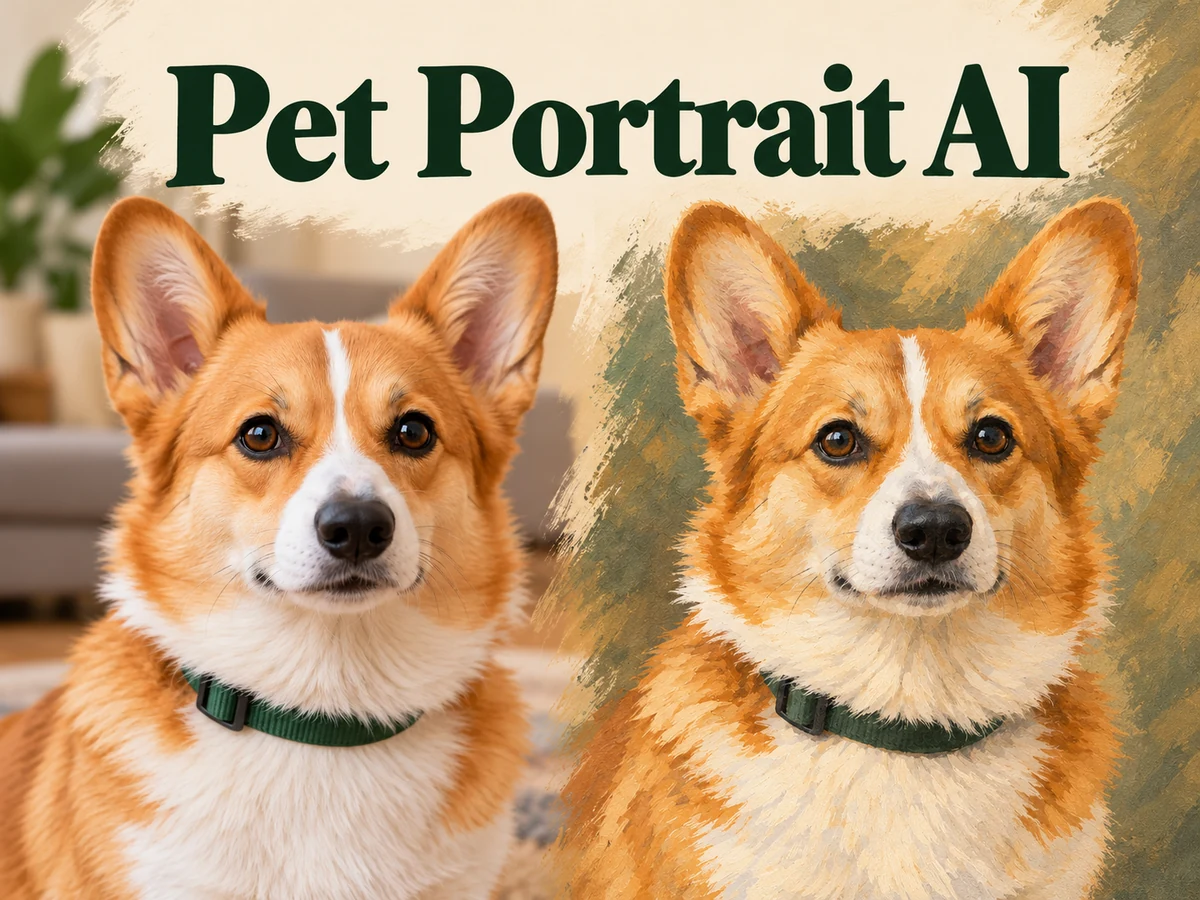
  • Pet Portrait AI

  • Photo to Watercolor

  • Photo to Coloring Page

Page 1 of 3

What is MiniMax H3 Image?

MiniMax H3 Image is an image generation and editing model developed by MiniMax. Its official introduction emphasizes following creative instructions, combining visual references, and producing detailed images. The model supports text-based creation as well as edits guided by existing pictures, so a project can start from a sentence or from material you already have.

The released model supports output up to 4K and multiple reference images, with up to sixteen references documented for the current Kie integration. Those capabilities are useful when a brief depends on several distinct visual ingredients. A reference can communicate a shape, subject, arrangement, or visual treatment that would take many words to explain.

Use MiniMax H3 Image as part of a review process. An attractive result still needs checking for proportions, unwanted objects, misleading product details, and text errors. The most useful version is the one that serves your intended audience and composition. A high pixel count alone does not decide whether the image is ready to publish.

Four ways to create with MiniMax H3 Image

Choose a starting point that fits your project, then make your direction specific. These examples illustrate creative approaches rather than guaranteed outcomes.

Text-to-Image Creation

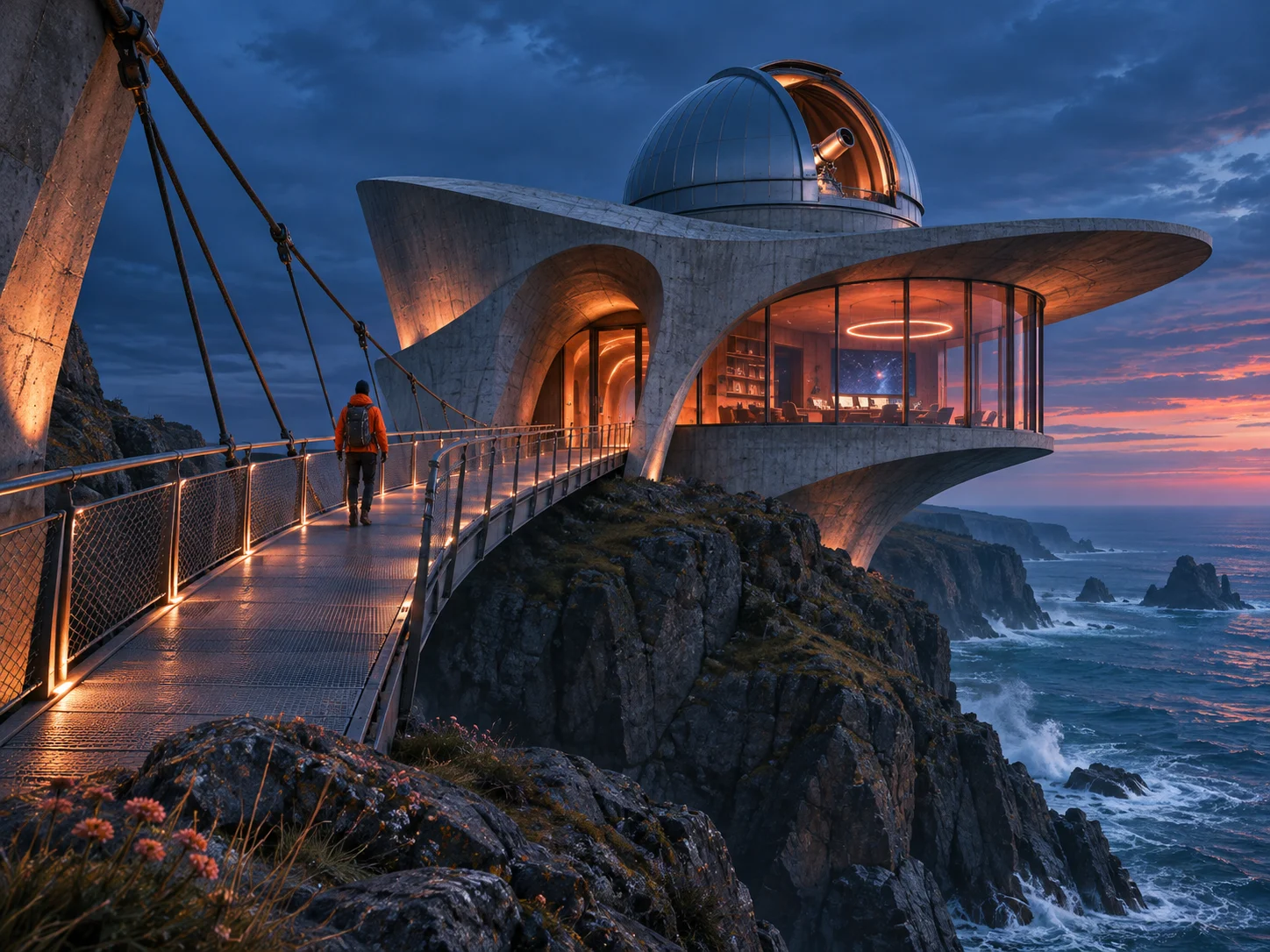
Start with a scene that does not exist yet. MiniMax H3 Image can interpret a written description of people, objects, environments, lighting, and style. Give the subject a clear role: an observatory above a rocky coast, a ceramic lamp on a low shelf, or an illustrated explorer entering a quiet station. A concrete scene gives you something useful to evaluate.

Build your brief from the large decisions toward the small ones. Establish the setting and camera view before specifying surface details. For example, describe a wide architectural view with an ocean horizon, then add brushed steel, warm interior light, and an orange accent. Keep competing visual ideas out of the first attempt.
Text-to-Image Creation

Reference-Led Compositions

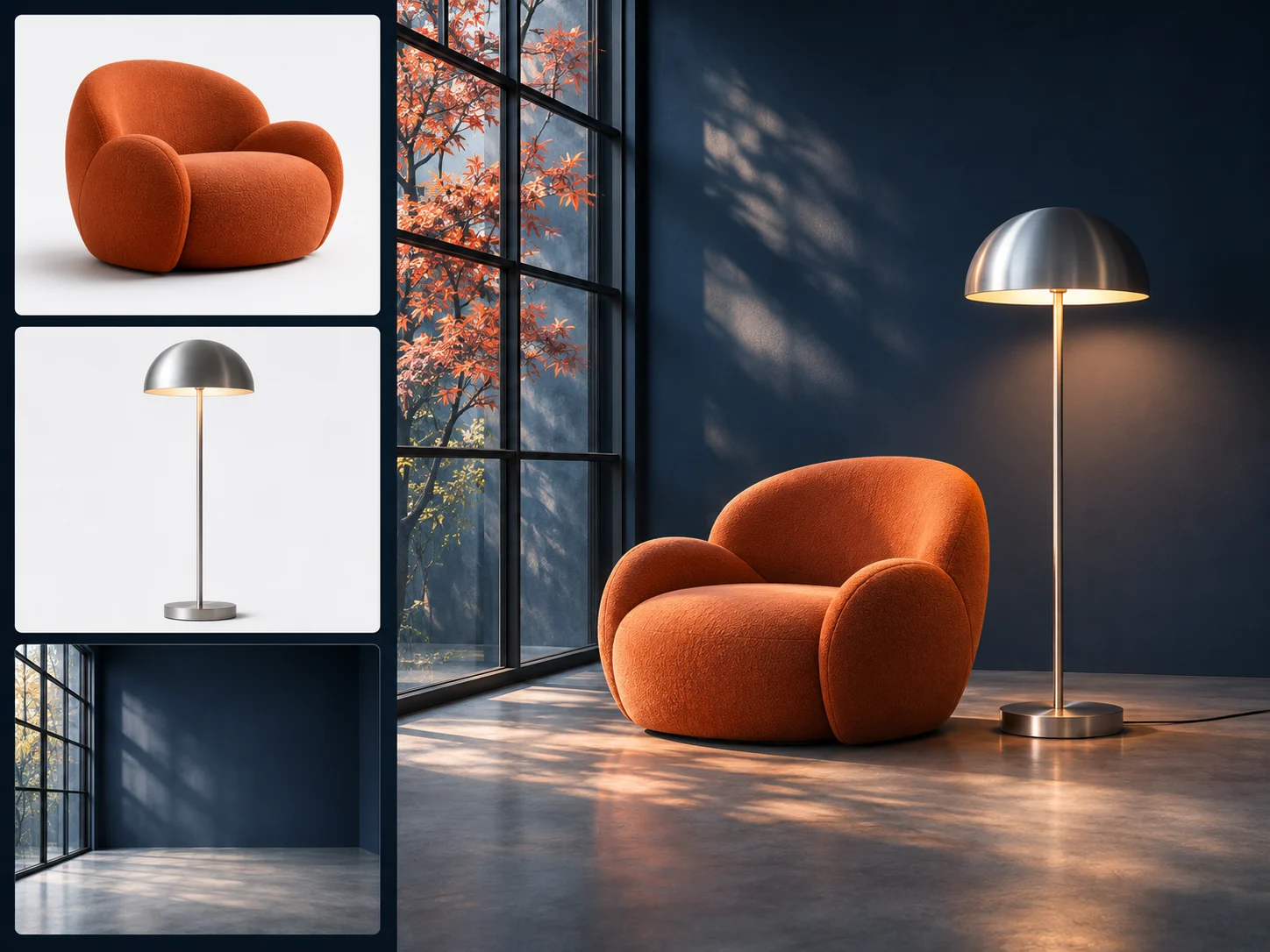
When the ingredients already exist, MiniMax H3 Image can use reference pictures to guide a new composition. A product photograph may define an object while another image establishes the room or color direction. Explain the role of each upload so that the model has a useful relationship to follow instead of an unexplained pile of pictures.

Name references in upload order and identify what should carry over. Ask for the chair from the first image in a room inspired by the second, while retaining the chair silhouette and upholstery. Check the result against the important source details. Extra references can introduce conflicting information, so include only those that help explain the intended picture.

Reference-Led Compositions

Detailed Creative Direction

A clear brief gives MiniMax H3 Image more than a general mood. Describe where the subject sits, which material catches the light, how the background supports the composition, and what should remain visually quiet. This approach is useful for artwork that needs a focal point or space for later layout work.

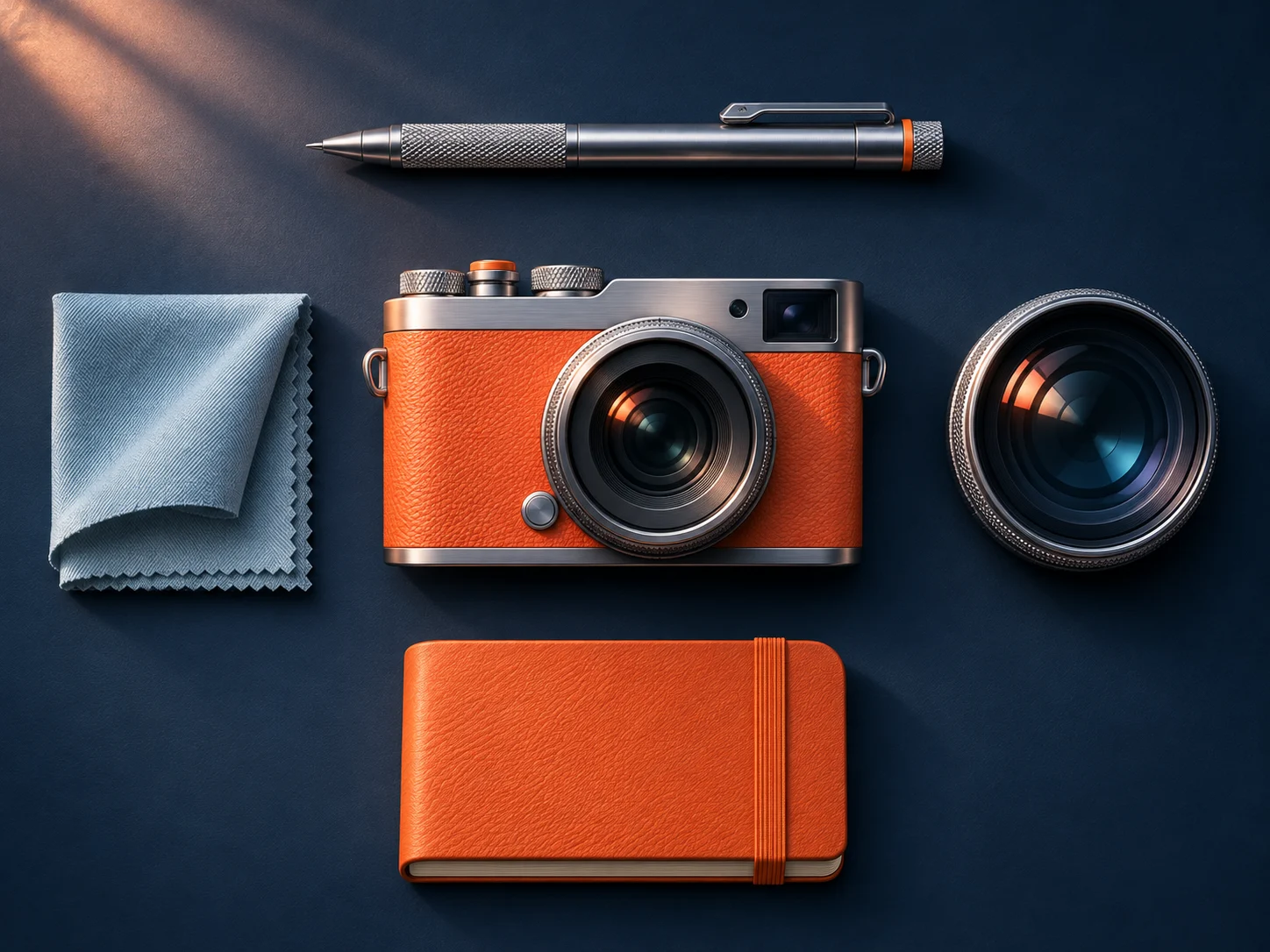
For a camera still life, you might request a three-quarter view, a navy tabletop, brushed metal edges, orange leather, and soft light from the upper left. Identify the two or three decisions that matter most. If the result feels crowded, simplify the brief before adding more adjectives. Review the hierarchy at thumbnail size as well as close up.

Detailed Creative Direction

Generation and Image Editing

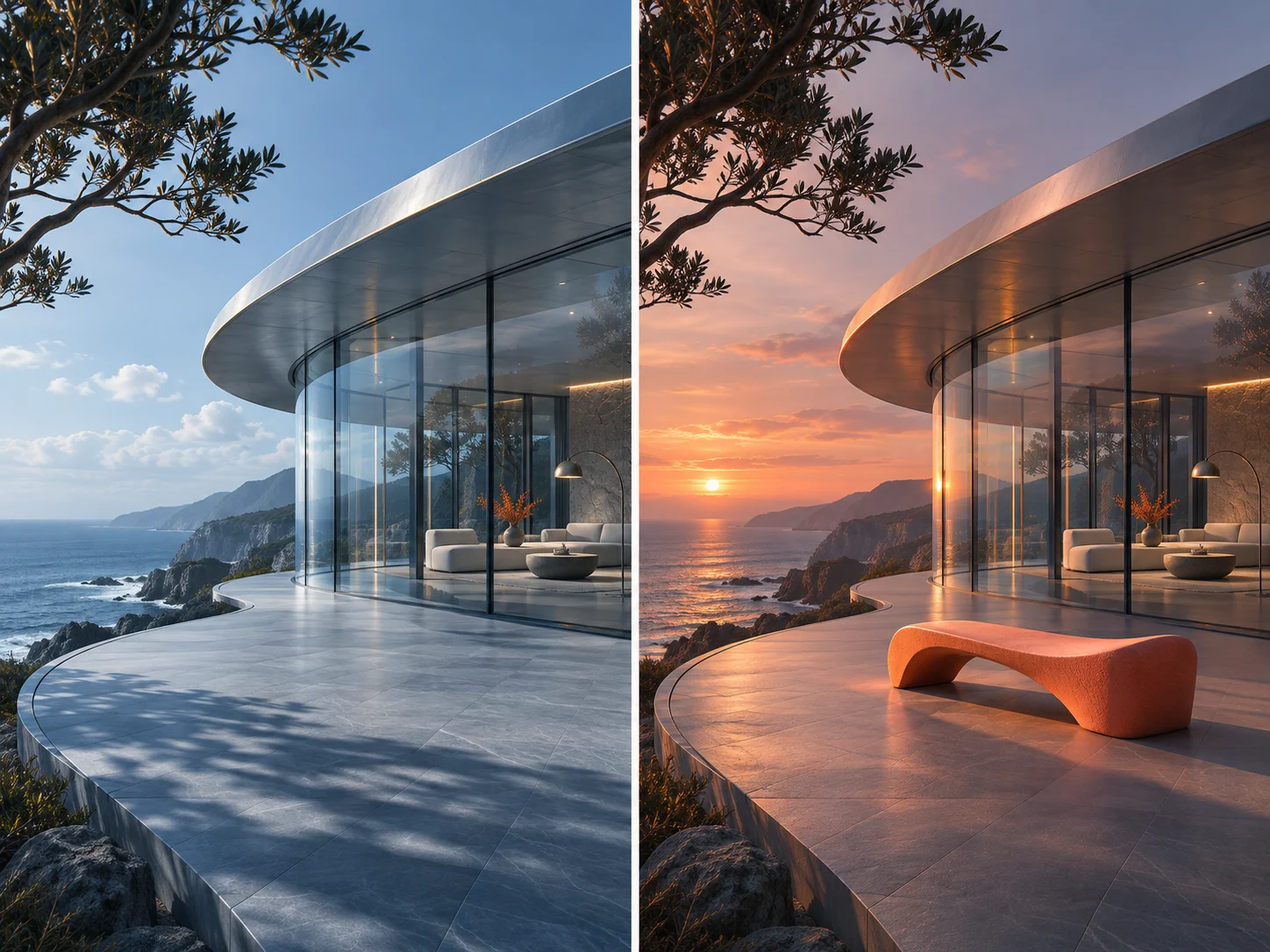
MiniMax H3 Image supports revising an existing picture through a new instruction and image reference. An initial architecture concept can become the starting point for a different time of day, furnishing choice, or atmosphere. Describe the intended change and explicitly name the elements that should stay recognizable, such as the building shape and camera position.

Keep a copy of the version you want to preserve. For the next request, use that image and ask for one focused change, then compare the result side by side. Editing can affect surrounding details, so check the entire frame. Returning to an earlier version is often clearer than trying to repair several unwanted changes at once.

Generation and Image Editing

How to work with MiniMax H3 Image

  1. 01

    Define the visual job

    Decide what the image needs to communicate before writing the brief. Pick a subject, setting, and primary use, such as a presentation cover or a product concept. If you upload references, give each one a distinct purpose. MiniMax H3 Image works with your direction; a short, ordered brief is easier to assess than several contradictory styles in one request.

  2. 02

    Generate a first version

    Write the prompt, add any relevant pictures, and choose the available resolution and aspect ratio. Review the displayed credit estimate, especially after adding references. Submit the request and allow it to finish. Begin with a composition you can judge quickly, then use a higher resolution when finer inspection or a larger final layout calls for it.

  3. 03

    Review and refine the result

    Check the whole frame before focusing on tiny details. Compare the subject, perspective, lighting, and reference fidelity with your brief. Download a useful version, or upload it for a targeted edit. When working with MiniMax H3 Image, keep the successful prompt and reference choices together so you can understand which decisions produced the strongest direction.

AI Image Generators for Your Next Project

Bring your next photo project to life with creative effects, painted portraits, and printable coloring pages.

  • Photo to Line Art

  • Remove Glare from Photo

  • Remove Glare from Glasses

  • 80s AI Photo Trend

  • AI Pregnant Filter

  • Pet Portrait AI

  • AI Beard Generator

Where MiniMax H3 Image fits a creative project

Designers and small creative teams

Product concept boards

Explore how a product might appear in different settings before committing to a full presentation. A compact speaker can sit on a kitchen shelf, a studio desk, or a bedside table while the brief keeps its visual role clear. Use MiniMax H3 Image to discuss mood and framing, then compare the generated object with the real product. Correct invented controls, labels, or materials before presenting the scene as an accurate product depiction.
Content creators and art directors

Editorial and campaign artwork

Develop a visual starting point for an article, announcement, or seasonal campaign. Describe the central metaphor and where the reader should look first. MiniMax H3 Image can help explore the picture while you keep final typography and layout under separate control. Test the crop inside the intended design rather than approving the image in isolation. A compelling full frame may need adjustment when used as a narrow banner or small card.
Illustrators and concept artists

World and environment studies

Give a fictional location a coherent palette, architecture, and atmosphere. Write a brief that explains the place through visible details: weathered handrails, a low winter sun, or a workbench beside a window. MiniMax H3 Image can support early visual exploration while you develop the larger story. Treat the result as a concept image and assess perspective and structure before using it as a reference for more detailed production work.

Write a brief that MiniMax H3 Image can follow

Try this structure: subject, arrangement, environment, lighting, material, and preservation instructions. For example: “A compact orange camera on a navy studio surface, three-quarter view, soft window light from the left, brushed metal controls, generous empty space above. Keep the lens circular and the camera body visually simple.” Each phrase explains something you can check in the image.

For an edit, lead with the change: “Use the supplied room image. Change daylight to a warm sunset and replace the bench with a low orange seat. Keep the curved glass wall, ocean view, and camera angle.” MiniMax H3 Image may still reinterpret details, so judge both the requested change and the preserved parts. Choose one revision goal at a time when continuity is important.

MiniMax H3 Image questions

Yes. Write a prompt to begin a text-to-image request. References are optional for that starting point. Describe the subject and composition clearly, then inspect the result before adding more complexity. If the first picture gives you a useful direction, it can become the reference for a later editing request.

Choose pictures with distinct jobs and explain those jobs in the prompt. One can define the subject, another the setting, and another the visual mood. MiniMax H3 Image can accept multiple references, but more images are not automatically better. Remove contradictory or redundant uploads and check the final composition against your most important source.

The result on this page is a downloadable image. It does not contain separately editable layers, a three-dimensional scene, or a production-ready vector design. Use the saved picture in your usual editor for cropping, typography, and layout. Keep the original download when you make those additional changes.

The estimate includes output resolution and reference count. Text-only generation currently costs 5 credits at 1K or 2K and 15 credits at 4K. Adding references increases the total. Check the generator estimate before submission, and check it again after changing the selection. The displayed total is the practical guide for your current request.

Review details that matter to the project, especially faces, hands, repeated objects, perspective, and any lettering. Image generation can produce plausible-looking errors. MiniMax H3 Image is useful for creating and revising visual ideas, while your final inspection determines whether a particular result is suitable for its intended use.

Create with MiniMax H3 Image

Start with a focused idea, give each reference a clear role, and develop the version that best serves your project. Create a first image, review the important details, and use a deliberate edit to move the work forward.

Try MiniMax H3 Image
Image to Image AI logoImage to Image AI

A fresh take on your image. Explore new styles and scenes with AI.

Customer supportsupport@imgtoimageai.com

Tools

  • Remove Glare from Glasses
  • Remove Glare from Photo
  • Photo to Line Art
  • Image Upscaler
  • Realistic Selfie Generator
  • Christmas Photobooth
  • AI 3D Figure Generator
  • Selfie With Santa
  • Christmas Dance Trend
  • Motorcycle AI
  • AI Photo Booth
  • Photo to Sticker
  • QR Code Enhancer
  • AI Long Hair Filter
  • Bicep Heart Trend AI
  • Happy Birthday GIF with Name
  • Apartment Dance
  • AI GIF Generator
  • Executive Portrait Maker
  • AI Trouble Maker Video

Learn more

  • Tools
  • Blog
  • Pricing

Legal

  • Privacy Policy
  • Terms of Service
  • Refund Policy
  • Contact

© 2026 Image to Image AI