Image to Image AI logoImage to Image AI
  • Home
  • AI Image Generator
  • AI Video Generator
  • Tools
  • Nano Banana 2.1
  • Flux 3 Klein
  • Seedream 5.0 Pro
  • Seedream 5.5
  • GPT Image 2.5
  • GPT Image 2.6
  • MiniMax H3 Image
  • Kling 4.0
  • Grok Imagine Video 1.5
  • MiniMax H3 Max
  • Seedance 2.5
More
  • Blog
  • Pricing

Guest

Save your creations

Credits—
  1. Home
  2. /
  3. Image

Photo to Line Art Converter

Turn photos into clean black-and-white line drawings. Upload one image and choose your output. Sign in for free daily credits; PNG downloads are included.

Reference image

Required · 1 image
10
Checking your sign-in status…
Strictly prohibits adult / NSFW content

AI Image Generators to Explore

Try a different look for your photos with generators for portraits, artistic styles, and creative edits.

  • Remove Glare from Photo

  • Remove Glare from Glasses

  • Realistic Selfie Generator

  • Image Upscaler

  • Selfie With Santa

  • AI 3D Figure Generator

  • Motorcycle AI

  • Photo to Sticker

  • AI Photo Booth

  • AI Long Hair Filter

  • Happy Birthday GIF with Name

  • AI GIF Generator

  • Executive Portrait Maker

  • No Beard Filter

  • AI Beard Generator

  • 80s AI Photo Trend

  • AI Pregnant Filter

  • Pet Portrait AI

  • Photo to Watercolor

  • Photo to Coloring Page

Page 1 of 3

What Line Art Means

Line art describes a subject with outlines and a few interior lines instead of the colors, gradients and textures of a photograph.

A photo to line drawing conversion keeps the shapes that help you recognize a face, a pet or an object. Cheeks become contours, fur becomes a few selected edges, and a shaded wall becomes a white area. Unlike a pencil sketch, a line drawing does not rely on gray shading to suggest depth.

This AI line art generator uses a prepared edit to simplify the subject and reduce background clutter. Choose Auto or another available aspect ratio, then 1K, 2K or 4K resolution. Line weight, threshold and background cleanup are guided by the preset rather than separate manual controls. Crop a busy photo before uploading for a clearer starting point.

The four comparisons below are AI-created concept illustrations, not measured outputs from this tool. They explain possible uses of black-and-white line art; your photo can produce different lines and details.

Line Art for Stencils & Laser Cutting

A clear outline can be a starting reference for a stencil or engraving design, but the downloaded PNG still needs preparation for your chosen process.

Start with a simple silhouette

Convert a photo to line art using one distinct object, such as a leaf, flower or ornament. Separated shapes make it easier to identify which edges should remain and which details can be removed before making a stencil.

For a physical stencil, add bridges around enclosed islands and inspect thin connections in your drawing editor. An attractive outline may contain disconnected pieces or double edges that do not work as cut paths.

Laser cutting needs suitable vector paths, dimensions and machine settings. Some engraving workflows accept raster images, but their requirements vary. This line art maker produces a PNG, not SVG, DXF or a ready-to-cut file. Trace and check the result in compatible software before sending it to a machine.
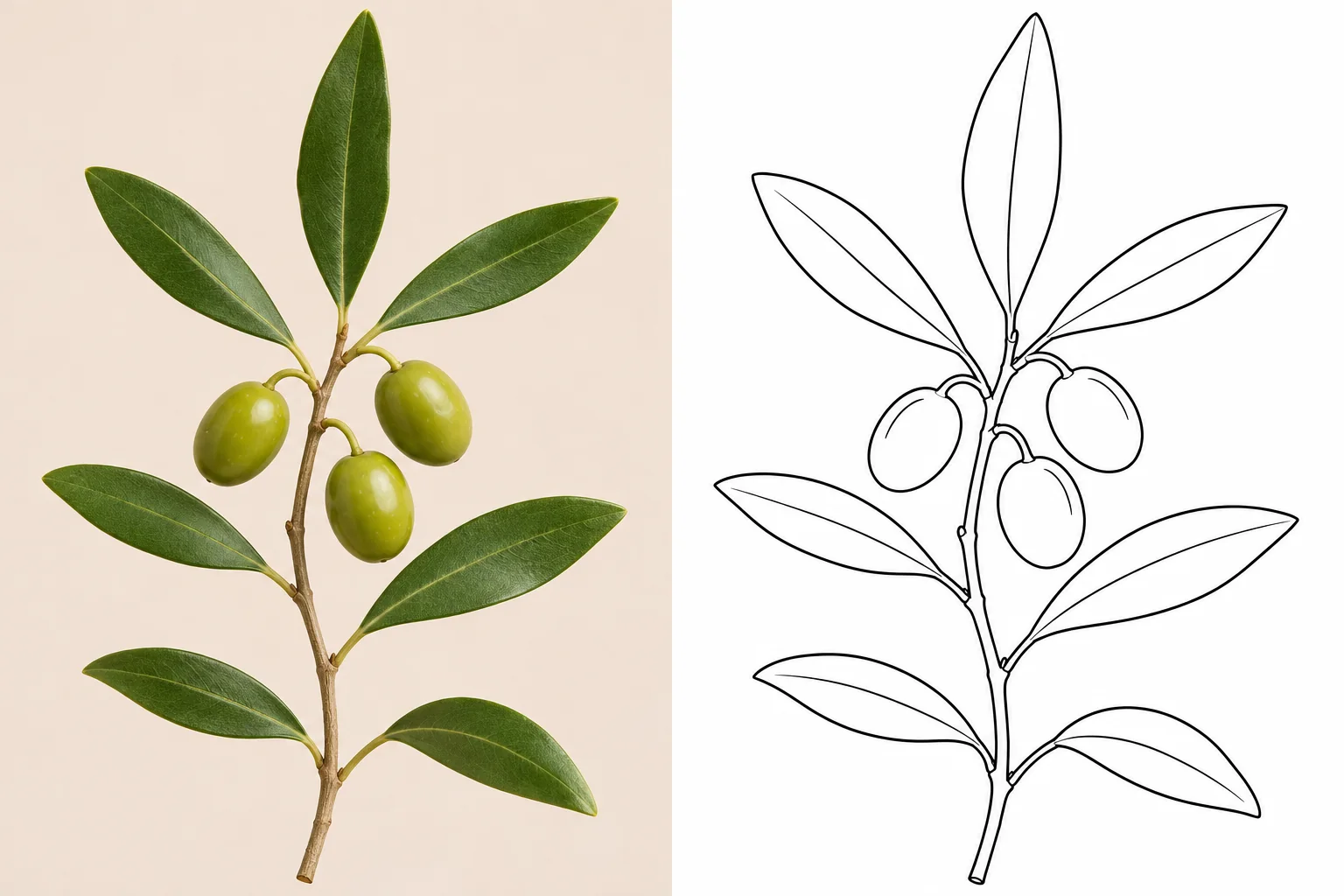
Illustrative olive-branch photo beside a simplified black contour drawingPhoto conceptLine art concept

Line Art for Tattoos

Photo-based line art can help you discuss a personal tattoo idea with an artist before the final design is drawn.

Keep the details that make the subject familiar

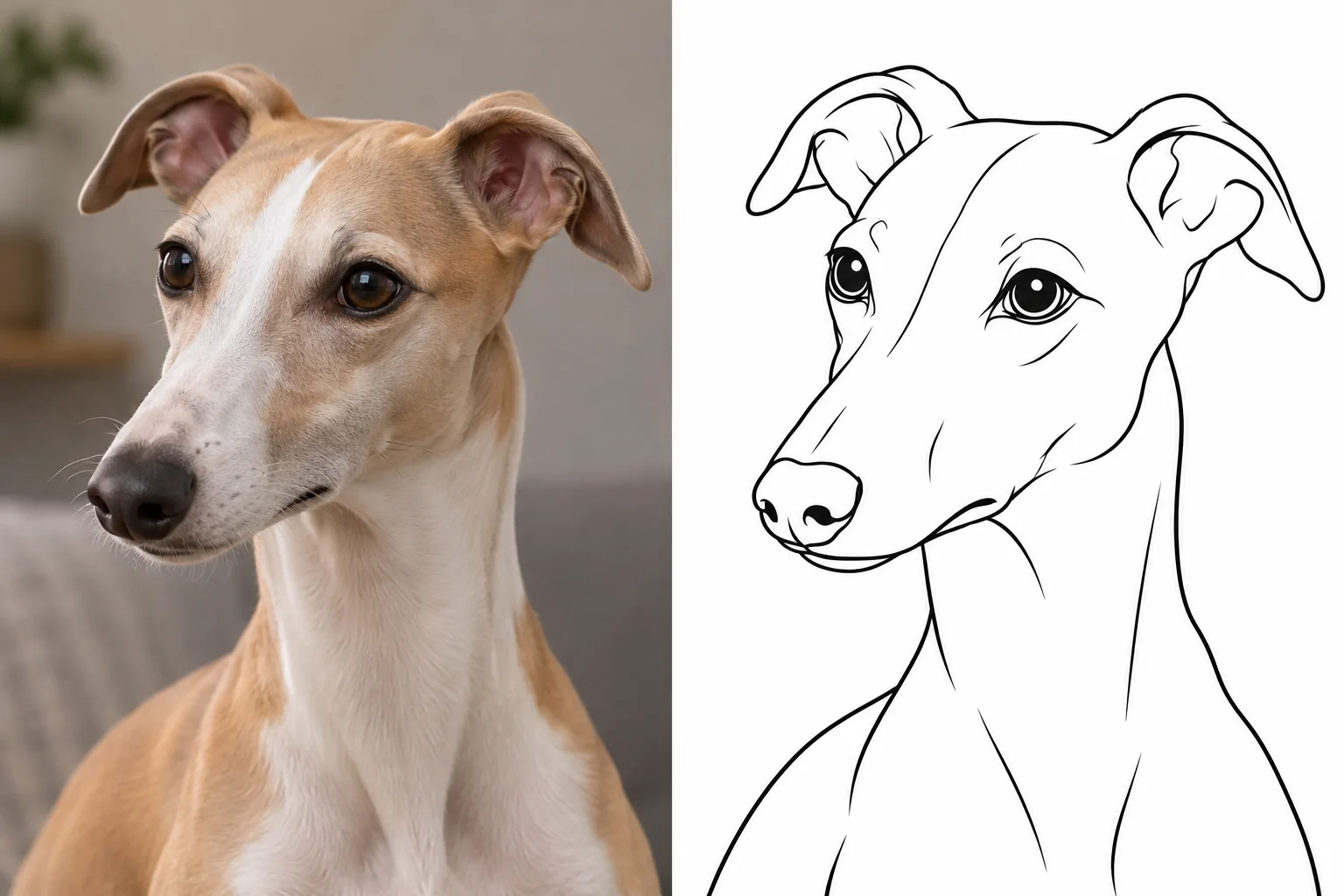
A pet portrait, a meaningful flower or a familiar profile can become a visual reference. Choose a well-lit photo with the important features visible. For a dog or cat, check the ear shape, muzzle and expression rather than expecting every strand of fur to survive.

Use this photo to line art generator to explore the overall composition, then ask your tattoo artist to redraw or refine it for the intended placement and size. Fine lines, close spacing and small details need professional judgment; a pleasing screen image is not automatically a suitable tattoo stencil.

The tool applies one clean contour treatment. It does not offer a tattoo style selector or guarantee a single continuous line. Review any altered features with the artist before choosing a design.

Illustrative whippet portrait beside a clean contour drawing for discussing a tattoo ideaPhoto conceptLine art concept

Line Art for Coloring Pages

Open white shapes make a line drawing useful as a starting point for a personal coloring activity.

Leave room for color

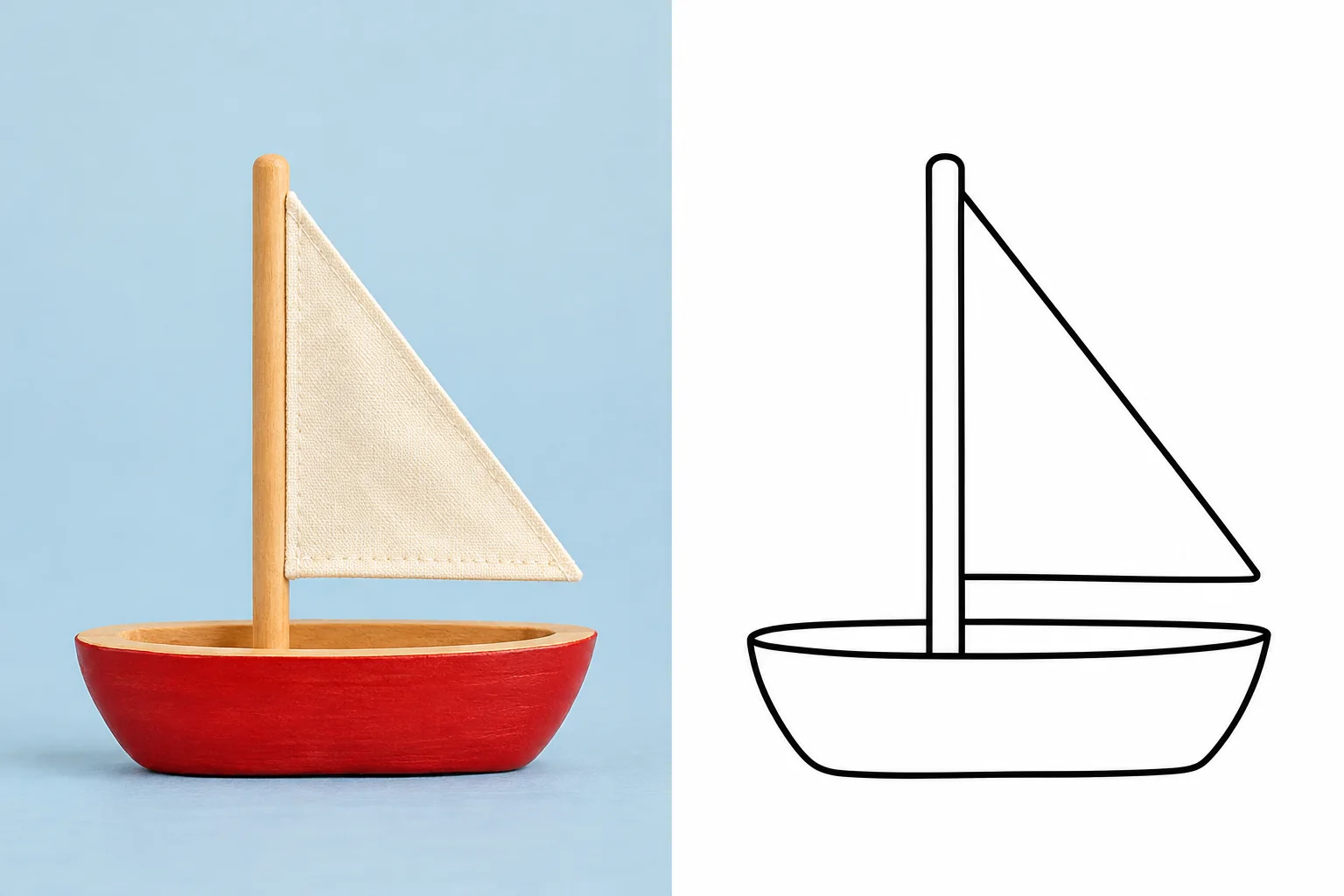
Turn a picture into line art from a toy, a pet or an uncomplicated portrait. Large, separated shapes are easier to color than tiny details in a crowded scene. Check that thin lines are visible when printed and that the spaces suit the person doing the activity.

For a coloring-first result, try the dedicated Photo to Coloring Page tool, whose preset emphasizes bold outlines and open areas. This page focuses on general contour drawings and outline references.

Download the PNG, place it in an image viewer or document, and print one test page. A4 or Letter paper, margins and layout are selected in your printing application. This tool does not create a PDF or automatically lay out a coloring book.

Try Photo to Coloring Page
Illustrative toy sailboat photo beside an outline drawing with open coloring spacesPhoto conceptLine art concept

Line Art for Architecture & Product Outlines

A photo to outline conversion can simplify a building or product into a visual illustration of its overall form.

Show the shape without surface texture

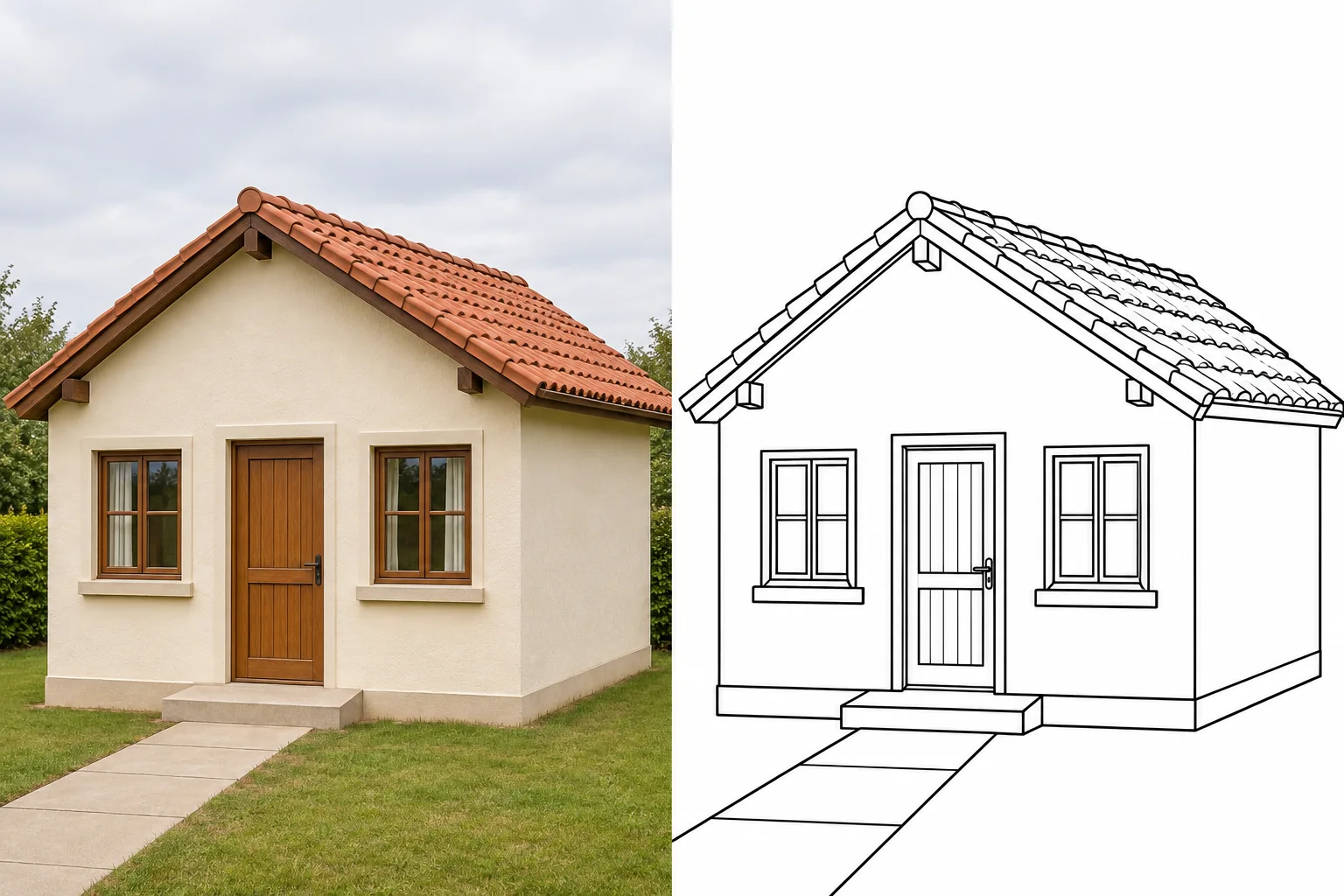
Choose a straight, unobstructed view of a house, a chair, a bottle or another clearly defined object. Major edges and openings can help the result stay readable while brick patterns, reflections and background textures are simplified.

For a house portrait, inspect the roofline, doors and window arrangement. For a product outline, check handles, seams and other identifying features. AI can shift a corner or omit a narrow part even when the overall shape appears convincing.

The result is an illustration, not a measured elevation, CAD file or technical specification. Do not use generated lines as evidence of dimensions or hidden construction. Use your original drawings when accuracy is essential.

Illustrative cottage photograph beside a black architectural contour drawingPhoto conceptLine art concept

Line Art vs Pencil Sketch vs Ink Drawing

Line art emphasizes edges, a pencil sketch emphasizes tone, and an ink drawing can combine outlines with dark fills or hatching.

Choose photo to line art when you want an uncluttered outline reference or white spaces to work with. If you want soft shadows and tonal modeling, a pencil-sketch workflow is more suitable. An expressive ink treatment may keep bold shadows that this preset asks the model to avoid.

These categories can overlap, and AI output may contain stray shading or uneven contours. Inspect the full-size result and finish the lines in a drawing editor when your project needs precise control.

TreatmentWhat carries the imageUseful starting point
Line artContours, selected interior lines and white spacesOutline references, craft preparation and coloring
Pencil sketchGray shading, strokes and gradual tonesA shaded portrait or drawing study
Ink drawingLines with optional dark fills and hatchingExpressive illustration and graphic contrast

How to Convert a Photo to Line Art in 3 Steps

You can convert a photo to line art by uploading one image, choosing the output settings and reviewing the generated drawing.

  1. 01

    Sign in and upload a clear photo

    Choose one JPG, PNG or WebP image within the displayed 10 MB limit. Use the original image where possible and crop away distractions first. A visible silhouette and even lighting give the converter a better reference.

  2. 02

    Choose the output and generate

    Keep Auto aspect ratio and 1K resolution or select another available setting. The line-art instructions are already prepared. Review the current credit estimate and select Generate. Higher resolution can cost more; it does not restore missing source detail.

  3. 03

    Review the lines and download your PNG

    Open the result and inspect faces, edges and small parts. Download the available PNG without an extra download charge. Use again restores the source and settings when available; it does not submit until you select Generate, and a new generation uses credits.

AI Image Generators for Your Next Project

Bring your next photo project to life with creative effects, painted portraits, and printable coloring pages.

  • Remove Glare from Photo

  • Remove Glare from Glasses

  • 80s AI Photo Trend

  • AI Pregnant Filter

  • Pet Portrait AI

  • AI Beard Generator

What Line Art Cannot Keep

Converting a photo to line art discards visual information and can introduce lines that were not present in the original image.

Smooth gradients, skin texture, fine hair, fur and subtle fabric folds cannot all survive in a sparse outline. Two surfaces with similar brightness may merge, while a shadow or reflection may become an unwanted line. A strong silhouette matters more than a busy scene full of texture.

Low contrast, backlighting and complex backgrounds make subject separation less reliable. The preset asks for a simpler background, but it cannot guarantee a perfect cutout. Crop around the main subject and avoid objects that overlap important edges.

Scans, screenshots and low-resolution photographs have a limited amount of usable detail. Compression blocks and scan noise can become false contours. A 4K output can be larger without being more faithful to a blurred original.

AI may fill gaps or redraw edges. Those invented lines are not proof of what was really there. Check likeness, anatomy, lettering and geometry before printing, tracing or sharing. For production work, manually inspect and correct the downloaded raster image.

Photo to Line Art FAQs

Sign in, upload one JPG, PNG or WebP photo, choose an aspect ratio and resolution, and select Generate after reviewing the credit estimate. The prepared prompt asks for clean black contours on white. Review and download the PNG from this tool’s history.

You can use the free daily credits available after sign-in when your balance covers the displayed estimate. The allowance is shared across the site’s tools, resets daily and does not roll over. Additional generations can use paid credits. Uploading and generating require an account.

Line art uses outlines and selected interior lines with little or no shading. A pencil sketch uses gray tones and strokes to show light and depth. This converter targets contour line art rather than a shaded pencil effect.

Yes, the preset targets black lines on white, which can serve as a visual starting point. Check for gaps, double edges and enclosed islands, then add bridges or redraw lines in an editor. The PNG is not a finished physical stencil or a guaranteed cut path.

A clear dog, cat or other pet photo can be a useful reference. Keep the head, ears and distinctive markings visible. Fur is simplified and features may change, so inspect the likeness before using the drawing for a keepsake or tattoo reference.

Use it as source artwork for a separate preparation step. The download is a raster PNG, not SVG or DXF. Import it into software suited to your workflow, trace or clean up the paths, set the scale and inspect the machine preview. Raster engraving and vector cutting have different requirements.

This tool has one prepared contour treatment rather than selectable tattoo styles. Start with a clear subject and take the result to your tattoo artist, who can adjust line weight, spacing, size and placement. It does not generate a guaranteed tattoo-ready stencil.

The default is 1K, with 2K and 4K available in the resolution control. Select Auto aspect ratio or another supported shape. The exact pixel dimensions depend on the selected ratio and model output. Downloads are PNG images, not scalable vector files.

The platform adds no watermark to completed downloads, and downloading an available result costs no extra credits. AI can still introduce stray marks, so review the generated image before using it.

Your photo is uploaded for processing and sent to the model provider for the requested edit. Access to private uploads and generation history requires your account. Review the Privacy Policy for storage, processing and your data rights; do not upload images you lack permission to use.

Read the Privacy Policy

Free Credits & Paid Plans

Sign in for free daily credits. Your free allowance is shared across tools and resets each day without rolling over. Choose a plan or credit pack if you need more.

Pay yearly. Get all your credits upfront.

Starter
Save 16%

$12.50/ month

$150.00 billed yearly

Save $28.80 a year vs. monthly

19,200

credits / year

Up to 1,920 images

or 278 short videos

  • Image & video generation
  • All available models
  • Unlock all AI effects & tools
  • No queues. Start instantly.
  • No added platform watermark
  • Commercial use license
  • Private generation
  • Automatic credit refunds on failure
  • All credits upfront
  • Valid for one billing year
  • Cancel renewal anytime
Recommended
Creator
Save 20%

$24.00/ month

$288.00 billed yearly

Save $70.80 a year vs. monthly

87,600

credits / year

Up to 8,760 images

or 1,269 short videos

  • Image & video generation
  • All available models
  • Unlock all AI effects & tools
  • No queues. Start instantly.
  • No added platform watermark
  • Commercial use license
  • Private generation
  • Automatic credit refunds on failure
  • All credits upfront
  • Valid for one billing year
  • Cancel renewal anytime
Pro
Save 40%

$30.00/ month

$360.00 billed yearly

Save $238.80 a year vs. monthly

158,400

credits / year

Up to 15,840 images

or 2,295 short videos

  • Image & video generation
  • All available models
  • Unlock all AI effects & tools
  • No queues. Start instantly.
  • No added platform watermark
  • Commercial use license
  • Private generation
  • Automatic credit refunds on failure
  • All credits upfront
  • Valid for one billing year
  • Cancel renewal anytime

Image example: Flux 3 Klein · 1K. Video example: Grok Imagine Video 1.5 Lite · 5s, 720p.

Each example uses the full balance. Actual counts vary by model and settings.

Prices in USD. Applicable taxes are calculated at checkout.

Compare cost per 1,000 credits
Starter: $7.81Creator: $3.29Pro: $2.27
Image to Image AI logoImage to Image AI

A fresh take on your image. Explore new styles and scenes with AI.

Customer supportsupport@imgtoimageai.com

Tools

  • Remove Glare from Glasses
  • Remove Glare from Photo
  • Photo to Line Art
  • Image Upscaler
  • Realistic Selfie Generator
  • Christmas Photobooth
  • AI 3D Figure Generator
  • Selfie With Santa
  • Christmas Dance Trend
  • Motorcycle AI
  • AI Photo Booth
  • Photo to Sticker
  • QR Code Enhancer
  • AI Long Hair Filter
  • Bicep Heart Trend AI
  • Happy Birthday GIF with Name
  • Apartment Dance
  • AI GIF Generator
  • Executive Portrait Maker
  • AI Trouble Maker Video

Learn more

  • Tools
  • Blog
  • Pricing

Legal

  • Privacy Policy
  • Terms of Service
  • Refund Policy
  • Contact

© 2026 Image to Image AI