



Image to Image AI logoImage to Image AI
  • Home
  • AI Image Generator
  • AI Video Generator
  • Tools
  • Nano Banana 2.1
  • Flux 3 Klein
  • Seedream 5.0 Pro
  • Seedream 5.5
  • GPT Image 2.5
  • GPT Image 2.6
  • MiniMax H3 Image
  • Kling 4.0
  • Grok Imagine Video 1.5
  • MiniMax H3 Max
  • Seedance 2.5
More
  • Blog
  • Pricing

Guest

Save your creations

Credits—
  1. Home
  2. /
  3. Image

GPT Image 2.5

Create lifelike images, compose text within your designs, and refine the details that matter with GPT Image 2.5. Choose Sunburst for precise edits or Flare for fast creative exploration.

Create with GPT Image 2.5
|
19
Checking your sign-in status…
Strictly prohibits adult / NSFW content

AI Image Generators to Explore

Try a different look for your photos with generators for portraits, artistic styles, and creative edits.

  • Photo to Line Art

  • Remove Glare from Photo

  • Remove Glare from Glasses

  • Realistic Selfie Generator

  • Image Upscaler

  • Selfie With Santa

  • AI 3D Figure Generator

  • Motorcycle AI

  • Photo to Sticker

  • AI Photo Booth

  • AI Long Hair Filter

  • Happy Birthday GIF with Name

  • AI GIF Generator

  • Executive Portrait Maker

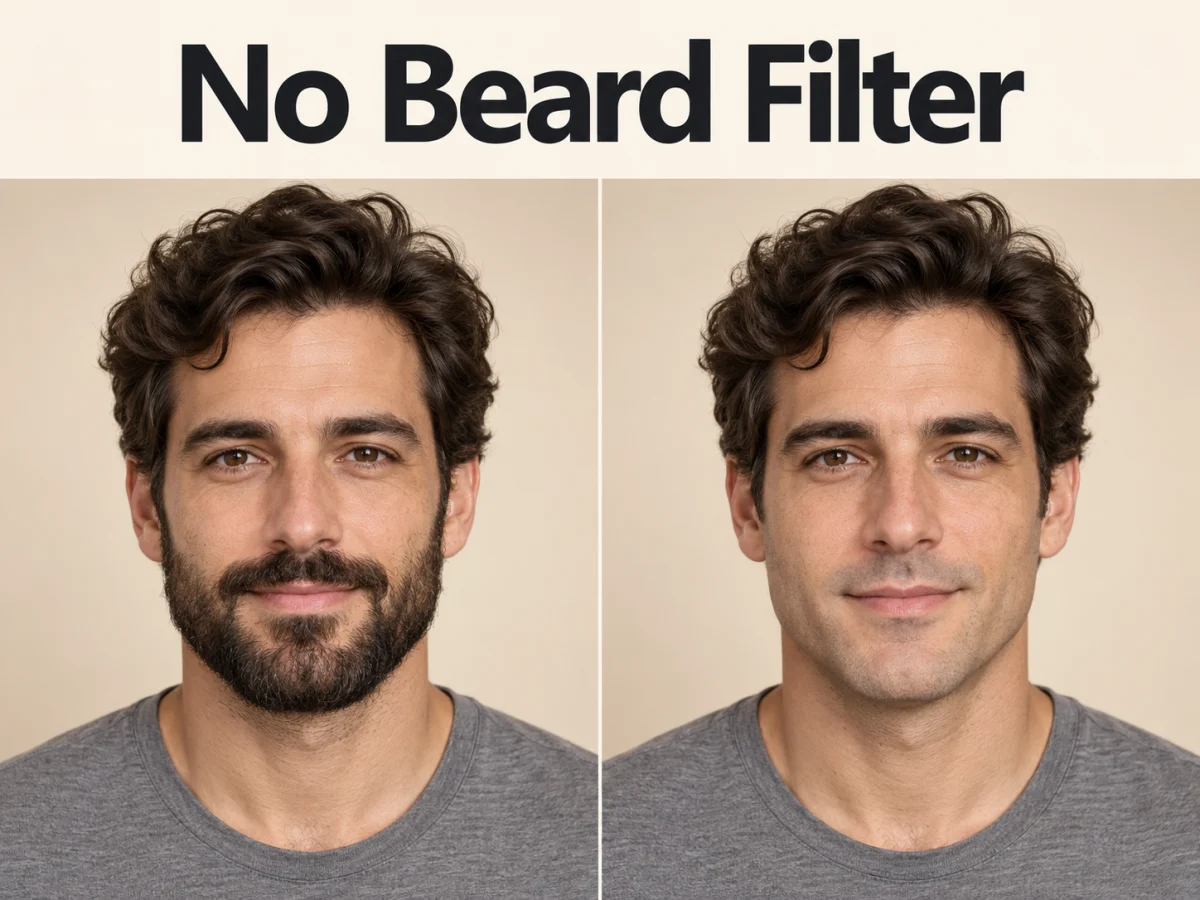
  • No Beard Filter

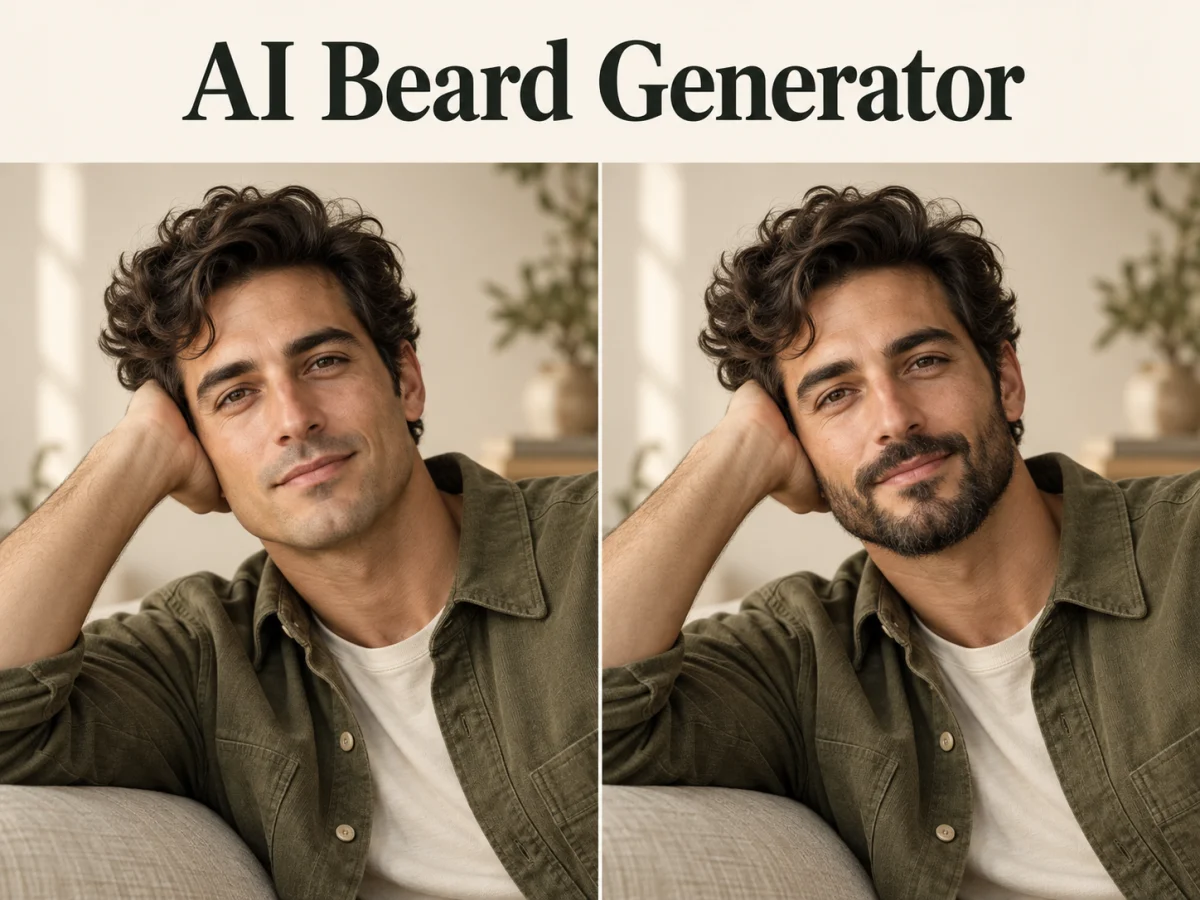
  • AI Beard Generator

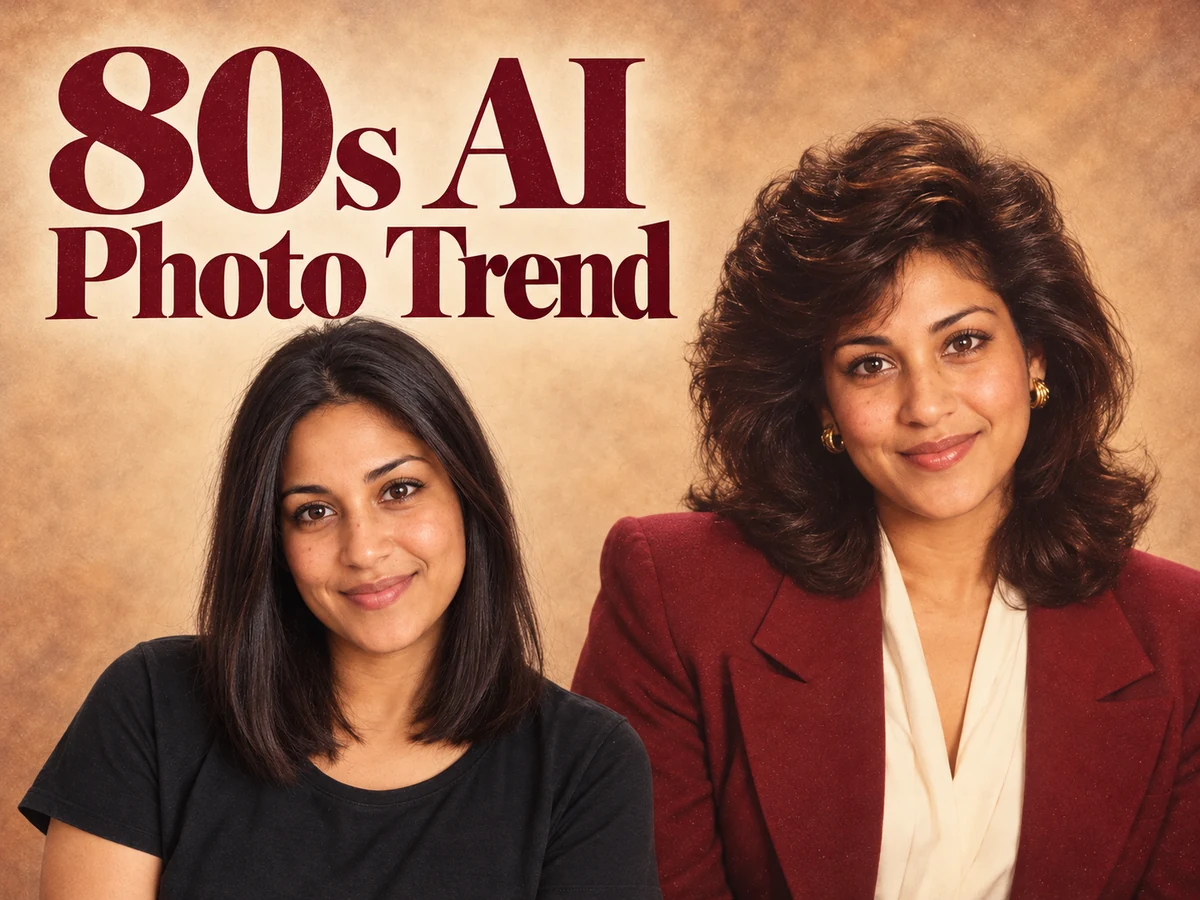
  • 80s AI Photo Trend

  • AI Pregnant Filter

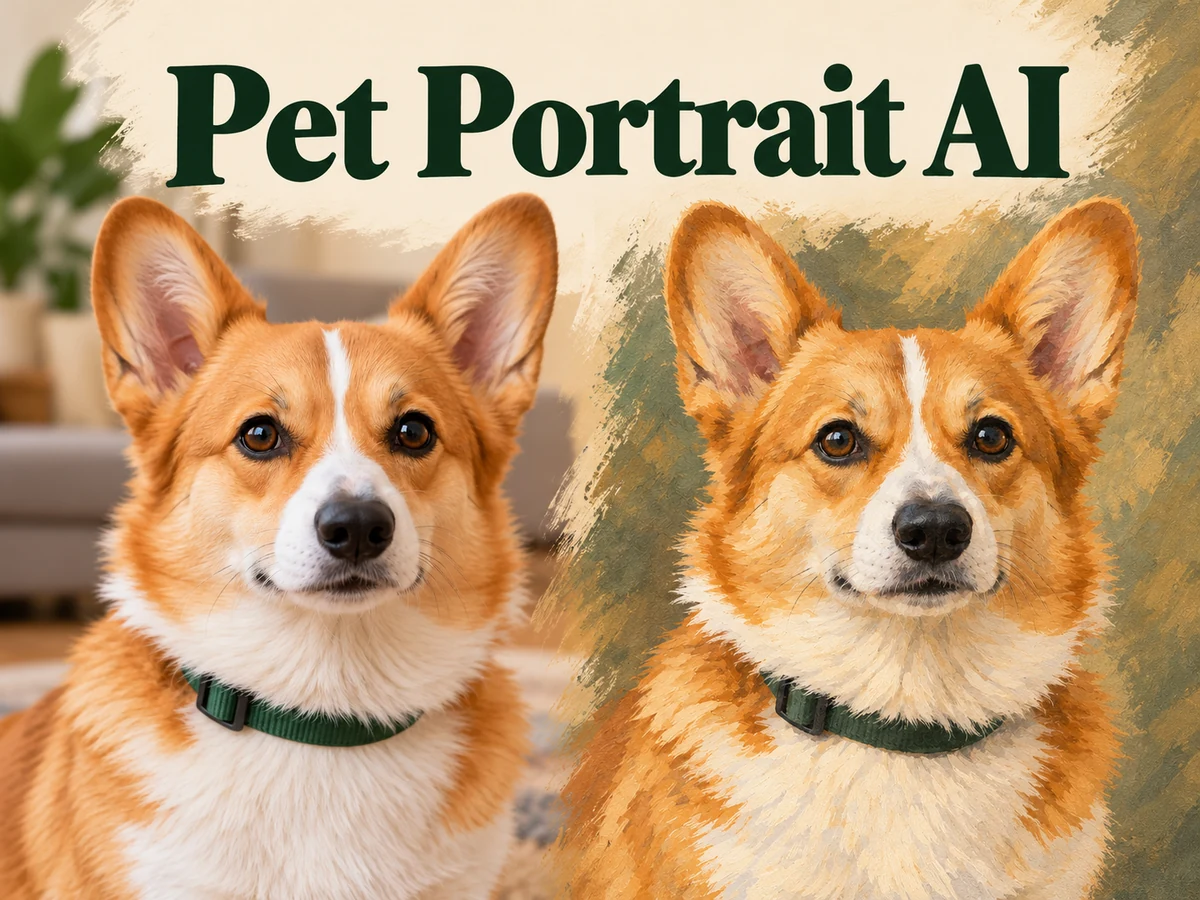
  • Pet Portrait AI

  • Photo to Watercolor

  • Photo to Coloring Page

Page 1 of 3

What Can You Create with GPT Image 2.5?

Turn a product into a campaign image, a sentence into an illustrated poster, or an ordinary room into a new design concept. Released by OpenAI on September 8, 2026, GPT Image 2.5 combines image generation and editing, so your next visual can begin with an idea or a picture you already have.

Light reveals a surface, color sets the mood, and composition guides the eye. GPT Image 2.5 brings these decisions into one brief, from the texture of a ceramic cup to space for a headline.

Explore photographic, painted, graphic, and three-dimensional styles without changing the core idea. A reference can carry the shape of a product or the appearance of a character into a new treatment. That makes the model useful for both original concepts and variations on an established look.

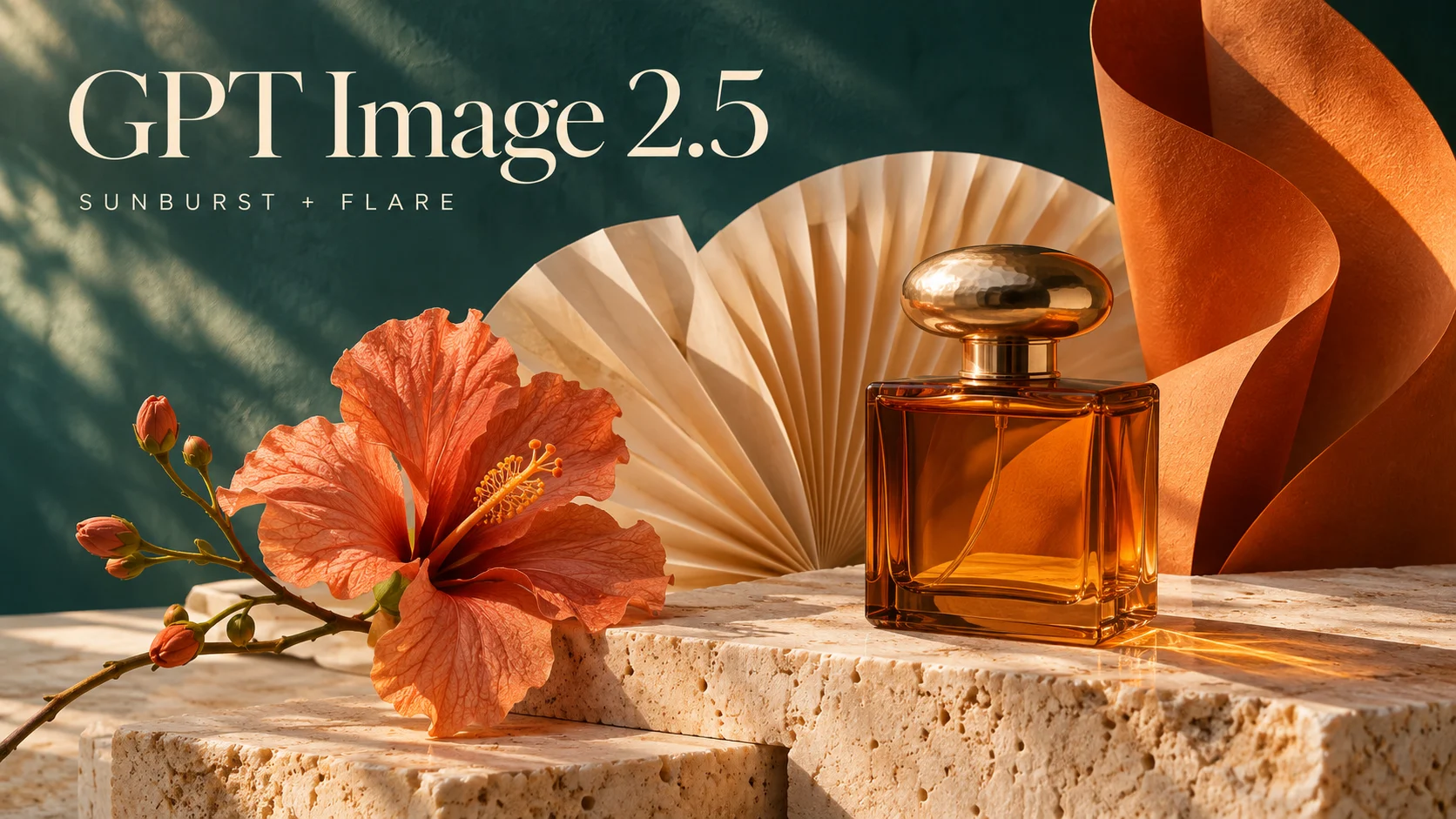
GPT Image 2.5 title above an amber bottle, orange flower and folded cream paper

GPT Image 2.5 Sunburst or Flare?

Choose the model around the work in front of you. Sunburst puts precision first; Flare brings speed to everyday creation. Both work with text and reference images.

Sunburst: For the Details That Define the Image

GPT Image 2.5 Sunburst puts editing precision first. Choose it for a particular material, a carefully arranged scene, or a revision that needs to retain the character of the original. The default on this page, it suits detailed product imagery, illustrations, and final design refinements.

Flare: Keep New Ideas Moving

GPT Image 2.5 Flare is built for fast, high-quality everyday creation. Compare palettes, explore settings, or try several cover concepts while an idea is taking shape. Find Flare in the shared image generator’s model selector when you want a quicker cycle of visual exploration.

Key Features of GPT Image 2.5

Create detailed scenes, design text as part of the artwork, and refine an existing image with focused edits.

Lifelike Light and Texture

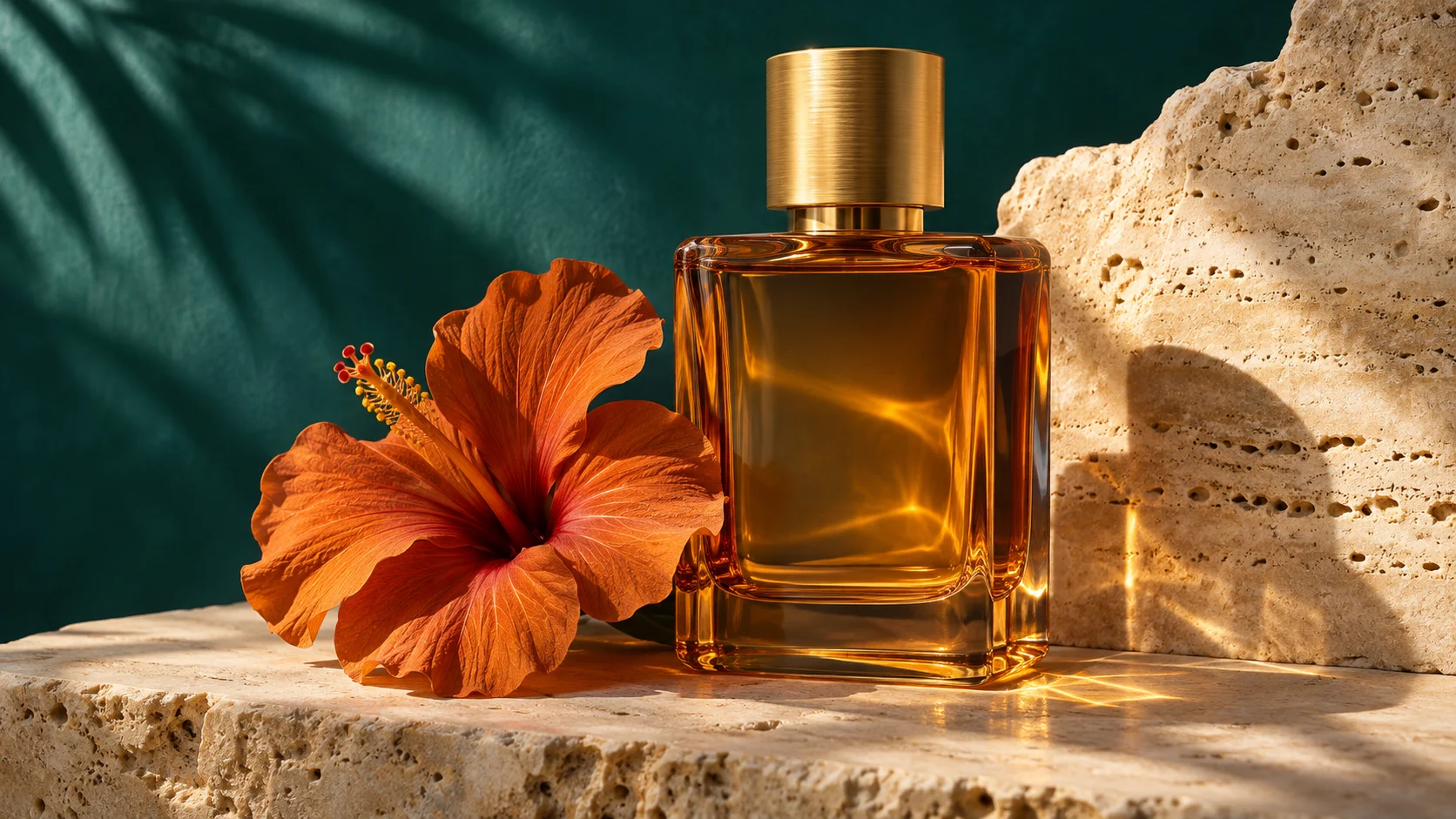
Glass catches the light differently from stone. Fabric has a weave; petals have delicate edges. GPT Image 2.5 can render those differences in a single scene, using reflections, shadows, and fine texture to give objects depth. For product visuals, that means exploring how a surface feels as well as how an object looks. Soft daylight creates a different impression from a crisp studio highlight, giving the same subject a fresh campaign treatment.
Create a detailed image
Amber perfume bottle and orange hibiscus on pale stone against a teal background
Warm light reveals the amber glass, pale stone, and flower petals, giving each material a distinct presence.

Words That Belong in the Design

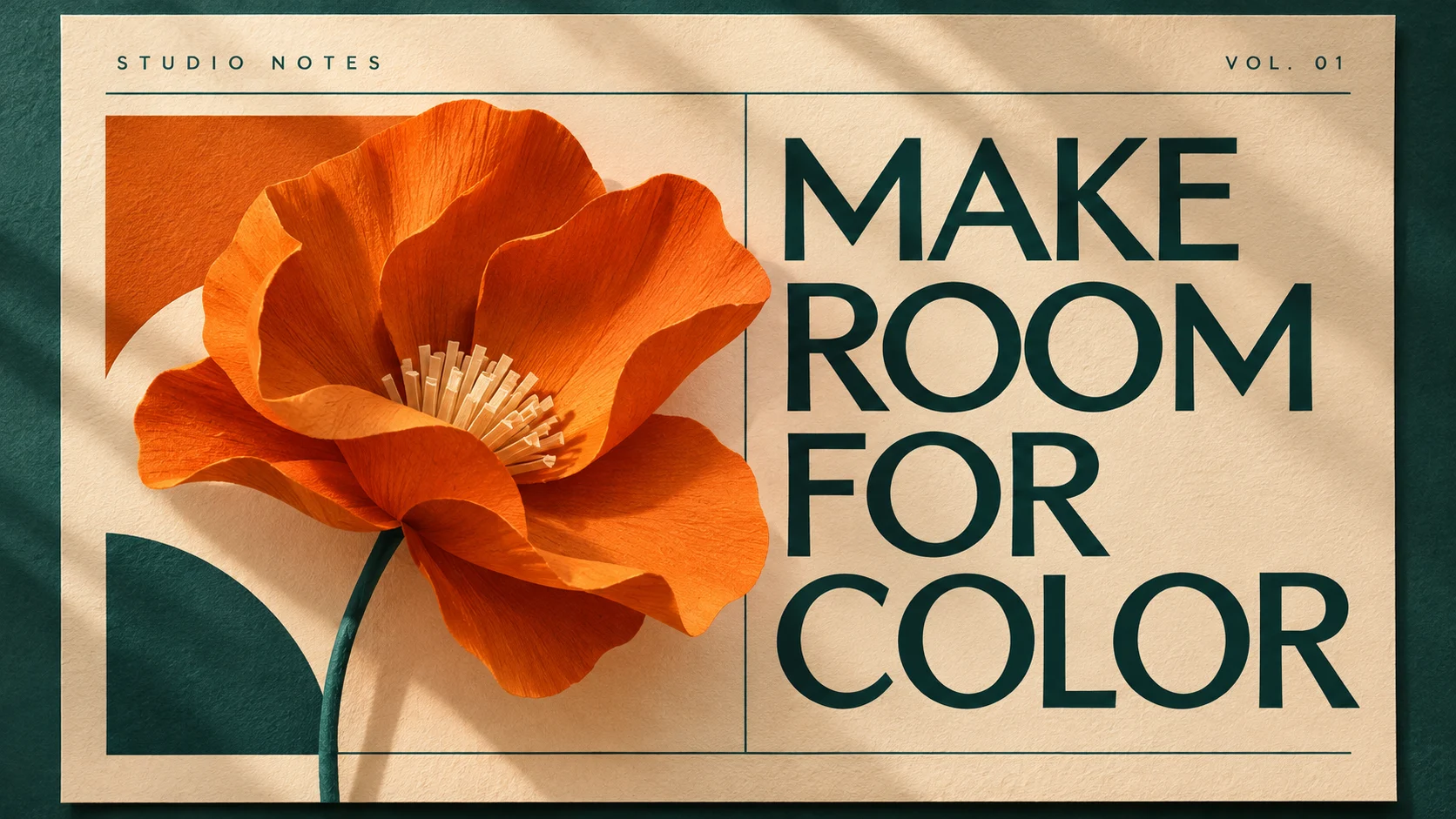
Build the headline and the image together. GPT Image 2.5 can place requested wording within a composition, combining letterforms, illustration, and spacing for posters, covers, invitations, and promotional graphics. A large title can carry the message while smaller supporting text establishes the occasion. Describe the words and their placement to explore a complete design direction, from a restrained editorial cover to a bright illustrated announcement.

Design with words and images
Cream and teal poster reading Make Room for Color beside an orange paper flower
A large teal headline and sculpted orange flower share the poster, with generous cream space keeping the message clear.

Precise Edits That Build on Your Original

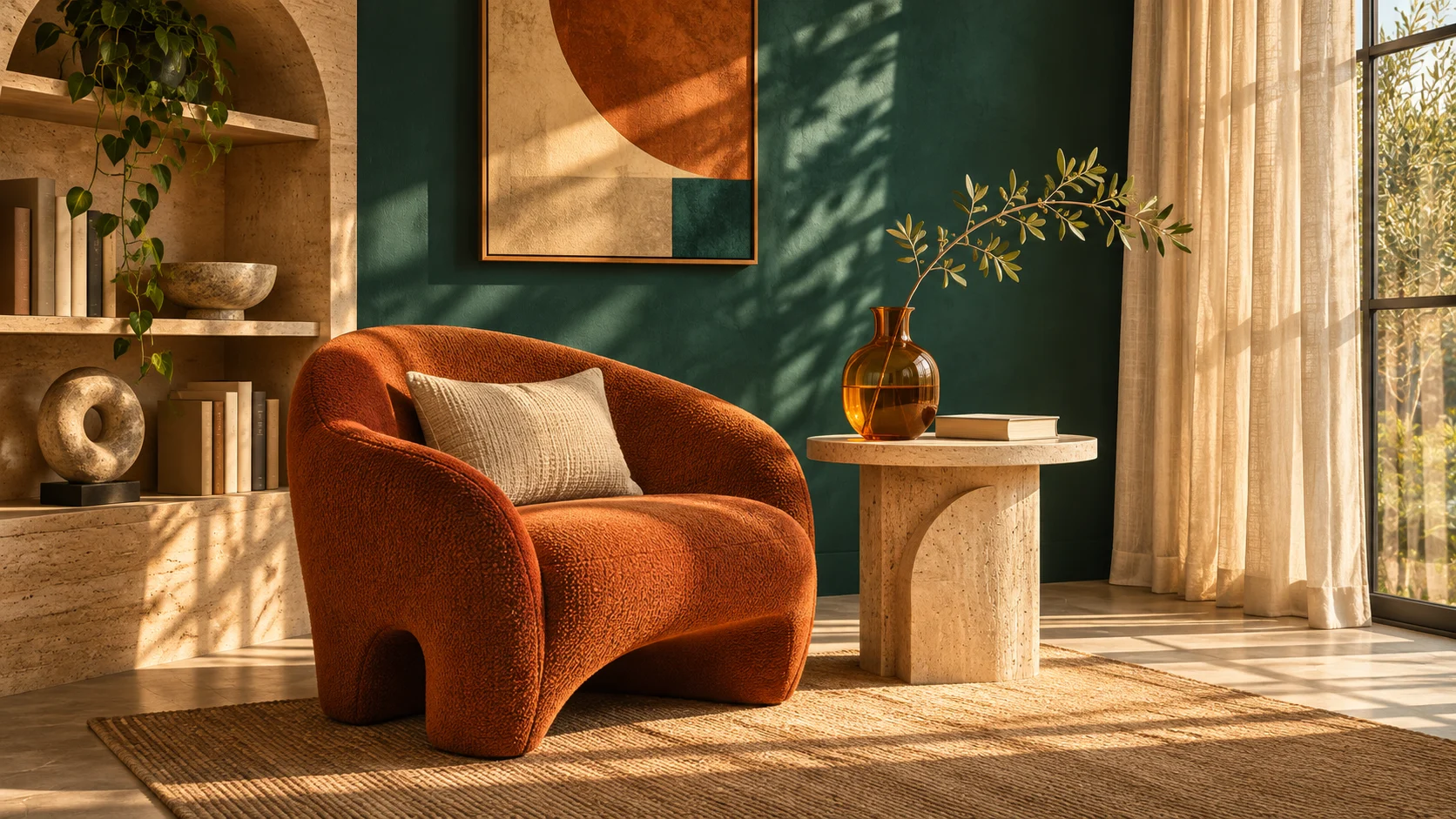
Change the upholstery, replace a backdrop, or give a single object a different finish. GPT Image 2.5 uses the source image as the foundation for a focused revision, with written instructions identifying the change and the details to retain. That gives an existing composition room to evolve. A room can take on a new palette around its familiar layout; a product can move into a seasonal setting around its recognizable shape.

Refine an existing image
Orange lounge chair, pale stone table and amber vase in a sunlit teal reading corner
Orange upholstery and a teal wall establish a warm reading corner while the furniture and window define the room.

Keep Your Subject Recognizable with GPT Image 2.5

A familiar subject gives a series its identity. GPT Image 2.5 uses references to guide distinctive features as the pose, setting, or visual style changes. The same approach supports recurring characters, product collections, and coordinated campaign imagery.

For a character, references can establish facial features, clothing, hairstyle, and silhouette. A sheet with several views makes those details easier to communicate across scenes. Explore the character in a new environment or expression while keeping its defining appearance central to the brief.

For a product, separate references can show its shape, material, and smaller details. Another image can supply the intended setting or visual mood. GPT Image 2.5 accepts up to fourteen reference images, giving you room to explain a composition through pictures as well as words.

Continue an image by uploading it for the next edit. Focus each revision on a specific decision: warmer lighting, a simpler backdrop, or a wider crop. The latest version becomes the starting point for the next change.

Put GPT Image 2.5 to Work

From a single concept to a coordinated set of visuals, GPT Image 2.5 helps turn creative decisions into images people can see, compare, and use.

Product and Campaign Visuals

Explore a studio scene, a lifestyle setting, or a seasonal treatment around the same product. A consistent palette and material direction can connect a website banner with a social post or launch graphic. GPT Image 2.5 gives small teams a way to develop those visual options before choosing the direction for a campaign.

Posters, Covers, and Design Concepts

Bring the message, illustration, and layout into one picture. Try a book cover with a bold title, an event poster with sculpted lettering, or an interior concept with a new combination of materials. GPT Image 2.5 makes those alternatives visible, so feedback can focus on concrete choices such as color, scale, and balance.

Characters and Story Worlds

Develop a protagonist, a distinctive prop, or the atmosphere of a fictional location. Portraits and reference sheets help establish appearance; wider scenes place that subject in a world. A selected GPT Image 2.5 image can also become the opening frame for a video, carrying the visual idea into motion.

Short GPT Image 2.5 Example Prompts

Try a compact brief with a clear subject and a specific visual goal. Upload a source image for the editing examples, or a character reference for the character sheet.

Photographic Product Detail

Example prompt

An amber perfume bottle on pale stone, warm side light, realistic glass reflections, deep teal background. No logos or text.

Typography and Illustration

Example prompt

Cream editorial poster with an orange paper flower and the exact headline "MAKE ROOM FOR COLOR" in bold teal lettering.

A Focused Room Edit

Example prompt

Change the chair upholstery to burnt orange. Keep the room layout, window, furniture shapes, and daylight unchanged.

A Consistent Character Sheet

Example prompt

Create front, side, and smiling views of the reference character. Keep the same face and outfit, on plain white.

One Material Change

Example prompt

Change only the silver bottle cap to brushed gold. Preserve the bottle, label, framing, and reflections.

A New Illustrated Treatment

Example prompt

Restyle this landscape as a textured gouache illustration. Keep the original composition, with muted teal shadows and warm amber light.

GPT Image 2.5 Images in the Format You Need

Choose 1K, 2K, or 4K output for both Sunburst and Flare. Square, portrait, landscape, and ultrawide compositions give your subject the right space, whether the destination is a social feed, an editorial banner, or a presentation. Each generation returns one image.

Choose the framing around the placement: a portrait crop for a tall subject, or a wide composition with room for a message. Available ratios include 1:1, 4:3, 3:4, 16:9, 9:16, and 21:9, alongside Auto.

At 1K, choose Auto, Transparent, or Opaque backgrounds. Transparent output is useful for placing an isolated subject into a later layout. At 2K and 4K, the background setting is Auto. Additional 1K ratios include 27:16, 16:27, 9:8, and 8:9. Reference uploads accept PNG, JPEG, and WebP files up to 10 MiB each.

GPT Image 2.5 vs GPT Image 2 vs Flux 3

GPT Image 2.5 offers Sunburst for precision and Flare for speed. GPT Image 2 covers general generation and editing, while Flux 3 Klein emphasizes image editing and reference-based composition. The Flux 3 column below refers specifically to Klein.

ComparisonGPT Image 2.5GPT Image 2Flux 3 (Klein)
Creative focusSunburst for precise work; Flare for faster creationGeneral image generation and editingImage editing and reference-led composition
Input typesText and imagesText and imagesText and images
Reference guidanceUp to 14 imagesHigh-fidelity image inputsUp to 10 images
Output sizes1K, 2K, 4KFlexible image sizes1K, 2K, 4K
Projects to tryDetailed scenes, typography, and focused revisionsOriginal images and photo editsRestyling and reference-based scene changes
Try GPT Image 2.5Explore Flux 3 Klein

GPT Image 2 specifications refer to OpenAI’s model. The listed GPT Image 2.5 and Flux 3 Klein output and reference options reflect this generator’s settings.

GPT Image 2.5 Questions and Answers

GPT Image 2.5 is OpenAI’s image generation and editing model family, available in Sunburst and Flare variants. It turns written descriptions and reference images into new visuals, with capabilities for realistic imagery, text within designs, and focused photo edits. Use it to create an original composition or develop an image you already have.

Sunburst prioritizes precise editing and demanding visual detail. Flare is designed for fast, high-quality everyday generation. Choose Sunburst when a composition needs careful refinement, or Flare when you want to explore different concepts and treatments. Both GPT Image 2.5 models accept text and image inputs and offer 1K, 2K, and 4K output.

Yes. GPT Image 2.5 can generate headlines, labels, and supporting wording as part of the artwork. Include the exact text in quotation marks and describe its position and style. This is useful for posters, covers, and illustrated announcements. Check the final spelling and any essential details before publishing.

Yes. Upload the photo and describe the change you want, such as a different background, a new material, or revised lighting. GPT Image 2.5 uses the image and your instructions together. Naming the details to retain helps direct the revision around the parts of the original you want to carry forward.

GPT Image 2.5 supports reference-guided character creation. Supply a clear portrait or character sheet, then describe the new pose or scene and the features to retain. A shared face, outfit, and silhouette help connect a series of images. This works well for story concepts, illustrated characters, and recurring campaign subjects.

Both Sunburst and Flare offer 1K, 2K, and 4K output. Choose the resolution and aspect ratio for your intended placement, from a square social image to a vertical portrait or a wide editorial composition.

Yes. Choose Transparent at 1K for product cutouts, decorative elements, or later compositing. Auto and Opaque are also available at 1K. At 2K and 4K, GPT Image 2.5 uses the Auto background setting.

GPT Image 2.5 Sunburst is selected by default on this page. For Flare, open the shared image generator and choose GPT Image 2.5 Flare from the model selector.

Make Your Next Image with GPT Image 2.5

Start with a new idea or a picture worth developing. Create the scene, shape the lettering, or make the edit that brings the image closer to what you imagined.

Create with GPT Image 2.5
Explore Kling 4.0 video
Image to Image AI logoImage to Image AI

A fresh take on your image. Explore new styles and scenes with AI.

Customer supportsupport@imgtoimageai.com

Tools

  • Remove Glare from Glasses
  • Remove Glare from Photo
  • Photo to Line Art
  • Image Upscaler
  • Realistic Selfie Generator
  • Christmas Photobooth
  • AI 3D Figure Generator
  • Selfie With Santa
  • Christmas Dance Trend
  • Motorcycle AI
  • AI Photo Booth
  • Photo to Sticker
  • QR Code Enhancer
  • AI Long Hair Filter
  • Bicep Heart Trend AI
  • Happy Birthday GIF with Name
  • Apartment Dance
  • AI GIF Generator
  • Executive Portrait Maker
  • AI Trouble Maker Video

Learn more

  • Tools
  • Blog
  • Pricing

Legal

  • Privacy Policy
  • Terms of Service
  • Refund Policy
  • Contact

© 2026 Image to Image AI