





Image to Image AI logoImage to Image AI
  • Home
  • AI Image Generator
  • AI Video Generator
  • Tools
  • Nano Banana 2.1
  • Flux 3 Klein
  • Seedream 5.0 Pro
  • Seedream 5.5
  • GPT Image 2.5
  • GPT Image 2.6
  • MiniMax H3 Image
  • Kling 4.0
  • Grok Imagine Video 1.5
  • MiniMax H3 Max
  • Seedance 2.5
More
  • Blog
  • Pricing

Guest

Save your creations

Credits—
  1. Home
  2. /
  3. Image

AI Pregnant Filter

Explore a maternity portrait with the AI Pregnant Filter. Upload one photo of yourself or an adult who agreed to the edit, then create a fully clothed portrait with a rounded baby bump. The built-in preset applies the maternity look to your reference. Use the result as a creative preview for styling, composition, or a personal image project.

Create my maternity portrait
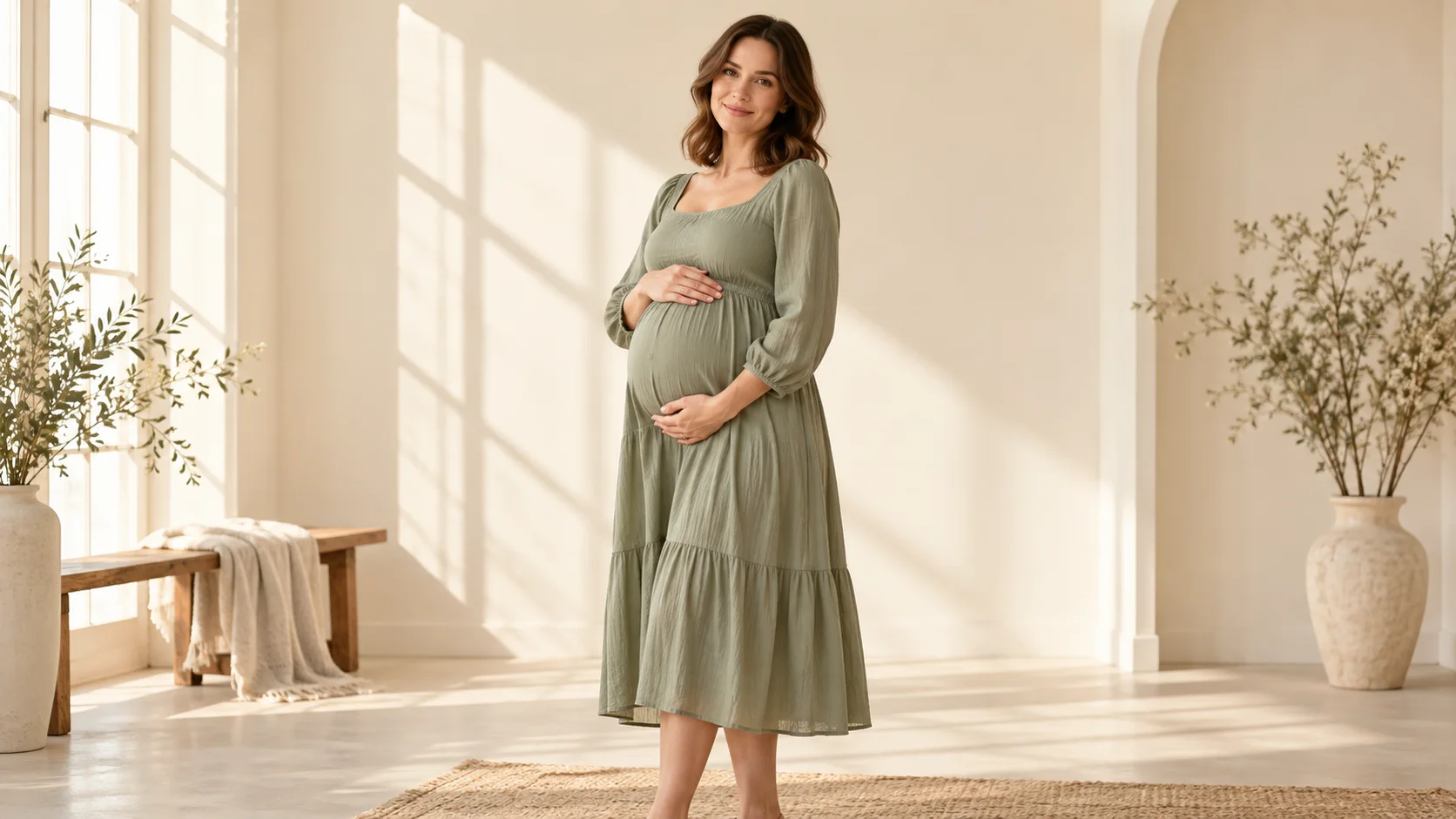
An adult woman in a sage dress poses for a softly lit maternity portrait
Explore maternity portrait styling with the AI Pregnant Filter, from a flowing sage dress to soft natural light.

Reference image

Required · 1 image
10
Checking your sign-in status…
Strictly prohibits adult / NSFW content

AI Image Generators to Explore

Try a different look for your photos with generators for portraits, artistic styles, and creative edits.

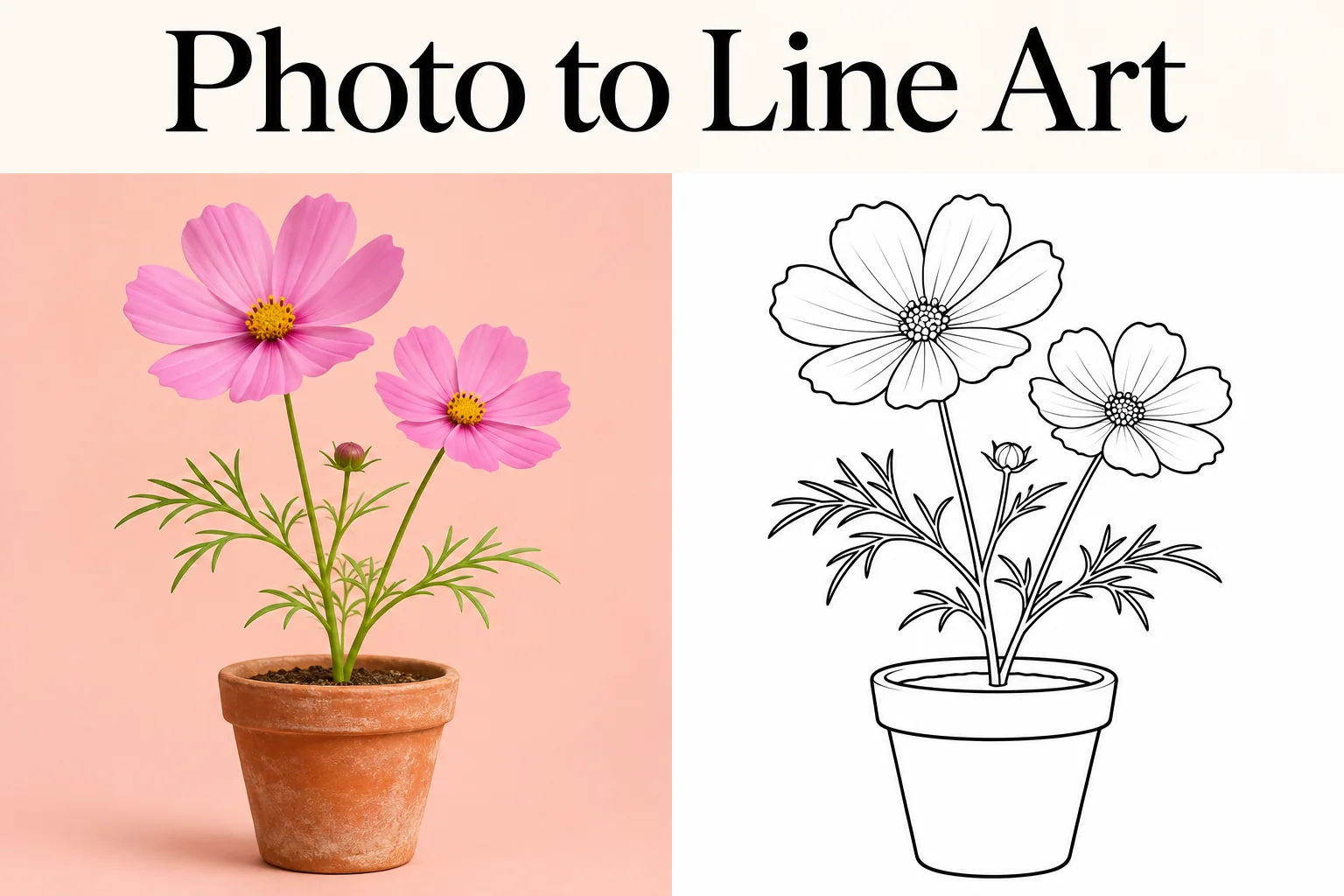
  • Photo to Line Art

  • Remove Glare from Photo

  • Remove Glare from Glasses

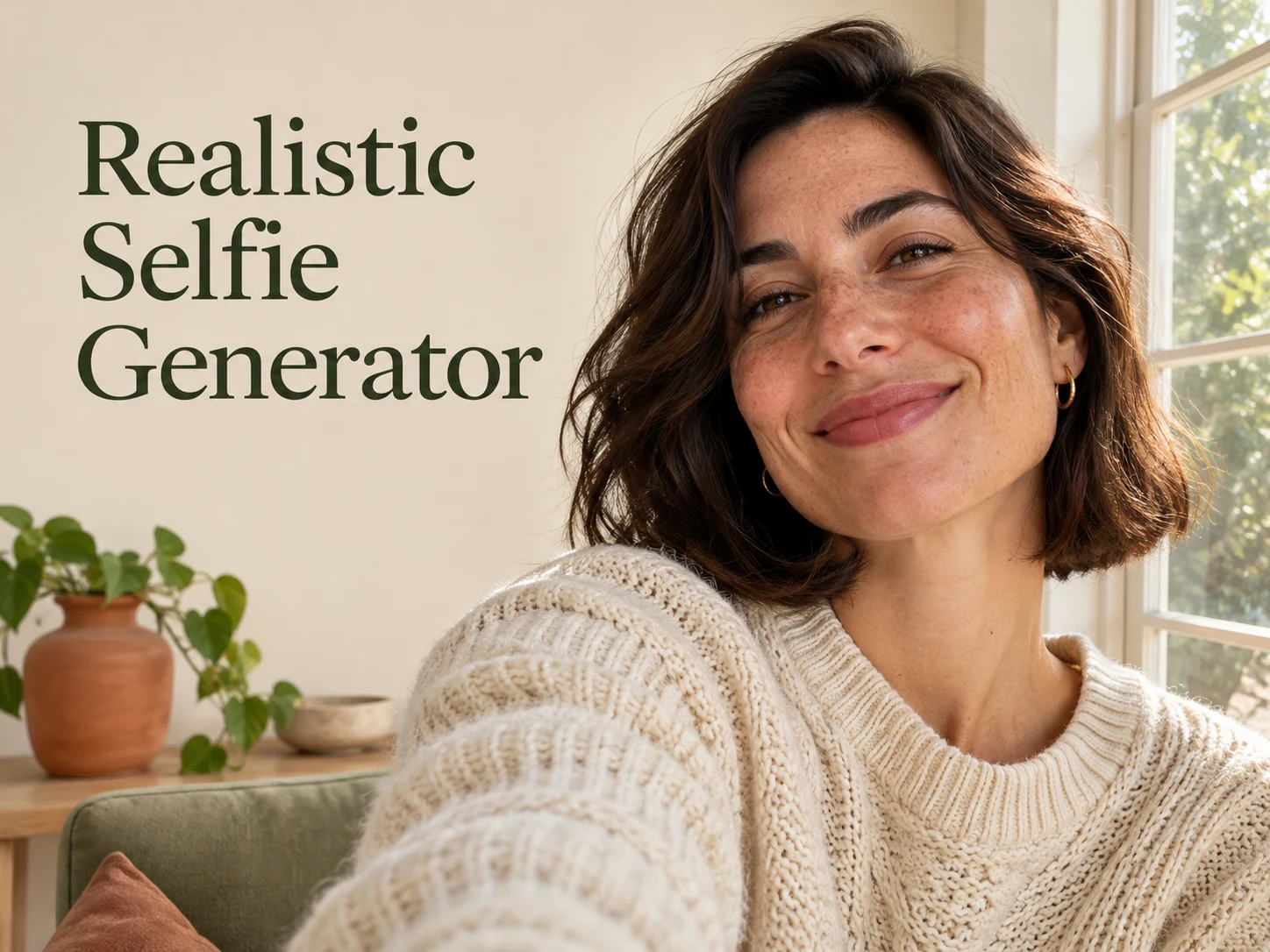
  • Realistic Selfie Generator

  • Image Upscaler

  • Selfie With Santa

  • AI 3D Figure Generator

  • Motorcycle AI

  • Photo to Sticker

  • AI Photo Booth

  • AI Long Hair Filter

  • Happy Birthday GIF with Name

  • AI GIF Generator

  • Executive Portrait Maker

  • No Beard Filter

  • AI Beard Generator

  • 80s AI Photo Trend

  • Pet Portrait AI

  • Photo to Watercolor

  • Photo to Coloring Page

Page 1 of 3

What does the AI Pregnant Filter create?

The AI Pregnant Filter transforms a single reference into a newly generated maternity-style image. It asks the model to retain the recognizable person while adding a rounded belly and adapting the surrounding clothing. The aim is a coherent portrait where the silhouette, fabric, and lighting work together.

Use the AI Pregnant Filter to explore a look before a photo session, compare a simple indoor setting with a garden atmosphere, or make an imagined portrait for your own collection. Your upload guides the person and the pose. Choose a source with the outfit and setting you want to guide the result. The built-in preset supplies the maternity transformation without a written prompt.

The result is a creative image rather than a live camera effect, a medical assessment, or a forecast of how your body will change. There is no pregnancy detection, due-date calculation, or baby-face prediction. Descriptions such as a subtle bump or a fuller silhouette are visual directions; they do not establish a particular stage of pregnancy.

The AI Pregnant Filter can reinterpret small features, hands, garments, and backgrounds. Identity preservation is a goal of the instructions, not a promise of an exact match. The pictures on this page are separately generated concept artwork. They help explain the intended styles, but they should not be treated as before-and-after evidence from a real customer photo.

Find an AI Pregnant Filter portrait direction

Choose a reference that supports the person and the silhouette. Each concept below illustrates a source-photo style you can use for inspiration. These are not selectable templates; the preset adapts to the photo you upload.

A clear side-profile silhouette

A side or gentle three-quarter pose makes the rounded shape easy to read. For the AI Pregnant Filter, choose a reference with a plain knit dress and soft window light, keeping the face turned enough to remain recognizable. Keep the arms relaxed so they do not hide the waist. This direction suits a source that already includes the torso and enough room below it for the garment to fall naturally.
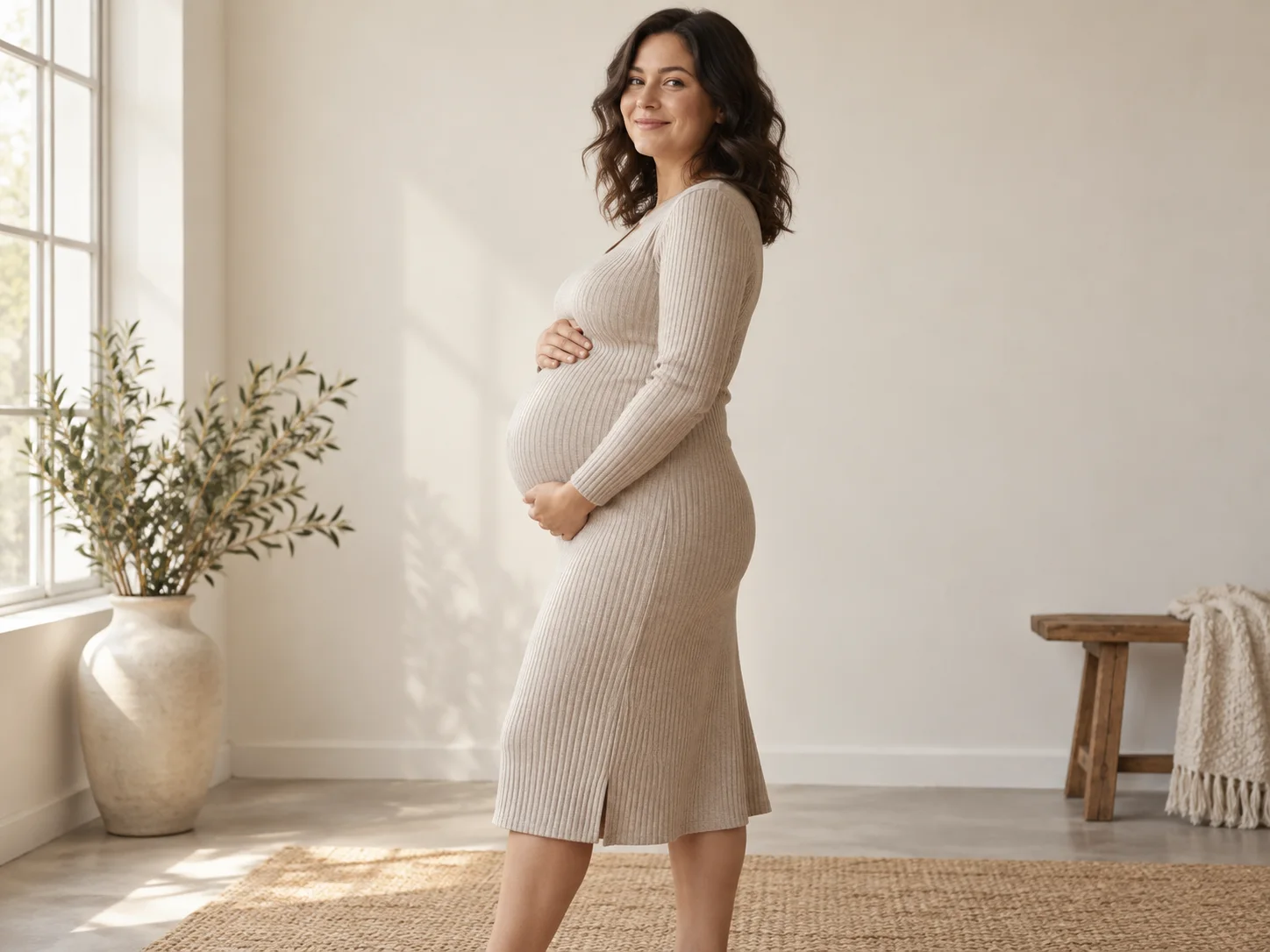
An adult woman in an oatmeal knit dress stands in a clear maternity side-profile pose
A side-profile pose and a softly draped knit dress bring the rounded maternity silhouette into focus.

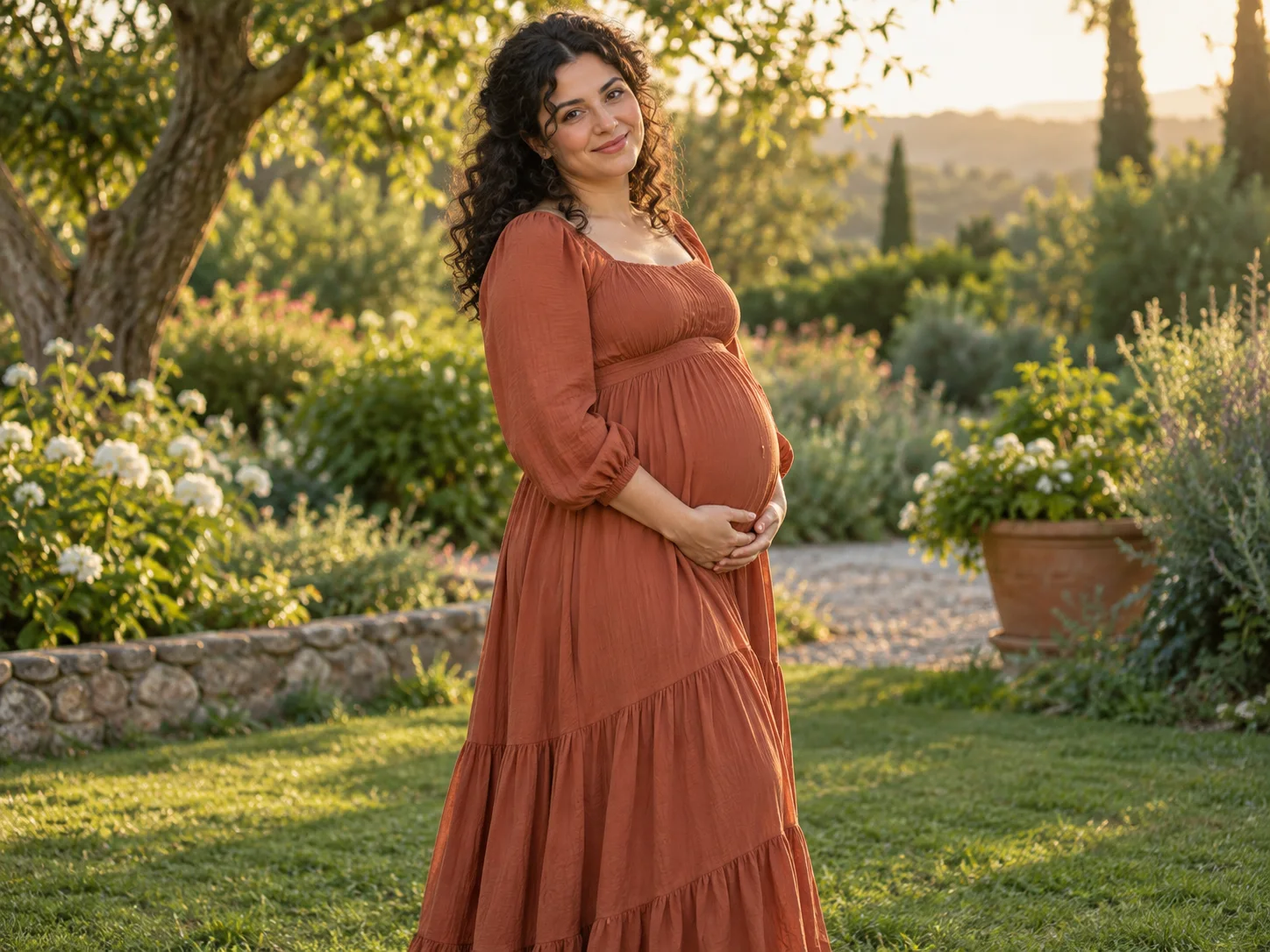
A warm garden portrait

Use the AI Pregnant Filter to explore a relaxed outdoor mood with a flowing dress and a softly blurred garden. Choose a garden reference with warm afternoon light rather than several competing lighting effects. The shape should remain clear beneath the fabric, while the background stays secondary. A simple standing pose is a useful starting point; complicated hand positions or a busy scene can make the result harder to inspect.

An adult woman in a terracotta dress cradles a rounded belly in a softly lit garden
A terracotta dress and warm garden light create a relaxed setting for a maternity portrait.

A minimal studio composition

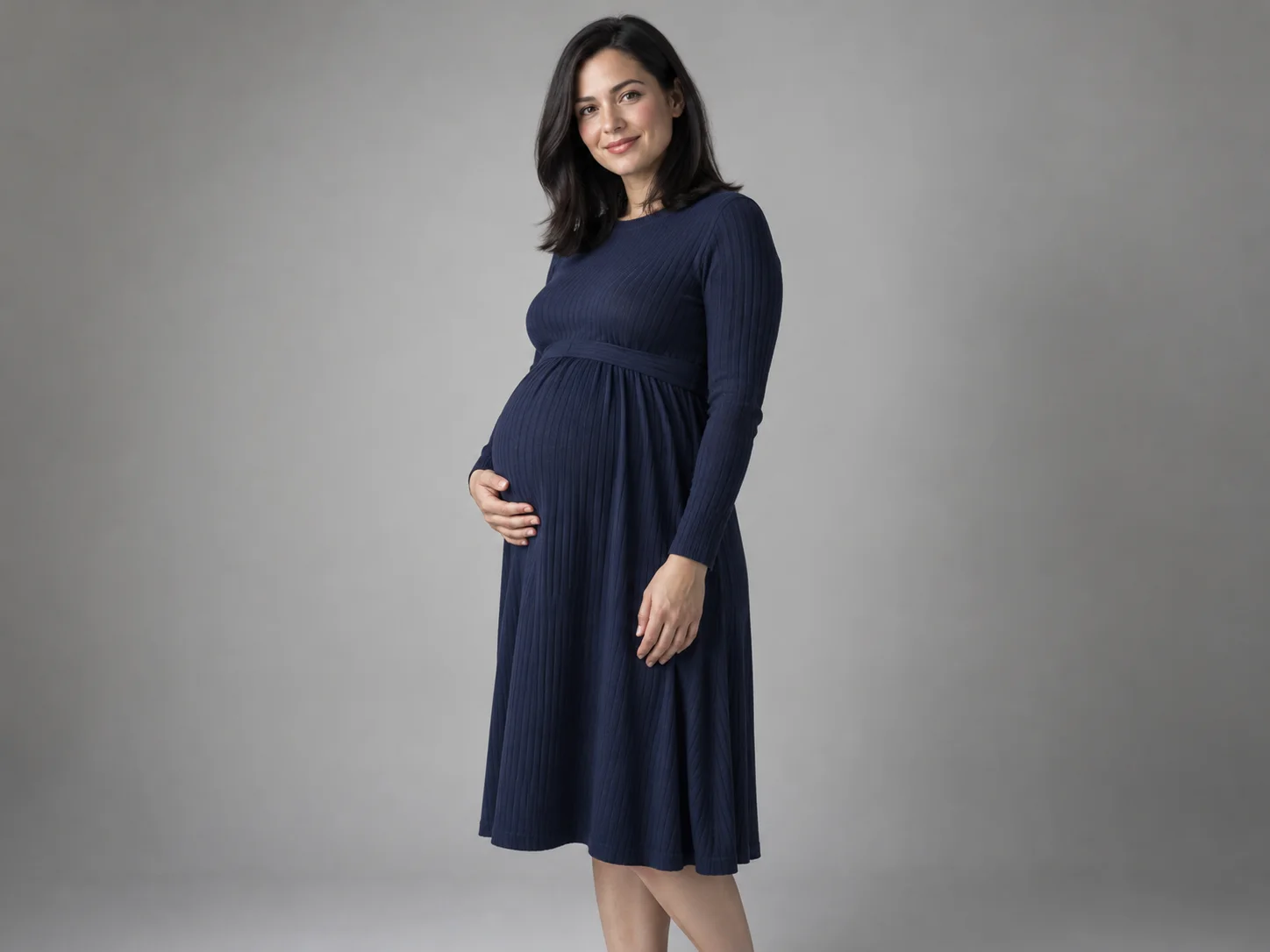
A plain studio background puts attention on the face, clothing, and posture. Give the AI Pregnant Filter a reference with a modest dark dress, gentle side light, and a calm expression. Leave room around the head and below the belly so the portrait feels balanced. This direction can help compare garment colors or picture framing before deciding which ideas you want to take into a real photography session.

An adult woman in a navy knit dress poses against a soft gray studio background
A navy dress against a soft gray studio background keeps attention on the face and maternity silhouette.

How to use the AI Pregnant Filter

  1. 01

    Upload a suitable adult portrait

    Choose one JPEG, PNG, or WebP within the displayed 10 MB limit. Use a clear photo of yourself or another adult who agreed to this maternity edit. A full-length or three-quarter portrait gives the model more information about the torso, clothing, and pose than a tightly cropped face selfie.

  2. 02

    Check the prepared maternity effect

    The AI Pregnant Filter uses a built-in maternity direction with no prompt field. It adds a rounded silhouette beneath opaque clothing and adapts fabric and shadows around that shape. Your photo guides the person, outfit, pose, and environment. Check those source details before you continue, especially the face and any hands near the waist.

  3. 03

    Choose the image settings

    The default is a vertical 3:4 portrait at 1K. You can select another listed aspect ratio or choose 2K or 4K resolution. Sign in and review the current credit estimate before generating. A larger output can provide more pixels for inspection, but it does not guarantee more accurate hands or a closer likeness.

  4. 04

    Review and download the portrait

    Open the AI Pregnant Filter result and compare the face, hands, clothing, and background with your intended direction. Download the PNG you want to keep. If a detail looks wrong, choose a clearer source or a less obstructed pose for another attempt. Each request creates a new result to review rather than an editable layer stack.

AI Image Generators for Your Next Project

Bring your next photo project to life with creative effects, painted portraits, and printable coloring pages.

  • Photo to Line Art

  • Remove Glare from Photo

  • Remove Glare from Glasses

  • 80s AI Photo Trend

  • Pet Portrait AI

  • AI Beard Generator

Prepare a photo for the AI Pregnant Filter

The source photograph should show the area you want to change. Keep the face clear, the waist visible, and the body separated from the background. Balanced light helps the model interpret the existing contours and clothing.

A three-quarter portrait is often a useful AI Pregnant Filter starting point because it includes both facial detail and enough body information for the new silhouette. Avoid cutting the frame directly through the waist. If you only supply a close face portrait, the model must invent the missing torso, outfit, and pose, which leaves less of the final image grounded in your reference.

Choose simple clothing when possible. A plain dress or shirt gives you an easier way to judge whether the fabric follows the new shape. Dense prints, large logos, open coats, and bags across the stomach add details that may be distorted. You can still experiment with them, but inspect seams and patterns carefully rather than assuming they will stay unchanged.

For the AI Pregnant Filter, keep hands easy to understand. Arms loosely at the sides or a straightforward hand resting near the waist are clearer than intertwined fingers across the abdomen. If an object hides the midsection, use a different image. A cleaner source usually gives you a more useful comparison than repeatedly using a photo with several obstructions around the waist.

Understand the AI Pregnant Filter preset

The built-in direction focuses on a recognizable adult and a coherent maternity silhouette. It adapts the surrounding clothing, posture, and shadows to the change. Your source photograph supplies the visual context, so choose the outfit and setting before uploading.

For a quiet indoor AI Pregnant Filter image, start with a clear adult portrait in an opaque dress beside a plain wall. Soft daylight makes the face and garment easier to interpret. The preset aims to keep the person recognizable while adding a naturally rounded belly beneath the clothing. Compare the completed result with the original face and check that the fabric follows the new shape convincingly.

For an outdoor variation, choose a source with a relaxed standing pose, a flowing dress, and clear garden light. The AI Pregnant Filter uses those visible details as guidance rather than offering separate background or outfit selectors. There is no pregnancy-month control or custom prompt field. The belly shape is an artistic transformation, so it should not be read as an accurate simulation of a particular pregnancy stage.

If the output changes too much, choose a source with a simpler outfit, clearer waist, and fewer objects overlapping the body. Keep the same selected aspect ratio when comparing references so the difference in framing remains manageable. The preset stays fixed across attempts; each generation can still interpret details differently. Judge the portrait by the recognizable face, believable clothing, and coherent hands rather than expecting a precise manual adjustment.

Review your AI Pregnant Filter image

A useful preview feels coherent at both normal viewing size and closer inspection. Check the recognizable person first, then the parts of the image affected by the new silhouette.

Compare the eyes, jaw, hairstyle, and expression with your source. The AI Pregnant Filter should support your intended portrait rather than replacing the subject with a different-looking person. Next, examine the hands: count visible fingers, inspect wrists, and check where a palm meets the dress. Avoid selecting a result solely because the overall lighting looks attractive.

Follow the clothing from the shoulders through the waist and down to the hem. Seams should continue sensibly, fabric should curve around the belly, and the direction of shadows should agree with the face and background. Look at straight edges behind the person as well; a bent doorway or stretched chair can reveal an inconsistent reconstruction.

Use the AI Pregnant Filter output as an artistic preview and describe it that way when sharing. It can help communicate a mood to a photographer or explore a private creative idea. It should not stand in for a factual pregnancy announcement about someone else. Keep your original photo so you can compare versions and return to a clear reference for future edits.

AI Pregnant Filter questions

No. It creates an imagined maternity-style portrait from an adult reference. The image is an artistic transformation and does not confirm a pregnancy or predict how anyone will look.

You can try, but a photo showing the torso gives the model more useful information. With a face-only crop, it must invent the body, clothing, and pose.

The prepared direction asks for a recognizable likeness, but exact identity preservation is not guaranteed. Compare facial features and expression with the source before keeping a result.

There are no custom prompt, outfit, or background controls. Choose a reference with the clothing and setting you want to guide the image. The preset can reinterpret those details while creating the maternity silhouette.

The current configuration produces one PNG image per request. It defaults to 1K and 3:4, with 2K, 4K, and other listed aspect ratios available.

Image generation uses credits. Sign in to check your balance and the current estimate. Available free credits may cover a request, but repeated attempts are separate generations.

Use a photo you own or are allowed to edit, and make sure the adult agrees to this particular maternity transformation. Keep the generated nature clear if you share it.

Try the AI Pregnant Filter with your own photo

Choose a clear portrait, decide on one style, and create a maternity concept you can inspect and refine. Start with a simple composition and keep the result that best communicates your creative idea.

Upload a portrait and start
Image to Image AI logoImage to Image AI

A fresh take on your image. Explore new styles and scenes with AI.

Customer supportsupport@imgtoimageai.com

Tools

  • Remove Glare from Glasses
  • Remove Glare from Photo
  • Photo to Line Art
  • Image Upscaler
  • Realistic Selfie Generator
  • Christmas Photobooth
  • AI 3D Figure Generator
  • Selfie With Santa
  • Christmas Dance Trend
  • Motorcycle AI
  • AI Photo Booth
  • Photo to Sticker
  • QR Code Enhancer
  • AI Long Hair Filter
  • Bicep Heart Trend AI
  • Happy Birthday GIF with Name
  • Apartment Dance
  • AI GIF Generator
  • Executive Portrait Maker
  • AI Trouble Maker Video

Learn more

  • Tools
  • Blog
  • Pricing

Legal

  • Privacy Policy
  • Terms of Service
  • Refund Policy
  • Contact

© 2026 Image to Image AI