
Image to Image AI logoImage to Image AI
  • Home
  • AI Image Generator
  • AI Video Generator
  • Tools
  • Nano Banana 2.1
  • Flux 3 Klein
  • Seedream 5.0 Pro
  • Seedream 5.5
  • GPT Image 2.5
  • GPT Image 2.6
  • MiniMax H3 Image
  • Kling 4.0
  • Grok Imagine Video 1.5
  • MiniMax H3 Max
  • Seedance 2.5
More
  • Blog
  • Pricing

Guest

Save your creations

Credits—
  1. Home
  2. /
  3. Image

Image Upscaler for clearer, larger creative images

Give a small photograph or illustration more room in your next design. Image Upscaler uses one uploaded image and a prepared enhancement direction to create a new version at your selected resolution. Explore clearer-looking texture, review important details, and download the result that suits your project. This is a generative enhancement workflow on Image to Image AI, with resolution choices rather than a fixed enlargement multiplier.

Enhance an image
Image Upscaler for clearer, larger creative images

Reference image

Required · 1 image
25
Checking your sign-in status…
Strictly prohibits adult / NSFW content

AI Image Generators to Explore

Try a different look for your photos with generators for portraits, artistic styles, and creative edits.

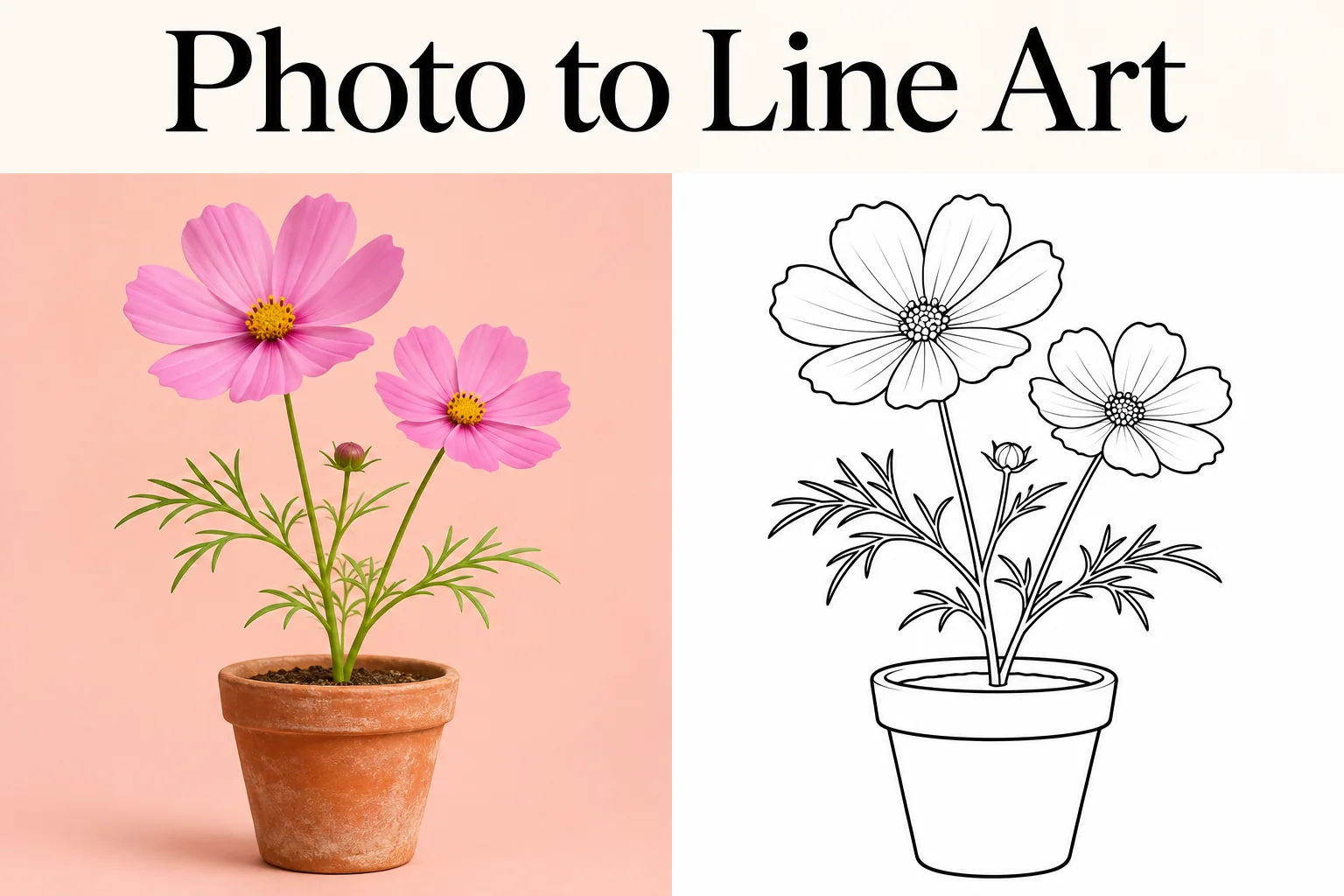
  • Photo to Line Art

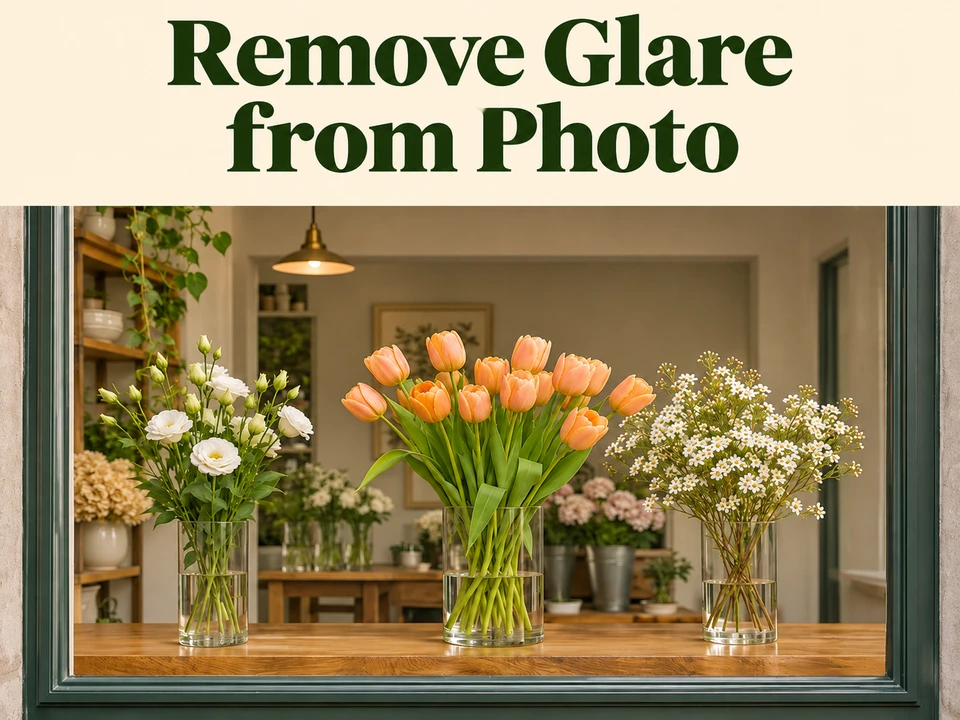
  • Remove Glare from Photo

  • Remove Glare from Glasses

  • Realistic Selfie Generator

  • Selfie With Santa

  • AI 3D Figure Generator

  • Motorcycle AI

  • Photo to Sticker

  • AI Photo Booth

  • AI Long Hair Filter

  • Happy Birthday GIF with Name

  • AI GIF Generator

  • Executive Portrait Maker

  • No Beard Filter

  • AI Beard Generator

  • 80s AI Photo Trend

  • AI Pregnant Filter

  • Pet Portrait AI

  • Photo to Watercolor

  • Photo to Coloring Page

Page 1 of 3

What this Image Upscaler does

Image Upscaler guides Nano Banana 2.1 to preserve the subject and composition while improving the apparent clarity of an uploaded image. This image enhancement process favors a restrained photographic finish. The prepared instruction asks for restrained detail, balanced edges, and reduced visible compression artifacts. You choose the output resolution and review the result. Because the model generates a new image, fine details can change and should be compared with the source.

This page accepts one JPG, PNG, or WebP file and starts at 2K resolution. You can select 1K or 4K instead. Image Upscaler keeps aspect ratio on Auto to follow the uploaded composition as supported by the model. There is no prompt to write, no separate batch queue, and no control that promises an exact multiple of the original dimensions. An AI image upscaler can reinterpret detail, so inspect every output before reuse.

If you arrived while searching for AVAide Image Upscaler, this is an independent alternative on Image to Image AI. It does not use the AVAide service and has no affiliation with that brand. Compare tools by the controls they actually provide: this workflow uses generation credits, resolution presets, and individual image review. Choose a dedicated pixel-preserving workflow when exact source fidelity is essential.

Three ways to evaluate an Image Upscaler result

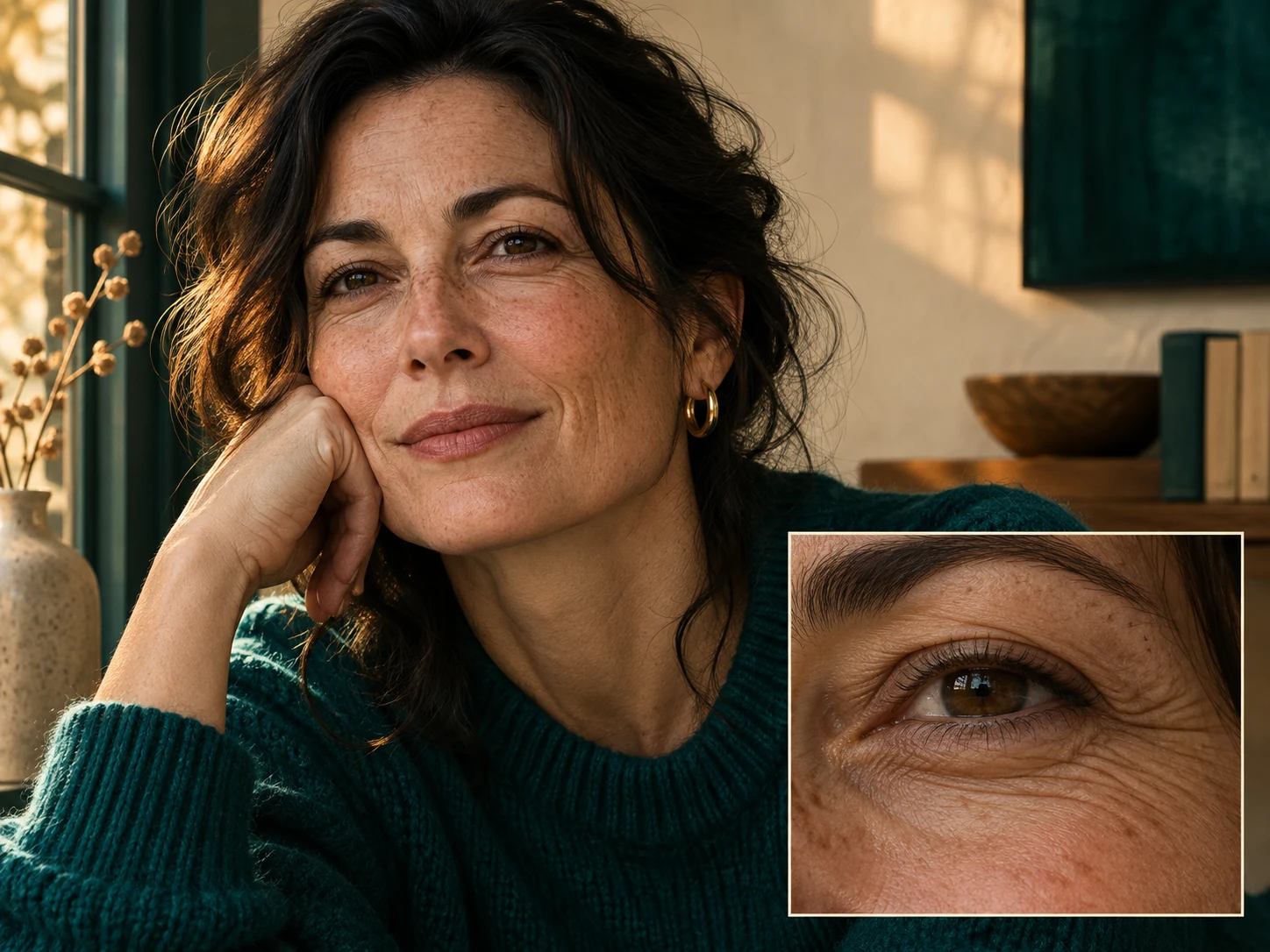
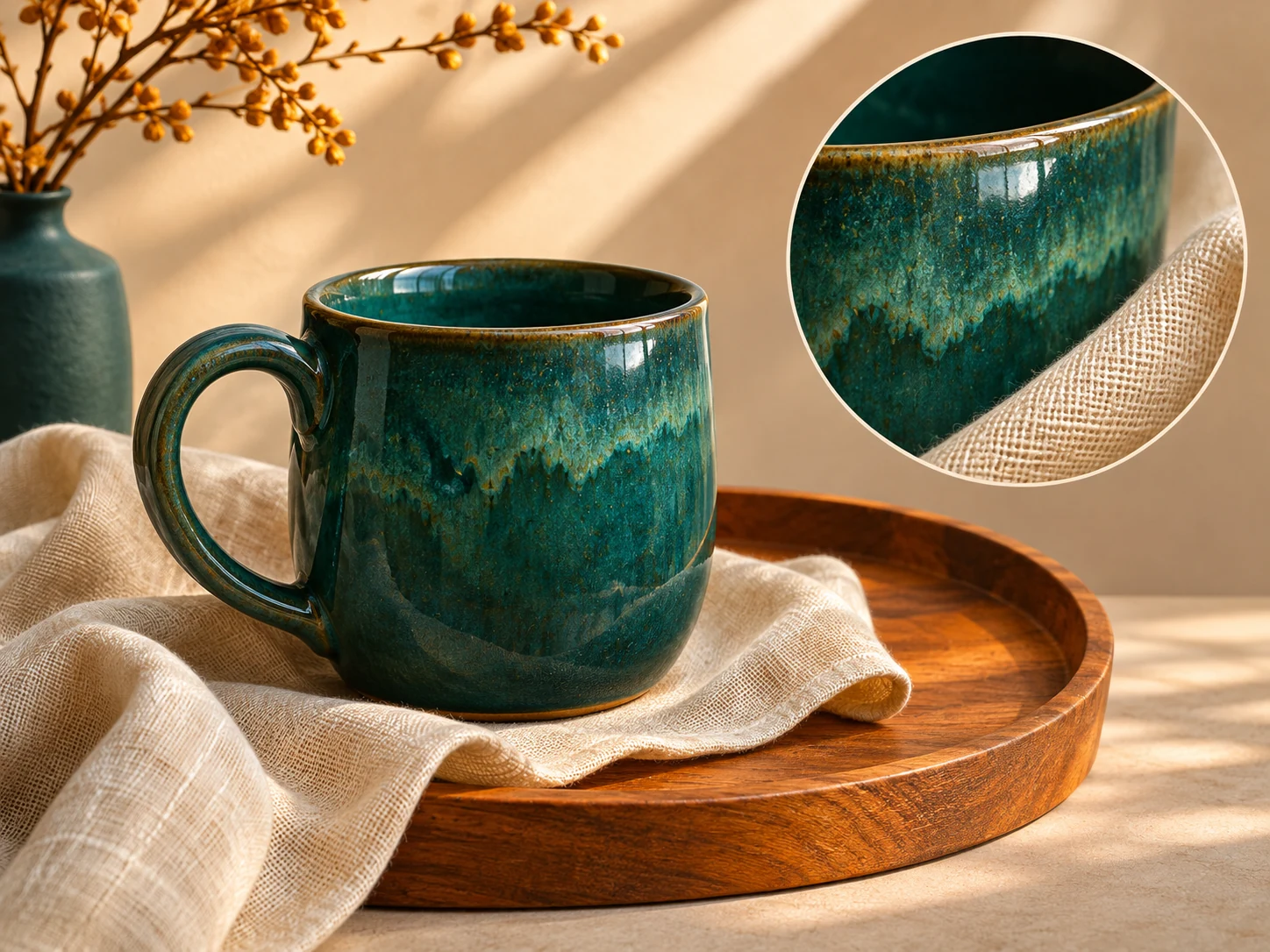
A useful enhancement needs to suit the material in the picture. These illustrations show portrait, product, and artwork detail to inspect; they are concept images made for this page, not measured before-and-after results from the configured tool.

Portrait detail with a familiar face

Image Upscaler asks for natural facial texture while retaining the person’s visible features. Use it to explore a larger creative version of a casual portrait, then compare the eyes, smile, hairline, and skin markings with the original. A pleasant-looking face is only helpful when it still resembles the intended person. More pixels do not establish that identity has been preserved.

An AI photo enhancer may interpret blurry areas instead of recovering their original appearance. Inspect the result closely around glasses, jewelry, and hair against the background. Keep the source file beside the download so comparisons are easy. For a meaningful family photograph, prioritize recognizable features over a smooth finish or dramatic sharpening.
Portrait detail with a familiar face

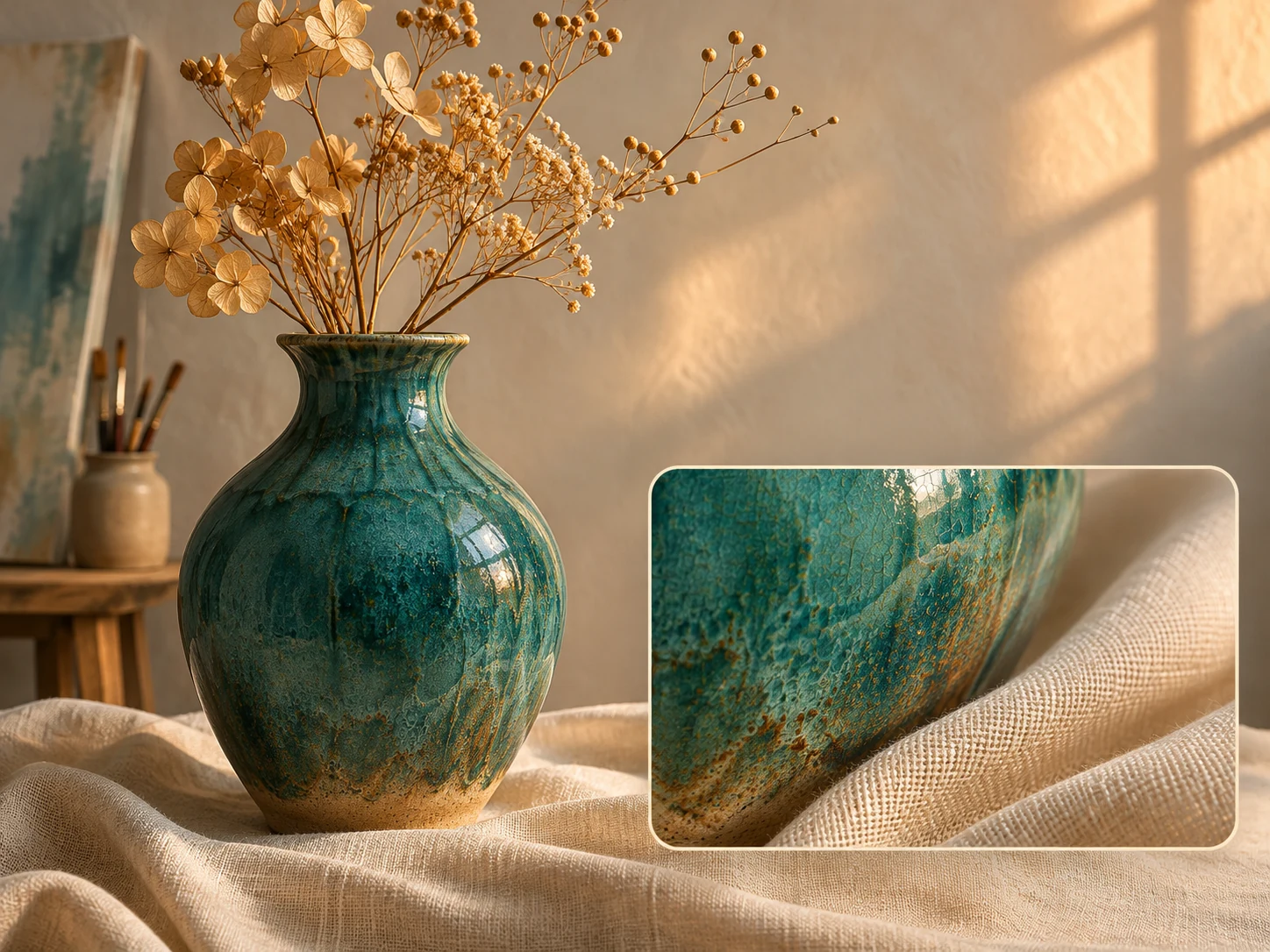
Product texture and clean object boundaries

Image Upscaler can produce a fresh interpretation of surfaces such as fabric, glazed ceramics, and wood. These materials are useful for judging whether an enhancement looks coherent. Examine the rim of a cup, the seams of a garment, and the boundary between an object and its backdrop. The object should retain a plausible shape without bright outlines that make it look cut out.

Use particular care with product photographs that communicate precise details. A generative pass can alter a label, a small fitting, or the weave of a material. Compare those areas with the item you are presenting. If a detail changes, keep the original photograph or replace the affected element in an editor before considering the image for a listing.

Product texture and clean object boundaries

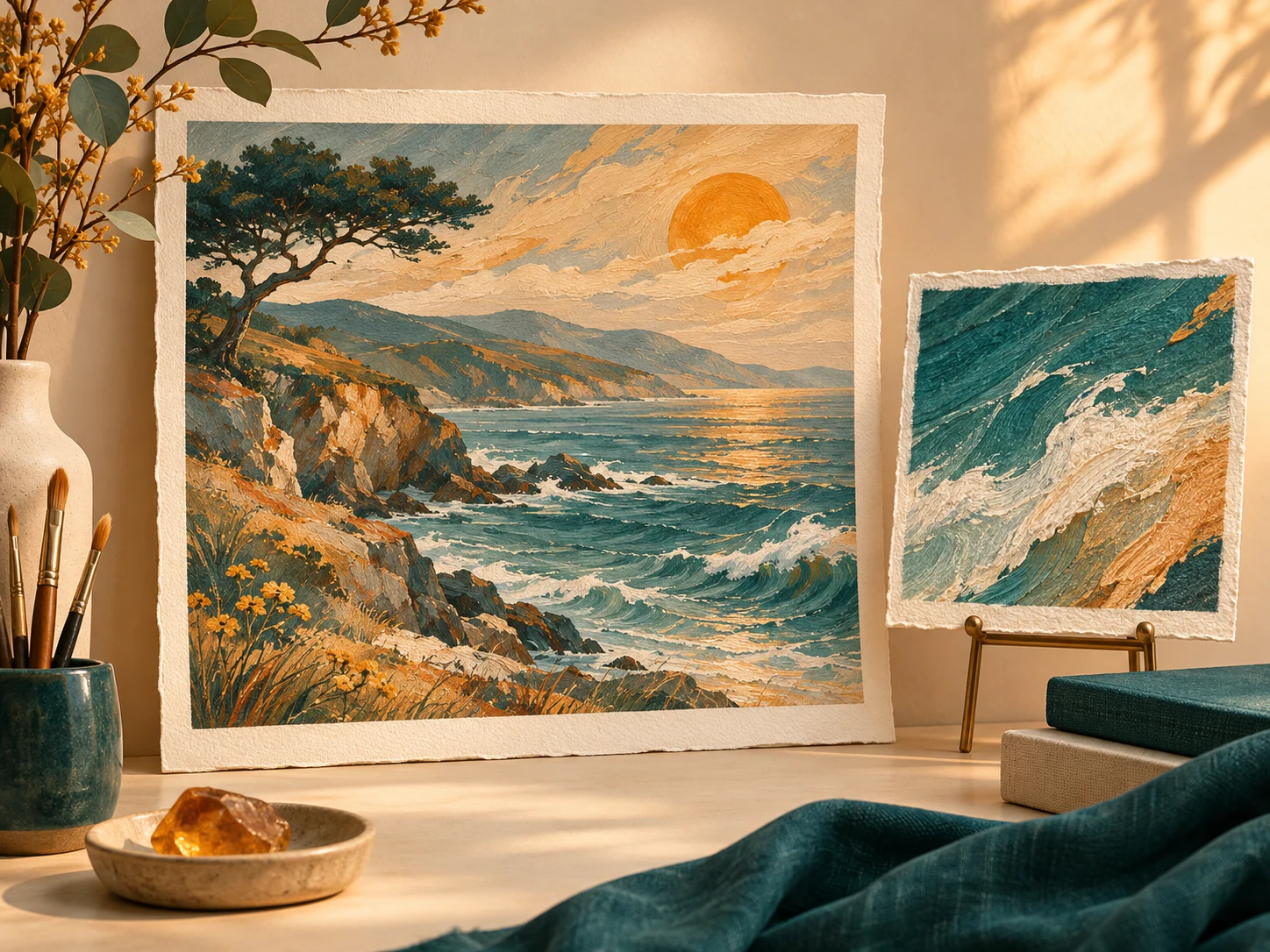
Illustration detail for larger layouts

Image Upscaler is also useful for exploring a larger version of creative artwork where some newly interpreted texture is acceptable. Painted surfaces, organic landscapes, and decorative illustrations can provide room for that interpretation. Choose an output setting that fits the layout, then check whether the new version preserves the color relationships and focal point that made the original work.

For artwork with exact lettering, diagrams, or deliberately placed pixels, inspect every meaningful mark. A photo enlarger powered by generation may redraw those elements. Keep typography and logos as separate source files whenever possible, and reassemble them after enhancement. Save the untouched illustration so you can return to its original lines and colors if necessary.

Illustration detail for larger layouts

How to use Image Upscaler

  1. 01

    Start with the best available source

    Upload the original export or the clearest copy you have. Image Upscaler accepts one image at a time; use JPG, PNG, or WebP within the upload limit shown. A screenshot of a screenshot may contain compression and interface elements you do not want. Crop unwanted borders in a separate editor before uploading if they should not appear in the final composition.

  2. 02

    Choose a useful output resolution

    Select 1K, 2K, or 4K and check the credit estimate after signing in. Image Upscaler defaults to 2K and supplies its own enhancement instructions. The final dimensions depend on the model and source proportions. Choose a setting appropriate for your destination instead of assuming the largest option always produces the most faithful image.

  3. 03

    Compare and download the result

    Review both the overall composition and small details at full viewing size. Check faces, lettering, repeated patterns, and object edges before keeping the image. Image Upscaler outputs a PNG that you can download and place in your usual editor. Preserve the original alongside it, and make any resized or compressed delivery copies from the version you approve.

AI Image Generators for Your Next Project

Bring your next photo project to life with creative effects, painted portraits, and printable coloring pages.

  • Photo to Line Art

  • Remove Glare from Photo

  • Remove Glare from Glasses

  • 80s AI Photo Trend

  • AI Pregnant Filter

  • Pet Portrait AI

  • AI Beard Generator

Projects for Image Upscaler

Personal designers and hobby creators

A larger image in a personal layout

A small photograph can look cramped when placed in a greeting, hobby page, or digital collage. Image Upscaler provides another version to evaluate at the intended display size. First decide how much space the image needs in the composition. Check the generated file in that layout, where facial expression, crop, and visual balance matter more than a resolution label alone.
Designers developing presentation concepts

Visual concepts for product presentations

Explore texture and presentation with product images used in mood boards or early design proposals. Image Upscaler can help create a larger working image when some interpretation is acceptable. For customer-facing material, verify all appearance-sensitive details against the real item. Keep labels, specifications, and brand elements sourced from accurate originals rather than relying on newly generated lettering.
Illustrators and personal print makers

Creative artwork for a new canvas

Prepare a decorative illustration for a wider screen layout or a larger personal print composition. Image Upscaler can reinterpret small textures while preserving the broad visual idea. Inspect thin lines and repeated shapes, then test a crop in the destination template. For printing, calculate the intended physical size from the actual downloaded dimensions and discuss file requirements with your print provider.

Choose Image Upscaler settings with a purpose

Resolution describes the output size, not a promise about recovered information. Image Upscaler offers 1K, 2K, and 4K choices, but a larger result can still contain altered details. If the source already has more pixels than the selected output, this workflow may reduce its dimensions. Check the original size first and inspect the downloaded file rather than assuming every run enlarges it.

Decide what must remain accurate before starting. For a portrait, it may be a familiar expression. For a product, it may be the shape of a clasp. For a landscape illustration, it may be the position of the horizon and the color palette. Image Upscaler is easier to assess when you have a few specific visual requirements instead of a vague request for better quality.

Compare the images at a similar display size as well as inspecting the full download. An oversized preview can make harmless grain seem distracting, while a small thumbnail can hide changed lettering. Image Upscaler should be judged in the context of the final project. If exact text, technical markings, or documentary detail matters, retain the original and use an editing method suited to those constraints.

Image Upscaler questions

No. This Image Upscaler runs on Image to Image AI using Nano Banana 2.1. It is an independent generative image tool, not an AVAide integration or affiliated product. The page explains its own supported inputs, resolution settings, and credit-based workflow so you can assess it on those terms.

This page offers resolution presets rather than exact scale factors. The final width and height depend on the source proportions and model output. Compare downloaded dimensions with your original. If you need a precise pixel count, resize an approved result separately or choose a tool designed around exact dimension controls.

No. Generative enhancement can create plausible texture in unclear regions, but that does not prove the texture existed in the original scene. Faces, text, and fine patterns may change. Keep your source image and review the new version before using it where those details affect accuracy.

Upload one JPG, PNG, or WebP image within the displayed file-size limit. This page is configured for a single reference, not batch processing. The generated output is PNG. If your source uses another format, export a compatible copy while retaining the original file for future editing.

No. Image Upscaler includes a prepared instruction focused on conservative clarity and composition preservation. Upload the source and select a resolution. The page does not expose a custom prompt box, a sharpening slider, or separate controls for noise reduction; the model interprets the combined enhancement direction.

Each generation uses account credits according to the selected resolution. Review the current estimate and your balance before starting. Existing credits can cover a run without another purchase when sufficient. This page does not promise unlimited free processing, a fixed turnaround time, or an identical result on repeated attempts.

Give your next project an Image Upscaler review

Choose a source image, select a useful resolution, and compare the generated result with the details you care about. Save the version that works in your layout, keep the original, and prepare the final crop or export in your preferred editor. Start with one image and a clear purpose.

Try Image Upscaler
Image to Image AI logoImage to Image AI

A fresh take on your image. Explore new styles and scenes with AI.

Customer supportsupport@imgtoimageai.com

Tools

  • Remove Glare from Glasses
  • Remove Glare from Photo
  • Photo to Line Art
  • Image Upscaler
  • Realistic Selfie Generator
  • Christmas Photobooth
  • AI 3D Figure Generator
  • Selfie With Santa
  • Christmas Dance Trend
  • Motorcycle AI
  • AI Photo Booth
  • Photo to Sticker
  • QR Code Enhancer
  • AI Long Hair Filter
  • Bicep Heart Trend AI
  • Happy Birthday GIF with Name
  • Apartment Dance
  • AI GIF Generator
  • Executive Portrait Maker
  • AI Trouble Maker Video

Learn more

  • Tools
  • Blog
  • Pricing

Legal

  • Privacy Policy
  • Terms of Service
  • Refund Policy
  • Contact

© 2026 Image to Image AI