






Image to Image AI logoImage to Image AI
  • Home
  • AI Image Generator
  • AI Video Generator
  • Tools
  • Nano Banana 2.1
  • Flux 3 Klein
  • Seedream 5.0 Pro
  • Seedream 5.5
  • GPT Image 2.5
  • GPT Image 2.6
  • MiniMax H3 Image
  • Kling 4.0
  • Grok Imagine Video 1.5
  • MiniMax H3 Max
  • Seedance 2.5
More
  • Blog
  • Pricing

Guest

Save your creations

Credits—
  1. Home
  2. /
  3. Image

Seedream 5.5 for Images Worth Refining

Create a visual you want to keep working on. Seedream 5.5 brings natural photographic detail, focused image editing, transparent artwork, and expressive lettering into one creative process. Turn a written idea into a first composition, then refine the details that give your project its own character.

|
17
Checking your sign-in status…
Strictly prohibits adult / NSFW content

AI Image Generators to Explore

Try a different look for your photos with generators for portraits, artistic styles, and creative edits.

  • Photo to Line Art

  • Remove Glare from Photo

  • Remove Glare from Glasses

  • Realistic Selfie Generator

  • Image Upscaler

  • Selfie With Santa

  • AI 3D Figure Generator

  • Motorcycle AI

  • Photo to Sticker

  • AI Photo Booth

  • AI Long Hair Filter

  • Happy Birthday GIF with Name

  • AI GIF Generator

  • Executive Portrait Maker

  • No Beard Filter

  • AI Beard Generator

  • 80s AI Photo Trend

  • AI Pregnant Filter

  • Pet Portrait AI

  • Photo to Watercolor

  • Photo to Coloring Page

Page 1 of 3

What Is Seedream 5.5?

Seedream 5.5 is ByteDance Seed's multimodal image generation and editing model, released on November 9, 2026. Its announced improvements center on more realistic rendering, greater stability through successive edits, native transparency, and clearer written characters. These capabilities connect image creation with the practical work of revising and reusing a design.

Think of Seedream 5.5 as a way to develop a visual direction around an actual brief. A product concept might need believable ceramic glaze; an event graphic might depend on a readable headline. Start with the detail that determines whether the image is useful. Once that works, develop the surrounding scene without losing sight of your original purpose.

The guidance below pairs those model capabilities with original creative exercises. The accompanying artwork was made for this page with another image generator; it illustrates the ideas rather than documenting Seedream 5.5 test results. Use your own subject and references to evaluate how well a result meets your needs.

Read ByteDance's Seedream 5.5 announcement

Four Ways to Create with Seedream 5.5

Choose the capability that serves your idea. Each example suggests a concrete way to judge composition, material, consistency, or readability before taking an image into your next design stage.

Natural Light and Texture

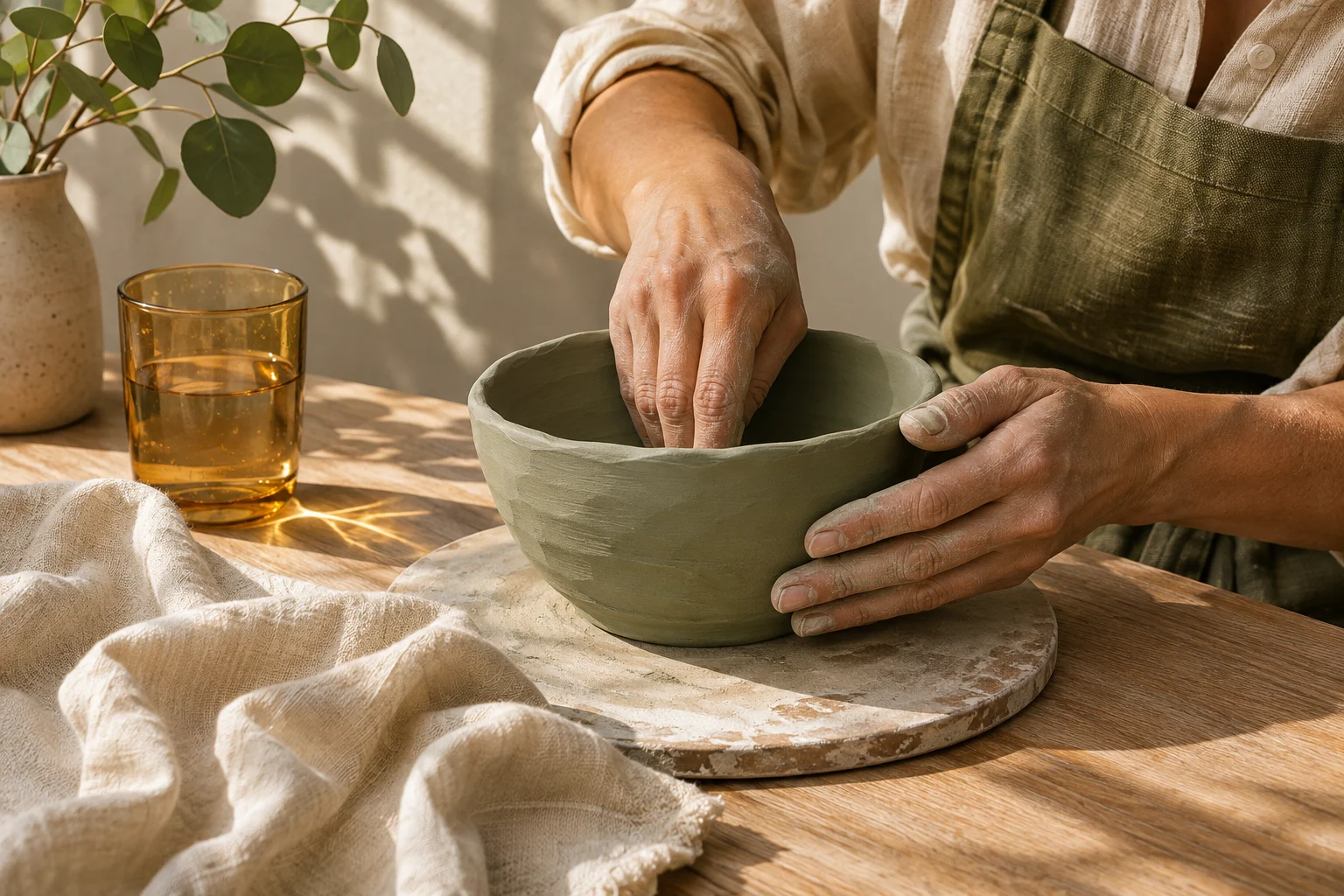
Seedream 5.5 improves the rendering of light, surfaces, and skin, with less excessive shine and overexposure. That matters when a scene depends on the difference between rough linen, glazed pottery, and clear glass. A convincing image lets each material respond to the same light in its own way.

For a useful exercise, describe a ceramic workshop beside a window. Give the light a direction, let the cloth show irregular folds, and keep the composition close enough to reveal the clay. Ask for a quiet working moment rather than a polished showroom. Review contact shadows and reflections together: their relationships often tell you more about realism than sharpness alone.
Natural Light and Texture

Edits Across Multiple Rounds

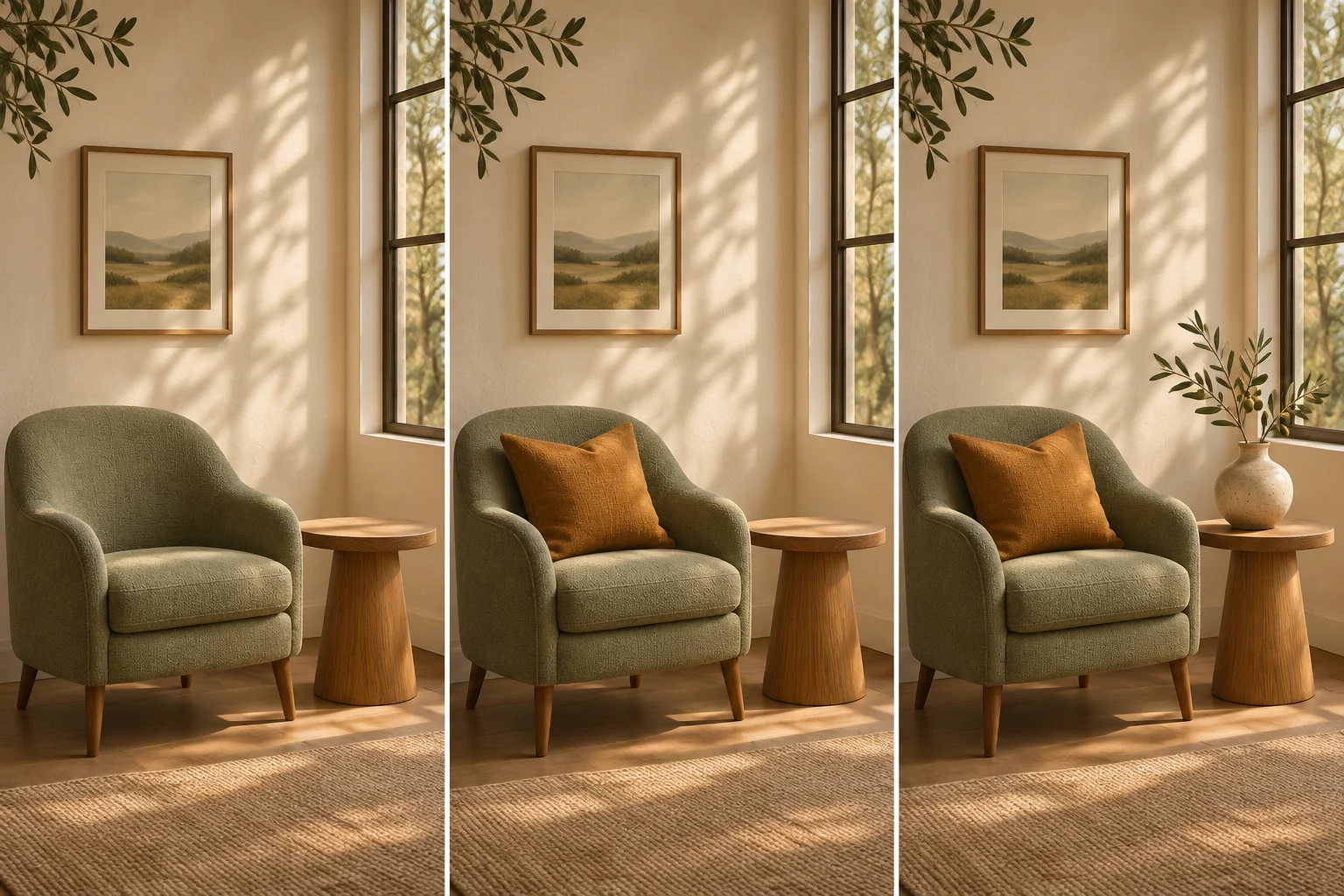
Seedream 5.5 is designed to retain untouched regions while making successive targeted changes. ByteDance reports editing sequences of up to 100 rounds. Treat that as a reported model capability, with each result still worth checking, rather than a promise that every long sequence will preserve every detail perfectly.

Imagine refining a reading corner: add a cushion, introduce a vase, then adjust the upholstery. Name the new change and the elements that should stay fixed in each instruction. Save the strongest version before continuing. Comparing the window frame, chair silhouette, and wall color across stages makes it easier to notice drift and return to a better starting point.

Edits Across Multiple Rounds

Transparent Image Assets

Seedream 5.5 supports native RGBA images, including transparent and partially transparent areas. An isolated illustration can become a reusable design element instead of arriving attached to a background. This is especially useful when the same object needs to appear in several compositions with different colors behind it.

Plan the asset around its silhouette. A pitcher handle, fine leaves, or translucent ornament gives you specific edges to inspect. Leave breathing room around the subject so you can position it comfortably in a layout. After export, place it over a pale surface and a dark one. Check the narrow gaps and soft transitions before assembling the final composition.

Transparent Image Assets

Text Inside Images

Seedream 5.5 improves complex character shapes and densely arranged small text. Written elements can contribute to the visual idea itself, from a poster headline to an illustrated card. Clearer rendering is valuable, but final spelling, dates, and factual details still need a human check before publication.

Write the exact words in quotation marks and assign each line a role. For an exhibition concept, make the title dominant, give the subtitle room to breathe, and reserve a quiet footer for the date. Keep decorative objects away from letterforms. If the artwork works but the wording needs frequent revisions, finish the typography in a design editor.

Text Inside Images

Build Your First Seedream 5.5 Image

A small, well-defined project gives you a useful first result and a clear reason for the next revision. Keep the brief nearby as you work through these three stages.

  1. 01

    Describe the visual purpose

    Tell Seedream 5.5 what you are making and what should attract attention first. Specify the subject, setting, viewing angle, and mood. A product launch image might need an uncluttered silhouette and space for copy; a personal illustration might depend on a gesture or expression. Choose one priority before adding decorative instructions.

  2. 02

    Give references a clear role

    Bring an existing image when its appearance or structure matters. Explain whether it controls the object shape, room layout, palette, or pose. For Seedream 5.5 edits, state both the requested change and the details to retain. Select your settings and review the credit estimate before generating the next version.

  3. 03

    Compare and refine deliberately

    Assess the Seedream 5.5 result against the brief before enlarging tiny details. Does the focal point read immediately? Is the essential wording correct? Download a useful version, then make one focused revision. To continue editing here, upload the chosen output as a reference for a new request and describe the next change.

AI Image Generators for Your Next Project

Bring your next photo project to life with creative effects, painted portraits, and printable coloring pages.

  • Photo to Line Art

  • Remove Glare from Photo

  • Remove Glare from Glasses

  • 80s AI Photo Trend

  • AI Pregnant Filter

  • Pet Portrait AI

  • AI Beard Generator

Put Seedream 5.5 to Work on a Real Brief

Different projects need different checks. Choose a deliverable with an obvious success criterion, then use the first image to decide which direction deserves more attention.

For independent shops and product designers

Product Stories with Tactile Detail

Explore a campaign scene around a handmade object with Seedream 5.5. Keep the product recognizable while changing the supporting surface, light, or arrangement. Compare the generated proportions with your actual item before using the concept. A good exploration helps you discuss a shoot or layout without confusing an imagined variation with the product you sell.
For marketers and creative teams

Campaign Concepts with a Clear Message

Use Seedream 5.5 to explore how a headline and hero object work together. Give a seasonal announcement one message, a restrained palette, and a defined viewing distance. Compare the design at phone size as well as full size. If the headline disappears among decorative details, simplify the composition before requesting more polish.
For illustrators and presentation designers

Reusable Illustrations for a Visual System

Develop a family of objects that share shape, texture, and lighting. Seedream 5.5 can help you explore an isolated character or ornamental element that fits into several layouts. Use a chosen reference to describe the recurring details, then review scale and outline across the set. Assemble and position the selected assets in your preferred editor.

Write a More Useful Seedream 5.5 Prompt

A strong prompt explains relationships, not just a list of attractive adjectives. Identify the main object, how it sits in the frame, and how the light reaches it. Then describe the material details that support the mood. Add exact wording only when the composition needs it.

Try this starting brief: Create an editorial still life of a sage ceramic pitcher on an ivory linen cloth. Warm window light enters from the left. Keep the glaze slightly uneven, the fabric softly creased, and the background quiet. Place an amber glass sphere beside the pitcher, leaving open space above the arrangement for a short headline.

For a Seedream 5.5 revision, narrow the request: Replace only the glass sphere with a small olive branch. Preserve the pitcher, cloth folds, framing, and direction of the shadows. This gives you a concrete comparison between versions. If several details need attention, put the most consequential change first and save cosmetic adjustments for later.

Seedream 5.5 Questions and Answers

The main areas to explore are more natural rendering, steadier revisions, native transparent artwork, and clearer image text. Start with a task where one of those qualities matters to you. Compare the result with your brief and references rather than assuming a model upgrade will improve every kind of image equally.

Yes. Upload a reference and describe the intended change. For a room photo, identify the object by its position and explain which architectural details should remain. Begin with a focused edit so you can see what changed. Keep the original file available when comparing proportions, color, and important features.

Choose Transparent in the background control and describe an isolated subject. This workspace returns PNG files, which can retain an alpha channel. Inspect the downloaded file over contrasting colors; a painted checkerboard is not transparency. Fine hair, glass, and soft edges deserve particular attention before compositing.

The cost depends on output resolution and the number of reference images. Text-only requests currently use 10 credits at 1K or 1.5K and 17 credits at 2K. References increase the total. The generator shows the estimate for your selection before submission; check it again when changing settings or adding images.

Read every line before publication. Improved rendering does not guarantee correct spelling, numbers, or factual statements. Check the smallest text at its intended display size, especially prices and dates. For copy that must remain editable, use the generated artwork as a visual base and typeset the final text separately.

Start Creating with Seedream 5.5

Bring one idea, define what makes it successful, and build from the first useful image. Explore the light, refine the details, and turn the version you choose into a visual that serves your project.

Create with Seedream 5.5
Image to Image AI logoImage to Image AI

A fresh take on your image. Explore new styles and scenes with AI.

Customer supportsupport@imgtoimageai.com

Tools

  • Remove Glare from Glasses
  • Remove Glare from Photo
  • Photo to Line Art
  • Image Upscaler
  • Realistic Selfie Generator
  • Christmas Photobooth
  • AI 3D Figure Generator
  • Selfie With Santa
  • Christmas Dance Trend
  • Motorcycle AI
  • AI Photo Booth
  • Photo to Sticker
  • QR Code Enhancer
  • AI Long Hair Filter
  • Bicep Heart Trend AI
  • Happy Birthday GIF with Name
  • Apartment Dance
  • AI GIF Generator
  • Executive Portrait Maker
  • AI Trouble Maker Video

Learn more

  • Tools
  • Blog
  • Pricing

Legal

  • Privacy Policy
  • Terms of Service
  • Refund Policy
  • Contact

© 2026 Image to Image AI