
Image to Image AI logoImage to Image AI
  • Home
  • AI Image Generator
  • AI Video Generator
  • Tools
  • Nano Banana 2.1
  • Flux 3 Klein
  • Seedream 5.0 Pro
  • Seedream 5.5
  • GPT Image 2.5
  • GPT Image 2.6
  • MiniMax H3 Image
  • Kling 4.0
  • Grok Imagine Video 1.5
  • MiniMax H3 Max
  • Seedance 2.5
More
  • Blog
  • Pricing

Guest

Save your creations

Credits—
  1. Home

Elevator Outfit Change AI

Turn one portrait into a compact fashion story with Elevator Outfit Change AI. A familiar face appears inside a warm hotel elevator, the doors close, and the next opening reveals a different look. The prepared direction aims for three outfits connected by two clear door transitions. Upload your photo, choose your video settings, and create an original wardrobe reveal without planning multiple shoots or writing a prompt.

Upload my photo
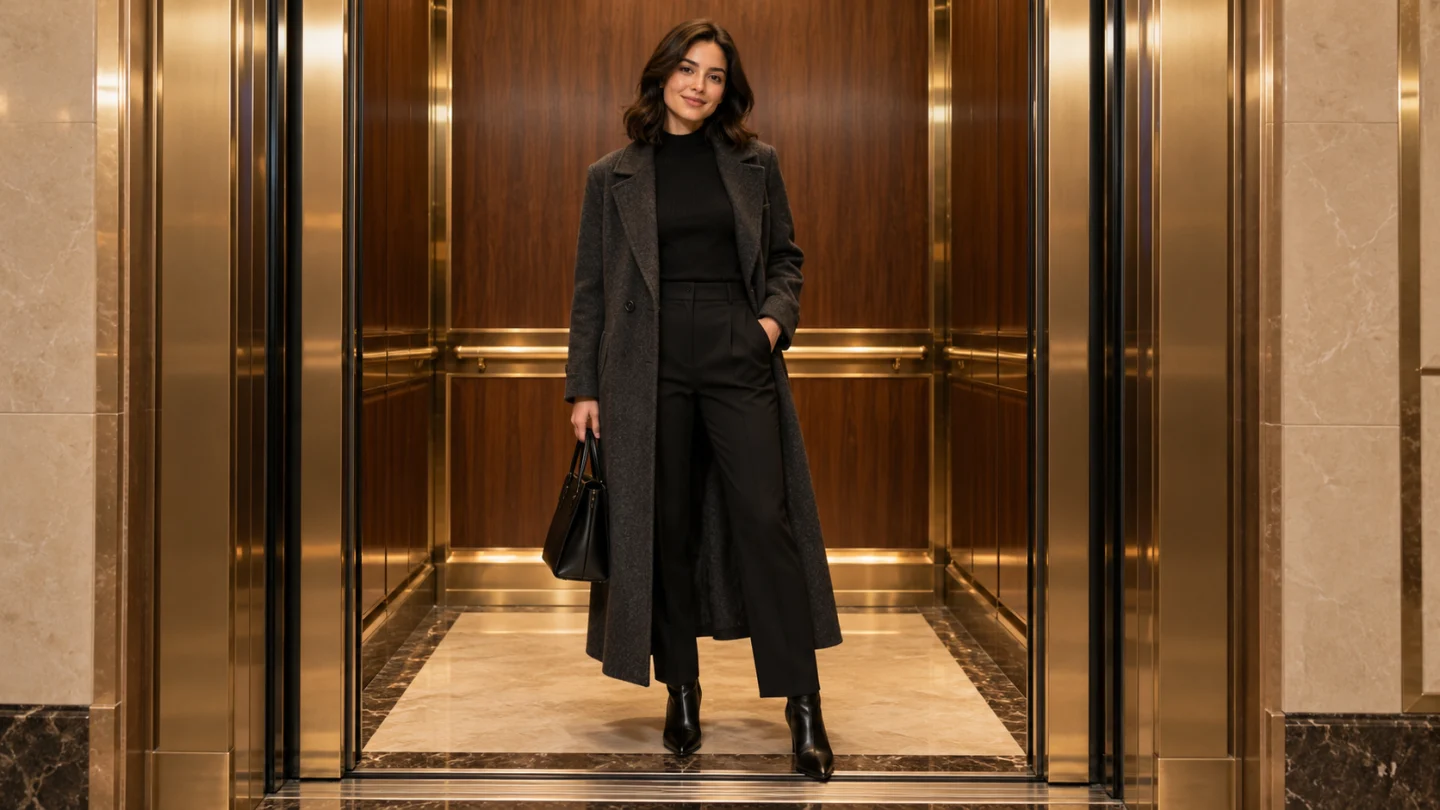
A centered pose and a clear doorway establish the Elevator Outfit Change AI fashion scene.

Reference image

Required · 1 image
315
Checking your sign-in status…
Strictly prohibits adult / NSFW content

AI Video Generators to Explore

Find new ways to animate your photos, from dance clips and outfit changes to imaginative scenes.

  • Christmas Dance Trend

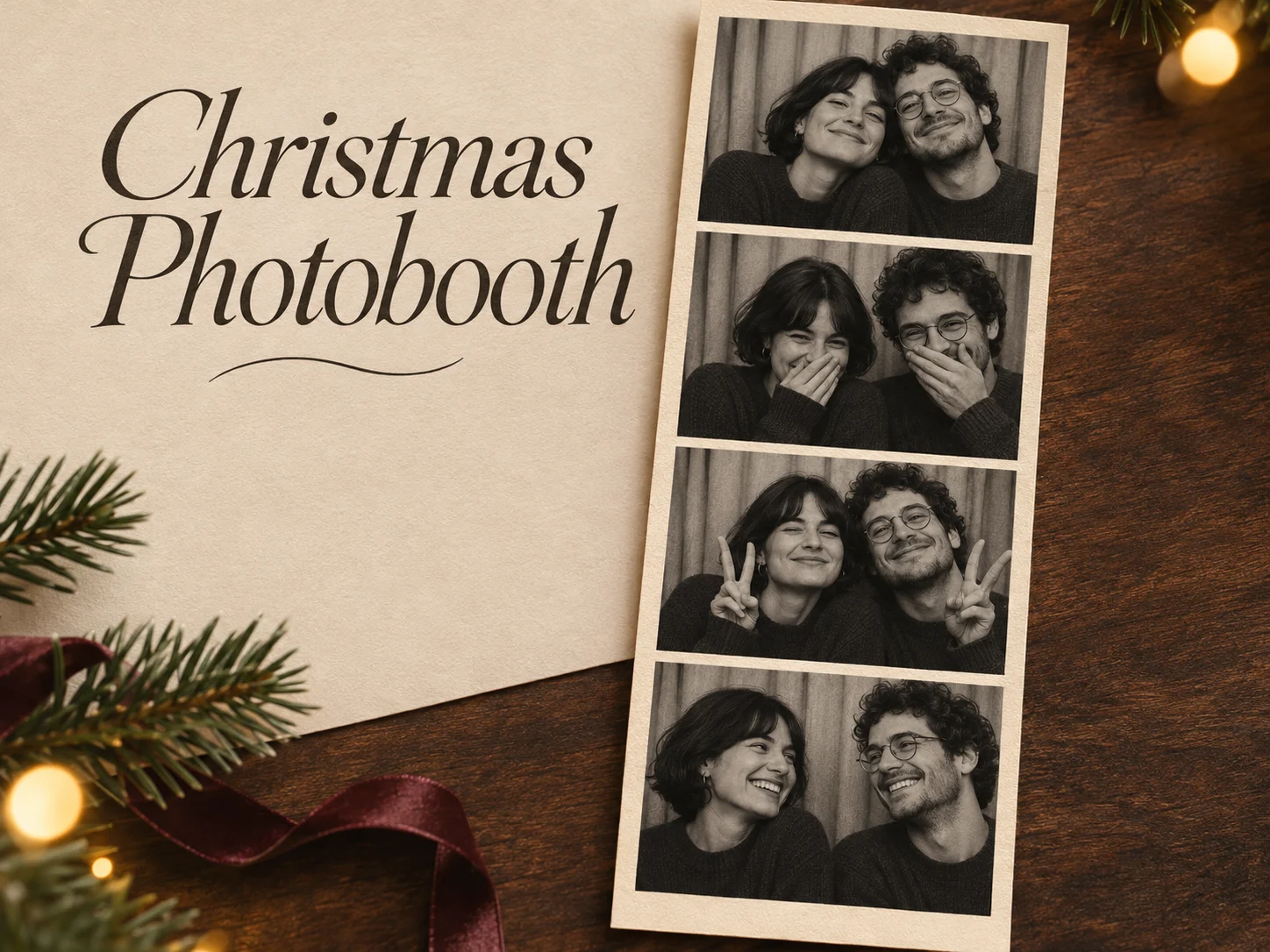
  • Christmas Photobooth

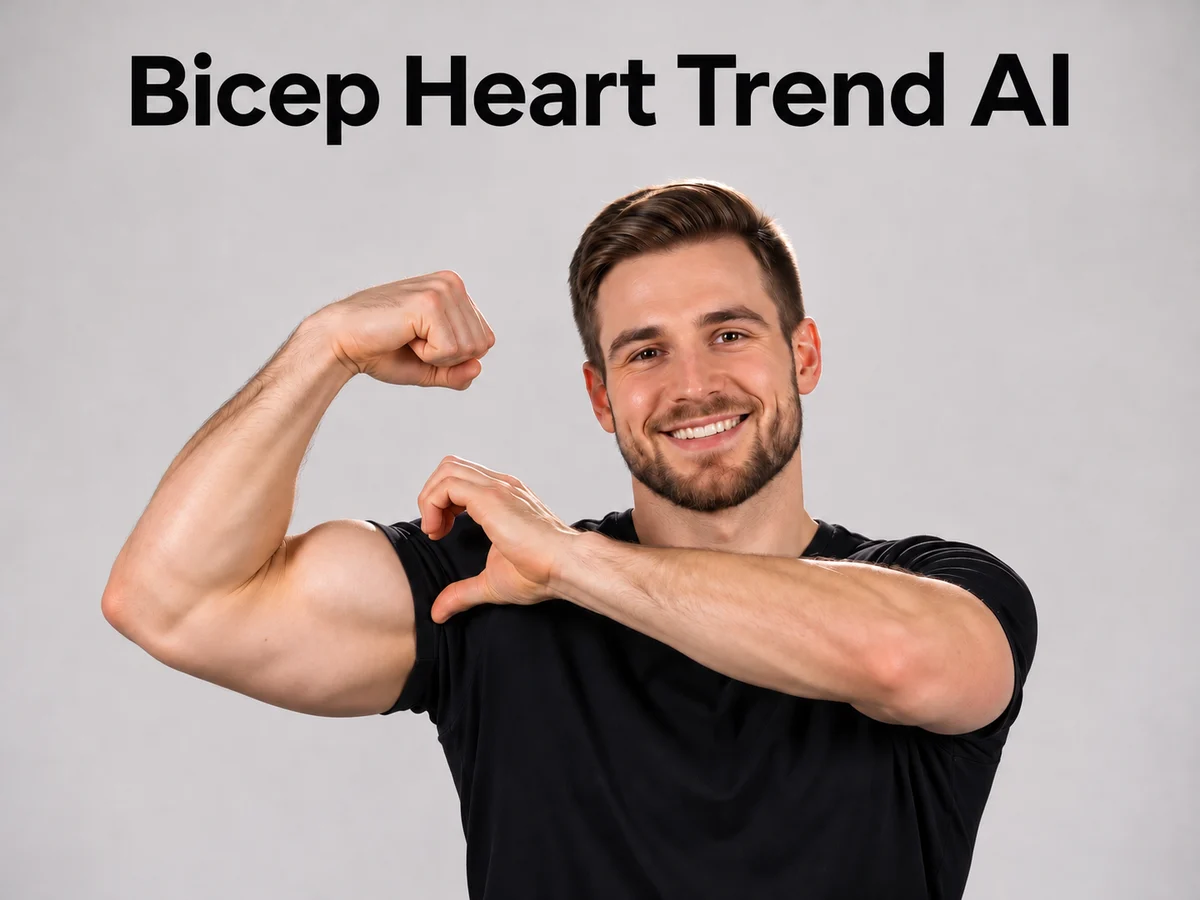
  • Bicep Heart Trend AI

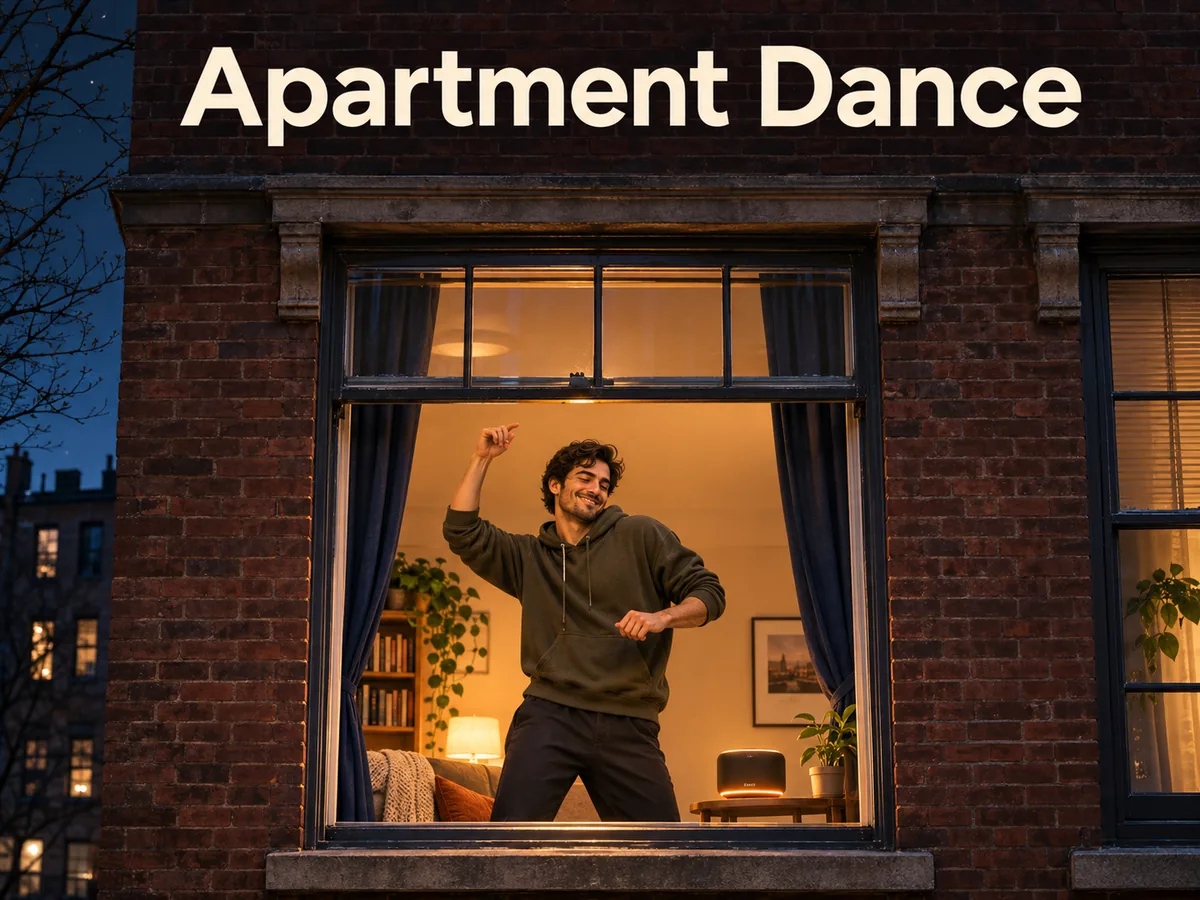
  • Apartment Dance

  • AI Trouble Maker Video

  • Skull Cap Trend AI

  • Stones to Castle AI

  • WYW My Sweetie Dance

  • Black Friday Video Maker

  • La Tormenta De Arena AI Club Spotlight

  • Baby Born with a Mustache

  • Burger Thru Window

  • Outstanding Tiny Desk AI

Page 1 of 2

What is Elevator Outfit Change AI?

Elevator Outfit Change AI uses a familiar fashion-video idea: the doors act as a natural screen between looks. Viewers see one outfit, lose sight of the person for a moment, and discover the next styling when the elevator opens again. The setting gives the changes a clear rhythm and keeps attention on the same subject. A steady camera makes each reveal easy to compare.

This Elevator Outfit Change AI tool creates a new scene from one photo. It is prepared for three total looks, with clothing changes concealed behind fully closed doors. The first look takes its visual cues from the reference, while the next two introduce coordinated alternatives. The exact garments are generated rather than selected from a catalogue. There are no separate outfit uploads, brand selectors, or custom styling prompts on this page.

A successful Elevator Outfit Change AI clip depends on more than attractive clothes. The face should remain recognizable, the doorway should stay in the same place, and each outfit should differ enough to notice. The most readable versions keep the person in a similar relaxed stance, with some space around the shoulders and feet. Those stable elements help the viewer understand that the clothing changed while the character stayed the same.

Treat an Elevator Outfit Change AI result as a fashion concept rather than a measurement of fit. Generated garments can invent seams, fastenings, fabrics, or proportions. They do not represent a specific product you can order, and the tool does not determine real clothing sizes. Use the scene to explore a visual direction, build a mood board, or make a playful fit-check post, then inspect the outfit details before keeping the take.

What makes Elevator Outfit Change AI work

Look for a clear subject, a coherent setting, and a result that reads at normal viewing size. These scenes show the visual details to consider when choosing your reference and reviewing your result.

Establish one person and one elevator

The opening of Elevator Outfit Change AI should show enough of the setting to make the transition understandable. Warm wood panels, a clear metal door frame, and a centered person create a simple visual anchor. A medium-wide or full-body composition lets the viewer see the outfit before the doors move. Check that the person stands comfortably inside the car rather than across the threshold. A stable opening also gives you a reference for the later reveals: the face, shoulder height, and doorway dimensions should still match after each clothing change.
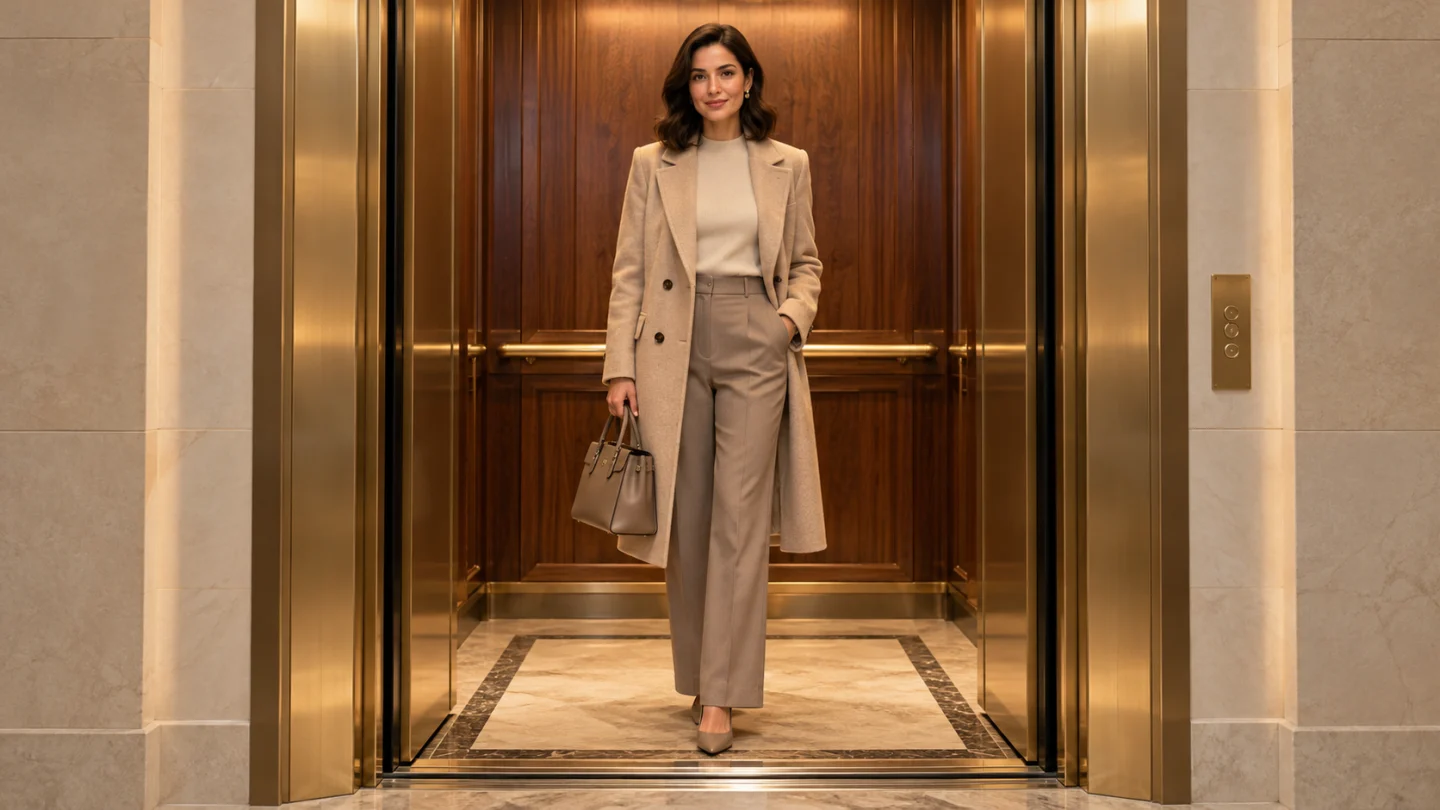
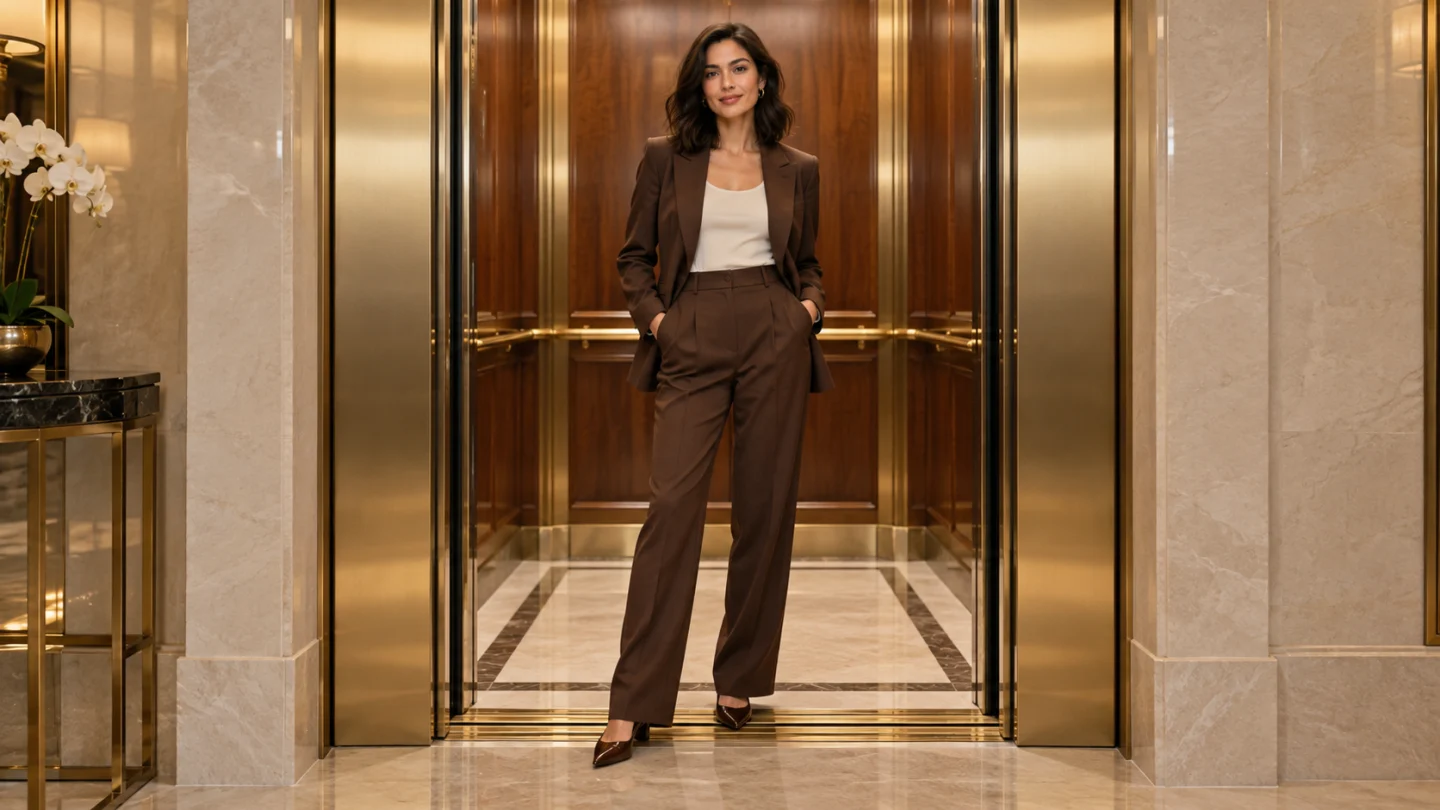
A centered pose and a clear doorway establish the Elevator Outfit Change AI fashion scene.

Reveal the outfit after the doors close

Elevator Outfit Change AI asks the doors to conceal the change instead of showing a jacket melting into another garment. That brief obstruction makes the fashion story easier to read. When the doors open, let the next look hold long enough to notice its silhouette and main color. A third look completes the progression without needing a new location. Inspect door edges, reflections, shoes, and sleeves around each reveal. If clothing appears to switch while the person is still visible, the sequence may need another attempt or a careful trim in your external editor.

A new tailored look appears after the elevator doors reopen in the Elevator Outfit Change AI sequence.

Let the third look complete the sequence

The final Elevator Outfit Change AI opening gives the wardrobe story a clear finish. A long charcoal coat creates a different silhouette from the earlier looks while the familiar face, doorway, and stance connect the sequence. Give this outfit a moment to register before the video ends. Check the coat hem, sleeves, and shoes for stable shapes, and make sure the door frame does not intersect the body. A calm held pose lets viewers compare the styling without chasing another movement. Choose a take where the last reveal feels connected to the same elevator and person.

A long charcoal coat gives the third Elevator Outfit Change AI reveal a distinct finishing silhouette.

How to use Elevator Outfit Change AI

  1. 01

    Upload one clear photo

    Start your Elevator Outfit Change AI project with one JPEG, PNG, or WebP image. The upload limit is 10 MB per image in the interface. Use a sharp reference with one clearly visible adult and balanced lighting. Choose the photograph that already has the framing and expression you want to carry into the result. A clean source gives the prepared effect more useful detail than a dark screenshot or a heavily filtered selfie.

  2. 02

    Choose your output settings

    Select the aspect ratio before generating with Elevator Outfit Change AI. A portrait frame usually gives one person comfortable space on a phone, while a wider frame includes more of the surroundings. Review the displayed credit estimate after changing settings. The default is 480p and 15 seconds; available durations run from 10 to 15 whole seconds, with 768p and 1080p also offered.

  3. 03

    Generate with the prepared effect

    The creative direction for Elevator Outfit Change AI is already built in. There is no prompt field, template text to paste, or separate performance video to upload. Sign in, check the reference image and selected settings, then submit the request. Watch the generation status and review the completed result before deciding whether another attempt would help. Each submission uses the current estimate shown by the generator.

  4. 04

    Review and download your result

    Compare the completed Elevator Outfit Change AI result with your original photo. Watch the entire clip and pause at transitions to inspect the face, hands, clothing, and background. Listen to any generated audio before keeping it. Add your chosen music or captions in a separate editor, then check that the final frame remains clear after cropping.

AI Video Generators for Your Next Project

Turn a photo into a short video for a personal story, a social post, or a playful idea.

  • Outstanding Tiny Desk AI

  • Baby Born with a Mustache

  • Stones to Castle AI

  • Skull Cap Trend AI

Get more from Elevator Outfit Change AI

Prepare an Elevator Outfit Change AI reference with the person standing and enough clothing visible to establish a starting look. A full-body photo is useful because it supplies proportions and footwear, but a clear three-quarter portrait can also offer a workable starting point. Avoid seated poses, crossed arms that hide the torso, or objects covering the outfit. The face should remain sharp enough to compare across all three reveals.

Elevator Outfit Change AI defaults to 15 seconds, vertical 9:16, and 480p. The longer default gives the generator room for three looks and two door cycles. Shorter supported durations can compress or omit parts of the progression, so judge the actual result. Choose a wider ratio only when it helps your source composition, and inspect whether the shoes and head remain comfortably inside the frame. Review the estimate before submitting new settings.

Evaluate an Elevator Outfit Change AI take by watching the door sequence first. Look for two full closures, a consistent elevator, and a useful pause on each outfit. Then inspect the face and clothing. The eyebrows, nose, and smile should stay connected to the original portrait, while sleeves, coat hems, and trouser legs should keep coherent shapes. Reflections can reveal continuity errors even when the central figure looks convincing.

Finish an Elevator Outfit Change AI edit with a small amount of text and your chosen music. Place labels where they will not cover the clothes or door edges. If one reveal is stronger than another, you can trim the sequence to the clearest portion rather than stretching a weak moment. Outfit names, brand details, soundtrack timing, and publication belong to your own editing workflow; the generator supplies the scene to work from.

Ideas for your Elevator Outfit Change AI result

Choose an occasion that gives the finished image or video a purpose. Your source photo and the context you add afterward make the same prepared effect feel personal.

Create a personal fit-check post

Use Elevator Outfit Change AI to introduce a few different moods around a recognizable portrait. The same face and setting give the post continuity, while the changing silhouette provides the surprise. Keep the caption focused on the styling idea rather than listing products the video cannot identify. A comfortable opening stance and a clearly held final look make the result easier to enjoy on a phone screen.

Build a wardrobe mood board

An Elevator Outfit Change AI clip can be a starting point for discussing an everyday look, a sharper work style, or a more dramatic evening mood. Save frames that capture the colors and proportions you like, then compare those ideas with real clothing in your wardrobe. The generated pieces are visual suggestions, so check practical details separately. Use the sequence to clarify your taste before searching for actual garments.

Introduce a fashion or creator project

Elevator Outfit Change AI can supply an opening beat for a style diary, a creative profile, or a fashion-themed montage. Pair the generated scene with your own images or filmed outfit details afterward. That gives the polished reveal a concrete connection to your project. If several people participate, generate each portrait separately and combine the clips later, keeping the single-person direction consistent across the group.

Elevator Outfit Change AI questions

This Elevator Outfit Change AI page accepts one person photo and uses prepared styling. It does not provide garment reference slots, a clothing catalogue, or custom instructions. The next looks are generated, so exact products and accessories are not guaranteed.

Elevator Outfit Change AI directs three looks separated by two door closures. Generation can compress or alter the sequence. The 15-second default gives the progression more room, but you still need to inspect the finished result.

No. Elevator Outfit Change AI creates a fashion video concept. It does not measure your body, select a real size, or verify how a specific garment fits. Review the visual details and use real product information for buying decisions.

No. Elevator Outfit Change AI uses a fixed creative direction, so you only upload your photo and choose the available output settings. Custom prompt input is disabled. If you want a different creative concept, use the general video generator rather than trying to add instructions through the upload.

The Elevator Outfit Change AI generator displays the current credit estimate before submission. The amount can change with the available output settings, so use that estimate when making your choice. This page does not promise a free render, a fixed processing time, or a particular creative result.

Try Elevator Outfit Change AI with your own photo

Choose a clear reference and let Elevator Outfit Change AI turn it into a focused visual idea. Start with the available defaults, review the face and important details, and download the version you want to keep. A thoughtful source photo and a careful final review give your project a stronger starting point.

Choose a photo and start
Image to Image AI logoImage to Image AI

A fresh take on your image. Explore new styles and scenes with AI.

Customer supportsupport@imgtoimageai.com

Tools

  • Remove Glare from Glasses
  • Remove Glare from Photo
  • Photo to Line Art
  • Image Upscaler
  • Realistic Selfie Generator
  • Christmas Photobooth
  • AI 3D Figure Generator
  • Selfie With Santa
  • Christmas Dance Trend
  • Motorcycle AI
  • AI Photo Booth
  • Photo to Sticker
  • QR Code Enhancer
  • AI Long Hair Filter
  • Bicep Heart Trend AI
  • Happy Birthday GIF with Name
  • Apartment Dance
  • AI GIF Generator
  • Executive Portrait Maker
  • AI Trouble Maker Video

Learn more

  • Tools
  • Blog
  • Pricing

Legal

  • Privacy Policy
  • Terms of Service
  • Refund Policy
  • Contact

© 2026 Image to Image AI