


Tiny Desk AI: Give Your Group Chat a House Band
Your lead singer gets the laugh, your friend takes the sax solo, and the office becomes a concert. Build a Tiny Desk AI performance around a cast people recognize.
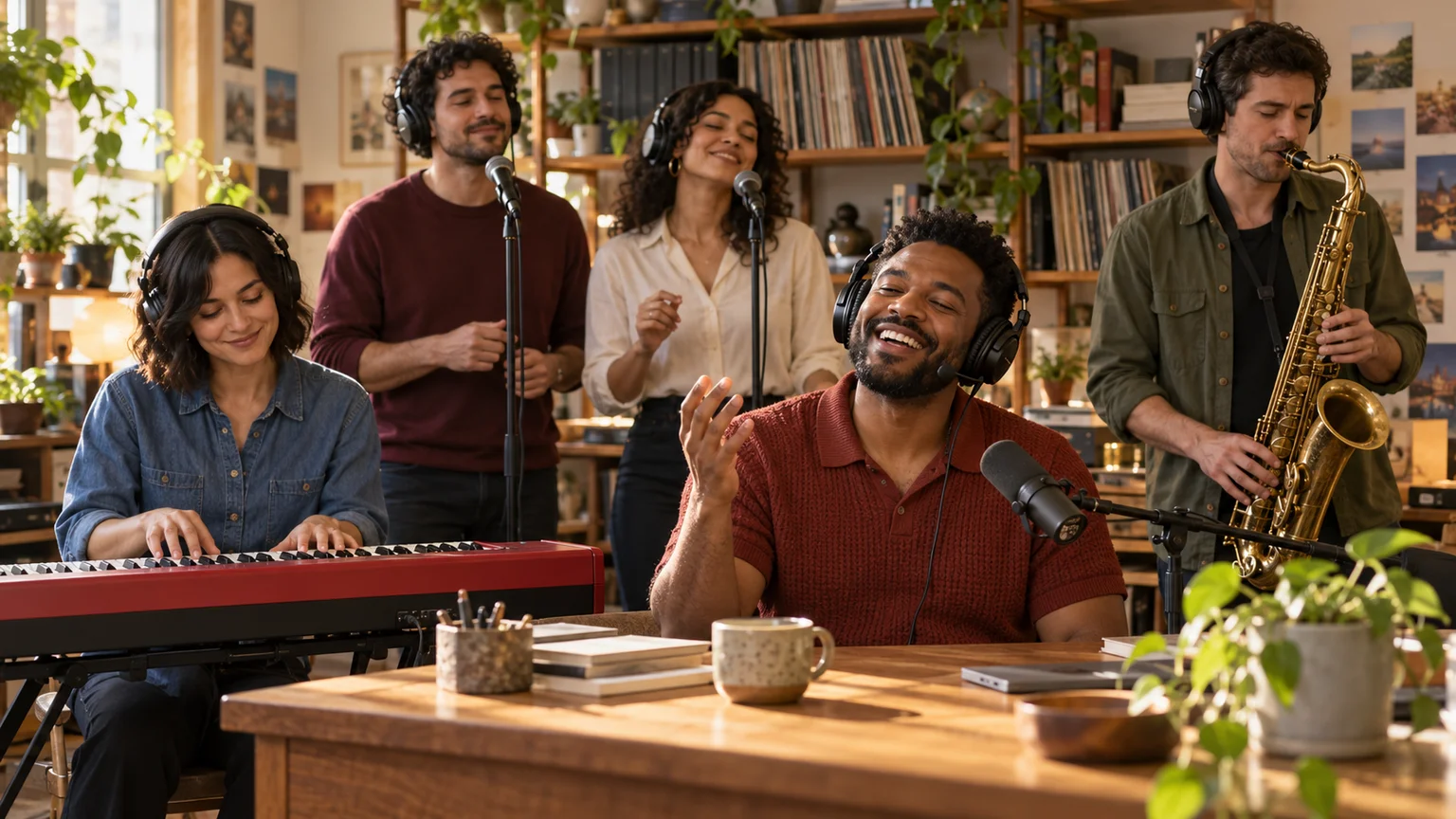
The quietest person in your group chat is suddenly singing lead. Someone else has claimed the saxophone, and everyone looks far too pleased with their new musical career. Tiny Desk AI turns that unexpected casting into a compact office concert, complete with shelves, headphones, and a band squeezed around a desk.
The appeal comes from recognizing the people before the performance surprises you. This Tiny Desk AI guide shows how to prepare the cast, arrange the room, and generate useful shots on ImgToImage AI. You can start with your own portrait, then add friends once the basic scene works. To start directly from photos with the concert direction already prepared, try the Outstanding Tiny Desk AI Video Generator.
What is the Tiny Desk AI trend?
The trend reimagines the people performing in an intimate desk concert. Tiny Desk AI edits commonly reference Charlie Wilson's June 2023 NPR Music performance, whose closing number is The Gap Band's “Outstanding.” The familiar visual ingredients include a red keyboard, a crowded office backdrop, expressive singing, and a saxophone feature.
Outstanding Tiny Desk AI refers more specifically to edits built around that song and performance. The band groove, a delighted close-up, and the sax response provide a recognizable sequence. The casting supplies the joke: an unlikely group suddenly behaves like a polished soul band enjoying its finest moment.
On ImgToImage AI, you create a new scene from photos and written directions. This Tiny Desk AI workflow does not replace faces inside the original concert footage or include its soundtrack. That gives you control over the room and performers, while making exact choreography and musical synchronization separate considerations.
Choose who gets each musical moment
Start with one lead singer. A clear, evenly lit portrait with visible hair and shoulders gives your Tiny Desk AI project a useful identity reference. Choose yourself or someone who agreed to participate. Avoid a tiny face cropped from a large group photo; enlarging it cannot recover missing detail.
For a full Tiny Desk AI band, assign five distinct roles: lead, keyboard player, two backing vocalists, and saxophonist. This is a practical arrangement for your version, not a required upload count. With one personal photo, you can ask for fictional supporting musicians and reserve the recognizable face for the lead.
For a prepared ensemble scene, the photo-to-band Tiny Desk video generator accepts one to five portraits. Choose the lead's photo first, then add the people you want in the supporting roles.
When friends join, use a separate reference for each person and choose an image model that accepts the number you need. Keep clothing distinct in your Tiny Desk AI cast: a rust shirt for the lead, blue for keys, and olive for sax. Identify each person by role and position throughout the prompts.
Build your Tiny Desk AI office stage
Open the AI Image Generator with the selected portrait or portraits. Give your Tiny Desk AI scene ordinary office details: books, records, a lamp, and a leafy plant. The desk makes the performance feel spontaneous; oversized stage lights and a distant auditorium change the visual idea.
Arrange the keyboard low in front, the lead beside it, backing singers higher in the rear, and the saxophonist to one side. For a vertical Tiny Desk AI composition, stagger those positions instead of forcing five faces into one horizontal row. Keep microphone hardware away from eyes and mouths.
Adapt this starting-image prompt:
Create a Tiny Desk AI office-concert scene from my adult lead-singer reference. Preserve their face, hairstyle, and proportions. Seat the lead center-right in a rust knit shirt, wearing black headphones and a slim headset microphone. Place a fictional adult keyboard player in blue at a red keyboard on the left, two distinct adult backing vocalists behind, and a saxophonist in olive on the right. Use an oak desk, shelves of books and records, plants, and warm daylight. Everyone has a separate position and natural hands. The lead looks relaxed, ready to perform. Keep faces unobstructed and the saxophone mouthpiece and bell visible. No branding, readable lettering, or extra people.
Replace the fictional-musician instruction with your friends' role assignments when appropriate. Before animating Tiny Desk AI, inspect every face and instrument independently. A strange keyboard or duplicated vocalist will remain noticeable even if the lead's expression is excellent; resolve those errors in the still image first.
Stage the Outstanding Tiny Desk AI sequence
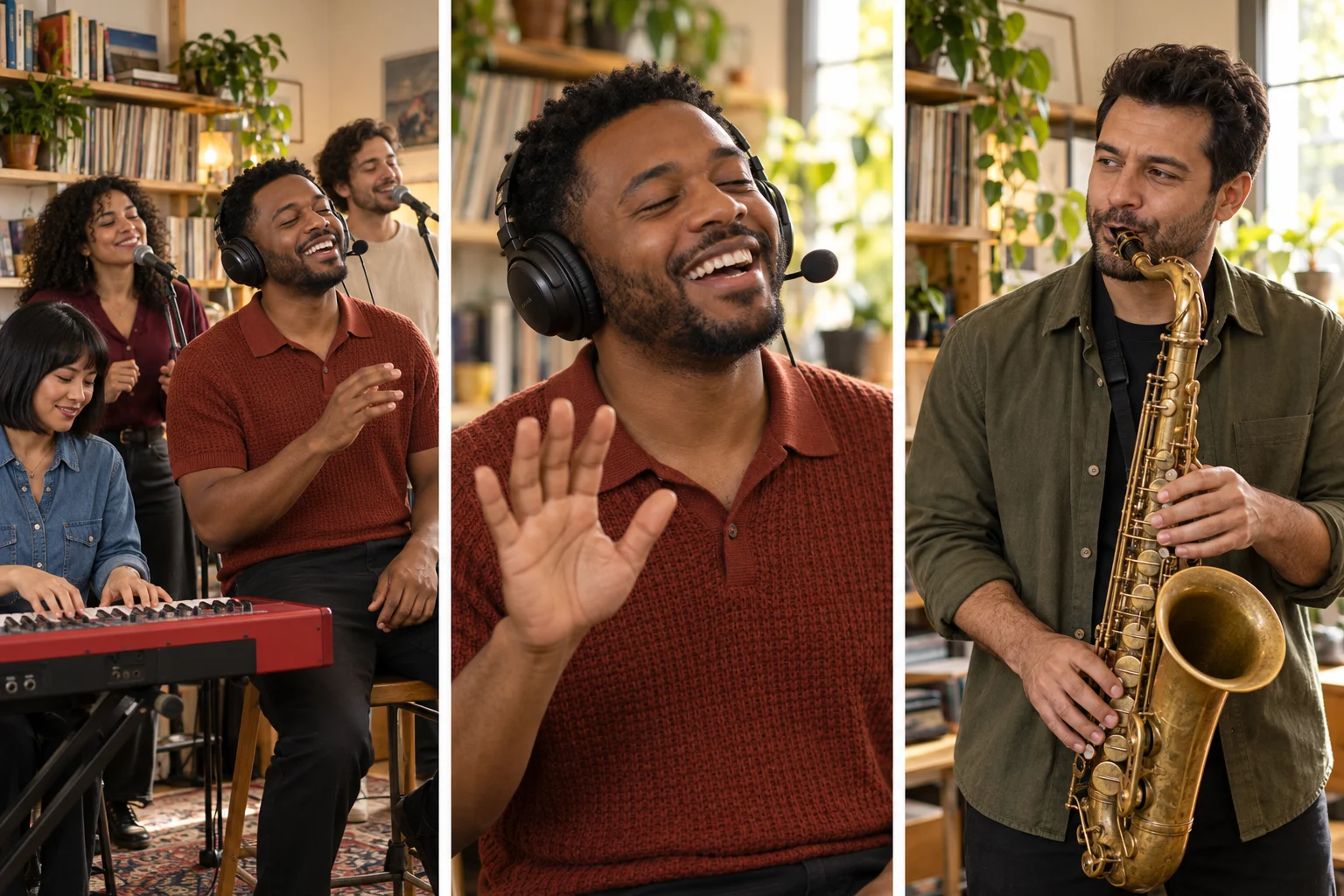
Establish the band. Begin with a short shared groove: restrained shoulder movement, a small head nod, and gentle playing gestures. A Tiny Desk AI opening should immediately show where everyone belongs. Keep the camera steady long enough for viewers to identify the cast before moving into a close-up.
Let the lead enjoy the moment. A slight head tilt can turn into a grin, then a brief laugh and open-handed wave. For Tiny Desk AI, this emotional change matters more than a huge mouth movement. Keep headphones anchored and the microphone close without passing through the cheek.
Hand attention to the sax. The saxophonist provides a contrasting reaction: focused eyes, a restrained sway, and the instrument held steadily. Give this person a separate Tiny Desk AI shot when possible. A rapid camera sweep across five moving performers can make the transition harder to follow and introduce inconsistent faces.
Animate Tiny Desk AI on ImgToImage AI
For a single photo-driven performance, use the Outstanding Tiny Desk AI tool. Upload one to five portraits and choose a duration from 10 to 15 seconds. The tool uses Seedance 2.0 Mini with a prepared office-band scene, starting at 480p, vertical 9:16, and 15 seconds. Your first photo guides the lead; additional photos guide the keyboard player, saxophonist, and backing singers.
For the separate-shot workflow below, go to the AI Video Generator, sign in, and choose Seedance 2.0 Mini. Upload the approved scene as Start frame. Leave End frame and Reference images empty for this Tiny Desk AI approach; the separate reference-image mode cannot be combined with frame inputs.
Try an eight-second band shot at 720p, matching the image's aspect ratio. Current controls accept JPEG, PNG, or WebP images up to 10 MB, with 4–15 seconds and 480p or 720p output. Check the displayed credit estimate before each Tiny Desk AI generation, including any additional close-ups.
Use this first motion prompt:
Animate this Tiny Desk AI scene as a continuous eight-second office-band rehearsal. Preserve every person's identity, clothing, position, and instrument. The lead makes a relaxed head nod, lifts one open hand slightly, and gradually smiles toward the keyboard player. The keyboard player uses small wrist movements over the keys. Both backing vocalists sway gently in their own positions. The saxophonist holds the instrument steadily with subtle breathing movement. Keep the camera fixed, the red keyboard straight, and the microphone hardware stable. No cuts, sudden zooms, body crossings, extra hands, or instrument changes. Use a quiet original instrumental groove without sung words or an imitation of a named performer.
Watch the completed Tiny Desk AI take in video history before generating the next shot. Select it for stable faces and believable interaction, rather than expecting the model to play a particular melody. A usable ensemble moment becomes the visual reference for the more expressive shots that follow.
Make the close-up and sax reply separately
Return the approved scene to the image workspace to prepare a closer view of the lead, preserving clothes, lighting, and headphone design. For Outstanding Tiny Desk AI, animate that image for four or five seconds: a pleased smile becomes a short laugh, followed by a relaxed palm-out gesture. Leave room around the raised hand.
Prepare the saxophone view from the same scene, then give that Tiny Desk AI shot a narrower instruction: maintain mouthpiece contact, keep both hands on the instrument, add a gentle shoulder sway, and glance briefly toward the band. Avoid asking for fast fingering, a deep bend, and a large camera move together.
Join the selected clips in an editor: band, lead reaction, sax reply, then a brief return to the band. This lets you control Tiny Desk AI pacing without asking one generation to invent every cut. Match the gaze direction between shots so the musicians appear to occupy the same room.
Fix the detail that distracts from the cast
Faces or outfits migrate. Compare the starting frame with the middle of the clip, person by person. If a blue sleeve becomes the lead's sleeve, reduce overlapping movement and increase separation in the source image. A Tiny Desk AI revision benefits from fewer simultaneous gestures, especially behind the front row.
The keyboard behaves like a flexible prop. Keep the camera stationary and ask for limited wrist movement rather than energetic individual finger work. For Tiny Desk AI, the red keyboard establishes the musical setting even when only part of the hands is visible. Avoid close framing that makes inaccurate key presses the main subject.
The saxophone changes shape. Check the neck, bell, and hand positions across frames. Simplify the performer's movement and keep the instrument away from other bodies. If the Tiny Desk AI solo remains unstable, shorten its final appearance in the edit rather than hiding the problem beneath flashing transitions.
Choose the sound before the final trim
An Outstanding Tiny Desk AI edit is often recognized through its music, but the original recording is not supplied by this workflow. Add audio you can use for your account and purpose in an editing or posting app. Naming the track in a prompt does not produce licensed audio or reliable lip synchronization.
Place the lead's smile or wave near a musical accent, then let the sax shot enter where the arrangement leaves space for it. Mute or lower any generated soundtrack before adding another track. Review your Tiny Desk AI edit on a phone, keeping captions away from faces and identifying the performance as AI-generated.
Tiny Desk AI questions before your next take
Do all five musicians need to be real friends?
No. One familiar lead surrounded by original fictional musicians can communicate the idea clearly. Expand the Tiny Desk AI cast only when those extra identities contribute to the joke. A two-person version with you on vocals and a friend on sax may be more readable than five equally prominent faces.
You can also start the office-band AI video maker with just your own portrait and review the supporting cast before deciding whether to add friends.
Can the video sing words that I provide?
Written lyrics do not guarantee matching mouth shapes, and this workflow has no audio-reference input for precise synchronization. For Tiny Desk AI, use expressive reactions or understated performance gestures when you need predictable visuals. Review any generated vocals separately instead of treating them as a faithful recording of your words or voice.
If you prefer a simpler two-person studio performance, explore the Hotel Lobby duet guide. Ready to cast your own band? Create an Outstanding Tiny Desk AI video from your photos. Start Tiny Desk AI with one recognizable lead, one clear reaction, and a sax player who gets their moment.
Keep exploring
 Video Guides
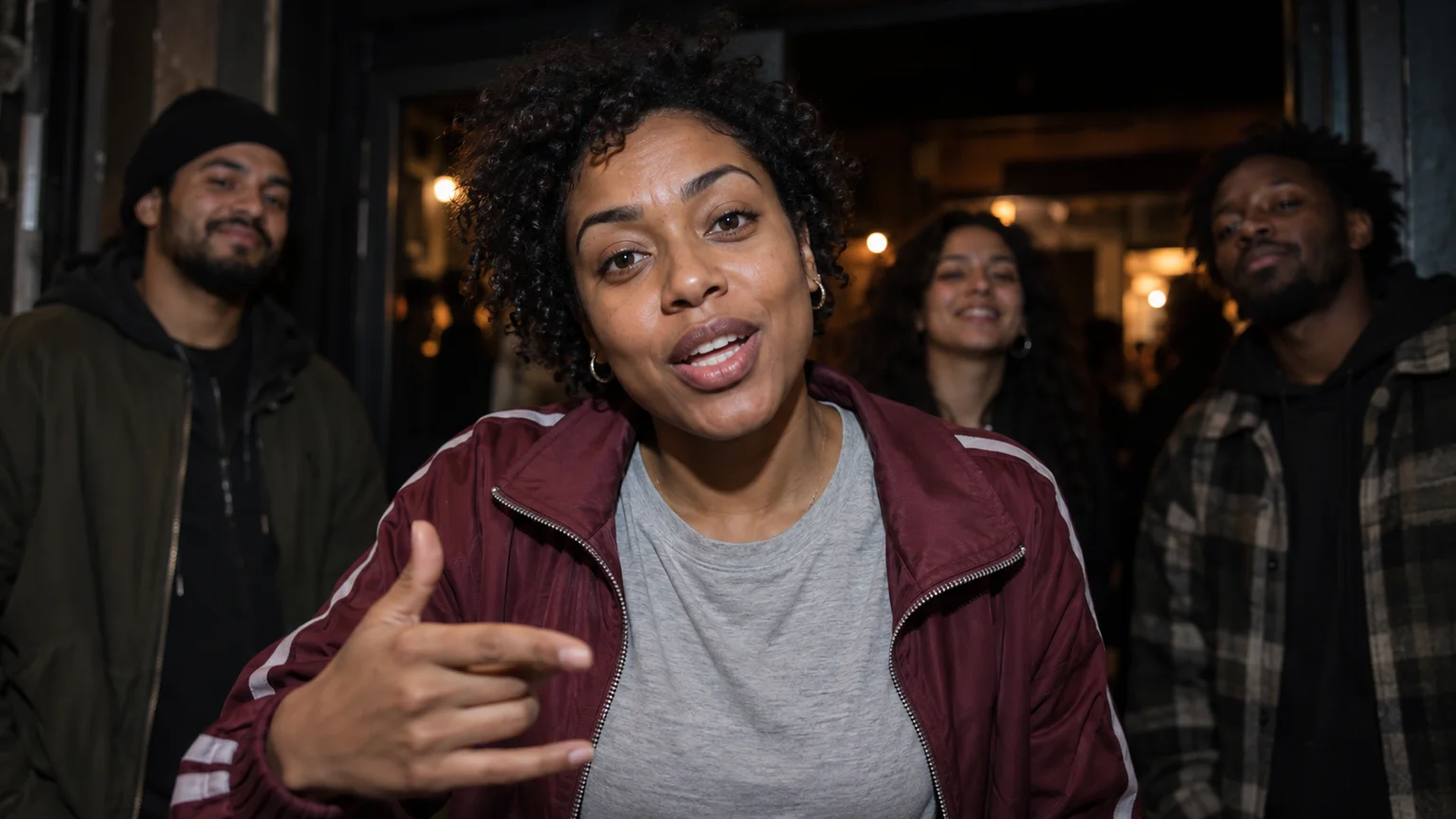
One face fills the frame, a crowd gathers behind, and a small gesture carries the verse. Create your own JME Check One Check Two AI performance with a clear visual plan.
 Video Guides
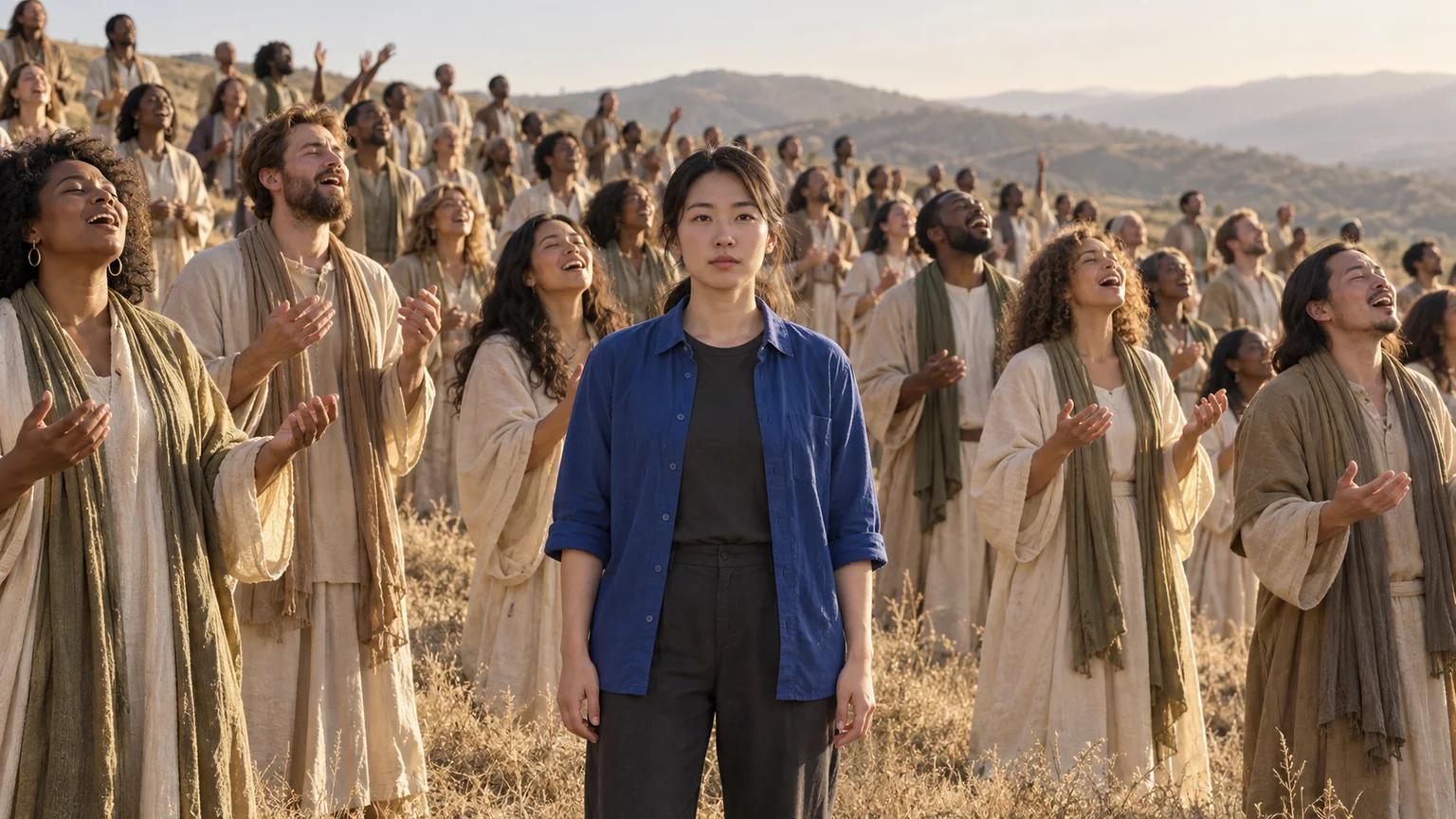
One quiet face, a hillside of singers, and a camera that reveals the scale. Build a Closed on Sunday AI scene starring yourself or your pet, with a crowd that moves around you.
 Video Guides
A black cowboy hat, a midnight parking garage, and far more emotion than the scene can hold. Turn your photo into a Choosin' Texas Emo AI performance with a dramatic finish.
 Video Guides
Start together, give each friend a moment at the lens, and return to the group. Build a Gangnam Style AI night-street selfie with clear identities and playful reactions.