


Bama Bound AI: Turn Your Photo Into a Banner Celebration
Create a Bama Bound AI video with your own photo, a bold red banner, and a joyful reaction. Learn how to keep the face clear, the sign readable, and the movement believable.
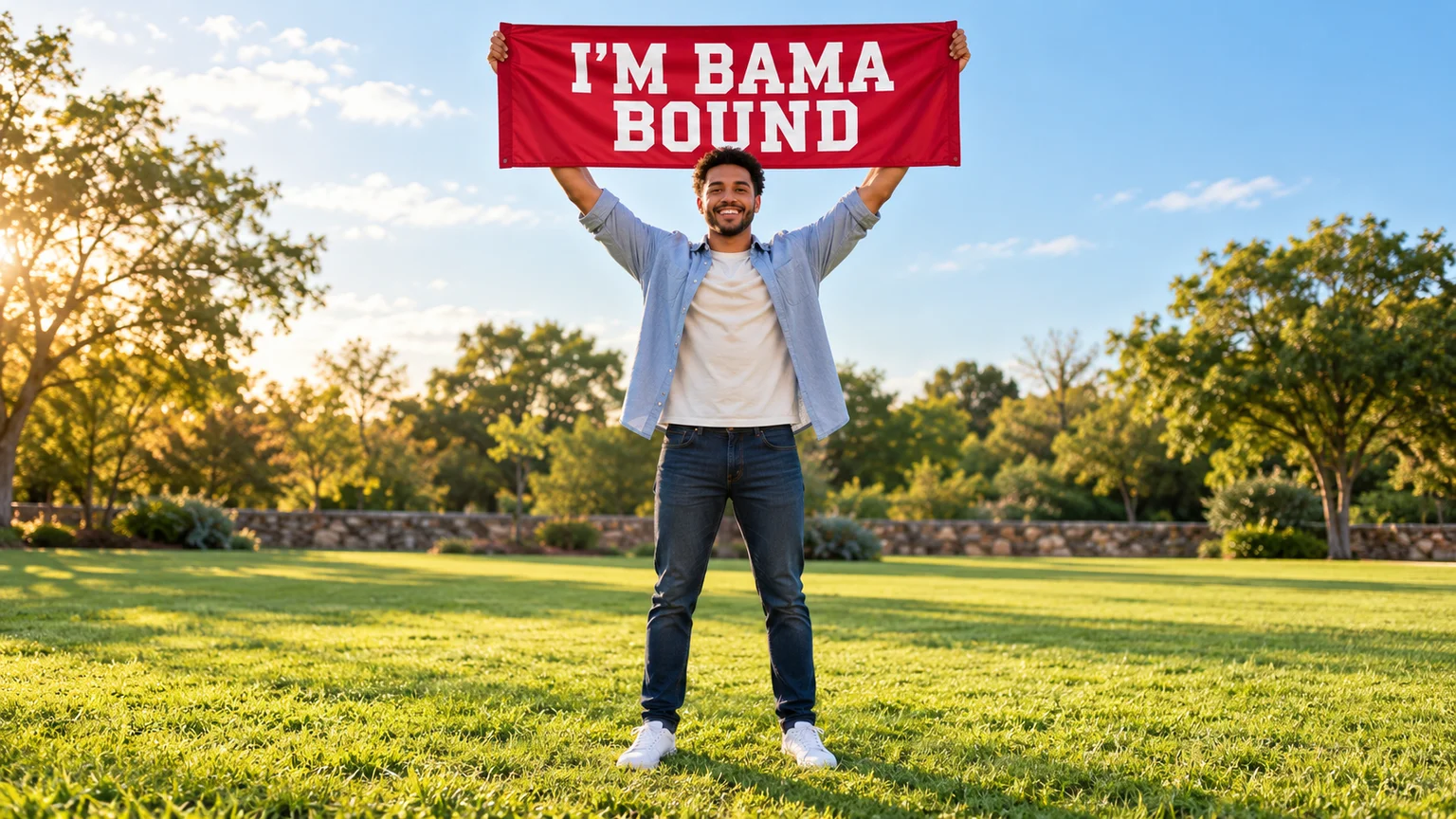
The red banner announces the news; the reaction makes it memorable. Bama Bound AI turns a familiar celebration photo into a short scene where you hold a sign, look delighted, and bounce with excitement. A simple lawn and an oversized announcement give the moment its playful, acceptance-day feeling.
To make your version on ImgToImage AI, build a clear banner image first, then animate it in the AI Video Generator. The key is coordinating three details: your face, the lettering, and the hands holding the sign. This guide walks through that process with suggested prompts and fixes. Its images are original AI illustrations, not verified video outputs.
What does Bama Bound AI mean?
The AI trend uses the visual language of a college celebration: a person on a bright lawn holding a red sign that reads “I'M BAMA BOUND.” Photo versions present the announcement as a reveal; video versions add a surprised expression, raised arms, or an excited jump. The humor often comes from giving an ordinary portrait an unexpectedly dramatic celebration.
The name also has a real-world meaning. Bama Bound is the University of Alabama's orientation for new students. An AI meme borrows the announcement idea, but creating one does not register you for orientation or establish an admission offer. ImgToImage AI is an independent creative platform.
For your clip, decide what the reaction should communicate. A proud smile suits a sincere celebration; a look of exaggerated disbelief makes a fictional announcement more playful. Choose that emotion before adding movement so the result has a clear point beyond waving a sign.
Choose a photo with room for the celebration
Start with one sharp photo of yourself or an adult who has agreed to appear. A forward-facing or slightly angled view gives you a useful basis for checking the generated face. If the outfit matters, choose a waist-up or full-body image that shows it clearly.
Your source does not need a banner. You can create the lawn, sign, and pose in the image stage. However, a small face in a crowded group picture is harder to inspect than a clean individual portrait. Select a source whose eyes, hairline, and expression are easy to see.
The finished scene needs more space than a normal portrait. Leave room above the raised banner, beside both elbows, and beneath the shoes if you want a bounce. Keep the face below the sign instead of behind it. A simple background makes these boundaries easier to judge before animation.
Build the red-banner image first
Open the AI Image Generator, select an available model that accepts a reference image, and upload your photo. Describe the complete scene, including the grip and framing. For a first Bama Bound AI attempt, begin with the banner already overhead; this removes the need to coordinate a large arm lift with the reaction.
Try this image prompt, changing the clothing to match your portrait:
Create a natural full-body celebration photo of the adult in the reference image on a sunny green lawn. Preserve their face, hairstyle, and outfit. They hold one wide red fabric banner above their head, gripping its upper outer corners with both hands. Their face remains fully visible below it. Put large white uppercase text on the banner reading exactly: I'M BAMA BOUND. Keep the fabric nearly flat, the letters separated, and the hands anatomically believable. Include clear space above the sign and grass below both shoes. Use a simple leafy background with no logos or additional people.
Inspect the still before moving on. Count the hands, read every word, and check that the wrists actually meet the banner. If the pose already looks strained, correct the image first. Animation cannot be relied on to repair a broken grip or invent missing letters.
Decide where the lettering should live
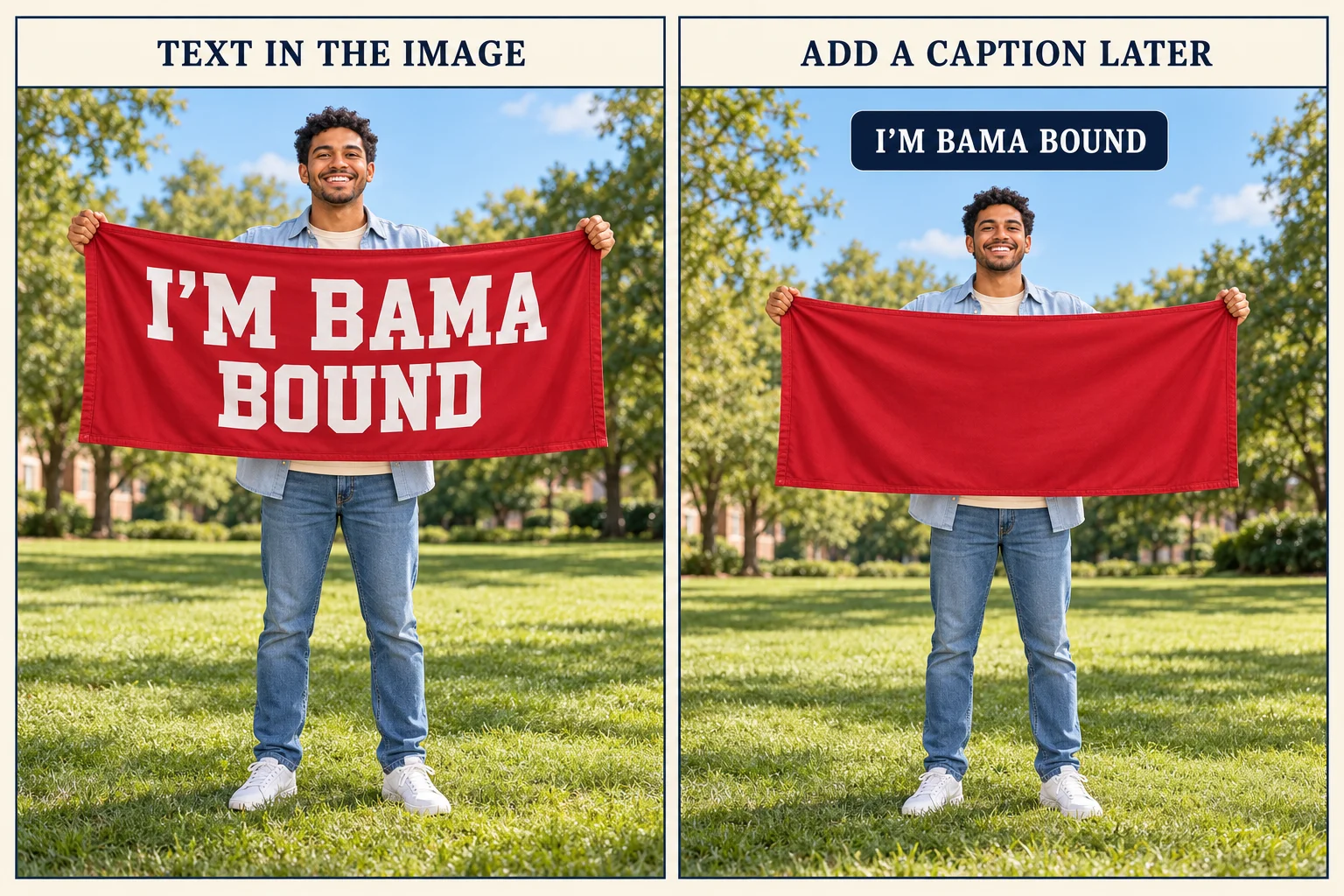
The sign is the most distinctive part of Bama Bound AI, and it deserves its own decision. You can put the words directly into the generated image, or keep the fabric plain and add a caption after making the video. Each choice solves a different problem.
| Approach | Useful when | What to check |
|---|---|---|
| Lettering on the banner | You want the announcement to look physically printed. | Words stay readable as the fabric and hands move. |
| Plain banner with a caption | Exact wording matters more than realistic printing. | The added text stays clear of the face and sign. |
A correctly spelled still can develop distorted letters during motion. If that happens repeatedly, generate a plain red banner and put “I'M BAMA BOUND” in a fixed caption area using an external editor. This keeps the wording independent of the moving fabric.
If you place an overlay directly onto the sign, it must follow the sign's position, scale, and angle to look attached. A fixed caption above the action avoids that tracking work. Make this choice early so you can leave enough empty space in the reference image.
Animate your Bama Bound AI scene
Set up a short first attempt
Open the video workspace, sign in, and select Seedance 2.0 Mini. Upload the completed lawn-and-banner scene to Start frame. Leave End frame and Reference images empty for this attempt; the model uses reference images separately from frames.
Use JPEG, PNG, or WebP up to 10 MB. Seedance 2.0 Mini supports 4–15 seconds and 480p or 720p output. Try five seconds for the first reaction. Choose 9:16 for portrait, 16:9 for landscape, or Auto to adapt to the input; prepare the source with enough room for the banner in that format.
Describe a reaction the pose can support
Use a motion prompt that matches the overhead starting pose:
Animate the adult holding the red banner in the reference image. Preserve their face, outfit, body proportions, and the scene. They glance upward briefly, widen their eyes with delighted surprise, then smile toward the camera and make one small celebratory knee bounce with both feet staying on the grass. Keep both hands gripping the same banner corners throughout. The banner remains above their head with only gentle fabric movement. Maintain its shape and lettering. Use a steady full-body camera and one continuous shot without cuts or zoom.
This is a suggested prompt, not a tested motion preset. Review the credit estimate, generate a clip, and follow its progress in video history. Watch the result once for the reaction, then again for the sign and hands.
Add energy only after the first motion works
If the face and grip remain stable, replace the knee bounce with one small hop and a balanced landing. Keep the camera still while testing that change. Raising the sign, jumping twice, turning, and shouting all at once gives you more moving parts to evaluate.
For a banner-lift version, create a different starting image with the sign at upper-chest height and space above the head. Ask for a slow lift followed by a smile, with no jump. Comparing those two simple versions helps you decide whether the lift or the bounce carries your idea better.
Review the banner, hands, and landing
Pause your Bama Bound AI video when the expression changes and at the lowest point of any bounce. Those moments can reveal a face shift, an unusual wrist, or a shoe moving through the ground. Follow each hand from the first frame to the last rather than judging only the thumbnail.
| What goes wrong | What to change first |
|---|---|
| Letters stretch or change | Reduce fabric movement, or use a blank banner with a separate caption. |
| Fingers merge with a corner | Fix the starting grip and keep the hands in place. |
| The sign covers the eyes | Position it higher in the source image and remove the arm lift. |
| The top of the banner is cut off | Recompose the source with more space above it. |
| Feet float or sink into the lawn | Return to a knee bounce with feet planted. |
| The face changes during the cheer | Use a smaller smile and remove the extreme head tilt. |
Adjust one element per retry. Keep the same reference and settings when testing a new movement, so you can compare what changed. Higher resolution alone will not reliably solve an unstable pose or misspelled sign.
Turn the reaction into a short reveal
A Bama Bound AI edit can begin with a normal portrait, then cut to the celebration. Use a short opening caption to set up the contrast: “Me, treating every small win like breaking news” gives the reaction a reason without requiring a long story.
Another version starts directly on the banner and lets the expression provide the surprise. Trim inactive footage, but keep enough of the final smile for the scene to feel complete. Avoid placing subtitles over the hands, since those gestures help viewers read the action.
Download your chosen clip and add captions or suitable audio in an external editor or posting app. ImgToImage AI has no built-in editing timeline or music generator. A visual cheering instruction does not specify a particular soundtrack. Preview the finished crop on your phone, checking both the banner and the space occupied by app controls.
Questions before you create
Do I need an official sign or campus photo?
No. You can create a simple red banner and a generic lawn scene from your portrait. Keep the result clearly presented as an AI creation, especially when using a fictional college announcement as the joke.
Is there a dedicated effect button?
This tutorial uses the platform's general image and video generators. You provide the scene and movement instructions; there is no dedicated template that supplies the banner, choreography, or caption automatically.
Can two friends appear together?
Yes, compose both people in one starting image with clear positions and grips. Begin with smiles rather than synchronized jumps. This tutorial uses a single start frame; the model also supports a separate multi-reference workflow, which cannot be combined with start or end frames.
Can I make the video for free?
Check your account balance and the current estimate. Any free credits must cover the selected request. Allow for the reference image and possible corrections as well as the video generation.
Give your announcement a little movement
Choose a recognizable photo, settle the banner wording, and keep the first reaction simple. Head to the AI Video Generator with your finished scene to make a Bama Bound AI clip. A clear sign, a stable grip, and a believable smile give your celebration the best place to start.
Keep exploring
 Video Guides
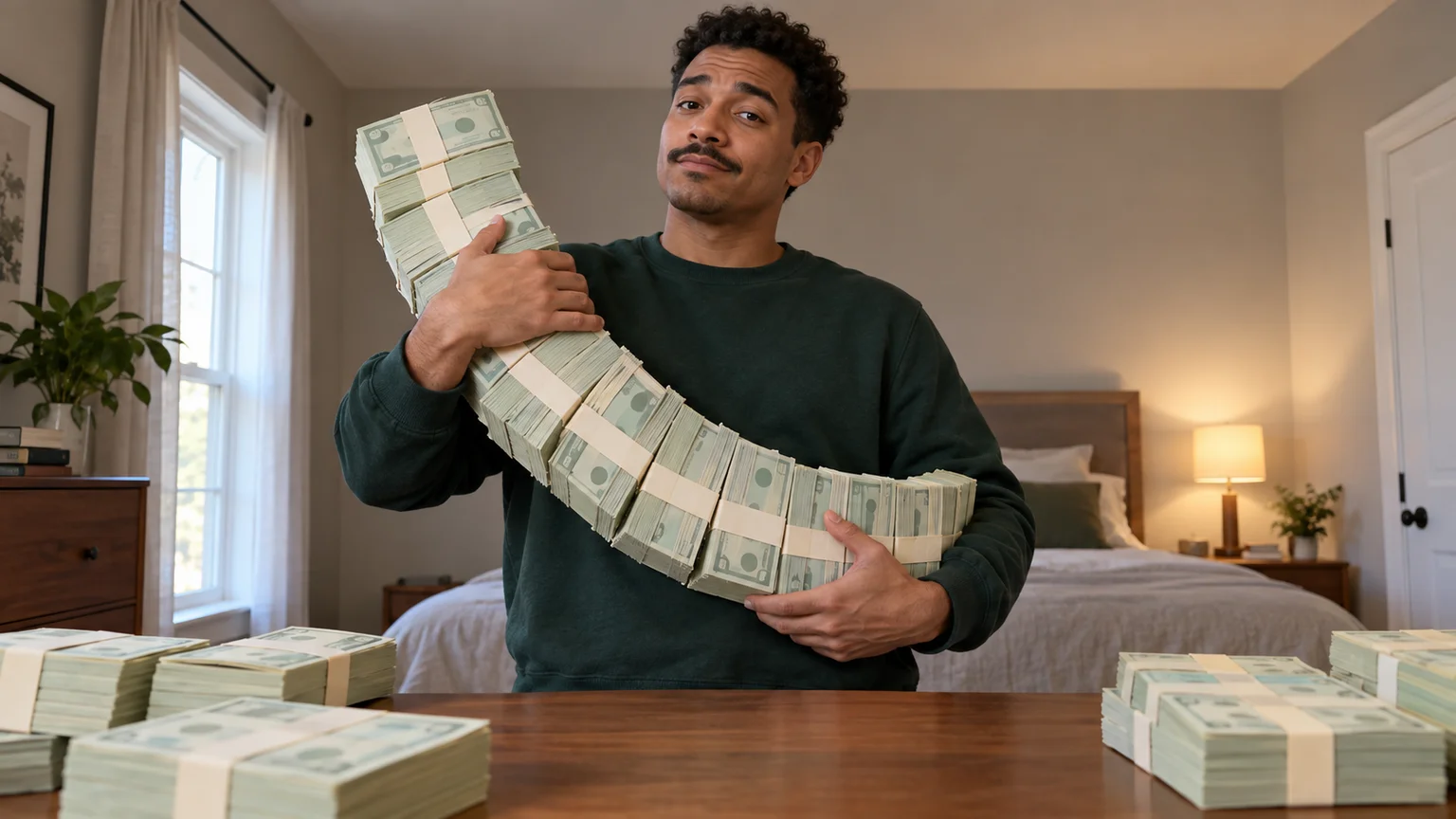
A low camera, an absurd stack of cash, and a perfectly serious face. Break down a real Money Flex AI example and plan your own version with practical prompts.
 Video Guides
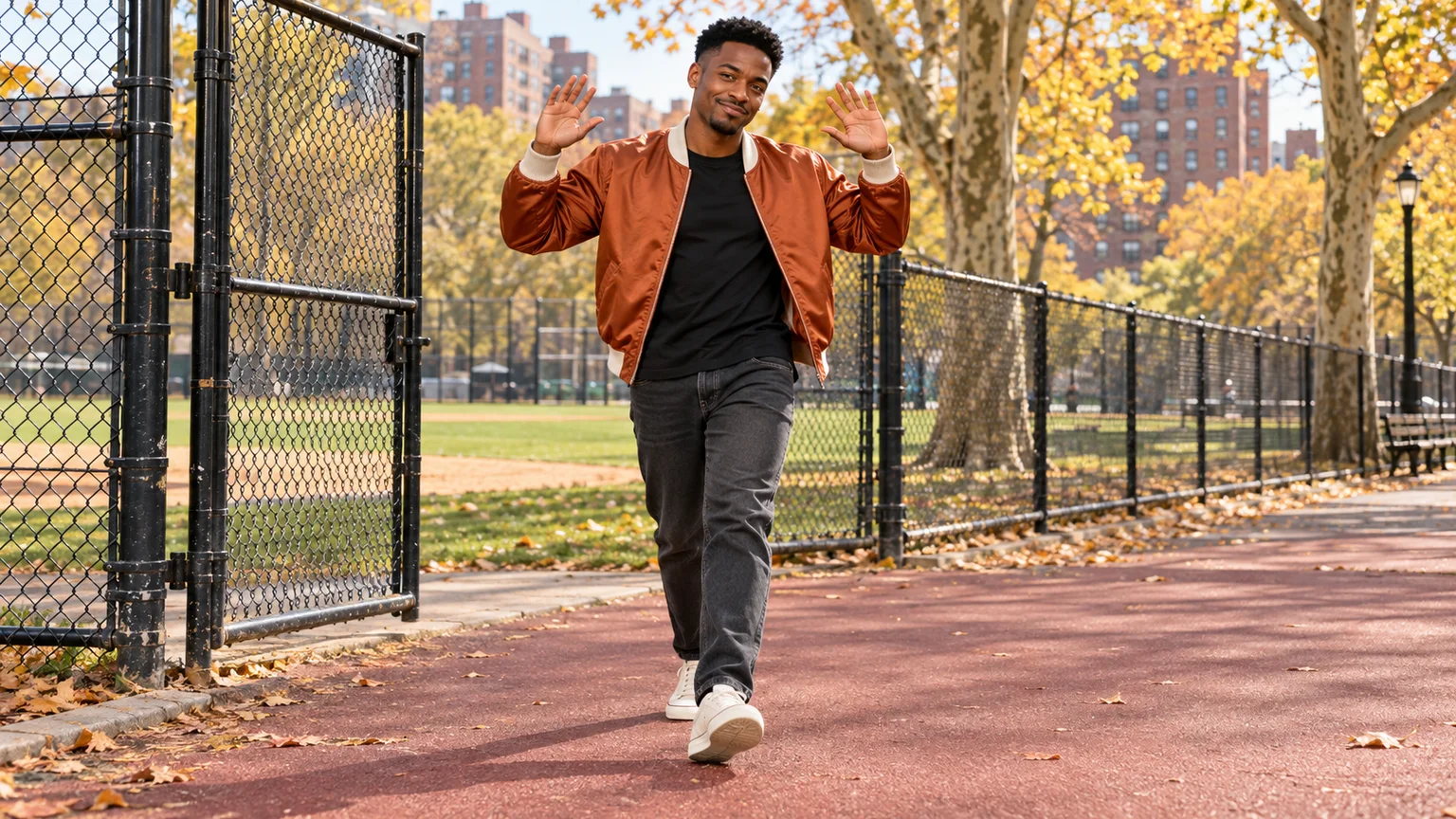
Step through the gate and make the path your stage. Create a Fergie Baby AI walk from your photo, with a confident stride, expressive gestures, and a camera that keeps pace.
 Video Guides
An outrageous dunk, a stunned defender, and a cheeky finish. Create a Basketball Middle Finger AI clip with your own cast and a play the camera can follow.
 Video Guides
The party keeps moving, but you stop to stare. Make a Bby Wow Guy AI scene with your photo, a concha, and the awkward pause that makes the joke land.