


Enzo Fernandez Celebration AI Video: From Photo to Goal Reaction
Make an AI Enzo Celebration Video from one photo. Follow the image-to-video workflow, copy a motion prompt, and fix awkward hands, faces, and framing.
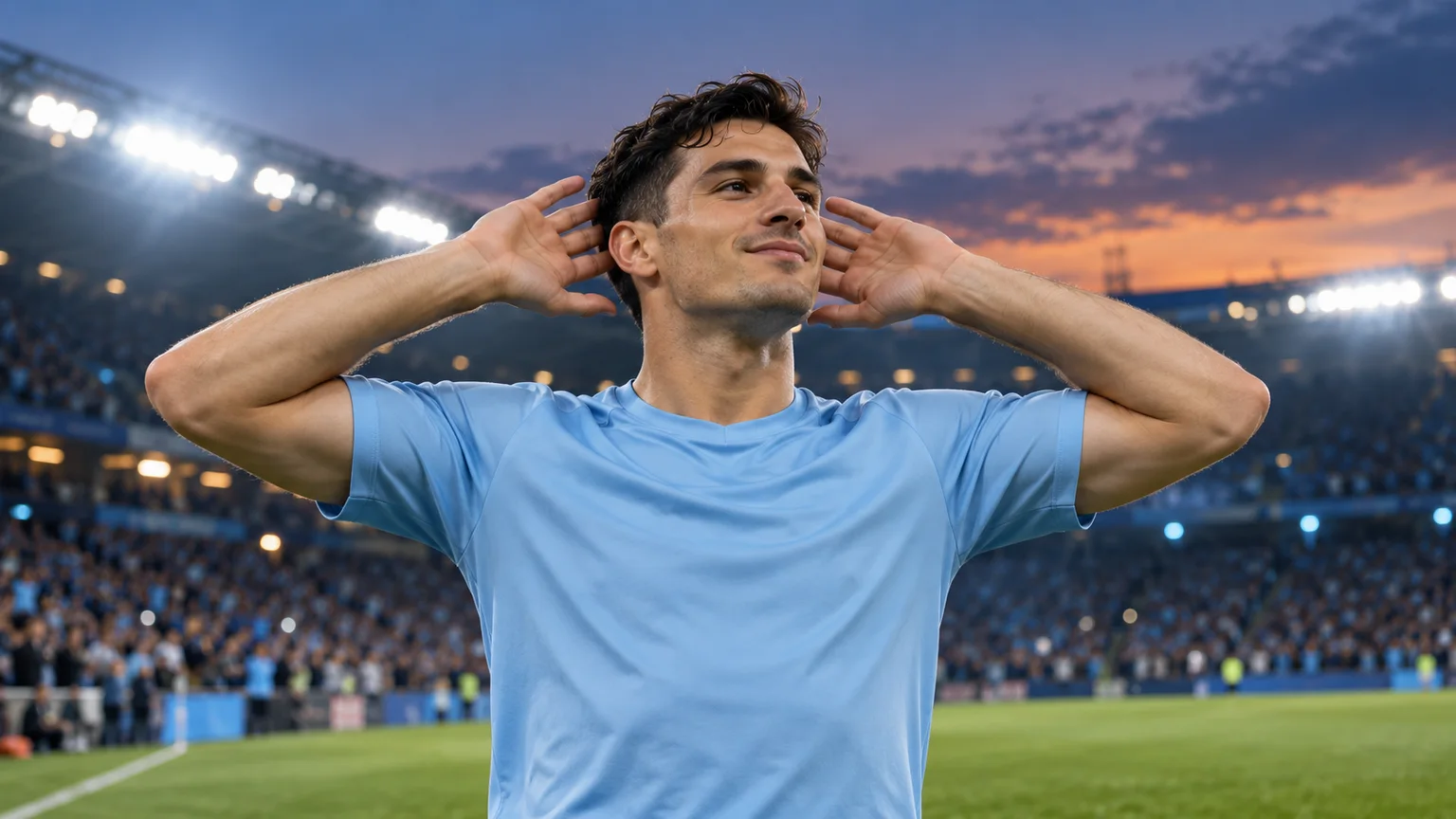
Want your own face in that football celebration? An AI Enzo Celebration Video turns a portrait into a short reaction clip built around the recognizable hands-behind-the-ears pose. The useful starting point is one clear photo, a readable gesture, and enough space around your upper body.
For a custom version, open the AI Video Generator, select Seedance 2.0 Mini, upload your portrait as the start frame, and describe the movement. This guide gives you a practical first prompt, a way to plan the framing, and specific fixes when a take looks wrong.
ImgToImage AI currently offers a general image-to-video workflow. It does not provide a dedicated Enzo motion template or promise an exact recreation of a broadcast clip. The images here are AI-generated editorial illustrations, not verified outputs from this workflow.
What is an Enzo Fernandez Celebration AI Video?
An Enzo Fernandez Celebration AI Video places a person into a football-inspired celebration. The visual anchor is the ear-cupping pose: hands beside or behind the ears and elbows extended outward. Some interpretations add a playful facial expression, a small turn, or a kiss toward the crowd.
Think of the clip as a short sequence rather than a single pose. The subject begins in a relaxed stance, raises both hands toward the ears, and pauses long enough for the gesture to register. A clear start and finish help the celebration read naturally, even without a caption or soundtrack.
With image-to-video, you direct the scene through a photo and a written motion prompt. The photo establishes the person's appearance and setting; the prompt describes what happens next. You can experiment with clothing, lighting, or mood, but keeping the action simple gives you a clearer starting point for evaluating the result.
Prepare a photo that gives the gesture room
Your AI Enzo Celebration Video needs a face the model can read and a composition that can accommodate raised arms. A crisp portrait is helpful, but a passport-style crop leaves little room for the celebration.
Choose a single adult subject, facing forward or at a slight angle, with an unobstructed face. Use your own photo or one you have permission to animate. Keep the shoulders and upper torso visible. Simple lighting and a plain background make it easier to identify which details should remain consistent.
For a vertical clip, step back before taking the portrait instead of cropping tightly around the head. Imagine both elbows lifted to ear level: would they still fit? Avoid sunglasses, hands covering cheeks, and another person overlapping the subject. You do not need to start in the final pose.
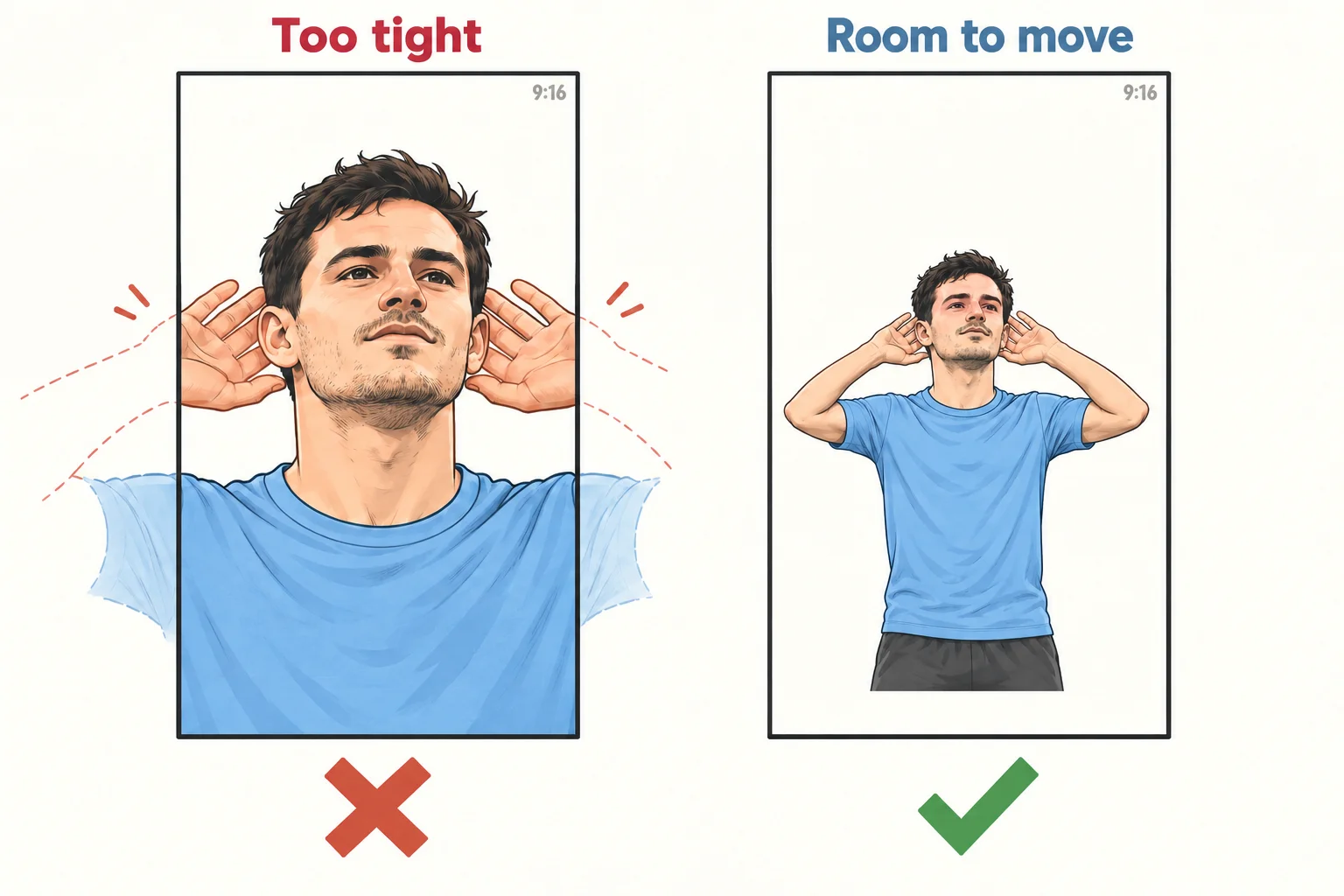
If you want a stadium setting, consider preparing that still image first with the AI Image Generator. Check the face and body before animating it. Requesting a new background, a new outfit, and a complex movement together gives you more things to troubleshoot at once.
How to make an AI Enzo Celebration Video on ImgToImage AI
1. Open the video workspace and select a model
Go to the video workspace, sign in when prompted, and select Seedance 2.0 Mini from the model menu. This walkthrough uses its start-frame workflow. Check the displayed controls and credit estimate before generating; model settings and availability can change.
2. Upload and inspect your reference
Add the portrait to Start frame and inspect its preview. Use JPEG, PNG, or WebP up to 10 MB. Leave End frame and the separate Reference images input empty for this attempt. Confirm the face, hair, and outfit, and prepare a wider image if needed: a prompt cannot reliably compensate for missing elbow room.
3. Choose a short first attempt
Start with one output and a simple action. Seedance 2.0 Mini currently supports 4–15 seconds and 480p or 720p output. Five seconds is a sensible initial experiment for raising the hands and briefly holding the pose; use the starting image to establish the person and composition.
Choose 9:16 for a vertical composition, 16:9 for a wider scene, or Auto to adapt the ratio to the input. Prepare a source image that suits your intended framing and inspect the result for cropping. Check the credit estimate after changing resolution or duration.
4. Describe the action, then generate
Paste the base prompt below and adapt it to your reference. Keep the camera steady for the first attempt. Generate once, wait for the result, and watch the entire clip. Evaluate whether the identity and gesture survive the movement before spending credits on variations or higher resolution.
Copy an AI Enzo Celebration Video prompt
A useful prompt names the subject, orders the movement, and defines the framing. Saying only “do the Enzo celebration” leaves the model to guess which moment you mean. Start with this suggested prompt; it has not been validated as a guaranteed preset:
Animate the adult person in the reference image. Preserve their facial identity, hairstyle, and clothing. In one continuous waist-up shot, they slowly raise both hands behind their ears, elbows opening outward, then hold the pose with a confident smile. Keep both hands and elbows fully visible. The camera stays still. Use natural movement and consistent lighting, with no cuts or additional people.
This AI Enzo Celebration Video prompt deliberately focuses on one recognizable action. Once that works, change a single creative direction:
- Stadium reaction: “Keep the person on the touchline, with softly blurred spectators and evening floodlights behind them.” Use a stadium reference for better visual alignment.
- Playful ending: “After holding the ear-cupping pose, lower one hand and blow a small kiss toward the camera.” Allow more time for this extra action.
- Dramatic style: “Use high-contrast black-and-white lighting with a subtle film texture.” Keep the body movement unchanged while testing the look.
If the model has a separate negative-prompt field, short exclusions such as “extra fingers, duplicate arms, face changes, rapid cuts” may be worth testing. Otherwise, keep your main prompt focused on the desired result. Negative wording is not a repair tool or a guarantee.
Fix the problem you can actually see
When an AI Enzo Celebration Video misses the mark, identify the first visible failure. Rewriting every instruction makes it difficult to learn what helped. Use the following changes as experiments, not promises.
| Visible issue | First change to try |
|---|---|
| The face changes during the turn | Remove the turn and keep the subject facing the camera. |
| Fingers merge with ears or hair | Ask for a slower lift, with hands slightly behind the ears and fingers relaxed. |
| Elbows disappear outside the frame | Use a wider source image and request a fixed waist-up composition. |
| The subject waves instead of cupping their ears | Remove the kiss and other secondary actions; describe only the ear-cupping pose. |
| Clothing or background changes abruptly | Keep the reference setting and outfit; remove transformation instructions. |
Review the beginning, the instant the hands reach the head, and the final hold. A sharp opening frame can hide a distorted middle section. Watch once at normal speed for timing, then pause around the hands and face. If the movement remains unreliable, shorten the idea rather than repeatedly increasing resolution.
Plan the cost before chasing another take
There is no universal price for an AI Enzo Celebration Video. The selected model and settings determine the estimate shown in the workspace. Before starting, check your available credits and decide how many experiments you are comfortable making.
Use the first attempt to test the movement. If it fails, change one variable; if it succeeds, refine the presentation. A higher-resolution clip with the wrong gesture is still the wrong clip. Do not assume free registration includes enough credit for your chosen generation or that a retry will be free.
Keep a short note of the reference, prompt, duration, and change between attempts. “Same photo, removed head turn” tells you more than saving several unnamed downloads. Stop once you have a version that communicates the joke clearly.
Make the clip work as a reaction
Give your AI Enzo Celebration Video a specific occasion. “When the group chat doubts your prediction” sets up a different joke from “Presentation finished before lunch.” A clear caption supplies the context that the gesture alone cannot.
In your usual video editor, trim dead time before the arms rise and leave a brief hold at the end. Place captions away from the hands and face. Preview the exported clip on a phone to see whether platform controls obscure the pose. Add music or crowd sound separately if needed and use audio you are allowed to share.
Label realistic edits as AI-generated when publishing. Avoid presenting the result as authentic match footage or an endorsement from the player. The aim is a recognizable personal reaction, not a claim that the person was actually on the pitch.
AI Enzo Celebration Video FAQ
Can I make it for free?
Check the current account offer and the estimate for your chosen model. Trial credits, if available, may not cover a generation. This guide does not promise a free export, unlimited attempts, or a particular watermark policy.
Do I need Enzo's original video?
Not for the prompt-based workflow described here. You supply a portrait and describe the motion. An exact performance transfer would require a tool specifically supporting that workflow; uploading a still image alone does not reproduce a video's choreography.
Can I use two people or a pet?
Start with one adult person. Two subjects introduce ambiguity about who performs the action, and animal anatomy does not match the hand-to-ear gesture. A single subject makes both the instructions and the result easier to judge.
Will the result look exactly like my photo?
No exact likeness is guaranteed. Expressions, head movement, and hand overlap can change facial details. If recognizability matters more than spectacle, keep the face forward and reduce the action. Review every take before sharing it.
Create your first celebration clip
Choose a clear portrait with breathing room around the shoulders, open the AI Video Generator, and try the base prompt with one short output. A successful AI Enzo Celebration Video needs a recognizable face and a readable gesture before it needs elaborate styling. Build those first, then add the caption that makes the celebration yours.
Keep exploring
 Video Guides
Invite two friendly ghosts onto your dance floor. Build a Halloween Dance AI video from a photo, or try a playful vampire performance on the porch.
 Video Guides
A tiny dance captain, a barn full of parrots, and one very confident routine. Make a Parrot Dance AI video with your own bird, cat, or dog.
 Video Guides
Turn a photo of you and a friend into an electro dance concept. Learn the Transmission 5 Dance AI look, plan the moves, and create a personal video.
 Video Guides
You are smiling at the camera. Someone in the doorway is smiling back. Build a Ghost Filter Prank AI scene where a quiet background detail becomes the whole joke.