


Transmission 5 Dance AI: Make Your Own Parking Lot Duo
Turn a photo of you and a friend into an electro dance concept. Learn the Transmission 5 Dance AI look, plan the moves, and create a personal video.
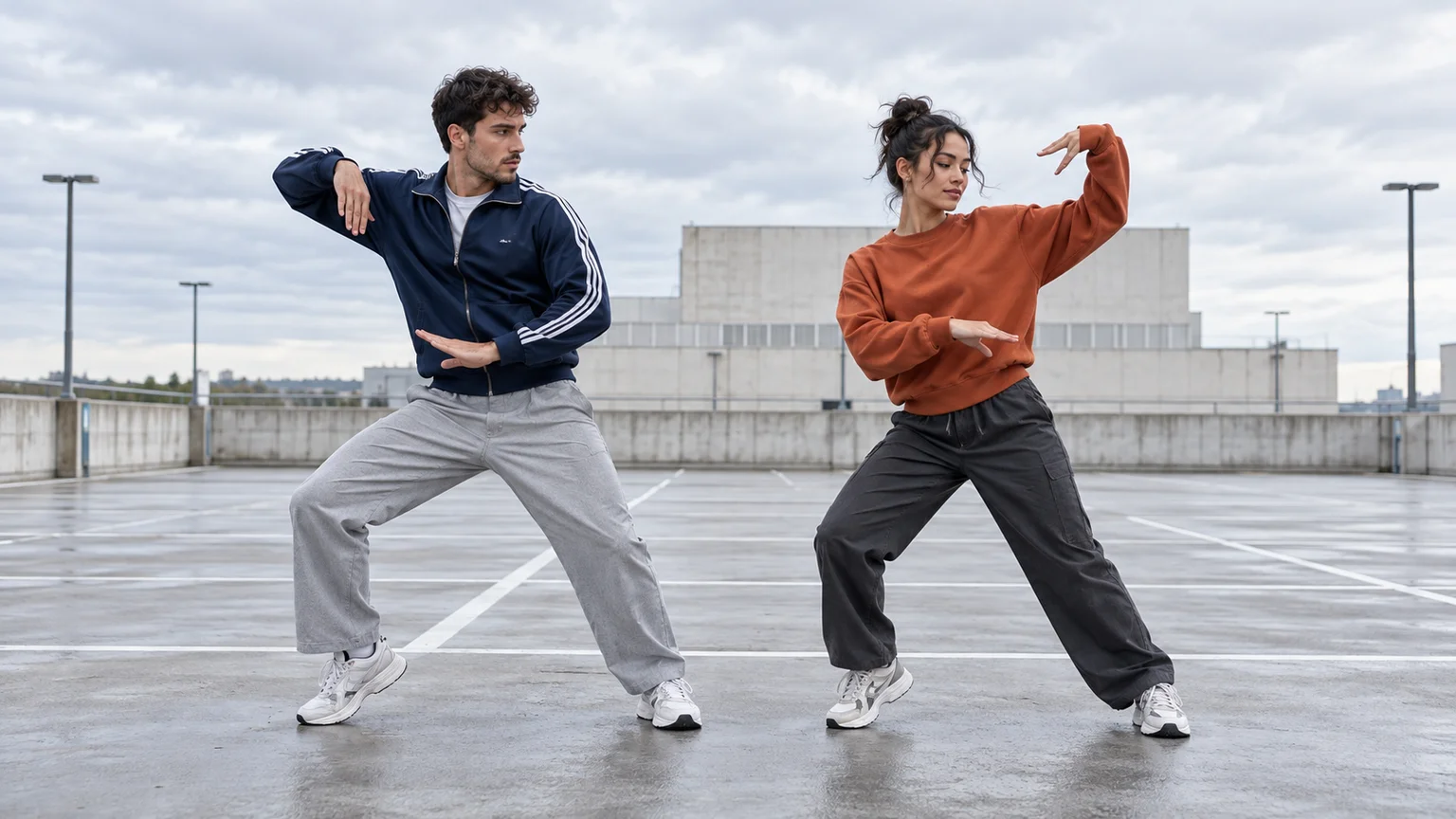
Two friends, an ordinary parking lot, and a sudden burst of synchronized movement: Transmission 5 Dance AI turns that understated setup into a personal dance video. The appeal is seeing recognizable faces perform sharp arm shapes and coordinated steps without filming a dance session.
To create your version, prepare a picture containing your performers, animate a short movement sequence in the AI Video Generator, and finish the rhythm in an editor. This guide explains the trend, the difference between a fixed template and a custom generation, and a practical workflow for getting a watchable first take. The images are original AI concept illustrations, not tested video outputs.
What does Transmission 5 Dance AI mean?
The phrase is used by AI effect sites for a parking lot electro dance duet. Its recognizable ingredients include two performers facing the camera, angular arm movements, hand passes, a low bend, and quick footwork. The ImagesArt reference page presents it as a photo replacement effect with a preset partner and an optional second person.
The name also needs a little care. Paranoid London's official album page lists a track called “Transmission 5” with Mutado Pintado. That confirms the recording exists; it does not establish which edit accompanies every dance upload. MakeViral's trend description acknowledges that the referenced reel lists original audio and that its track identification is unconfirmed.
Search results also contain similarly named transition dances involving a hand over the lens and an outfit change. This article covers the parking lot duo. If your saved example centers on a costume reveal, use that visual sequence as your brief instead.
Decide whether you want the template or your own interpretation
For someone searching this phrase, the likely goal is practical: put me in the dance, let my friend join, and give me a clip I can share. The important decision is how closely the result must follow a particular source.
ImagesArt's dedicated template assigns the first photo to the left dancer and optionally replaces the partner. Its page describes a four-second preview and an eleven-second full routine. Those are that service's template options, not standard requirements for this trend.
On ImgToImage AI, you direct a custom scene through the general video workspace. The workflow below uses a starting image and written motion instructions. It does not provide a built-in Transmission 5 preset, separate dancer replacement slots, or an uploaded choreography reference. Choose it when you want control over the cast, setting, and simplified movement rather than a precise replay.
Prepare a photo that gives both dancers room
Start with a clear image of two consenting adults. Full-body framing is useful because the feet establish balance and the hands need room to move. A chest-up selfie leaves the model to invent most of the performance.
If your subjects are in separate pictures, first combine them into a shared composition using the AI Image Generator and an image model that accepts your references. Inspect the resulting faces before animating. Two recognizable portraits do not automatically produce a convincing pair in the same scene.
Aim for an uncluttered background, even light, and a visible strip of ground below the shoes. Give the dancers contrasting clothes, such as navy and rust, so you can identify them clearly in a prompt. Keep a gap between their bodies that allows each person to open their elbows without touching the other.
For a vertical video, compose the source vertically before uploading it. Leave space above the raised hands as well as at the sides. Cropping a wide duet into a narrow frame afterward can remove the very gestures that make it readable.
Generate your first Transmission 5 Dance AI clip
1. Select the model and input mode
Open the video workspace, sign in, and select Seedance 2.0 Mini if it is available in your model menu. Choose Frames / Start & end frames, then upload the prepared scene to Start. Leave End empty for this first attempt.
This model's configured start-frame input accepts JPEG, PNG, or WebP images up to 10 MB. Keep Reference images empty: its reference-image workflow is separate from the frame workflow used here.
2. Set a manageable length
Try eight seconds at 720p, with 9:16 for a vertical source or Auto to adapt to the input. Seedance 2.0 Mini supports 4–15 seconds in this integration. Eight seconds gives a short phrase room to develop without requiring an entire performance.
Review the displayed credit estimate before generating. Set aside enough for a correction; your first result is a movement test. Higher resolution alone will not repair an awkward weight shift.
3. Describe the performance
Paste the prompt below, adjusting the clothing to match your image. Keep the camera instruction and movement order clear. Naming the trend supplies context, but the physical actions tell the model what to attempt.
4. Review the result in history
Watch the complete clip before downloading. First check whether each face stays attached to the correct outfit. Then check whether the dancers complete the requested actions in order. Save the strongest take before revising the prompt so you have something concrete to compare.
Copy this parking lot dance prompt
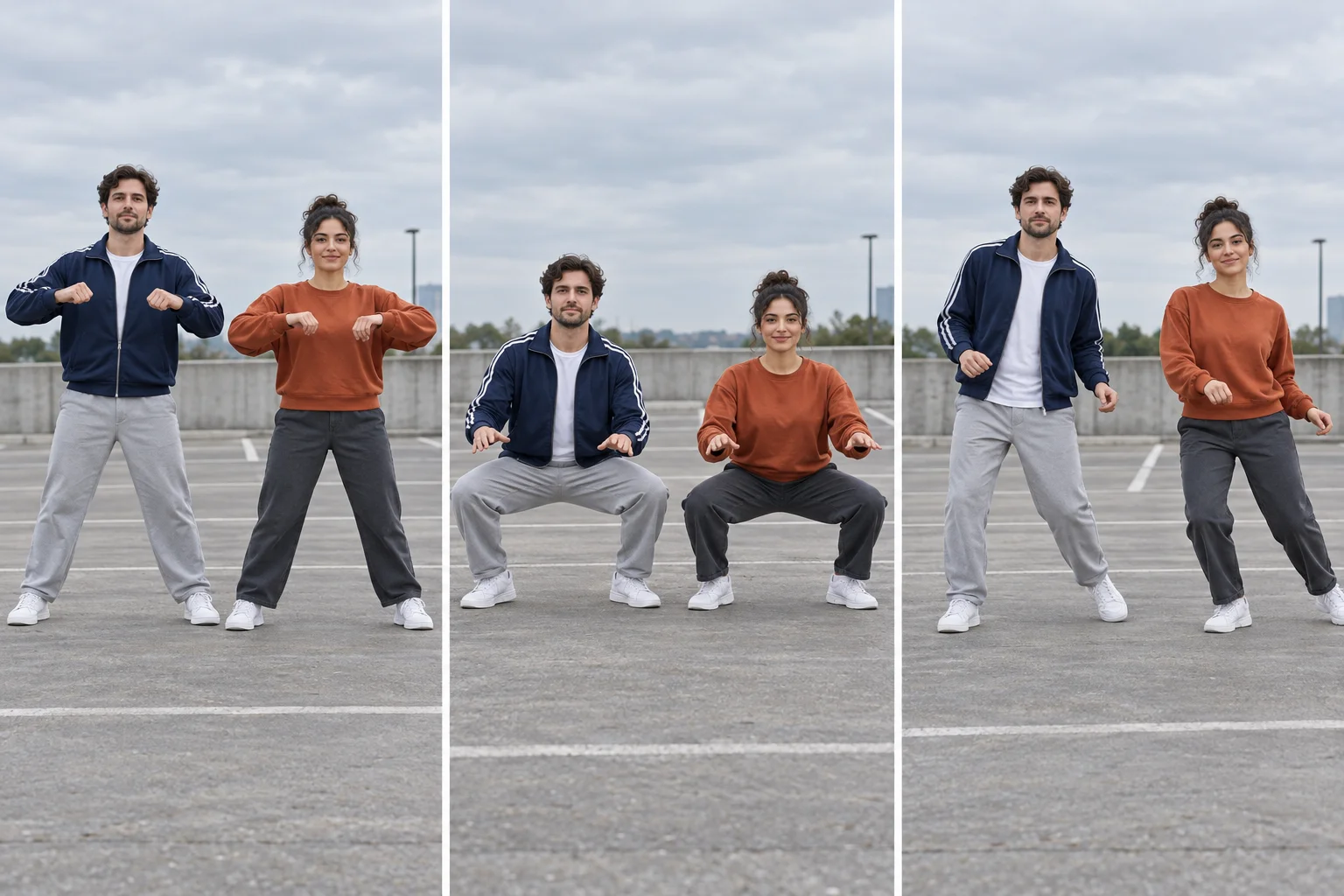
Create a Transmission 5 Dance AI interpretation from the supplied starting image. Keep the two adults recognizable, with the navy jacket on the left and rust sweatshirt on the right. Use one continuous full-body shot with a fixed camera. Begin with a small knee bounce. Both dancers then make two crisp, bent-elbow arm shapes at chest height, keeping their hands away from their faces. They lower together into a moderate wide squat, rise smoothly, and take one compact side step before settling into a relaxed standing pose. Keep each dancer in a separate lane, with believable weight shifts and planted feet between steps. Preserve their clothing, the overcast lighting, and the parking lot. No spins, position swaps, extra people, camera zooms, or scene changes. Quiet outdoor ambience without speech or music.
This is a suggested prompt, not a tested preset. It deliberately reduces the choreography to a few readable actions. Adjusting one phrase at a time makes the next result easier to judge.
Give each movement a clear purpose
The opening arm shapes establish the electronic feel. Think of a quick pose followed by a tiny release, so the movement has accents instead of becoming a continuous wave. Keep the hands in front of the torso, where their outlines remain visible.
The dip changes the silhouette and gives the sequence a visual midpoint. A moderate squat is a useful first target because you can inspect knee direction and balance. If that works, you can explore a deeper version in a separate take.
The side step supplies a clean exit. Avoid adding a jump, turn, and forward approach to the same ending. One readable finish gives you a place to cut, add a caption, or loop back to the beginning.
For a solo adaptation, keep the same progression but remove all partner instructions. A single performer lets the viewer concentrate on expression and body control, while a duet makes timing differences more noticeable.
Add music after the movement works
The custom workflow does not supply the original trend recording or guarantee musical synchronization. Once you have a usable clip, import it into your editor and choose audio available for your intended use. Check the sound attached to the example you saved rather than choosing by title alone.
Place one strong beat under the first clear arm accent. Watch the following dip before shifting anything else. If the opening lands well but the rest drifts, shorten a pause or cut between phrases; large speed changes can make otherwise natural movement feel frantic.
Reduce unwanted generated ambience when adding a soundtrack. Keep a clean version without captions, then create a separate social edit. Put any text away from wrists, knees, and shoes so viewers can still see the dance. A short caption such as “We finally rehearsed. Sort of.” gives the clip context without narrating every move.
Fix the specific problem you can see
| What happens | What to change next |
|---|---|
| Faces blend when the dancers lean inward | Increase their starting separation and keep each torso in its own lane. |
| Fingers merge during a hand pass | Replace the pass with a bent-elbow pose that keeps hands apart. |
| Shoes slide across the asphalt | Request smaller steps with a brief planted pause between them. |
| One dancer drops lower than the other | Reduce the dip and describe a shared lowering and rising action. |
| The camera crops the feet | Reframe the source wider and retain the fixed full-body shot instruction. |
Change one variable per retry. Replacing the background, clothes, choreography, and camera together makes it difficult to tell which adjustment helped. Compare the troublesome moment at normal speed and while paused, then judge the whole take again.
Questions to settle before sharing
Can I make a Transmission 5 Dance AI video for free?
Free access and promotional credits depend on the service and account. Check the current estimate in your workspace; this guide does not promise a free render. Plan your first attempt around a short sequence so you can evaluate it before spending more.
Can I use fictional characters instead of real friends?
Yes, you can develop an original adult character duo for this workflow. Keep the visual style consistent across both subjects. A photographic person beside a cartoon character may be an intentional choice, but it adds another element to control.
What should the final export include?
Choose the take with a clear opening and finish, add your selected soundtrack, and label the shared performance as AI-generated. Preview the actual exported file on a phone to catch awkward crops or misplaced text. When your starting scene is ready, create your dance video and build around the strongest movement in the first result.
Keep exploring
 Video Guides
Invite two friendly ghosts onto your dance floor. Build a Halloween Dance AI video from a photo, or try a playful vampire performance on the porch.
 Video Guides
A tiny dance captain, a barn full of parrots, and one very confident routine. Make a Parrot Dance AI video with your own bird, cat, or dog.
 Video Guides
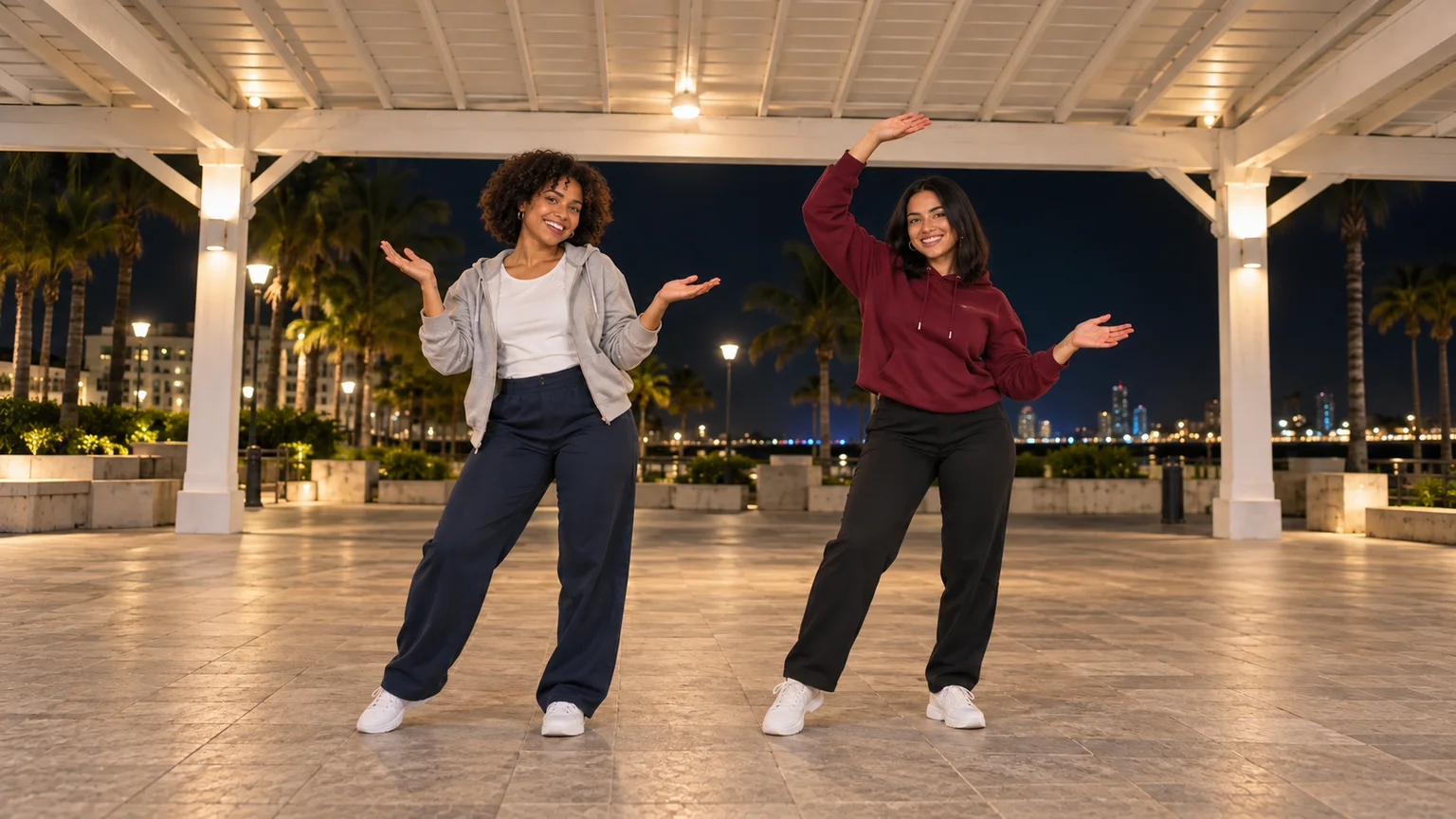
Open arms, a shoulder bounce, and a knowing look between friends. Create a Puerto Rican Mami Dance AI video with clear gestures and your own personality.
 Video Guides
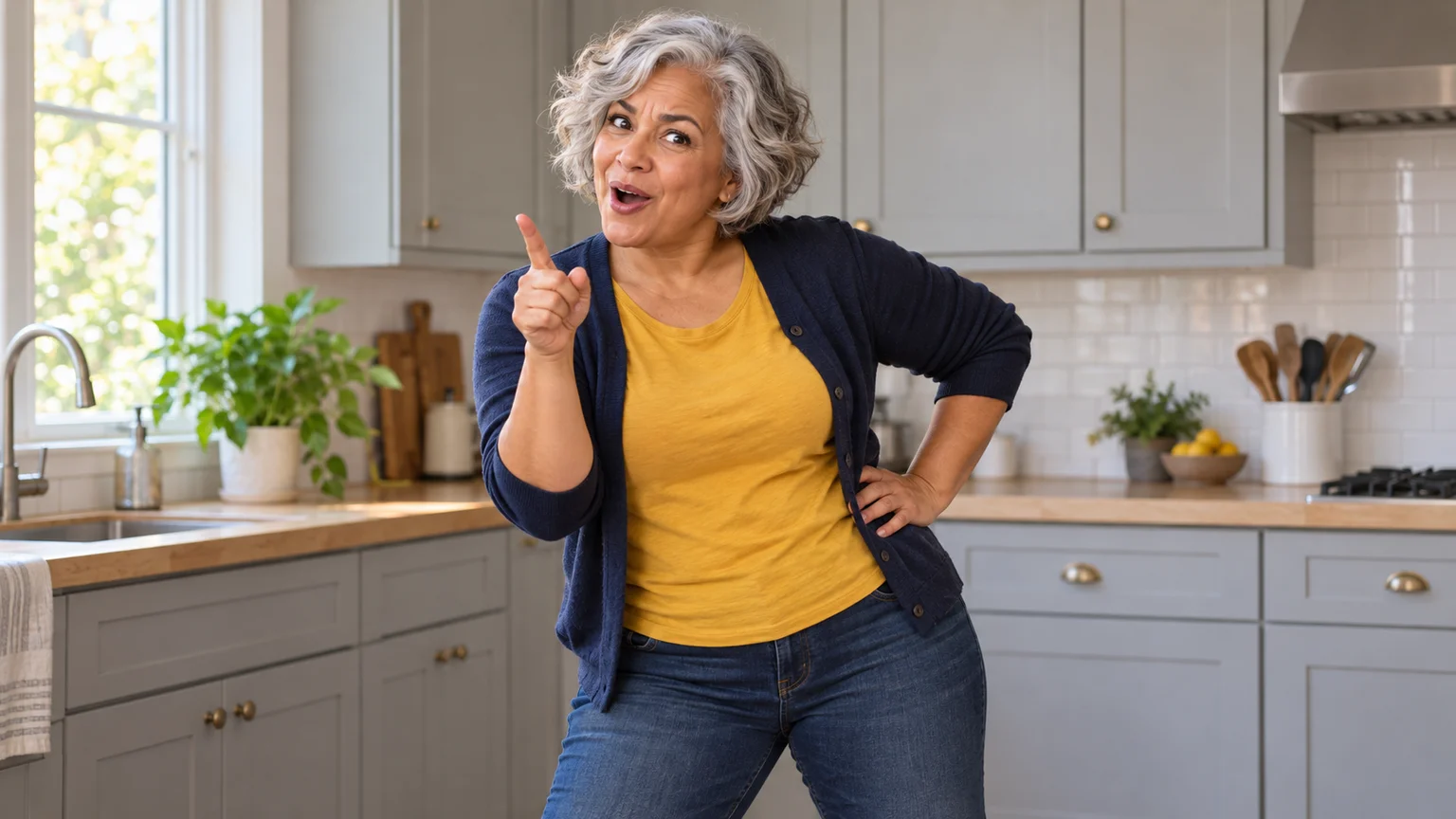
Someone ate your lunch. Your face has questions. Turn a calm photo into an Angry Dance AI reaction with expressive pointing, a dramatic shrug, and a perfectly petty caption.