


Skull Cap AI: From Awkward Selfie to Hooded Stare
The cap changes, the room goes dark, and the expression suddenly means business. Create a Skull Cap AI reveal that keeps your face recognizable while the entire mood shifts.
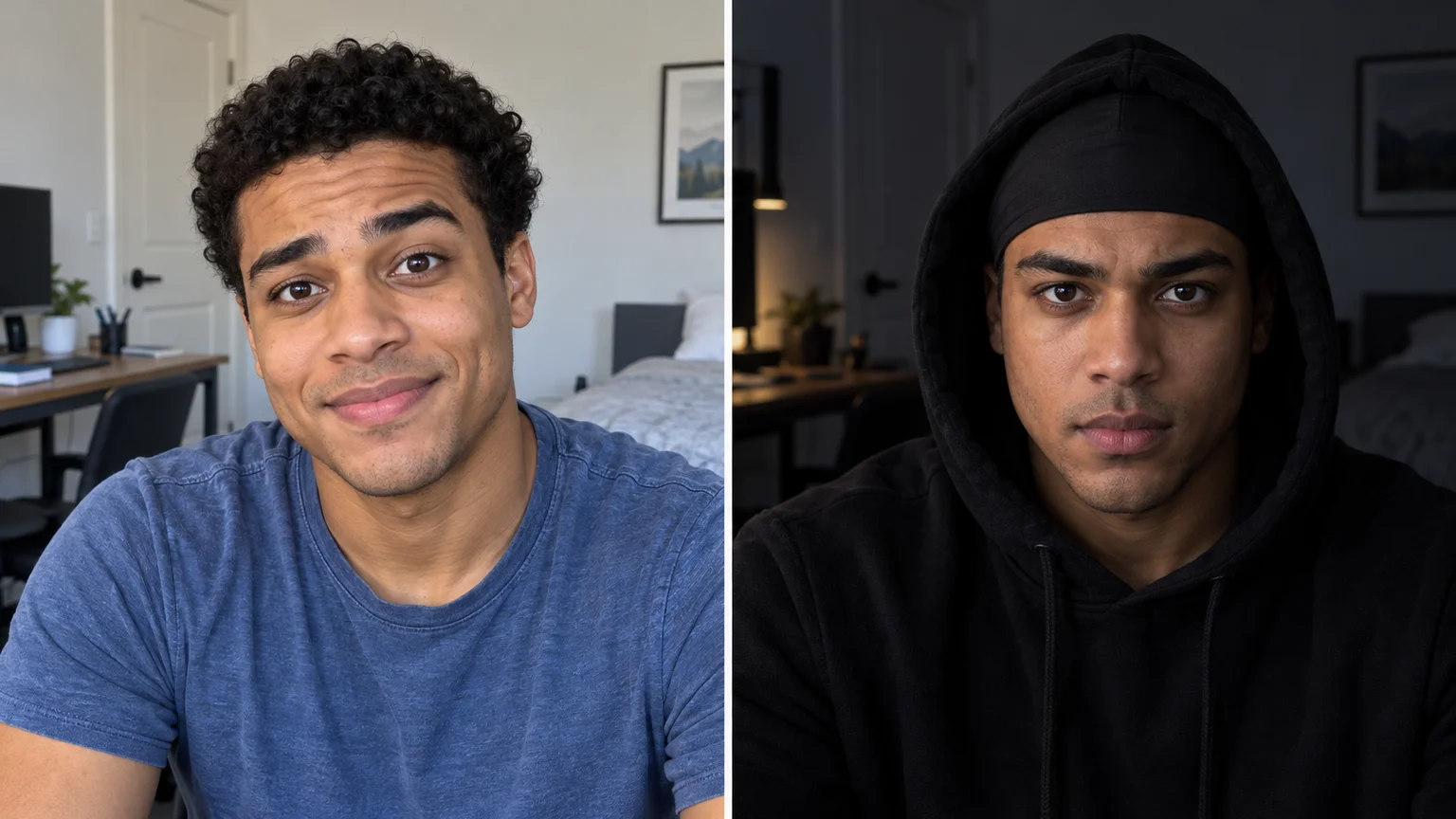
One moment, you are pulling a goofy face in an ordinary room. One cut later, the hood is up, the lighting is low, and your expression has become impossibly serious. Skull Cap AI builds the joke around that sudden change of attitude, with a simple black cap as the turning point.
If you are looking for a skull cap AI video generator, the useful question is how to make both halves feel like the same person. On ImgToImage AI, you can prepare matching portraits, animate them separately, and place the reveal exactly where your chosen audio needs it.
What does skull cap trend AI recreate?
The format is a comic glow-up: an exaggerated casual look gives way to a close-fitting black cap, often beneath a raised hoodie, and a steady stare. Skull Cap AI adapts that before-and-after performance to your photo. Here, the cap is a thin fabric head covering; there is no skull or skeleton transformation.
The skull cap transformation works through clothing, expression, and lighting rather than a new face. Keep the nose, eyes, age, and facial proportions consistent. A convincing Skull Cap AI reveal should make viewers recognize the person immediately, then notice how dramatically the presentation has changed.
Choose a photo that can handle both looks
Start with one sharp, front-facing portrait of yourself or an adult who agreed to appear. Keep both eyes visible and the head reasonably level. For Skull Cap AI, evenly lit facial detail gives you a better foundation than a heavily shadowed selfie whose features already disappear on one side.
Choose a reference with a neutral mouth or small smile, then create the comic opening expression during scene preparation. An extreme grimace can make identity comparison harder. Skull Cap AI benefits from a recognizable baseline, especially when the final shot covers the hairstyle that normally helps friends identify you.
Decide which details should remain: freckles, facial hair, glasses, or a familiar shirt collar. You can keep glasses in both halves instead of removing them. For Skull Cap AI, continuity is stronger when the intended changes are clear and everything else has a reason to stay consistent.
Build two matched Skull Cap AI portraits
Open the AI Image Generator and choose a model that accepts your reference. Prepare a bright, chest-up portrait with an amused expression and a simple room behind it. Use a vertical 9:16 composition for a phone-first Skull Cap AI edit, leaving headroom for the raised hood in the second image.
Use the approved portrait as the basis for the darker version. Keep camera height, shoulder position, and eye line aligned while adding the cap and hoodie. Skull Cap AI needs a smooth, fitted cap without a brim or bulky folded cuff; describe the cap and outer hood as two separate fabric layers.
Adapt this prompt for the reveal image:
Create the reveal portrait for a Skull Cap AI video from this approved starting image. Preserve the adult's exact recognizable facial features, age, skin tone, and head proportions. Keep the chest-up framing, eye line, and room layout. Add a thin, fitted black fabric skull cap with no brim or turned-up cuff, then a separate black hoodie with the hood raised around it. Keep eyebrows and both eyes clear. Change the expression to quietly confident, with relaxed lips and direct eye contact. Dim the room while retaining a soft side light and visible eye catchlights. Natural skin texture, no reshaped jaw, no skull graphics, no lettering.
Compare the portraits at the same size before generating motion. Check the distance between the eyes and the shape of the nose, rather than judging only the mood. A Skull Cap AI image that looks stylish but resembles someone else needs correction at this stage, before editing makes the mismatch more obvious.
Set up the skull cap AI video generator workflow
For a single-photo approach, the photo-to-skull-cap transformation tool uses prepared direction for a playful opening and a darker cap-and-hood reveal. Upload one clear portrait; you do not need to write a prompt. Use the separate-shot workflow below when you want to prepare both looks and control the cut yourself.
Open the AI Video Generator, sign in, and select Seedance 2.0 Mini. Upload the bright portrait to Start frame, leaving End frame and Reference images empty. This Skull Cap AI method uses two independently animated images and an editing cut, so you can control the change without relying on a continuous clothing morph.
Generate each half at four or five seconds, 720p, and the image's aspect ratio. Current controls allow 4–15 seconds, 480p or 720p, and JPEG, PNG, or WebP inputs up to 10 MB. Review the credit estimate for each Skull Cap AI take; making two halves means planning for two separate generations.
For the bright opening, try:
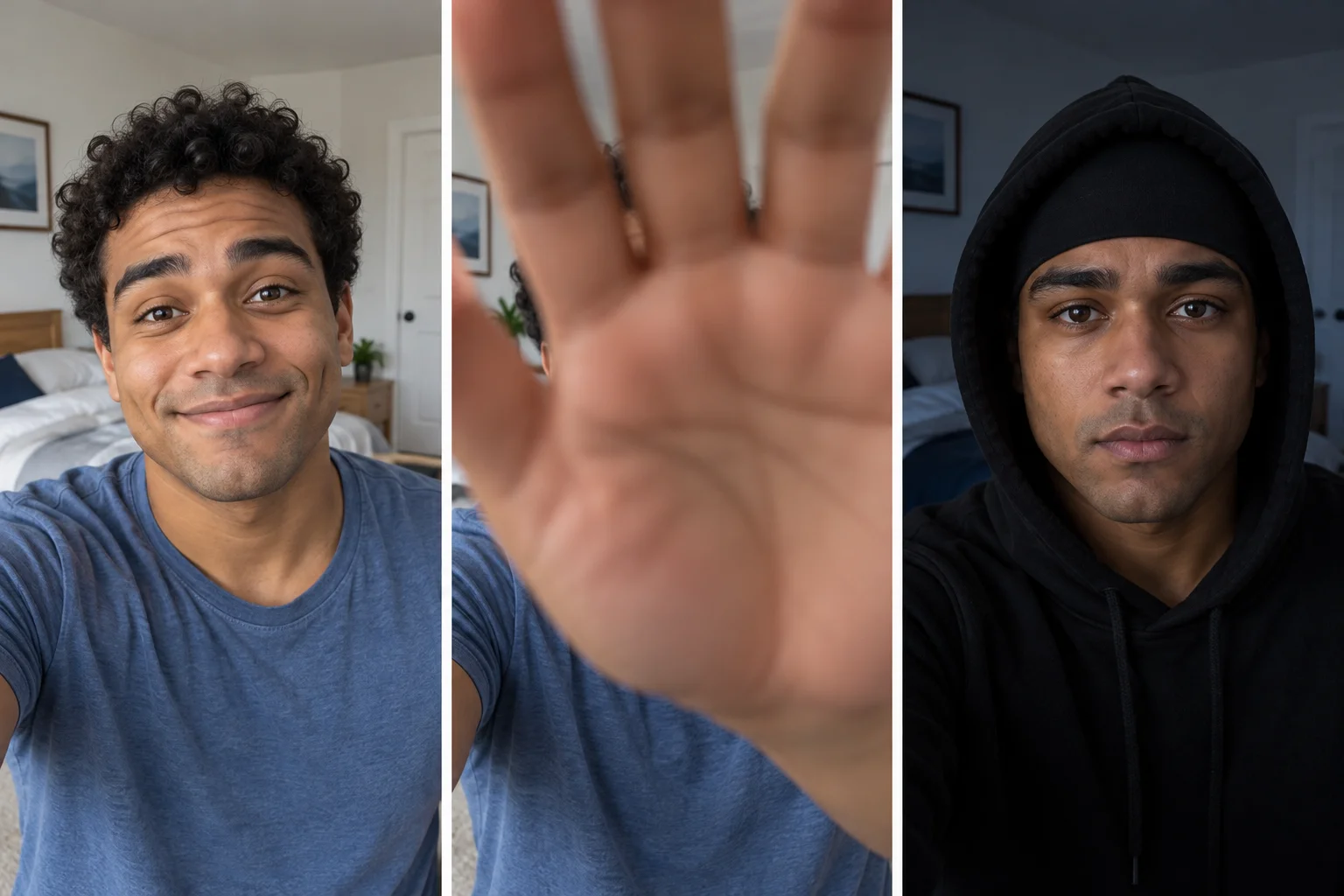
Animate this Skull Cap AI opening as a short, playful selfie. Preserve the person and bright room. Give them a small awkward grin and one gentle head tilt. Near the end, raise a relaxed open palm toward the lens until it obscures most of the view. Keep the camera fixed and the movement unhurried. No face stretching, cap appearing early, or extra fingers. Quiet room ambience without music or speech.
Replace Start frame with the dark portrait for the second take:
Animate this Skull Cap AI reveal with restrained confidence. Preserve the face, fitted cap, separate raised hood, and dim room. The person begins looking into the lens, makes a tiny chin lift, then holds the gaze with natural breathing and an occasional blink. Keep the camera and light steady. No smile, exaggerated head turn, changing facial structure, or moving fabric across the eyes. Quiet room ambience without music or speech.
Review both clips in video history and select compatible moments before downloading. The best Skull Cap AI pairing has similar head placement and a clear change of expression. You do not need to keep the entire generated duration if the strongest opening and reveal each last only a few seconds.
Make the cut carry the skull cap transformation
Place the bright shot before the dark shot in an editor. Cut when the raised palm covers the lens, then start the reveal on its cleanest frame. For Skull Cap AI, that brief obstruction gives the viewer a reason to accept the sudden wardrobe and lighting change without watching either happen gradually.
A plain hard cut also works if the hand movement is imperfect. Align the eyes and shoulders on either side of it, then trim around a clear musical accent. Skull Cap AI gains its punch from the contrast; a long dissolve can soften the change and briefly blend the two faces together.
Hold the dark look long enough for viewers to recognize it. Avoid ending immediately after the cut or adding a rapid zoom that hides the cap. A short Skull Cap AI payoff needs readable eyes, a stable hood shape, and a moment in which the exaggerated seriousness can become funny.
Keep Skull Cap AI dramatic without losing the face
The cap becomes a winter beanie. Specify thin fabric fitted closely to the scalp, with no pom-pom, brim, or folded band. Correct the still image before another motion attempt. In Skull Cap AI, the low-profile cap creates the recognizable silhouette; a tall knitted hat changes the visual joke.
The reveal is too dark to recognize. Add a small soft light across the eyes and cheek, keeping the background darker than the skin. The objective of Skull Cap AI is a mood shift, not a black screen. Check the result at ordinary phone brightness, where subtle details can disappear more easily.
The hood and cap become one shape. Give the hoodie a little space around the sides of the head and keep the cap edge visible above the eyebrows. Limit head rotation during Skull Cap AI animation. Two clearly established fabric layers are easier to follow than a tight, shifting mass around the face.
Choose the sound before polishing the reveal
The trend is associated with edits of Bryson Tiller's verse in DJ Khaled's “Wild Thoughts,” featuring Rihanna. Check the audio attached to the example you like, since uploads and excerpts vary. Skull Cap AI does not supply that recording; add suitable available music through your editor or posting app.
Listen for the accent where you want the attitude to change, and place the cut there. Avoid hardcoding a timestamp from someone else's edit. Your Skull Cap AI opening may be shorter, and a different sound excerpt can put the useful beat in a completely different position.
Lower unwanted generated ambience beneath the chosen audio and keep captions clear of the eyes and cap edge. A brief setup about suddenly feeling confident is enough. Before sharing Skull Cap AI, preview the complete sequence once with sound and once muted, and identify the invented performance as AI-generated.
Personalize the skull cap transformation
Make the opening specific to your own sense of humor: a puzzled expression, a deliberately awkward smile, or a casual desk selfie. Keep the second half controlled. Skull Cap AI feels more personal when the contrast comes from your performance choice instead of adding unrelated smoke, lightning, or a completely different location.
For a friend-group version, create individual before-and-after pairs and arrange the reveals in sequence. This preserves each person's joke without asking one generation to change several faces and outfits simultaneously. Skull Cap AI also works with understated styling; the cap, raised hood, and expression can carry the entire scene.
Skull Cap AI questions before another take
Does the cap have to be pulled on in the video?
No. A visible pull-on is one version of the skull cap trend AI format, but it adds hand, hair, and fabric interactions. You can establish the cap in the second portrait and let the cut reveal it. Skull Cap AI remains understandable when the before-and-after styling is clear.
Can I use a pet as the lead?
Yes. Prepare two images with the same recognizable animal and fur markings, keeping its eyes and ears readable around a small fitted cap. Use subtle head movement and avoid complicated paw actions. A pet Skull Cap AI version works best as a playful costume reveal with consistent anatomy.
Is there a dedicated template I need to select?
This guide uses the general image and video workspaces, followed by an edit. You do not need to find a special Skull Cap AI preset. Prepare both looks first, follow the settings above, and judge the result by identity consistency, the cap silhouette, and the timing of the cut.
For another confidence-driven entrance, explore the Fergie Baby walk guide. To start your own skull cap transformation, prepare the paired portraits and open the video workspace. Give Skull Cap AI one familiar face, two distinct moods, and a reveal that lands before the viewer expects it.
Keep exploring
 Video Guides
A model car rests on a train window ledge. The tunnel goes dark, its tail lights glow, and the same car emerges at full size. Build your own Toy Car to Real Car AI reveal.
 Video Guides
Invite two friendly ghosts onto your dance floor. Build a Halloween Dance AI video from a photo, or try a playful vampire performance on the porch.
 Video Guides
A tiny dance captain, a barn full of parrots, and one very confident routine. Make a Parrot Dance AI video with your own bird, cat, or dog.
 Video Guides
Turn a photo of you and a friend into an electro dance concept. Learn the Transmission 5 Dance AI look, plan the moves, and create a personal video.